
How to Install Kodi on a Smart TV in 2026
Last updated April 7, 2022

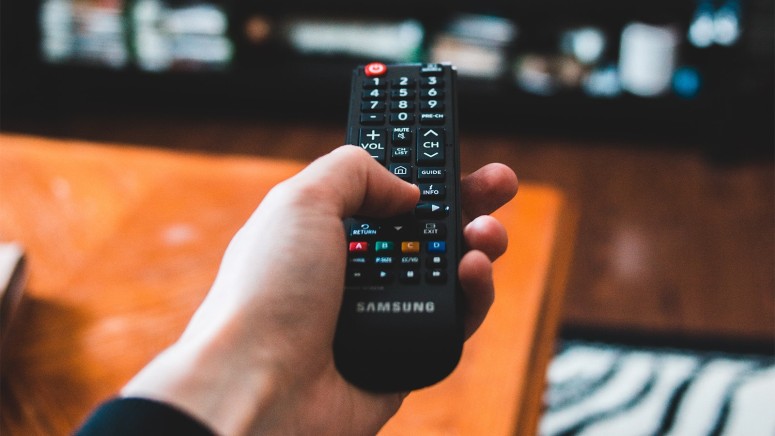
Kodi is available on a wide range of platforms, with smart TVs on the list as well. Still, there's a large variety of platforms for smart TVs, such as Android TV, Tizen, WebOS, and more. We can see how this confuses many individuals looking for a way to install Kodi on a smart TV. With that said, we're here to resolve any doubts you might have.
Before we continue, know that Kodi is available on a limited range of smart TVs. And yes, we're going to show you to install Kodi on those TVs. However, you can always count on at least a couple of workarounds, making this application compatible with just about any TV. We'll guide you all the way through, so let's jump right in.
How to Install Kodi on a Smart TVs
Finally, let's get started. Just below, you'll find a way to install Kodi on various smart TV brands/models, so you can take a look at a concrete example.
LG Smart TVs (WebOS)
Let’s say this clearly – there is no way to run Kodi on WebOS. For this to be possible, Kodi’s developers would need to build a separate Kodi version just for WebOS. There are many reasons why that won’t happen, as explained below.
- Building a version of Kodi for WebOS would require putting a lot of effort into a not-as-attractive option. It is true that this OS and Linux share the same basic code, but they are drastically different, which is what makes this process complex and time-consuming.
- Even though there are many LG TV models out there, not many people use WebOS on a daily basis. You can easily see how it’s better for Kodi’s developers to focus on more popular platforms.
Samsung Smart TVs (Tizen/Android TV)
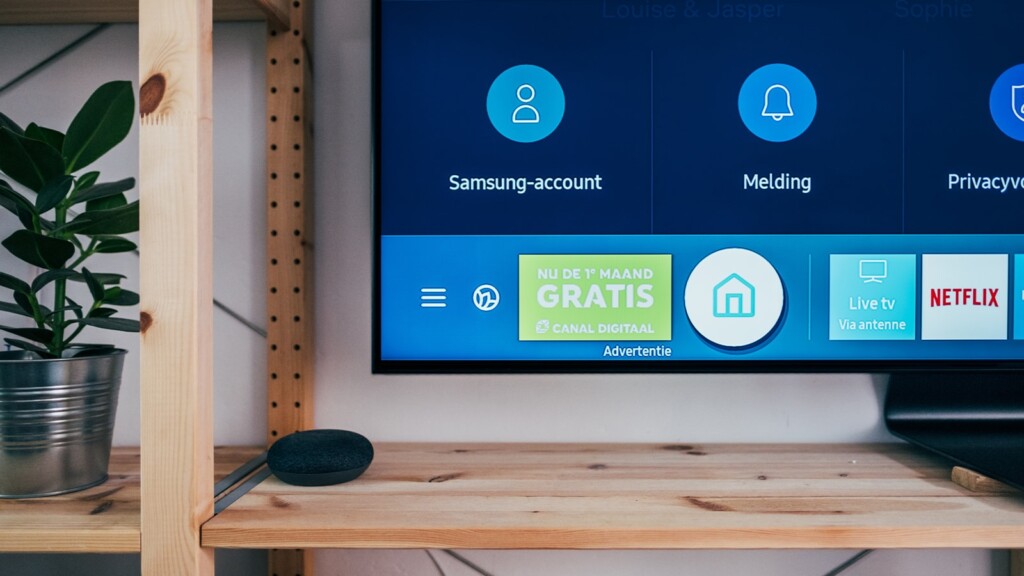
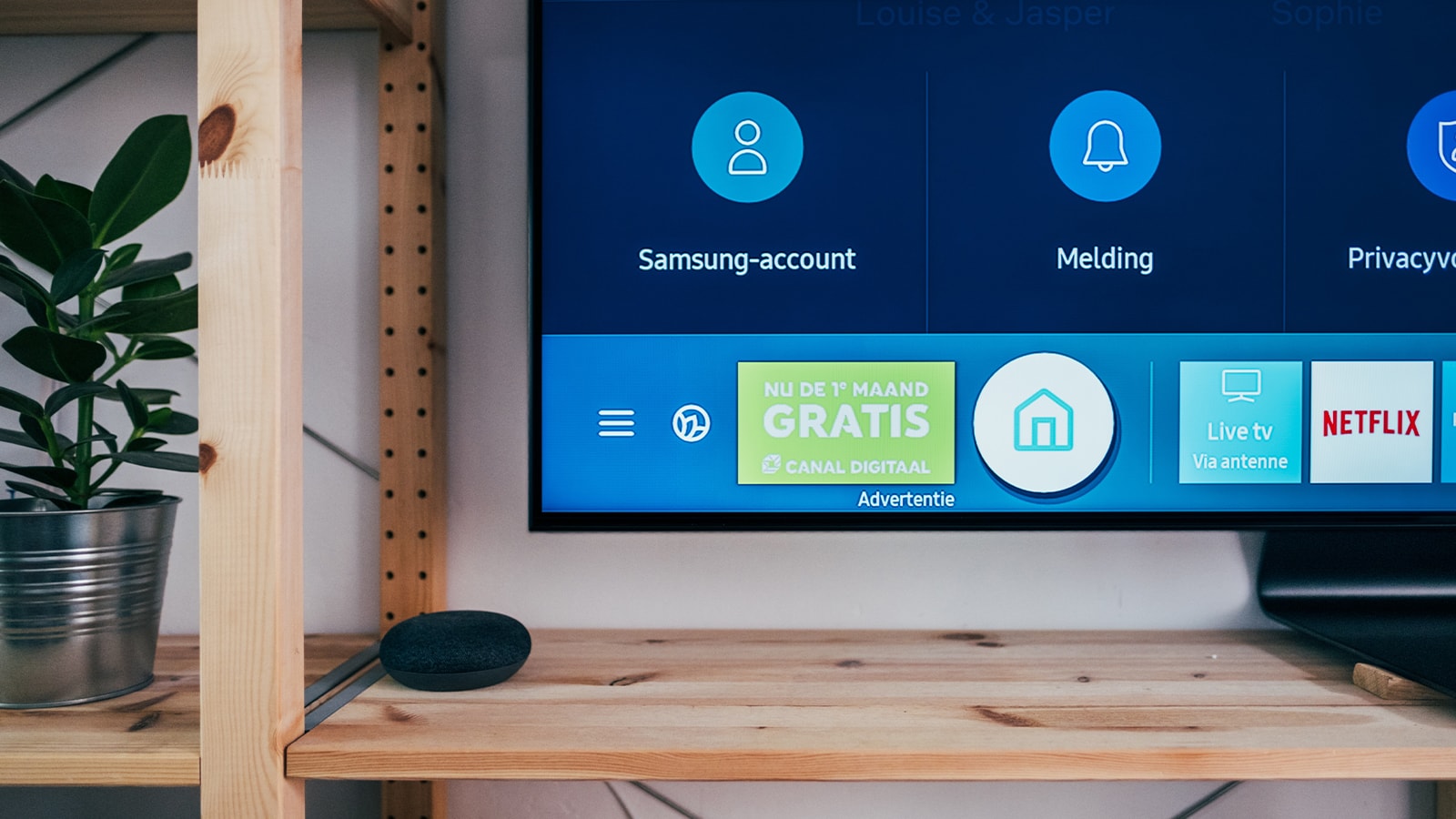
Smart TVs made by Samsung are powered by two operating systems. These are the company’s own Tizen as well as Google’s Android TV. Only one group of these TVs is capable of running Kodi natively, so let's take a closer look.
- If you’re using a Samsung TV powered by Tizen, you’re out of luck. There isn’t a native version of Kodi available, and it seems like Kodi’s developers aren’t interested in developing it. There was some hope back in 2015 when it was disclosed that a Kodi port for Tizen was in development, but that never led to any tangible results.
- If you have a Samsung TV powered by Android TV, you’re in luck! Kodi is available on the Play Store, from where it can be downloaded and installed. There is no need for tinkering. You simply need to launch the Play Store, search for Kodi, and hit the 'Install' button.
Sony Smart TVs (Android TV)
Sony has been one of the rare smart TV manufacturers that chose Android TV to be their primary platform. So, if you’re a Sony smart TV owner, there are different ways to use Kodi on your large-screen TV, as explained below.
- Google Play Store: The easiest method to install Kodi on smart TV models made by Sony is via Google’s application store. Launch this application (Play Store), look up Kodi using the search tool and download the application. You will be able to run it natively, without any restrictions.
- Screen Sharing: Android comes with its own screen sharing feature called Google Cast (or Chromecast). This includes downloading Kodi to your Android phone or tablet and sharing its screen with your TV. In other words, you can use Kodi on your large-screen TV without installing the application on your TV.
Panasonic Smart TVs (My Home Screen)
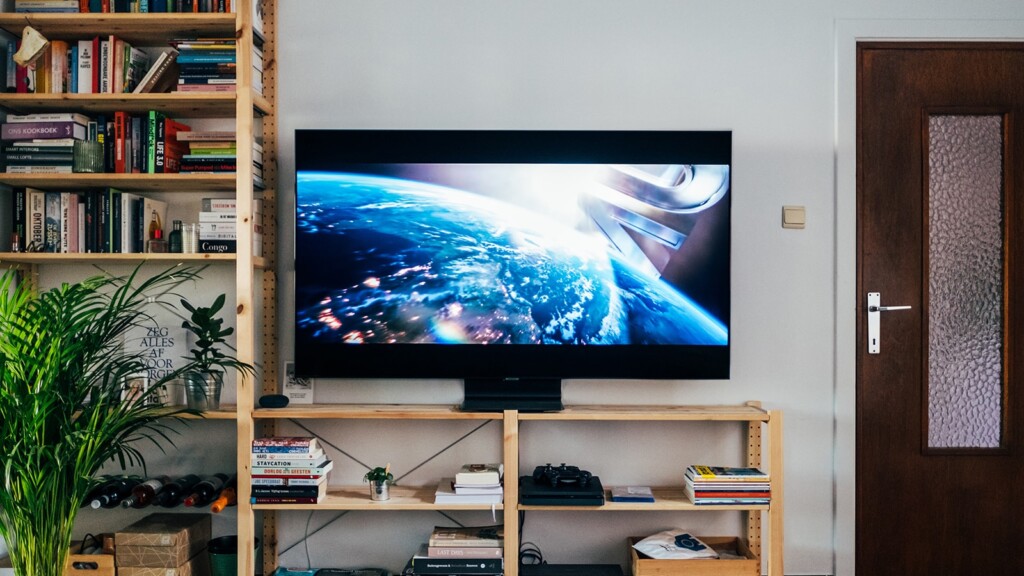
Panasonic has decided to build their TVs around a customized platform called My Home Screen. It is built upon Firefox TV but comes with a custom-tailored interface. This platform comes with many popular third-party applications like YouTube, Netflix, and Hulu. With that said, it's might be surprising to know that Kodi isn't available on Firefox TV - but that's the case.
Just like with the situation surrounding LG's WebOS or Samsung's Tizen, we really don't hold much hope to see Kodi available on Firefox TV and Panasonic smart TVs. In other words, be prepared for some workarounds if you really want to use Kodi on your large-screen TV.
How to Use Kodi on Smart TVs That Don't Have the Kodi App?
If you can’t run Kodi natively on a smart TV, you can use one of the available workarounds. These include installing Kodi on Raspberry Pi or using a dedicated media streaming device.
Option #1: Install Kodi on a Raspberry Pi
As said earlier, there is no way to run Kodi on LG’s WebOS or Samsung’s Tizen. However, that doesn’t mean that your smart TV cannot run Kodi. As you are about to see, you can install Kodi on Raspberry Pi and connect it to your smart TV.
This process requires you to assemble your own Raspberry Pi computer, which is a very fun and educational process. However, if you're not interested in building your own "machine," you can buy already assembled Raspberry Pi computers. And yes, they are very affordable.
We have previously published an in-depth guide on how to install Kodi on Raspberry Pi. So, make sure to use the provided link and learn everything you need to know about this process.
Option #2: Use a Media Streaming Device
Installing Kodi on a Raspberry Pi model can be an enjoyable process. However, not many of us like to tinker with hardware or software. Don’t worry, we have a solution for those of you looking for a simple way to install Kodi on a smart TV.
Kodi boxes are devices capable of running Kodi natively. That means they are standalone hardware units connected to smart TVs via HDMI connections. They are capable of connecting to the Internet, so you can use them for streaming aside from storing your local library of content.
With that said, we highly recommend you consider buying one of the following media streamers (since they're 100% compatible with any version of Kodi):
- If you like to combine high-resolution streaming with gaming, we’d like to recommend checking a device called Nvidia Shield TV 4K. It's powered by Android TV, giving you access to millions of apps and games. One of those applications is Kodi. All you need to do to install Kodi on Nvidia Shield TV is to open the Google Play Store and download the application.
- In case you’re not a gamer, we recommend checking out Amazon's Fire TV Stick 4K or Fire TV Stick (Lite). This is a range of devices capable of streaming movies on Kodi, aside from running their own apps natively. We have published a guide on how to install Kodi on a Firestick in an effort to help you with this process.
Want to Learn More about How to Use Kodi?
While we have your full attention, we'd like to provide additional articles that you'll certainly find helpful. So, to get the most out of Kodi, check out these resources:
- How to Enable Unknown Sources on Kodi
- Get the Best Kodi Addons
- Get the Best Kodi Skins
- How to Change Skins on Kodi
- How to Create a Library in Kodi
- How to Import Videos to Kodi
- How to Add Music to Kodi
- How to Add Photos to Kodi
- How to Set Up Kodi Profiles
- How to Add Subtitles to Kodi
We hope that we helped you clear your doubts. We’re sad to say that unless you have an Android smart TV, you have to use a workaround with Kodi. However, you’ll manage to install Kodi on a smart TV with a bit of effort. Lastly, thank you for reading!
Related


Get expert insights on threats, breaches, scams, and security trends — delivered every Monday.
Most Popular
Get expert insights on threats, breaches, scams, and security trends — delivered every Monday.
Most Popular