


When you purchase through links on our site, we may earn an affiliate commission. Here’s how it works.
How to Set Up NordVPN on LG TV
If you’re trying to figure out how to download and install NordVPN (which by the way is one of the best VPNs) on an LG Smart TV, you’ll quickly realize something frustrating - LG webOS doesn’t support VPN apps at all. That means you can’t install NordVPN the usual way, even though many people expect it to work like it does on phones or computers.
But here’s the good news: you can still use NordVPN on your LG TV. You just have to set it up using alternative methods like SmartDNS, a VPN-enabled router, or connection sharing. Now SmartDNS works differently from VPNs or proxies, and if you want a clear comparison of how these three options differ, check out this VPN vs Proxy vs Smart DNS guide.
That said, we've gone through each of these setups, and in this guide, we'll walk you through them in the simplest way possible. Whether your goal is to unlock more streaming libraries, protect your entire home network, or make LG webOS work seamlessly with NordVPN, you’ll find everything you need right here.
By the time you’re done, you’ll know exactly which method fits your situation best and how to get NordVPN running smoothly on your LG Smart TV without confusion or trial-and-error.
How to Set Up NordVPN on LG Smart TV
You can’t install NordVPN directly on an LG Smart TV, but you can still use it by setting up NordVPN through alternative methods. Since LG TVs don’t support native VPN apps, the only way to unblock geo-restricted services like Hulu, Disney+, or Max is by using NordVPN’s SmartDNS feature, configuring NordVPN on a compatible router, or sharing the VPN connection from a Windows PC.
Each method has its pros and cons. For instance, if you share your VPN via Windows, you'll need to keep your computer powered on for the TV to stay connected. SmartDNS is easy to set up and unblocks streaming platforms, but it doesn’t provide data encryption. Installing NordVPN on a router is more complex but offers full VPN functionality on your Smart TV, and it’s a one-time setup. In the sections ahead, we’ll walk you through each method with step-by-step instructions.
Method #1: Configure with SmartDNS
You can set up and use NordVPN on an LG TV by adding its DNS server's IP address to your TV's DNS settings. Here's a step-by-step guide:
1. Sign up for NordVPN using a Web browser on your computer.
2. Make sure your computer and your LG TV are connected to the same Wi-Fi network.
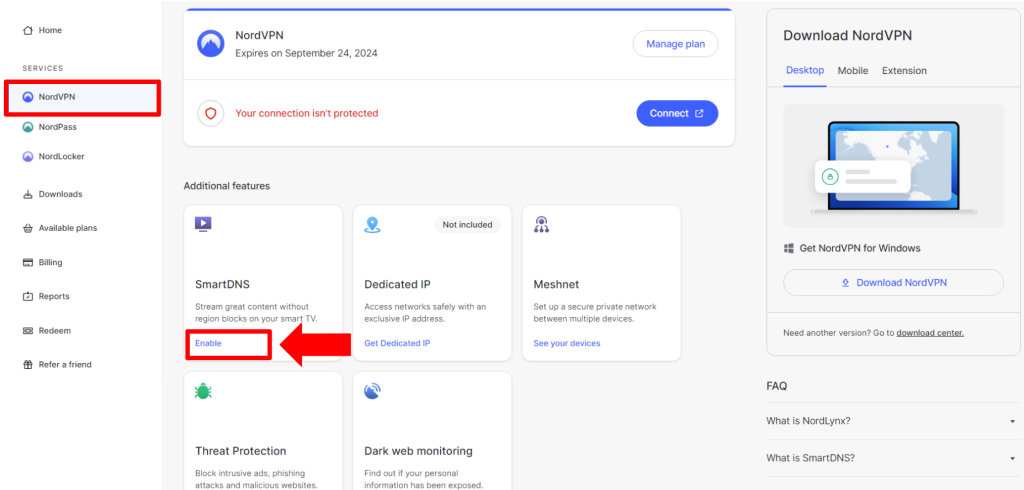
3. Navigate to Nord's account dashboard and click on 'NordVPN' > 'SmartDNS' > 'Enable.'

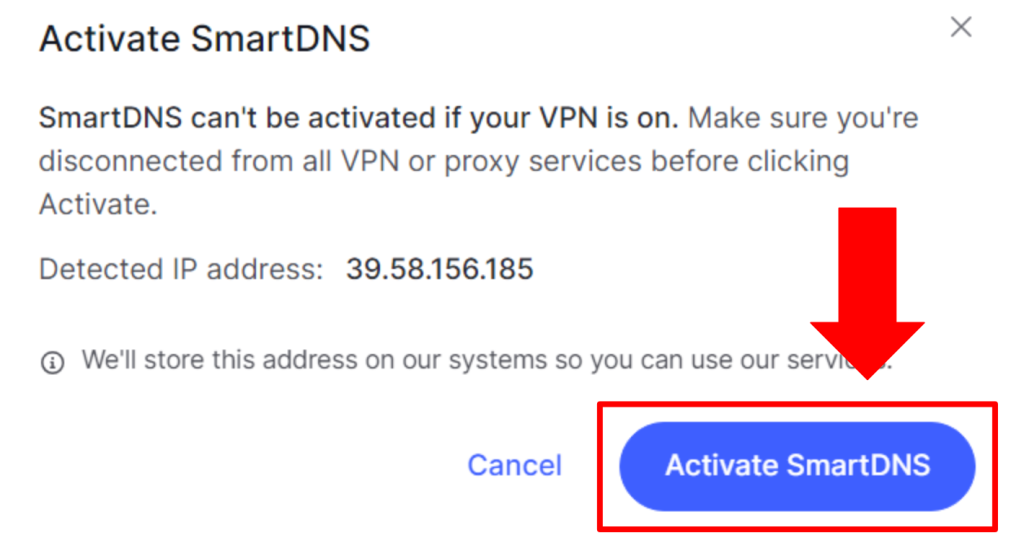
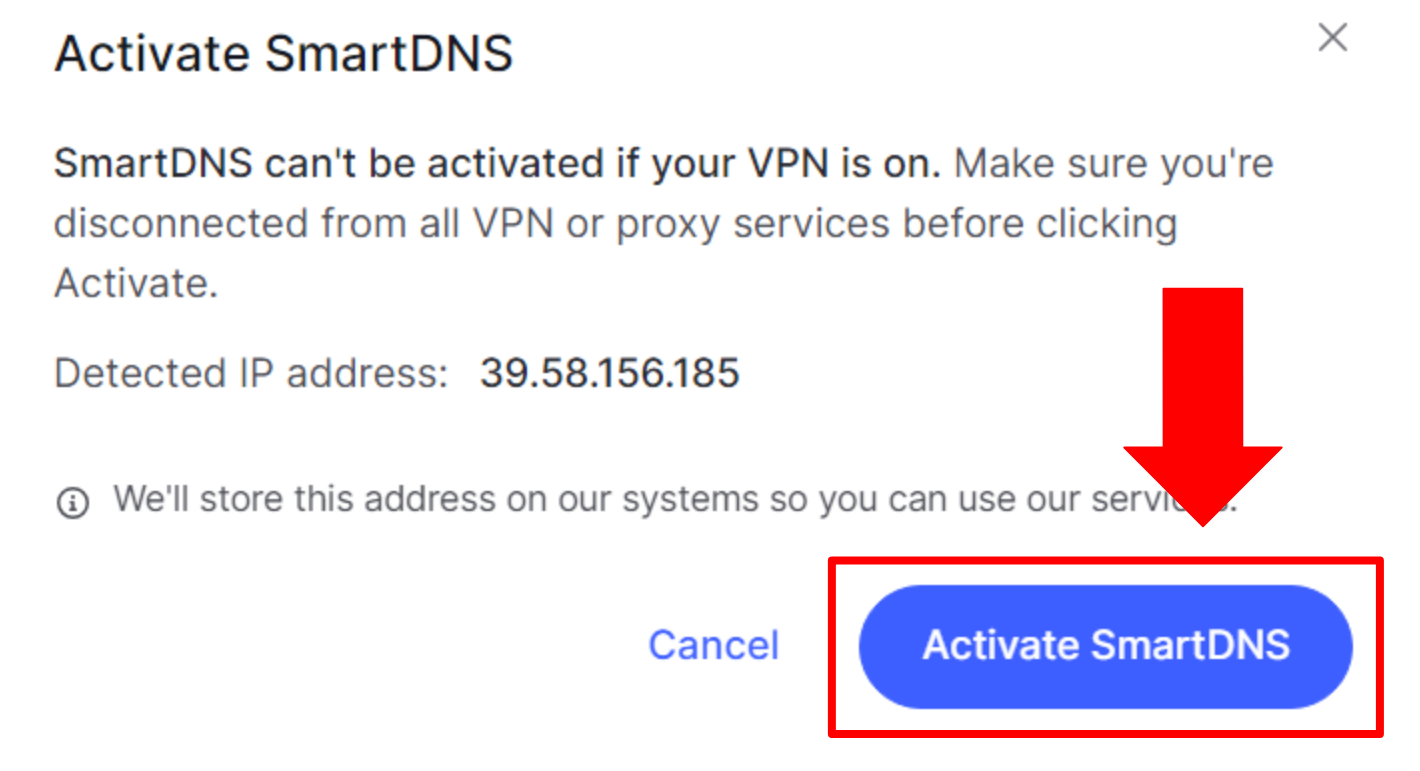
4. Click 'Activate SmartDNS' on the prompt to confirm your action. You'll get an email telling you that the feature is now active. After that, you can see your primary and secondary DNS addresses.
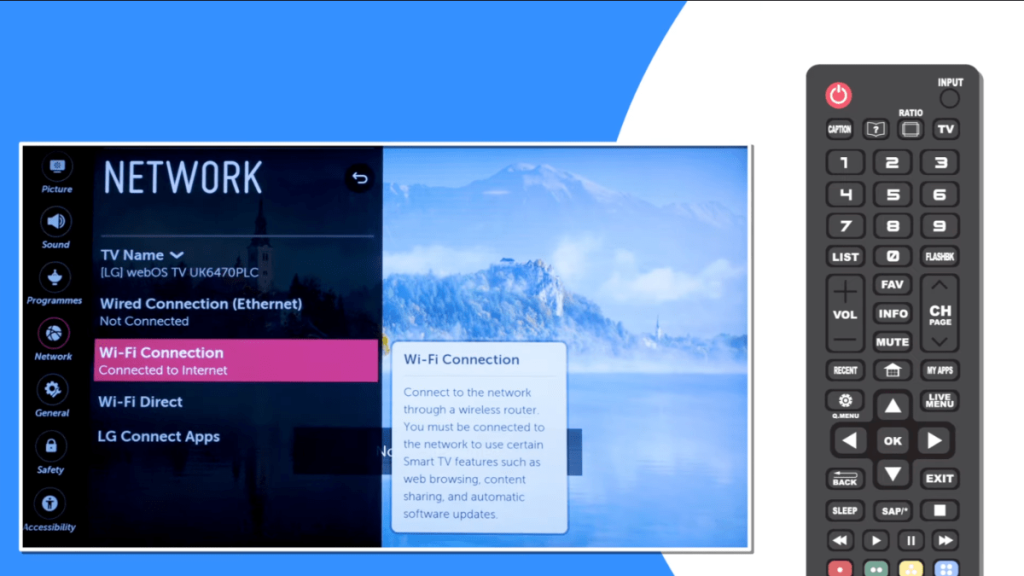
5. On your LG TV, go to 'Settings' > 'Network.'
6. Press the 'Wi-Fi Connection' button.
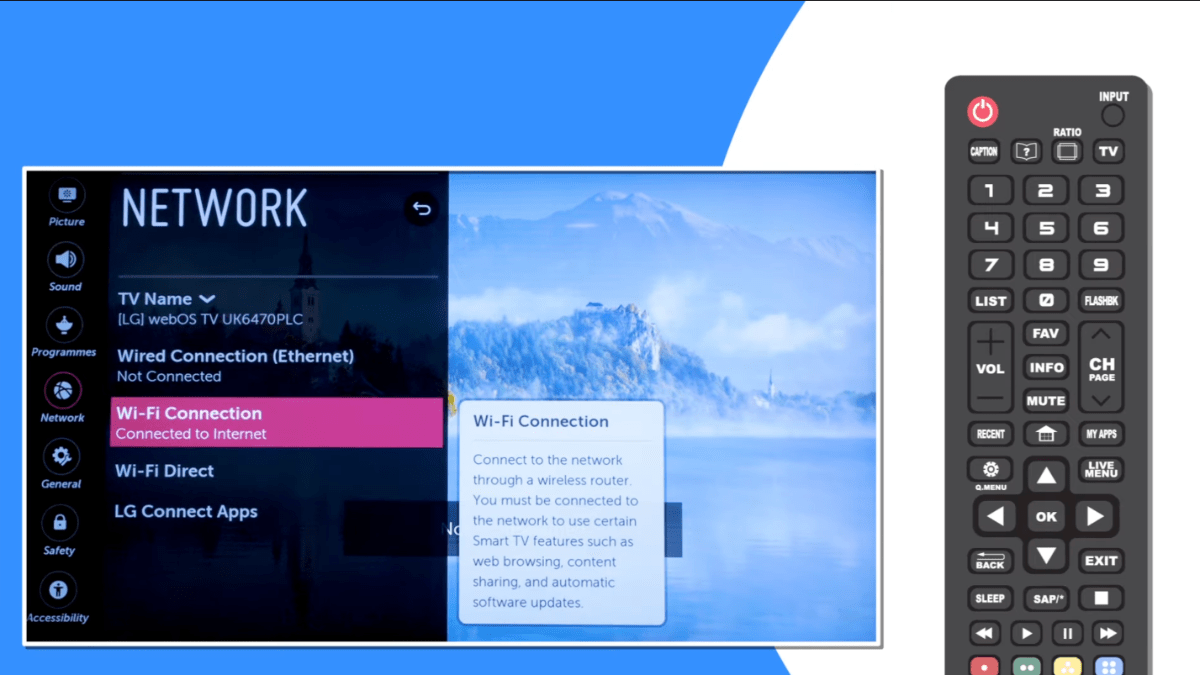
7. Now, choose 'Advanced Wi-Fi Settings.'
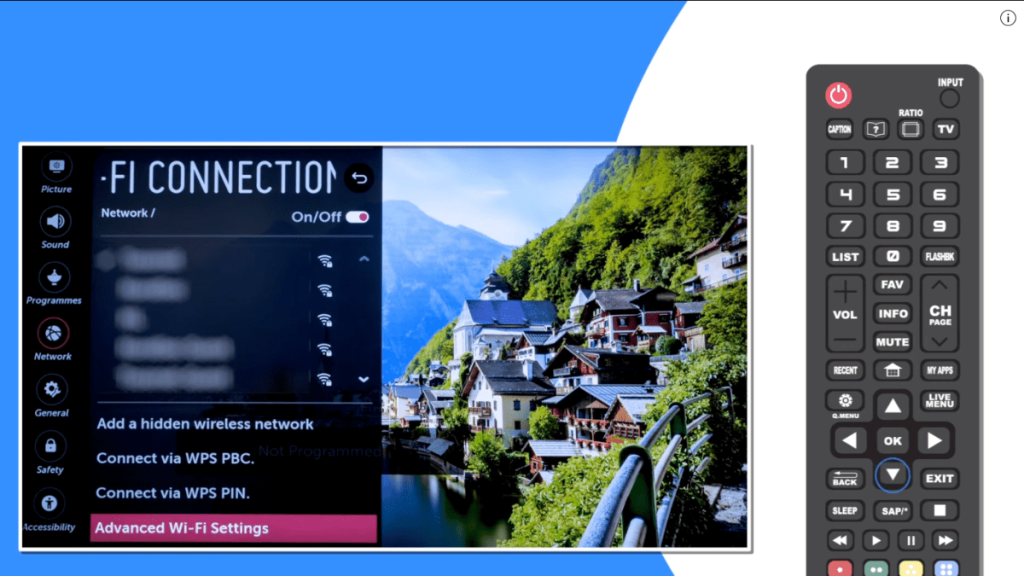
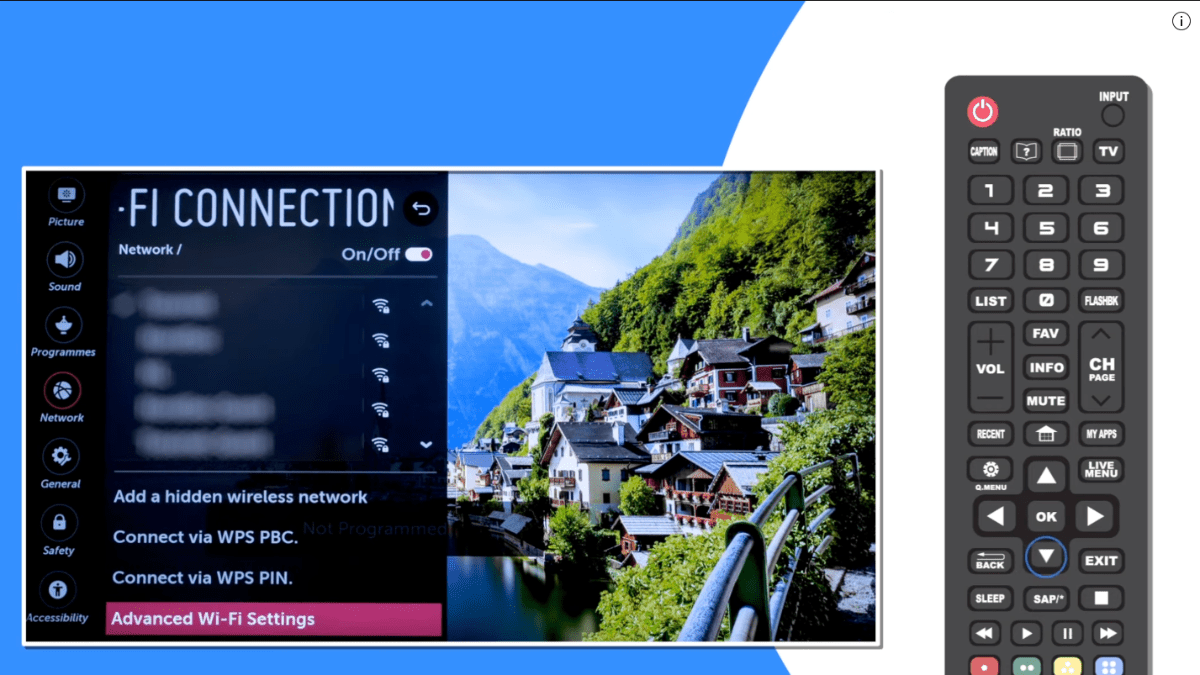
8. Make sure that 'IPv6' is set to 'Off.'
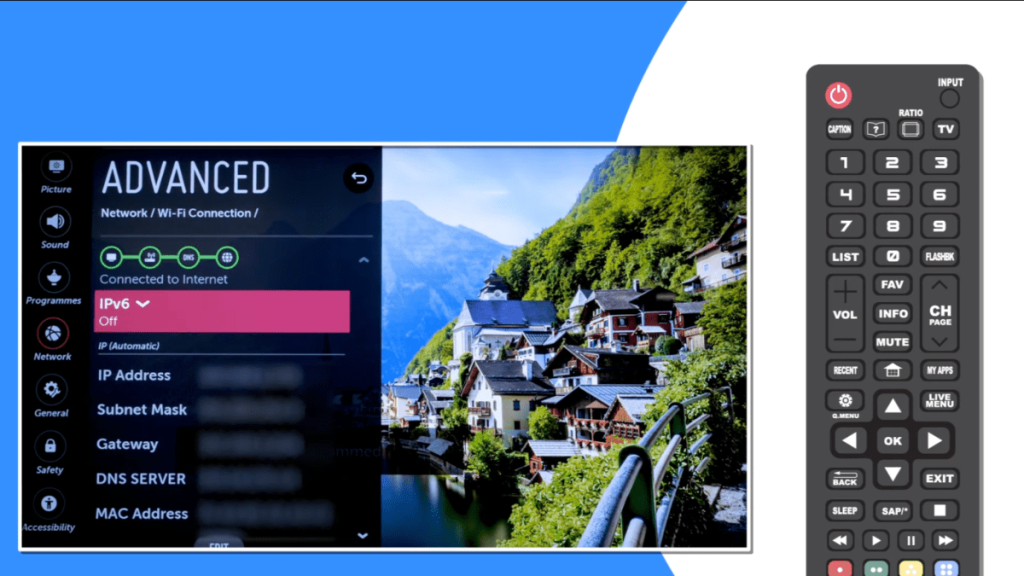
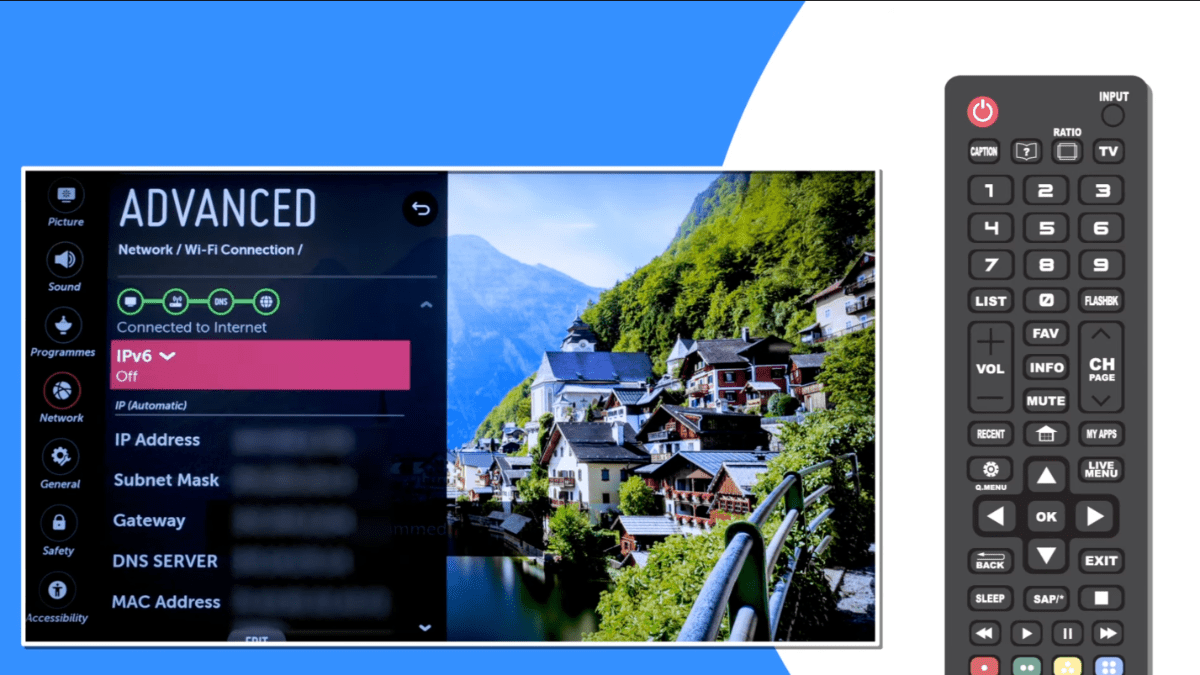
9. Scroll down to the 'IP (Automatic)' section and enter '103.86.96.103' in the 'DNS Server' field.
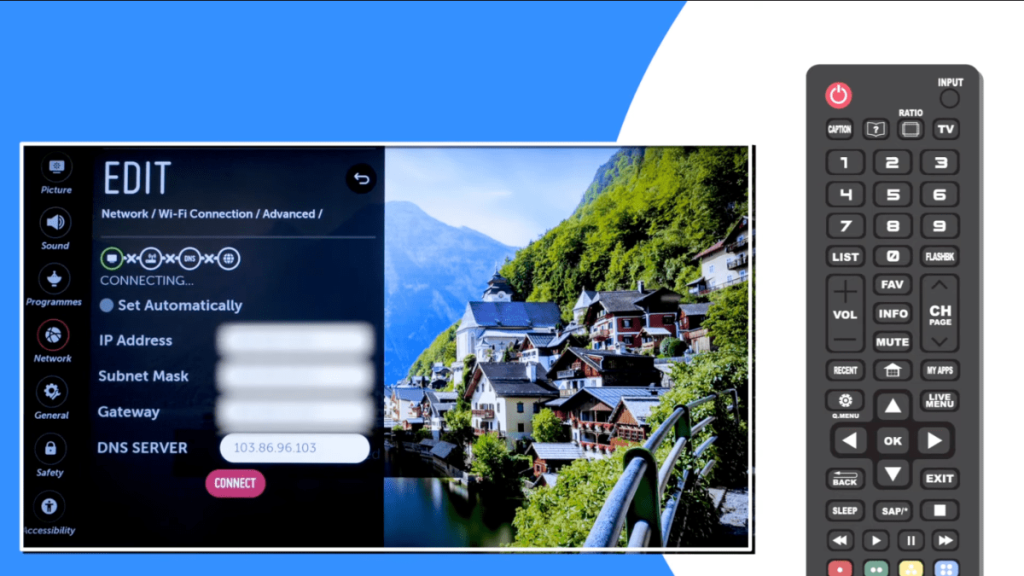
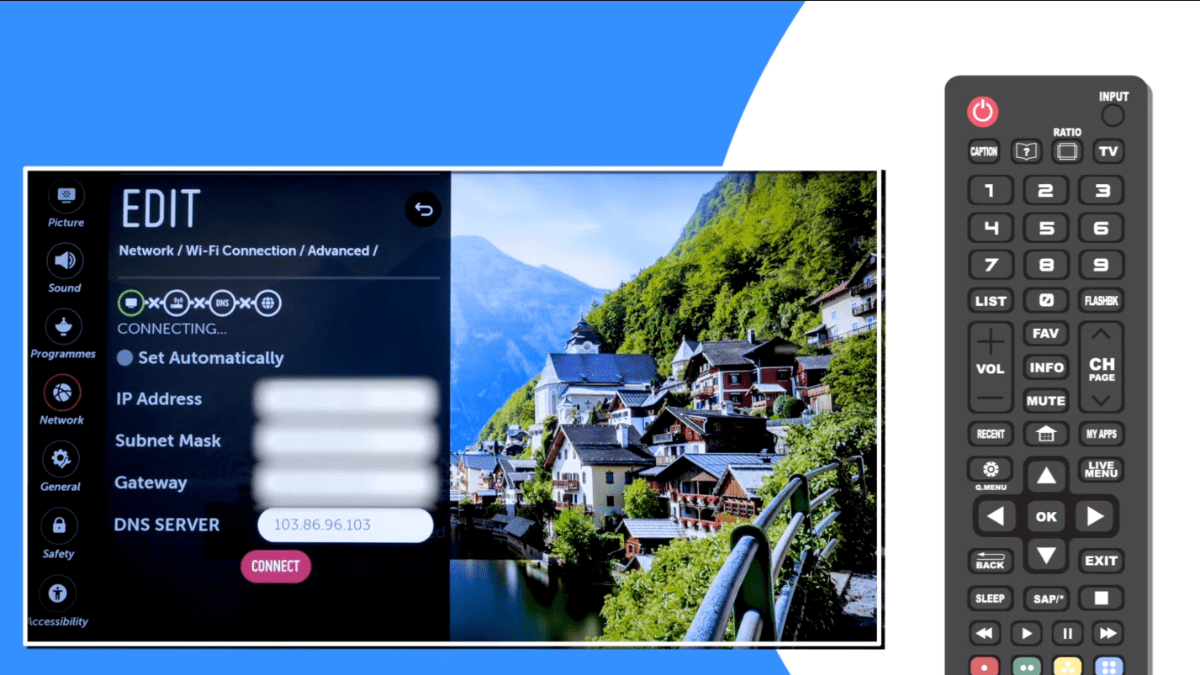
10. Press the 'Connect' button and restart your TV. That's it!
Method #2: Set Up with a Router
You can use NordVPN on LG TVs through router method by uploading your preferred server's config file to your router's settings. For specific instructions based on your router's model and firmware, check out our full-fledged guide on how to set up NordVPN on routers. Here's the general process:
1. Subscribe to NordVPN using your preferred Web browser.
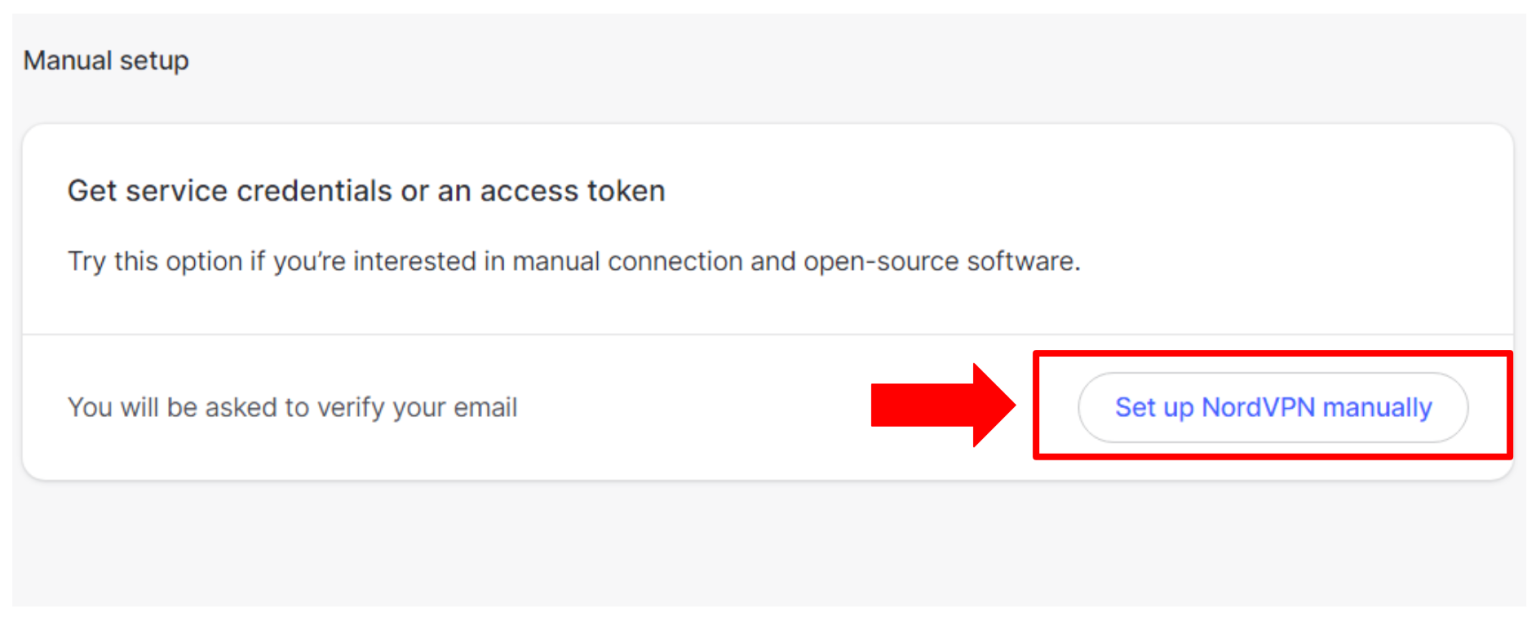
2. Open your Nord Account dashboard and click 'Set Up NordVPN Manually.’
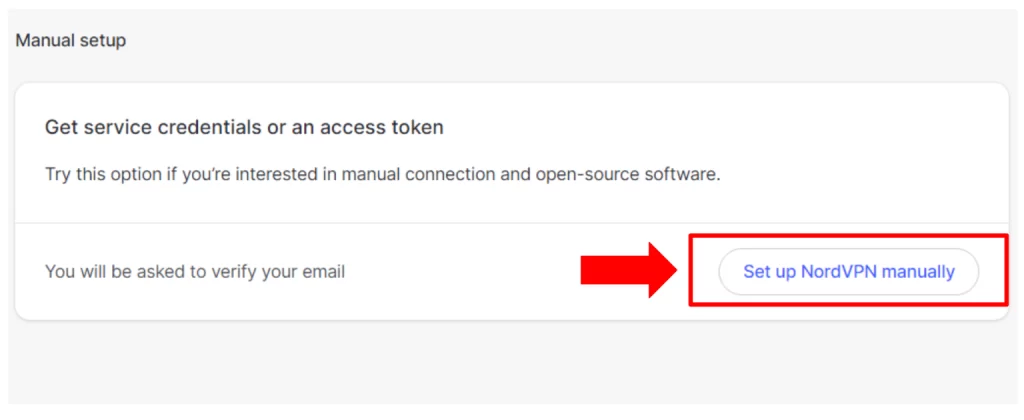
3. Enter the verification code received to your email associated with NordVPN.
4. Copy your credentials by clicking the 'copy' buttons alongside 'Username' and 'Password.'
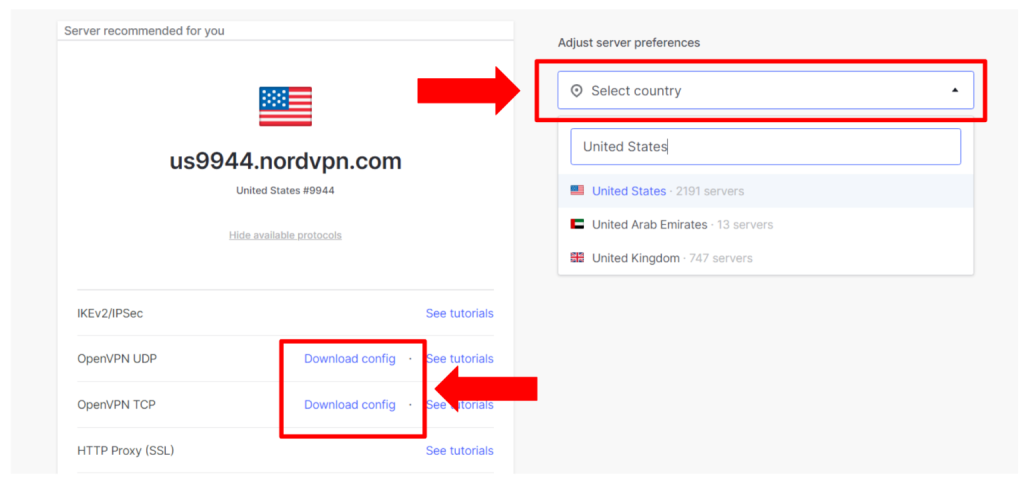
5. Pick your preferred server from NordVPN’s server tool.
6. Choose ‘Download config’ to download the server's config file for OpenVPN (TCP or UDP).

7. Log into your router's control panel using its administrative credentials.
8. Go to its OpenVPN settings and input your service credentials.
9. Upload the OpenVPN server's config file.
10. Now, NordVPN will work on your LG TV (make sure your TV is connected to the router).
Method #3: Share From Your PC
You can use your PC as a virtual router to share your VPN connection with your LG TV. This lets your TV enjoy all the benefits of your VPN without installing it directly. Here’s how to do it:
1. Subscribe to NordVPN from a Windows PC.
2. Install NordVPN to your PC after downloading its native client.
3. Launch and connect NordVPN to your preferred server.
4. Navigate to your Windows 'Settings' > 'Network & Internet' and turn on 'Mobile Hotspot.'
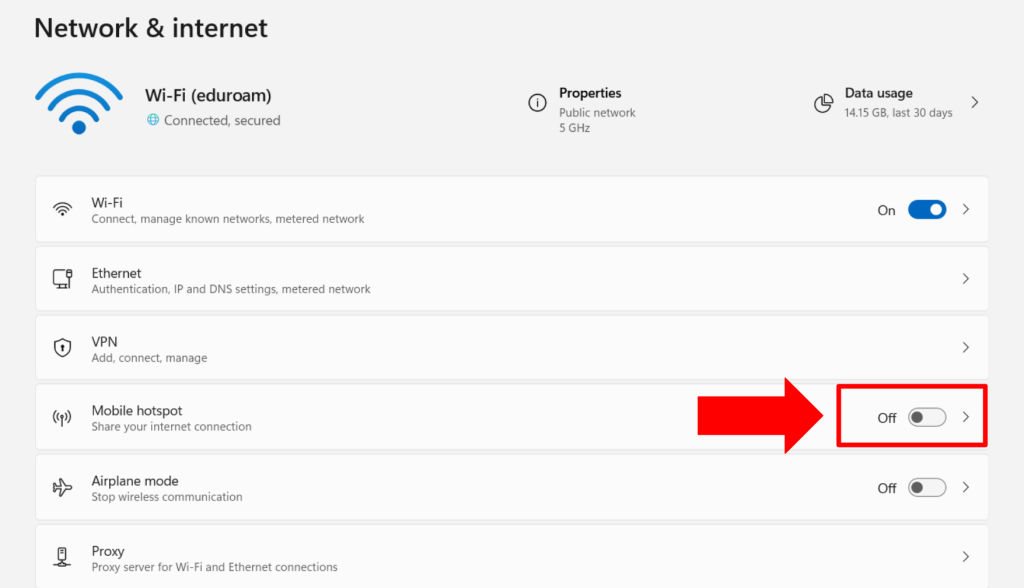

5. Click on 'Advanced Network Settings.'
6. Tap on NordVPN's adapter and click on the 'Edit.'
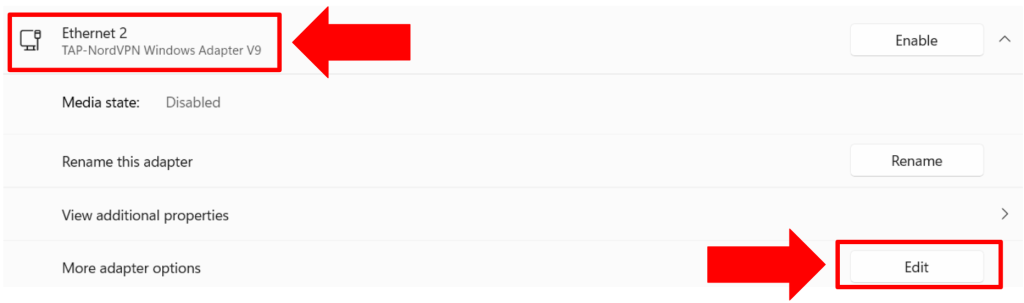

7. Open the 'Sharing' tab.
8. Check this box: 'Allow other network users to connect through this computer's internet connection.'
9. Pick the newly created hotspot from the dropdown menu and click 'OK.'
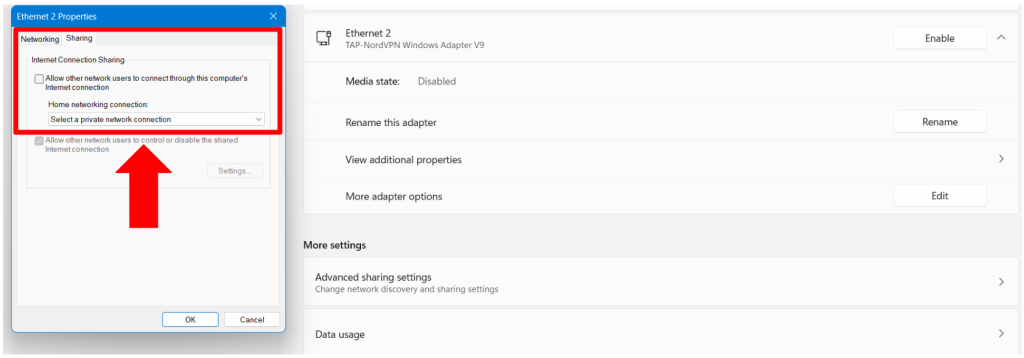

10. Open your LG TV settings and connect to the VPN-enabled Wi-Fi hotspot.
Method #4: Using a Streaming Device
The easiest way to use a VPN on an LG Smart TV that doesn’t support VPN apps is to use a streaming device. Devices like Fire TV Stick, Chromecast, and Apple TV let you run VPN apps directly, so you can stream securely without configuring the TV itself. This makes it one of the simplest and most effective solutions.
- Connect the streaming device to your LG TV using the HDMI port and complete its initial setup.
- Download and install a VPN app directly on the device (Fire TV Stick and Chromecast with Google TV support native VPN apps).
- Sign in to your VPN account and connect to a server based on the content you want to access.
- Launch your streaming apps; all data from the streaming device will now be encrypted and routed through the VPN.
This approach is ideal if you want flexibility, fast speeds, and an easy way to switch VPN locations without changing your TV or network settings.
Which Method Is the Best for Using NordVPN on an LG TV?
The best method for using NordVPN on an LG Smart TV is the router setup. It’s the most reliable option because it secures all devices connected to your network, avoids compatibility issues, and ensures a stable VPN connection without depending on app installation limitations.
- It gives you full VPN protection (unlike SmartDNS): SmartDNS is great for unblocking content, but it doesn’t encrypt anything. The router method gives your LG TV and every other device complete VPN security, something LG webOS and NordVPN users often look for specifically.
- It's a “set it and forget it” solution: Once you install NordVPN on your router, that’s it. There's no need to reconnect, reconfigure, or manually change settings on your LG Smart TV. Everything just works in the background.
- Works on all LG models and webOS versions: Because the VPN runs through your router, it doesn’t matter whether you have the newest LG webOS TV or an older model. The router handles the heavy lifting.
- Covers many devices at the same time: You’re not just protecting the LG TV, rather, your phones, laptops, tablets, consoles, and smart home devices all get the same encrypted VPN connection automatically.
- Consistent streaming performance: Router-level VPN setups tend to provide smoother, more stable streaming, especially when you pick NordVPN servers optimized for speed.
If your main goal is quick access to streaming apps, SmartDNS is perfectly fine. But if you want the best overall experience, the router method is hands down the winner. It’s more secure, more reliable, and the easiest long-term solution.
When Should You Use Each Method for Setting NordVPN on an LG TV?
We know that now you will feel overwhelmed after reading all this information. Don’t worry, here’s the simplest way to figure out what works best for you without overthinking it.
1. SmartDNS
Use SmartDNS when:
- You mainly want access to more Netflix libraries, Hulu, BBC iPlayer, etc.
- You don’t care about encryption or extra security.
- You want the quickest setup possible, and no tech skills are needed.
- Your focus is streaming, nothing more.
SmartDNS is super easy and doesn't slow anything down. If your goal is simply watching blocked content on your LG TV, this is the lightweight, no-stress option.
2. Router
Choose the router setup when:
- You want full, real VPN encryption, unlike SmartDNS.
- You want NordVPN to cover your entire home (LG TV + phones + laptops + consoles).
- You want a one-time setup that you never have to touch again.
- You want the most stable and reliable connection for LG webOS NordVPN streaming.
- You don’t mind spending a few minutes setting it up.
The router method is basically the “set it and forget it” approach. It protects every device automatically and gives you the most consistent speeds, security, and reliability.
3. PC Connection Sharing
Pick connection sharing when:
- You’re staying in a hotel, dorm, Airbnb, or anywhere you can’t access the router.
- You need a quick solution today without any permanent changes.
- You want encryption but don’t want to deal with router settings.
- You don't mind keeping your PC turned on while the TV is using the VPN.
It’s basically a shortcut. You get full VPN protection without touching the router. It’s not ideal for long-term use, but it’s perfect when you just need NordVPN on your LG TV for a little while.
4. Streaming Device
Use a streaming device when:
- You want an easy, flexible solution without touching your router.
- You have devices like a Fire TV Stick, Chromecast with Google TV, or Apple TV.
- You want full VPN encryption and location switching directly on the device.
This method is ideal if you want strong security, fast streaming, and convenience. Now, not all devices allow VPN app installation, so this method won’t work on older or limited models.
What DNS Server Should Be Use for LG TV?
For your LG TV, you should use a reliable public DNS server like Google DNS (8.8.8.8 / 8.8.4.4) or Cloudflare DNS (1.1.1.1). These DNS servers are widely trusted, easy to set up, and can improve streaming speed and reliability. If your goal is faster app loading and fewer buffering issues on platforms like Netflix or YouTube, these options are your best choice.
However, if you're trying to unblock geo-restricted content, then public DNS servers won’t help. In that case, you’ll want to use the SmartDNS server provided by NordVPN. This is the DNS address Nord gives you in your account dashboard, and it’s designed specifically for bypassing streaming restrictions on LG TVs. It won’t encrypt your traffic (since SmartDNS isn’t a VPN), but it will allow you to access content that would otherwise be unavailable in your region.
For general performance, go with Google or Cloudflare DNS. But if you want to unblock streaming apps on your LG TV, use the NordVPN SmartDNS server provided in your Nord account, as it’s the only DNS that will actually help with geo-restricted content.
What If My LG TV Doesn’t Connect After SmartDNS Setup?
If your LG TV isn’t connecting after setting up SmartDNS, the problem is almost always a network or DNS configuration issue. By checking your IPv6 settings, confirming your IP registration, and ensuring proper activation, you can usually fix it within minutes.
1. Make sure IPv6 is turned off
SmartDNS works through IPv4, so if IPv6 is enabled, your LG TV may ignore the DNS you entered. Go back to your Advanced Wi-Fi Settings and double-check that IPv6 is disabled.
2. Confirm your IP is registered in your Nord Account
SmartDNS only works if NordVPN recognizes your current IP address. If your IP recently changed (which happens often), just revisit the SmartDNS page inside your Nord Account and reactivate it.
3. Restart your LG TV and router
Sometimes the DNS setting won’t apply until both the TV and your router refresh their connection. A simple restart usually solves more issues than you expect.
4. Re-enter the NordVPN DNS address
If you accidentally mistyped the DNS, your TV won’t route traffic correctly. Re-enter the DNS field carefully to make sure it matches NordVPN’s SmartDNS address.
5. Check that your TV and PC (used for activation) are on the same Wi-Fi
SmartDNS requires the activation device and the LG smart TV to be on the same network. If one was on mobile data or a different Wi-Fi band, activation may not complete properly.
Most SmartDNS issues come down to an IP not being registered or IPv6 being left on. Give these quick fixes a try, and in most cases your LG TV will connect properly within a minute or two. If it still doesn’t work, you can always fall back to the router method for a more stable VPN experience.
Final Thoughts
At the end of the day, LG TVs don’t support VPN apps natively but that doesn’t mean you can’t enjoy all the benefits of NordVPN. SmartDNS is perfect if you just want quick access to streaming content, but if you’re looking for security, privacy, and the most stable long-term setup, the router method is the clear winner. It works on every LG Smart TV model, gives you full encryption, and keeps your entire home network protected without any extra steps.
No matter which method you choose, you now have everything you need to confidently connect your LG webOS TV to NordVPN and stream the content you want, from any region, without interruptions. And if you ever run into issues, the troubleshooting tips above will help you get back on track quickly. By setting up NordVPN the right way, your LG Smart TV becomes more powerful, more secure, and far more open to the content you love.
That's all! Now you know how to set up NordVPN on an LG TV. If you have further queries, drop us a comment through the button below. Thanks for reading!
Related