When you purchase through links on our site, we may earn an affiliate commission. Here’s how it works.
Best Free VPNs for Android in 2026


Our experts have reviewed 53 VPN providers, which were put through extensive rounds of testing. To learn more about that process, here’s how we review VPNs, where we explain our criteria and our policy of being fully transparent.
- For Android, Proton VPN is the easiest pick if you just want something simple that stays secure without putting a cap on how much you can use it, so you can keep it running without thinking too much about limits. Windscribe makes more sense if you like having extra controls in your hands, especially when it comes to choosing servers and using additional privacy tools. PrivadoVPN works better for people who care more about manually picking locations and getting fairly steady performance for streaming and day-to-day browsing.
Getting a free VPN on Android isn’t as simple as it first looks. A lot of apps seem fine when you install them, but then you start dealing with constant permission pop-ups, background limits Android puts on apps, battery drain, and features that quietly get locked unless you upgrade. Free plans also tend to come with data caps, fewer server options, and performance that can swing a lot depending on whether you’re on Wi-Fi or mobile data.
There’s also a trust side to it that people often overlook. Some VPN apps are tied to companies based in regions like China or Russia, so it’s worth being a bit more careful about what you actually install and rely on. For this guide, each VPN was looked at in real Android use - not just speed, but also how it handles permissions, how stable it stays running in the background, how usable the free version feels, and whether it actually holds up for everyday browsing and streaming.
Quick Comparison Table
Note: Even though some competitors like Windscribe may score higher in our testing, Proton VPN remains our top choice on Android. The key reason is simple - there are no data limits. You can browse, stream, and stay connected without worrying about hitting a cap, which makes it far more practical for everyday use.
How We Tested Free VPNs for Android
Testing was done entirely on an Android phone (Samsung F17 5G) to mirror how these free VPNs behave in everyday mobile use. Rather than judging them by their feature lists, each one was used in real situations - browsing, streaming, and switching servers to see how they actually perform. The evaluation focused on practical factors like speed, stability, privacy, reliability, ease of use, and how much the free plan limits the overall experience.
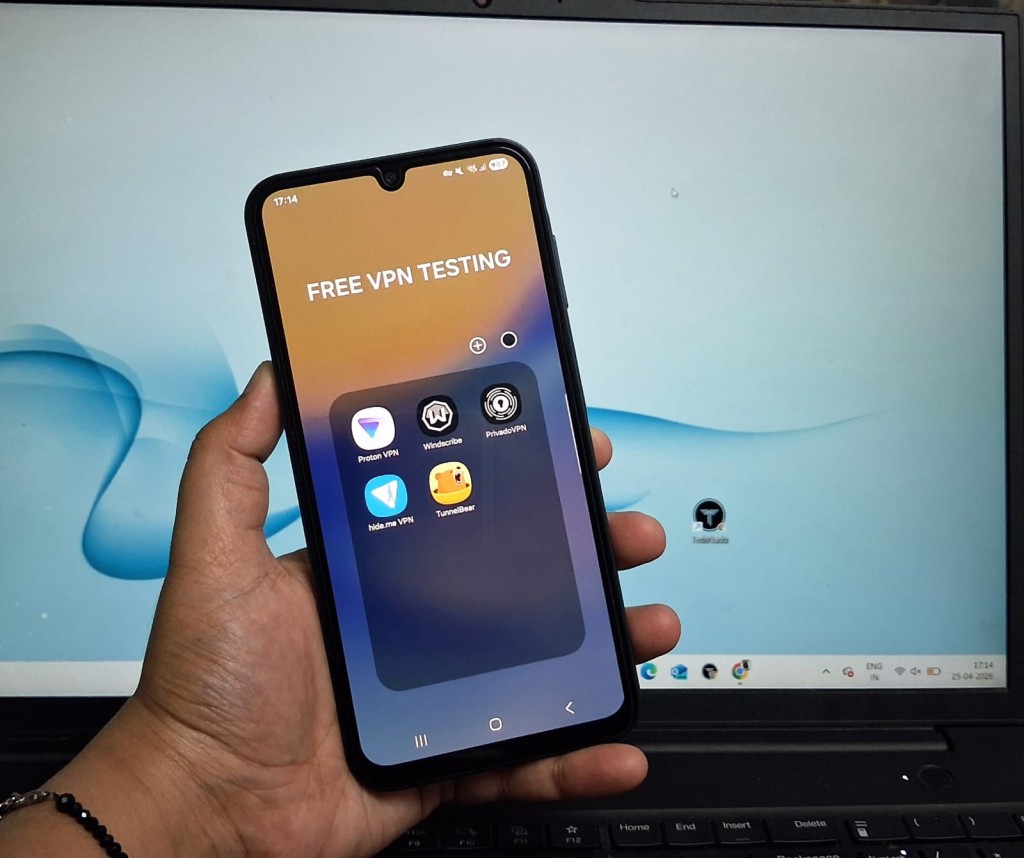
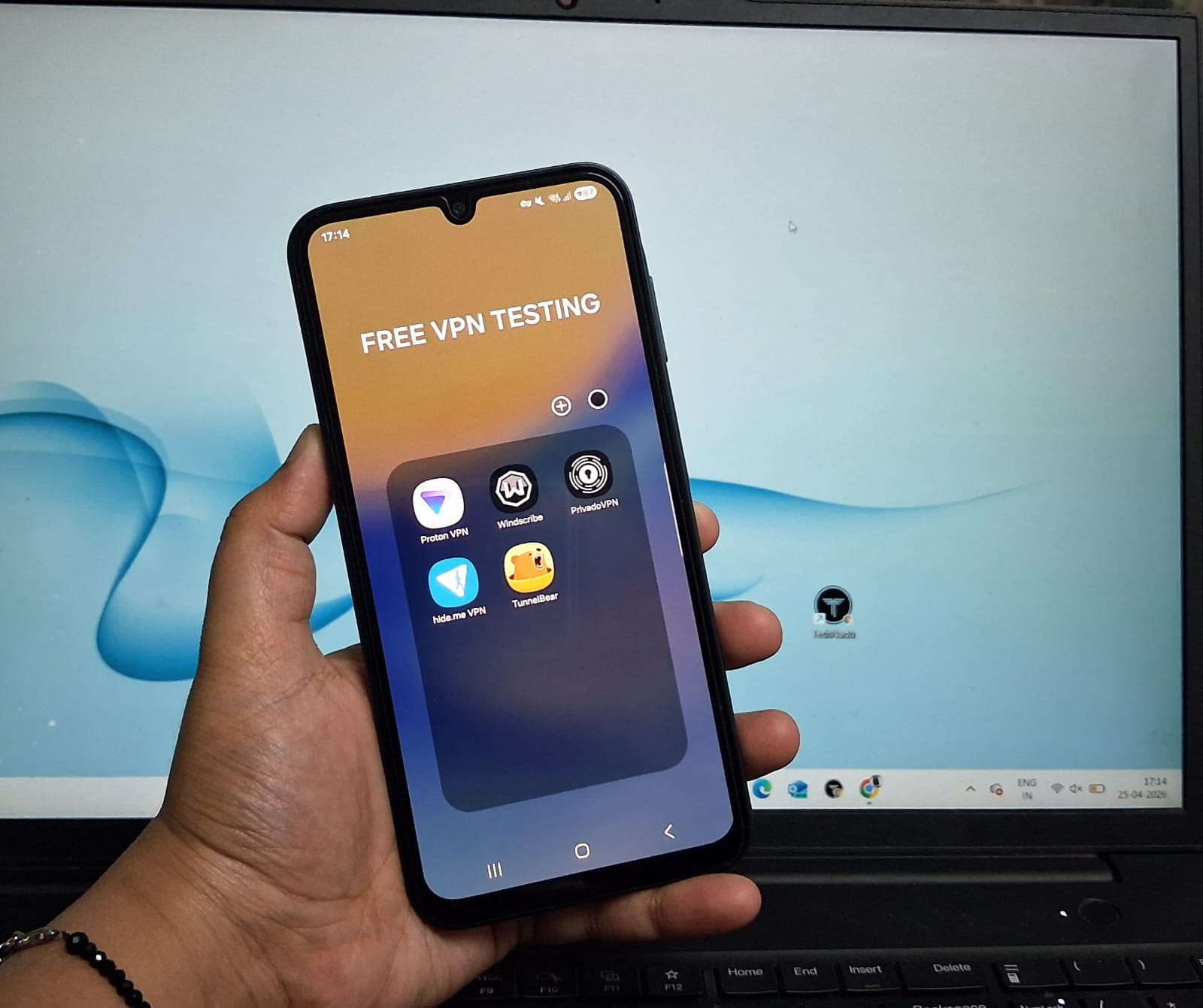
Installation & Setup: For installation, we didn’t just grab apps directly from the Play Store. Instead, we started from each VPN’s official website, clicked the Android download option, and then followed the redirect to the Google Play Store. This helped us see the full real-world onboarding path users actually go through. We checked app size, install speed, whether you’re pushed into account creation, and how quickly you can reach the main dashboard after setup. We also noted how strongly each app nudges users toward paid plans during the first launch.
User Interface & Usability: Here, we focused purely on how the free version feels on Android. That included what you actually get without upgrading - server access, ability to change locations, and how many key features are locked. We also looked at how the apps behave under normal Android conditions like background limits and permission handling. On top of that, we evaluated how easy it is to connect, switch servers, and whether the interface feels clean or overloaded with restrictions and upgrade prompts.
Speed Consistency: All speed tests were carried out on a Samsung F17, using both Airtel 5G mobile data and Airtel Wi-Fi. Our baseline Wi-Fi speed was 218 Mbps download, 193 Mbps upload, 29.2 ms latency, and 10 ms jitter. For mobile data, the base speed was around 95.1 Mbps download, 2.01 Mbps upload, 111 ms latency, and 24.6 ms jitter. range before connecting to any VPN. Each VPN was tested on two different servers (based on what the app allowed for free users), and performance was recorded across both Wi-Fi and mobile networks using Cloudflare Speed Test. Instead of just peak results, we focused on consistency, real-world usability, and how stable speeds stayed during browsing, streaming, and switching between apps.
Extended Stability: We also tested long-session performance on both Wi-Fi and mobile data, keeping each VPN active for extended periods to see how it behaves over time. This included watching for random disconnects, slowdowns after prolonged use, battery impact, and how smoothly the connection holds when switching servers or moving between networks.
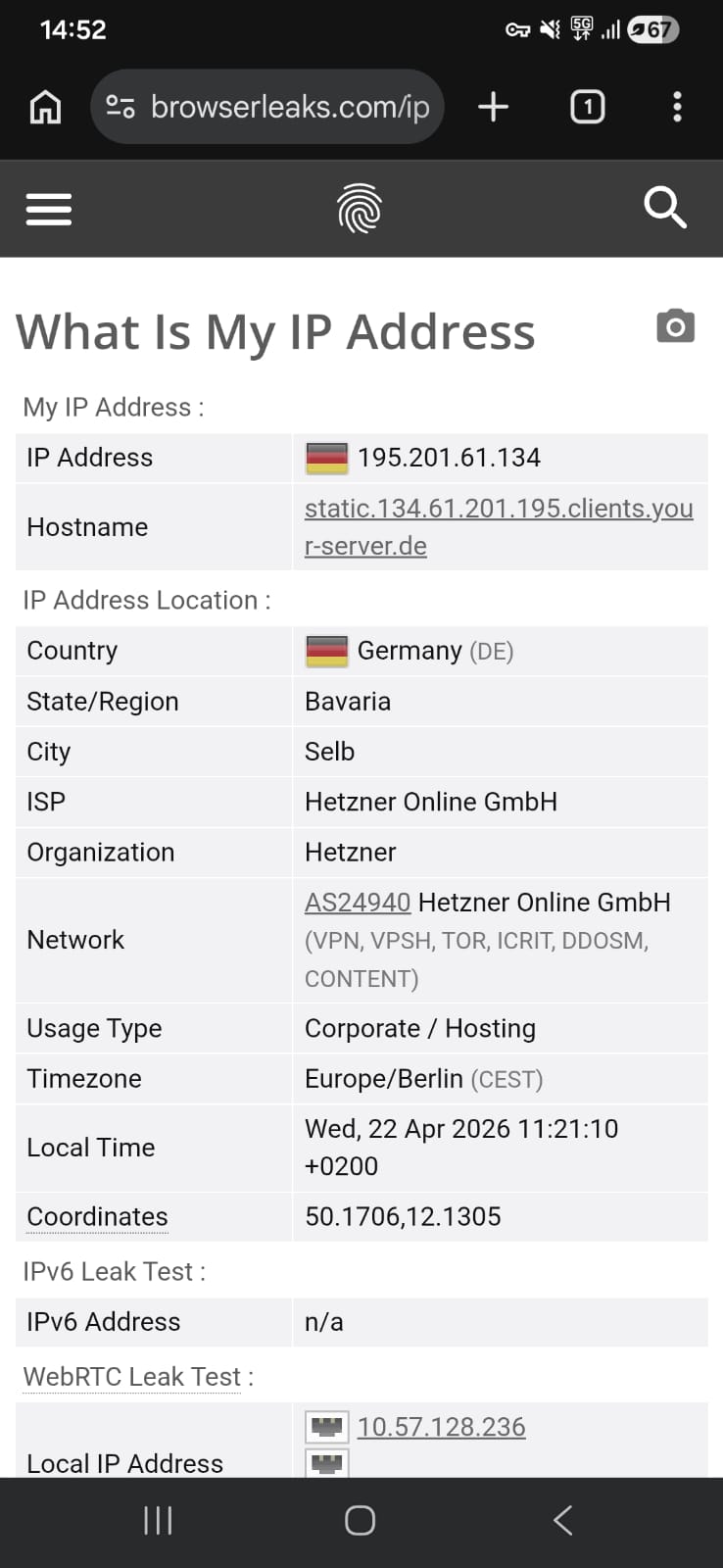
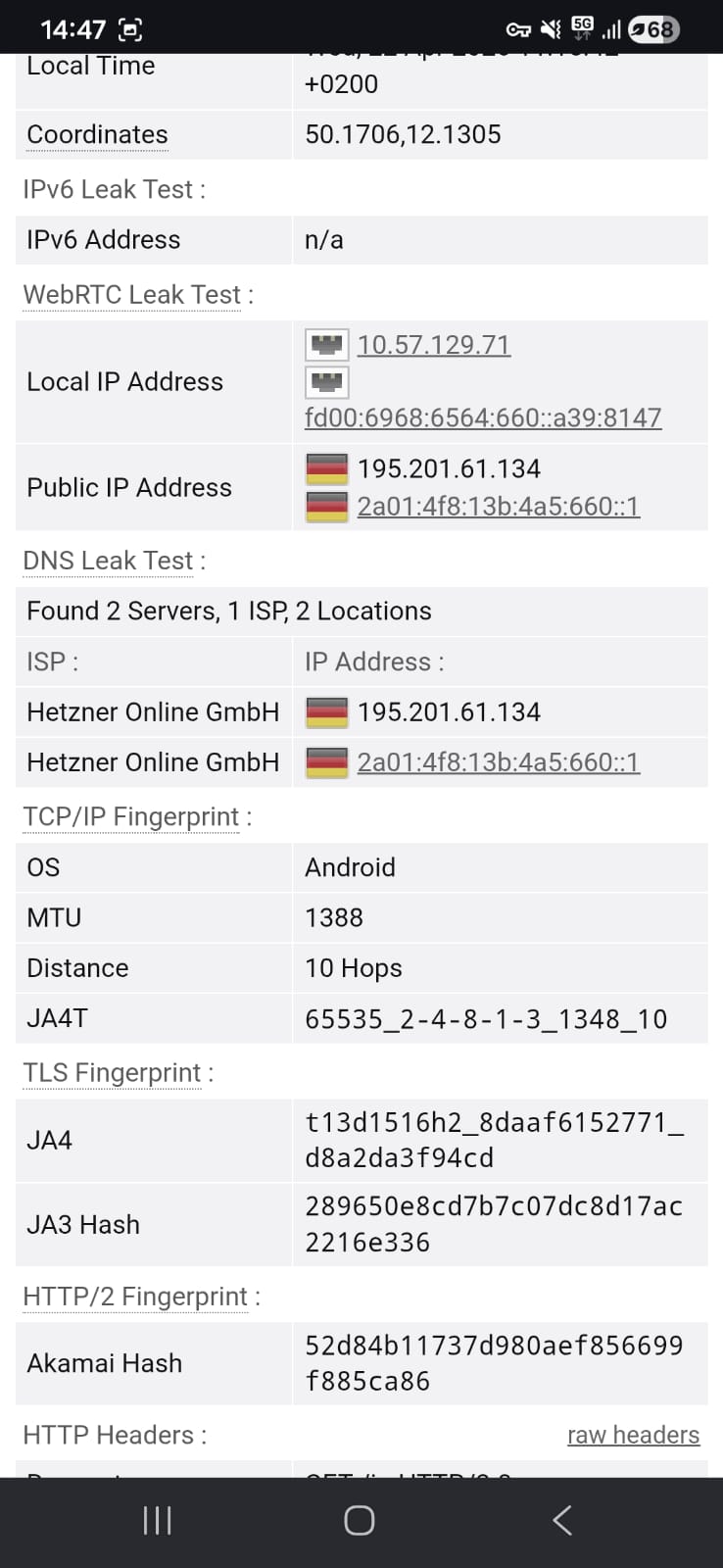
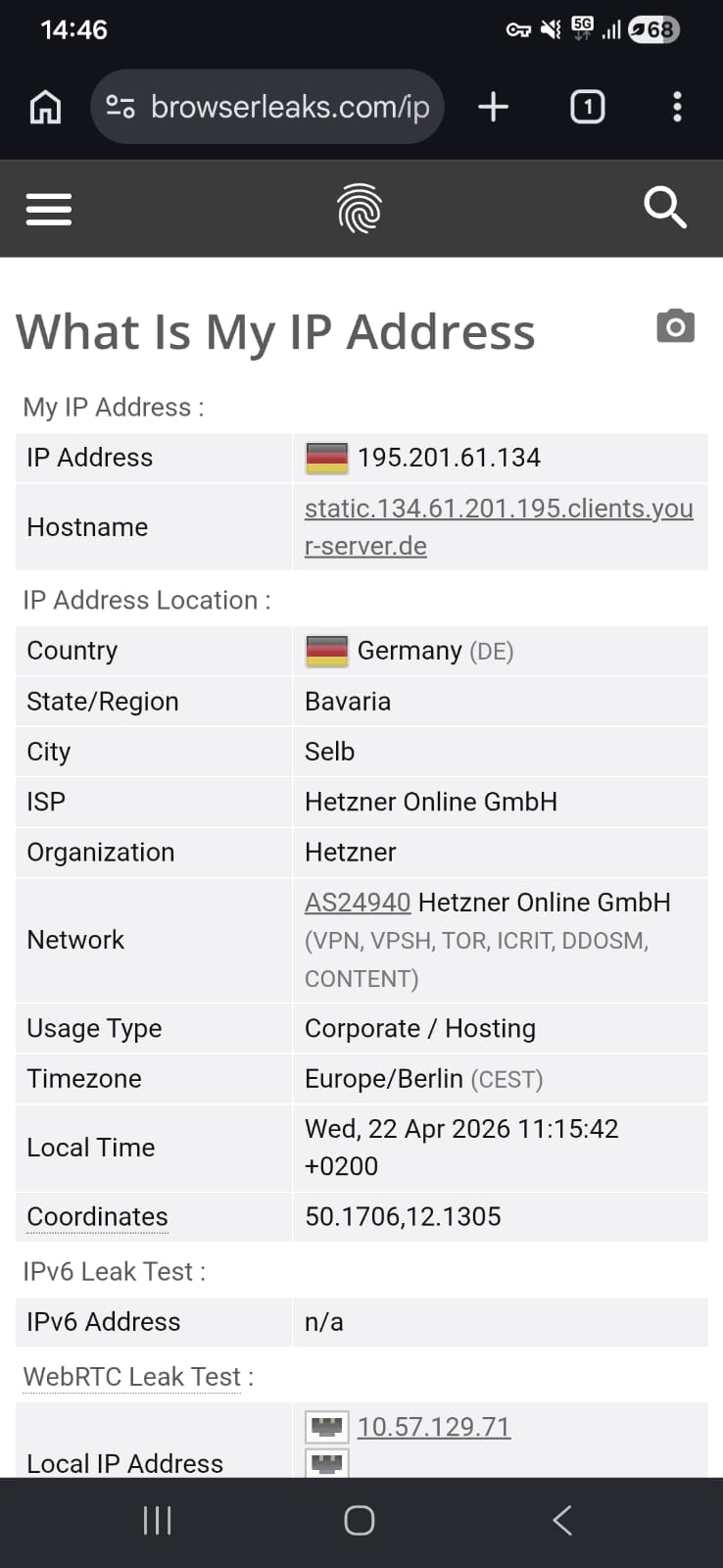
Kill Switch & Leak Protection: Security testing was done using browser leak testing tools to check for IP, DNS, and WebRTC leaks. Each VPN was tested on two servers (as allowed by the free version’s server selection options). We also observed how consistently the protection holds while switching networks or reconnecting. The goal was to confirm whether privacy stays intact in real Android usage, not just in ideal conditions.
Server Network Size: On Android, we went through each VPN’s in-app server list to see what locations are actually available for free users. We didn’t just rely on what’s advertised - we tried connecting to different regions inside the app to check if they really work and how easy it is to switch between them.
Jurisdiction: We also looked at where each VPN is based from a legal standpoint. Since this is especially relevant on mobile, we considered what data laws apply in that country and whether there’s any chance of user data being requested or stored under local regulations.
Independent No-Logs Audit: On Android VPNs, we checked if any third-party audits exist to back up their no-logs claims. This included looking at who carried out the audit, how recent it was, and how detailed the results are, so it’s not just marketing claims but actually verified privacy.
Encryption and Protocol Support: We reviewed what security protocols each VPN offers on Android, like WireGuard or OpenVPN, along with their encryption standards. For fair comparison, we used WireGuard across all VPNs while testing to keep performance results consistent.
Customer Support Responsiveness: We also tested how responsive each VPN is from an Android user’s point of view by contacting support through whatever options were available—like live chat or email. We asked a mix of simple and technical questions to see how quickly they reply and how helpful the responses actually are in real use.
⟶ Free Android VPNs often don’t let you fully choose servers, and you’re sometimes stuck with automatic connections
⟶ Many of them include strict data limits that can run out quickly if you stream or browse heavily
⟶ Speed performance can drop a lot, especially when connected to distant or overloaded servers
⟶ Switching locations too frequently can trigger cooldowns or temporary restrictions inside the app
⟶ Several useful features like advanced security tools or ad blocking are usually locked behind paywalls
⟶ Android apps often require multiple permissions, which can feel a bit intrusive for some users
⟶ Background restrictions on Android can also affect how consistently the VPN stays connected
⟶ Battery usage can increase noticeably when the VPN is running for long periods
⟶ Some apps quietly push upgrade prompts, which can interrupt the overall experience
Best Free VPN for Android
Based on the criteria above, these are the 3 best free VPNs for Android in 2026:
1. Proton VPN – ⭐ Best Overall Free VPN
Proton VPN on Android feels like an app that’s built to get you protected quickly without making you think too much about setup. Everything from installation to your first connection is kept very straightforward, so you’re not digging through menus or dealing with technical steps just to get started. The whole flow is designed around speed and simplicity, which makes it easy for anyone to jump in and start using it within minutes.
Once you’re actually inside the app, the experience stays clean and easy to follow. Speed-wise, it holds up fairly well for everyday use like browsing and streaming, with only moderate slowdowns depending on the server. Streaming can reach HD quality after a short delay, and general browsing feels stable enough, even if not super fast. The app also does a good job on the privacy side, with no leaks detected during testing and useful extras like a kill switch and protocol options available. The interface is also completely ad-free, which keeps things feeling focused and uncluttered.
That said, it’s not all smooth sailing. The free version is quite limited, especially since you can’t manually choose servers and have to rely on automatic selection instead. Switching servers too often also leads to cooldown delays, which can interrupt the flow. Performance on mobile data is where things drop off the most, with very low speeds and high latency making even simple tasks feel slow. Streaming becomes inconsistent, pages load much slower, and everything feels less responsive compared to Wi-Fi. Overall, it’s solid for basic secure browsing, but the free-tier limits and mobile performance issues are hard to ignore.
Limitations (Free Version)
⟶ No manual server selection – the app automatically assigns a server, so you can’t choose specific locations yourself.
⟶ Server switching cooldowns – changing servers repeatedly introduces waiting periods, and frequent switching can lead to longer delays.
⟶ Advanced features locked – tools like NetShield, full Split Tunneling controls, and Profiles are only available on paid plans.
⟶ Limited control on free tier – customization options are reduced, especially around security filtering and advanced routing.
Performance Table Result
Getting online through Proton VPN on Android is structured around quick access rather than detailed configuration, with most of the process reduced to a few guided steps. Instead of focusing on customization during setup, the flow is intentionally kept minimal so users can move from installation to an active connection in a very short time. This results in a setup experience where speed and ease of entry take priority, allowing secure use of the VPN within minutes and without requiring much user input.
Proton VPN on Android offers a streamlined, beginner-friendly setup that prioritizes speed and simplicity over customization, especially on the free plan. From download to connection, the experience is designed to get users online securely within minutes, with minimal input required.
The setup begins by redirecting you from its official site to the Google Play Store, where the app is relatively lightweight at 31 MB. It holds a 4.4 rating with over 5 crore downloads, which gives a quick sense of its popularity before installation.
The app installs almost instantly - it took less than a minute in my case. On launching it, you’re greeted with a brief introduction highlighting its independently verified no-logs policy, which adds a bit of reassurance right at the start. From there, you can either sign in or move forward using the guest option. Since I already had an account, I went straight through the login.
There aren’t any drawn-out steps after that. Within a few taps, you land on the main dashboard, ready to connect. One limitation becomes clear early on, though - server selection isn’t available on the free plan, so the app assigns a connection automatically instead of letting you pick a location.
All in all, the process feels quick and minimal. You go from download to being inside the app in under a couple of minutes, with no unnecessary friction - just slightly reduced control unless you switch to a paid tier.
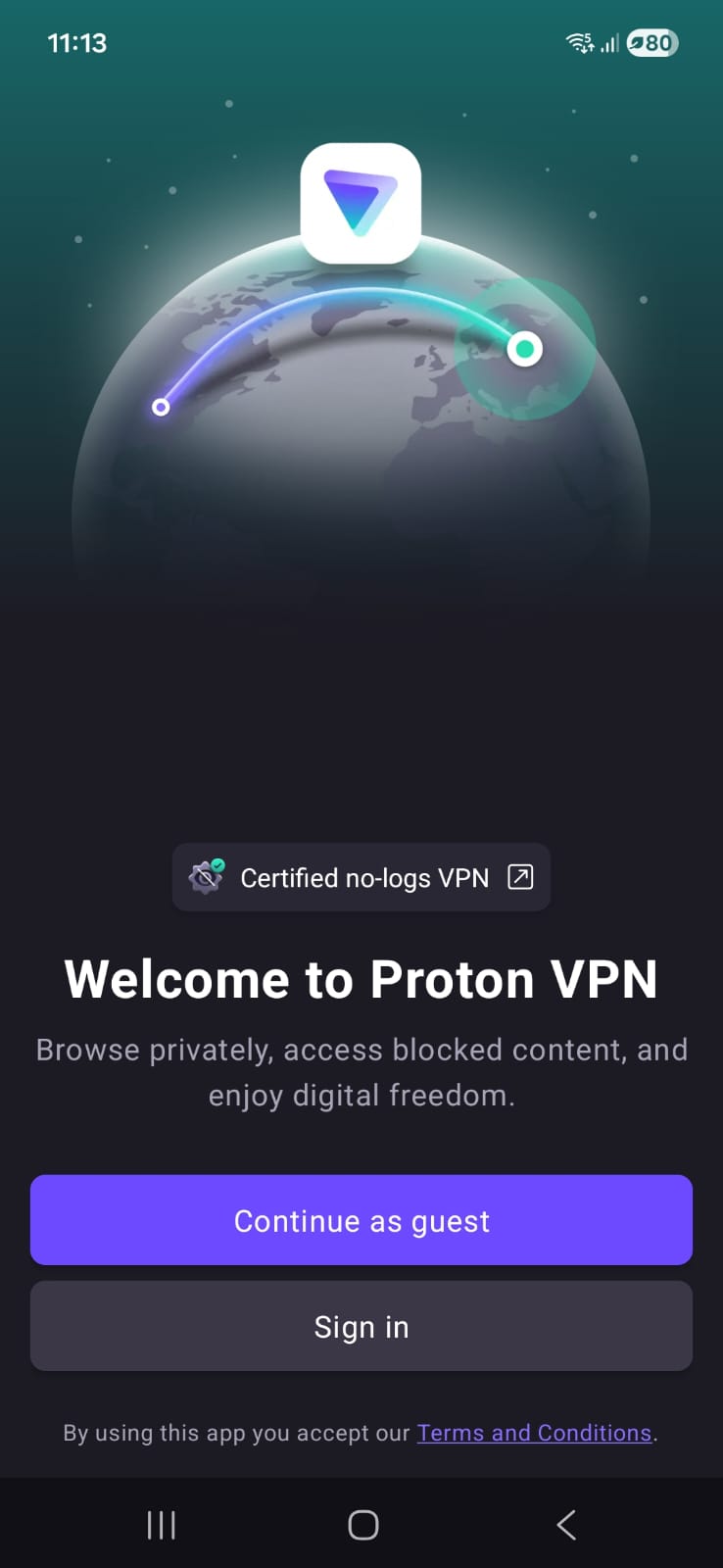
Unlike many VPN apps, Proton VPN on Android focuses on a guided, visually simple interface that keeps navigation straightforward from the start. Its design prioritizes clarity, privacy, and an ad-free environment, keeping the experience uncluttered even during regular use. As you explore deeper, limitations become progressively more noticeable, with certain features restricted in a way that subtly pushes toward upgrading without disrupting the basic usability.
When you first open the app, it immediately feels simple and guided. It asks for notification permission right away, but skipping it doesn’t break anything or limit core usage, so it doesn’t feel intrusive.
The main screen is clean and centered around a map view, though in the free version it’s more visual than interactive. You basically rely on a single “Fastest Free Server” connect button instead of manually exploring everything. Once you connect, the whole experience becomes very visual. The interface shifts from red to green, and the map updates with your location.
Features like NetShield appear after connection, but you quickly realize they are locked unless you upgrade. After signing in, Proton also shows its ecosystem of tools like encrypted email, password manager, calendar, and 1 GB cloud storage. It’s there, but it feels more like a bonus layer rather than something you actively use inside the VPN experience.
Server switching is where you start noticing limits. The first few changes are smooth with only a short wait of about a minute. But if you keep switching, the app slowly introduces longer cooldowns, and eventually you end up waiting around 10 minutes. It doesn’t block you completely, but it definitely discourages frequent switching.
On the positive side, the entire experience stays completely ad-free, which makes everything feel more focused and less cluttered.
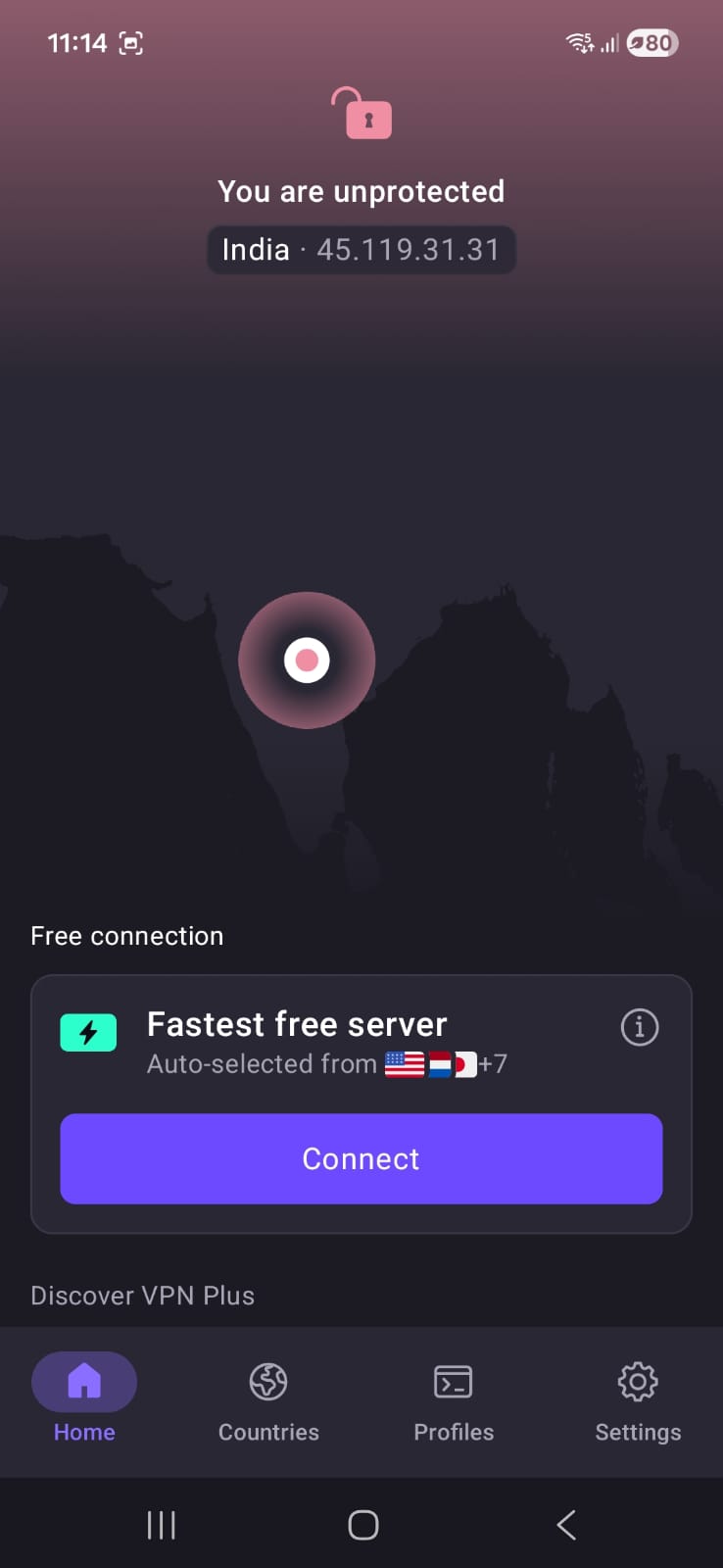
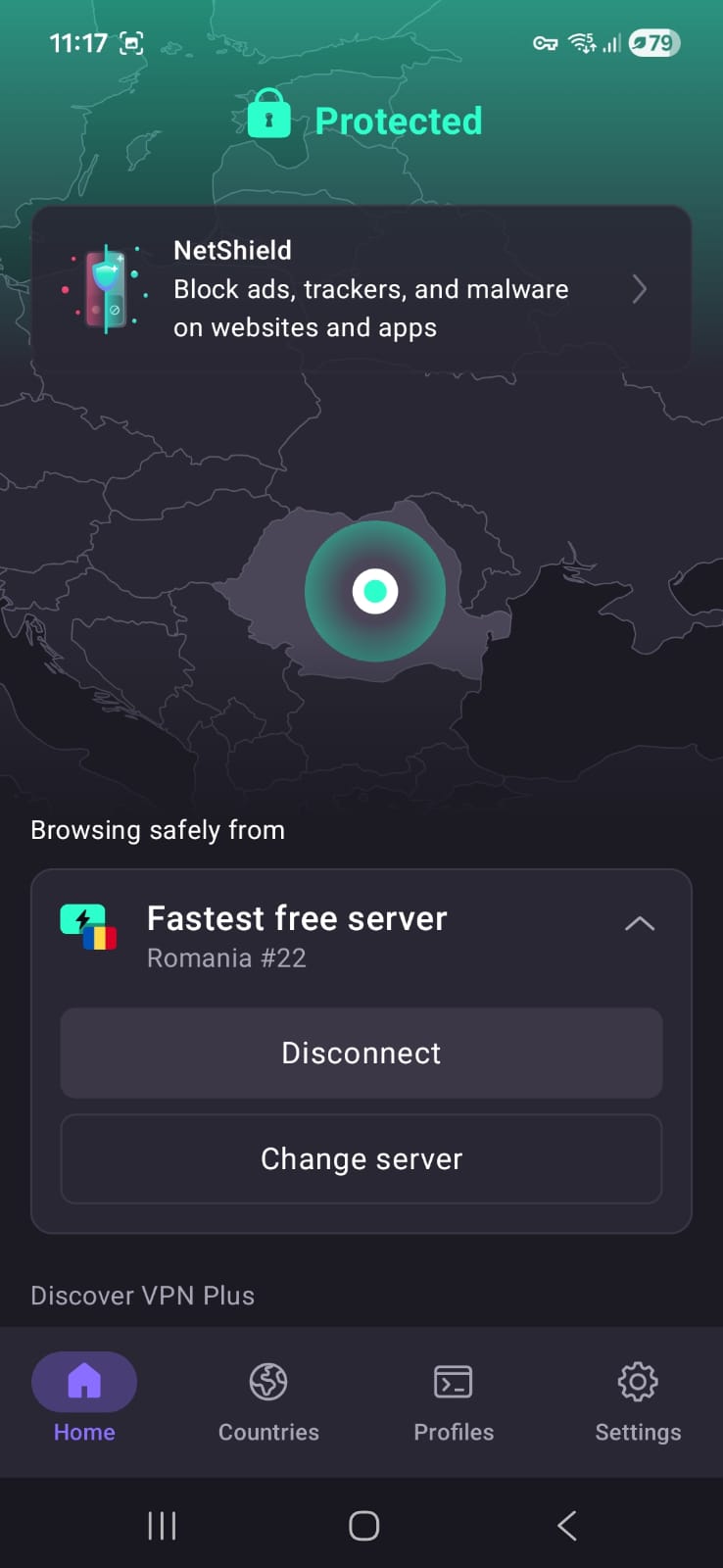
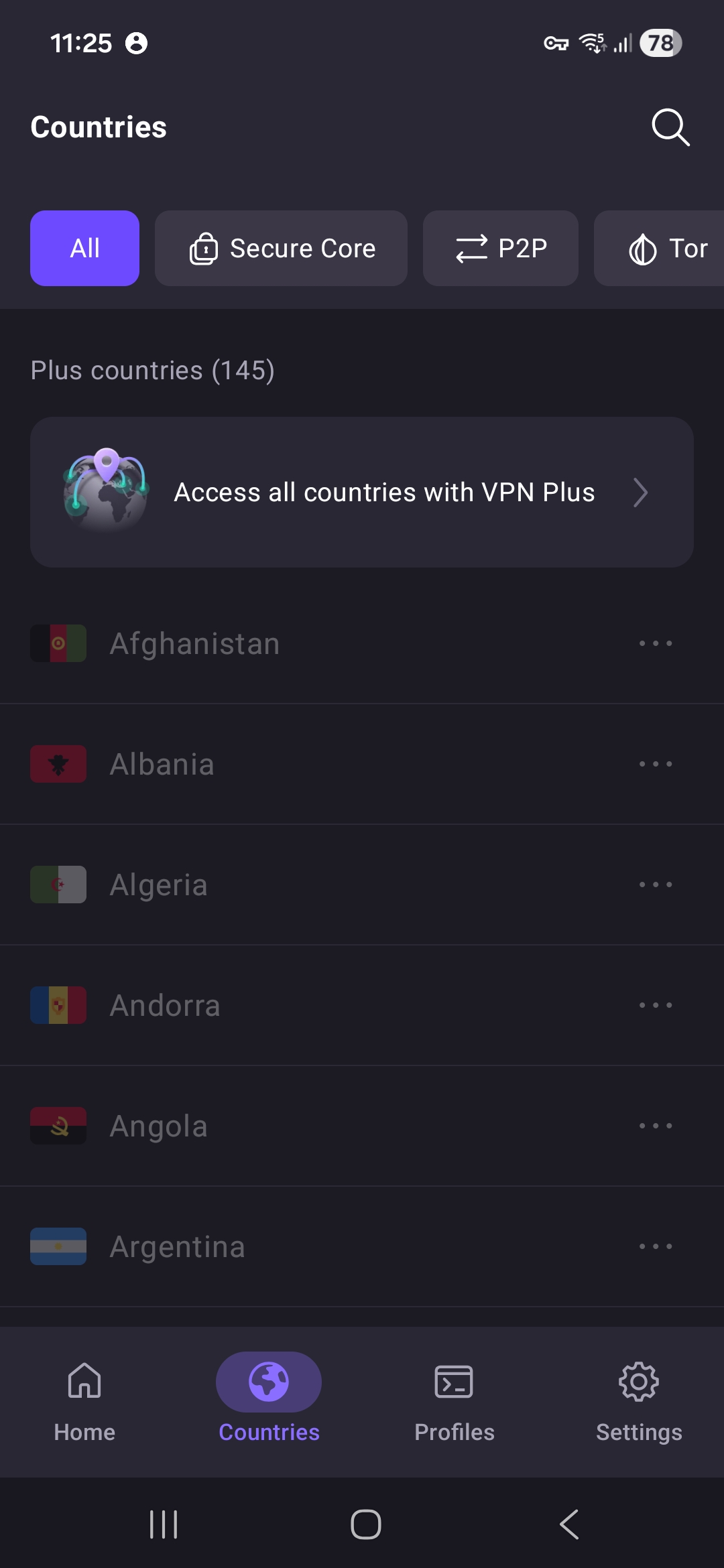
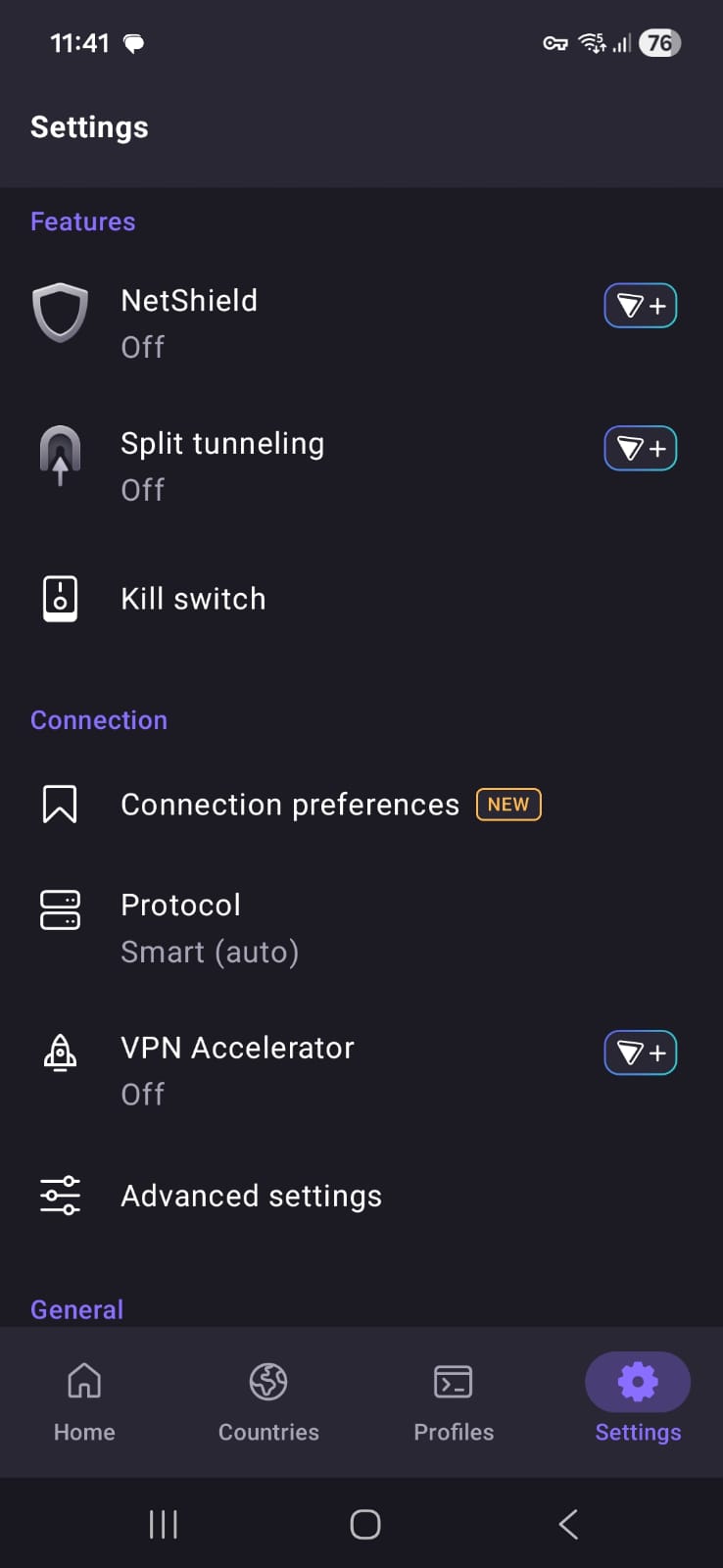
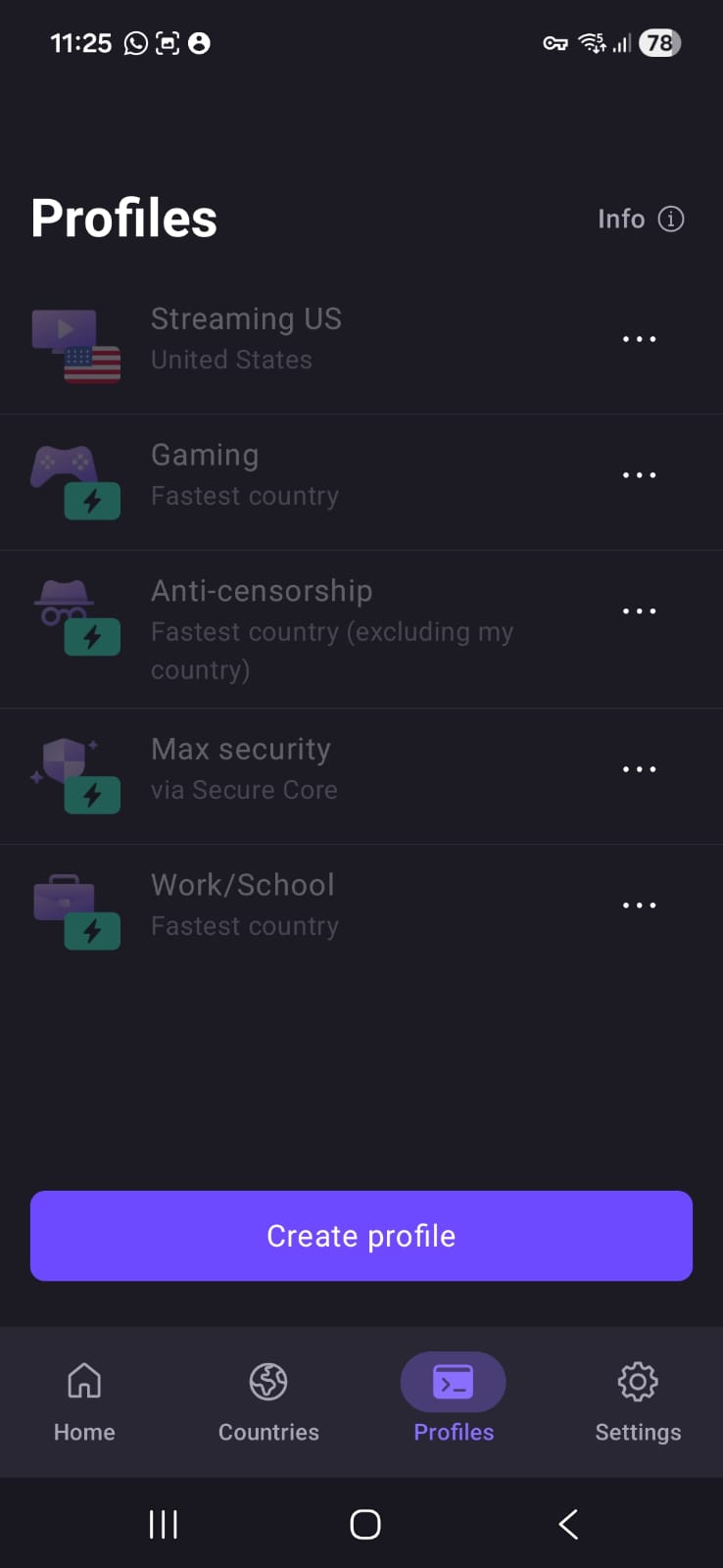
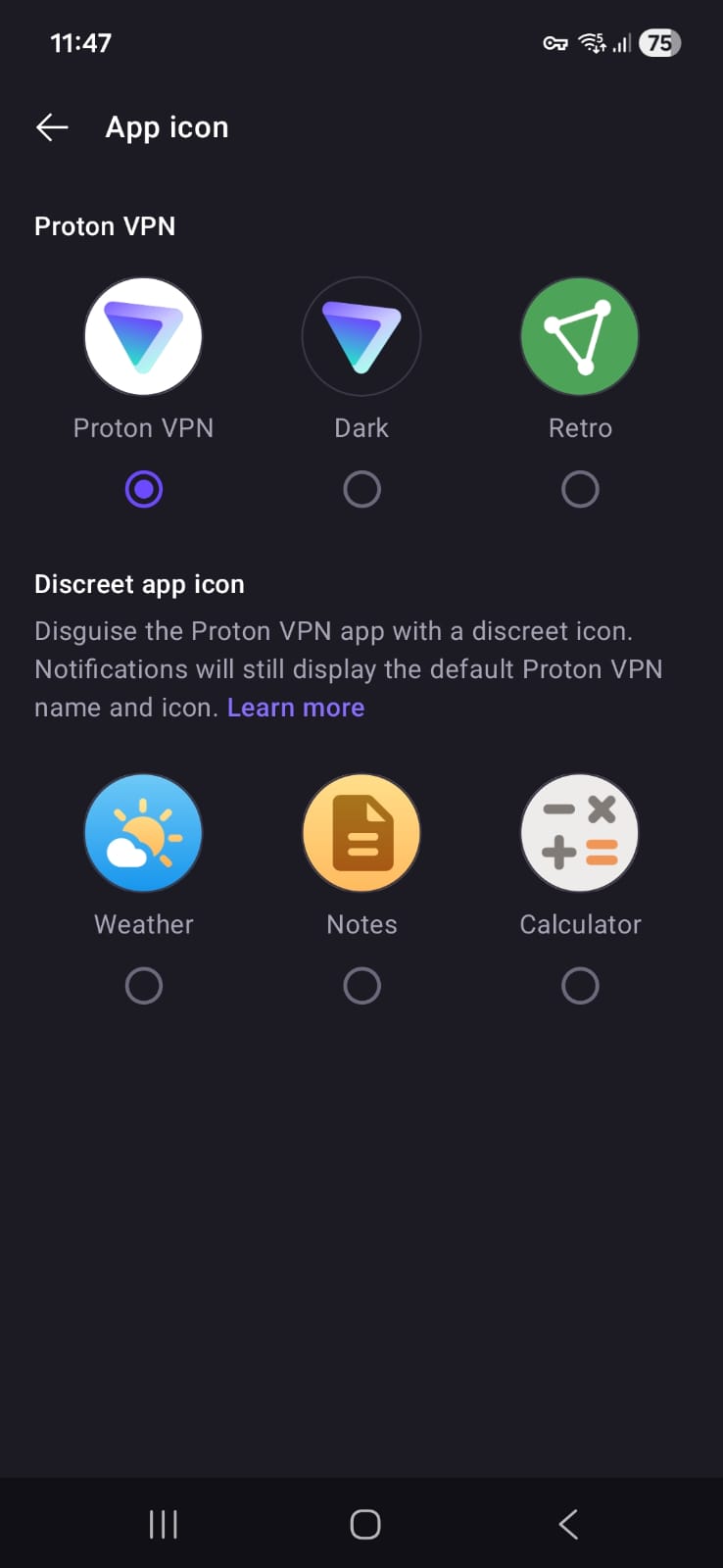
Home Screen and Navigation Structure
- Home Page
- Map view (static in free version; not interactive like premium)
- “Fastest Free Server” quick connect button
- Countries Page
- All advanced options locked
- Profiles Section
- Entirely locked
- Profile creation attempt does not complete successfully even after following all steps
Settings and Customization (Free Version)
- Kill Switch (available)
- VPN Protocol selection (available)
- Alternative Routing (found under Advanced Settings)
- Theme options
- Light
- Dark
- Device-based theme
- App Icon customization
- Standard Proton VPN icon
- Discreet icons available:
- Weather
- Notes
- Calculator
- Home screen widget support available
Server Availability (Free Version): Proton VPN provides 10 free server locations, distributed across major regions including North America, Europe, and parts of Asia:
- Canada
- Mexico
- Japan
- Netherlands
- Norway
- Poland
- Romania
- Singapore
- Switzerland
- United States
Proton VPN on Android shows moderate performance on Wi-Fi with noticeable slowdowns, but struggles heavily on mobile data where speeds and stability drop to very limited levels.
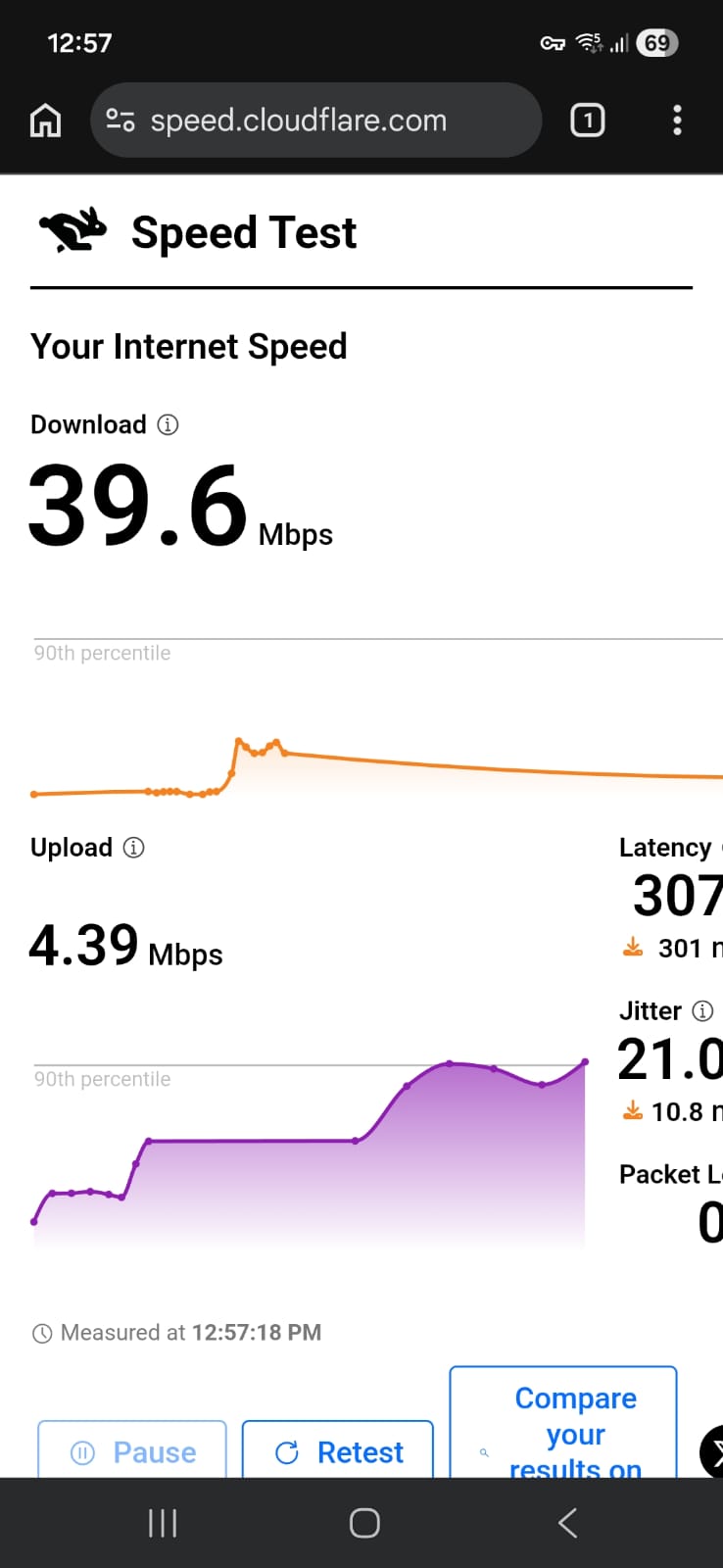
☞ On Wi-Fi connection (Android) – Speeds took a noticeable hit on both servers, with reductions sitting around the 80% mark. That said, performance wasn’t completely unusable - download speeds still stayed in a workable range, especially on the Romania server. The US server was slightly slower overall and showed a bit more delay. Latency was on the higher side in both cases, which could affect things like gaming or real-time calls. Upload speeds were also pretty limited across the board, so sending large files wouldn’t be ideal.
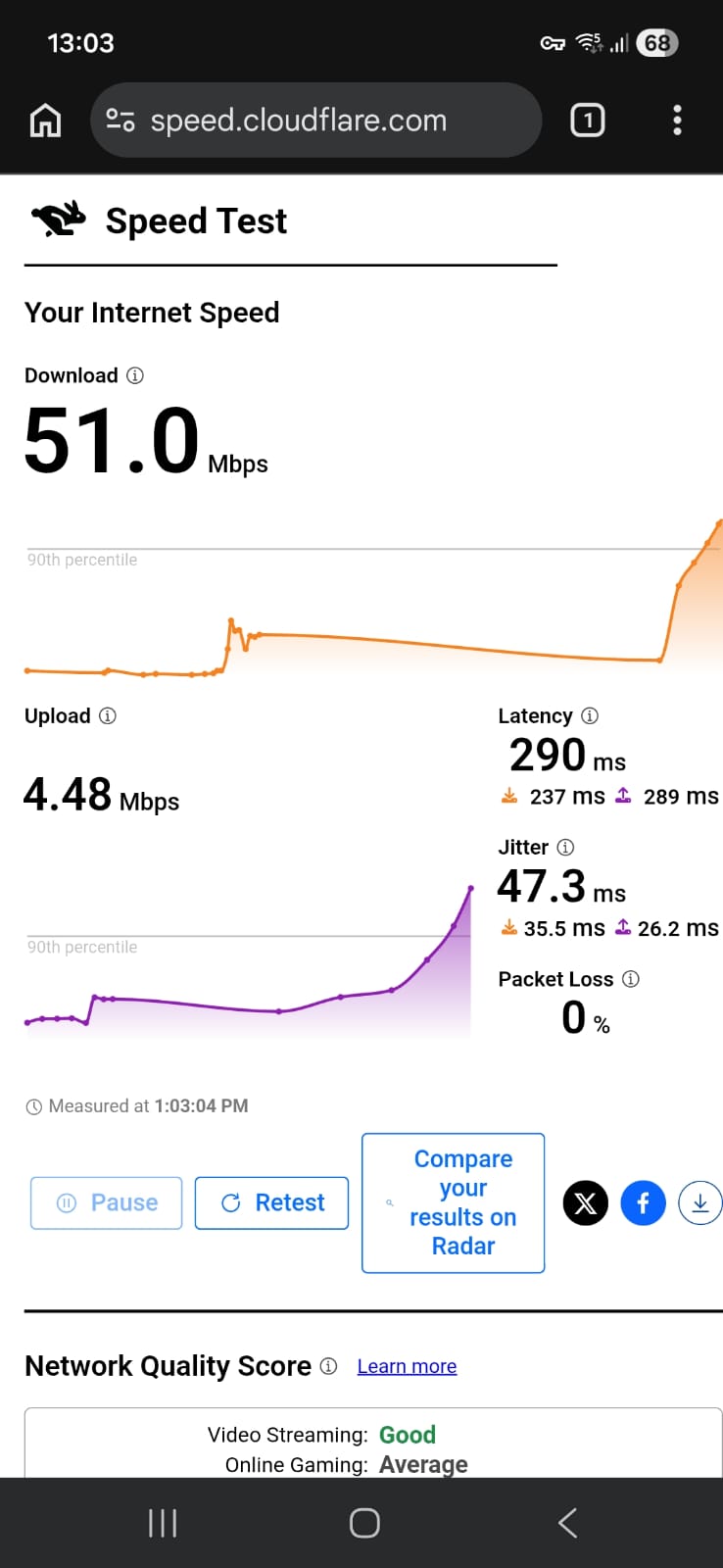
Romania: 74.5% drop in speed
- Download Speed: 51.0 Mbps
- Upload Speed: 4.48 Mbps
- Latency: 290 ms
- Jitter: 47.3 ms
US: 80.2% drop in speed
- Download Speed: 39.6 Mbps
- Upload Speed: 4.39 Mbps
- Latency: 307 ms
- Jitter: 21 ms
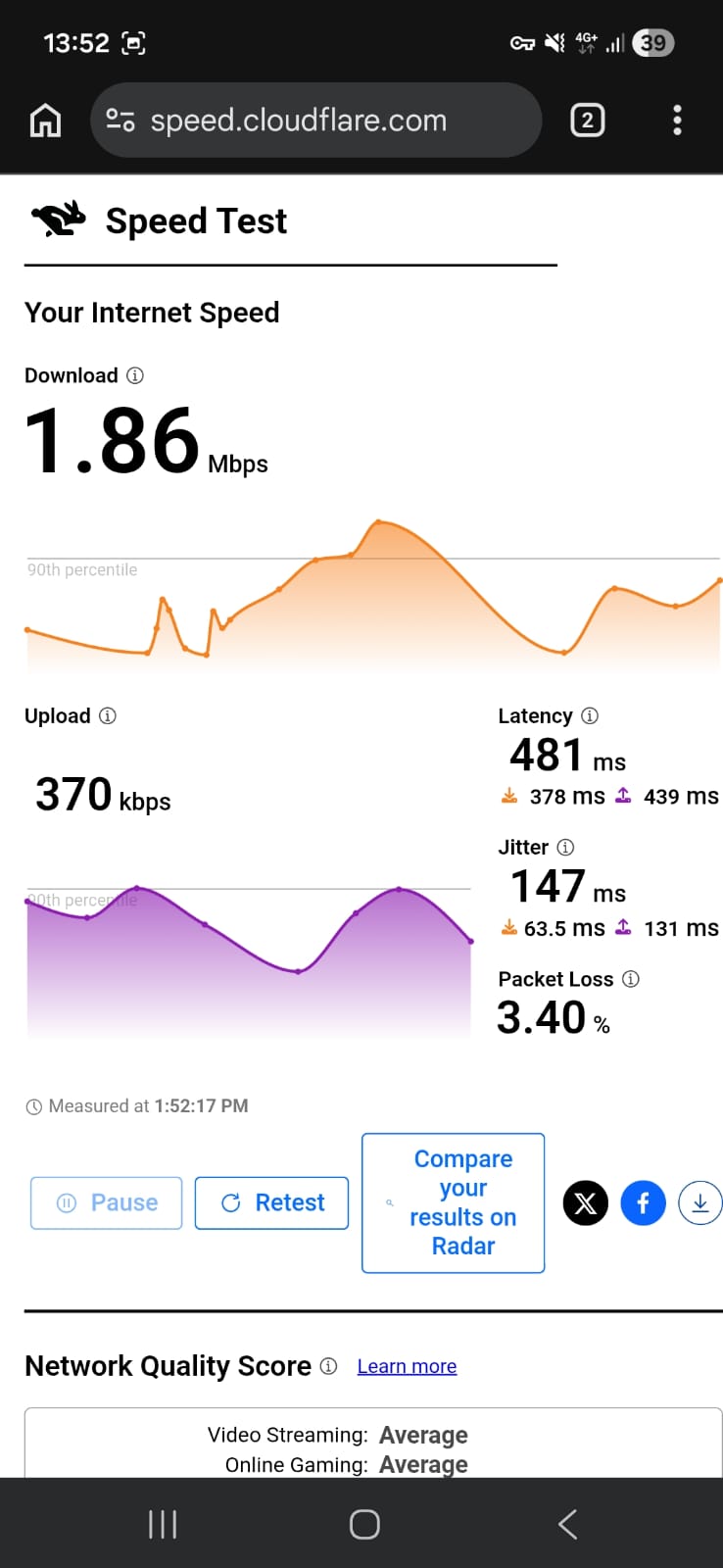
☞ On Mobile Data – This is where things really slowed down. Speeds dropped sharply on both servers, falling to under 2 Mbps, which is quite low for most modern usage. Even basic browsing would feel sluggish, and streaming or downloads would struggle. The US server in particular showed very high latency, making the connection feel even less responsive. Jitter was also quite high, especially on the Japan server, so the connection could feel unstable at times.
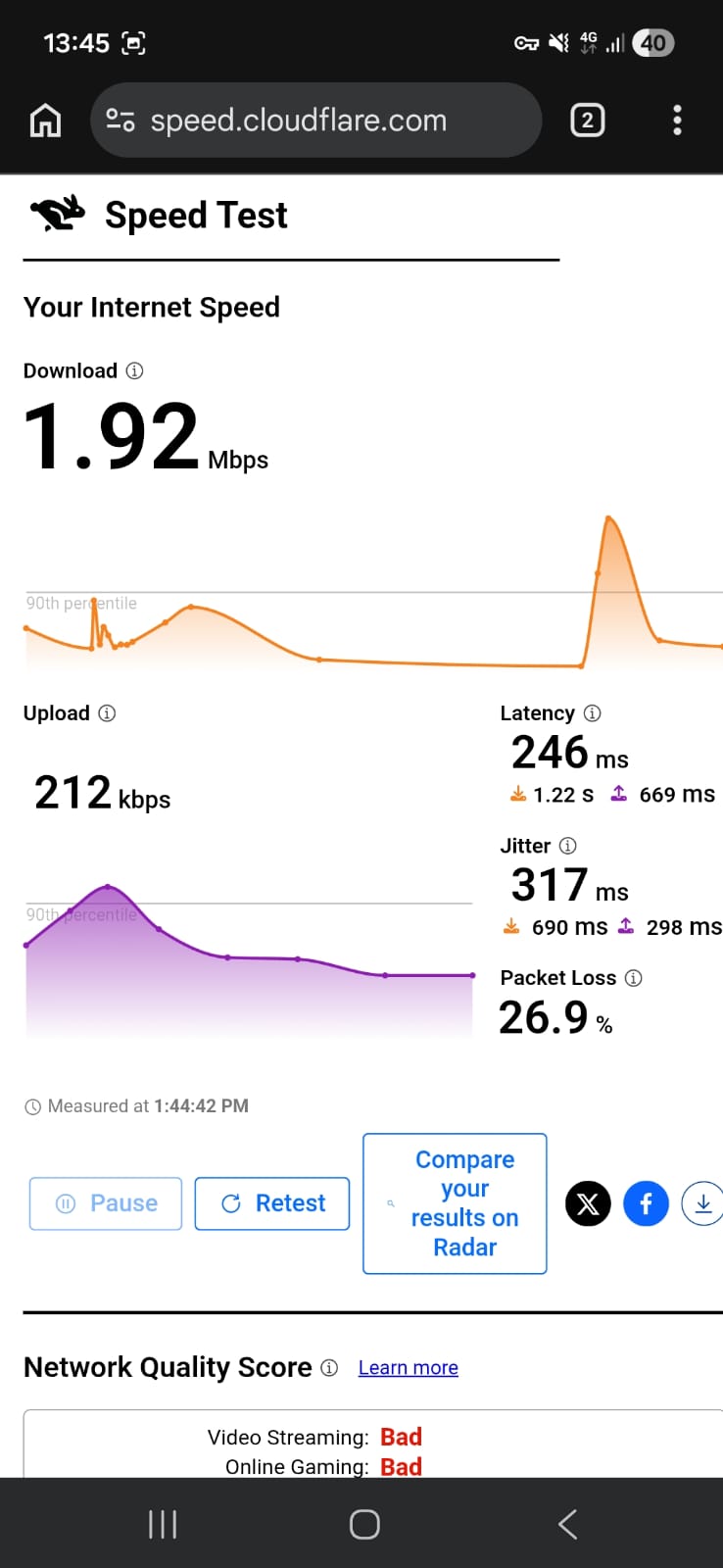
Japan: 98.08% drop in speed
- Download Speed: 1.92 Mbps
- Upload Speed: 212 Kbps
- Latency: 246 ms
- Jitter: 317 ms
US: 98.04% drop in speed
- Download Speed: 1.86 Mbps
- Upload Speed: 370 Kbps
- Latency: 481 ms
- Jitter: 147 ms
Proton VPN on Android provides a stable but slower real-world experience on Wi-Fi, while mobile data performance feels noticeably constrained with clear delays across everyday tasks. The connection remains usable in both cases, but responsiveness varies significantly depending on the network.
On Wi-Fi: Proton VPN’s free version delivered a stable experience on Wi-Fi, with consistent performance across browsing and streaming, though it felt slower than a typical connection.
- On the Romania server, general browsing was smooth but not instant. Most websites loaded in around 2–4 seconds, while heavier pages sometimes took up to 5 seconds to fully display. The US server was slightly slower, with pages typically loading in 3–5 seconds, and occasional brief pauses before images or ads finished rendering.
- Streaming worked reliably. Videos on Netflix started within 2–3 seconds, but initially in low quality. On the Romania server, streams usually reached HD quality within 20–30 seconds, while the US server took a bit longer, closer to 30–45 seconds. Once the quality improved, playback remained steady with no buffering interruptions.
- Skipping forward or backward caused a 1–2 second delay before playback resumed. If the VPN was reconnected, streams restarted in low quality again and needed time to adjust.
On Mobile Data: On mobile data, performance felt significantly more constrained, with clear delays across almost every task.
- Simple websites typically took around 7–12 seconds to load, and in some cases, content appeared in stages - first text, then images a few seconds later. More complex pages could take 12–15+ seconds, especially when multiple elements were involved. Tapping links also introduced a noticeable pause before anything began loading.
- Streaming was more heavily affected. Videos often took 8–12 seconds just to start playing and frequently stayed in low resolution for an extended period. In many cases, HD quality either took a long time to appear or didn’t fully stabilize. Skipping forward or backward introduced delays of around 5–8 seconds, and playback occasionally needed extra time to recover after each action.
- The overall experience felt less responsive, especially during continuous use, with small pauses between actions becoming more noticeable. Real-time activities like video calls or interactive apps would likely struggle due to the inconsistent responsiveness during use.
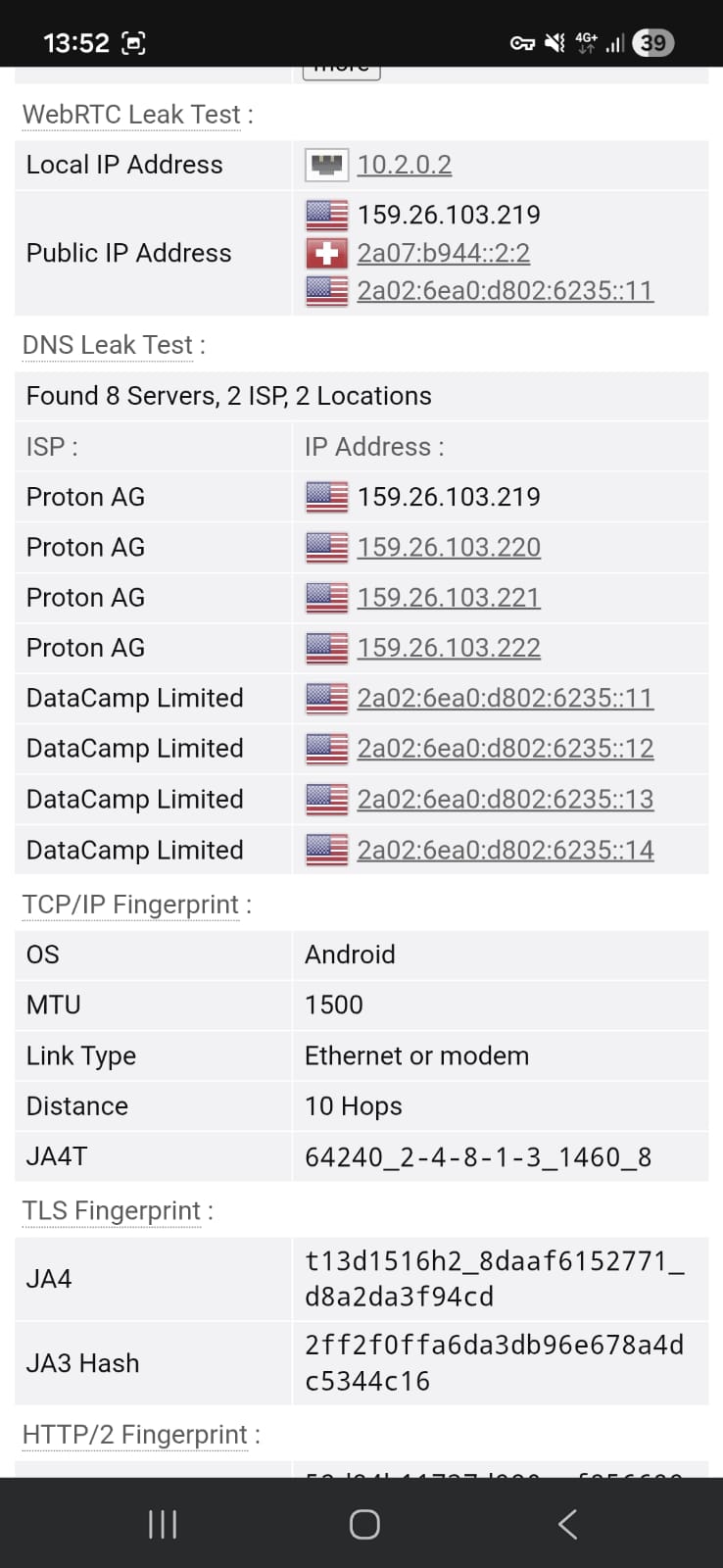
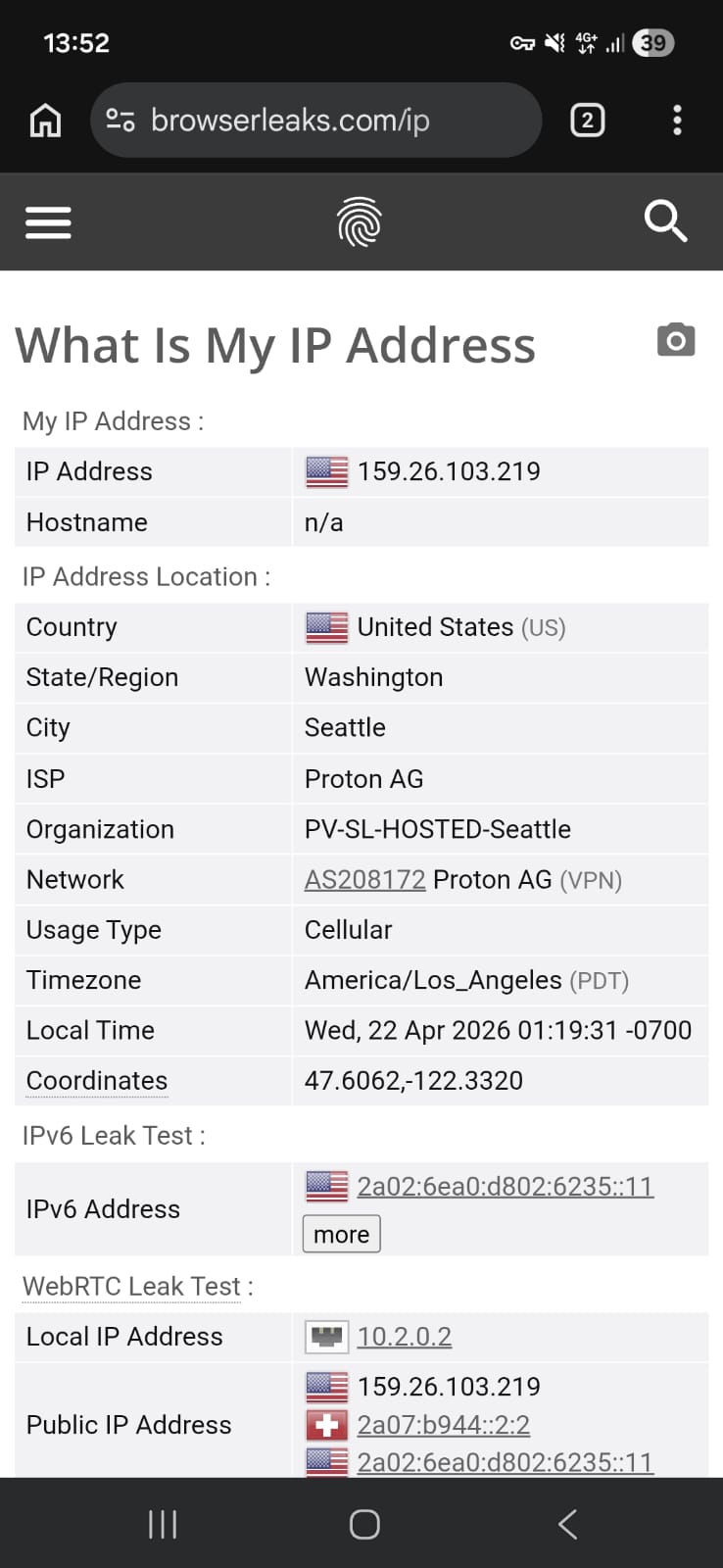
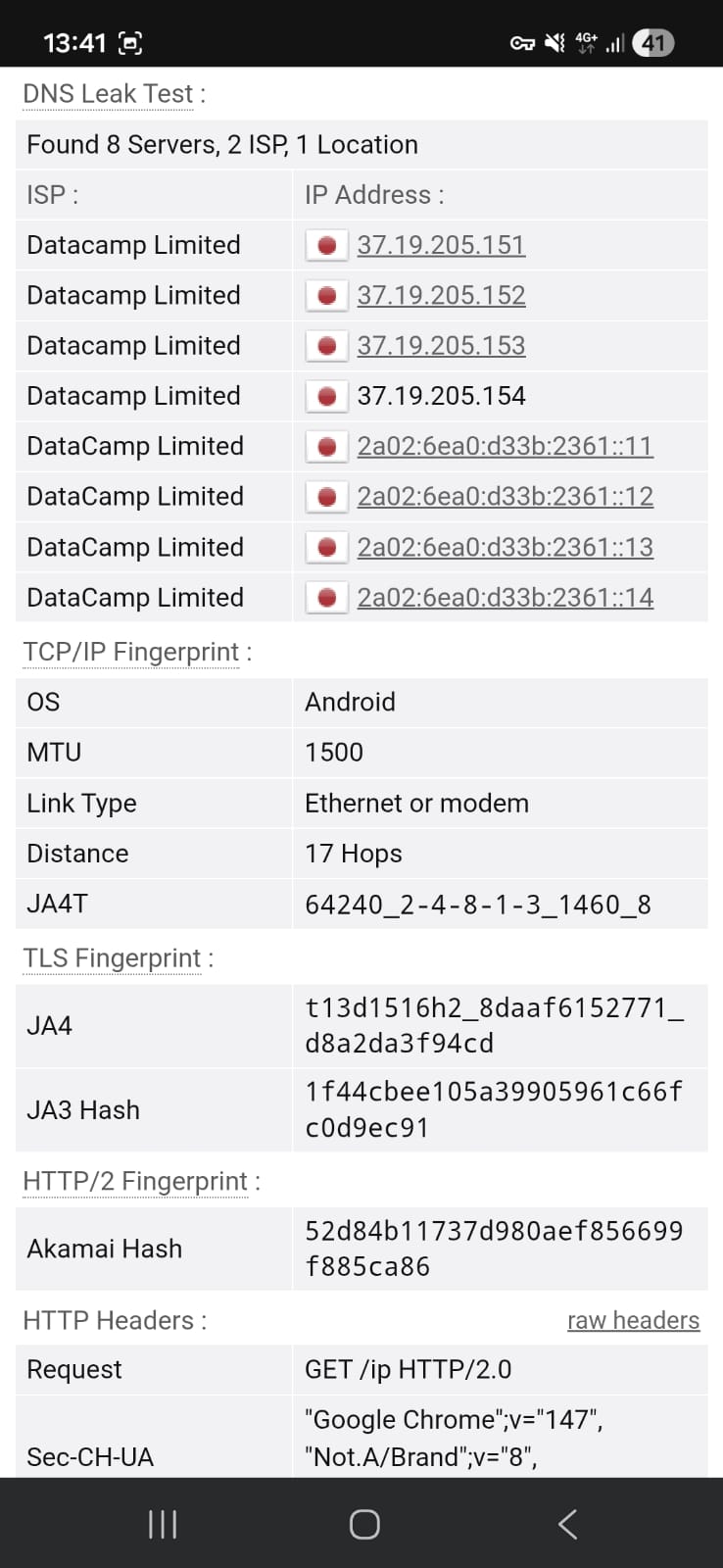
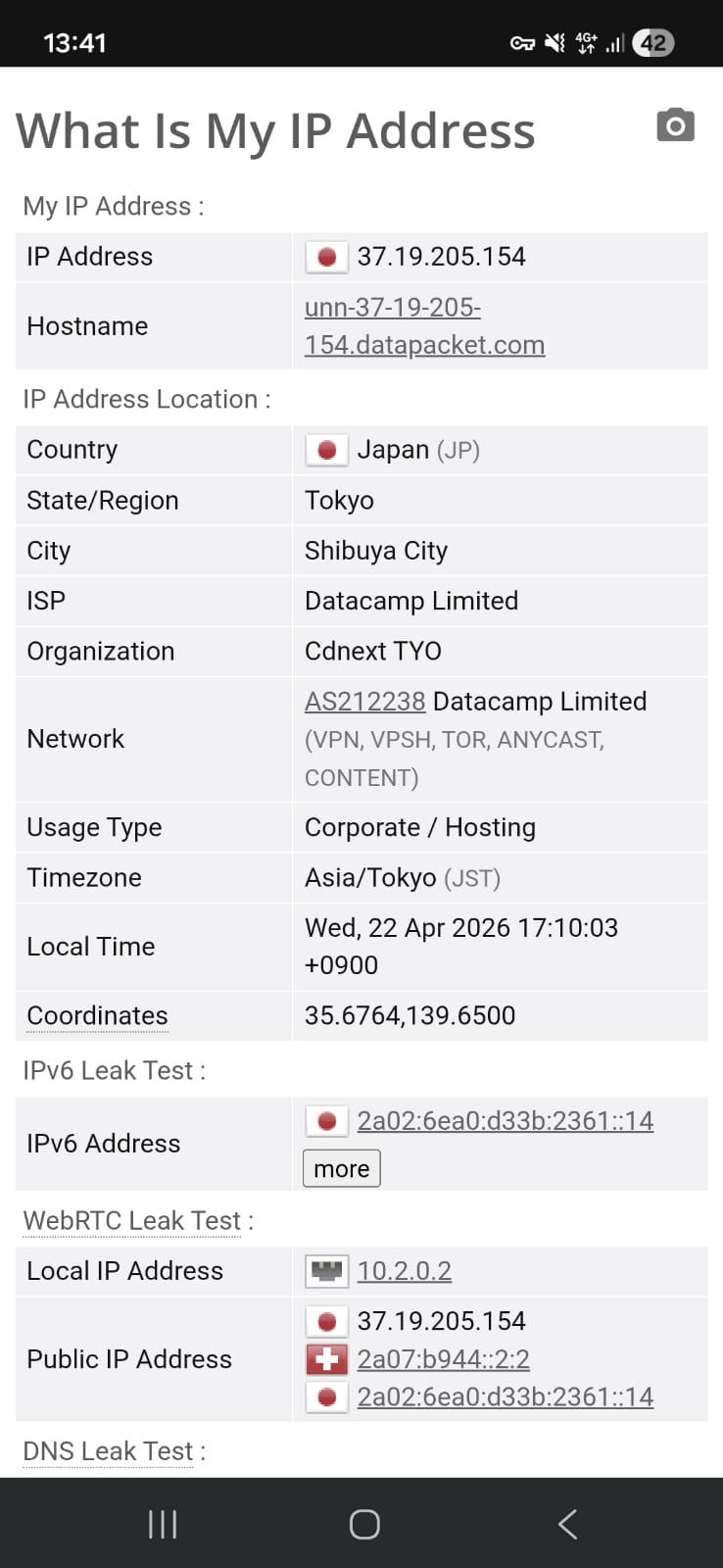
Testing Proton VPN across both the Japan and United States servers showed a secure and consistent connection throughout the session. During leak checks, there were no signs of IP, DNS, or WebRTC exposure at any point. The connection remained fully protected even during extended use, with no irregularities observed when switching between servers or maintaining the session over time.
Overall, Proton VPN maintained stable privacy protection across both tested locations, with no detectable data leaks under normal or prolonged usage conditions.
PROS
- Quick and lightweight installation process through the Google Play Store, with fast setup into the main app
- Clean onboarding flow that includes a brief no-logs policy introduction for immediate transparency
- Simple navigation that allows users to connect within a few taps, without complicated configuration steps
- Free version includes a built-in kill switch for added connection protection
- Supports VPN protocol selection and alternative routing options in settings
- Fully ad-free experience, keeping the interface clean and distraction-free
- Strong privacy performance with no IP, DNS, or WebRTC leaks detected during testing
- Offers multiple free server locations across regions including North America, Europe, and Asia
- Connection remains stable for general browsing and streaming on Wi-Fi
- Streaming sessions can reach HD quality after a short adjustment period and remain steady once stabilized
- Includes ecosystem extras (email, password manager, calendar, cloud storage) accessible after login
- UI clearly indicates connection status through visual changes (map and color shift)
CONS
- Free version restricts manual server selection, automatically assigning the connection instead
- Frequent server switching can trigger cooldown delays, eventually leading to longer waiting times
- Advanced features like NetShield and profiles are locked behind paid plans
- Performance drops significantly on mobile data, with very low download speeds and high latency
- Streaming on mobile data struggles with long startup times and difficulty maintaining HD quality
- Initial video quality starts low and takes time to upgrade to HD, especially on slower servers
- Heavier websites and media-rich pages can take several seconds to fully load even on Wi-Fi
- Interaction responsiveness decreases under continuous use on mobile data, affecting overall smoothness
👉 See full Proton VPN review →
2. Windscribe – 🥈 Runner-Up with Best Control
Windscribe on Android comes across as a VPN that doesn’t waste time easing you in - it basically drops you straight into the main tools and expects you to start using it right away. There’s no slow introduction or guided setup path, just a quick install and login before the full interface opens up. That makes the whole experience feel immediate, almost like the app is skipping the “beginner phase” entirely.
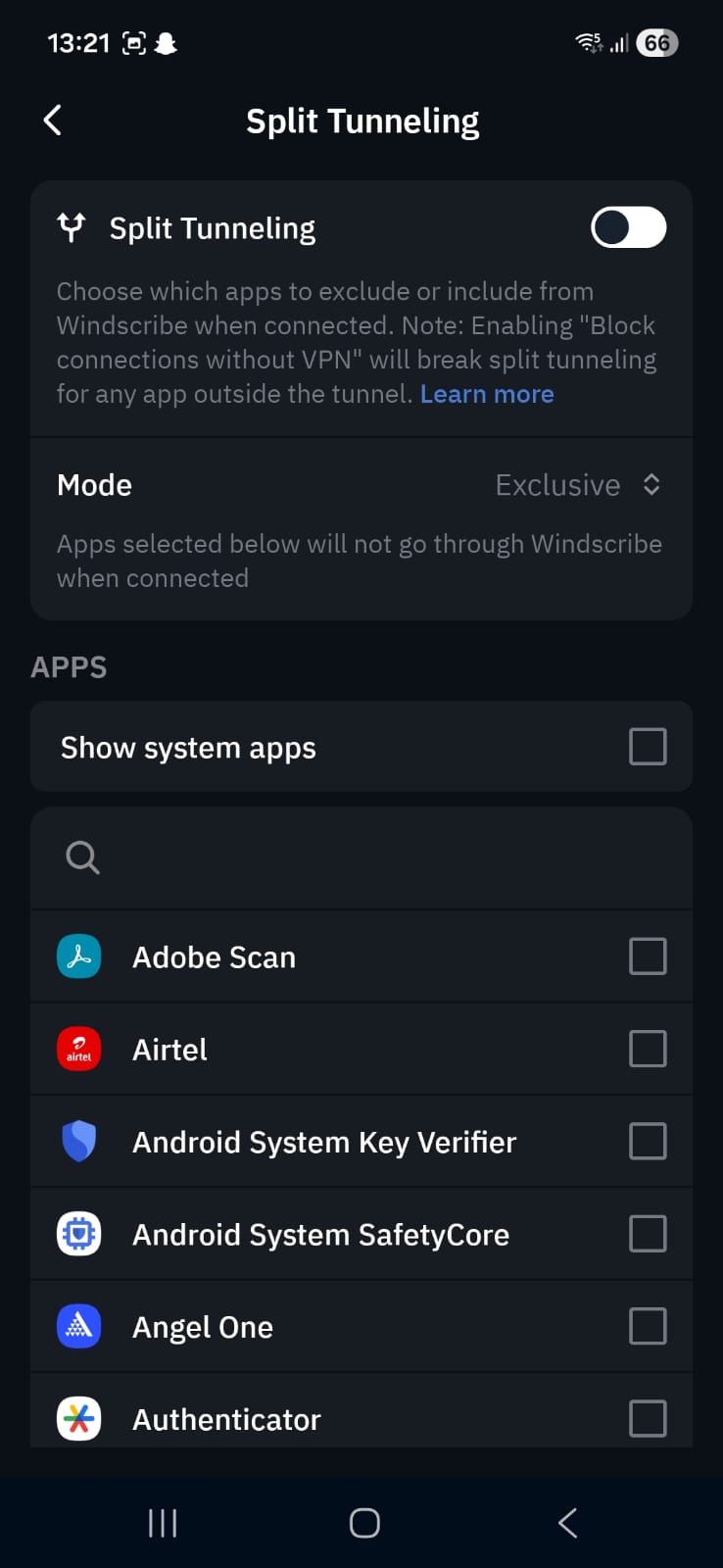
Inside the app, it leans heavily into a control-heavy layout where everything is visible from the start. Server selection, connection options, and extras like favorites and load indicators are all available on the main screen instead of being buried in menus. It also gives you more freedom than most free VPNs, especially with manual server choice and tools like split tunneling and R.O.B.E.R.T for blocking ads or trackers. It performs steadily enough for normal browsing and streaming, and privacy protection holds strong with no leaks detected during testing.
The trade-off shows up pretty quickly when you push it harder. Speeds aren’t great, and higher latency can make everything feel slightly delayed, especially during real-time use. Mobile data is even less stable, with noticeable drops in performance and occasional inconsistency during browsing or streaming. Overall, Windscribe feels powerful and flexible, but that comes with a heavier, less polished performance feel compared to more streamlined VPNs.
Limitations (Free Version)
⟶ Speed restrictions on free servers – performance is noticeably reduced compared to premium servers, especially during peak use.
⟶ High latency across regions – delays are common in real-time use like gaming or calls due to inconsistent ping.
⟶ Limited free data allowance – 10 GB monthly cap restricts heavy streaming or long browsing sessions.
Performance Table Result
Launching Windscribe on Android is structured so that users are taken from installation straight into a usable state without being slowed down by setup layers or guided walkthroughs. Instead of building a staged onboarding flow, the app keeps the entry process lean, allowing the main interface to appear almost immediately after sign-in. As a result, the overall experience feels focused on direct usability, where minimal steps and a clear layout make the transition from install to active use feel almost instant.
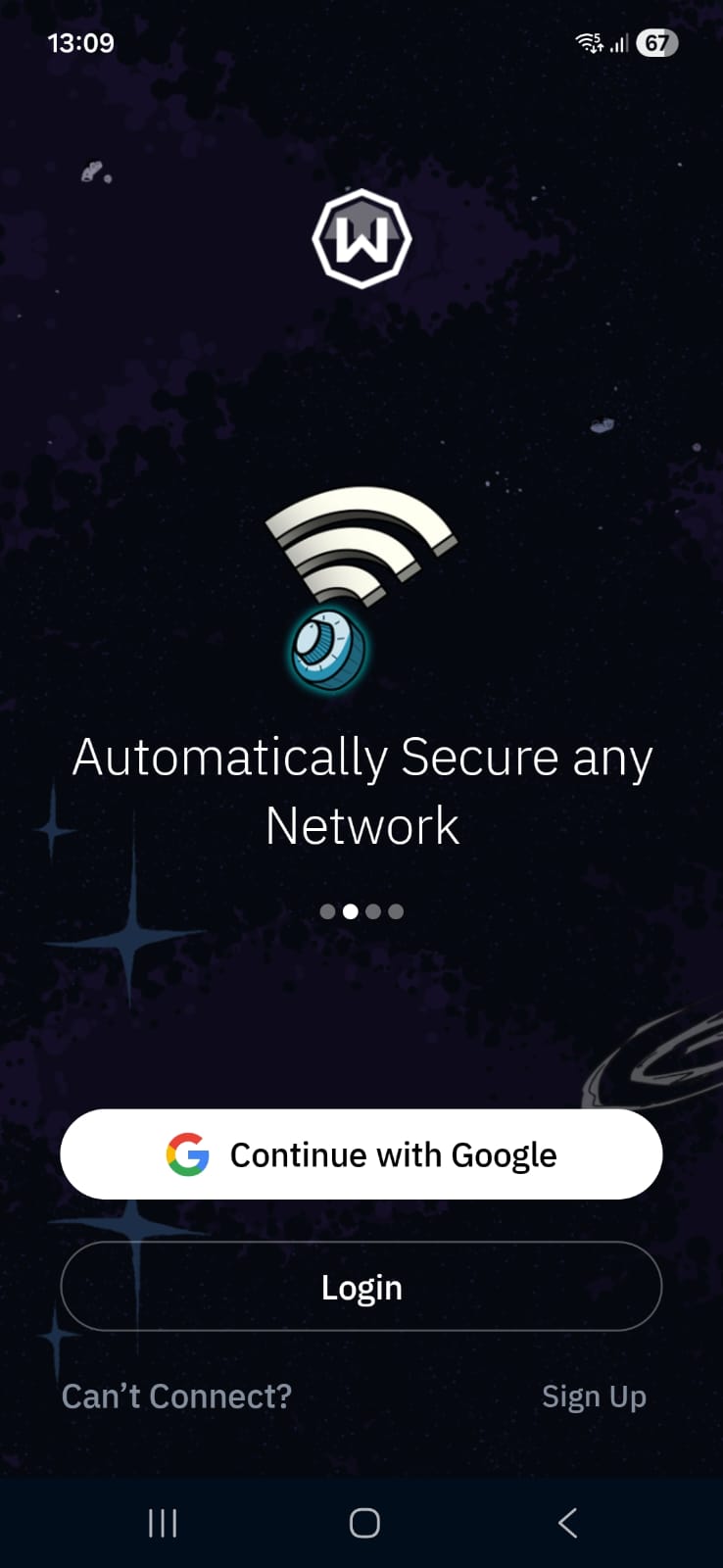
Installing Windscribe on Android feels quick and fairly effortless right from the start. Heading over to its official site simply pushes you toward the Google Play Store, where the app comes in at about 38 MB. With a 4.5 rating and more than 1 crore downloads, it already carries a bit of user trust before you even begin.
The installation itself is over in moments - it didn’t take more than a minute to get it on the device. Once launched, there’s no drawn-out onboarding or extra prompts to slow things down. Since I already had an account, I just signed in using my Gmail, and the app moved ahead without any friction.
Almost immediately after logging in, you’re dropped onto the main screen. The home page is highly simplified, keeping things clean and easy to understand without overwhelming you with options. Everything is laid out in a way that makes it clear where to start, even if you’re new to VPNs.
Compared to most VPN apps on Android, Windscribe leans heavily toward offering advanced controls and a more information-dense interface. Rather than keeping things minimal, it presents a dashboard-like layout where essential actions and deeper configuration tools exist side by side.
This design allows users to switch between quick connectivity and more detailed customization of VPN behavior without needing to move through multiple layers of menus.
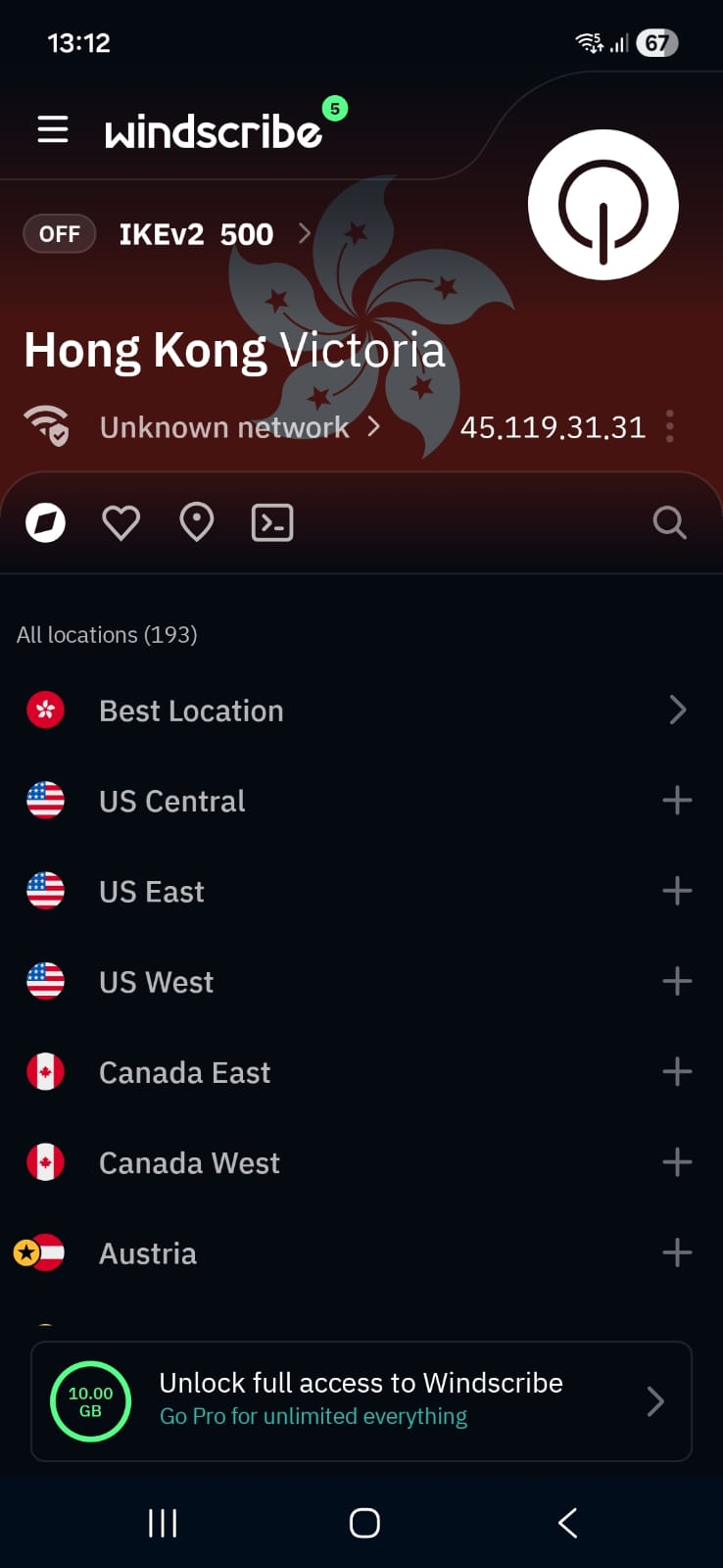
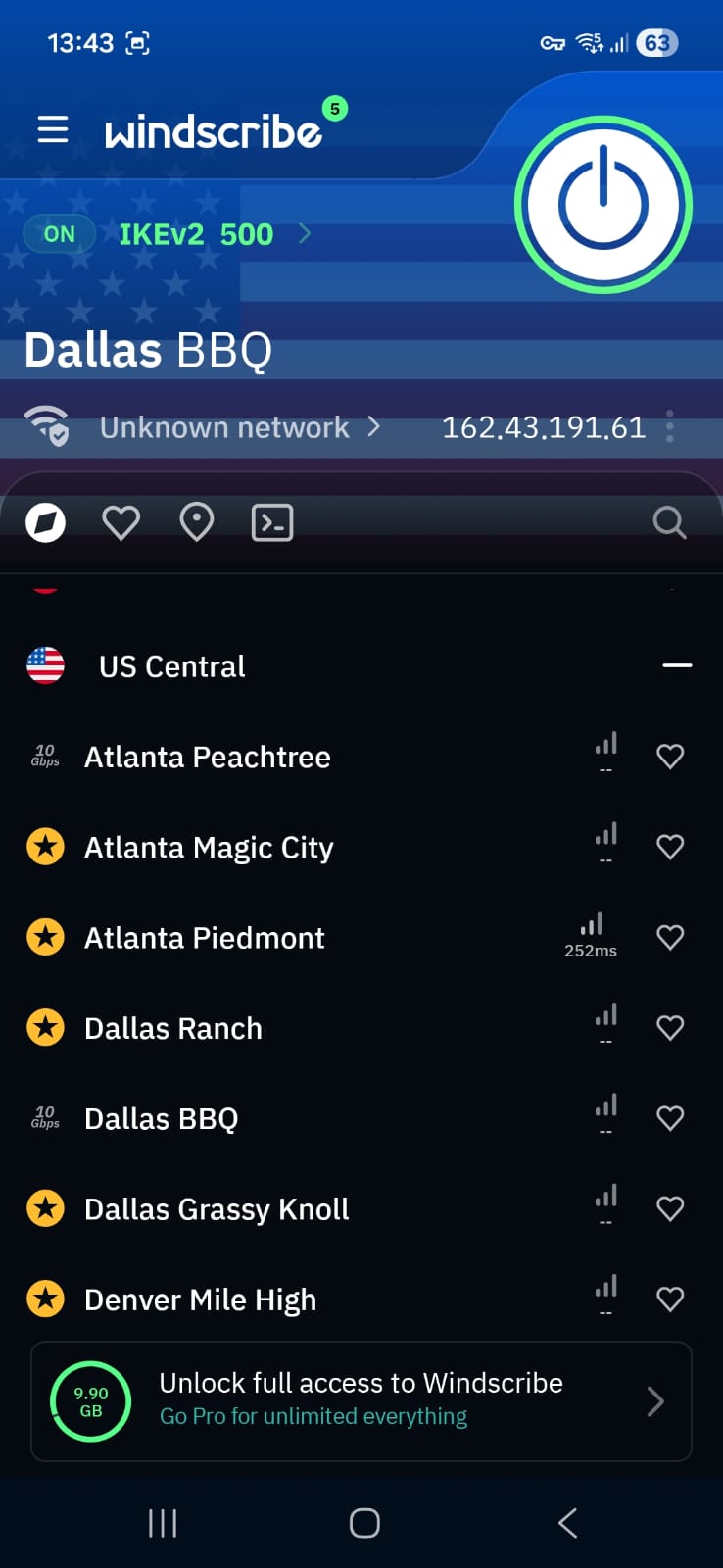
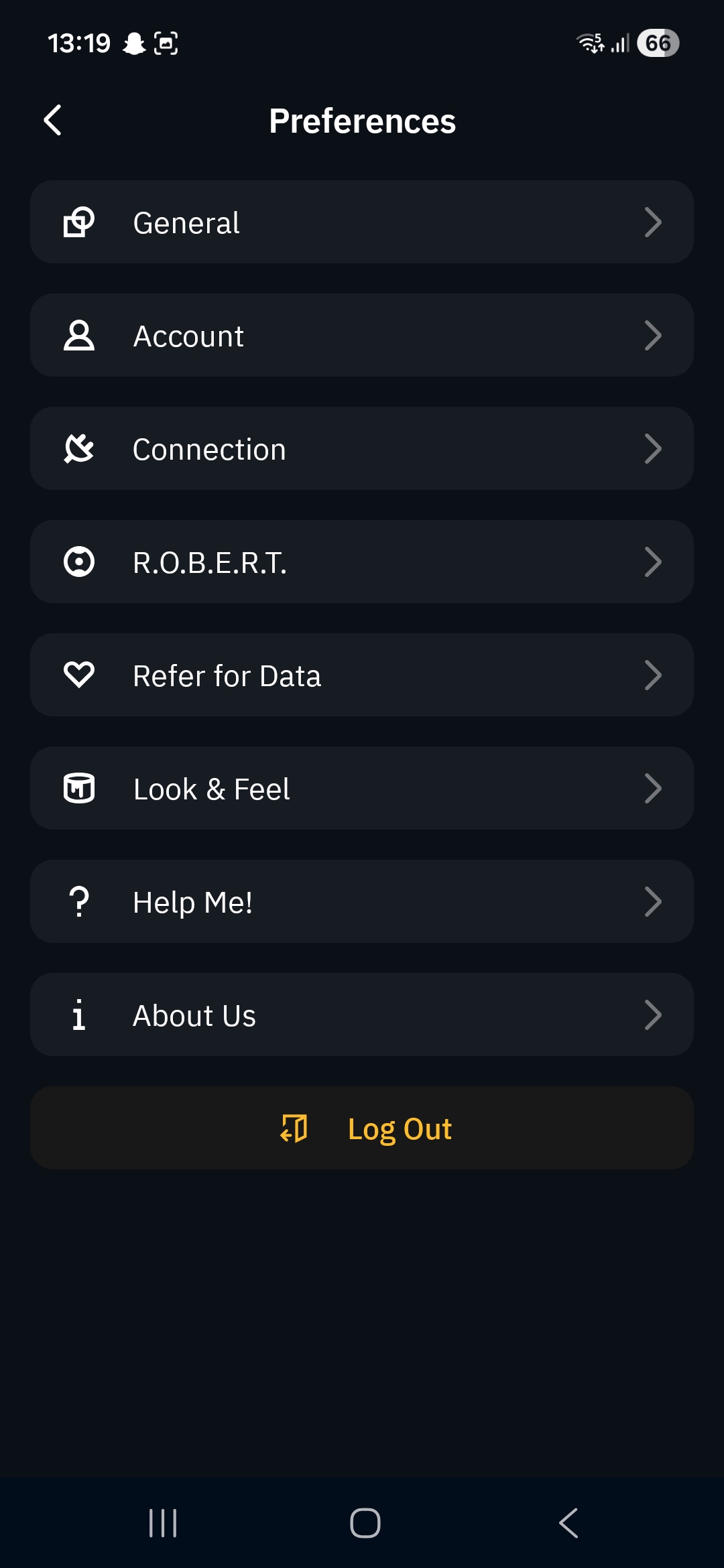
When you first launch Windscribe, the interface feels more like a control dashboard than a simple VPN app. Everything you need is placed directly on the home screen, including server access and the main connect button, so you don’t really have to dig through menus to get started. On the Windscribe logo itself, you’ll notice a small number indicator, which actually links to their built-in news and updates feed.
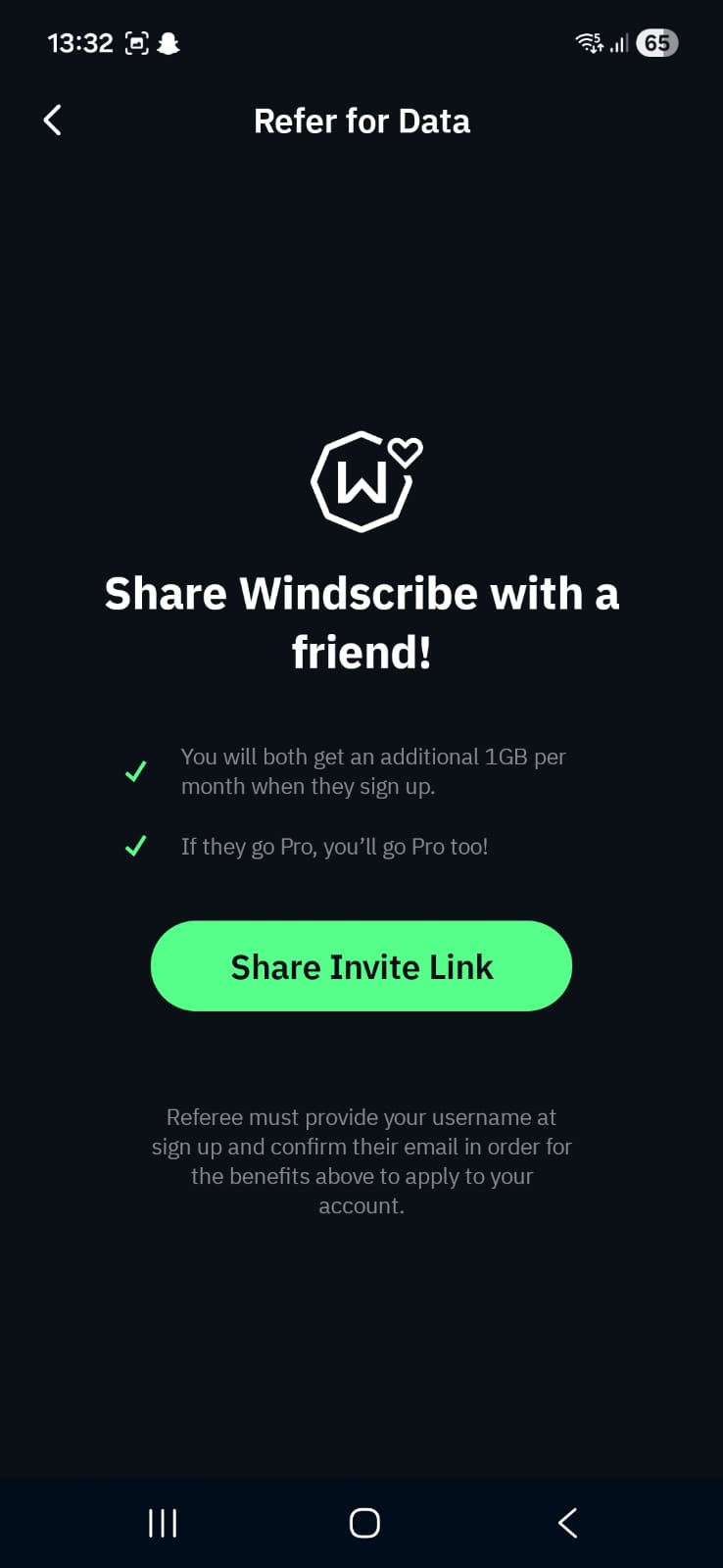
One of the most noticeable strengths right away is the freedom to manually pick servers instead of relying only on automatic selection. Each location also shows its current load, which helps in choosing a faster option, and you can even mark specific servers as favorites for quicker access later. At the bottom of the screen, the app clearly displays your free data limit (10 GB), along with the fact that premium removes this restriction. There is also a referral system where inviting others gives both users extra monthly data, and if a referred user upgrades to Pro, it can unlock additional benefits for you as well.
The visual experience also changes depending on connection status. When you are disconnected, the interface stays in a dark theme tone based on your selected appearance. Once you connect, the background updates with the flag of the selected country, which gives a more dynamic and slightly personalized feel compared to most VPN apps.
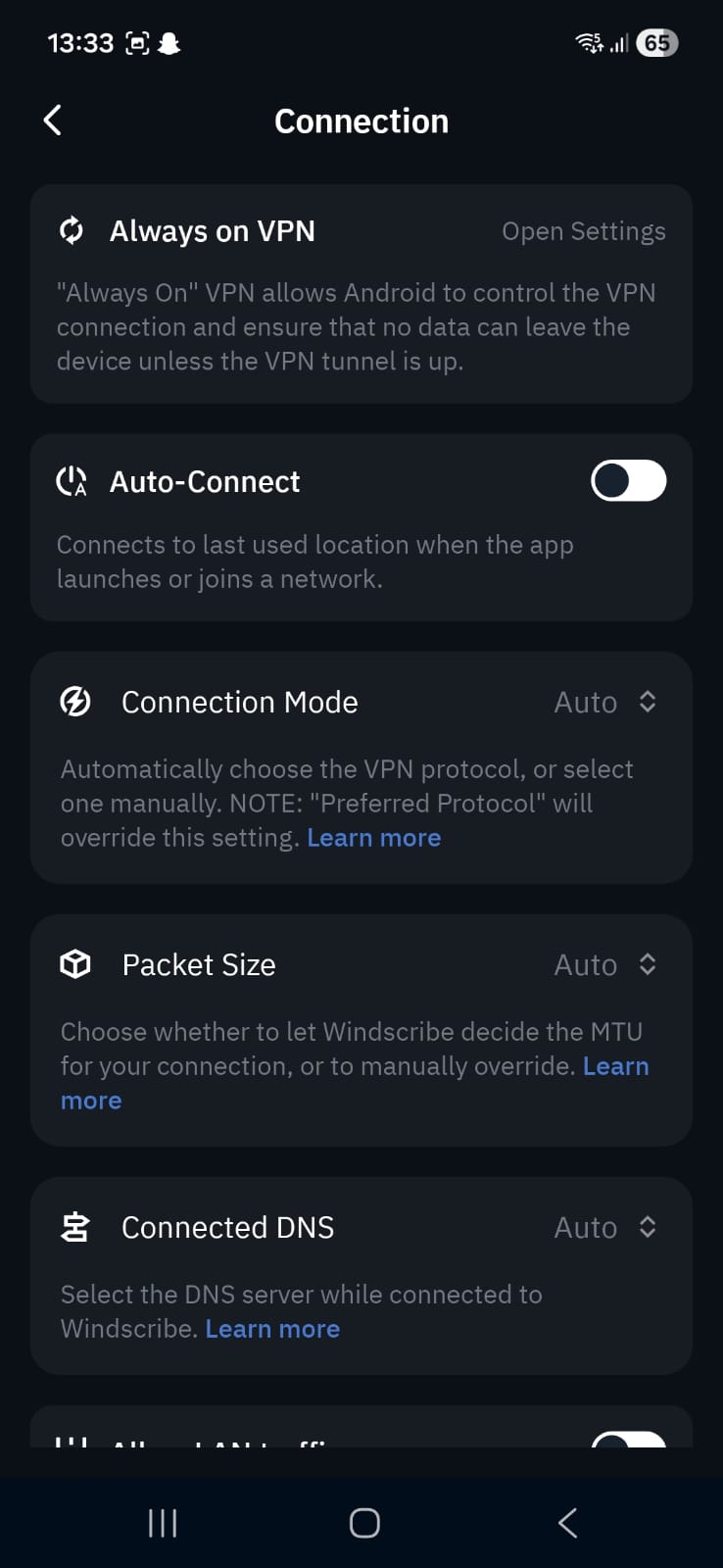
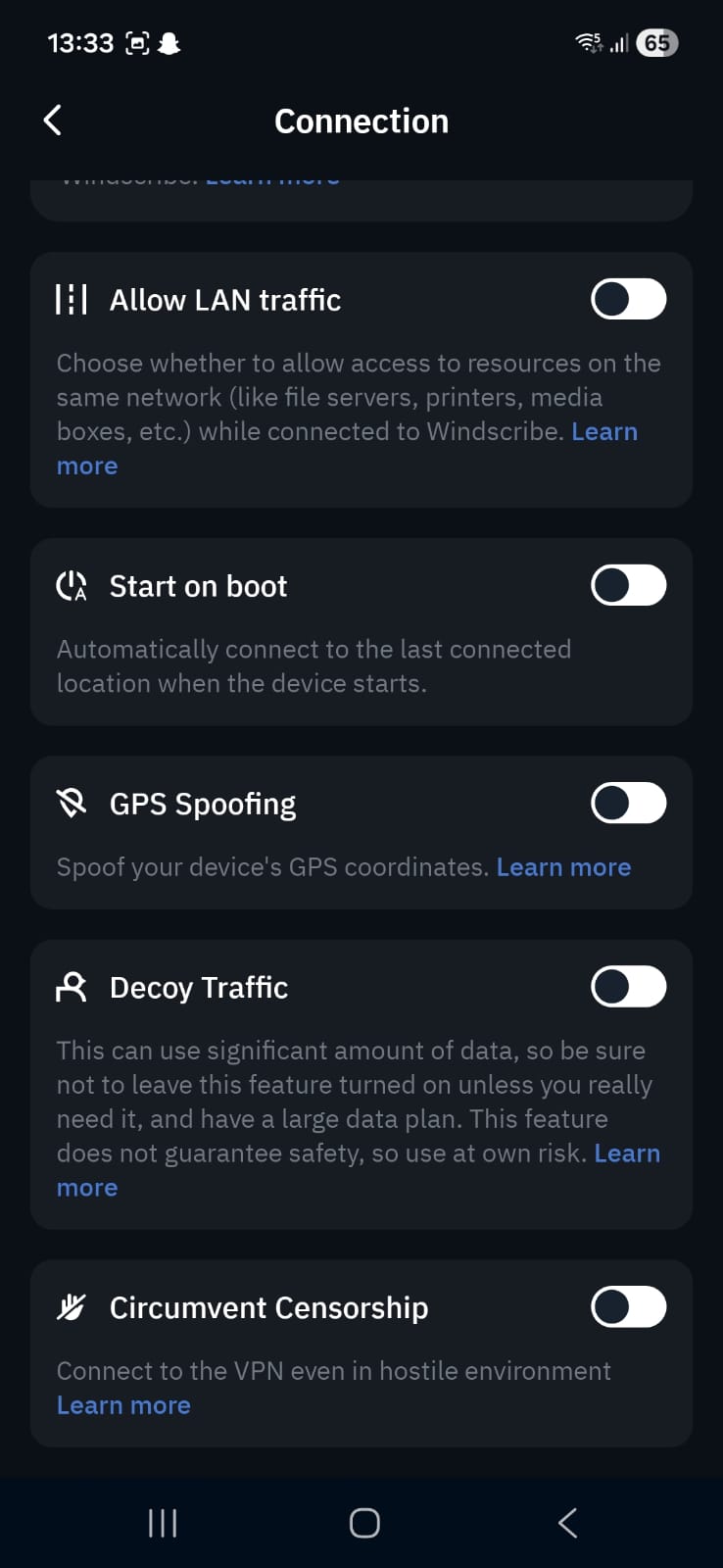
Home Page
- All Locations list available directly on screen
- Connect button placed at the center for quick access
- Option to add favorite servers for faster switching
- Custom Config section available for advanced setup
General Settings
- Location Load display for server activity
- Connection options for managing VPN behavior
- Split tunneling (choose specific apps to route through VPN)
- Auto-connect feature for automatic activation
- Connection Mode selection
- Allow LAN traffic toggle
- GPS spoofing option for location masking
- Decoy Traffic feature for disguise behavior
- Circumvent censorship mode
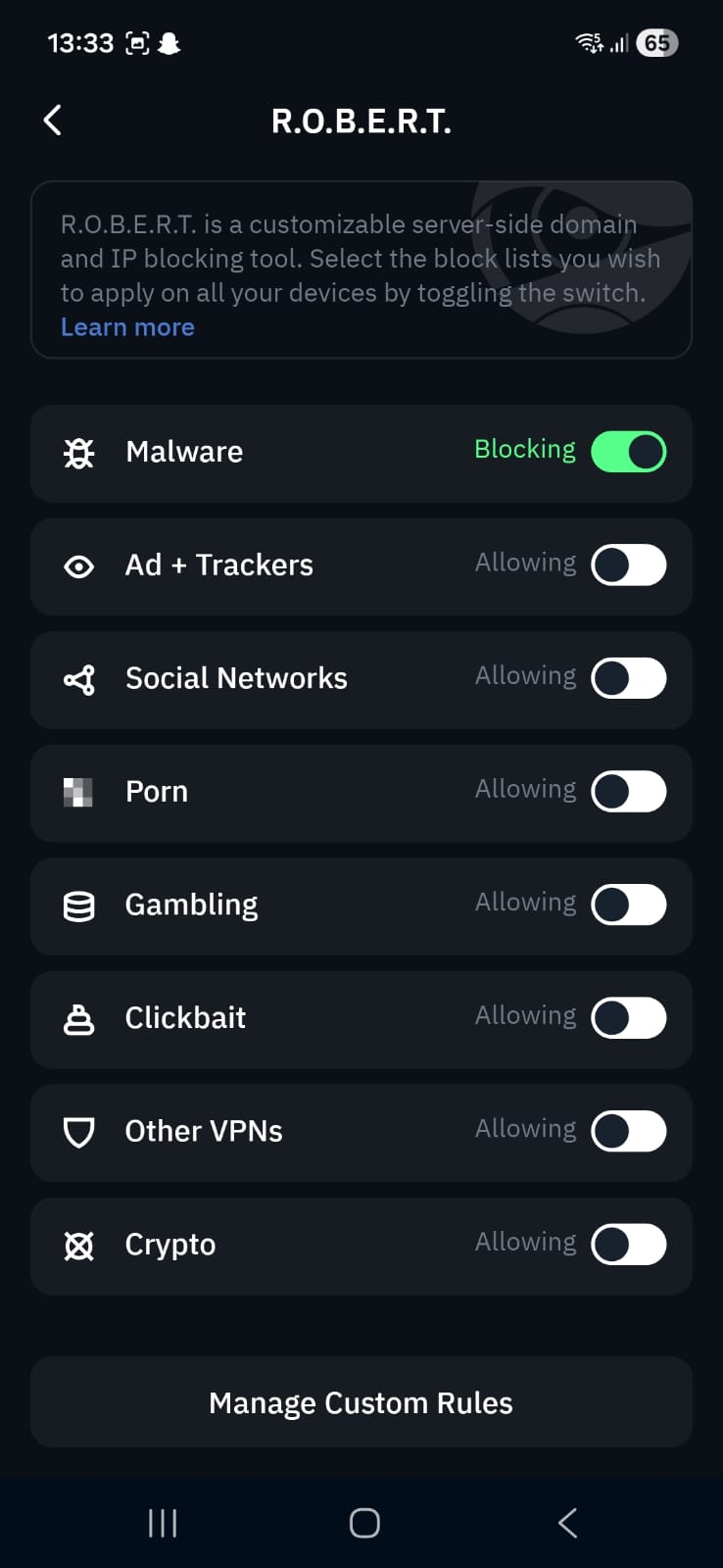
R.O.B.E.R.T (Blocking System)
- Malware blocking option
- Ads and tracker filtering
- Social media restriction controls
- Pornography filtering option
- Gambling site restriction
- Clickbait filtering
- Blocking other VPN services detection
- Crypto-related site filtering
Servers Availability: Windscribe’s free plan includes access to 10 server locations, with most of them placed across Europe and North America, while Asia is represented only through Hong Kong. This makes the overall spread fairly well-balanced, but the focus is still noticeably stronger toward Western regions.
- Canada
- United States
- France
- Germany
- Netherlands
- Norway
- Romania
- Switzerland
- United Kingdom
- Hong Kong
Look and Feel
- Sound customization settings available
- Interface appearance controls
- Different app skins and theme variations
Help and Support
- Knowledge Base for self-help guides
- “Talk to Garry” live chat support system
- Community-driven support forum for user discussions
Across both Wi-Fi and mobile data, Windscribe shows a clear slowdown compared to a normal connection, though it still holds together well enough for simple browsing and light usage. The connection stays reliable, but the reduced speed and higher latency make it less effective for anything that depends on quick response times or heavy data flow.
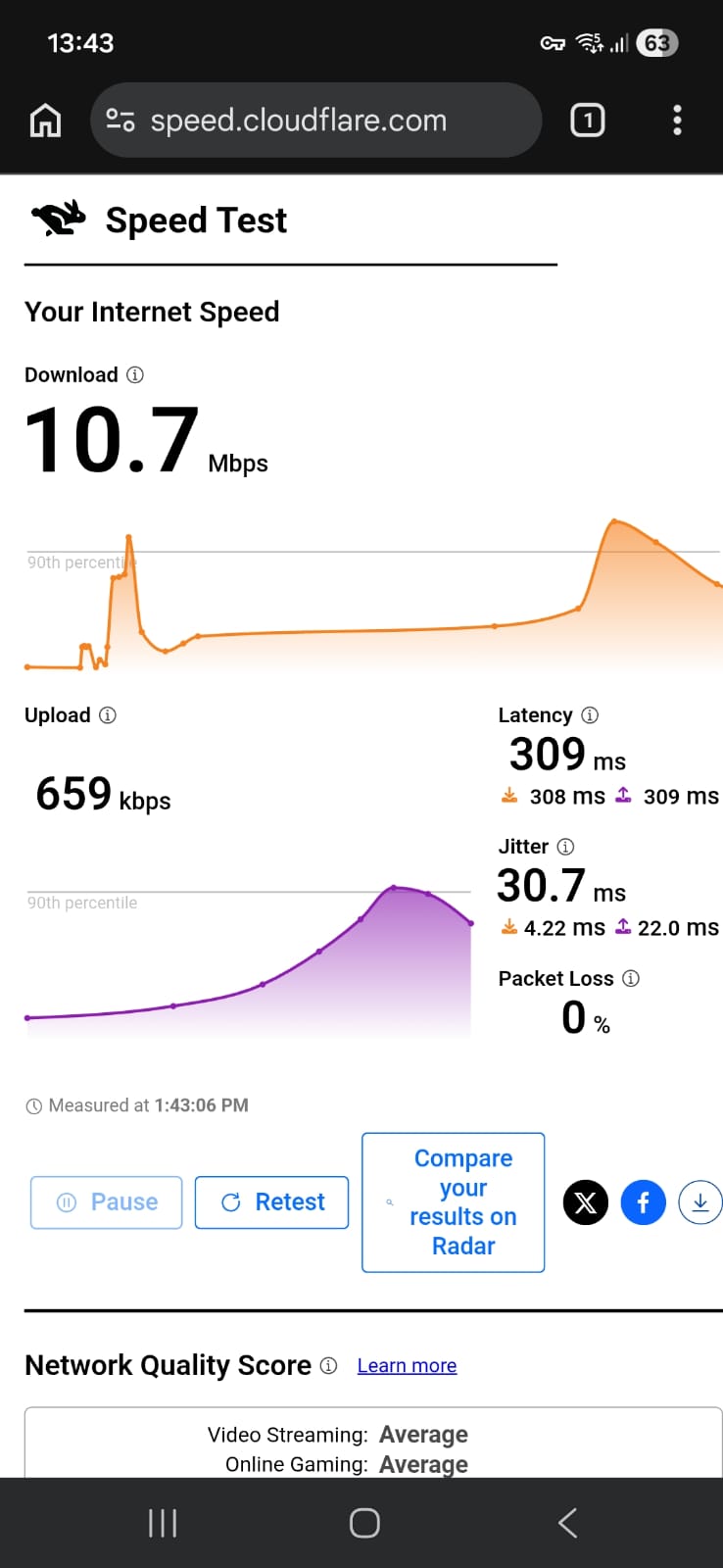
☞ On Wi-Fi (Android) – Speeds were clearly on the lower side across both servers, even without exact percentage drop figures. The Romania server held up a bit better overall, offering more stable download and upload speeds. In contrast, the US (Dallas) server felt more restricted, especially with a very low upload rate. Latency was fairly high in both cases, so you’d likely notice some delay during real-time activities like calls or gaming. Overall, it’s usable for everyday browsing, but not something you’d rely on for heavy tasks.
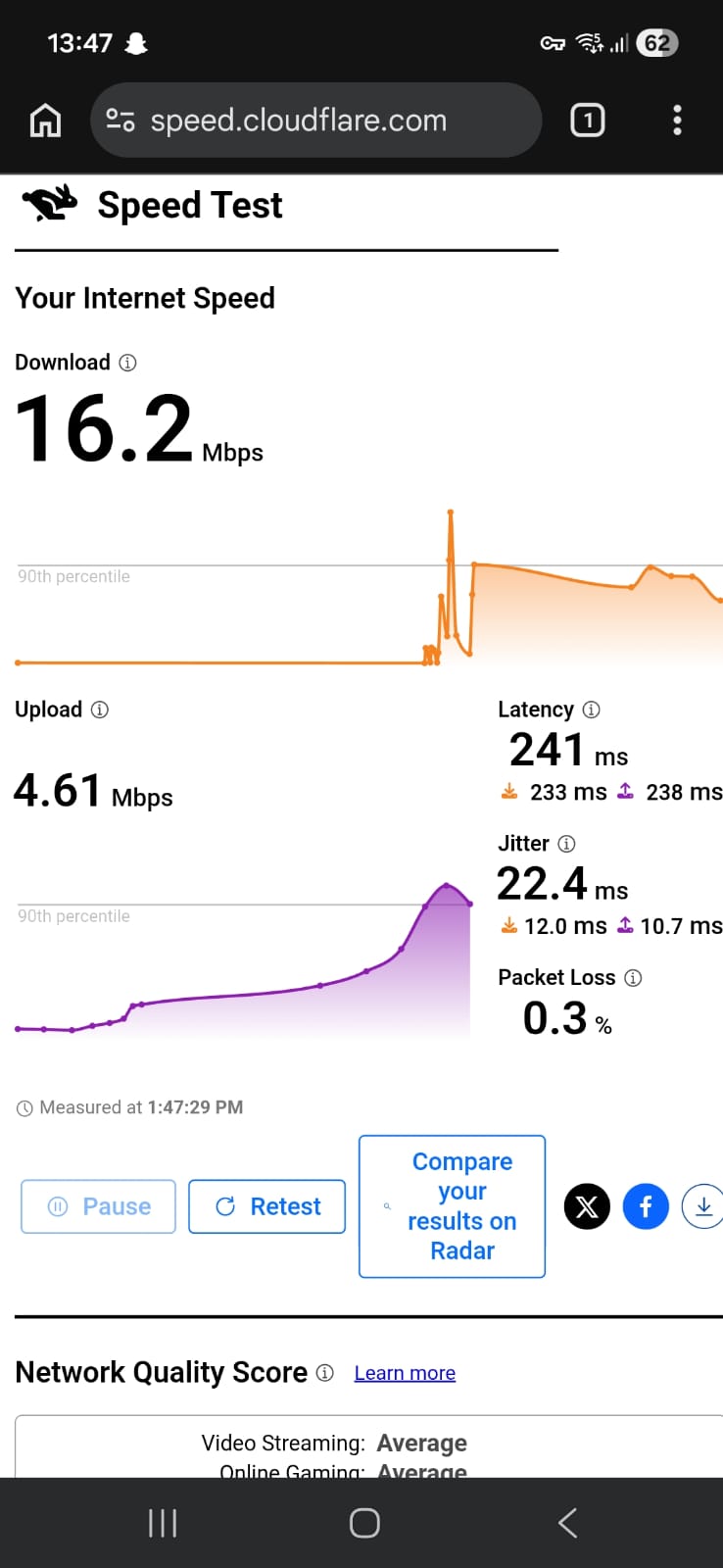
Romania (Bucharest – “No Vampires”) – 91.9% drop in speed
- Download Speed: 16.2 Mbps
- Upload Speed: 4.61 Mbps
- Latency: 241 ms
- Jitter: 22.4 ms
US (Dallas BBQ) – 94.65% drop in speed
- Download Speed: 10.7 Mbps
- Upload Speed: 659 Kbps
- Latency: 309 ms
- Jitter: 30.7 ms
☞ On Mobile Data – Performance here was a bit uneven. Speeds were still quite limited overall, but the US server surprisingly delivered a better download rate compared to Romania. That said, both servers struggled with high latency, which would make the connection feel sluggish in real-world use. The Romania server also showed a big spike in jitter, hinting at instability during the test. In general, mobile data performance felt inconsistent and better suited for basic tasks rather than anything demanding.
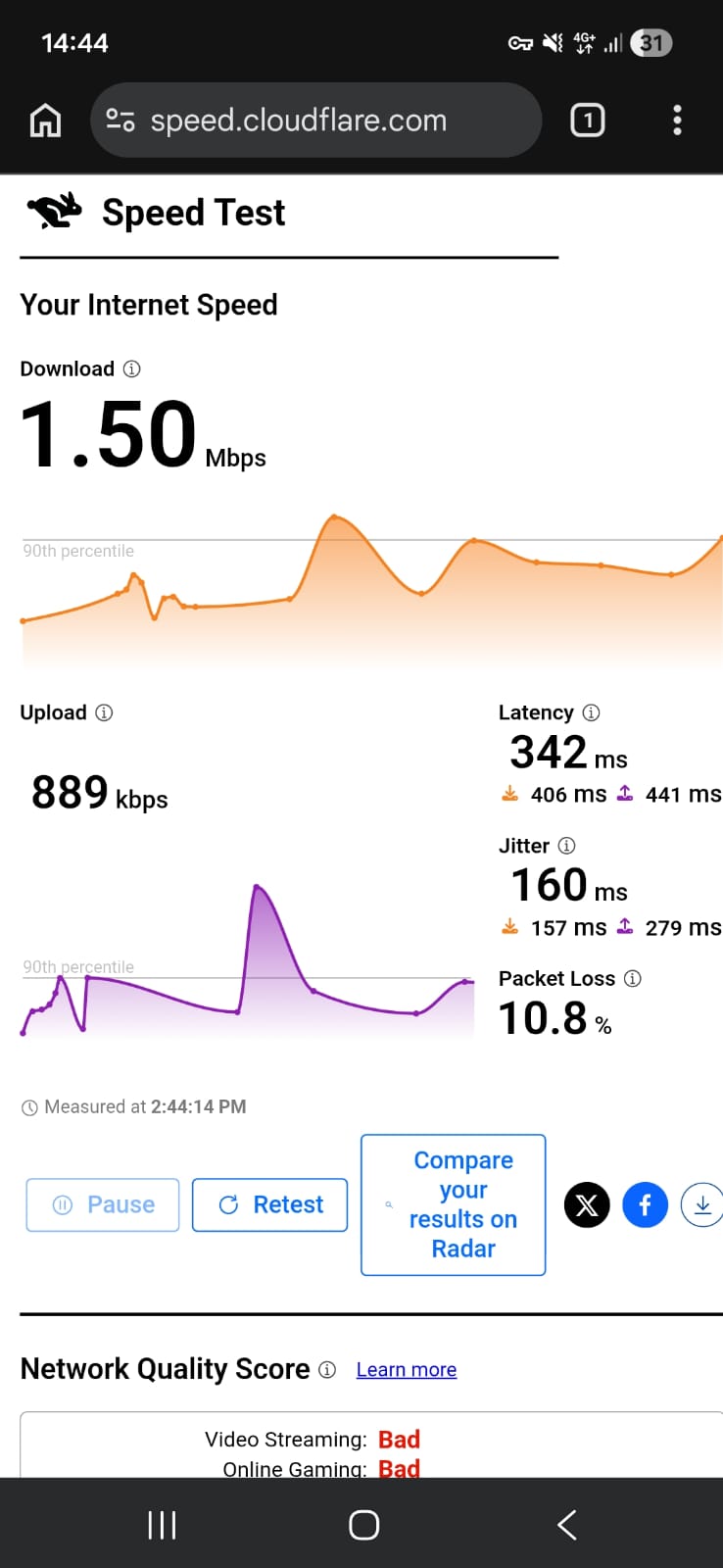
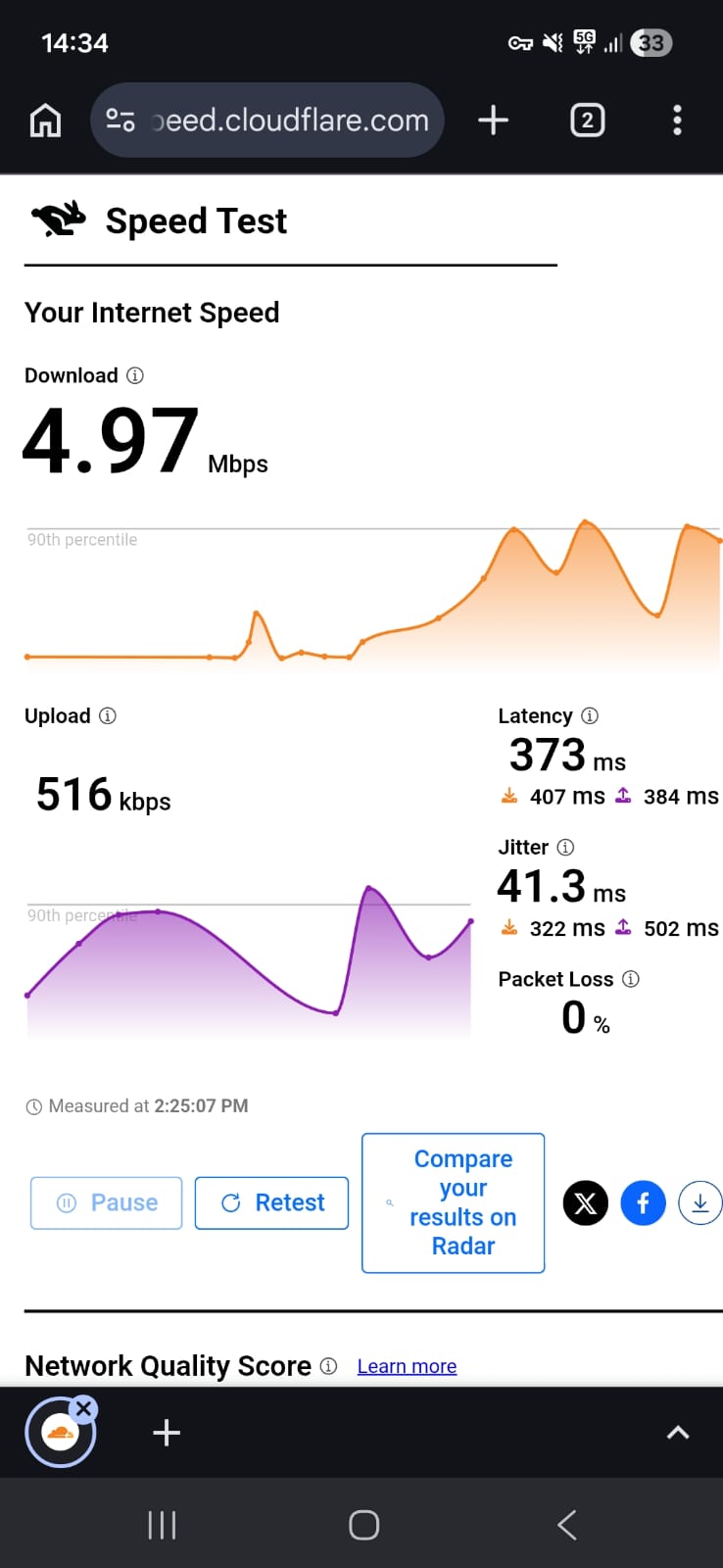
Romania (Bucharest – “No Vampires”) – 98.4% drop in speed
- Download Speed: 1.50 Mbps
- Upload Speed: 889 Kbps
- Latency: 342 ms
- Jitter: 160 ms
US (Dallas BBQ) – 94.8% drop in speed
- Download Speed: 4.97 Mbps
- Upload Speed: 516 Kbps
- Latency: 373 ms
- Jitter: 41.3 ms
Windscribe showed usable but clearly constrained real-world experience on my Android device. It handles everyday tasks reasonably well on Wi-Fi, though with delays, while mobile data performance feels less consistent and more noticeably slowed across browsing and streaming.
On Wi-Fi (Android): Windscribe delivered a usable but clearly constrained experience on Wi-Fi, with performance that varied noticeably between servers.
- On the Romania (Bucharest) server, general browsing was fairly stable. Most websites loaded in around 2–4 seconds, with heavier pages occasionally taking up to 5–6 seconds to fully display. The US (Dallas) server felt more restricted. Basic websites typically took around 3–6 seconds to load.
- Streaming worked, but with a noticeable delay at the start. On Netflix, videos usually began within 3–4 seconds, but playback opened in low resolution. On the Romania server, HD quality typically appeared within 25–40 seconds, while the US server often took closer to 35–50 seconds. Once stabilized, playback remained smooth with no buffering interruptions.
- Skipping forward or backward introduced a 1–2 second delay, after which playback resumed normally. Reconnecting the VPN caused streams to reset to lower quality before gradually improving again.
On Mobile Data: Windscribe felt more inconsistent, with noticeable delays across browsing and streaming.
- Simple websites typically took around 6–10 seconds to load, often appearing in stages where text would load first, followed by images a few seconds later. More complex pages could take 10–15 seconds or longer, especially when multiple media elements were involved. Tapping links also introduced a clear pause before pages began loading.
- Streaming was more limited. Videos generally took 8–12 seconds to start and frequently remained in low quality for extended periods. Even when quality improved, it was not always stable. Skipping forward or backward introduced delays of around 4–6 seconds, and playback sometimes needed extra time to recover after each action.
- The US server performed slightly better for basic streaming, but both servers struggled with consistent responsiveness. Romania felt more unstable during use, with occasional uneven playback behavior.
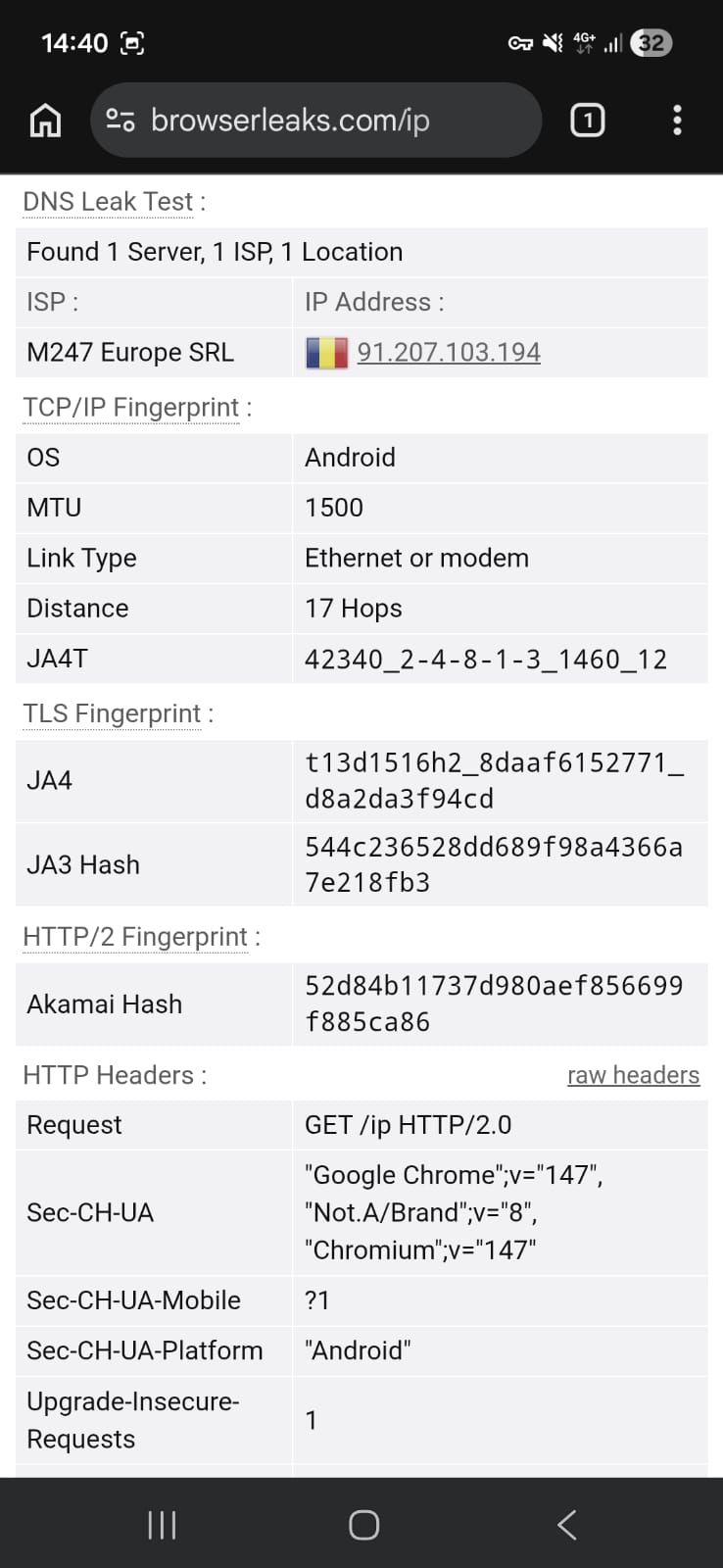
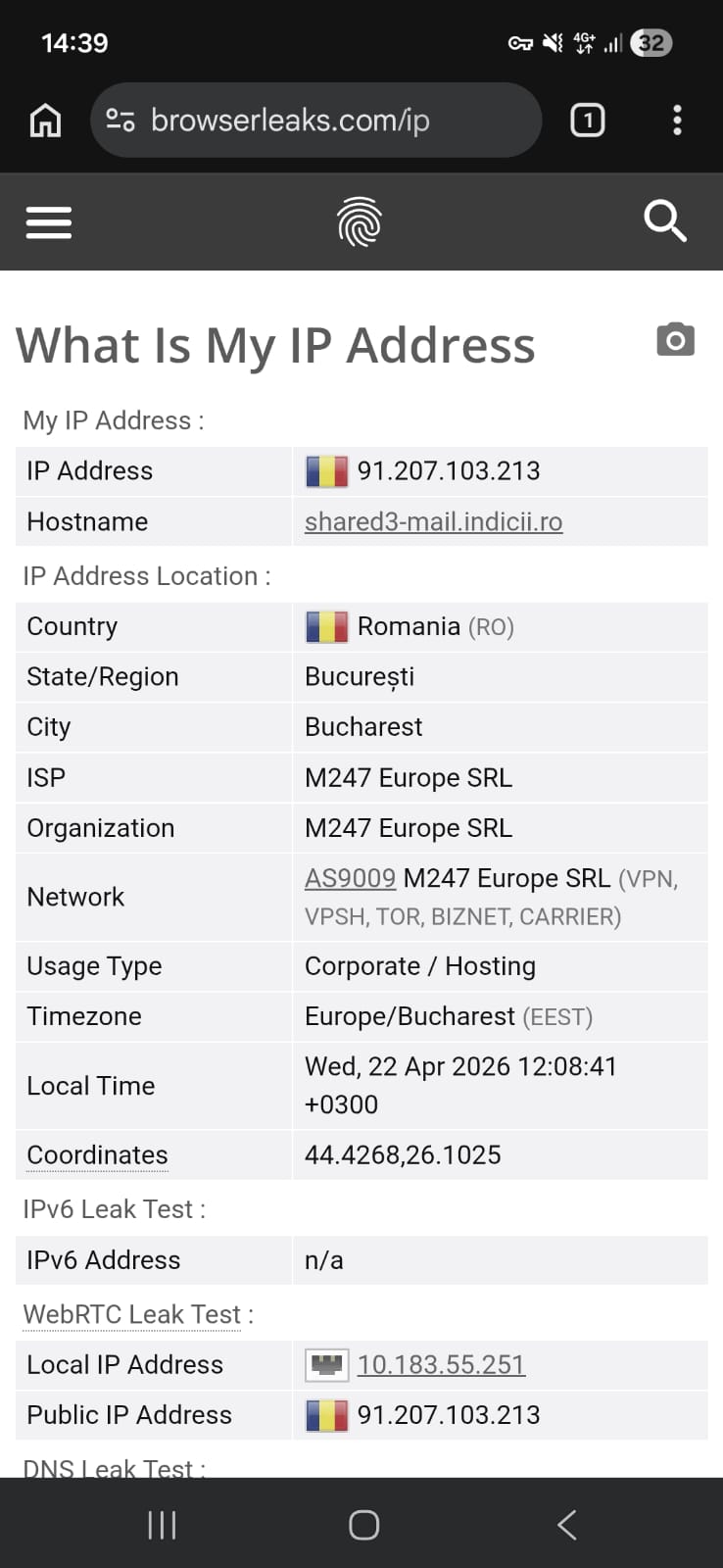
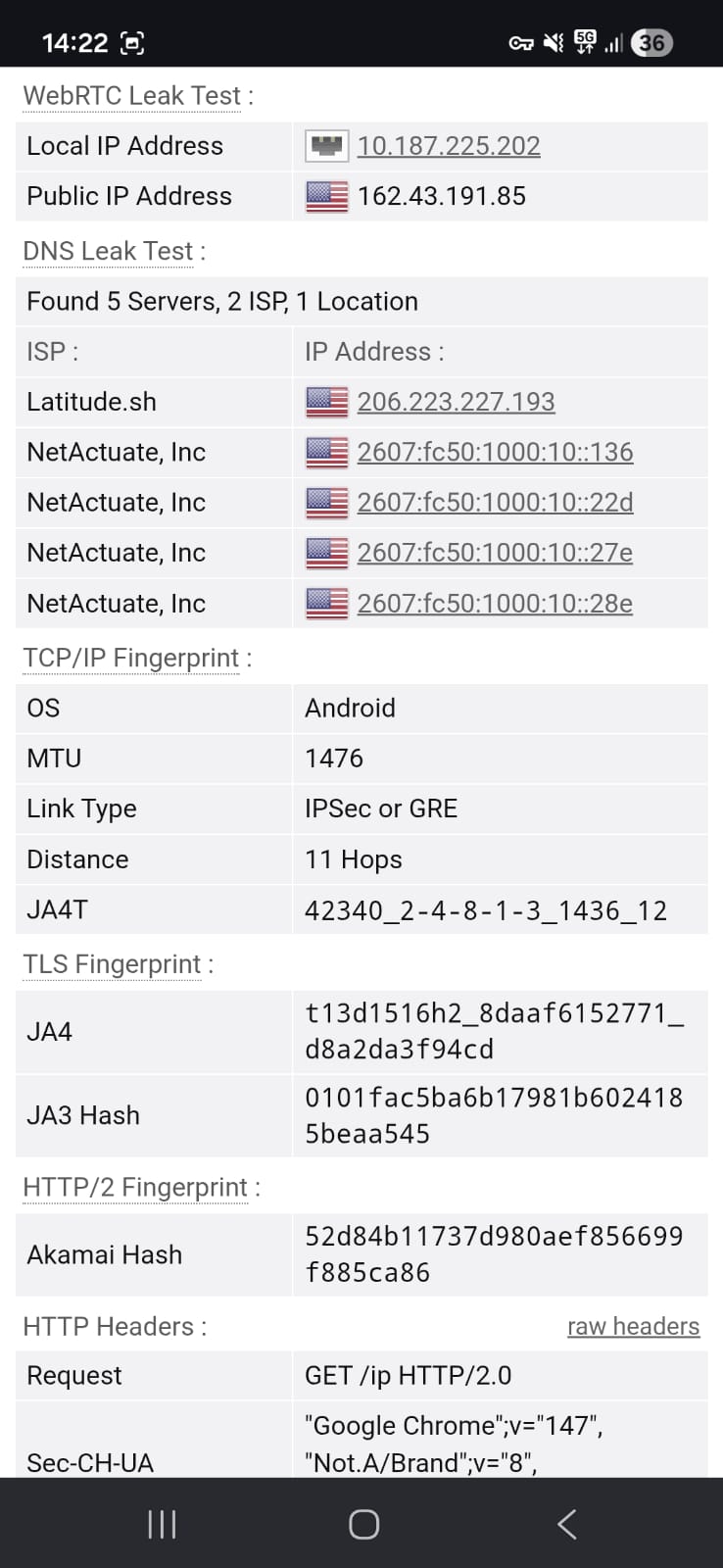
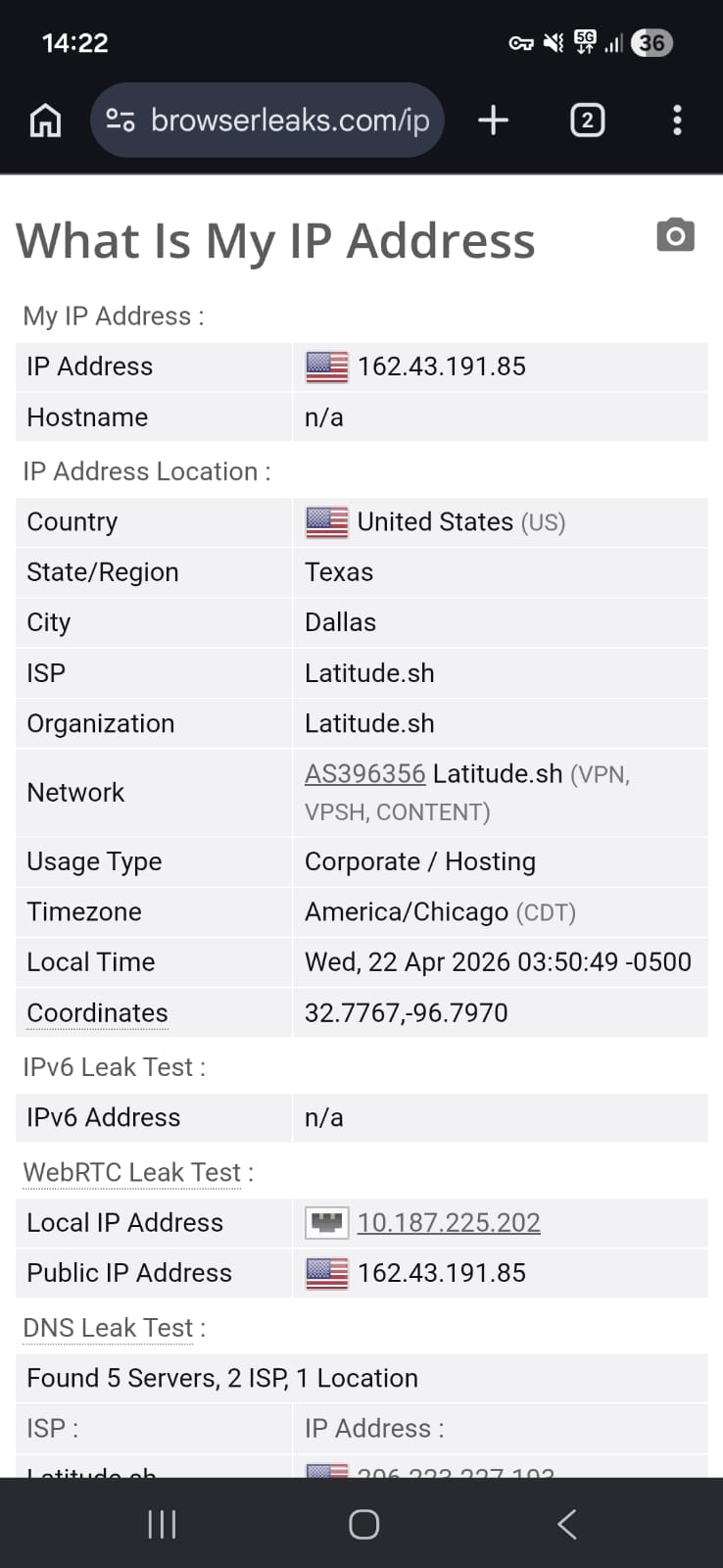
Windscribe was evaluated using both United States and Romania servers to assess its privacy protection under different regions. Throughout the testing process, the connection stayed secure and no IP, DNS, or WebRTC leaks were detected at any stage.
Even during continuous use and server switching, the VPN consistently preserved anonymity without exposing any underlying network information. The results indicate that Windscribe maintained strong leak protection across both locations, with no observable weaknesses in its privacy safeguards.
PROS
- Quick and lightweight installation process through the Google Play Store, with a smooth setup flow and no unnecessary steps
- Straightforward onboarding that allows immediate access to the app without lengthy introductions or forced tutorials
- Clean, dashboard-style interface that places core controls directly on the home screen for easy access
- Manual server selection available even on the free plan, with visible server load indicators for better choice optimization
- Ability to mark favorite servers for faster reconnection and improved convenience during repeated use
- Includes a 10 GB free data allowance, with referral options to increase monthly data limits
- Strong customization options such as split tunneling, auto-connect, and connection mode controls
- Additional privacy tools like R.O.B.E.R.T for blocking ads, malware, trackers, and restricted content categories
- Fully functional free server network across multiple regions including North America, Europe, and Hong Kong
- Stable performance on Wi-Fi for everyday browsing with generally consistent page loading behavior
- Streaming support works reliably, with videos eventually reaching HD quality after initial buffering
- No IP, DNS, or WebRTC leaks detected during testing, maintaining strong privacy protection
- Fully ad-free experience with optional UI customization, themes, and sound settings
- Support system includes knowledge base resources, live chat assistance, and community forums
CONS
- Overall speeds remain limited, especially on free servers, with noticeable performance drops during use
- High latency across most connections can affect real-time activities like gaming or voice/video calls
- Mobile data performance is inconsistent, with significant slowdowns and unstable responsiveness
- Streaming starts in low resolution and requires time to reach HD quality, which may not always remain stable
- Free plan still carries limitations in overall speed consistency despite offering manual server selection
- Advanced features may feel overwhelming for casual users due to the number of configuration options available
👉 See full Windscribe review →
3. Privado VPN – Fast but Inconsistent
Getting PrivadoVPN running on Android feels more like a short detour than a straight install, because you don’t land in the app right away and instead pass through a few web steps before everything is finally ready. It’s not confusing or hard to follow, but the whole entry process feels a bit stretched out compared to apps that take you directly from download to connection in one go.
After you’re actually inside the app, the experience becomes much more stripped down and focused. The interface is very minimal, almost to the point where everything revolves around just connecting and picking a server. You can still choose locations manually and save favorites, but compared to something like Windscribe, the toolset feels a lot more limited. There’s no heavy dashboard or deep customization layer here, it’s clearly designed to stay simple. Though it performs decently well for everyday browsing and streaming, and the privacy side holds up properly with no leaks detected during testing.
Where PrivadoVPN stands out a bit more is raw performance consistency, especially on Wi-Fi, where it can feel slightly more responsive than Windscribe in some cases. That said, it comes at the cost of flexibility. Windscribe offers far more control, things like split tunneling options, advanced filtering (R.O.B.E.R.T), and broader configuration settings, while PrivadoVPN keeps things basic and minimal. Mobile data performance on PrivadoVPN is still uneven, with slower speeds and some instability during heavier use, but overall, it remains usable for simple tasks. In short, it can feel a bit smoother in certain speed scenarios, but when it comes to features, it is way behind Proton VPN and Windscribe VPN.
Limitations (Free Version)
⟶ No consistent server performance – speed and responsiveness vary noticeably between different locations.
⟶ Limited optimization on mobile data – frequent slowdowns and weaker stability compared to Wi-Fi usage.
⟶ Basic feature set only – advanced controls and deeper customization options are restricted compared to competitors like Windscribe.
Performance Table Result
PrivadoVPN tends to unfold in a more extended sequence than users might expect, with several screens appearing before the actual app installation begins. The flow includes repeated choices and intermediate pages that gradually guide you toward the Play Store. Because of this layered path, the setup feels less immediate overall, even though each step remains simple and the process itself does not introduce technical difficulty.
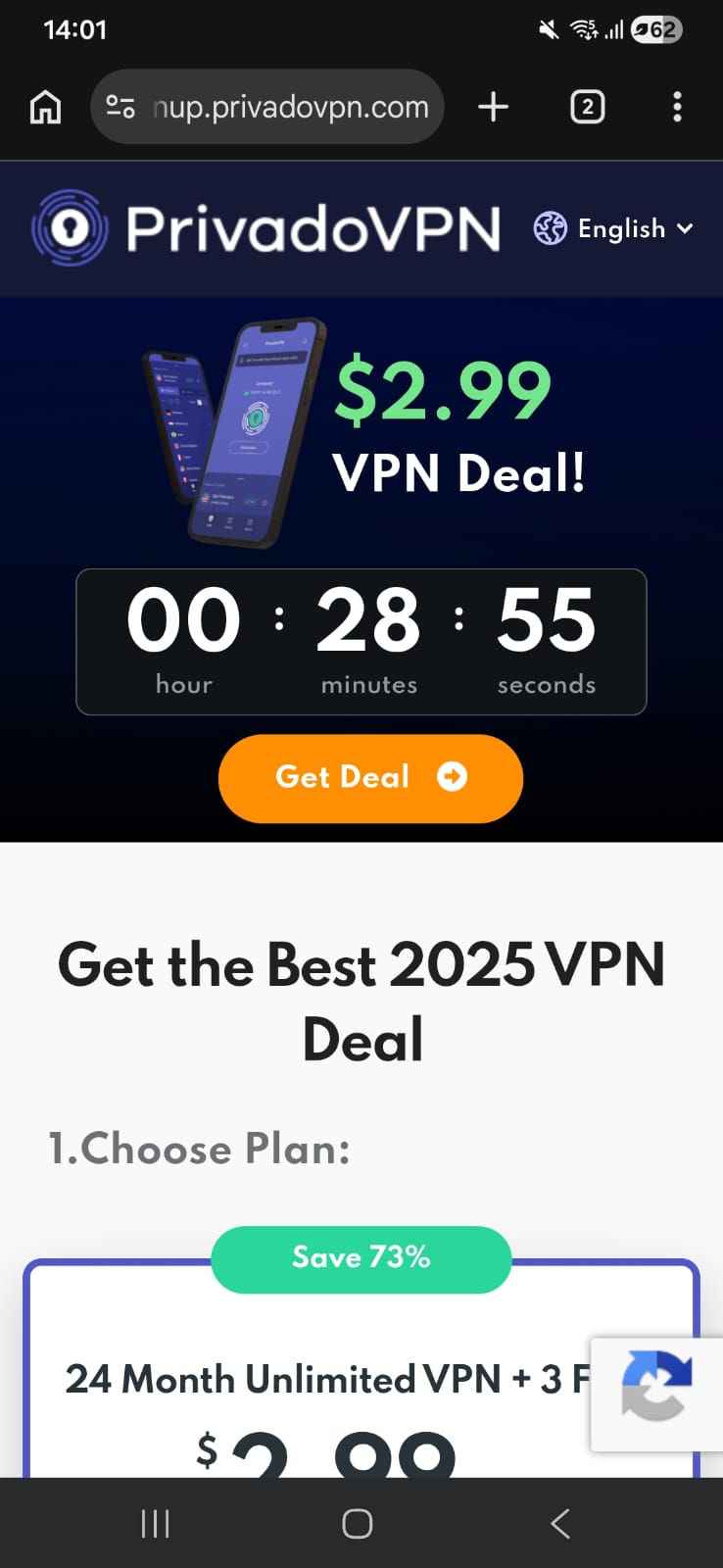
PrivadoVPN doesn’t take the most direct route when you’re trying to set it up on Android. Instead of jumping straight into installation, the process begins on its website, where tapping “Get Privado” leads you into a pricing section rather than the app itself. The free option is there, but it takes a bit of scrolling to uncover it.
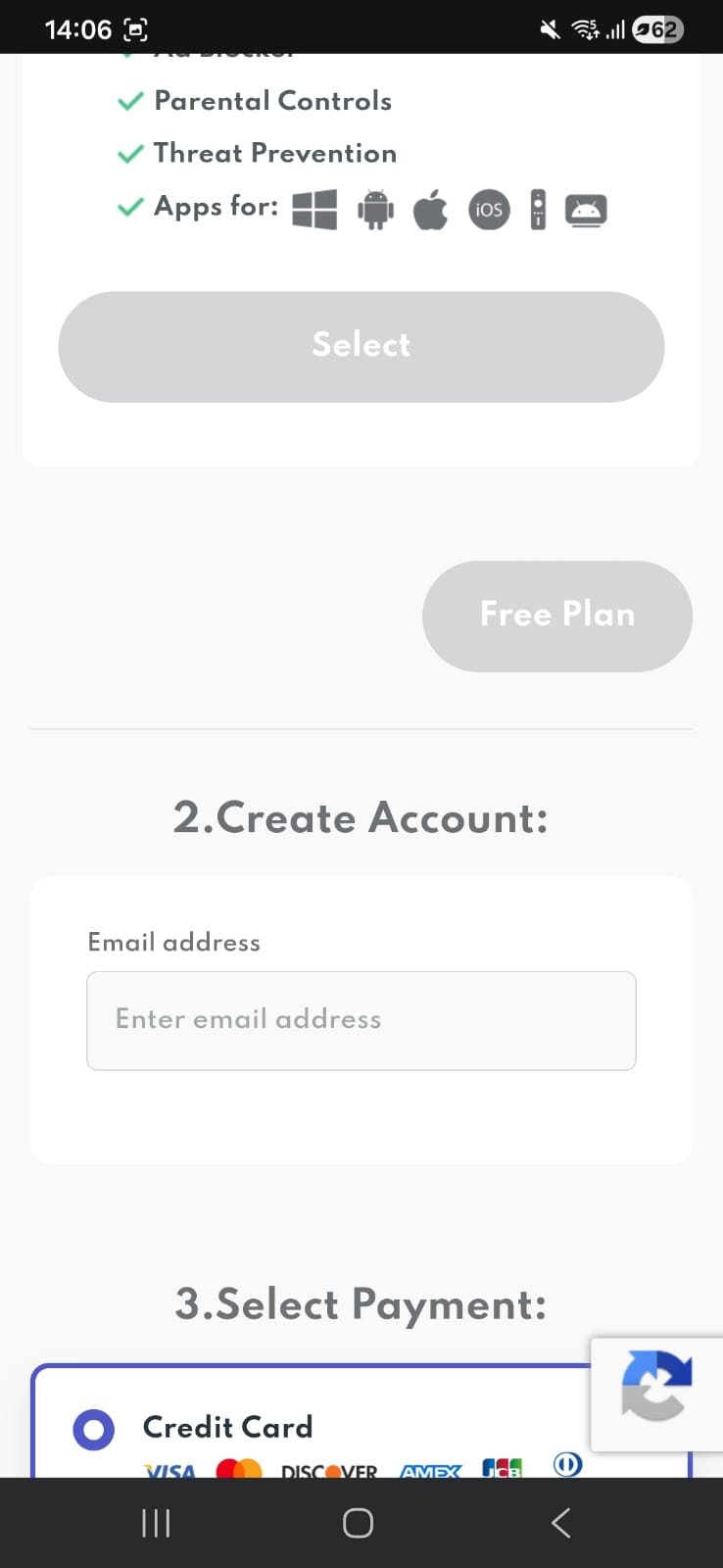
Even after finding it, you’re not done yet. The interface continues to highlight discounted paid plans, and you’ll need to move past those prompts before selecting the free tier. That choice gets repeated once more on the following screen, which adds an extra layer of confirmation before you can move forward.
Account access comes next. Rather than going through sign-up again, I switched to the login page since I already had credentials. Only after completing this step does the process finally redirect you to download the app from the Play Store (22.86 Mb).
On the store, the app reflects a 3.4 rating with over 10 lakh downloads, which feels modest compared to more established options. By this point, you’ve already spent more time navigating pages than actually installing anything.
In the end, everything works, but the journey feels longer than necessary. It’s not complicated, just a bit drawn out - especially when compared to Proton VPN and Windscribe VPN that take you from tap to ready-to-use in one smooth flow.
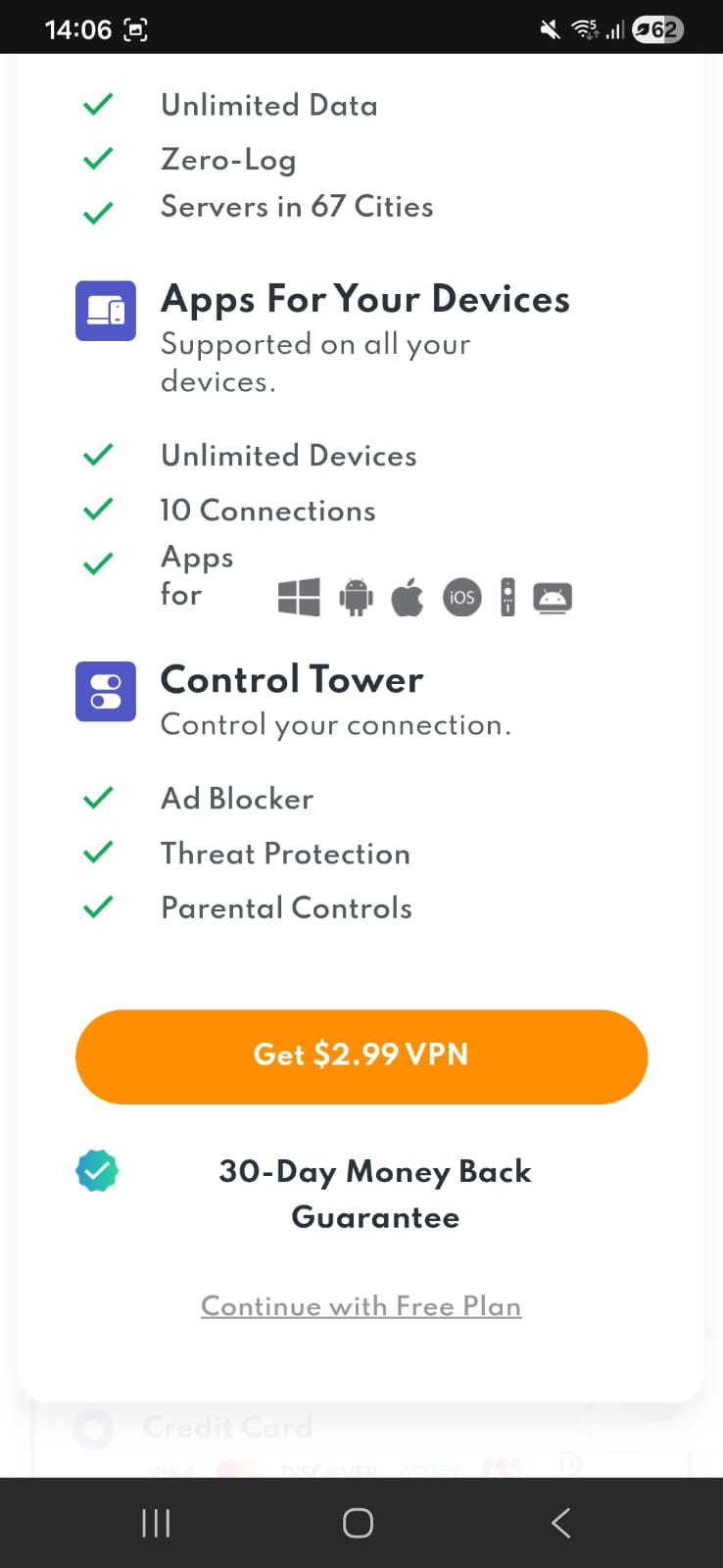
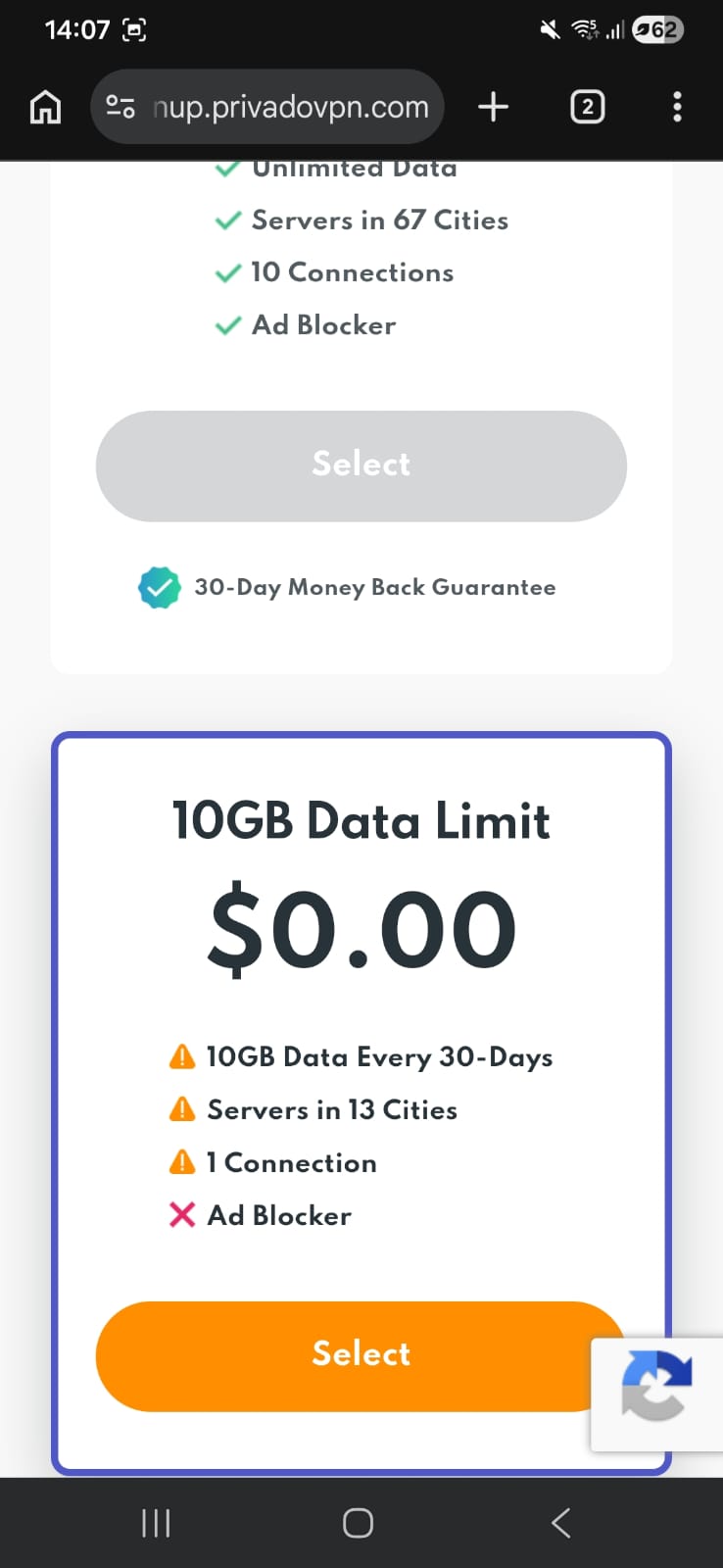
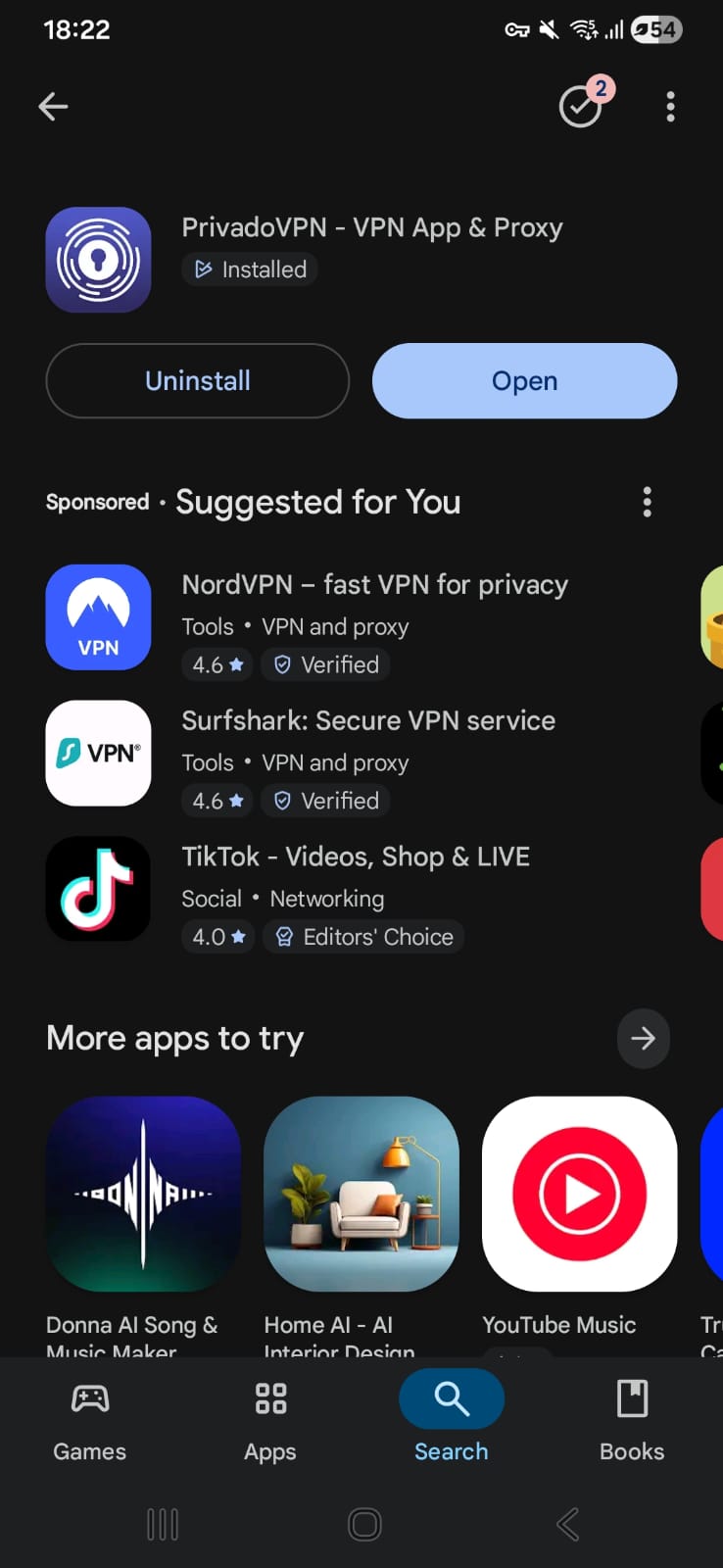
PrivadoVPN presents a very minimal, control-focused interface after a slightly extended onboarding process. Once inside, the app prioritizes simplicity and manual control over visual complexity, making server selection and connection management the core of the experience.
Once inside, the interface shifts into something very minimal. The home screen doesn’t try to do too much visually and mainly keeps focus on a single connect button with the currently selected location shown clearly. It feels clean and stripped down, without unnecessary elements competing for attention.
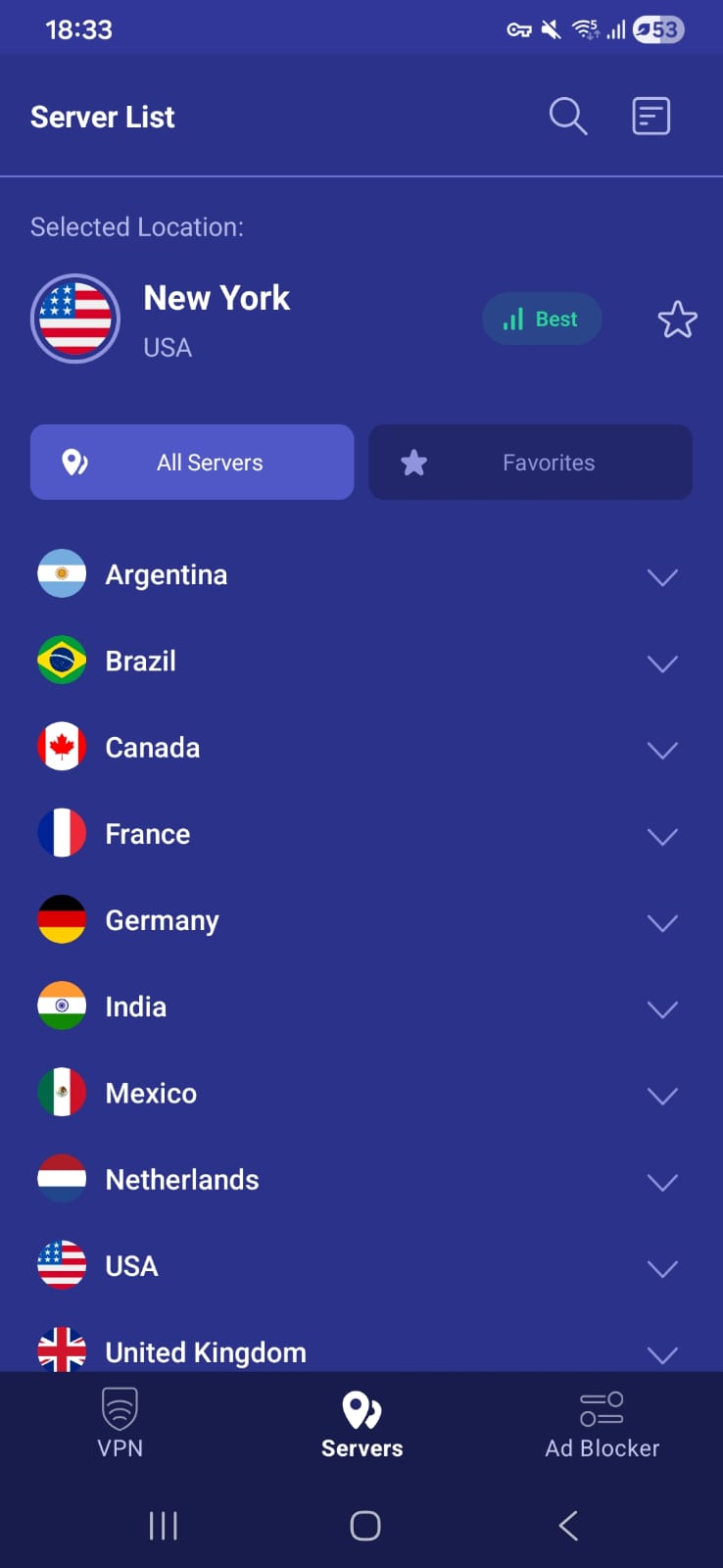
The servers section adds more flexibility to the experience. Instead of relying only on automatic selection, you can manually choose any server you prefer. Each server also shows speed information, which makes it easier to pick a better-performing option rather than guessing. On top of that, you can save servers as favorites, which makes switching back to preferred locations much faster later on.
Overall, the experience feels like a mix of slightly extended onboarding followed by a very simple and controlled interface, where most of the usability comes from manual server control rather than visual complexity.
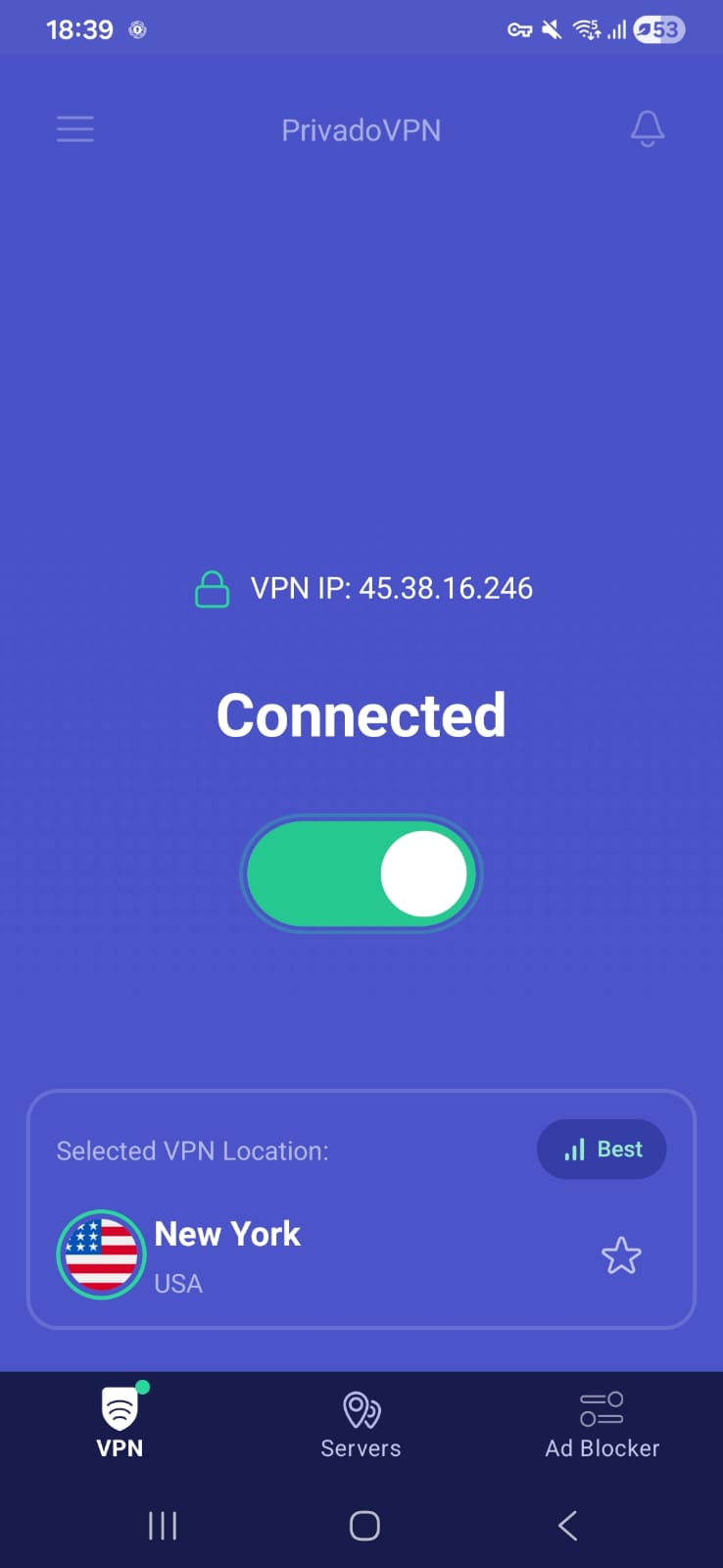
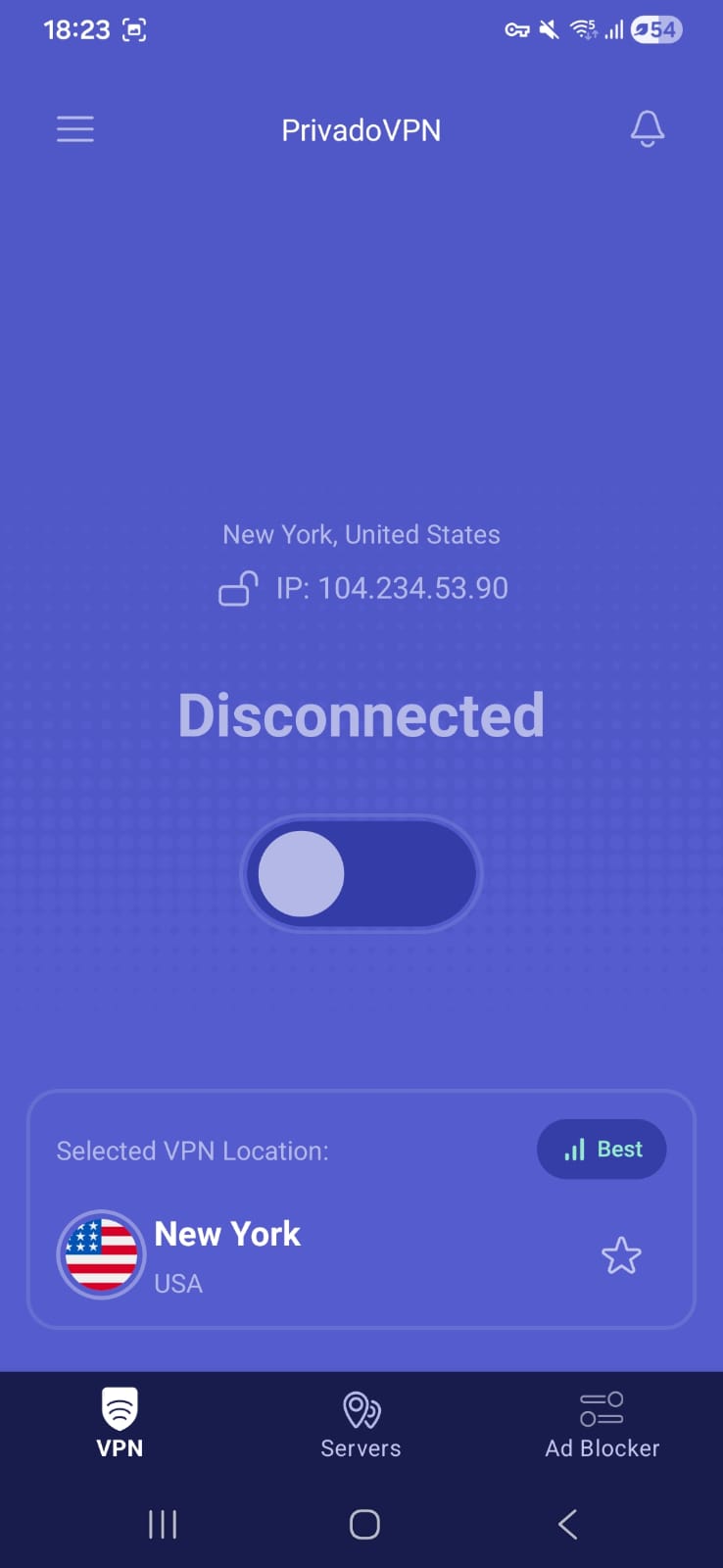
Home Page -
- Connect Button
- Shows selected location
Servers Availability (Free Version): Privado VPN’s free tier gives access to a total of 10 server locations. The selection is mostly centered around Europe and North America, which form the core of its network. A few additional servers are also available in regions like South America and Asia, though in much smaller numbers. Overall, the distribution is fairly limited in global reach, but still offers enough variety for basic everyday use.
- Option to select servers manually
- Option to mark servers as favorites
List of available servers
- Netherlands (Fastest)
- Brazil
- India
- Germany
- Argentina
- France
- United Kingdom
- Canada
- United States
- Mexico
General Settings
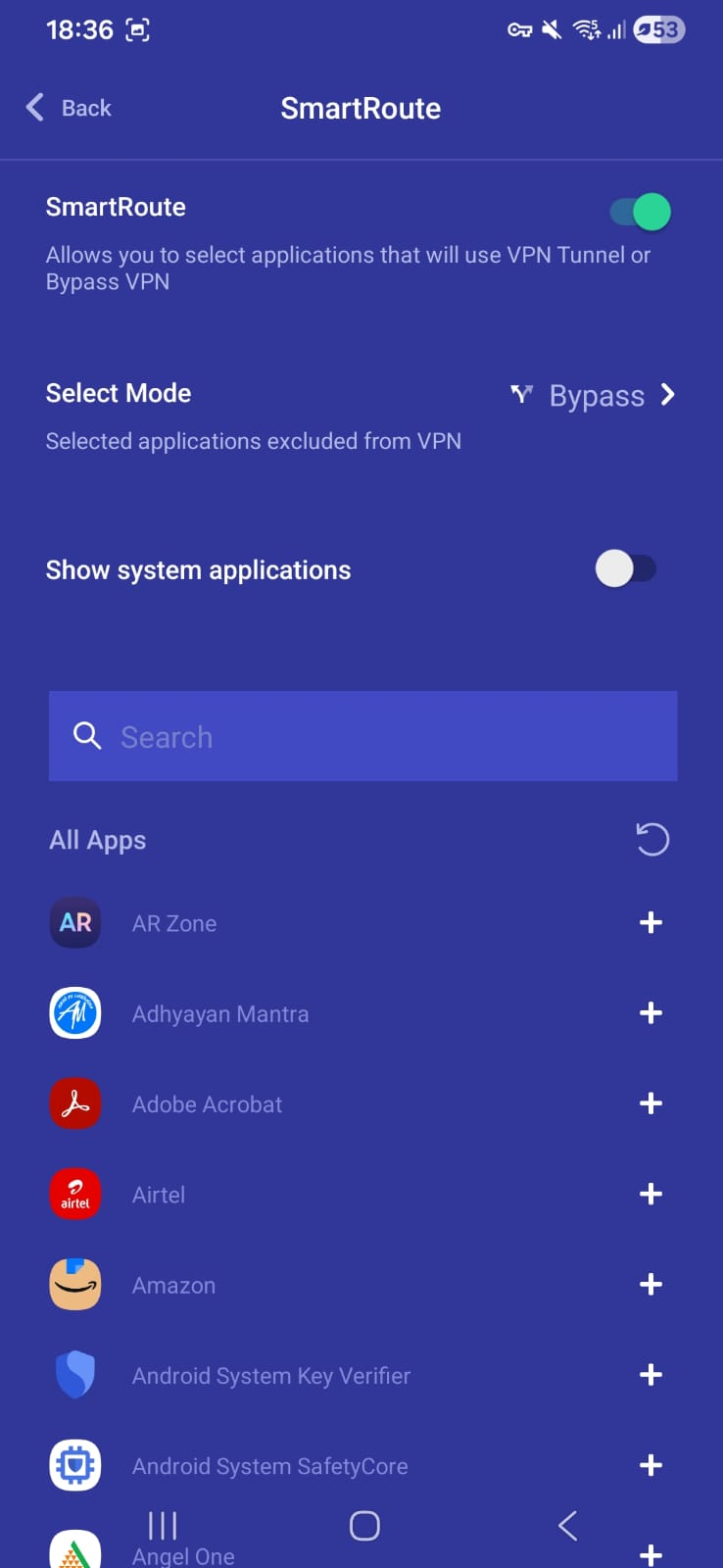
- Smart route (Split tunneling)
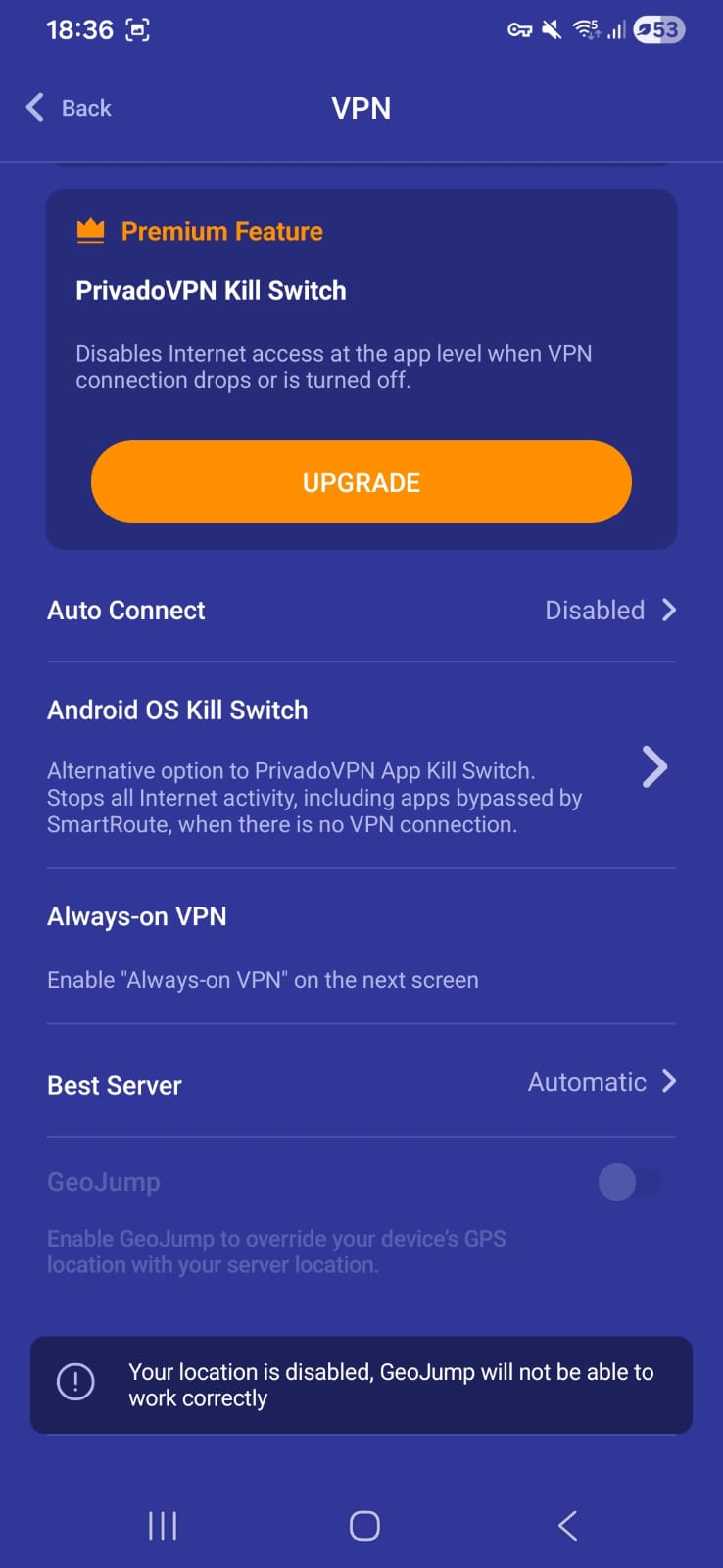
- Kill Switch (through your android settings)
- Auto connect
- Always-on VPN
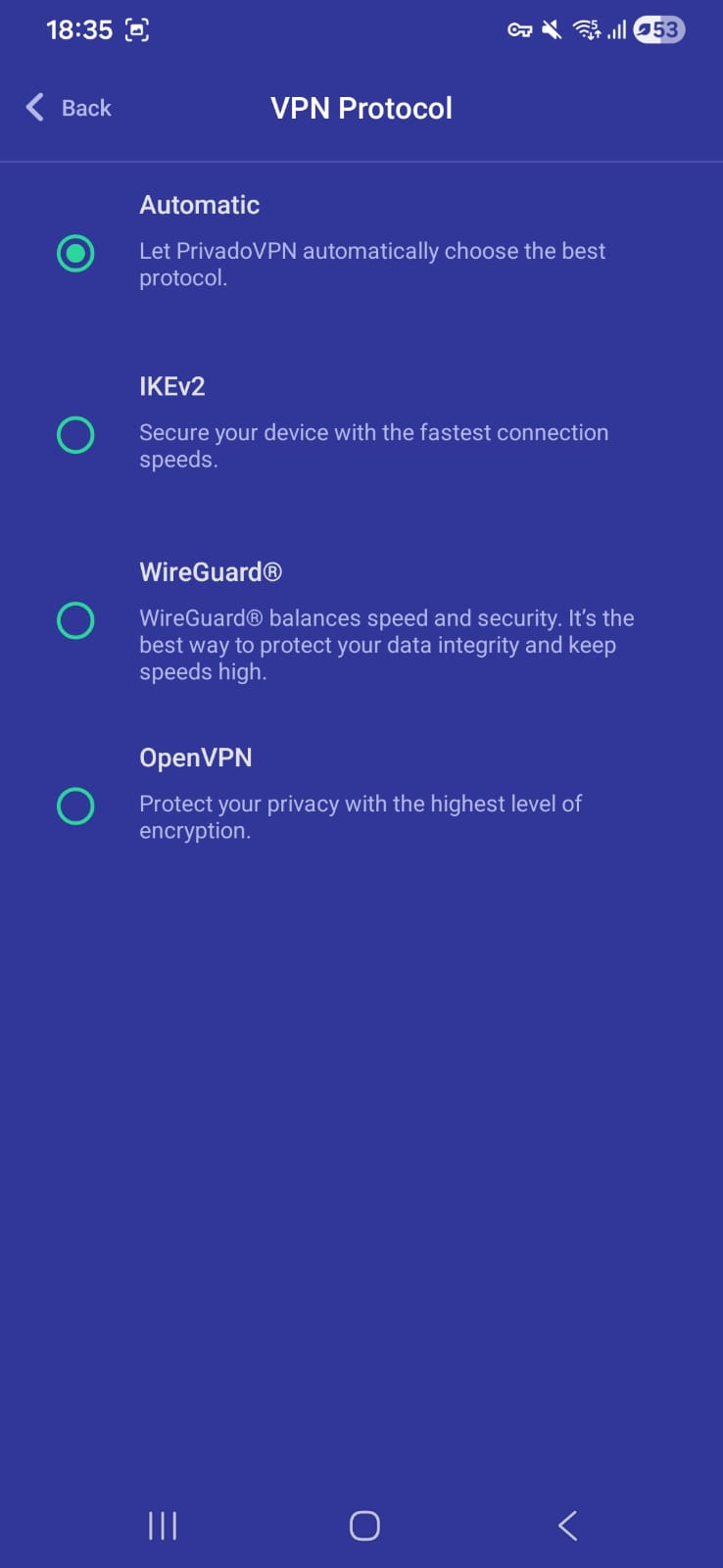
- Some application related settings
Support- via website
On Android, PrivadoVPN delivers a performance profile that feels capable in daily use but uneven when conditions change. Wi-Fi connections generally hold up well enough for routine browsing and basic streaming, while mobile data introduces a more unpredictable experience that shifts noticeably between servers. Overall, it remains serviceable, though the balance between speed, responsiveness, and connection stability is clearly not consistent across scenarios.
☞ Over Wi-Fi (Android) – Results varied quite a bit depending on the server used. The US location delivered a much stronger download rate compared to Germany, though it came with higher latency. Germany, on the other hand, showed more balanced performance with better upload speeds and slightly lower delay. Even without the percentage drop values, it’s clear that both servers handled regular usage reasonably well, but each had its own trade-offs in speed versus responsiveness.
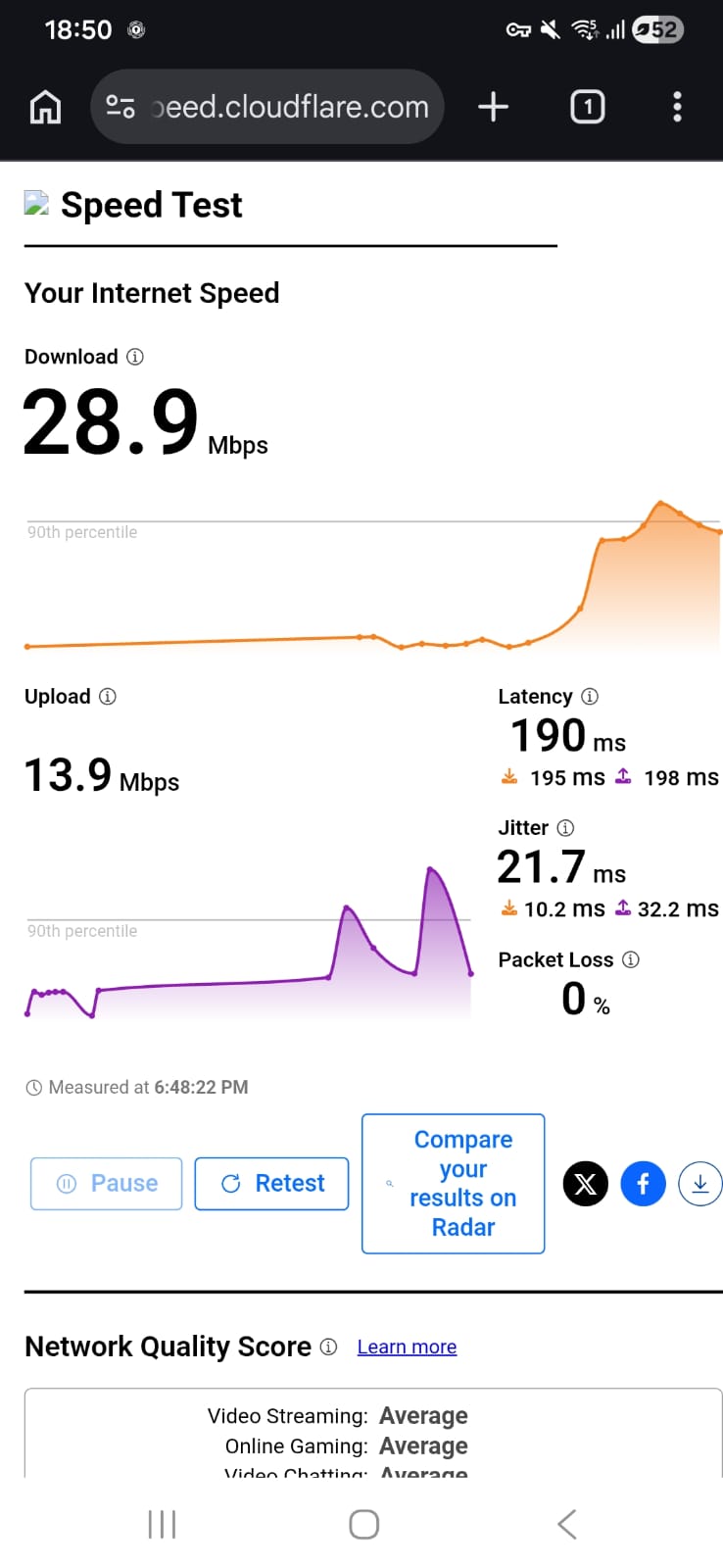
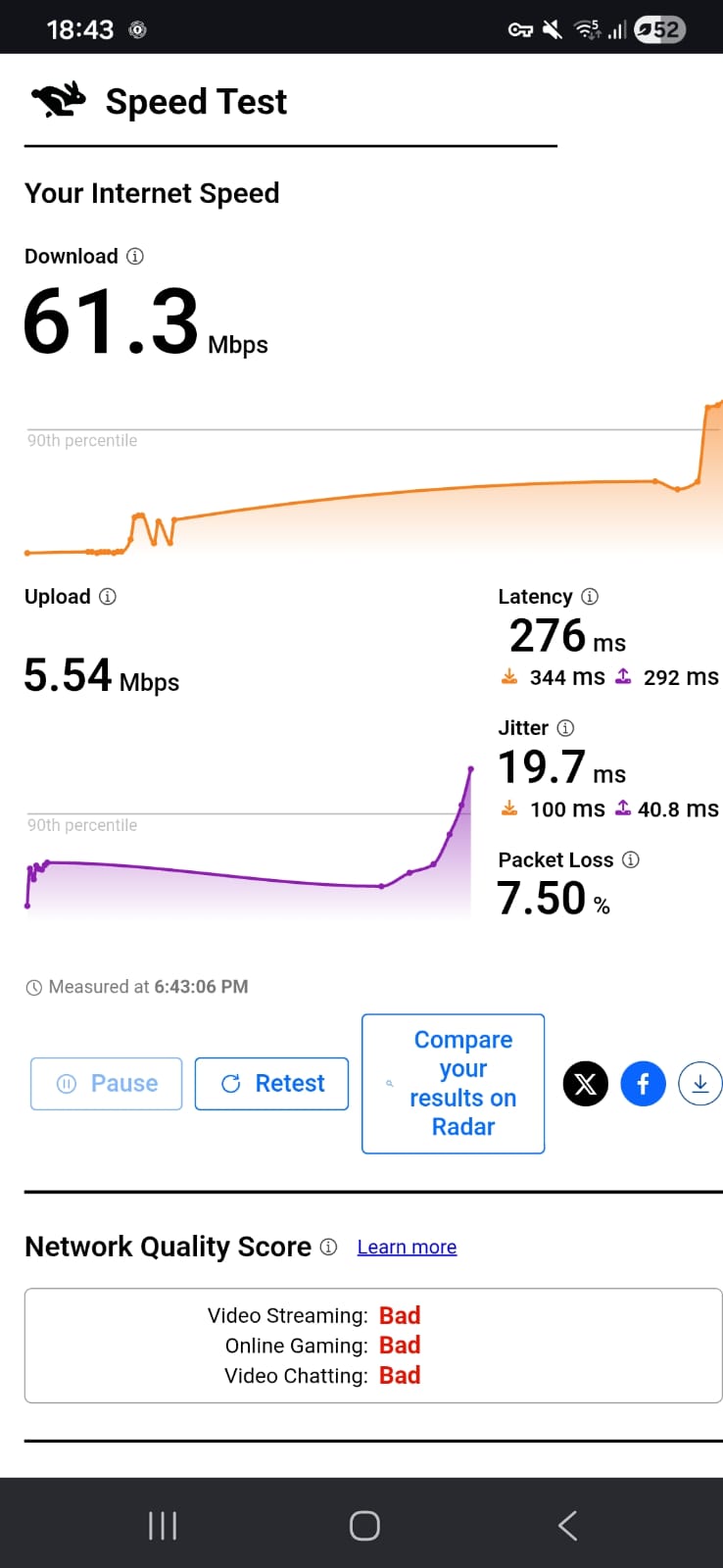
Germany – 85.55% drop in speed
- Download Speed: 28.9 Mbps
- Upload Speed: 13.9 Mbps
- Latency: 190 ms
- Jitter: 21.7 ms
United States – 69.35% drop in speed
- Download Speed: 61.3 Mbps
- Upload Speed: 5.54 Mbps
- Latency: 276 ms
- Jitter: 19.7 ms
☞ Using Mobile Data – Performance shifted quite noticeably here. The Germany server stood out with a significantly higher download speed, though it also introduced more fluctuation, as seen in the elevated jitter. The US server, while slower in downloads, maintained more stable jitter levels but suffered from higher latency and very limited upload capacity. Speed reductions were substantial on both ends, suggesting a clear impact when switching to mobile networks, even if raw download numbers still looked decent in some cases.
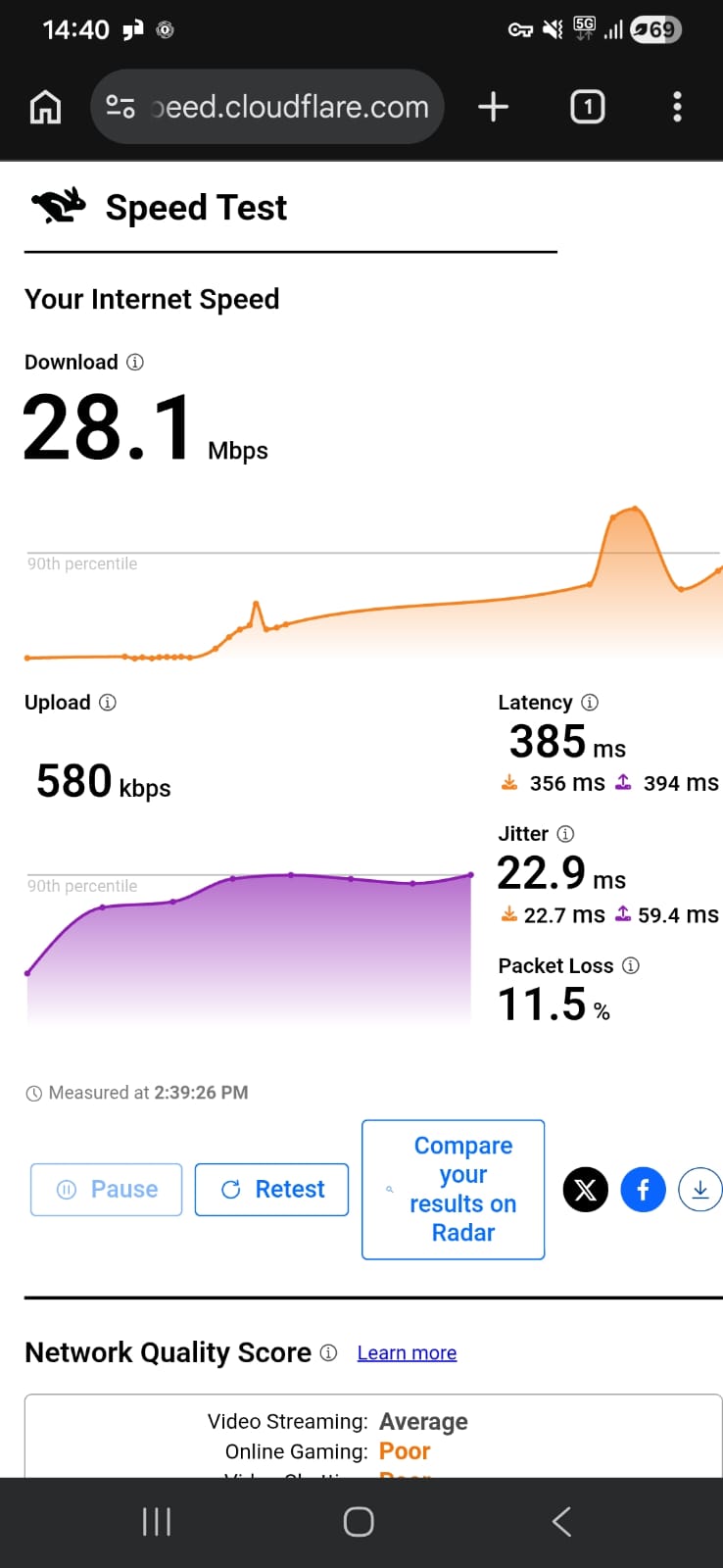
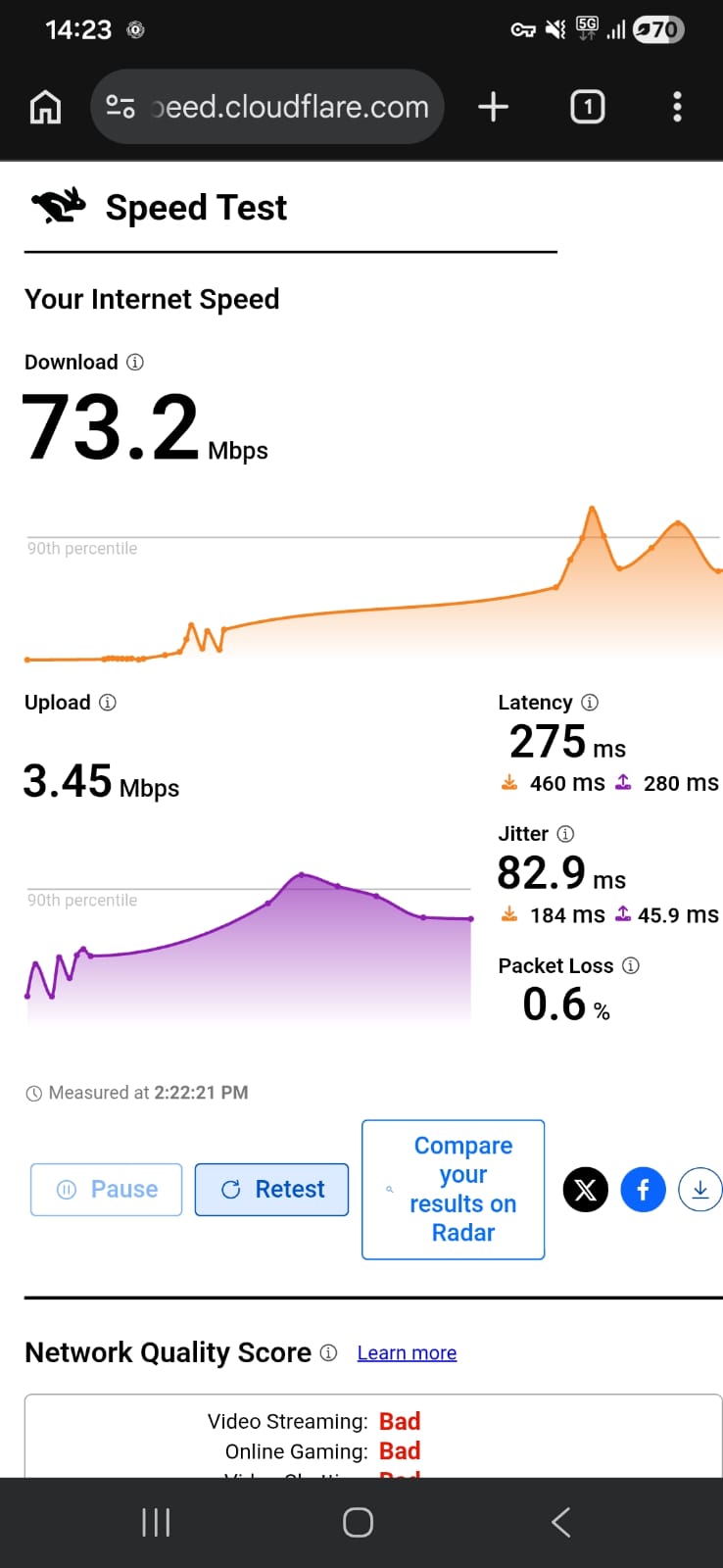
United States – 70.42% drop in speed
- Download Speed: 28.1 Mbps
- Upload Speed: 580 Kbps
- Latency: 385 ms
- Jitter: 22.9 ms
Germany – 23% drop in speed
- Download Speed: 73.2 Mbps
- Upload Speed: 3.45 Mbps
- Latency: 275 ms
- Jitter: 82.9 ms
PrivadoVPN gives a generally strong and usable experience on Wi-Fi, with good responsiveness and stable streaming, while mobile data performance remains functional but more variable depending on server choice. Overall, it feels capable for everyday browsing and video use, with clearer strengths on Wi-Fi.
On Wi-Fi (Android): PrivadoVPN delivered a generally strong and responsive experience on Wi-Fi, with noticeably better performance on the US server, while Germany offered a more balanced but slightly more conservative experience.
- On the US server, browsing felt quite fast. Most websites loaded in around 1–3 seconds, with heavier pages taking up to 4 seconds. Page transitions felt responsive, and content appeared quickly without long delays. The Germany server felt a bit more measured but consistent. Websites typically loaded in 2–4 seconds, with heavier pages reaching around 5 seconds. While not as fast as the US server, it felt smoother in terms of stability.
- Streaming performance was solid overall. On Netflix, videos generally started within 2–3 seconds on both servers. On the US server, HD quality was usually reached within 15–25 seconds, making it one of the faster experiences among the tested VPNs. The Germany server took slightly longer, around 20–35 seconds, but still stabilized reliably without buffering.
- Skipping forward or backward introduced a short 1–2 second delay, after which playback resumed smoothly. Reconnecting the VPN briefly reset video quality to lower resolution, followed by a quick recovery period.
On Mobile Data: PrivadoVPN remained more capable than many free VPNs, though performance varied noticeably between servers.
- It delivered the strongest browsing experience. Simple websites typically loaded in around 4–7 seconds, while more complex pages took about 8–10 seconds, occasionally appearing in stages before fully rendering. Despite the delay, page interactions remained fairly consistent once loaded.
- The US server felt slightly more limited for browsing, with pages generally taking around 5–9 seconds to load. While still usable, there were occasional pauses before full rendering, especially on media-heavy websites.
- Streaming was mixed but still functional. Videos typically started within 5–7 seconds, but initial playback often remained in low quality. The Germany server improved to clearer resolution within 25–40 seconds, while the US server sometimes took longer or fluctuated before stabilizing. Skipping forward or backward introduced delays of around 3–5 seconds, but playback usually recovered without major interruptions.
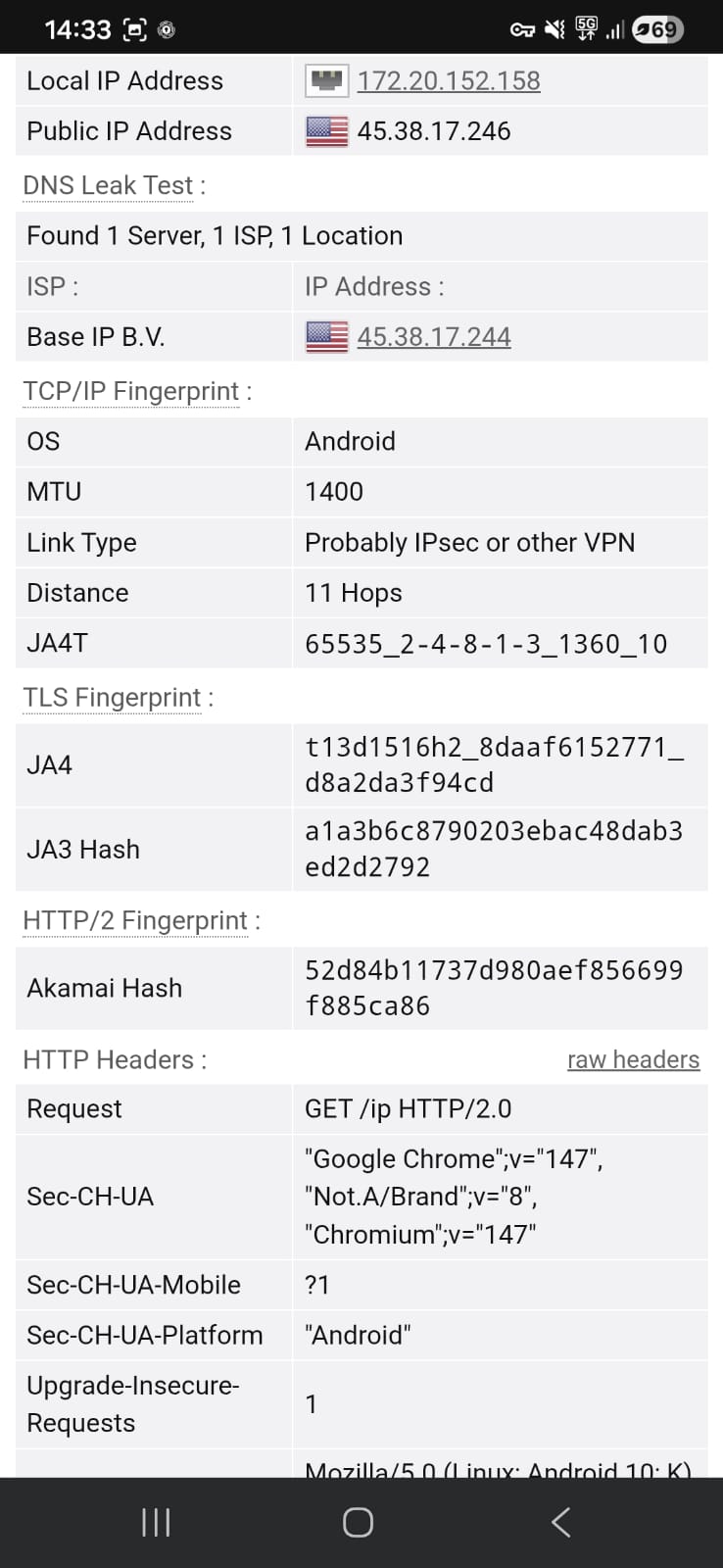
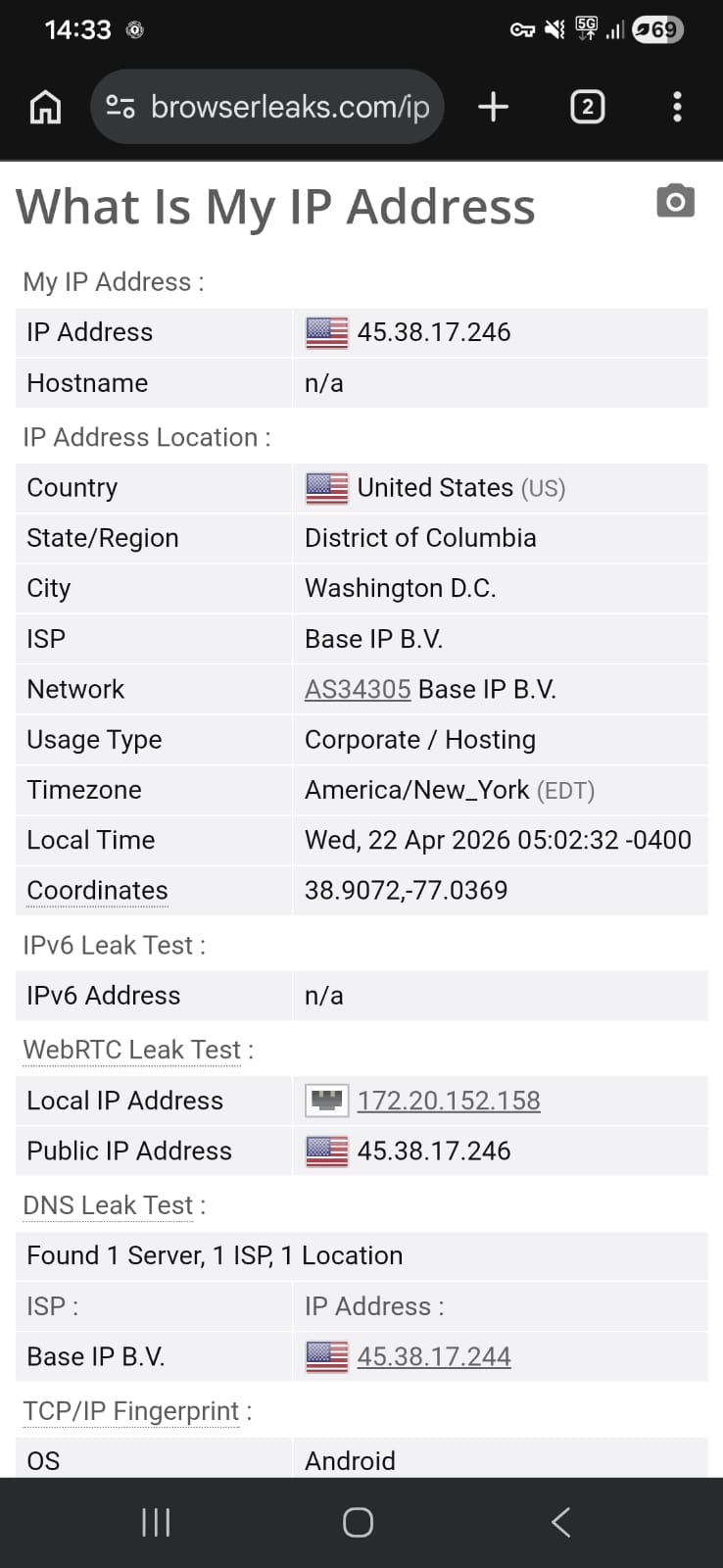
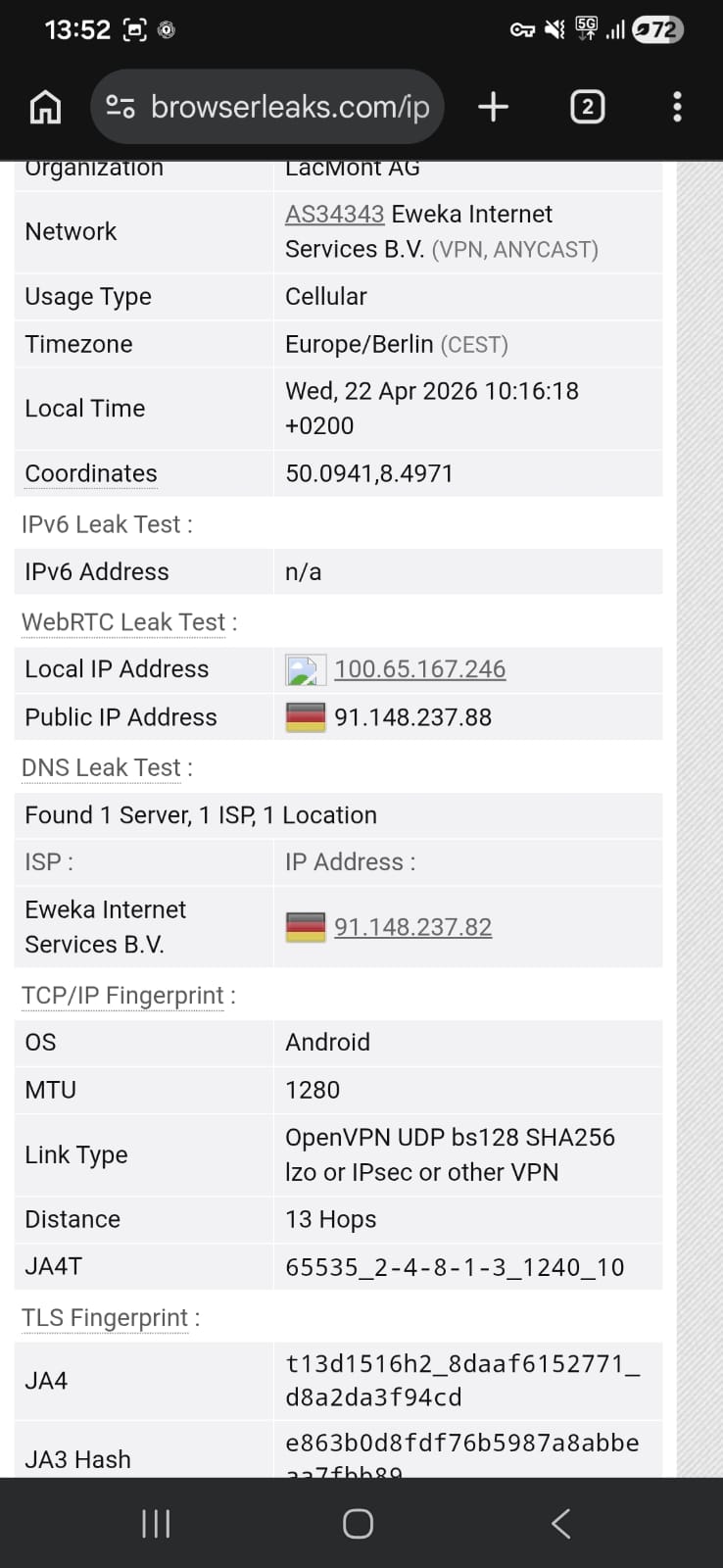
A set of tests was conducted on PrivadoVPN using both U.S. and Germany servers to evaluate its privacy handling across different regions. No IP address exposure, DNS leaks, or WebRTC leaks were detected while the VPN was active. The behavior stayed consistent even during continuous browsing and normal network transitions, with no signs of data slipping outside the encrypted tunnel.
Overall, PrivadoVPN maintained a secure and leak-free performance across both tested locations, keeping all network identifiers properly hidden throughout usage.
PROS
- Installation flow eventually leads to a straightforward setup on Android once past the initial website navigation steps
- App opens into a very minimal interface that focuses mainly on a single connect button and selected location
- Manual server selection is available, allowing users to choose locations instead of relying only on automatic connection
- Server list includes a mix of regions across Europe, North America, and limited coverage in Asia and South America
- Ability to mark servers as favorites for quicker access during repeated use
- Includes useful basic controls such as split tunneling, auto-connect, and always-on VPN options
- Kill switch support available through Android system settings for added protection
- Net positive usability for general browsing on Wi-Fi with reasonably stable performance across sessions
- Streaming is functional, with Netflix playback starting quickly and reaching HD quality after a short adjustment period
- No IP, DNS, or WebRTC leaks detected during testing, maintaining strong privacy protection
- Connection remains stable during normal usage
- Light and simple interface reduces clutter and keeps navigation easy to understand
- Some servers deliver strong download performance
CONS
- Initial setup process is more drawn out than expected due to multiple redirects and repeated free-plan confirmations
- Free option is not immediately visible and requires extra navigation through pricing pages
- No advanced visual customization or feature-rich dashboard compared to competitors
- Performance varies significantly between servers, especially when switching between regions
- Mobile data performance is inconsistent, with noticeable drops in speed and responsiveness
- Upload speeds can be very low on certain connections, limiting file-sharing performance
👉 See full Privado VPN review →
Decent but Limited Free VPNs on Android
These VPNs sit somewhere in the middle. They’re not the worst, but they’re far from the most reliable options either. On Android, they handle basic tasks like browsing or light app usage without major issues, but the experience isn’t always consistent. You might run into uneven speeds, occasional delays, or restrictions that become more noticeable with regular use. They’re good enough for short sessions, but if you rely on a VPN more frequently, their limitations start to show. Here’s how they perform in everyday Android use:
1. Hide.Me – Very Limited but Stable
Hide.me VPN on Android feels like it’s built around the idea of “no setup, just connect,” where everything is stripped down so you can start using it almost immediately. There’s very little in the way of onboarding or guided setup, and once you install it, the app basically places you straight into a ready-to-use environment without asking much from you.
The interface follows that same minimal direction once you’re inside. Instead of menus packed with options or visual dashboards, everything revolves around a single connection control and a simple status indicator that changes color depending on whether you’re disconnected, connecting, or fully protected. Most advanced areas like server selection or streaming options are locked in the free version, which keeps things simple but also noticeably limited. You still get useful essentials like a kill switch, split tunneling, and DNS settings, but overall the experience is very bare-bones compared to more feature-heavy VPNs.
Performance-wise, Hide.me is more about stability than speed, and that shows pretty clearly in real-world use. On Wi-Fi, it can handle basic browsing, but everything feels slower than expected, and streaming struggles with long buffering and delayed quality improvements. Mobile data performance is even weaker, with slow loading times, unstable responsiveness, and difficulty maintaining video quality. On the positive side, privacy protection is solid, with no leaks detected during testing and a clean, ad-free experience throughout. However, the trade-off is clear: it’s simple and secure, but far from fast or feature-rich compared to alternatives like Windscribe or even PrivadoVPN.
Limitations (Free Version)
⟶ No manual server selection – you can’t choose specific locations and must rely on automatic server assignment.
⟶ Most advanced features are locked – options like streaming access, advanced routing controls, and deeper customization are only available on paid plans.
⟶ Limited overall functionality in the free tier – several interface sections (like streaming and location controls) are restricted or unavailable.
Performance Table Result
Hide.me VPN offers one of the most frictionless setup experiences among VPN apps, prioritizing instant access over onboarding complexity. From installation to active use, the process is designed to get users connected quickly with minimal interaction or required setup.
The VPN keeps things very direct when it comes to getting started on Android. The journey begins on its website, which quickly redirects you to the Google Play Store. The app itself is fairly light at around 22.86 MB, and it already carries a strong reputation with a 4.4 rating and over 1 crore downloads.
Installation wraps up quickly - within about a minute, it was already ready to open. What stands out immediately is how little friction there is after launching it. Instead of pushing you through sign-ups or setup screens, it allows you to choose the free option right away.
Since I went with the free access, there was no need to create an account or enter any login details. The app simply moved forward without any interruptions, dropping me straight into the main interface.
The home screen appears instantly and feels straightforward, without unnecessary prompts or onboarding layers. Everything is already laid out in front of you, making it easy to start using the VPN almost immediately after installation.
Overall, the experience is very minimal in terms of setup effort. You go from install to active use in just a few steps, with almost no barriers in between.
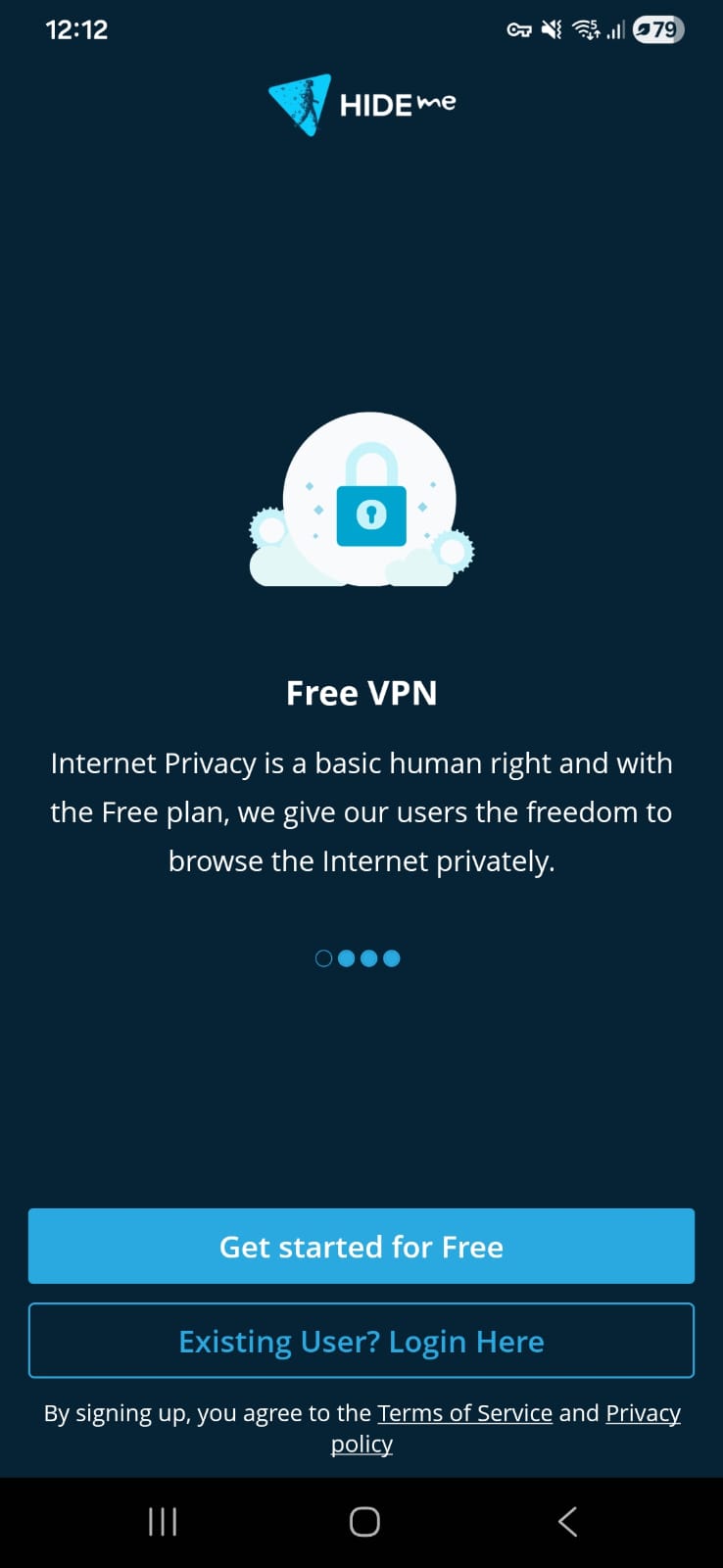
Hide.me VPN delivers a highly minimal, control-first interface that focuses almost entirely on connecting and disconnecting, using simple visual cues instead of detailed menus or guided flows. The result is a stripped-down experience that prioritizes clarity and speed over feature visibility.
When Hide.me launches, it doesn’t try to overwhelm you with options or visuals. Everything is reduced to a very direct layout where the focus is simply on turning the VPN on.
The app shows connection status through a shifting color background. It starts off in blue when inactive, moves into a yellow transition while connecting, and finally settles into green once the VPN is fully established. Instead of using detailed indicators or text-heavy status updates, it relies entirely on this color progression to communicate what’s happening.
Outside of that, the interface stays extremely limited. The central screen revolves around one main control for managing the connection, while most other sections are either unavailable or blocked in the free version. Even though a map element exists, it cannot be interacted with unless you upgrade, which further reduces what you can actually do inside the app.
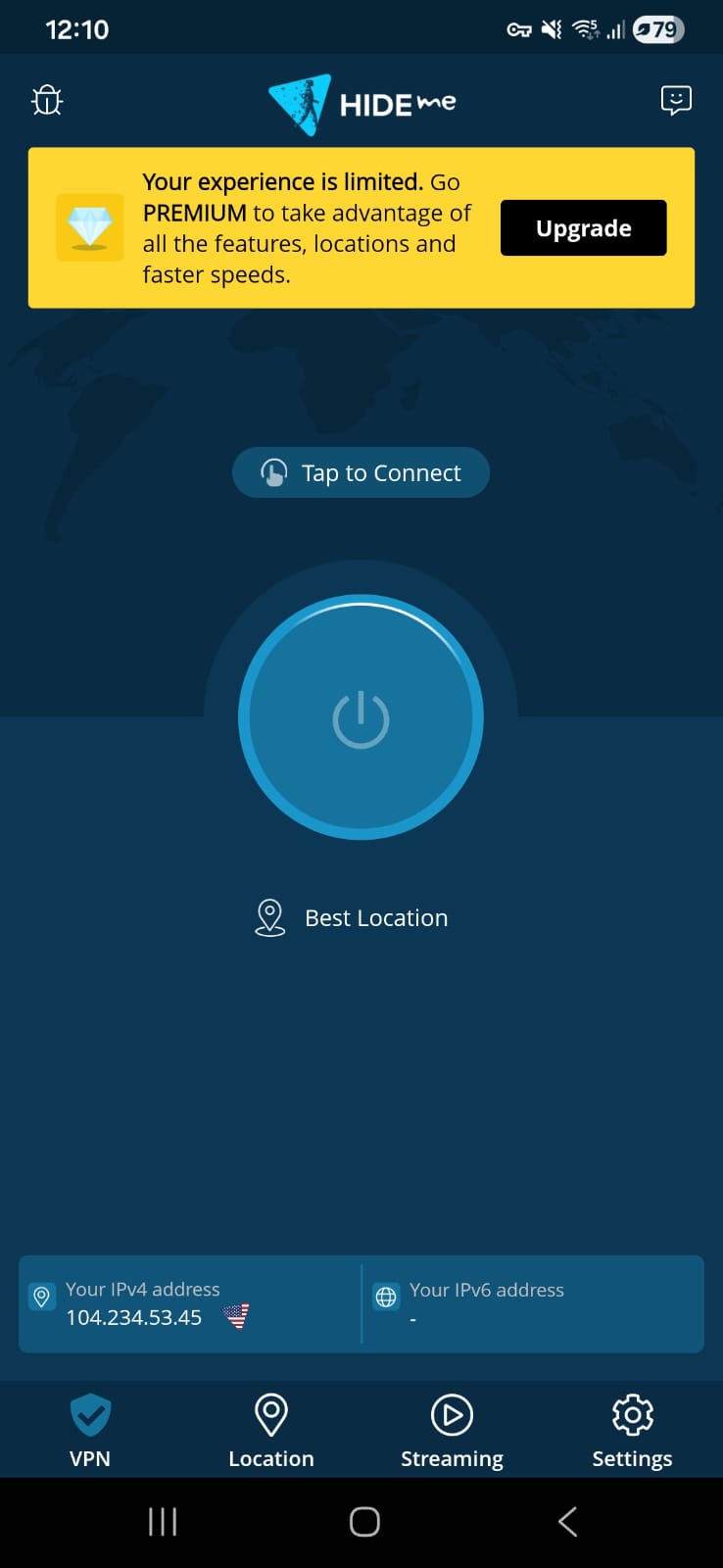
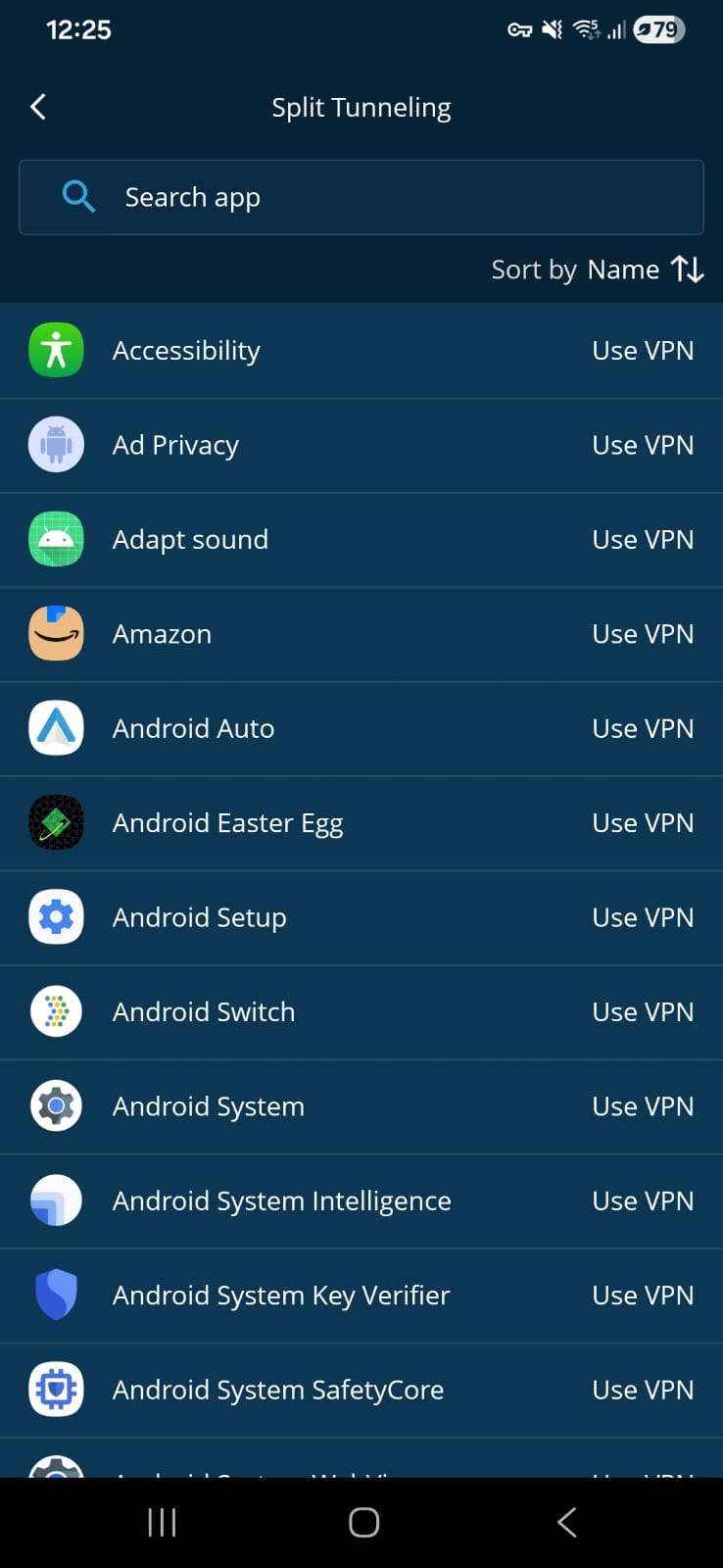
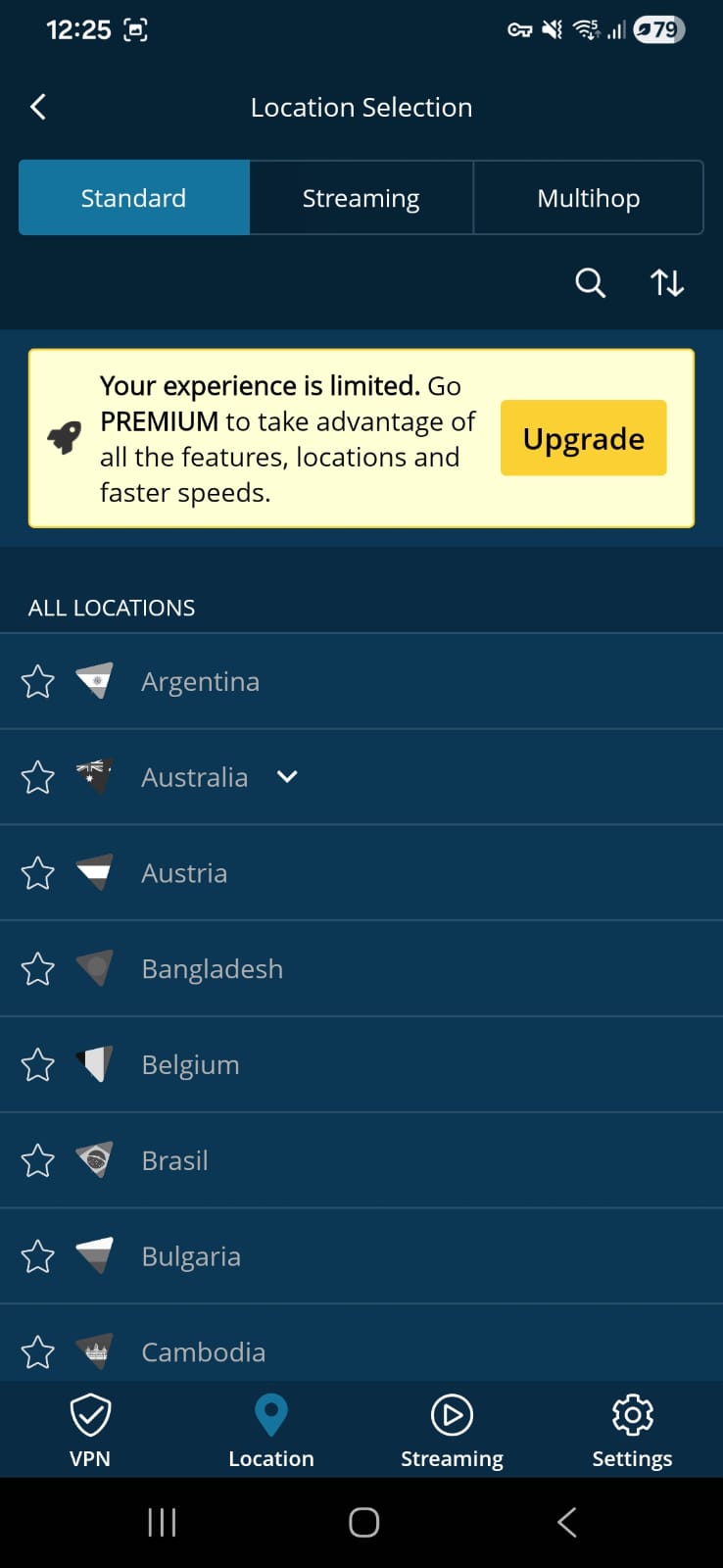
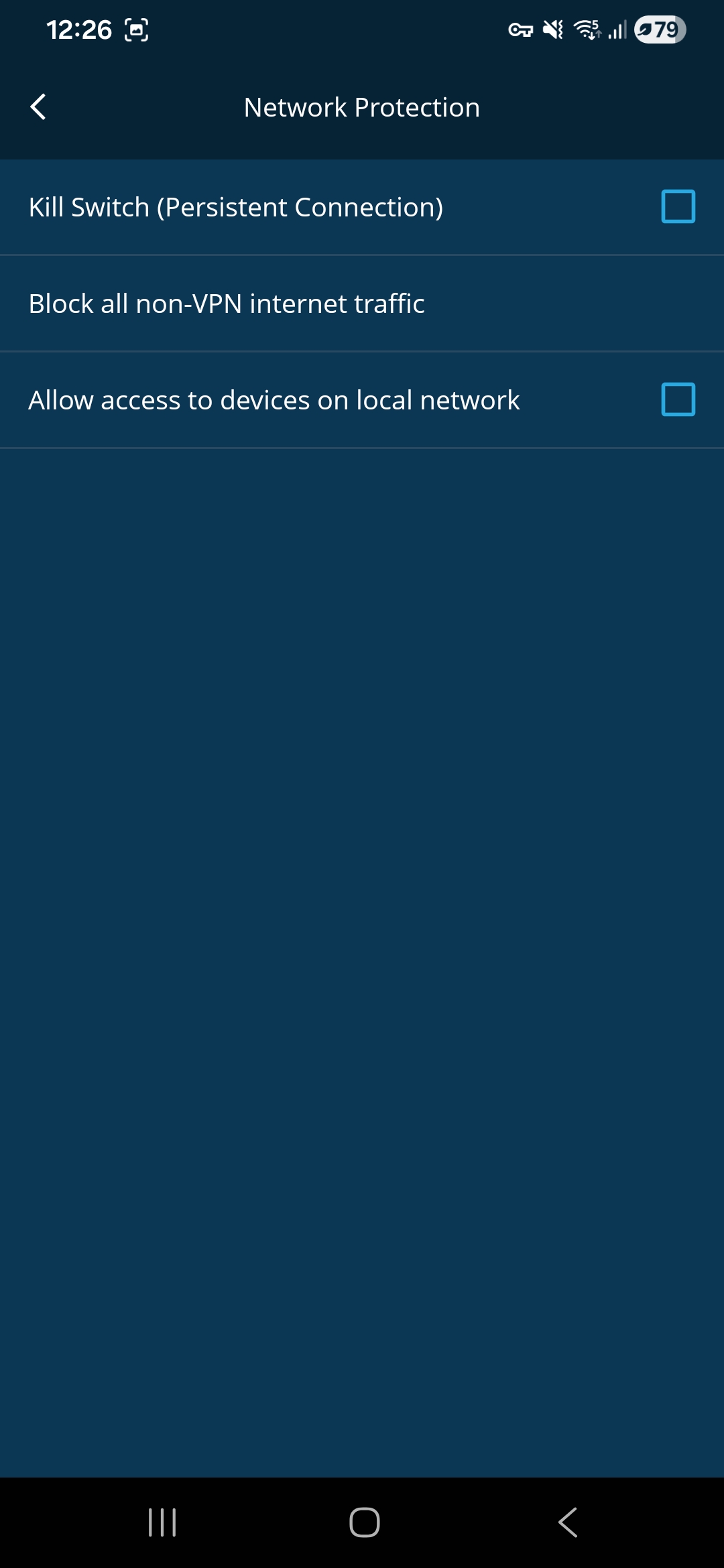
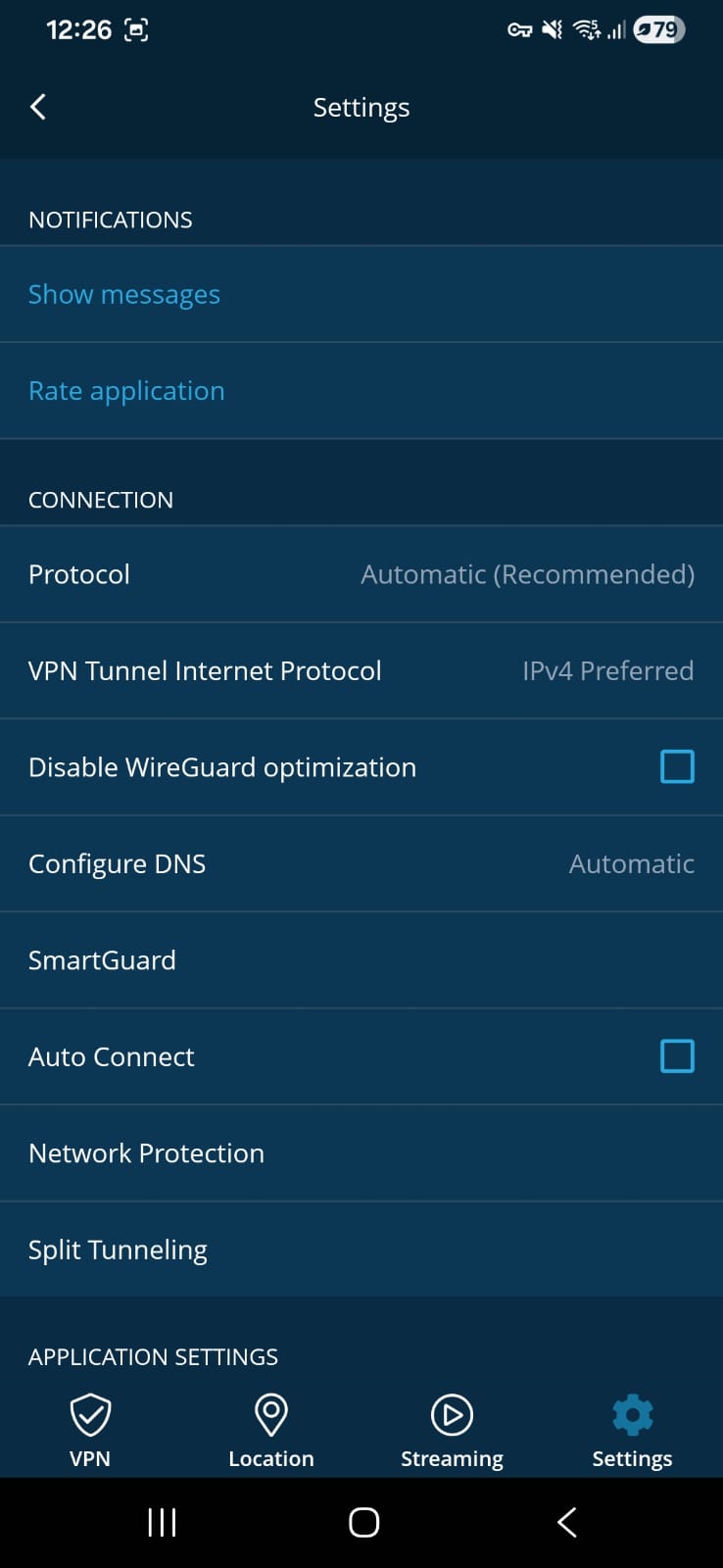
Home Page - Connect Button
Location Page - All locked
Streaming Page - All locked
General Settings
- Protocol
- Configure DNS
- Network Protection (Kill Switch)
- Split Tunneling
Support- via website
Across Android devices, stability tends to be the main focus of Hide.me VPN rather than raw performance. Speed and latency are not emphasized heavily, with both Wi-Fi and mobile data operating within a modest performance range. Because of this design approach, the VPN holds up well for basic browsing tasks, while demanding or high-speed activities fall outside its strongest use case.
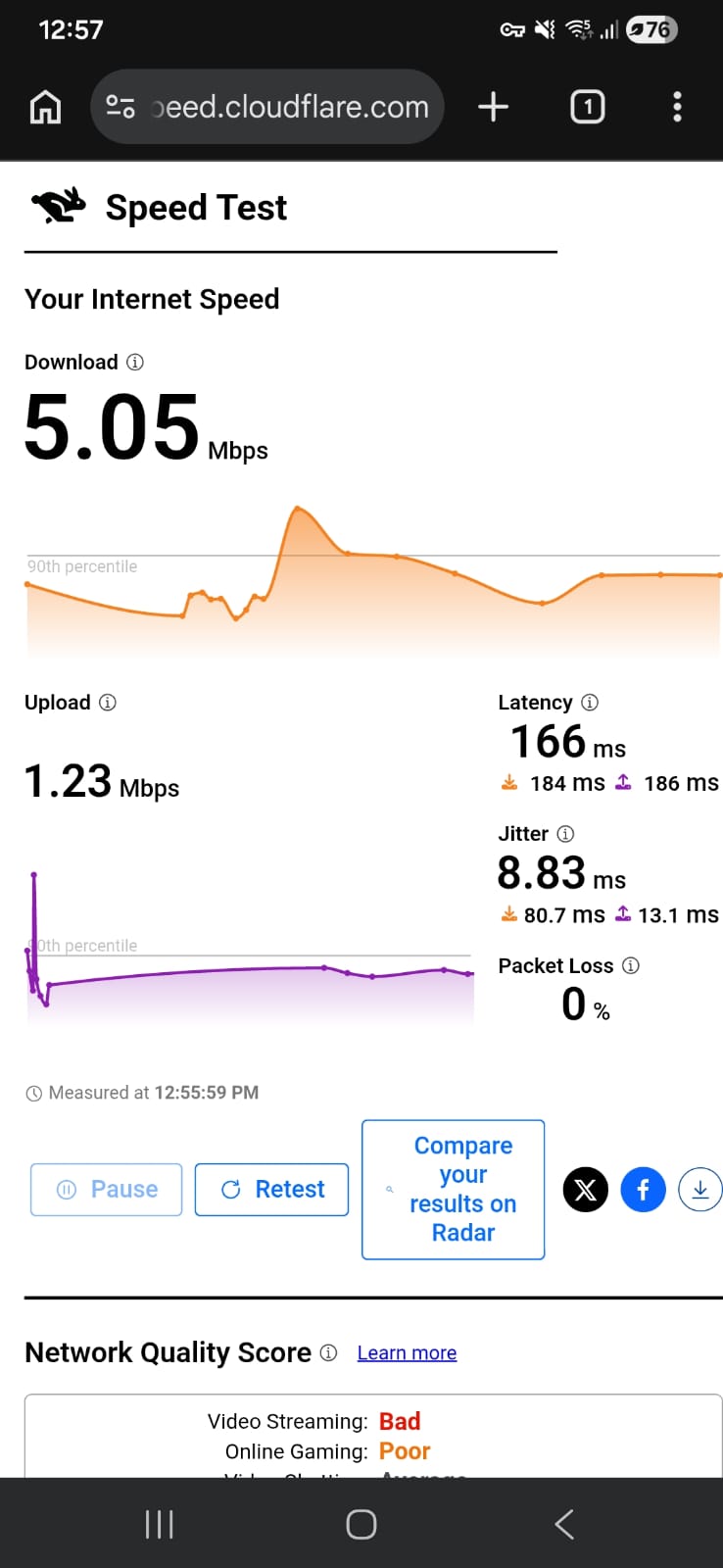
☞ While connected over Wi-Fi (Android) – Both locations delivered fairly similar results, with speeds staying on the lower end overall. There wasn’t a major gap in download performance between Berlin and the Germany server, though upload rates differed slightly. Latency remained moderately high, which could introduce some lag in interactive use. Overall, the connection felt consistent but limited, making it more suitable for light tasks rather than anything bandwidth-heavy.
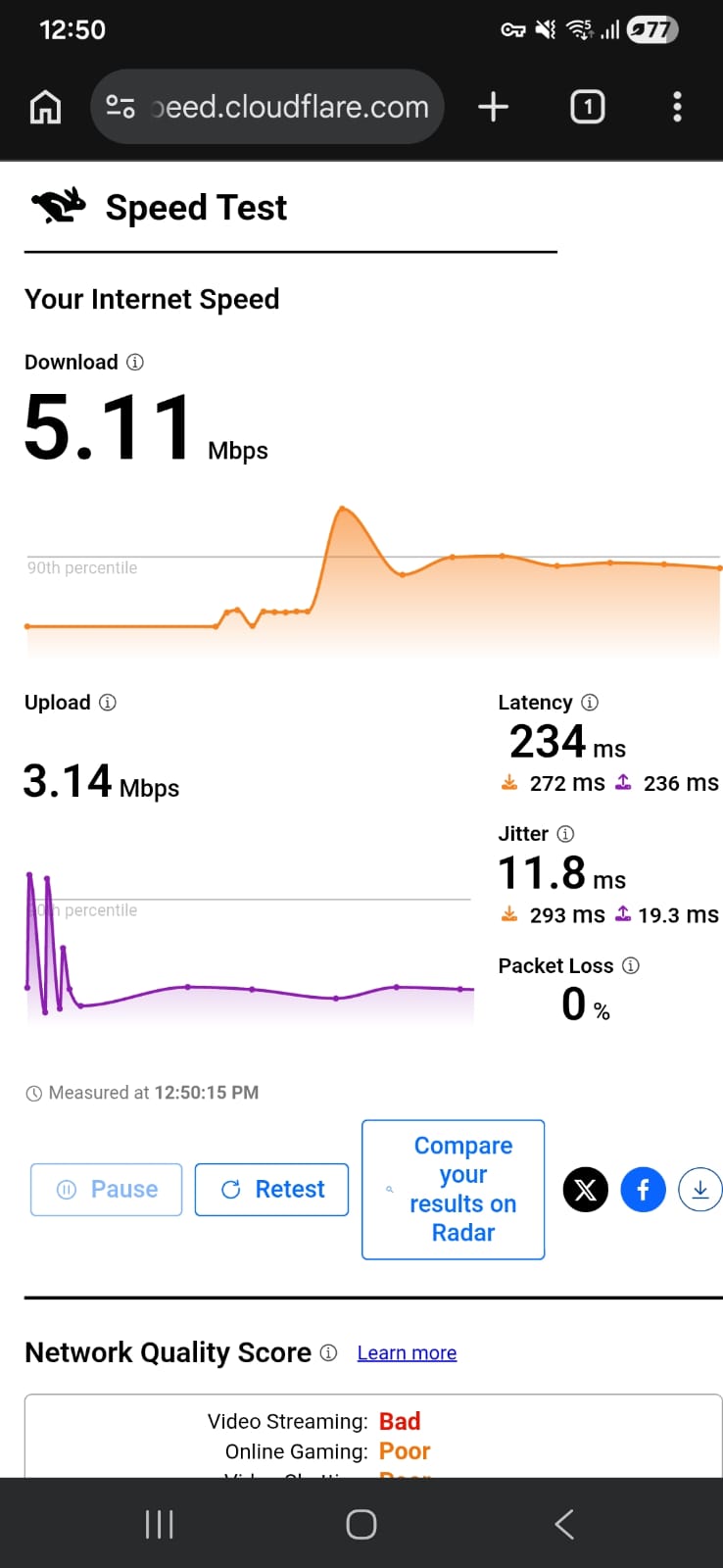
Berlin – 97.45% drop in speed
- Download Speed: 5.11 Mbps
- Upload Speed: 3.14 Mbps
- Latency: 234 ms
- Jitter: 11.8 ms
Germany – 97.48% drop in speed
- Download Speed: 5.05 Mbps
- Upload Speed: 1.23 Mbps
- Latency: 166 ms
- Jitter: 18.83 ms
☞ When using Mobile Data – The testing process itself was a bit restricted, as repeated connection attempts kept routing back to the Germany server. Even after multiple retries, no alternative location was assigned, so both results reflect the same region. In terms of performance, speeds remained quite low, with one test showing extremely poor upload capacity. Latency stayed elevated in both runs, while jitter fluctuated slightly, pointing to some inconsistency in connection stability.
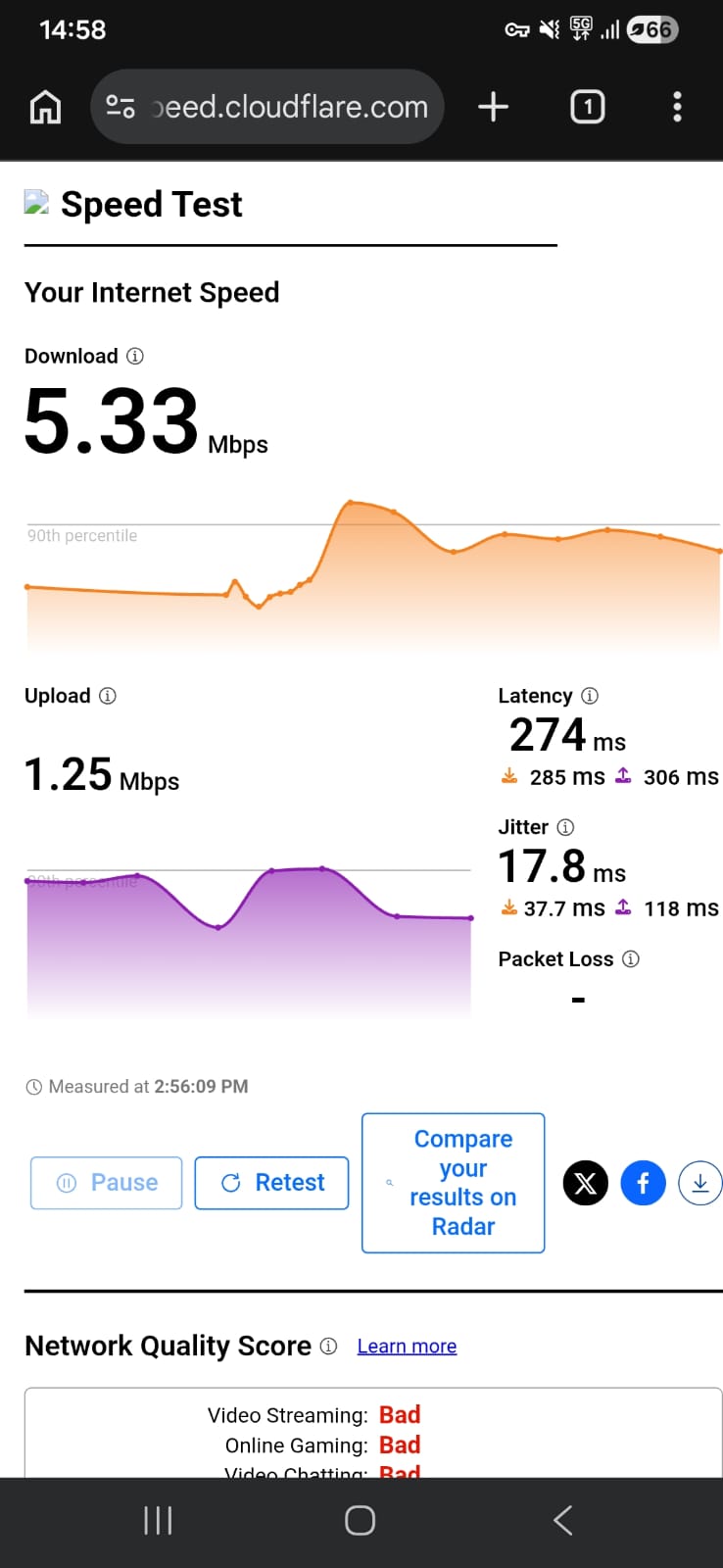
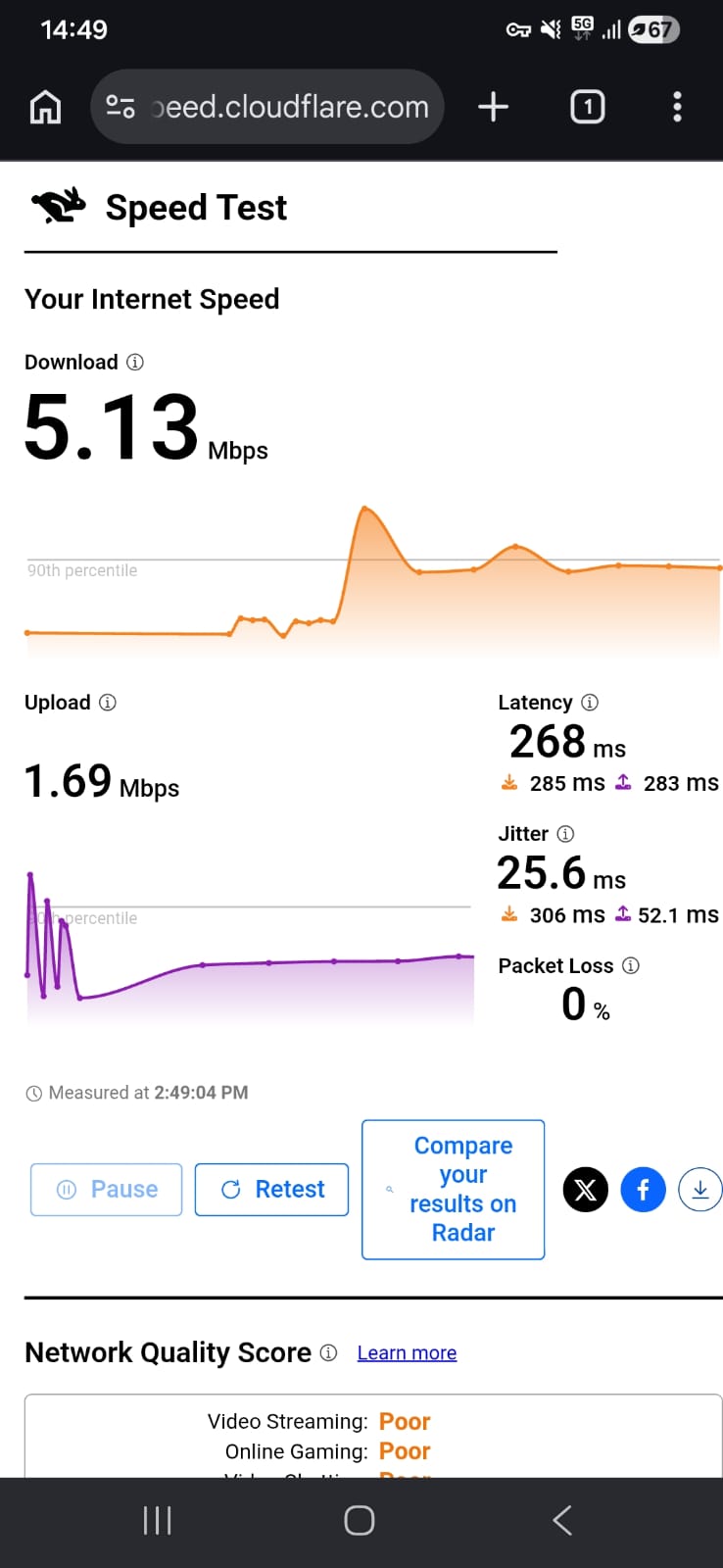
Germany – 94.5% drop in speed (Attempt 1)
- Download Speed: 5.33 Mbps
- Upload Speed: 1.25 Kbps
- Latency: 274 ms
- Jitter: 17.8 ms
Germany – 94.6% drop in speed (Attempt 2)
- Download Speed: 5.13 Mbps
- Upload Speed: 1.69 Mbps
- Latency: 268 ms
- Jitter: 25.6 ms
Hide.me VPN on Android delivers a consistently usable connection, but performance under load is noticeably weak, especially for streaming and real-time interaction. While basic browsing remains possible, responsiveness drops significantly on both Wi-Fi and mobile data, making it more suitable for light, non-continuous use rather than media-heavy tasks.
On Wi-Fi (Android): Hide.me delivered a poor experience on Wi-Fi, with slow browsing and heavily delayed streaming across both tested locations.
- On the Berlin server, basic websites were sluggish, typically taking around 6–9 seconds to load, with heavier pages stretching closer to 10–12 seconds. The Germany server performed similarly, often taking 5–8 seconds, but the experience still felt slow and unresponsive overall. Page elements frequently appeared in stages, making navigation feel delayed and inconsistent.
- Streaming performance was weak. Videos on Netflix usually took 5–8 seconds just to start, and playback consistently began in low quality. In many cases, it took 7-10 minutes or longer for the video to improve in resolution, and sometimes it never fully stabilized during shorter viewing sessions. Even after adjusting, playback still felt slightly delayed compared to normal usage.
- Skipping forward or backward introduced noticeable pauses of around approx 5 minutes, and reconnecting the VPN frequently reset video quality back to low resolution, requiring another long adjustment period.
On Mobile Data (Germany Server Only): Performance was even worse, making the VPN barely practical for anything beyond very light use.
- Simple websites took around 8–12 seconds to load, often appearing in fragments before fully rendering. More complex pages could take 12–15+ seconds, with noticeable pauses between loading stages. Even basic navigation felt delayed and unresponsive.
- Streaming was particularly poor. Videos often took 3-4 minutes to start and remained stuck in low resolution for long periods. In many cases, quality never fully improved, or only did so after extended waiting. Skipping forward or backward introduced delays of around 7 minutes, and playback frequently felt unstable afterward.
- Even short streaming sessions felt inconsistent, with noticeable hesitation between actions and slow recovery after interruptions.
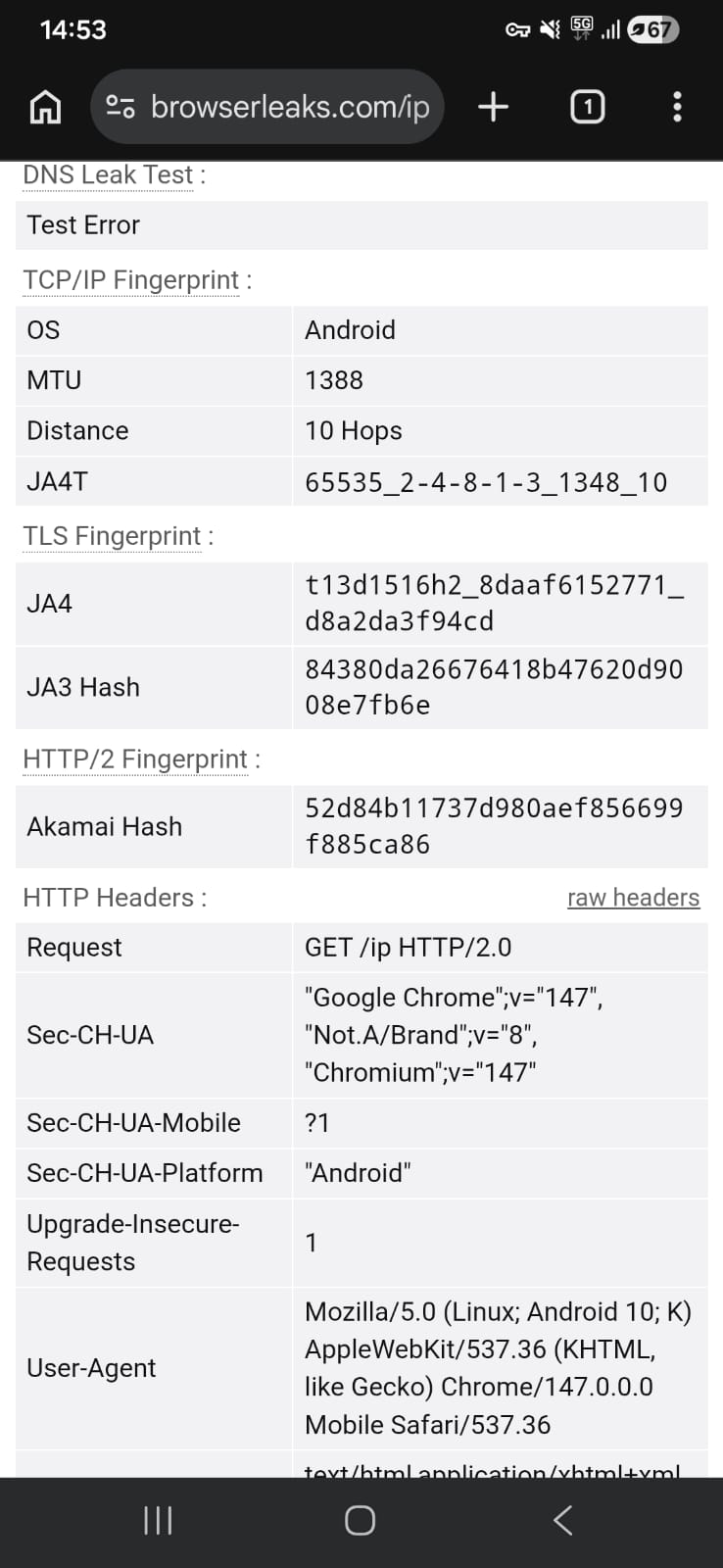
Testing of Hide.me was carried out on two German servers (as it was not getting connected to other server) to assess how it handles privacy under the same regional setup. The connection remained smooth and did not show any instability throughout the session.
During leak verification, there were no instances of IP, DNS, or WebRTC exposure. The VPN consistently kept all network information concealed, resulting in a fully secure and leak-free performance across both server tests.
PROS
- Very fast and straightforward installation process through Google Play with minimal waiting time
- No mandatory account creation required for free usage, allowing immediate access after launch
- Clean, minimal interface that focuses entirely on connection control without unnecessary clutter
- Simple color-based connection indicator (blue → yellow → green) makes VPN status easy to understand at a glance
- Strong privacy performance with no IP, DNS, or WebRTC leaks detected during testing
- Built-in security features include kill switch (Network Protection), split tunneling, and DNS configuration options
- No advertisements inside the app, keeping the experience clean and distraction-free
- Free version allows direct usage without forced onboarding or setup tutorials
- Open-source approach adds transparency to its software structure
- No data caps on usage, allowing unrestricted VPN usage within available limits
- Connection remains stable during use with no major drops or interruptions observed
- Supports multiple protocol options for flexibility in connection behavior
- Money-back guarantee available for users on paid plans
CONS
- Extremely limited interface functionality in the free version, with most sections locked (including location and streaming pages)
- Server selection and advanced features are heavily restricted unless upgraded
- Performance is weak on both Wi-Fi and mobile data, with consistently low download speeds
- High latency across tested servers leads to noticeable delay in real-time usage
- Mobile data performance is especially poor, with very slow browsing and unstable responsiveness
- Streaming experience is heavily restricted, with long startup times and difficulty maintaining quality
- Video playback often remains in low resolution for extended periods or fails to fully stabilize
- Skipping or seeking in videos introduces significant delays, making navigation inefficient
- Page loading on mobile networks is slow and fragmented, with content appearing in stages
- Connection attempts on mobile data may default to a single server, limiting flexibility
- No live chat support available for immediate assistance
- Single-device limit per account reduces flexibility for multi-device users
👉 See full Hide.Me VPN review →
Free vs Paid VPNs for Android: Key Differences
We didn’t just go by specs - we actually tested both free and paid VPNs on Android in real conditions. From installation and app usability to speeds on Wi-Fi and mobile data, streaming performance, stability, and security, we checked it all. Based on that hands-on testing, here’s how they really compare in day-to-day Android usage.
Explore VPN Options Beyond Free Plans
Free VPNs are fine for basic use, but they almost always come with a few limitations. If you’re aiming for better speeds, more features, or want to cover multiple devices, it’s worth checking out these guides:
- Best VPN for Windows
- Best VPN for Android
- Best VPN for iPhone & iPad
- Best VPN for Mac
- Best VPN Services Overall
Looking for Free VPNs on Other Devices?
If you’re using more than one device, you can also take a look at free VPN options available across other platforms:
Final Thoughts
After testing these free VPNs on Android, one thing is clear - they all handle the basics pretty well. Privacy is solid across the board, leak protection holds up, and you can get a working connection without much trouble. But once you start digging a bit deeper, the differences show up quickly. Free plans come with obvious trade-offs, especially around speed, server access, and mobile data performance. Some apps keep things super simple and easy to jump into, while others give you more control but feel a bit heavier to use. None of them are perfect, but each one leans toward a different type of user. Here’s how they actually stack up in real use:
Key Free Android VPN Standouts From Our Testing
After putting each VPN through everyday use, checking UI, speeds, stability, and limitations, some clear strengths started to stand out. Here’s a quick breakdown to help you figure out which one fits best:
- Best Mix of Simplicity & Privacy: Proton VPN – super easy to use, clean layout, and strong privacy without needing to tweak anything.
- Most Control on a Free Plan: Windscribe – gives you way more freedom than expected, with manual server selection and extra tools like ad blocking.
- Fastest Feel on Wi-Fi: PrivadoVPN – browsing feels a bit snappier here, and streaming reaches HD quicker than the others.
- Strong Privacy Across All Apps: All four VPNs – no leaks showed up during testing, which is reassuring no matter which one you pick.
- Only Free VPN with Unlimited Data: Proton VPN – no caps, but you give up control over servers and speeds can dip.
- Best for Choosing Your Own Server: Windscribe and PrivadoVPN – both let you pick locations instead of forcing auto-connect.
- Most Lightweight & No-Fuss Option: Hide.me – super minimal, gets you connected instantly, but doesn’t offer much beyond that.
- Most Stable on Wi-Fi: Proton VPN and PrivadoVPN – not the fastest, but they stay consistent for browsing and streaming.
- Easiest for Beginners: Proton VPN and Hide.me – simple setup, no confusion, just tap and connect.
- Best for Power Users (Free): Windscribe – if you like tweaking settings and having control, this is the one.
- Most Restricted Free Experience: Hide.me – works fine, but most features are locked, so it feels pretty limited.
That's all for our guide to the best free VPN for Android. If you have any questions, let us know via the comments section below. Thanks for reading!