When you purchase through links on our site, we may earn an affiliate commission. Here’s how it works.
Best VPNs for iPhone and iPad in 2026


Our experts have reviewed 53 VPN providers, which were put through extensive rounds of testing. To learn more about that process, here’s how we review VPNs, where we explain our criteria and our policy of being fully transparent.
- After testing several VPN apps on iOS devices (both iPhone and iPad) across Wi-Fi and mobile data, NordVPN emerged as the best VPN for iOS. It consistently provided stable connections and solid streaming performance across. The app’s clean interface, Quick Connect button, and specialty servers (Dedicated IP, Double VPN, Meshnet) were easy to use, and I didn’t encounter any DNS or IP leaks during testing. A close alternative is ExpressVPN, which stood out for its polished interface, Quick Connect functionality, and robust security tools, though mobile speeds were slightly more variable than NordVPN.
Using a VPN on iOS should feel seamless, Agreed? But during testing, I noticed some apps took forever to connect, started videos in blurry quality, or stumbled when switching between Wi-Fi and mobile data. Others asked for endless permissions or had confusing menus that made it hard to find basic settings. To separate the VPNs that frustrate from the ones that truly perform, I tested them on real iPhones and iPads, measuring installation speed, interface clarity, connection reliability, leak protection, and everyday performance on both Wi-Fi and 5G. Here’s the list of VPNs that delivered smooth, secure, and frustration-free experiences on iOS.
Quick Comparison Table
Note: Tests for speed and stability were conducted mainly on mobile data (114 Mbps baseline) rather than Wi-Fi (193 Mbps baseline). As a result, some VPNs may show greater speed reductions or occasional fluctuations in performance compared to their Wi-Fi results. Rating criteria are detailed below.
How We Test VPNs on iOS and iPadOS
We tested VPN apps directly on iPhone 14 Pro (iOS version 18.5) and iPad Pro 10.5-inch (iPadOS version 17.7.1) using both Airtel Wi-Fi and 5G mobile data, replicating typical day-to-day mobile usage. Our hands-on evaluation measured how each VPN performs in real-world scenarios, focusing on these key aspects:
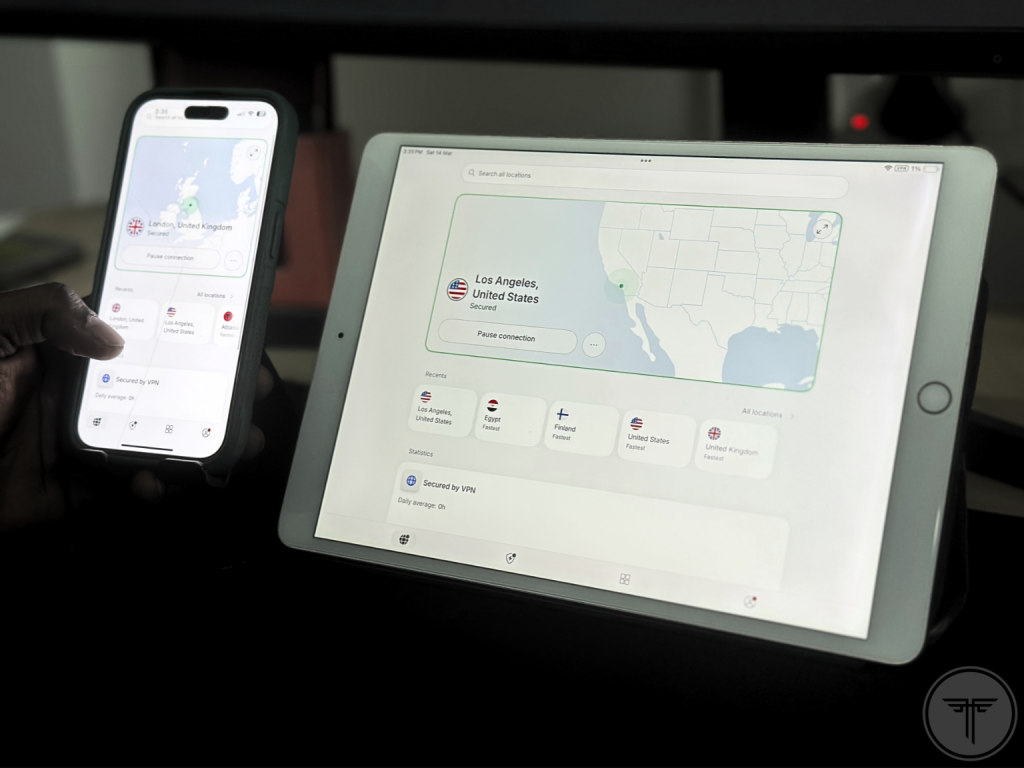
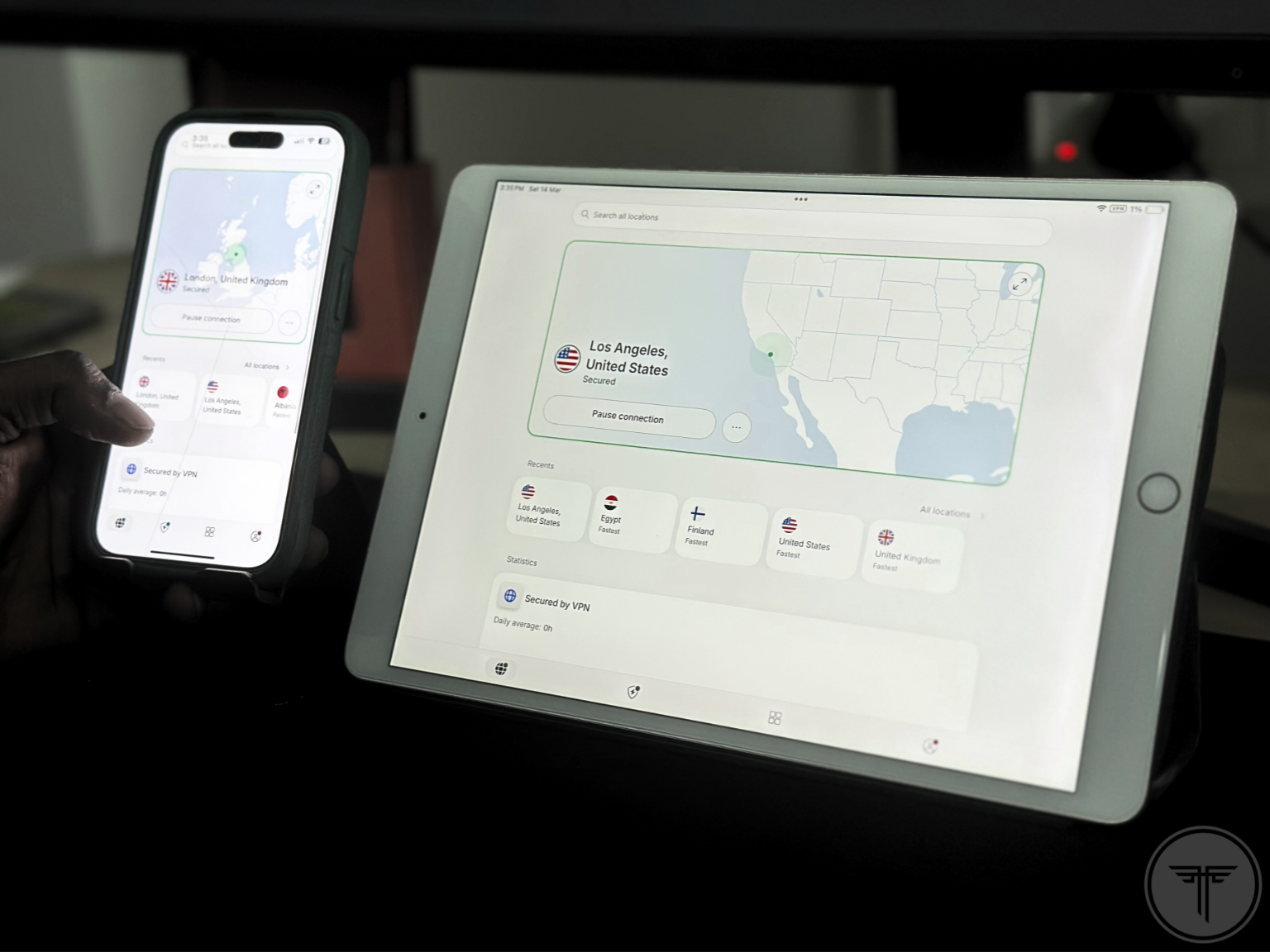
iOS App Installation and Setup – Each VPN was installed on an iPhone 14 Pro (iOS 18.5) and iPad Pro 10.5‑inch (iOS 17.7.1). We measured download size, installation time, setup steps, permissions requested, additional downloads, and any changes to system settings during onboarding.
User Interface and Usability – We evaluated how intuitive each VPN app is, including navigation, server selection, Quick Connect functionality, kill switch access, protocol options, layout clarity, and responsiveness for both novice and advanced iOS users.
Connection Speed Tests on Wi-Fi and Mobile Data – Baseline speeds were first recorded without a VPN: 193 Mbps on Airtel Wi-Fi and 114 Mbps on Airtel 5G mobile data. We then connected to US (Los Angeles) and UK (London) servers and ran multiple speed tests using Cloudflare’s Speed Test tool to measure download, upload, latency, and jitter. For PIA VPN, which don’t have Los Angeles servers, we used their New York server instead. Mobile data speeds were naturally more variable than Wi-Fi, so results may differ depending on location, network congestion, and device conditions.
Stability During Extended Sessions – VPNs were left connected for over 35 minutes on mobile data to simulate real-world usage. We monitored for disconnects, automatic reconnections, and overall reliability during streaming, browsing, and downloads.
Auto-Reconnect Performance – We intentionally interrupted connections to see if each VPN could automatically reconnect without user intervention, maintaining continuous protection.
Kill Switch Behavior During Network Switching – We switched between Wi-Fi and mobile data to confirm that the kill switch blocked all traffic instantly and prevented any IP or DNS leaks until the VPN re-established a secure connection.
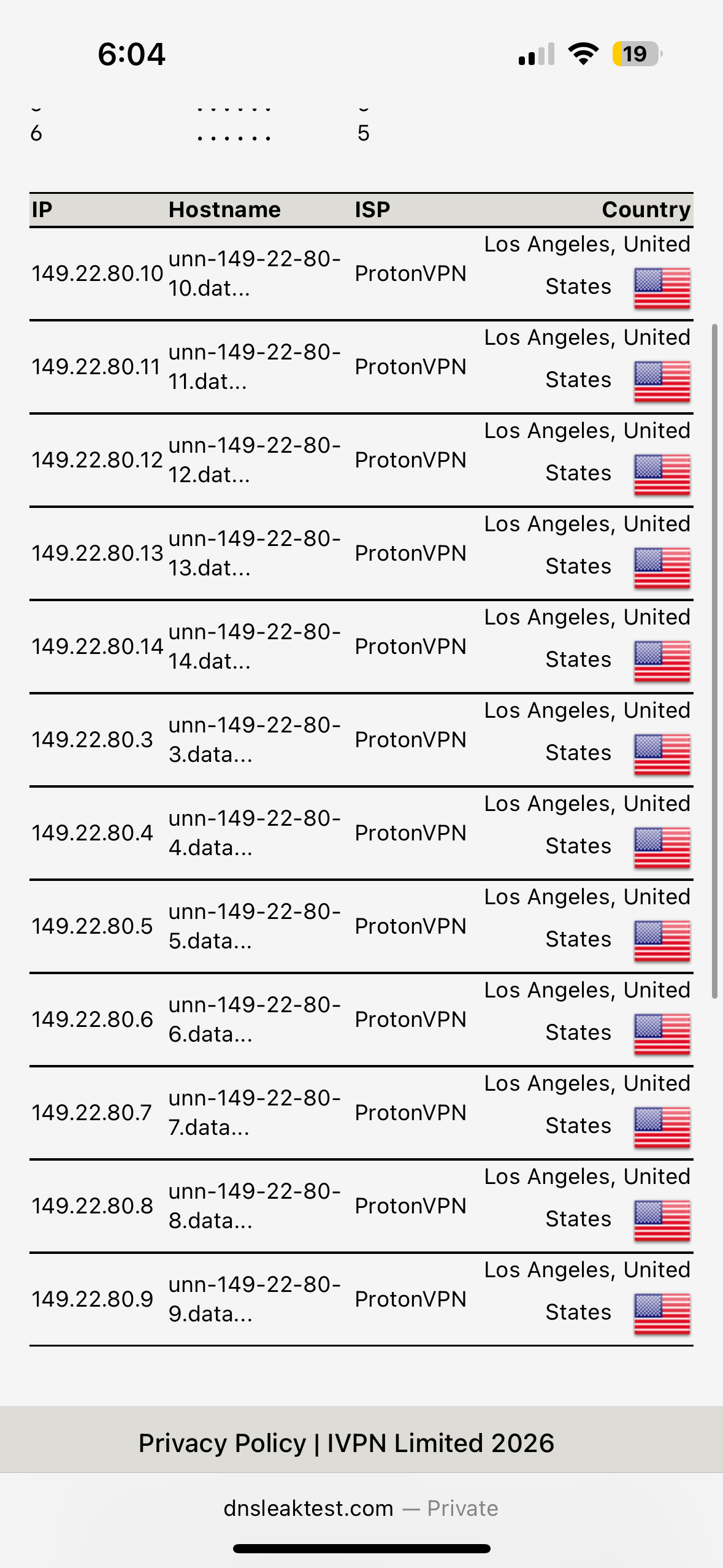
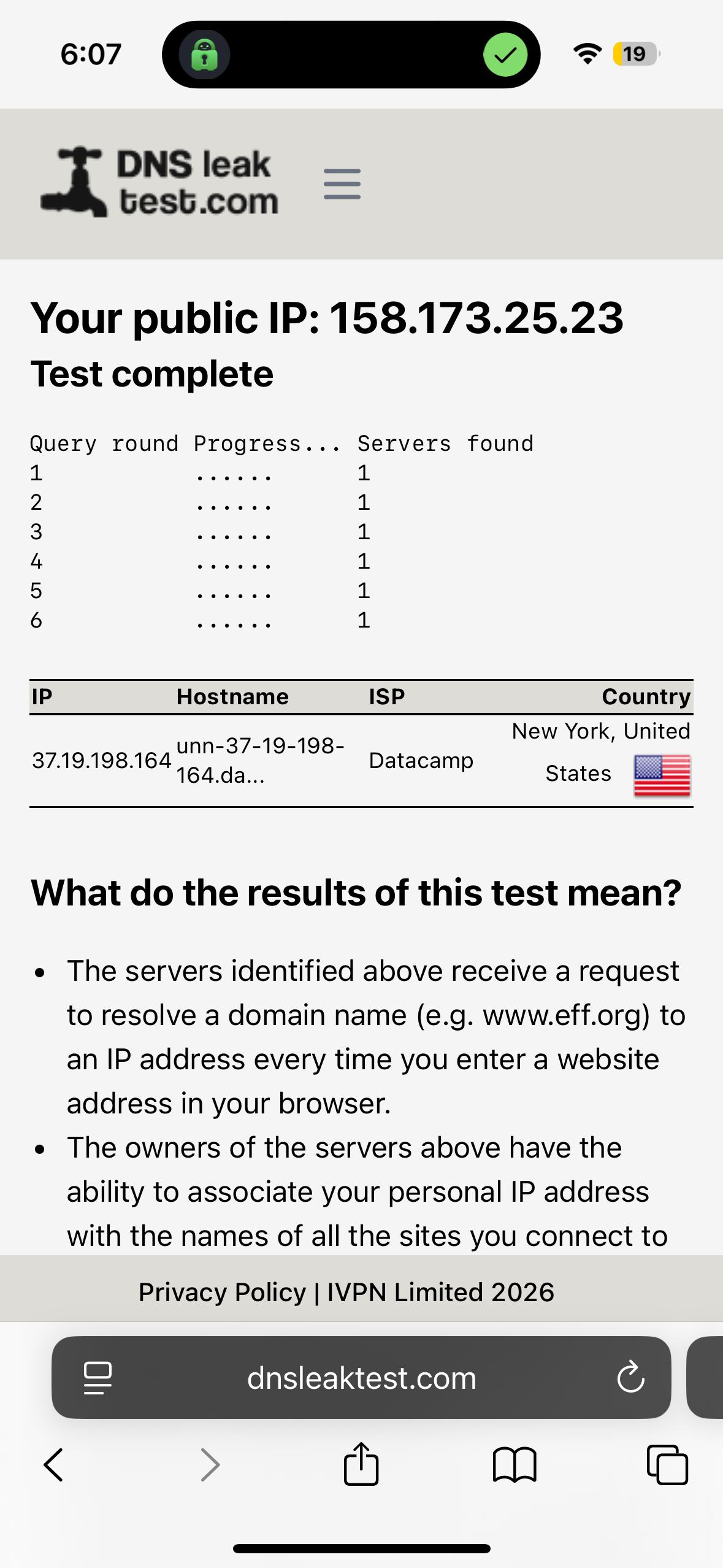
DNS/IP Leak Protection on iOS – Leak tests were conducted using DNS leak test tools on iOS devices. There were two options - 'Standard' and 'Extended', and we chose the Extended test for all VPNs. Only VPN-assigned IPs and DNS servers appeared, ensuring no real location or personal data was exposed.
Server Network Size – Verified each VPN’s servers accessible on iOS, including locations and regional coverage, to ensure reliable performance across Wi-Fi and mobile connections.
RAM-Only vs Physical Servers – Confirmed that iOS-connected servers operate entirely in RAM, not on physical storage, reducing persistent data risks and enhancing security.
Jurisdiction – Evaluated the VPN provider’s country, privacy regulations, and policies to understand potential legal implications for iOS users’ data.
Independent No-Logs Audit – Reviewed available third-party audits, auditor credibility, and scope to validate no-logs claims for iOS app connections.
Encryption and Protocol Support – Checked supported VPN protocols (WireGuard, OpenVPN, proprietary) and encryption standards, testing WireGuard for consistent performance on iOS.
Customer Support Responsiveness – Assessed support via live chat and email for speed, accuracy, and helpfulness when addressing both technical and general inquiries on iOS.
Pricing Transparency – Examined iOS-specific plans, renewal costs, hidden fees, and refund policies to ensure pricing is clear and fair for mobile users.
Best VPN Apps for iPhone & iPad – Detailed Review
Based on the criteria mentioned above, the 5 best VPNs for iPhone and iPad are:
1. NordVPN - ⭐Best Overall
To be honest, NordVPN delivered a polished and secure experience on iOS, and overall it performed well during testing. I reached the main dashboard within about two minutes due to its simple onboarding process, and the app itself felt intuitive to navigate. The interface features a clean layout with an interactive world map and clearly organized sections.
NordVPN also includes a good range of features on iOS (and they are highly useful). In terms of performance, Wi-Fi tests generally delivered stable results, though long-distance connections showed moderate speed drops and slightly higher latency. Mobile data results were a bit more inconsistent, with occasional jitter that sometimes made the connection feel less steady, but the overall performance still remained usable for most everyday tasks.
Streaming across platforms worked reliably after a brief quality adjustment period. Throughout testing, the automatic kill switch worked as expected and no DNS or IP leaks were detected. Overall, NordVPN passed our tests with flying colors and proved to be a solid and reliable option for iOS users despite a few minor limitations like the lack of split tunneling, unlabeled virtual servers, and slightly variable mobile data stability.
Performance Testing
Installing NordVPN on iOS was quick and uncomplicated. Because I already had an active subscription, I logged into my account through the browser and then downloaded the iOS app from the Apple App Store, which was about 187.9 MB in size.
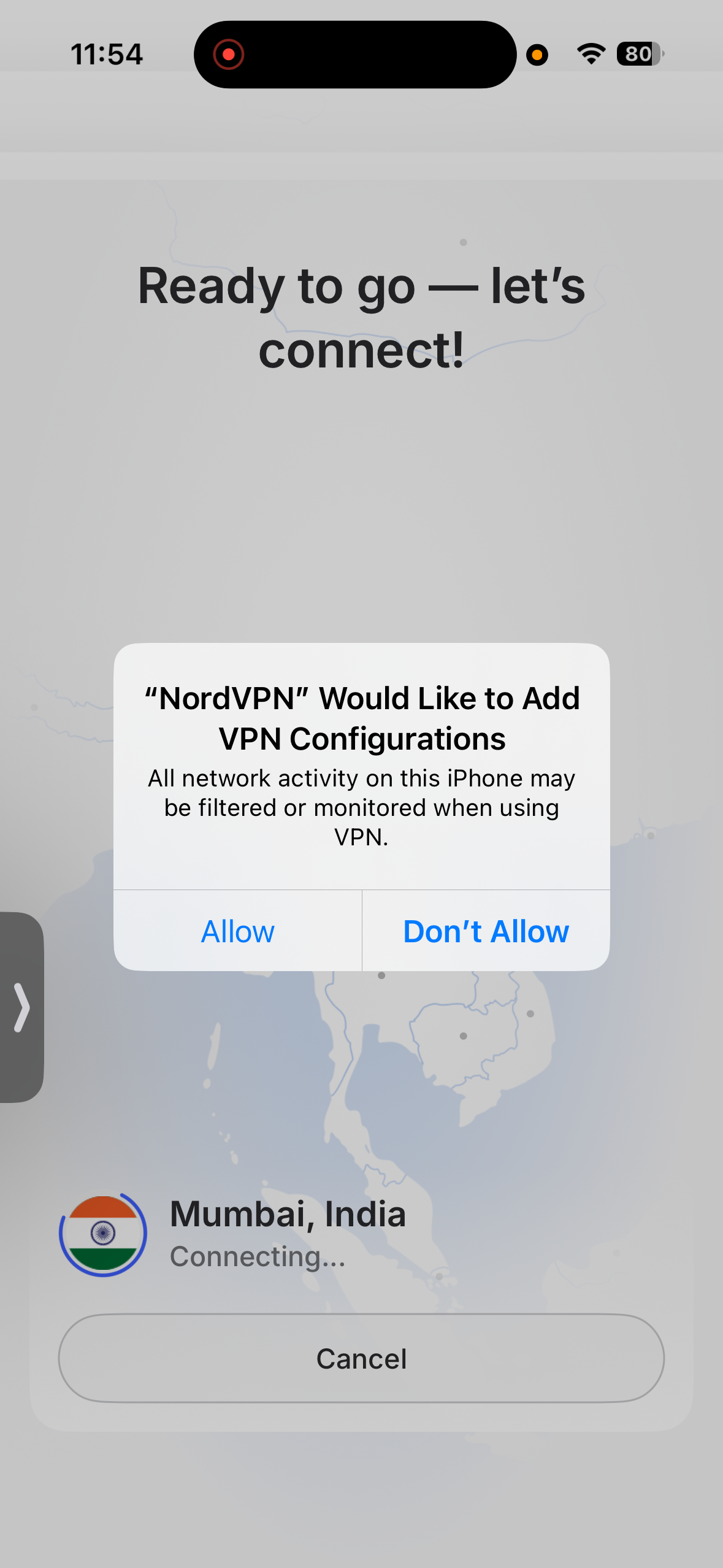
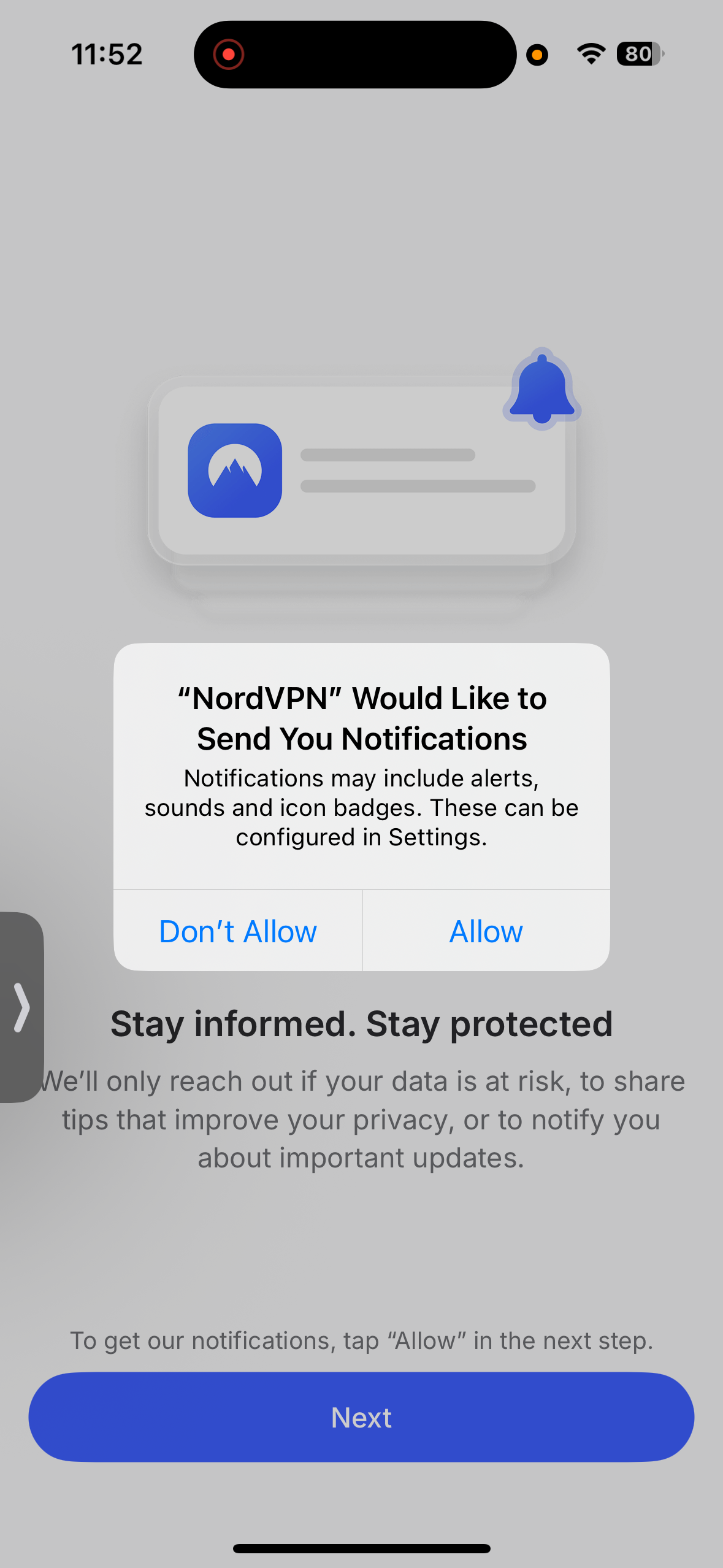
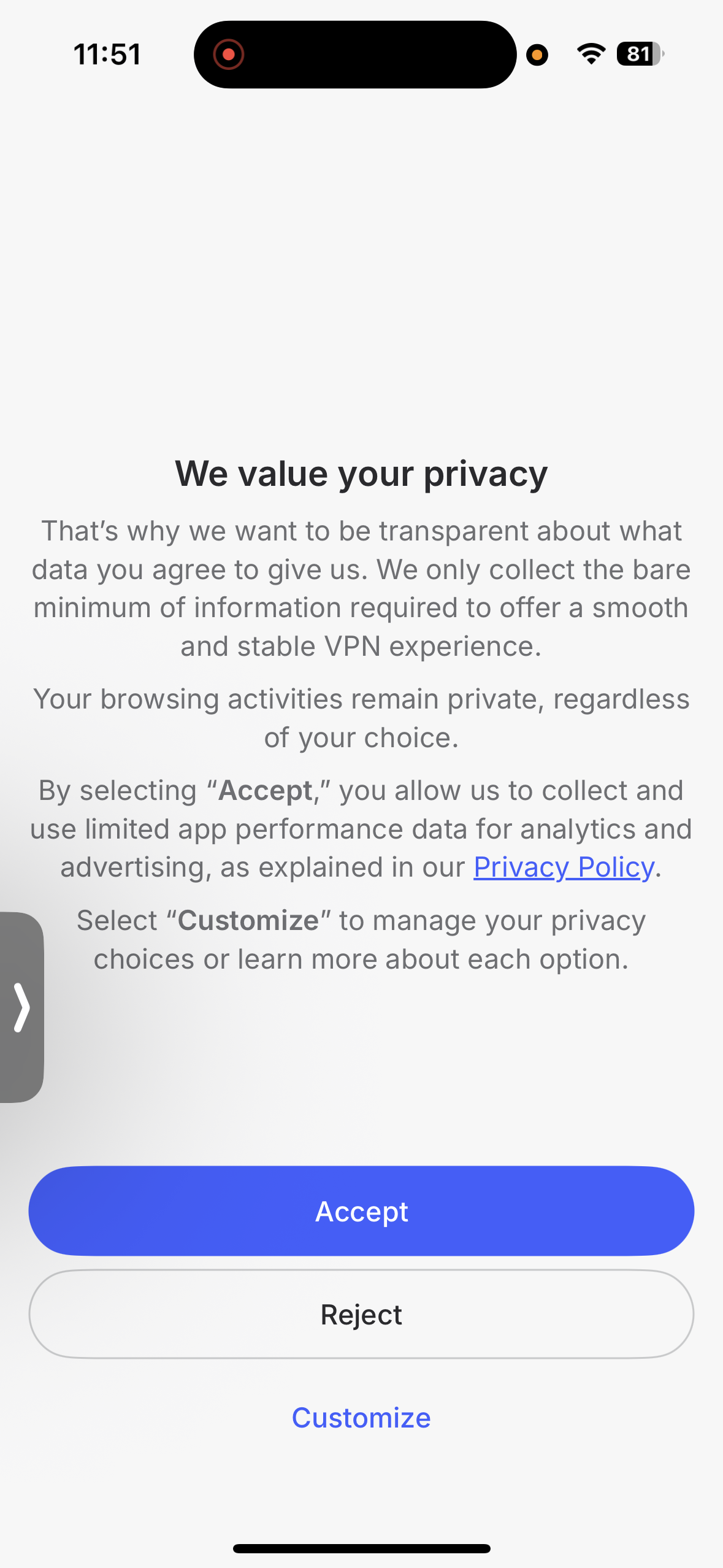
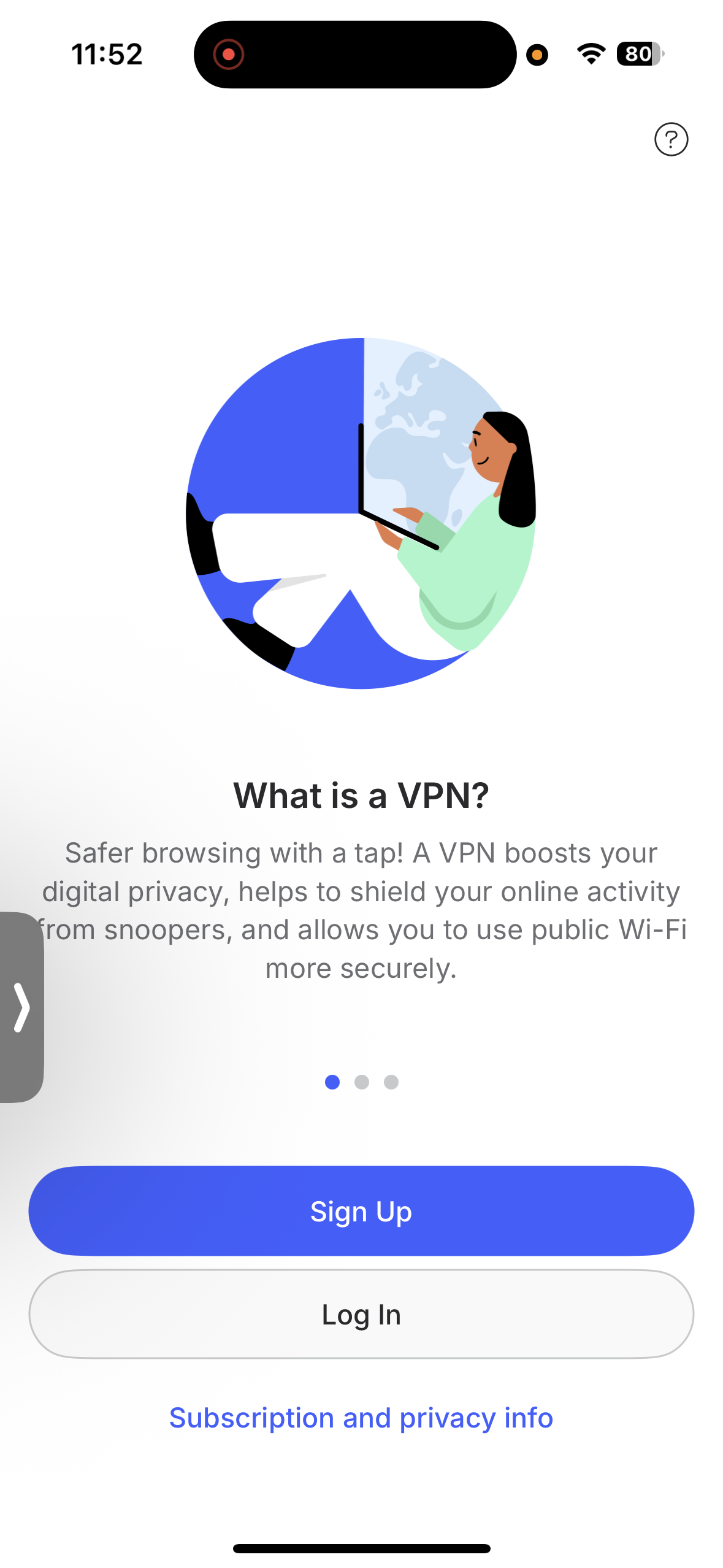
Once the app was installed and opened, it presented a brief onboarding sequence. I agreed to the privacy policy, enabled notifications, and signed in to my account. During this stage, the app suggested a few optional configuration steps, but I skipped them to proceed directly to the main interface.
Overall, the setup process felt intuitive and well organized. The instructions were easy to follow, and I was able to reach the main dashboard (i.e the app’s dashboard) within a couple of minutes without encountering any confusing prompts or unusual permission requests.
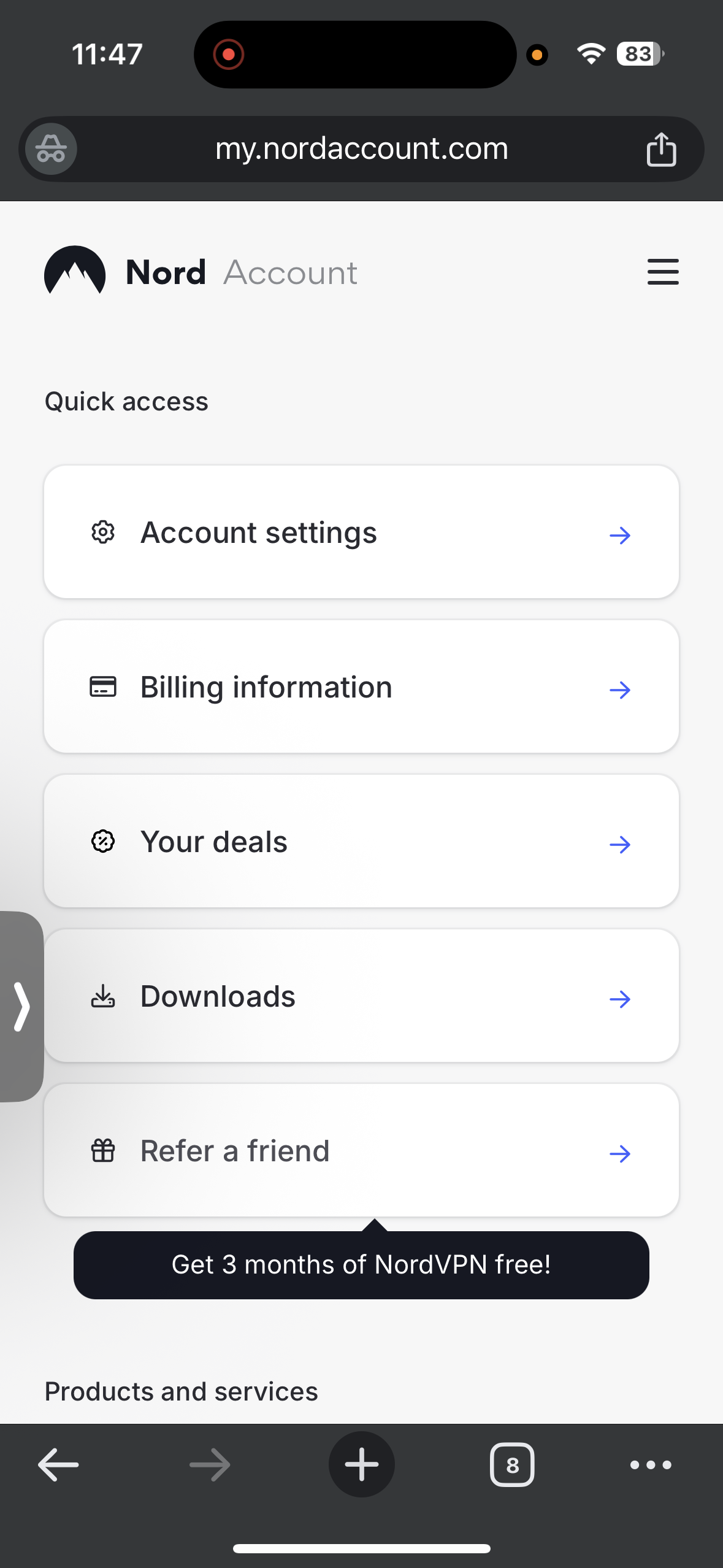
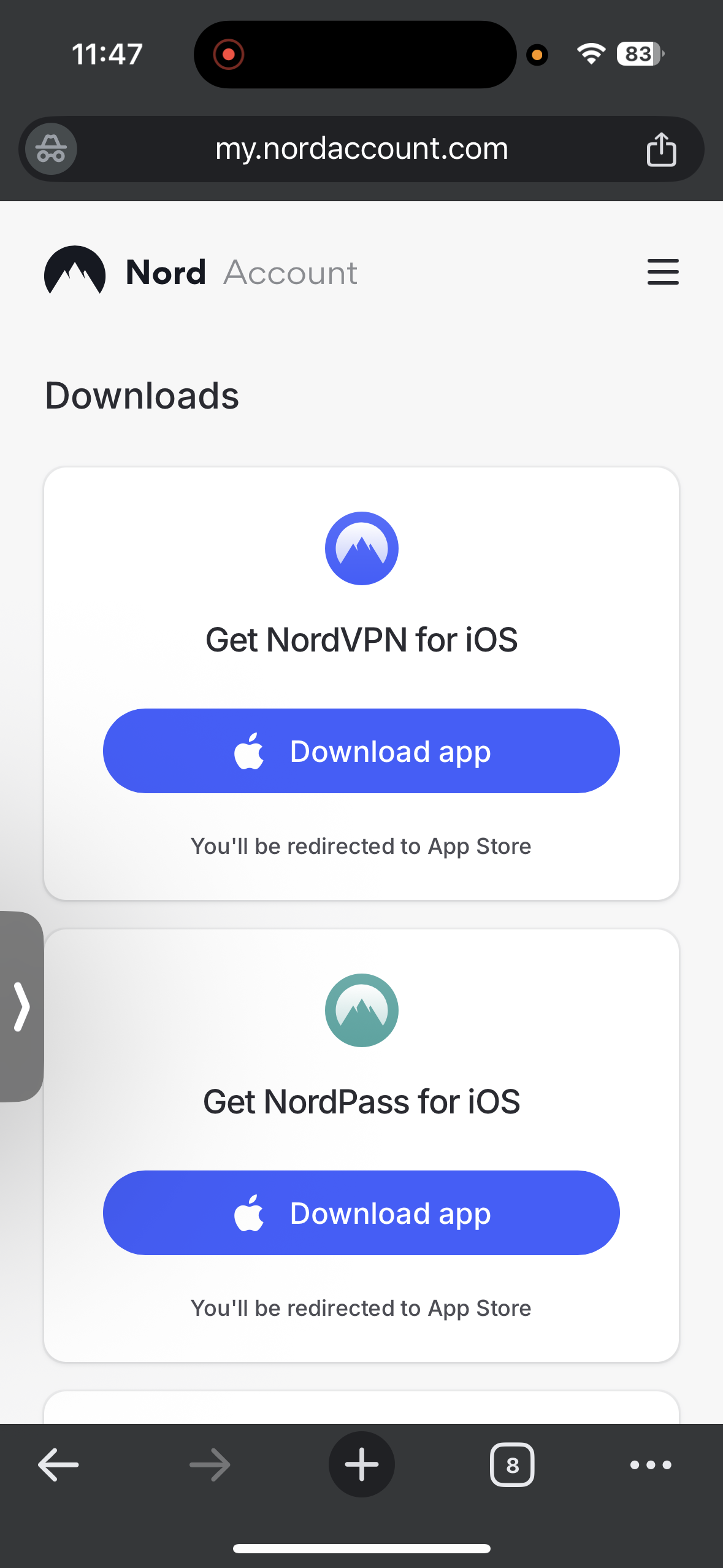
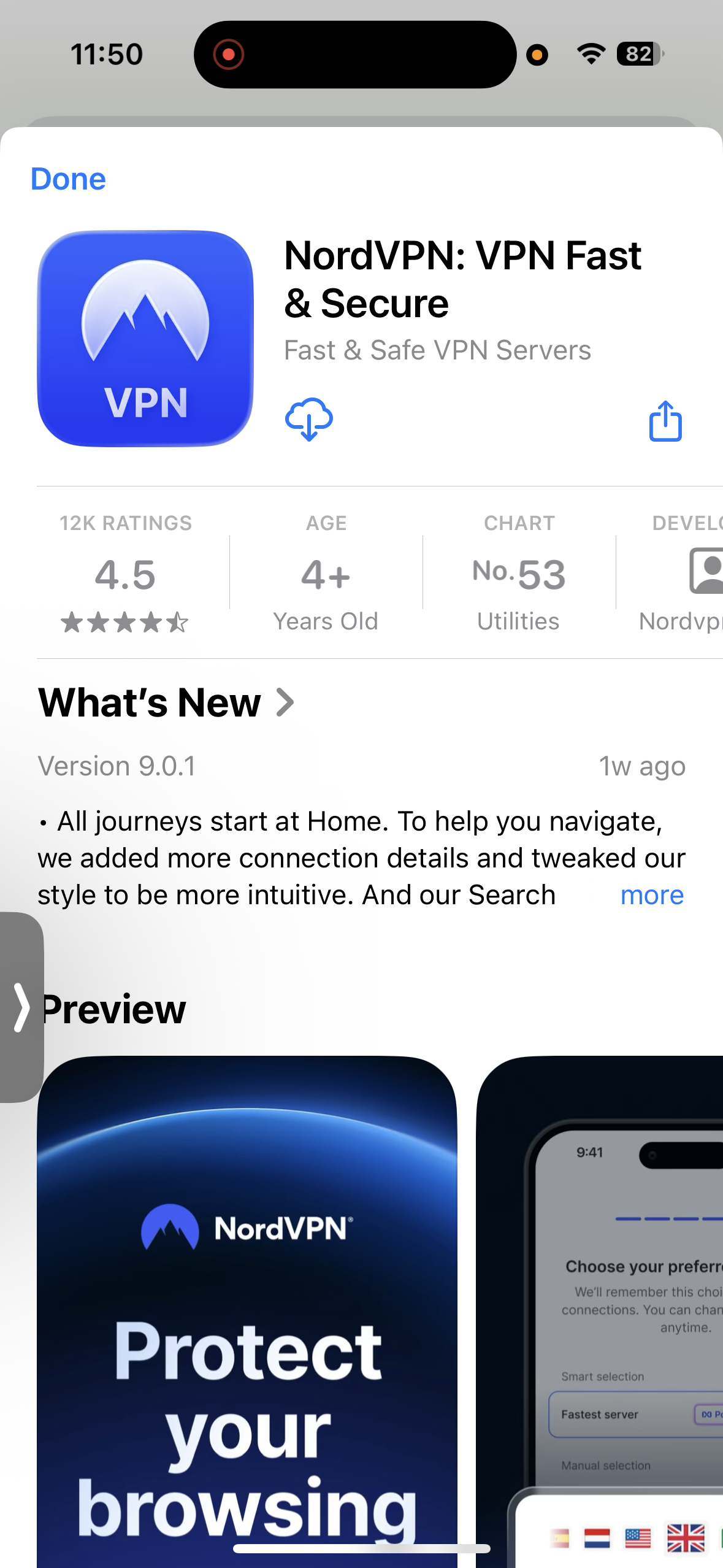
- App Size: 187.9 Mb
- Compatibility: Requires iOS/iPadOS 16.0 or later
- Download Source: Official Website → Apple Play Store
- Approximate Setup Time: 2 minutes
- Permissions Requested: Privacy, Connection Setup, and Notifications
- Onboarding Flow: Straightforward with Optional Setup Prompts
- Overall Difficulty: Super Easy
- App Store Ratings: 12k
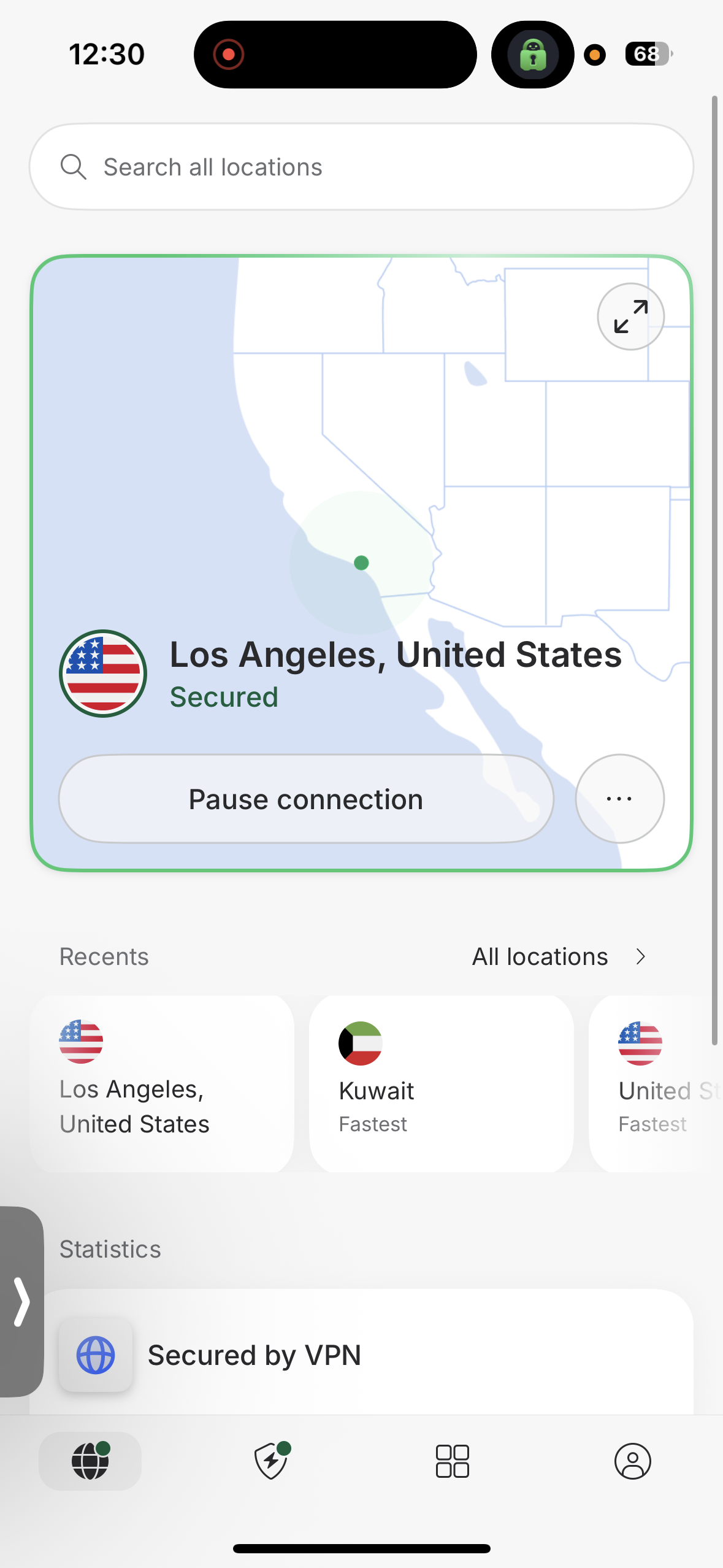
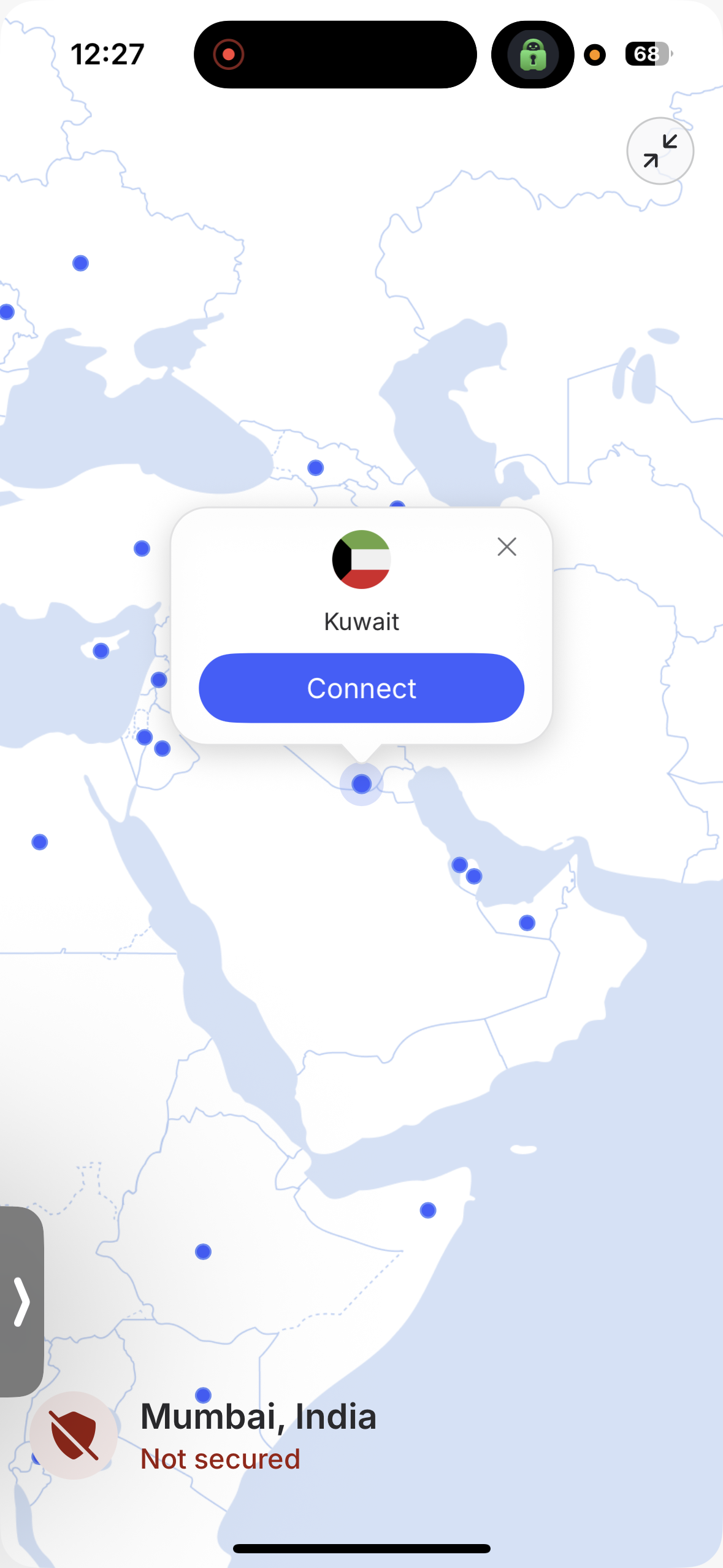
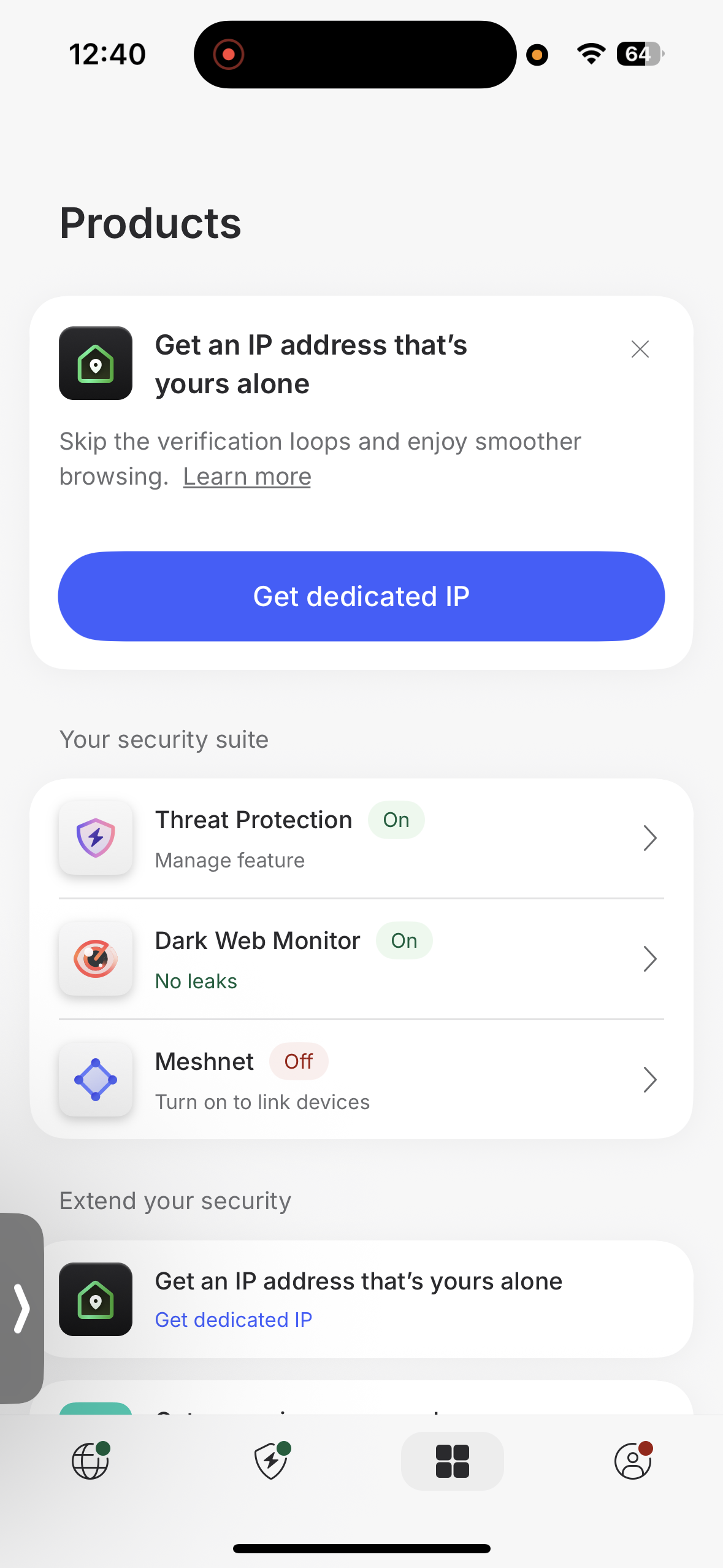
Layout & Navigation: Using NordVPN felt smooth and intuitive right from the start. The home screen is clean and organized, with an interactive map that makes browsing server locations visually engaging. A search bar at the top makes it easy to quickly find locations, while the Secure My Connection button allows instant protection. The home page also shows connection statistics and includes a Pause Connection button, which can temporarily pause or fully disconnect the VPN. Moving between sections like Home, Servers, Threat Protection, Products, and Profile feels natural, so I never had to spend time figuring out where things were.
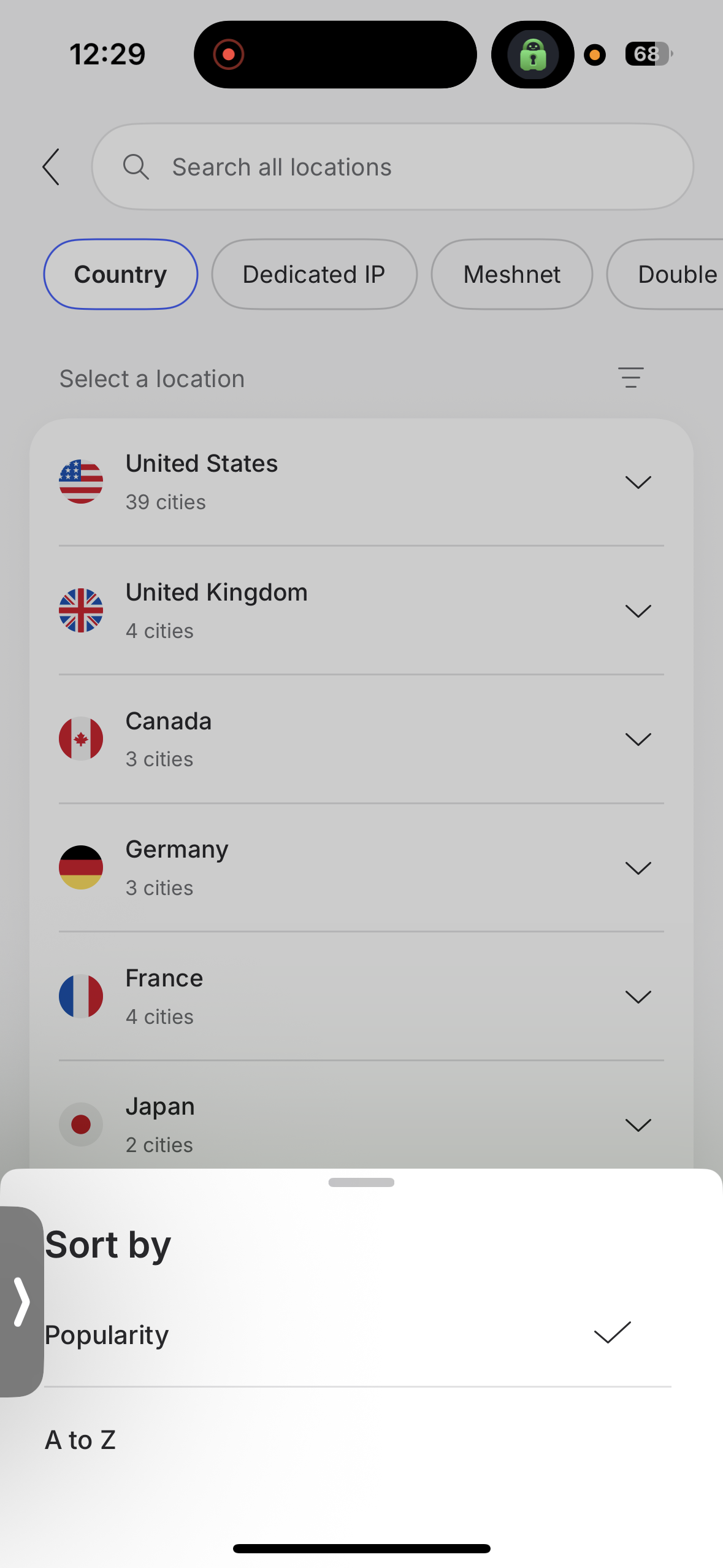
Server Search & Quick Connect: Connecting to a server is quick thanks to the Secure My Connection button, which automatically selects the fastest option. If I wanted more control, the server page offers multiple categories including Country, Dedicated IP, Meshnet, Double VPN, and Onion over VPN. Servers can be sorted by popularity or alphabetically, and the fastest servers are highlighted, making it easier to choose one quickly. However, virtual servers aren’t clearly labeled, which can make it harder to identify them.
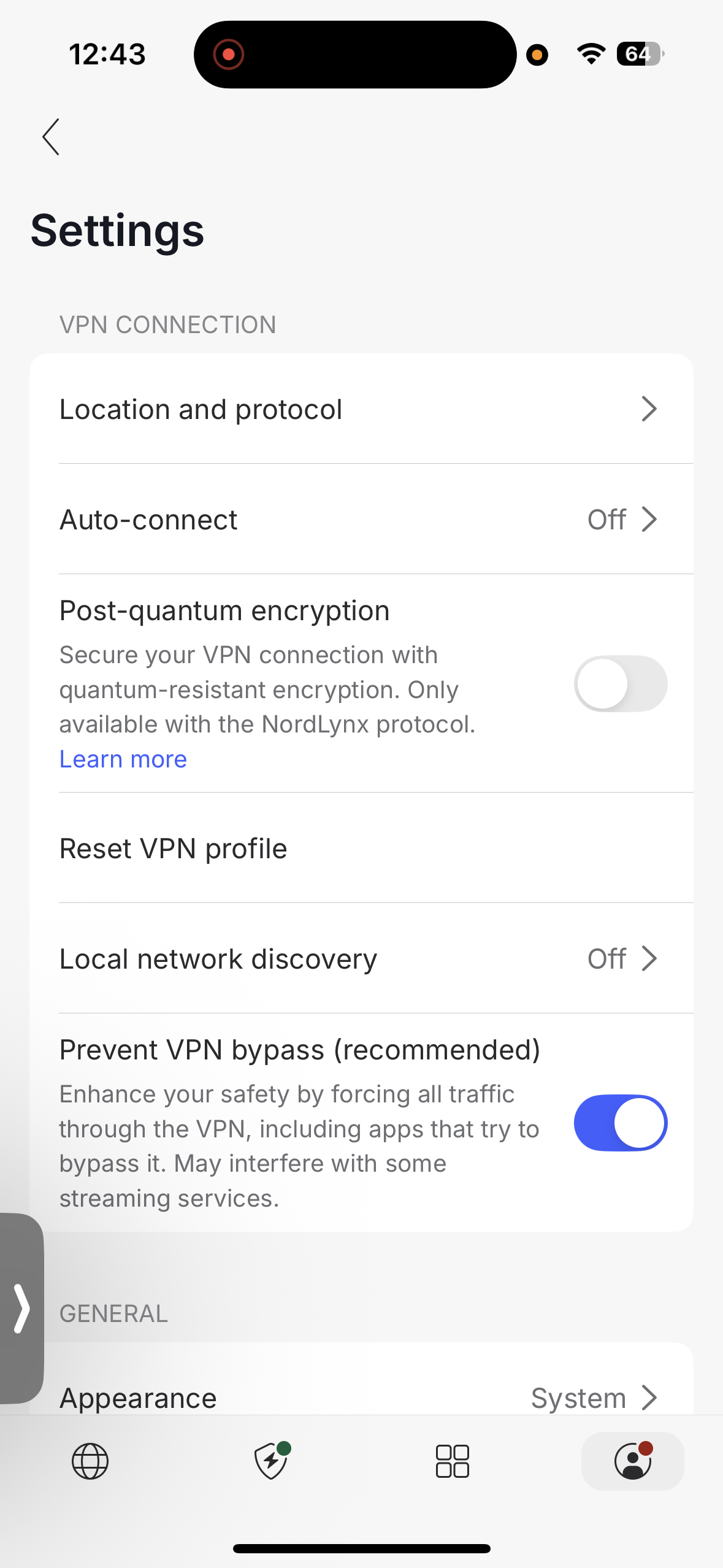
Settings Access: Most configuration options are located in the Profile section, which makes settings easy to find without cluttering the main interface. From here I could adjust protocols, enable auto-connect, reset the VPN profile, or manage options like Local Network Discovery and Prevent VPN Bypass.
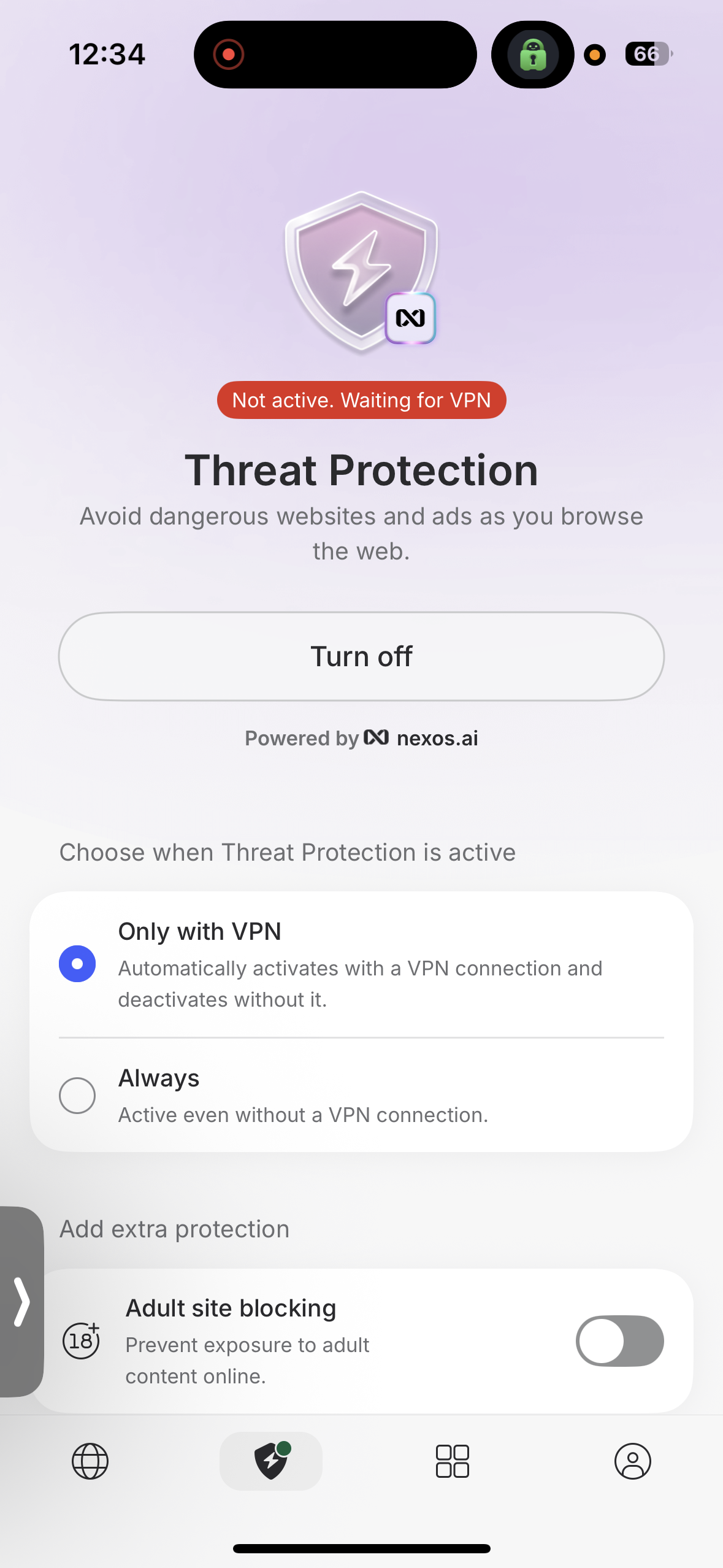
Features: NordVPN includes several security tools that are simple to manage but sometimes require reconnecting the VPN to apply changes. Threat Protection can run only with the VPN or stay active all the time, and extra options like Adult Site Blocking, Dark Web Monitor, and Meshnet add more functionality. I also liked the inclusion of post-quantum encryption with the NordLynx protocol, which adds another layer of security.
iOS Highlights:
- Prevent VPN Bypass option that forces all traffic through the VPN
Also Available:
- Dedicated IP servers
- Double VPN and Onion over VPN servers
- Interactive world map for server selection
- Quick Secure My Connection button for instant protection
- Built-in Threat Protection with options to run only with VPN or always active
- Post-quantum encryption support when using the NordLynx protocol
- Server sorting by popularity or alphabetical order
- Additional services through the app including NordLocker, NordPass (Premium Password Manager), and Saily
Missing on iOS:
- Split tunneling
- Obfuscated servers
UI & Usability Rating: Excellent
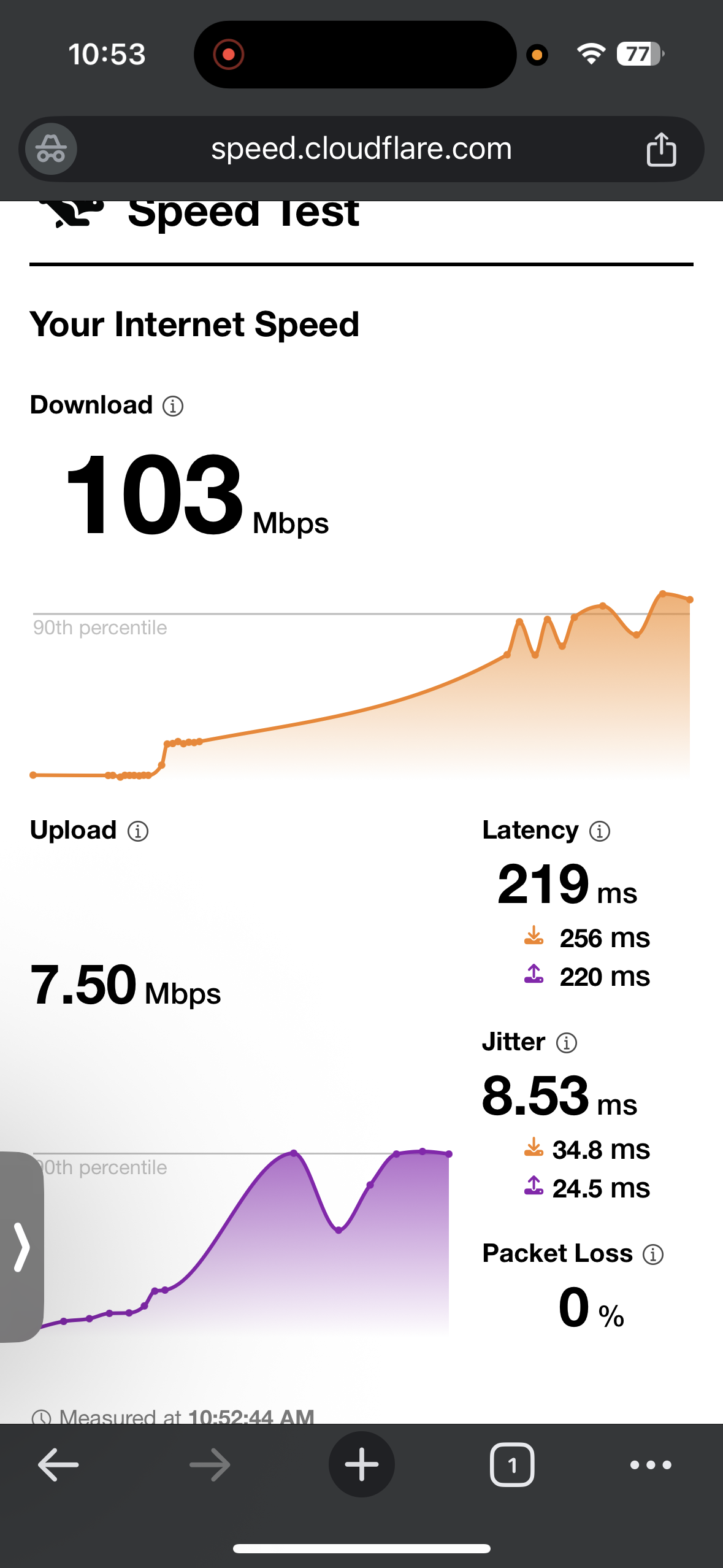
☞ On Wi-Fi (iOS) – NordVPN delivered solid performance with moderate speed reductions when connected to long-distance servers. When I connected to the US server in Los Angeles, I noticed a moderate drop in download speed compared to the baseline. Upload speeds were lower than the baseline but remained stable during testing, and jitter stayed relatively low, indicating steady packet delivery. When switching to the UK server in London, the speed reduction was very similar to the US server, though download speeds were slightly higher. Latency increased in both cases due to the geographical distance between my location and the VPN servers, but the connection remained stable and responsive throughout the testing period.
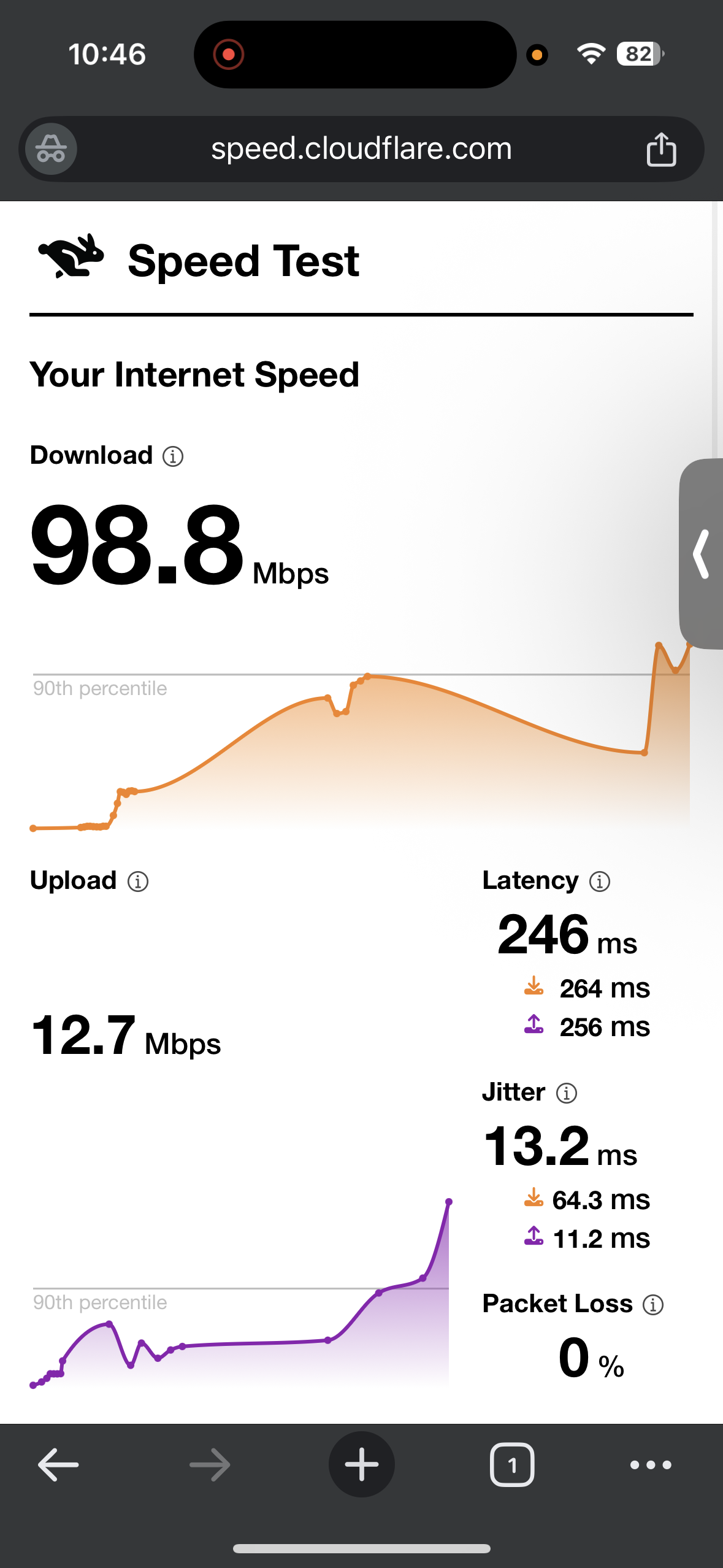
- US server (Los Angeles) - 48.76% drop in speed
- Download Speed - 98.8 Mbps
- Upload Speed - 12.7 Mbps
- Latency - 246 ms
- Jitter - 13.2 ms
- UK Server (London) - 46.63% drop in speed
- Download Speed - 103 Mbps
- Upload Speed - 7.50 Mbps
- Latency - 219 ms
- Jitter - 8.53 ms
☞ On Mobile Data (iOS) – My experience with NordVPN was a bit more varied compared to Wi-Fi testing. When connected to the US server in Los Angeles, I observed a moderate reduction in download speed, though the connection still felt usable. Upload speeds were slightly lower than in the Wi-Fi test, and latency increased further due to the combined effects of mobile network routing and the long-distance VPN connection. Jitter remained at a moderate level, suggesting reasonably consistent packet delivery. When I switched to the UK server in London, the drop in download speed was noticeably smaller, and download performance remained strong. However, jitter increased dramatically during this test, which caused the connection to feel less stable at times.
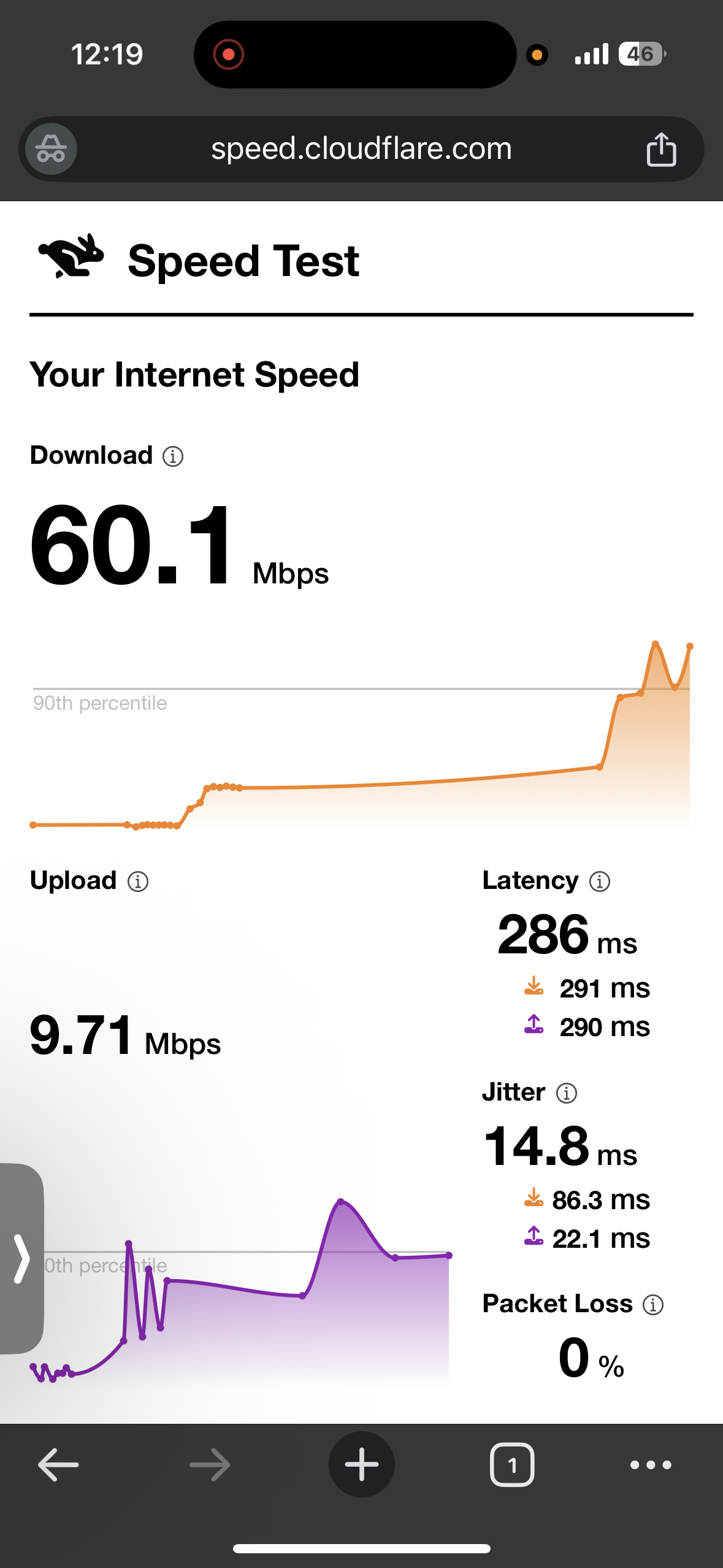
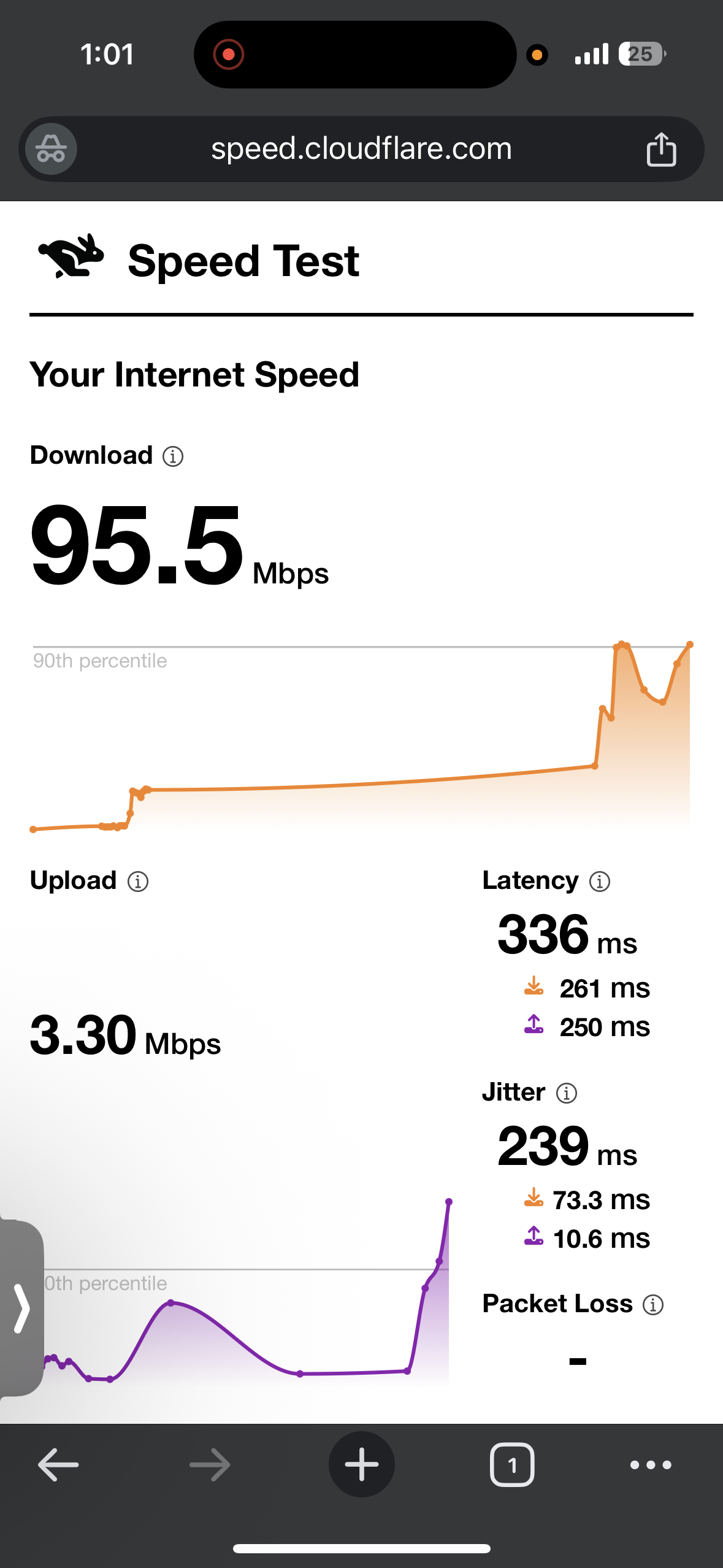
- US server (Los Angeles) - 47.4% drop in speed
- Download Speed - 60.1 Mbps
- Upload Speed - 9.71 Mbps
- Latency - 286 ms
- Jitter - 14.8 ms
- UK Server (London) - 16.23% drop in speed
- Download Speed - 95.5 Mbps
- Upload Speed - 3.0 Mbps
- Latency - 336 ms
- Jitter - 239 ms
The streaming experience felt consistently smooth across multiple platforms. Videos on all three platforms i.e Netflix, Crunchyroll and YouTube, generally began playing right away, briefly appearing in a lower resolution before quickly adjusting to clear, high-quality playback. Once the stream reached its optimal quality, it continued without interruptions, and playback controls such as skipping forward or rewinding remained responsive, with only short loading when moving backward. Throughout the 35-minute session, the connection stayed stable with no disconnects or noticeable slowdowns.
Observed Behavior During the Test
- Page & Content Loading: Chrome home screen and websites loaded instantly with no waiting.
- Video Playback:
- Start Time: Videos began playing immediately, initially at slightly lower quality, but quickly upgraded to sharp resolution.
- Forward Seeking: Jumping ahead in videos was seamless, with no buffering or quality drops.
- Backward Seeking: Minor buffering occurred (2–3 seconds) before playback stabilized.
- Streaming Stability: YouTube playback reached 1080p instantly and maintained smooth, uninterrupted performance throughout.
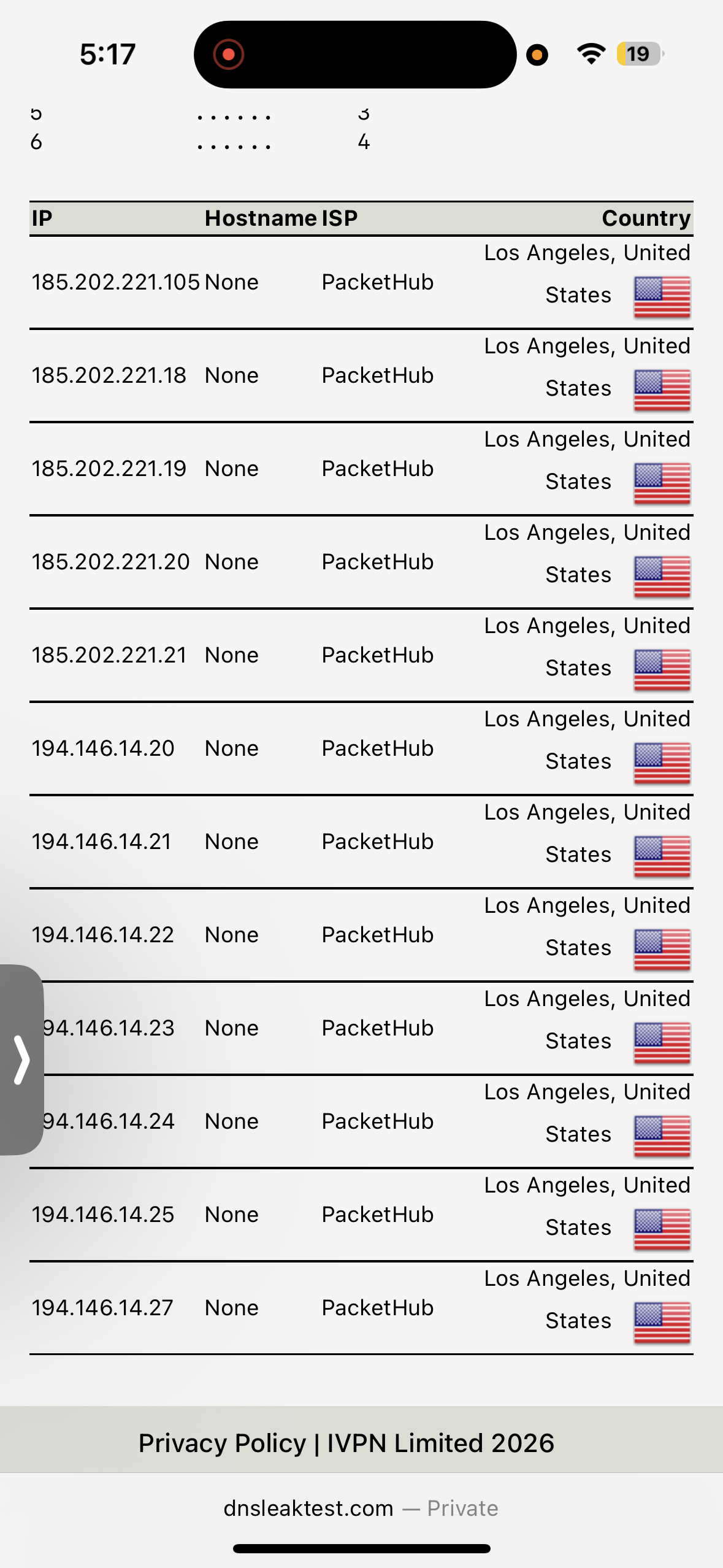
NordVPN’s kill switch on iPhone is automatic. It performed consistently during testing. While activation required accessing system settings, it worked flawlessly once enabled. Throughout the session, no DNS or IP leaks were detected, and there were no unexpected disconnections. The connection stayed fully secure and protected at all times.
PROS
- Multiple server options including Dedicated IP, Double VPN, Meshnet, and Onion over VPN
- Servers can be sorted easily
- Automatic Kill Switch
- Clean interface with an interactive world map
- Post-quantum encryption support with the NordLynx protocol
- Most stable streaming among all
- Strongest stability during a 35-minute streaming session
- Fast browsing with instant page loads in Google Chrome
- Reliable kill switch with no DNS or IP leaks detected
CONS
- Virtual servers are not clearly labeled
- Split tunneling and obfuscated servers are missing on iOS
2. ExpressVPN - 🥈Runner-Up
If I talk about ExpressVPN, it delivered a polished and feature-rich experience on iOS and overall performed well during testing. The onboarding process was well guided with clear prompts and navigation tips that helped me reach the main dashboard in about two minutes.
The interface looks colorful and modern, featuring a prominent Quick Connect button and server search. ExpressVPN also offers a good range of features and a couple of built-in tools. In terms of performance, Wi-Fi results remained strong with moderate speed reductions on distant servers, while mobile data performance was more inconsistent and showed larger speed drops on some connections.
Streaming remained stable after a brief resolution adjustment period. However, compared to NordVPN, it was slightly slower to reach higher quality in some cases (by a few seconds). The kill switch worked reliably, and no DNS or IP leaks were detected, which means it cleared the security check. Overall, ExpressVPN passed most of our tests and proved to be a reliable and secure option for iOS users, despite a few minor drawbacks such as a slightly cluttered interface and the lack of split tunneling and auto-connect on iOS.
Performance Testing
Installing ExpressVPN on iOS was smooth and well guided. Since I was setting up the service for the first time, I signed up for an account through the browser on the official website and verified it using a code sent to my email. After completing verification, I proceeded to download the iOS app from the Apple App Store, which was about 208.9 MB in size.
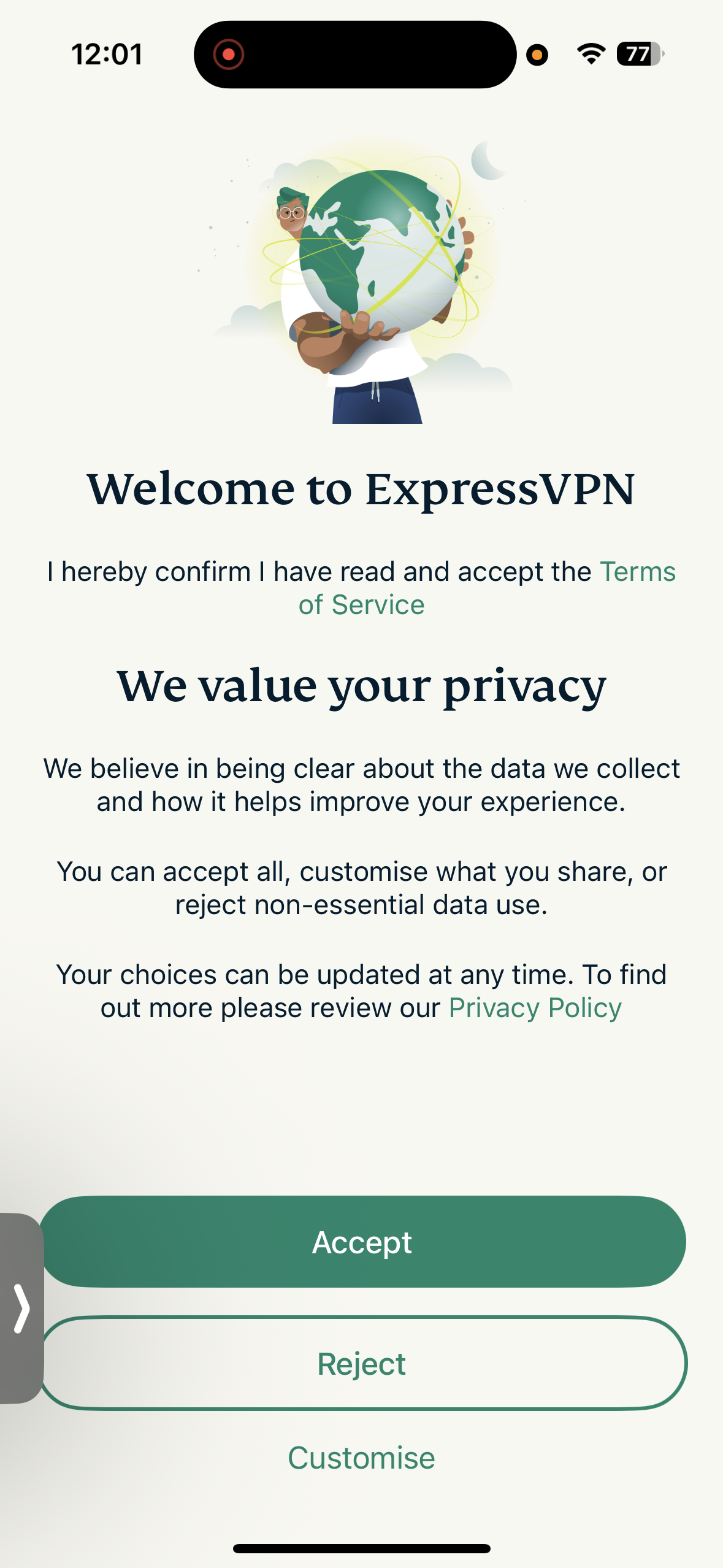
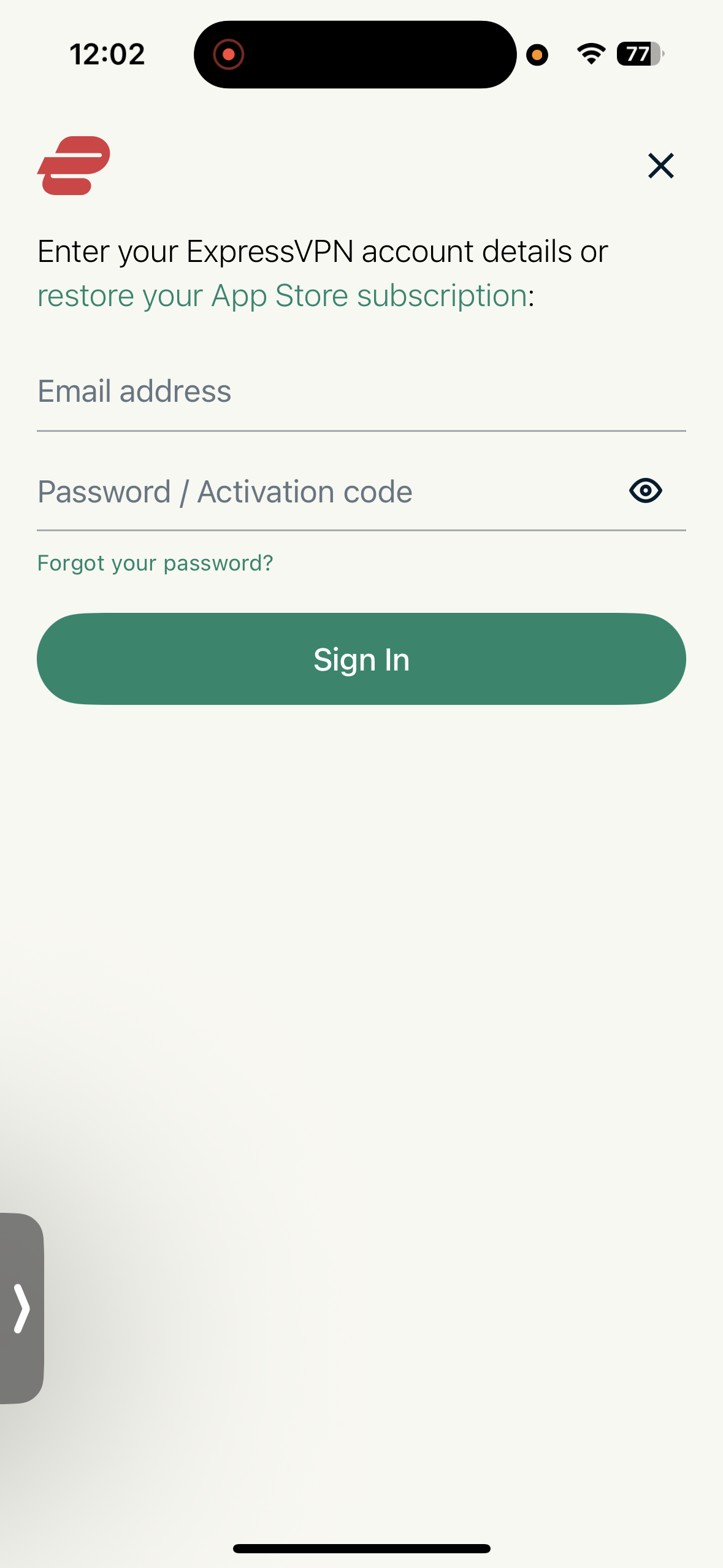
Once the app was installed and opened, I accepted the privacy terms and signed in using my email and activation code. During the setup, the app requested permission to establish the VPN connection and send notifications. After confirming these prompts and tapping Continue, the app completed the initial configuration.
After signing in, I was taken directly to the main interface, where a few helpful navigation pop-ups briefly explained the key features. These tips made it easy to understand the layout and get started quickly without needing to explore the settings manually.
Overall, the setup process felt streamlined and professional. The instructions were clear, and the onboarding guidance made the interface easy to understand, allowing me to reach the main dashboard within a couple of minutes.
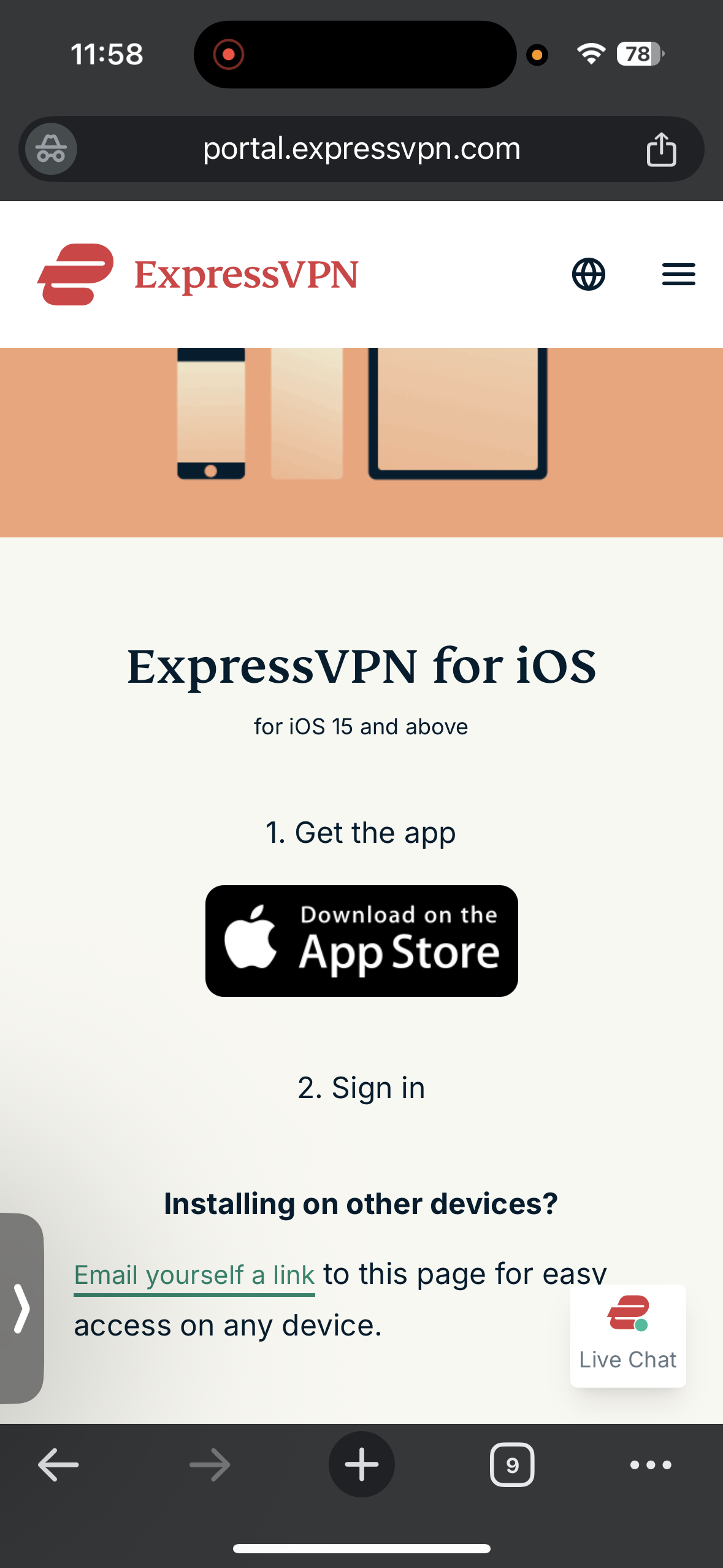
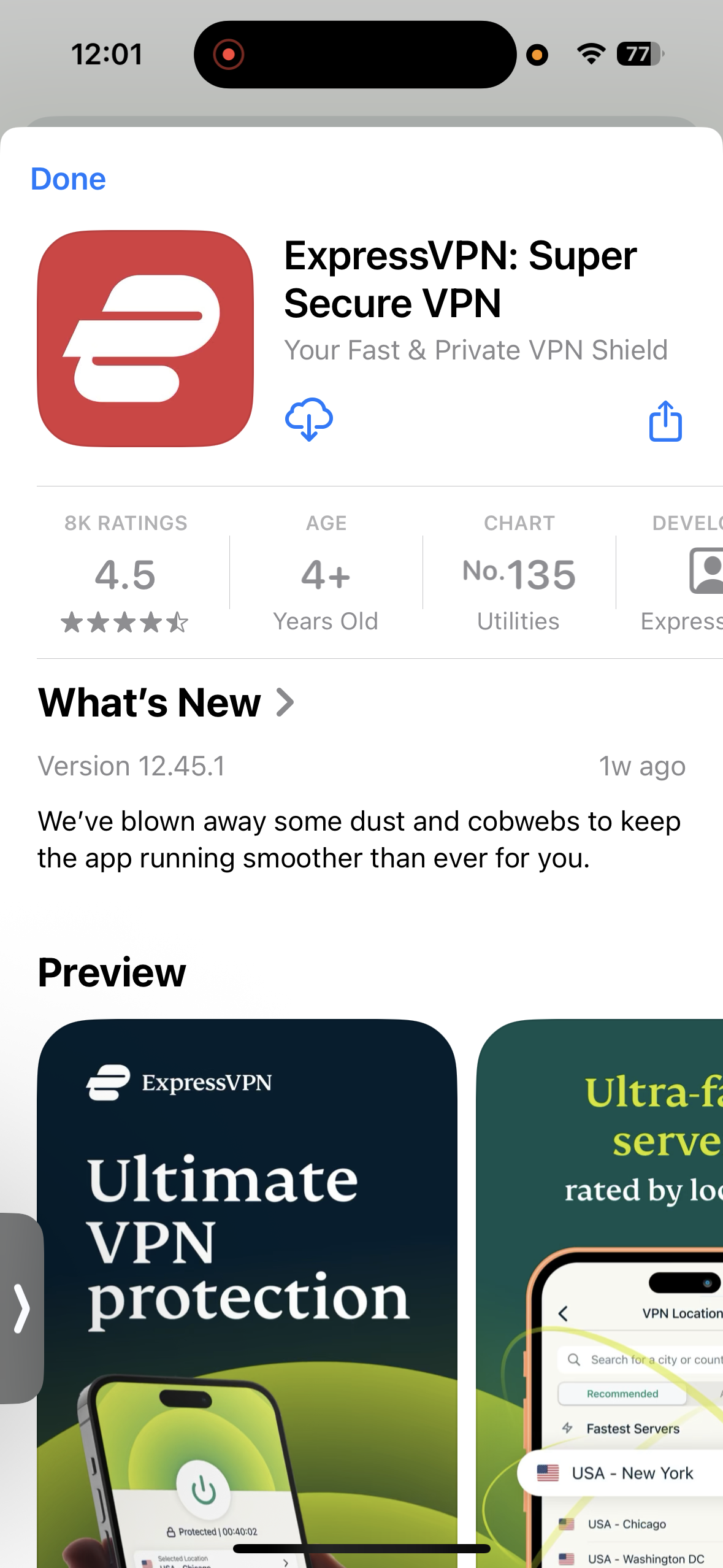
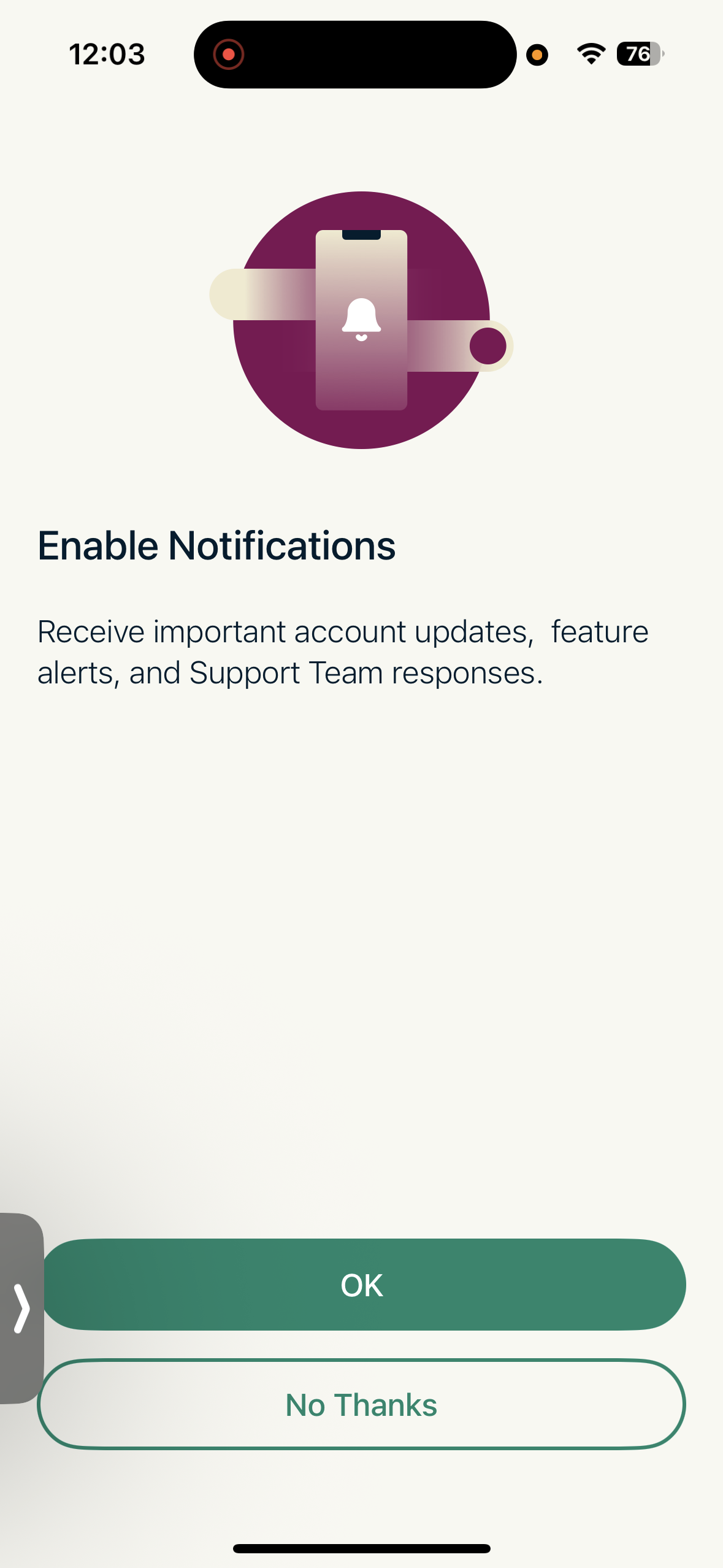
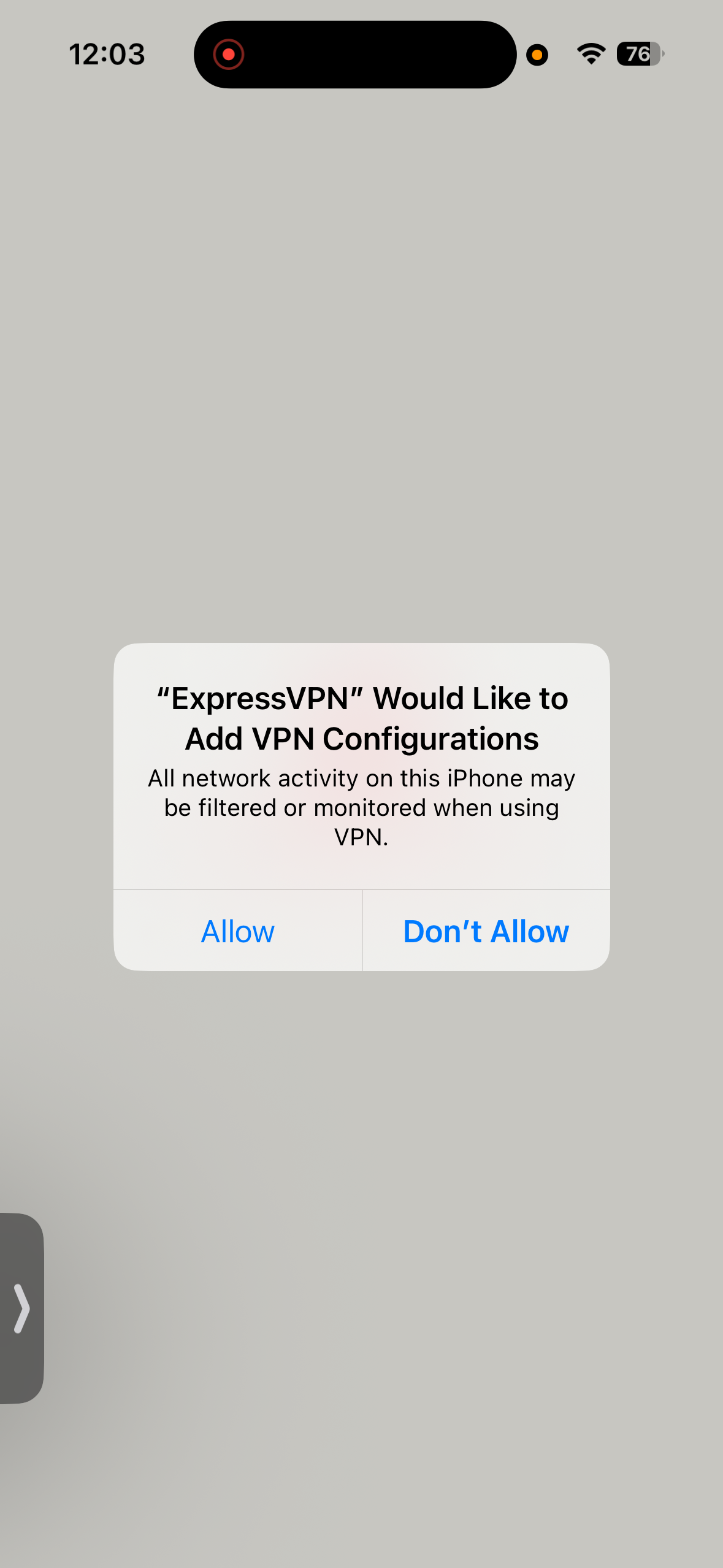
- App Size: 208.9 MB
- Compatibility - Requires iOS/iPadOS 15.0 or later
- Download Source: Official Website → Apple App Store
- Approximate Setup Time: 2 minutes
- Permissions Requested: Privacy, VPN Connection Setup, and Notifications
- Onboarding Flow: Guided with Navigation Pop-ups
- Overall Difficulty: Super Easy
- App Store Ratings - 8K
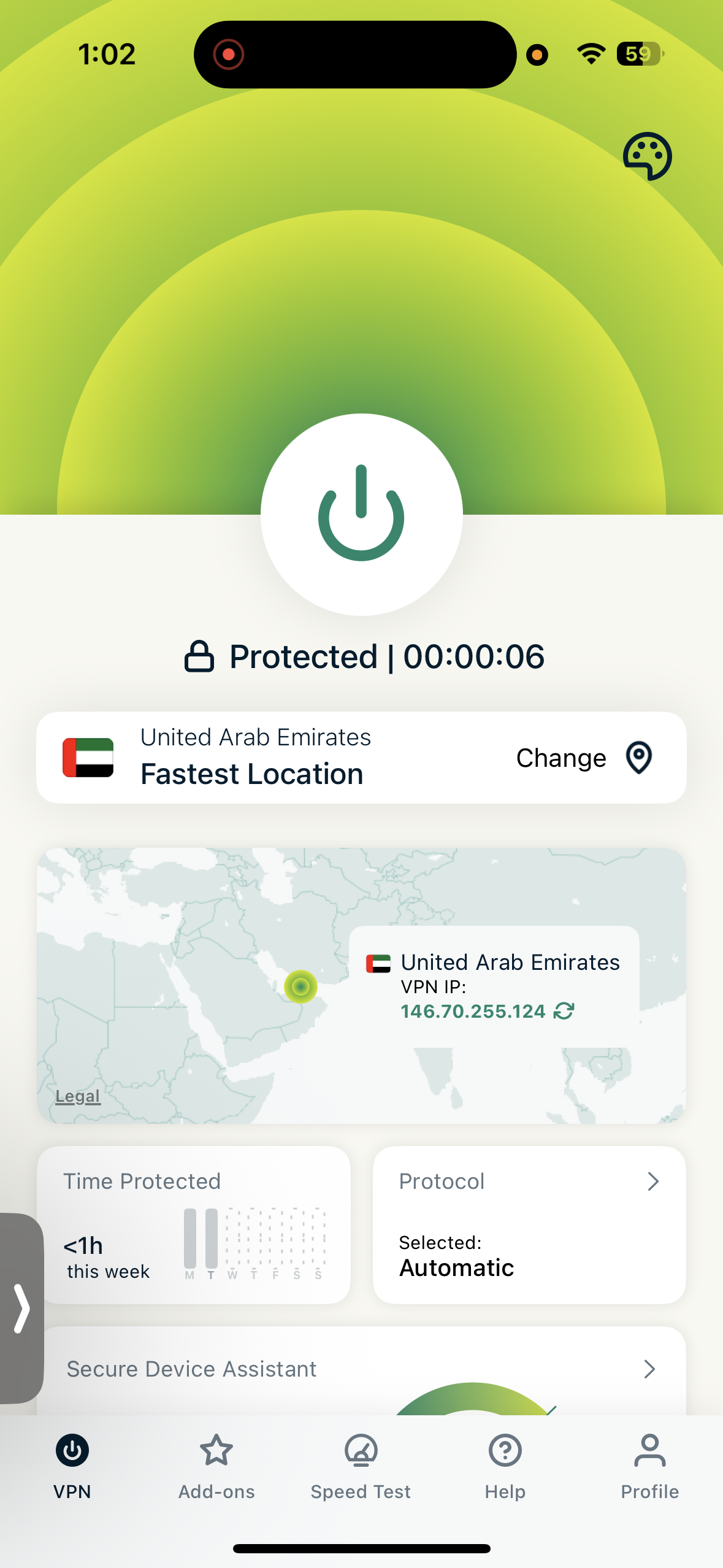
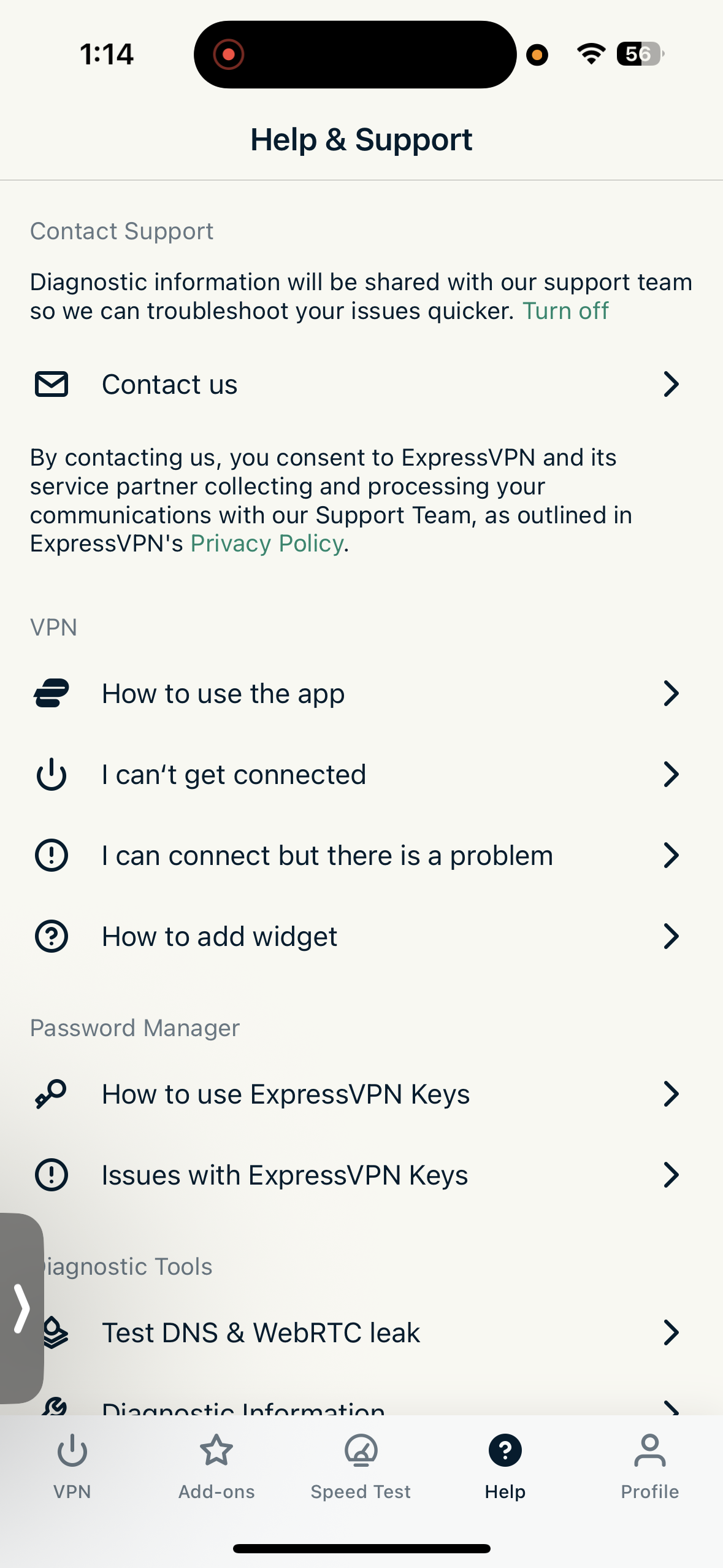
Layout & Navigation: Using ExpressVPN felt polished and feature-rich, with a colorful interface that clearly shows connection status through red (disconnected) and green (connected) indicators. The Quick Connect button sits prominently on the home screen. I liked that the app allows theme customization, and the search bar works well for quickly locating servers. An interactive map is also present, though it’s less interactive than NordVPN since it mainly refreshes IP locations rather than allowing direct server selection. The home screen also surfaces several tools such as protocol selection, Secure Device Assistant security checks, and update status, which makes the interface informative but slightly cluttered due to multiple status prompts.
Server Search & Quick Connect: Finding servers is straightforward thanks to well-organized categories like Recommended, Fastest, Recent, and Most Popular in your Country. If I needed something specific, the search bar quickly located it. Servers are also grouped under All locations, and I appreciated that virtual servers are clearly labeled with “via,” which improves transparency. Overall, server browsing feels structured and easy to navigate.
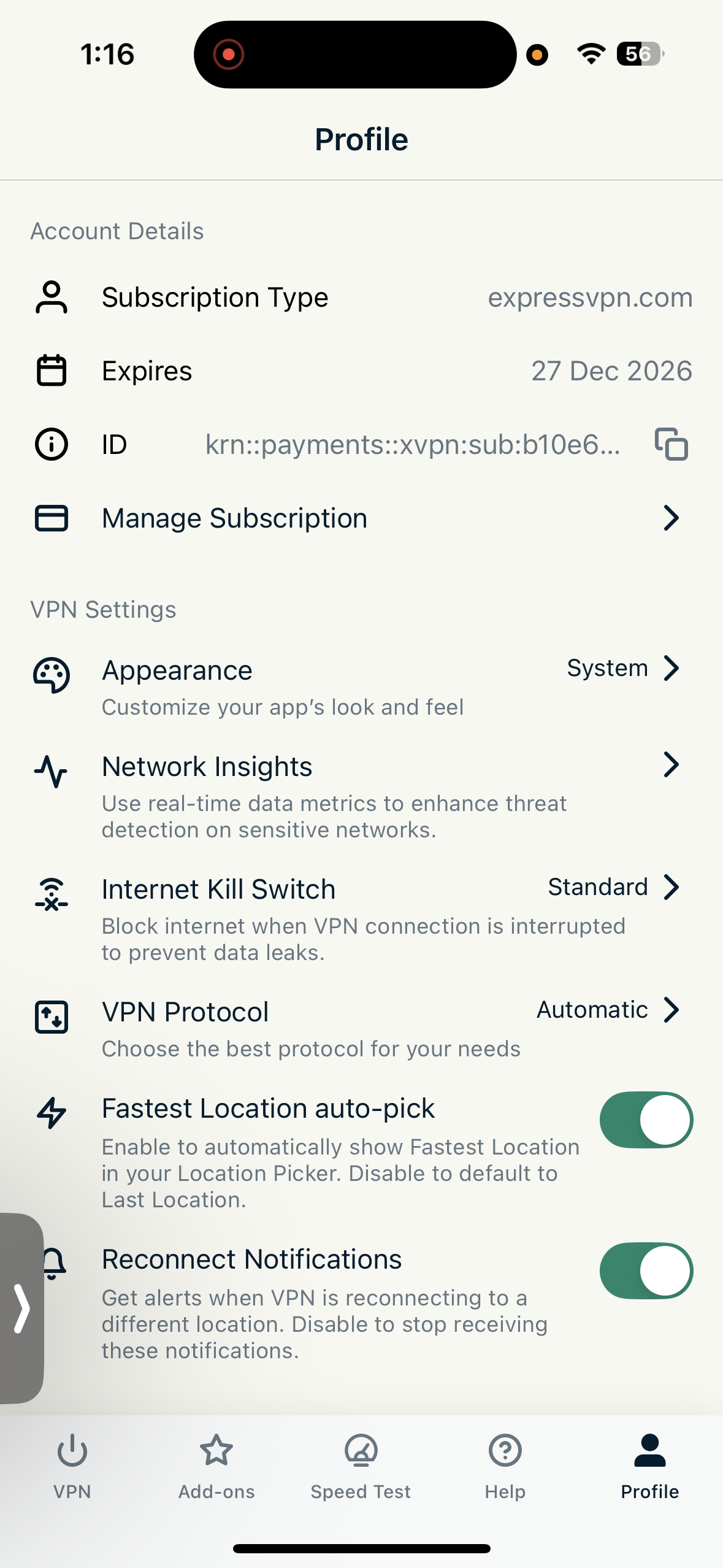
Settings Access: Most settings are located in the Profile section, where connection and security preferences are easy to adjust. From here I could enable the Internet Kill Switch (standard or advanced), change VPN protocols, enable Network Insights (which monitors network data usage if turned on), and manage other configuration options. The protocol settings also include Lightway, which supports post-quantum protection, adding an extra security layer.
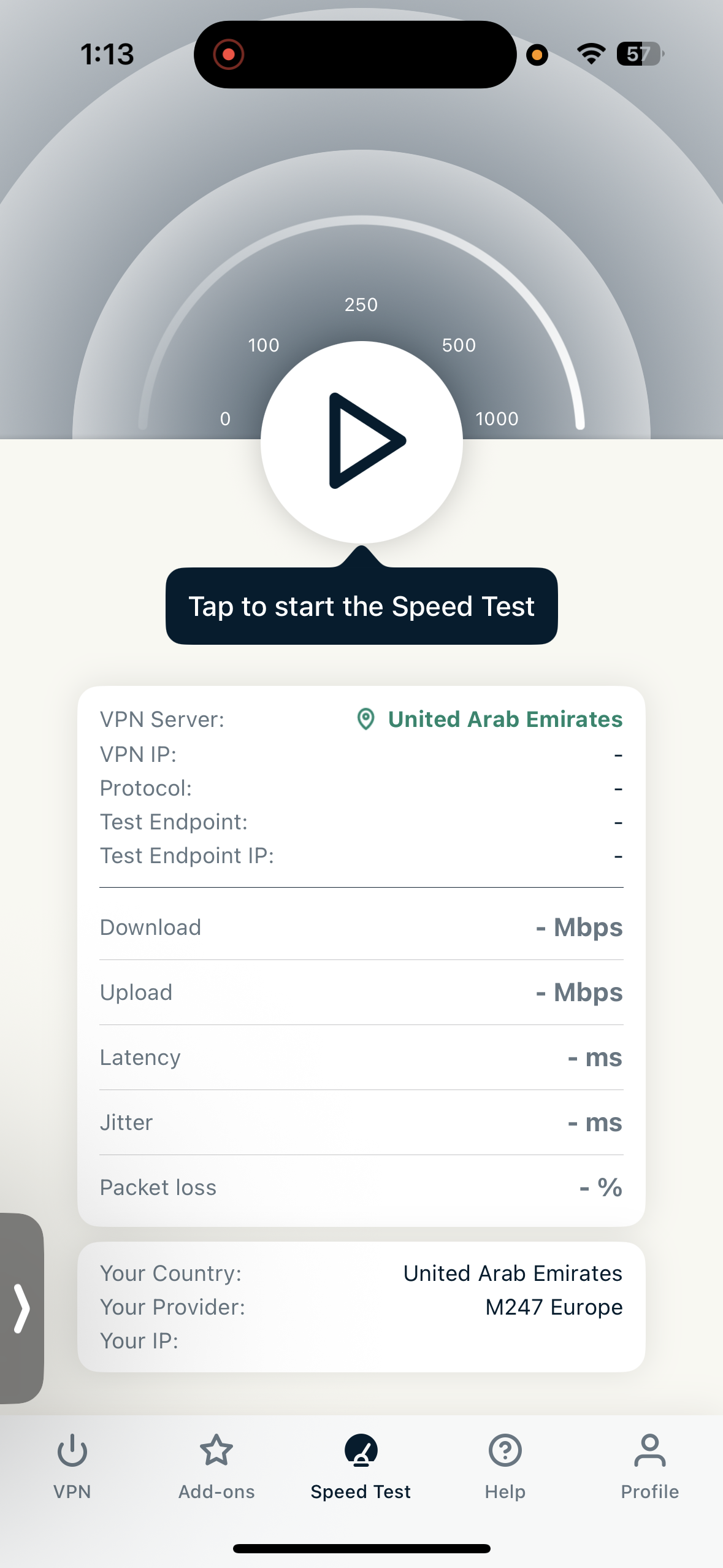
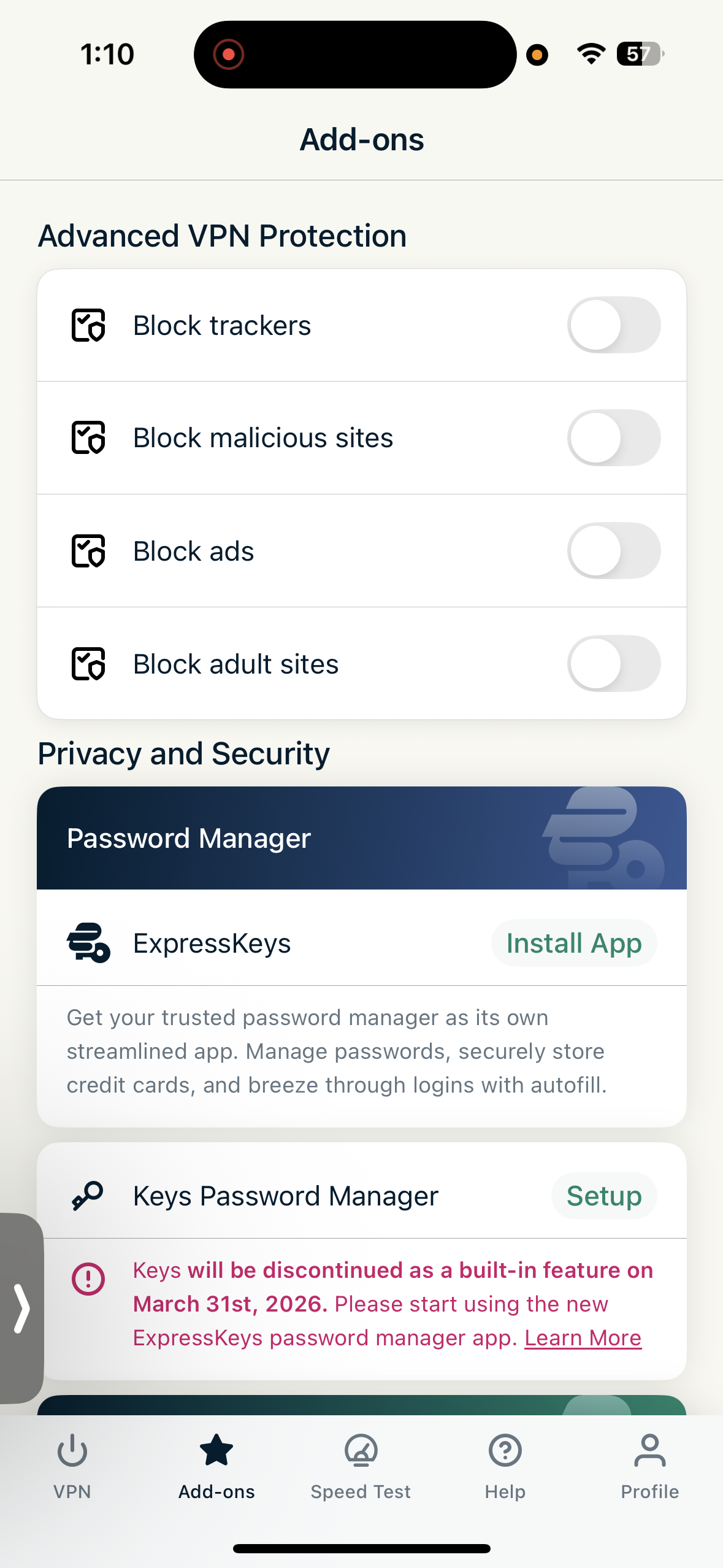
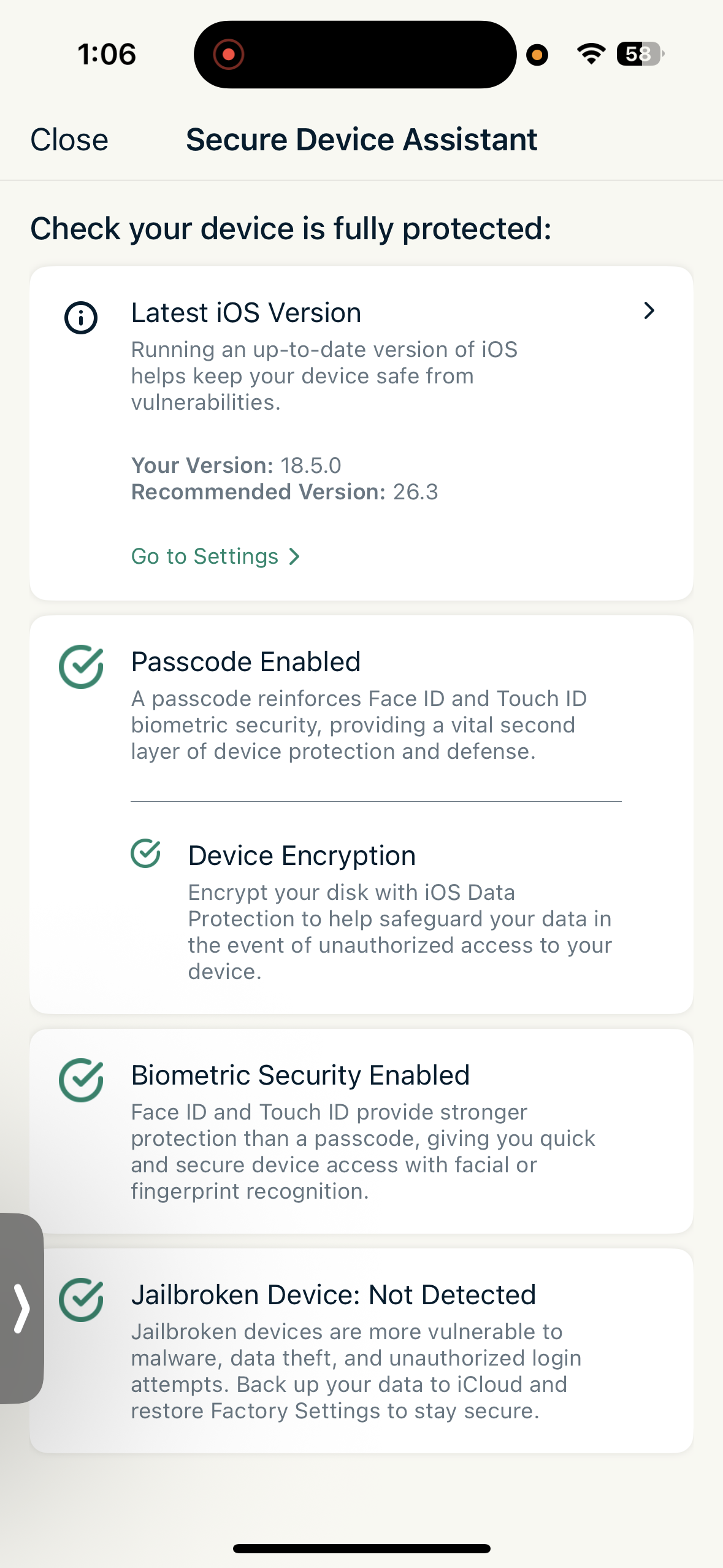
Features: ExpressVPN includes several integrated tools that provide visibility into device and connection security. The Secure Device Assistant checks things like passcode protection, biometric security, jailbreak status, and app updates. There are also built-in DNS and WebRTC leak tests, diagnostic tools, and network insights for monitoring traffic. The app includes an in-built speed test, making it easy to check server performance. Additional Add-Ons (available on Automatic or Lightway protocols) include Advanced VPN Protection, which can block ads, trackers, malicious sites, and adult content. Other integrated services include ExpressMailGuard, eSIM & data roaming tools, and access to ExpressVPN Keys, though the password manager requires downloading a separate app.
iOS Highlights:
- Secure Device Assistant
- Updated to Latest Version (Status Check)
- Passcode (Status Check)
- Biometric Security (Status Check)
- Jailbroken Device (Status Check)
Also Available:
- Built-in DNS and WebRTC leak testing
- Integrated speed test within the app
- Recommended, Fastest, Recent, and country-based server categories
- Clear labeling of virtual servers using “via.
- Advanced VPN Protection with ad, tracker, malware, and adult site blocking
- ExpressMailGuard, eSIM, and roaming tools
- ExpressVPN Keys password manager (separate app required)
- Help resources including VPN guides and diagnostics tools
Missing on iOS:
- Split tunneling
- Auto-connect
UI & Usability Rating: Excellent
☞ On Wi-Fi (iOS) – ExpressVPN showed strong overall performance with moderate speed reductions when connected to distant servers. The US server experienced a slightly higher speed drop compared to the UK server, but download speeds remained consistently high in both cases. Upload speeds stayed stable and even improved slightly compared to the baseline on the UK server. Latency increased due to the long-distance connections, while jitter remained relatively low, indicating stable connection quality during testing.
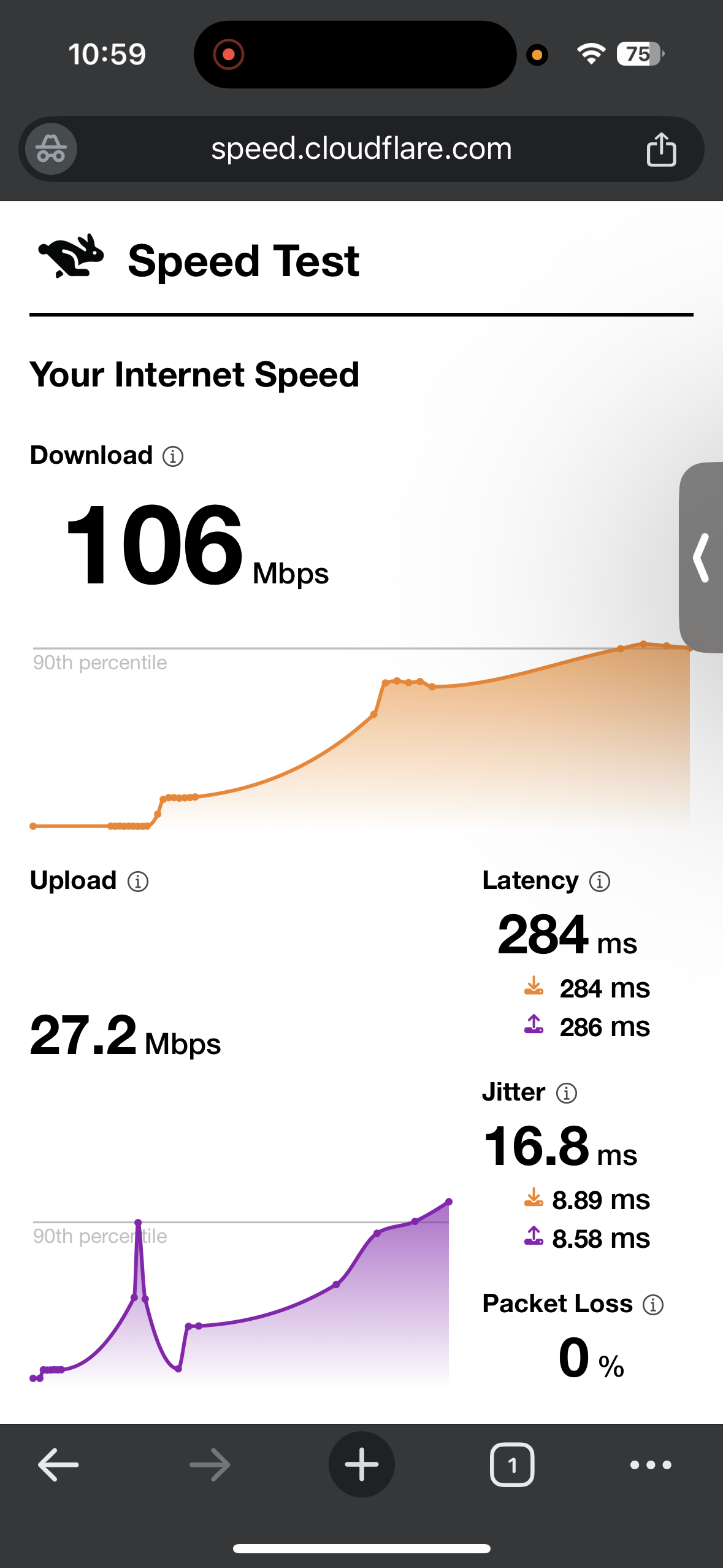
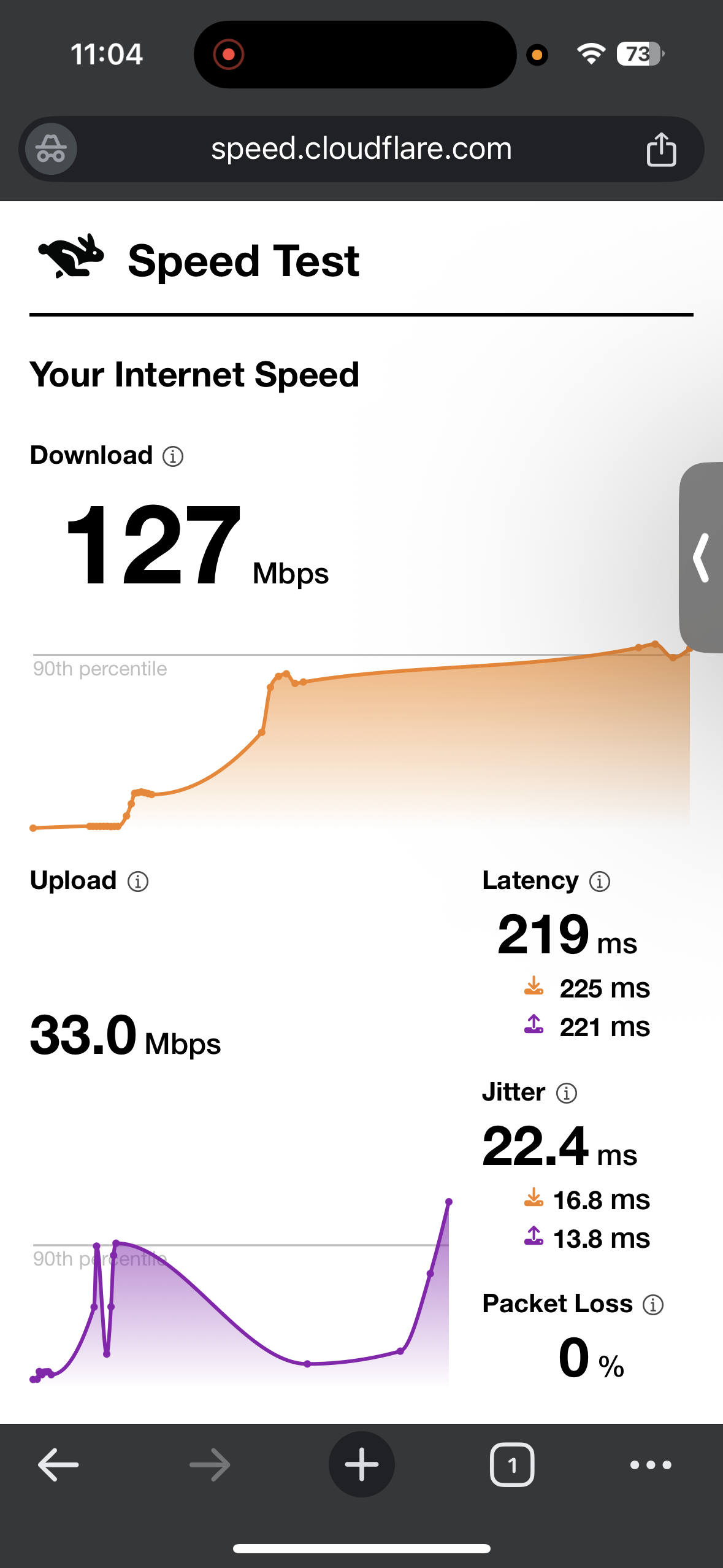
- US server (Los Angeles) - 45.08% drop in speed
- Download Speed - 106 Mbps
- Upload Speed - 27.2 Mbps
- Latency - 284 ms
- Jitter - 16.8 ms
- UK Server (London) - 34.14% drop in speed
- Download Speed - 127 Mbps
- Upload Speed - 33.0 Mbps
- Latency - 219 ms
- Jitter - 22.4 ms
☞ On Mobile Data (iOS) – ExpressVPN produced more varied results compared to Wi-Fi. The US server showed a significant reduction in speed, particularly affecting upload performance and increasing latency. Despite the drop in download speed, jitter remained very low. The UK server delivered better overall balance, with a smaller speed reduction and stronger download and upload performance compared to the US server. Latency was still elevated due to the mobile network and long-distance routing, but jitter remained at manageable levels. Overall, performance on mobile data was less consistent but still usable.
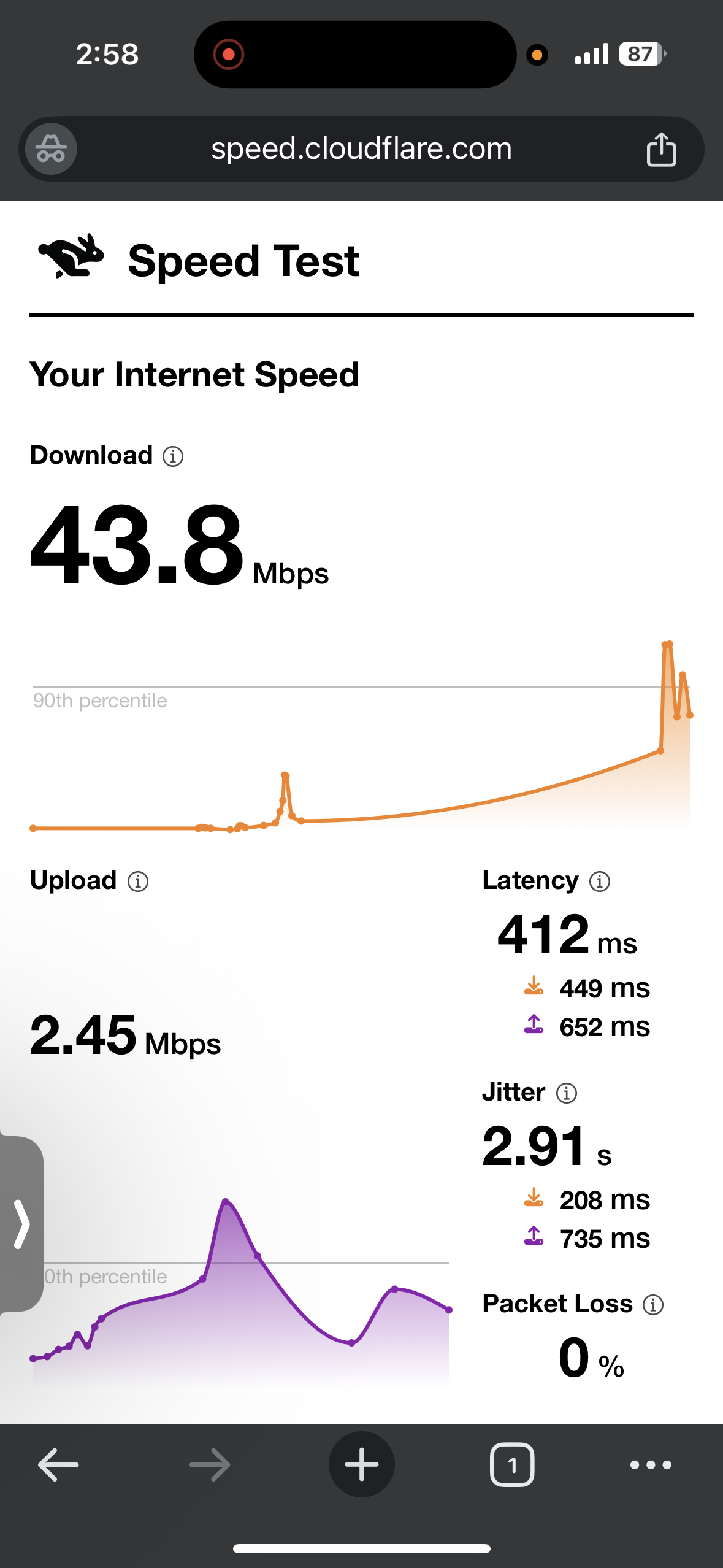
- US server (Los Angeles) - 61.58% drop in speed
- Download Speed - 43.8 Mbps
- Upload Speed - 2.45 Mbps
- Latency - 412 ms
- Jitter - 2.91 ms
- UK Server (London) - 39.8% drop in speed
- Download Speed - 68.6 Mbps
- Upload Speed - 7.91 Mbps
- Latency - 242 ms
- Jitter - 18.3 ms
Over the course of the 35-minute session, the connection maintained strong stability without disconnects or performance drops. Streaming and browsing both felt responsive, with pages and videos loading quickly throughout the test. On Netflix, Crunchyroll, and YouTube, videos started almost instantly, initially appearing at a slightly lower resolution before improving to high quality within seconds. Playback stayed smooth once stabilized, and skipping forward or backward in videos remained responsive.
Detailed Observations:
- Page & Content Loading: Chrome home screen and websites loaded quickly and consistently, with no visible delays when opening pages or navigating between tabs.
- Video Playback:
- Start Time: Videos began playing almost instantly, starting at a slightly lower resolution before upgrading to higher quality within a few seconds.
- Forward Seeking: Skipping ahead in videos worked smoothly, with playback resuming immediately and without buffering.
- Backward Seeking: Occasionally triggered brief buffering (around 2 seconds) before the stream stabilized again.
- Streaming Quality: YouTube playback quickly reached 1080p and maintained stable, smooth streaming without interruptions.
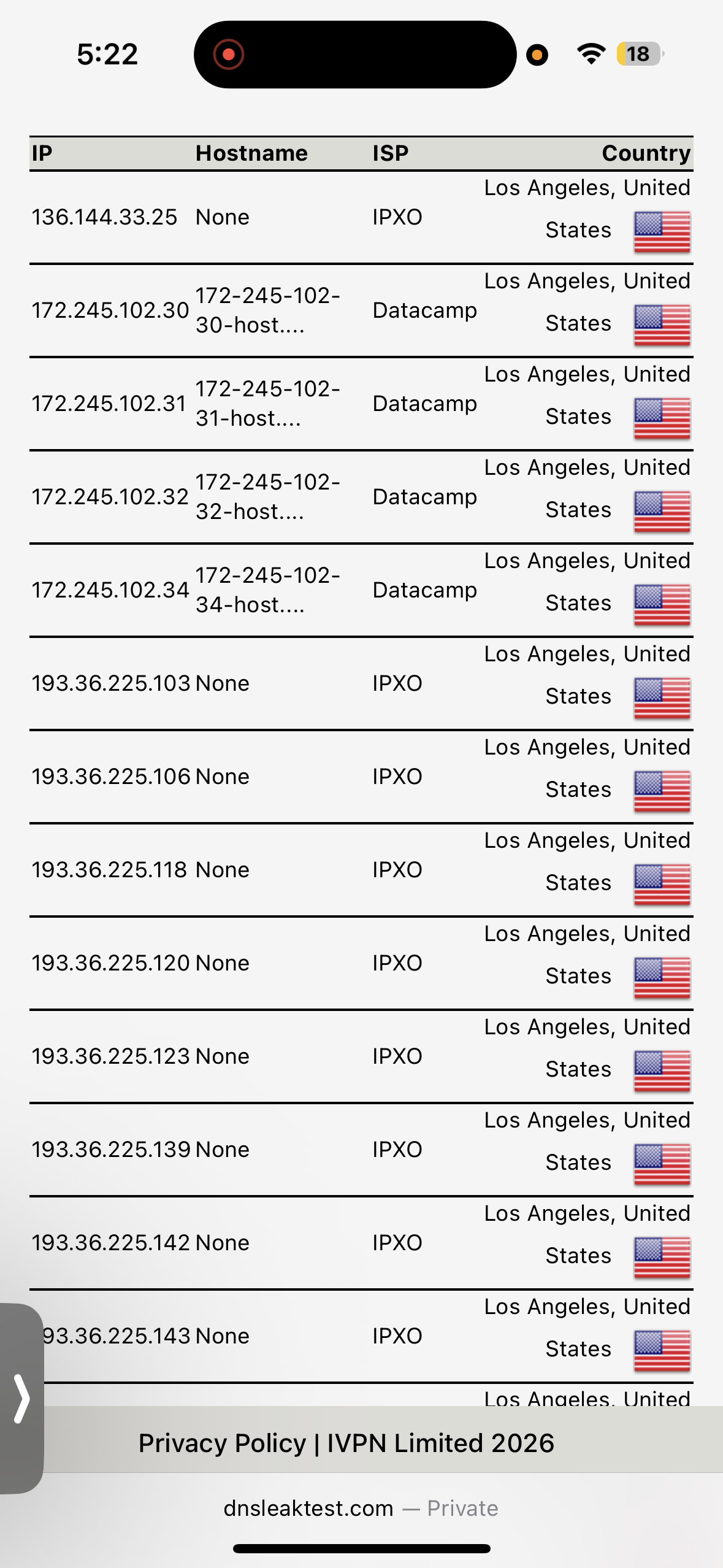
ExpressVPN handled security tests smoothly. Its kill switch activated without issues and maintained protection during the entire session. Testing revealed no DNS or IP leaks, and the connection remained stable throughout. Overall, the VPN maintained strong security without interruptions or reliability concerns.
PROS
- Many options in customizable themes
- Polished interface with Quick Connect button and
- Well-organized server categories with clearly labeled virtual servers
- Strong security tools including Secure Device Assistant and Advanced VPN Protection
- In-Built DNS/WebRTC leak tests
- Built-in speed test
- Network insights for monitoring performance
- Supports the Lightway protocol with post-quantum protection
- Stable streaming with fast video start
- Strong speed performance on Wi-Fi
CONS
- Noticeable speed drops on some long-distance servers, especially on mobile data
- Interface can feel slightly cluttered due to multiple status prompts
- Interactive map is less functional than some competitors
- Split tunneling and auto-connect are not available on iOS
3. Surfshark - Moderate Performance
Speaking of Surfshark, it delivered a functional but slightly less polished experience on iOS, and the overall performance during testing was average in comparison to NordVPN and ExpressVPN. The setup process was quick, allowing me to reach the main dashboard within a couple of minutes. The interface provides quick access to features too.
Surfshark also offers a good range of features (but not as good as on Android and way less than NordVPN and ExpressVPN). While these tools add useful privacy functionality, the interface itself feels a bit dated and pages sometimes take longer to load compared to other VPN apps. In terms of performance, Wi-Fi results varied depending on the server location. The UK server maintained strong speeds, but the US server showed a very large drop in download performance, making overall results less consistent than the more stable speeds seen with NordVPN and ExpressVPN. Mobile data results were more balanced but still experienced moderate speed reductions and higher latency.
Streaming was average. It remained stable once playback quality improved, although videos often started blurry and took longer to reach higher resolution compared to the faster stabilization seen with some competing VPNs. There were no leaks whatsoever. Overall, Surfshark managed to pass most of our basic functionality and security checks, though inconsistent speeds, slower app responsiveness, and a dated interface remain noticeable drawbacks.
Performance Testing
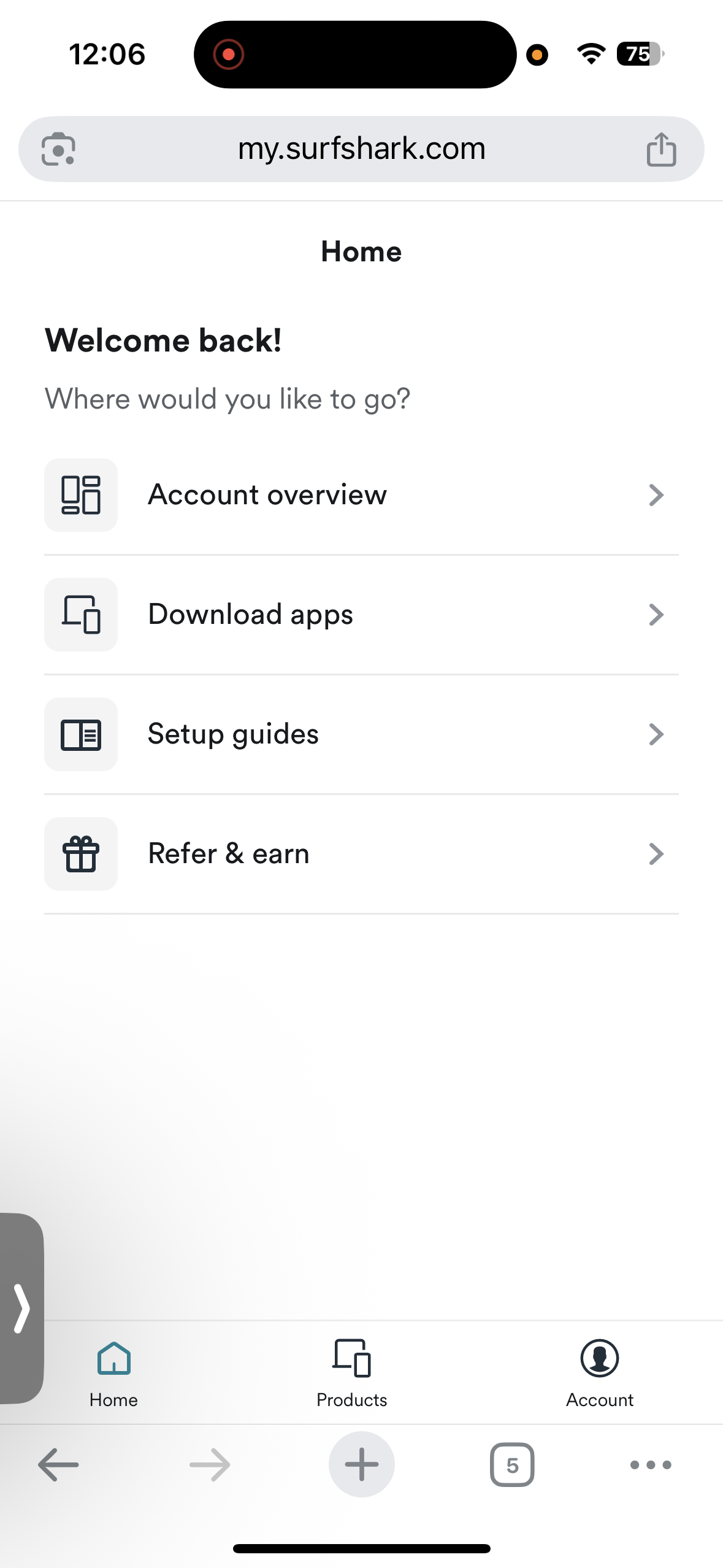
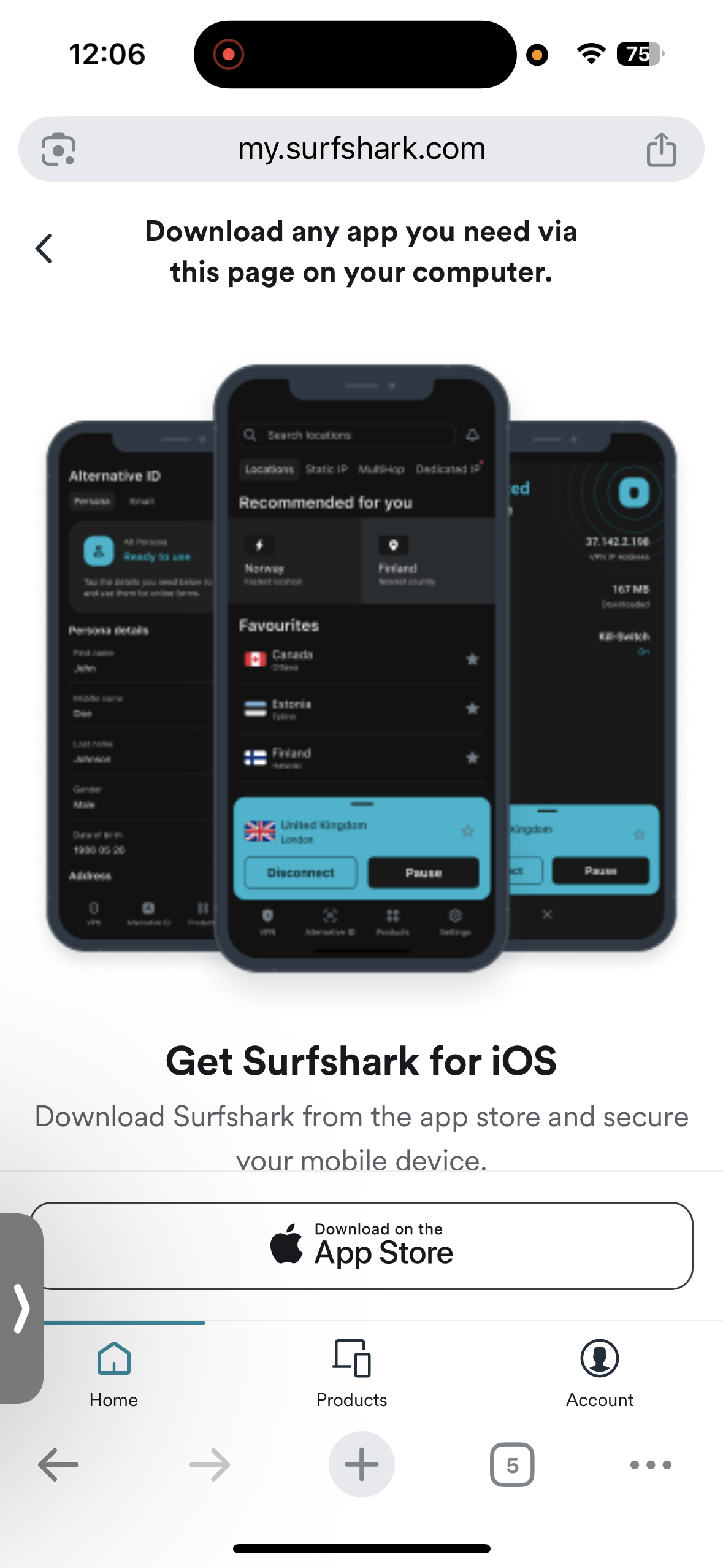
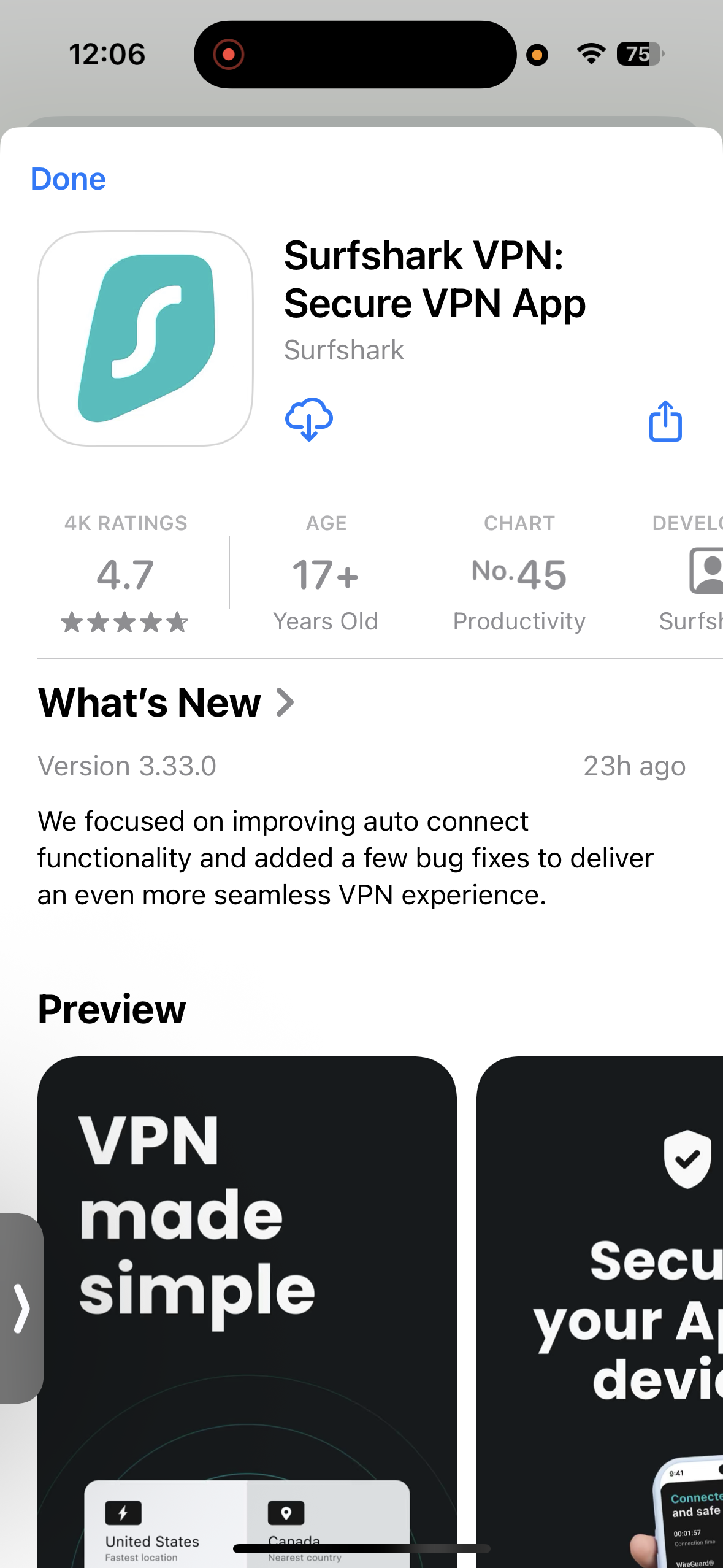
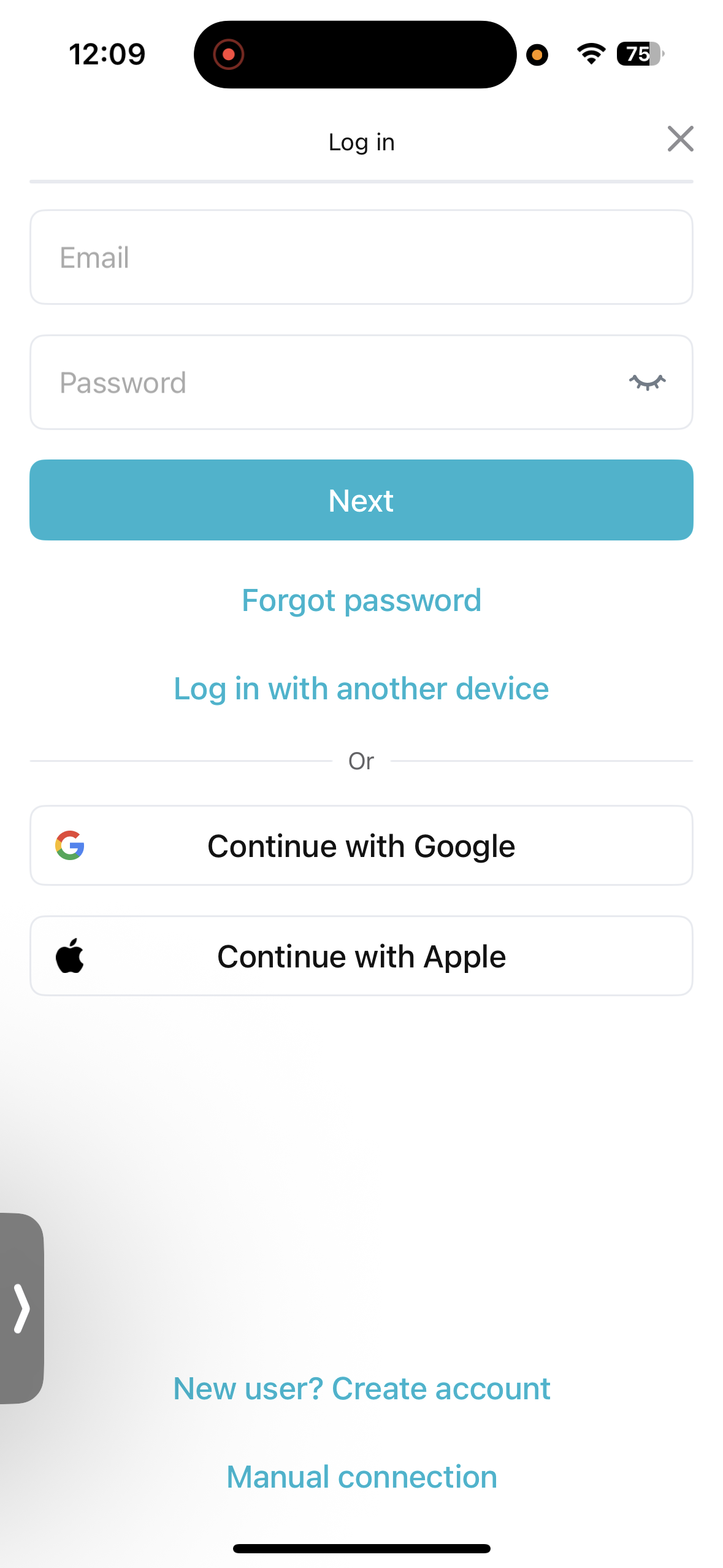
Installing Surfshark on iOS was quick and straightforward. Since I already had access to my account, I signed in through the browser on the official website and navigated to the download section. From there, I downloaded the iOS app from the Apple App Store, which was about 337.6 MB in size.
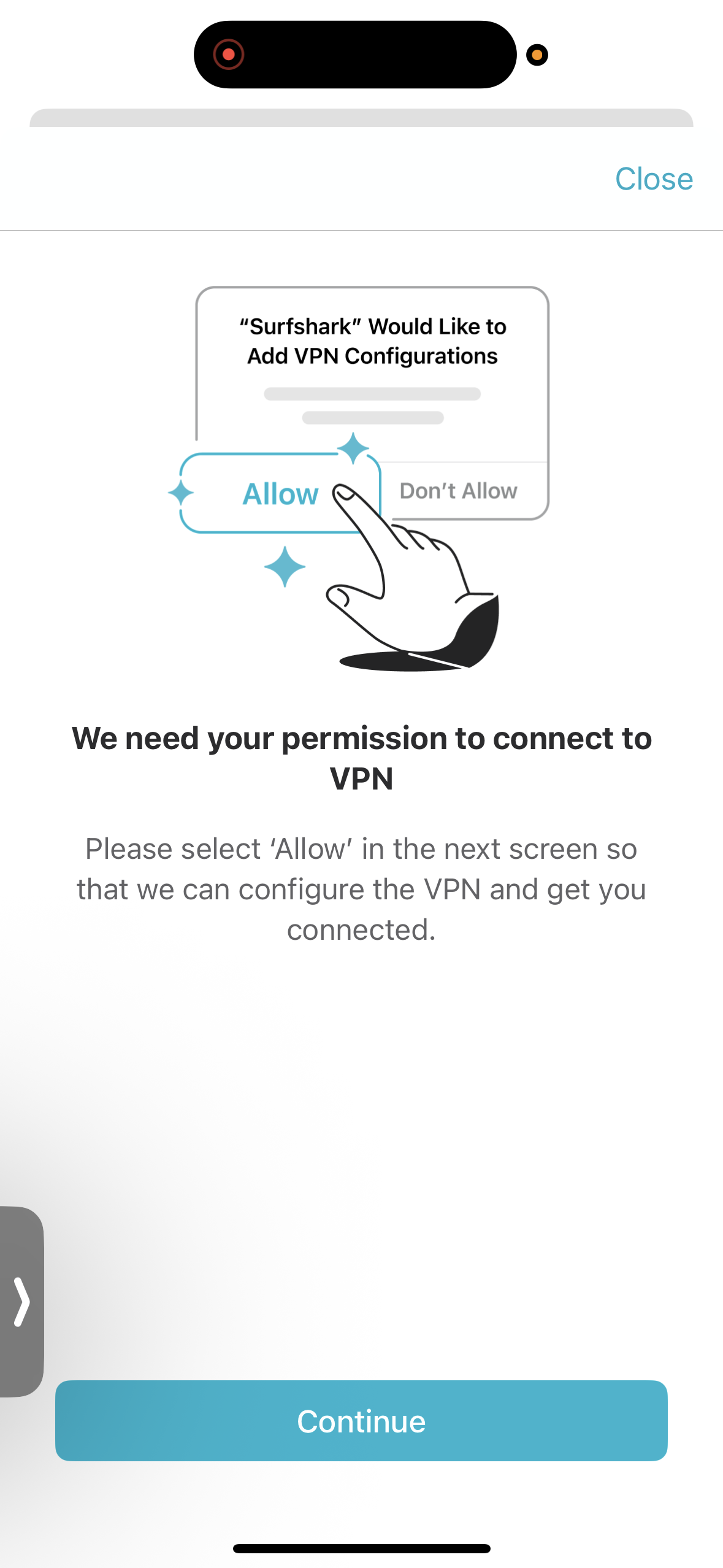
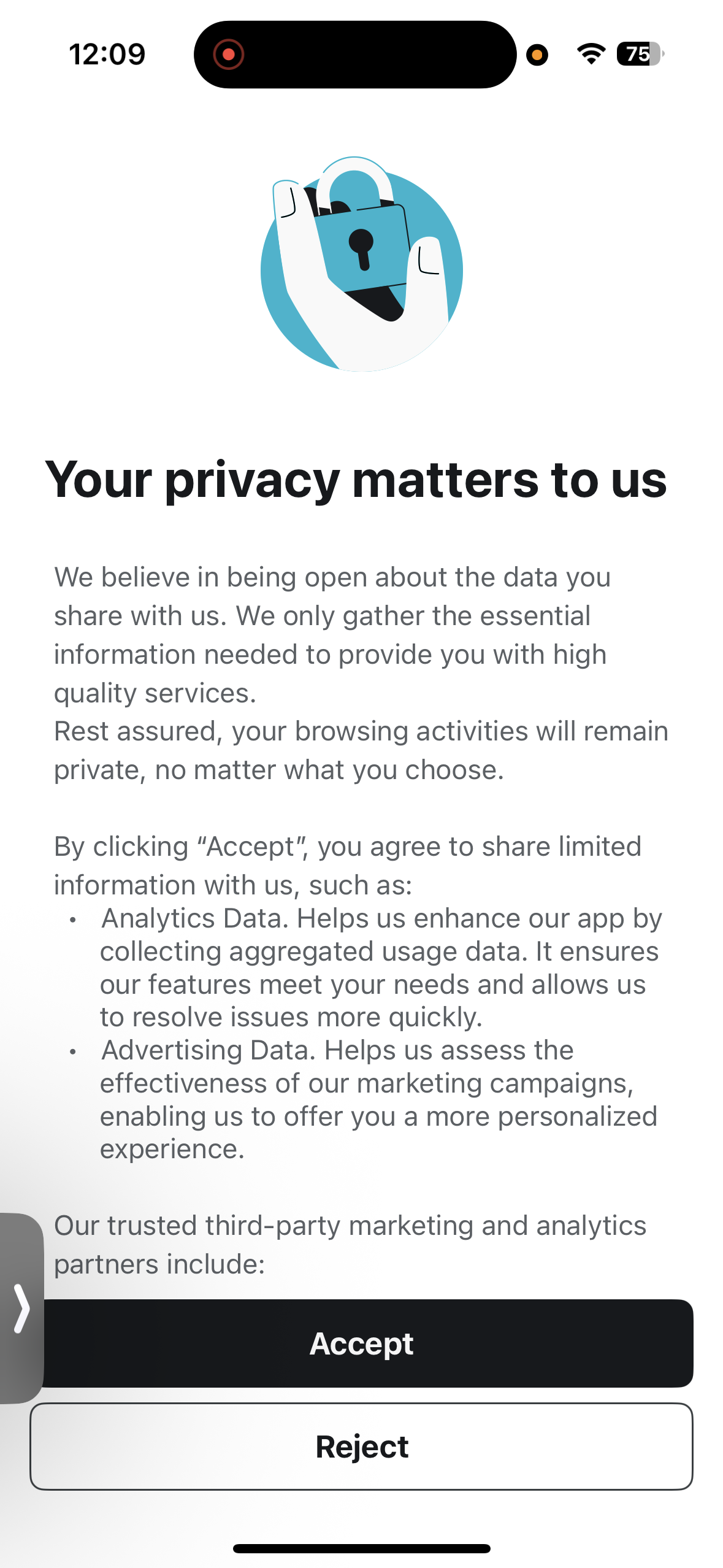
Once the app was installed and opened, I accepted the privacy terms and signed in using my account details. The initial setup was simple, and after completing the login process, I was taken directly to the main interface. When I tapped the Quick Connect button for the first time, the app requested permission to establish a VPN connection and send notifications, which I allowed to continue.
Overall, the setup process felt clean and efficient with minimal interruptions. The onboarding was straightforward, and I was able to reach the main dashboard and start exploring the app’s features within a couple of minutes.
- App Size: 337.6 MB
- Compatibility - Requires iOS/iPadOS 16.1.0 or later
- Download Source: Official Website → Apple App Store
- Approximate Setup Time: 2 minutes
- Permissions Requested: Privacy, VPN Connection Setup, and Notifications
- Onboarding Flow: Straightforward with Optional Setup Prompts
- Overall Difficulty: Super Easy
- App Store Ratings - 4K
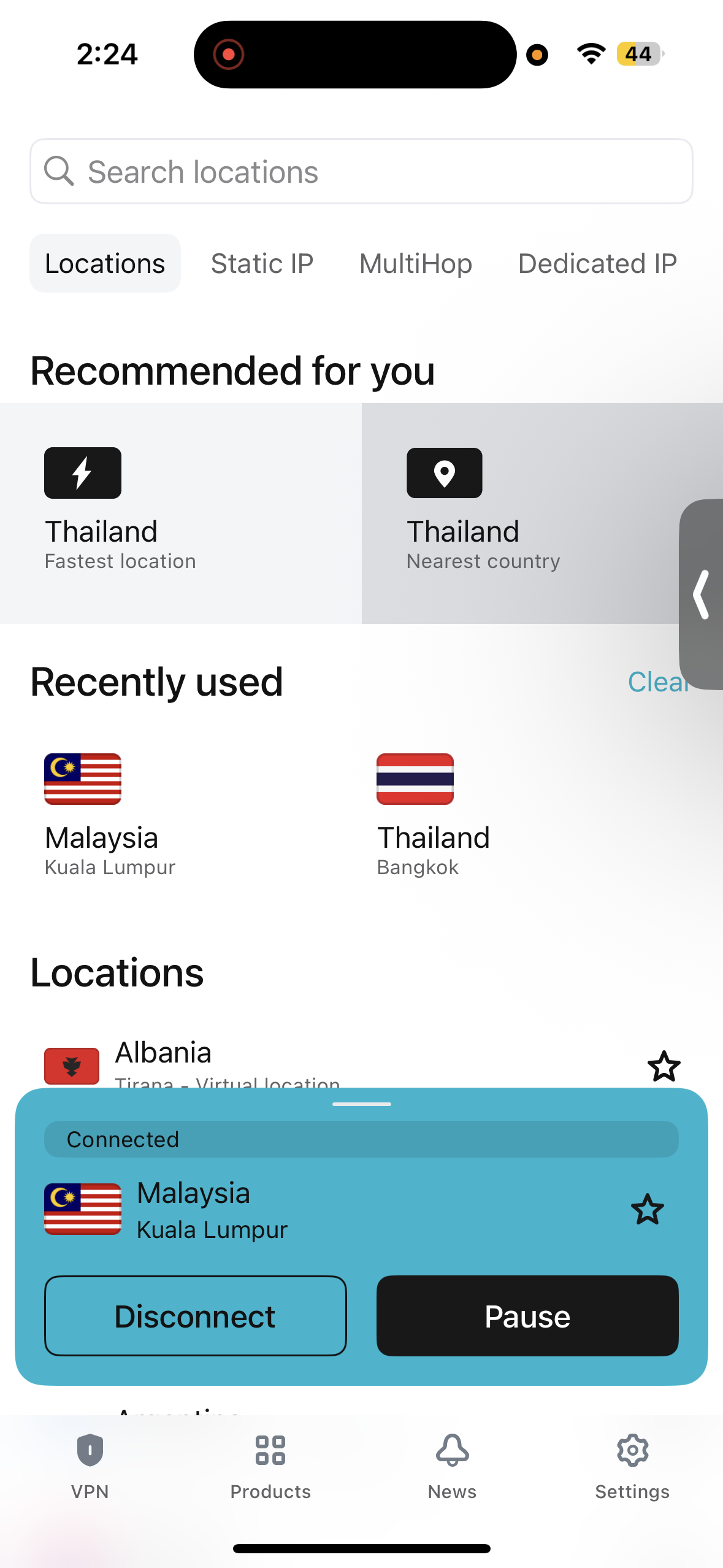
Layout & Navigation: Using Surfshark felt functional, though the interface looks a bit dated compared to some other VPN apps I tested. The home screen provides quick access to key elements like server options, favorites, and recommended locations. A Quick Connect button is prominently placed for instant connection, along with Pause and Disconnect controls. The search bar works well. Server information can also be expanded for more details, which helps when checking server specifics. While the layout is usable, the design feels somewhat inconsistent with Surfshark’s Android version, and the lack of an interactive map makes browsing locations less visually intuitive.
Server Search & Quick Connect: Finding servers is fairly simple through clearly separated categories such as Locations, Static IP, Multi-Hop, and Dedicated IP. The app also highlights Recommended for You and Recently Used servers, and it allows saving favorite locations for faster access later. The Quick Connect feature connects to the best available server automatically. I also appreciated that virtual servers are clearly labeled, which improves transparency when selecting a server.
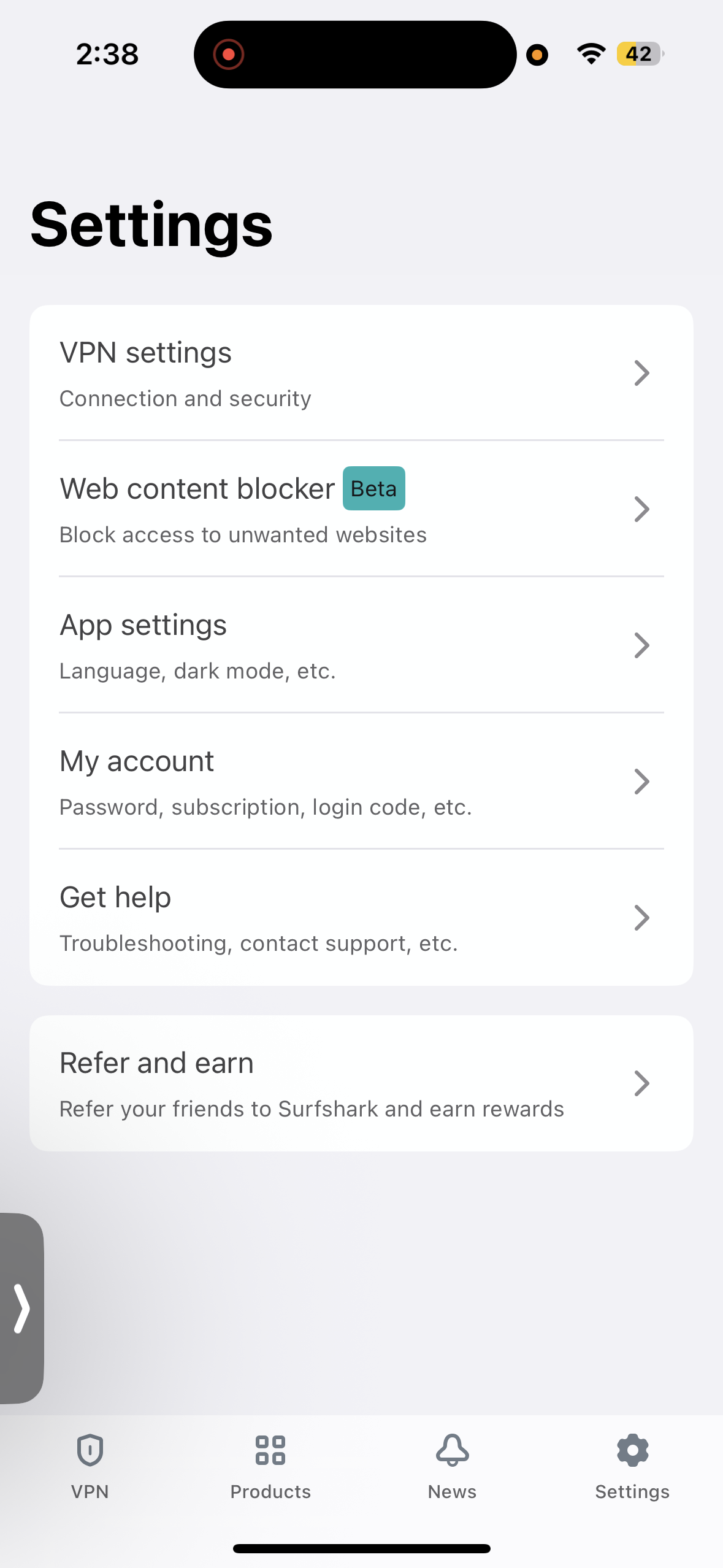
Settings Access: Most configuration options are located in the Settings section, where VPN-specific controls are grouped under VPN Settings. From here I could enable options like Auto Connect, CleanWeb, Kill Switch, Rotating IP, NoBorders, Invisible on LAN, and choose between different VPN protocols. The Bypasser feature can also be toggled here, allowing certain websites to bypass the VPN connection. However, the split tunneling functionality is limited to websites only, rather than apps.
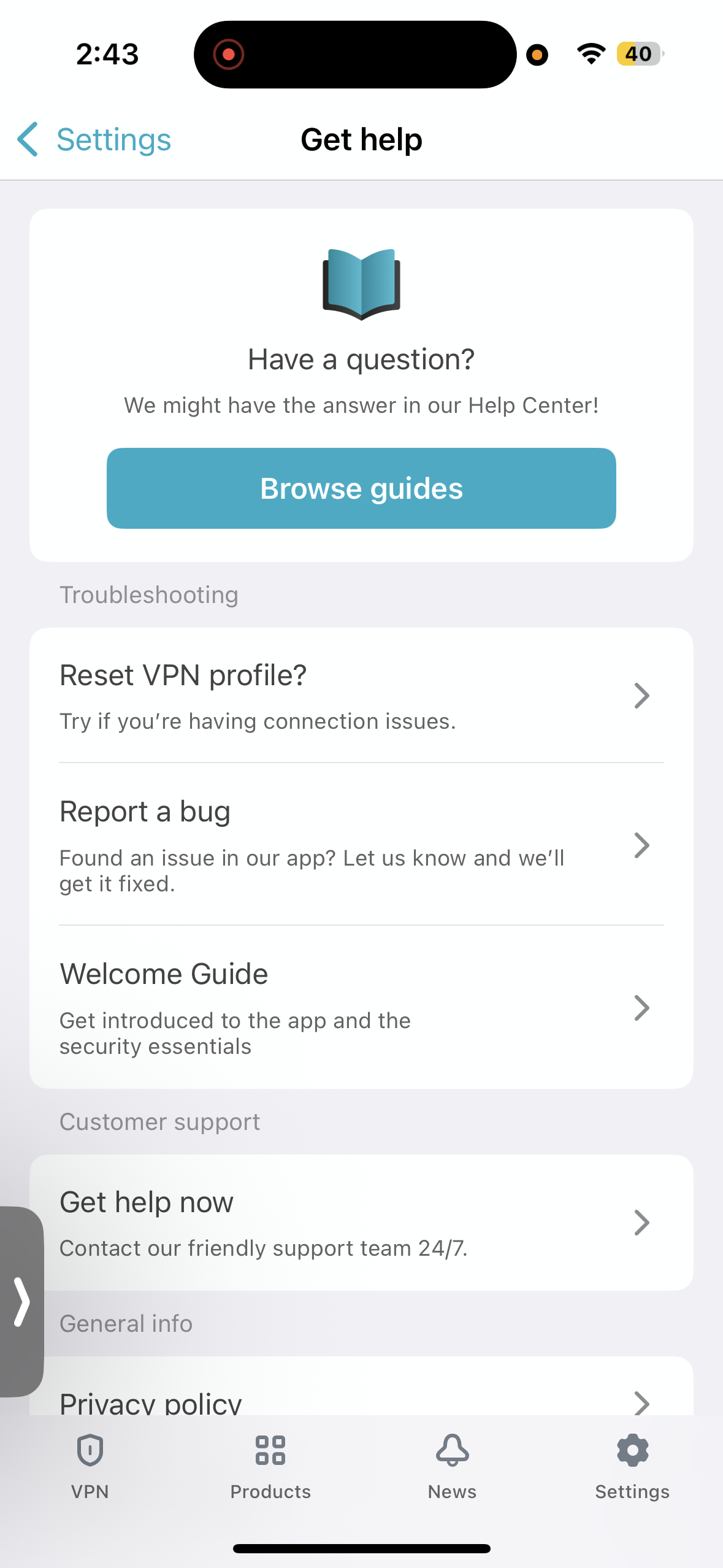
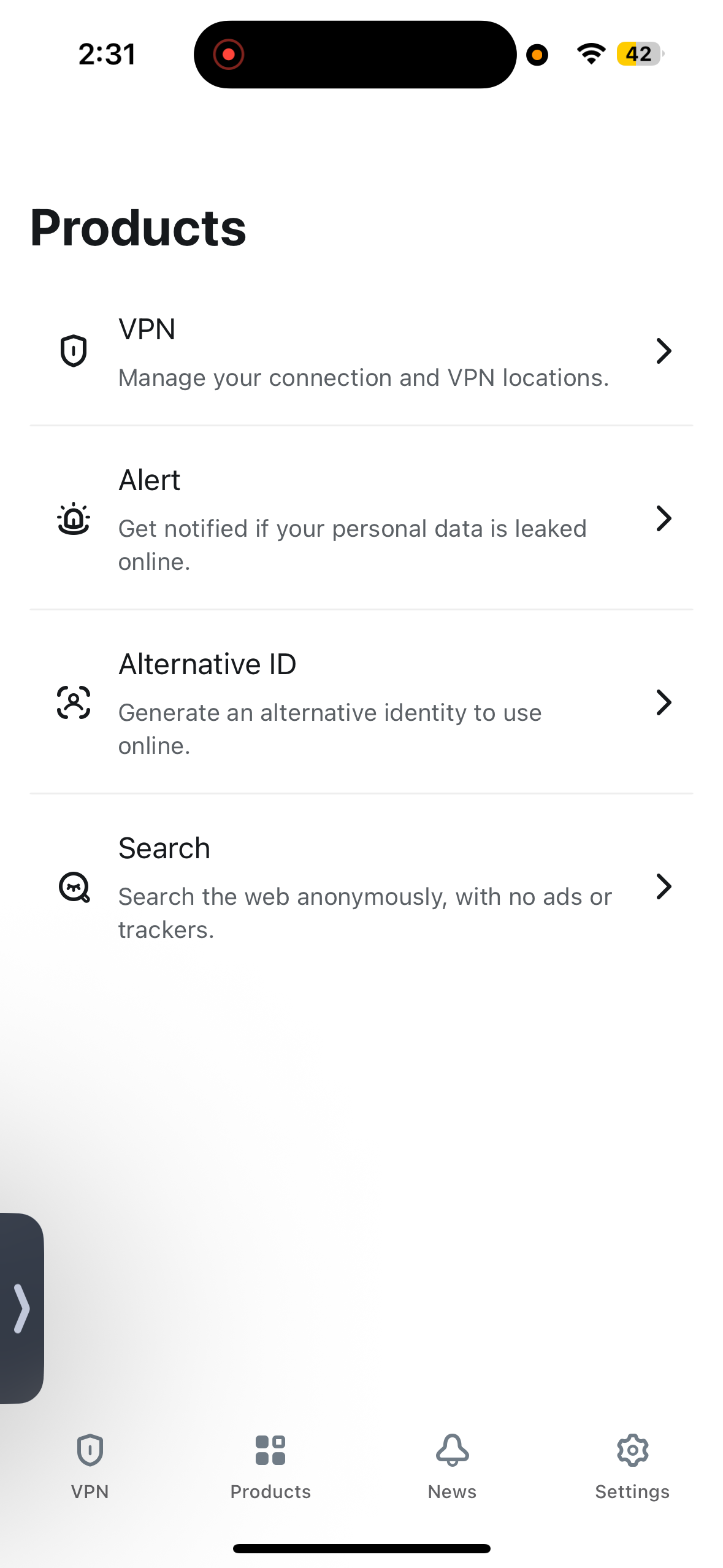
Features: Beyond basic VPN functionality, Surfshark includes several additional privacy and monitoring tools. The Alert section offers Email Monitoring, Credit Card Monitoring, ID Monitoring, and Alternative ID, which help track potential data exposure. There’s also a private search tool that allows ad-free searches directly through the app (though it hardly competes with Chrome). Additional utilities like Web Content Blocker, account management, and help resources are accessible from the settings area. Support is available through live chat, though accessing it requires opening the browser from within the help section.
Also Available:
- Rotating IP feature that periodically changes the user’s IP address
- NoBorders mode for restricted networks
- Built-in private search tool for ad-free browsing
- Server categories including Static IP, Multi-Hop, and Dedicated IP
- Favorites for quick server access
- CleanWeb ad and tracker blocking
- Monitoring tools such as Email, Credit Card, and ID monitoring
- Alternative ID privacy tool
Missing on iOS:
- Antivirus
- Speed Test
UI & Usability Rating: Average
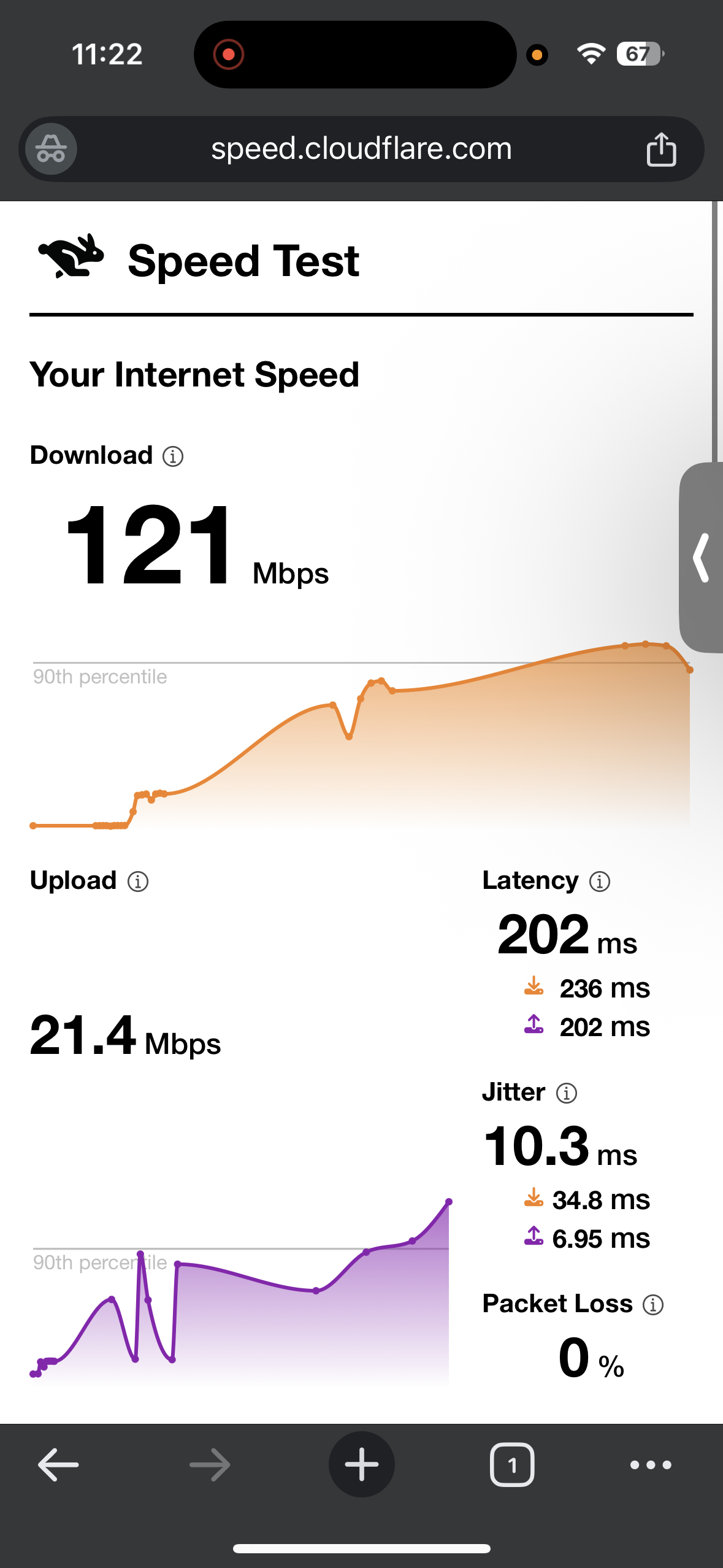
☞ On Wi-Fi (iOS) – Surfshark VPN showed mixed performance depending on the server location. The US server experienced a very large drop in speed, significantly reducing download performance compared to the baseline. Despite this reduction, upload speeds remained relatively stable and jitter stayed low, indicating a consistent connection. In contrast, the UK server delivered much stronger results, with a smaller speed reduction and high download speeds. Latency increased due to the long-distance connection, but jitter remained low, suggesting stable packet delivery during testing.
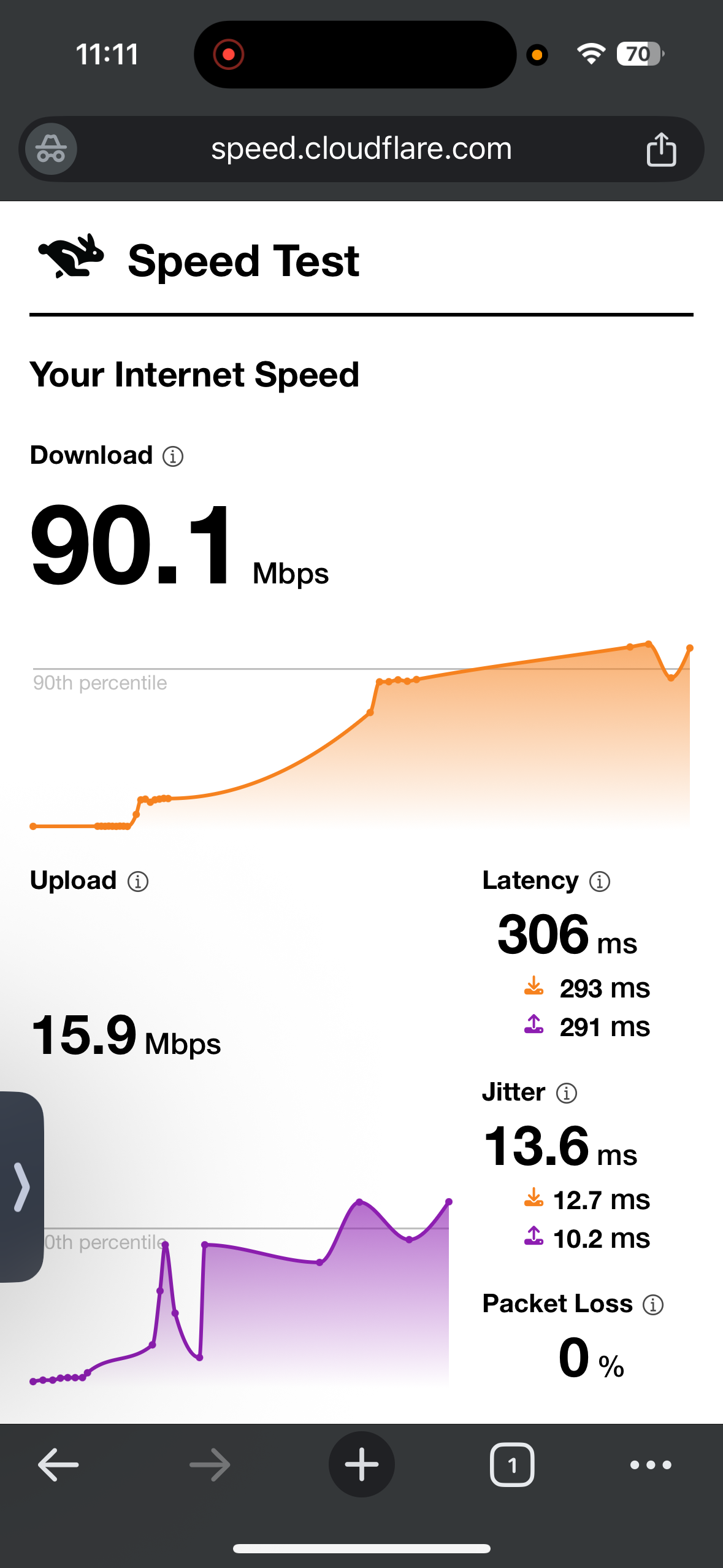
- US server (Los Angeles) - 19.1% drop in speed
- Download Speed - 90.1 Mbps
- Upload Speed - 15.9 Mbps
- Latency - 306 ms
- Jitter - 13.6 ms
- UK Server (London) - 37.3% drop in speed
- Download Speed - 121 Mbps
- Upload Speed - 21.4 Mbps
- Latency - 202 ms
- Jitter - 10.3 ms
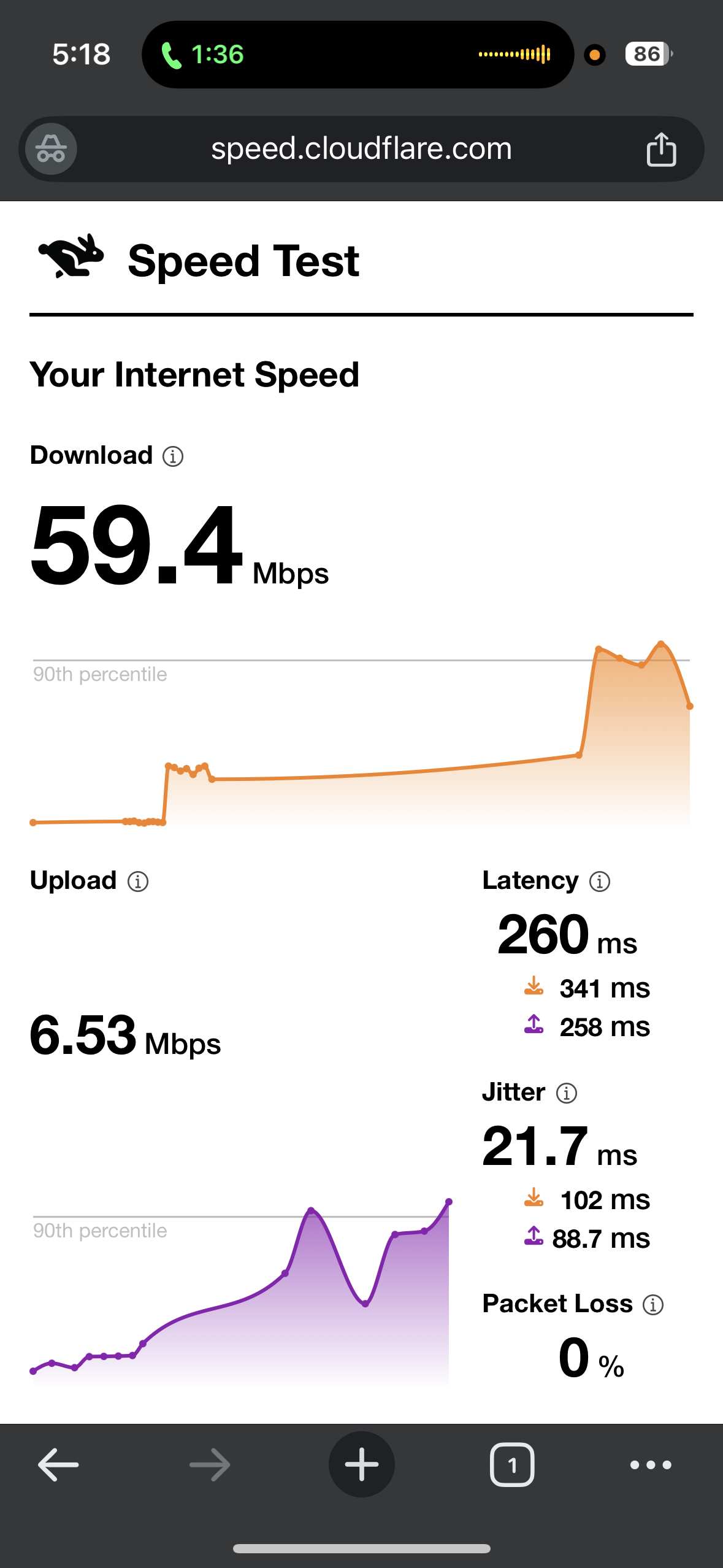
☞ On Mobile Data (iOS) – Surfshark VPN produced more balanced results compared to its Wi-Fi performance on the US server during our testing. The US server showed a moderate reduction in speed, with reasonable download performance but a noticeable drop in upload speeds. Latency remained elevated due to the mobile network and the distance to the server, while jitter stayed within stable levels. The UK server demonstrated stronger overall performance with a smaller speed reduction and better balance between download and upload speeds. Although latency was still high, jitter remained moderate, indicating a generally stable connection during testing.
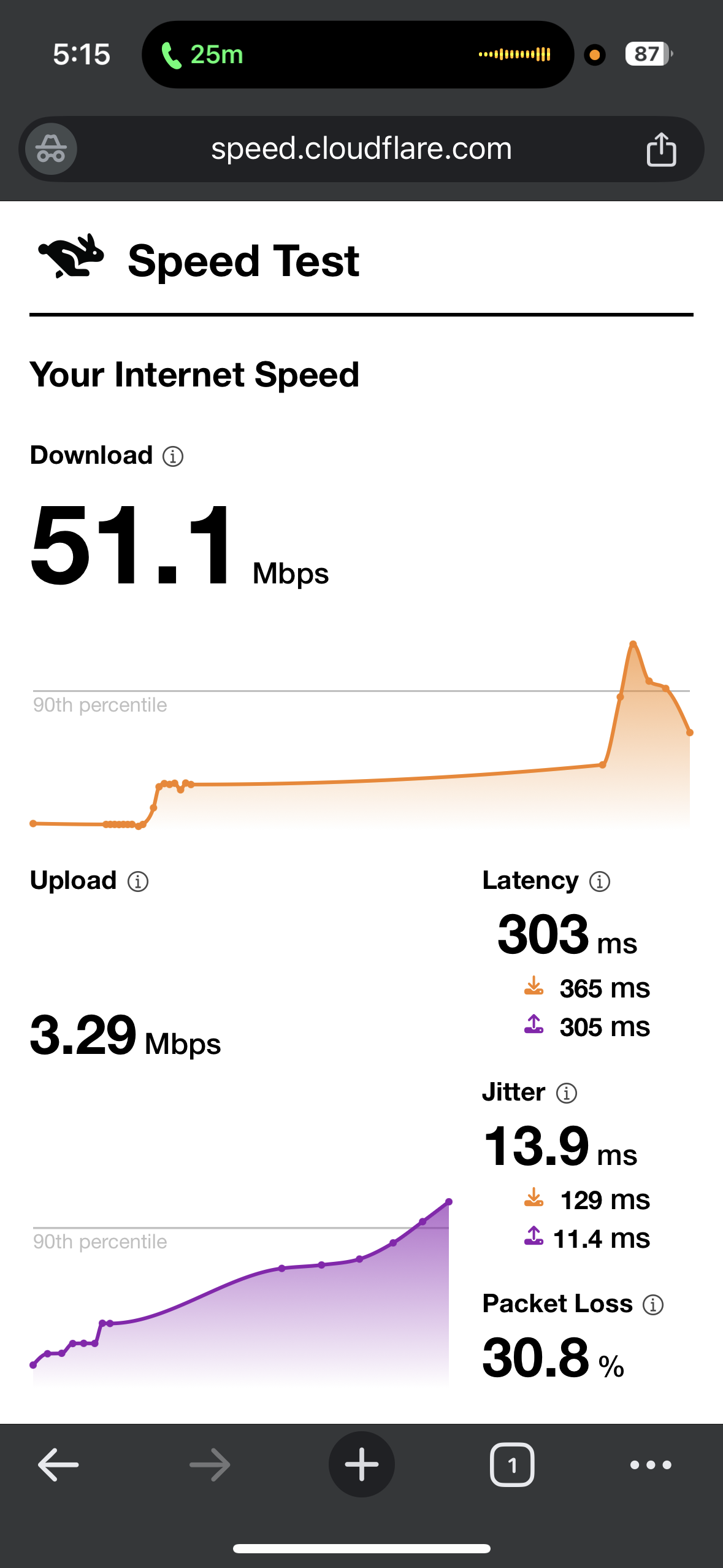
- US server (Los Angeles) - 55.2% drop in speed
- Download Speed - 51.1 Mbps
- Upload Speed - 3.29 Mbps
- Latency - 303 ms
- Jitter - 13.9 ms
- UK Server (London) - 47.9% drop in speed
- Download Speed - 59.4 Mbps
- Upload Speed - 6.53 Mbps
- Latency - 260 ms
- Jitter - 21.7 ms
Overall, through our 35 minutes test session, the connection remained stable. However, it was slightly slower to reach optimal quality on all our testing platforms, including Netflix, Crunchyroll and YouTube. Videos usually started a bit blurry but improved after a short period and then streamed smoothly without interruptions. Forward and backward seeking remained responsive, and once the stream stabilized, the viewing experience stayed consistent across platforms.
Observed Behavior During the Test:
- Page & Content Loading: Chrome home screen and websites typically took around 3–5 seconds to load, which felt slightly slower.
- Video Playback
- Start Time: The initial quality appeared blurry. After about 2–3 minutes, the stream gradually improved and reached high quality.
- Forward Seeking: Jumping ahead in videos worked smoothly with no buffering, and playback continued in good quality.
- Backward Seeking: Rewinding caused 2–3 seconds of loading, during which the video briefly appeared in lower quality before stabilizing again.
- Streaming Stability: Moving to the next video occasionally caused brief buffering and temporary blur similar to the start, but the stream quickly recovered and returned to high quality. On YouTube, playback began slightly blurry but stabilized within a few seconds, reaching 720p and maintaining that quality consistently.
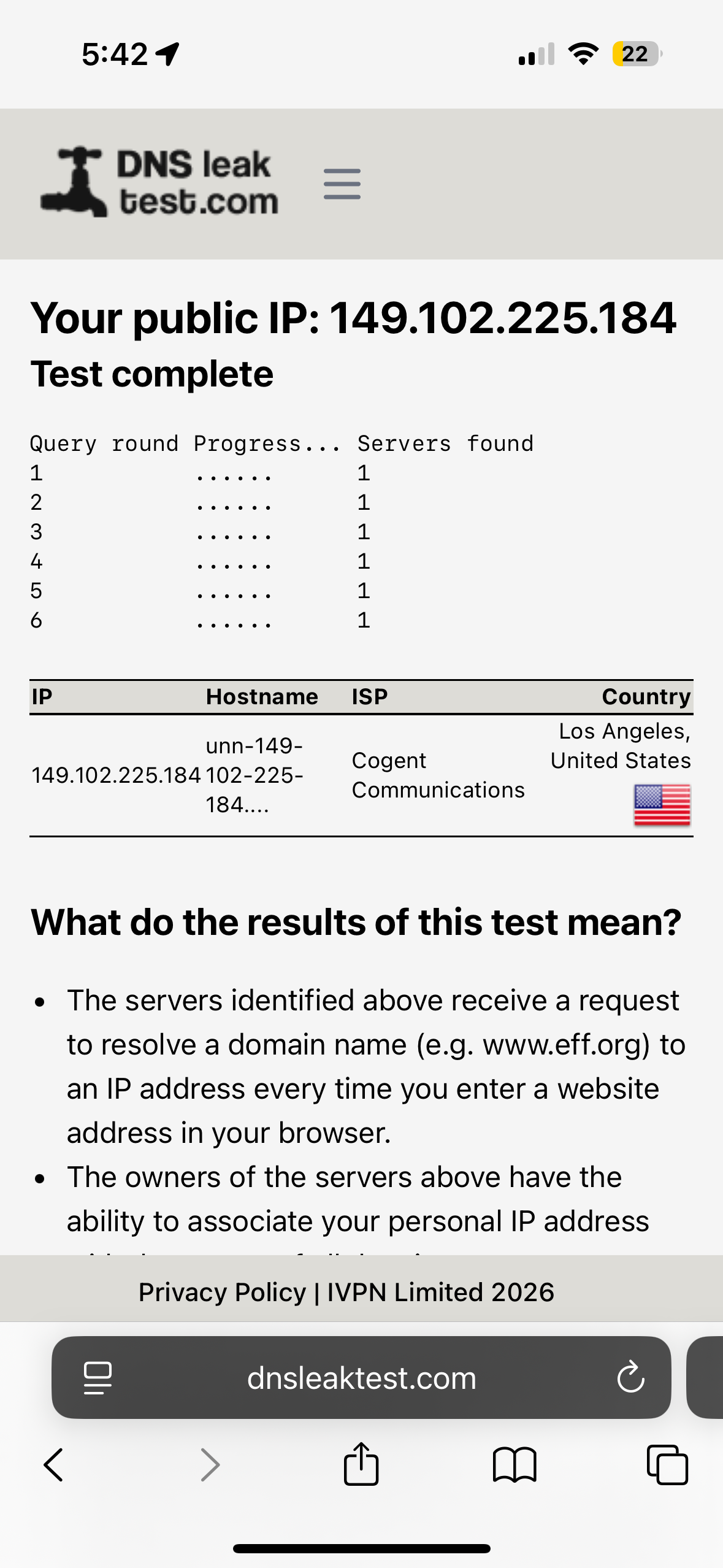
Surfshark’s kill switch functioned properly during the evaluation and kept the connection protected when needed. Security checks showed no DNS or IP leaks at any point in testing. The VPN maintained a stable and secure connection throughout the session with no unexpected behavior.
PROS
- Additional monitoring features such as Email, Credit Card, and ID monitoring
- Option for Alternative ID
- Transparent labeling of virtual servers
- Set favourite servers
- It has a Bypasser feature (split-tunneling) but only for websites
- Comes with NoBorder to bypass blocks
- Clear server categories including Static IP, Multi-Hop, and Dedicated IP
- Useful privacy tools like CleanWeb ad/tracker blocking and Rotating IP
- Stable streaming once quality stabilizes
- Reliable forward seeking with no buffering during playback
- Strong performance on the UK server during Wi-Fi testing
CONS
- Interface feels dated and less polished than competitors
- Very large speed drop on the US server during Wi-Fi testing
- Videos often start blurry and take longer to reach full quality
- Websites in Google Chrome load slightly slower (3–5 seconds)
- Split tunneling limited to websites only on iOS
- Antivirus and built-in speed test missing on iOS
4. Proton VPN - Limited Performance
According to our Proton VPN testing, it delivered a clean and privacy-focused experience on iOS, and overall the service performed average during testing. The entire setup process was extremely fast due to its automatic browser-based login.
The interface is minimal and easy to understand. Proton VPN also offers a good range of privacy-focused features on iOS. In terms of speed, it performed poorly - Wi-Fi performance was generally stable, although some long-distance servers showed noticeable speed drops. Mobile data results were less consistent, with higher latency and occasional connection issues, particularly when trying to connect during an active phone call.
Streaming remained watchable across platforms once the quality stabilized, though videos often started blurry and took longer to reach higher resolution, indicating that performance was poor. Throughout testing, the kill switch worked reliably and no DNS or IP leaks were detected. Overall, Proton VPN passed our core security and reliability checks and remains a solid choice for privacy-focused iOS users, although weaker server search, poor speeds, and the absence of split tunneling on iOS limited the overall experience.
Performance Testing
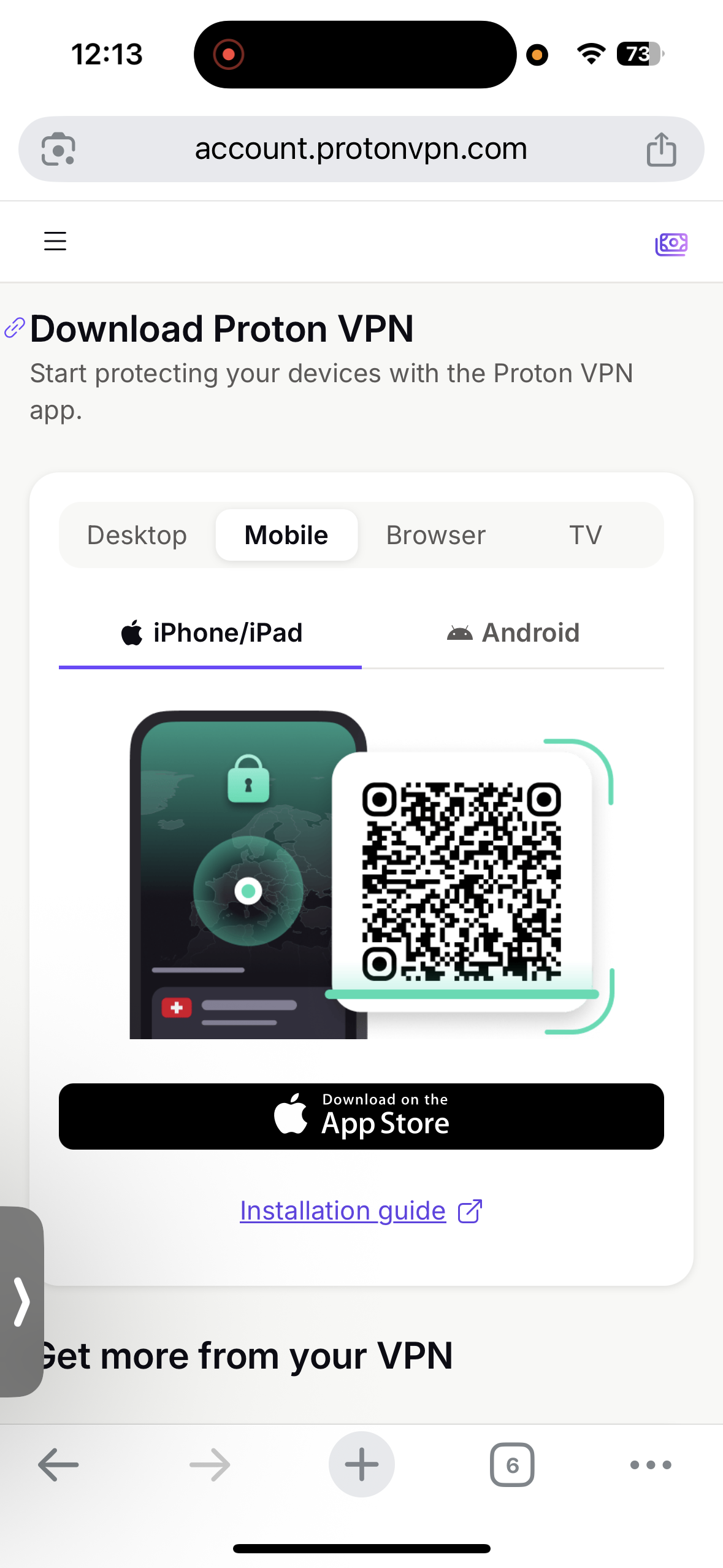
Installing Proton VPN on iOS was extremely convenient, mainly because the app supports automatic login through the browser. After signing in to my account on the official website, I navigated to the download section and selected the iPhone/iPad option to get the iOS app from the Apple App Store. The app size was about 229.5 MB.
Once the app was installed and opened, it displayed a brief “What’s New” pop-up and then took me directly to the main interface. Unlike the other VPN apps I tested, there was no separate sign-in screen or privacy prompt during setup because Proton VPN automatically fetched my account details from the browser session. This made the onboarding process noticeably faster.
Overall, the setup process felt seamless and efficient. The automatic login feature eliminated the need to sign in again, allowing me to reach the home dashboard almost immediately. When I tapped Connect for the first time, the app simply asked for VPN connection permission before establishing the connection.
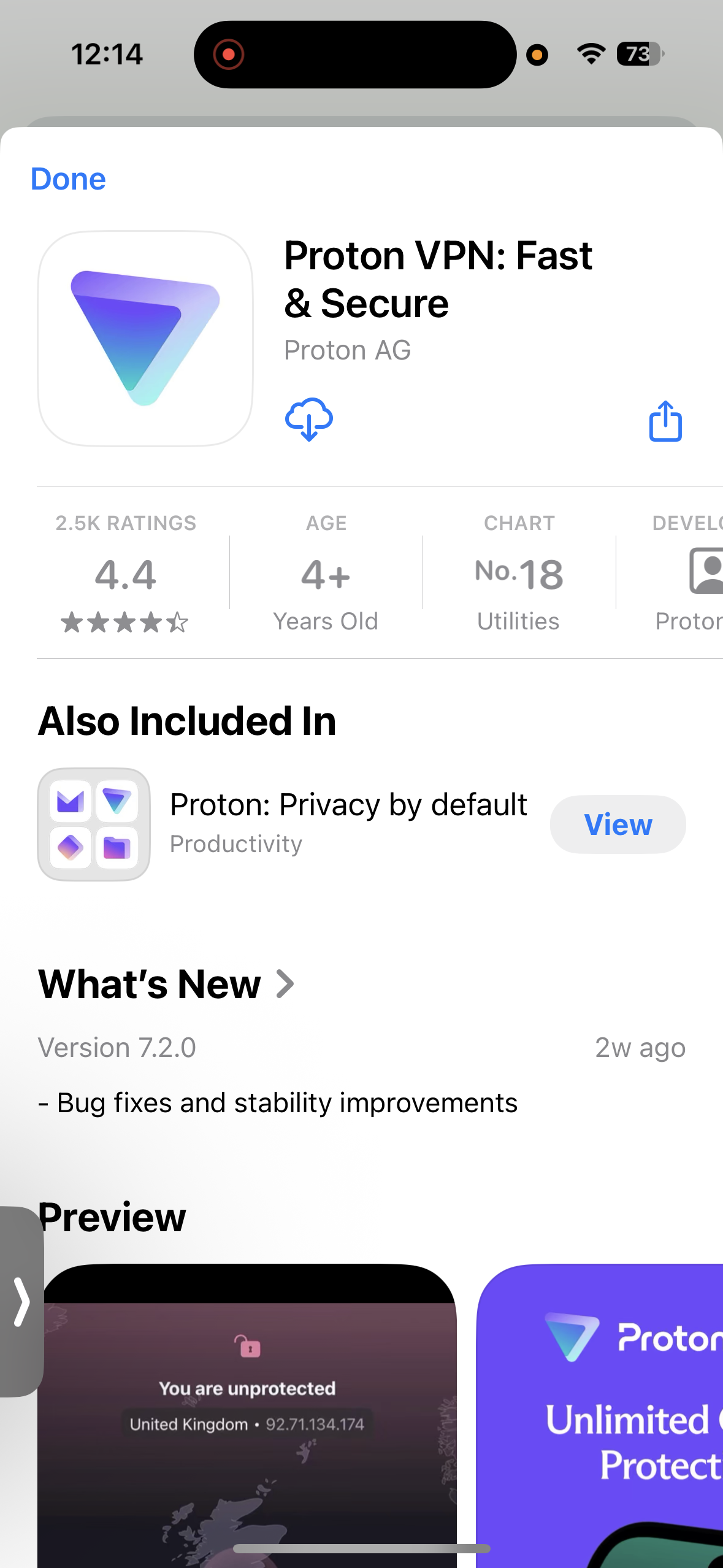
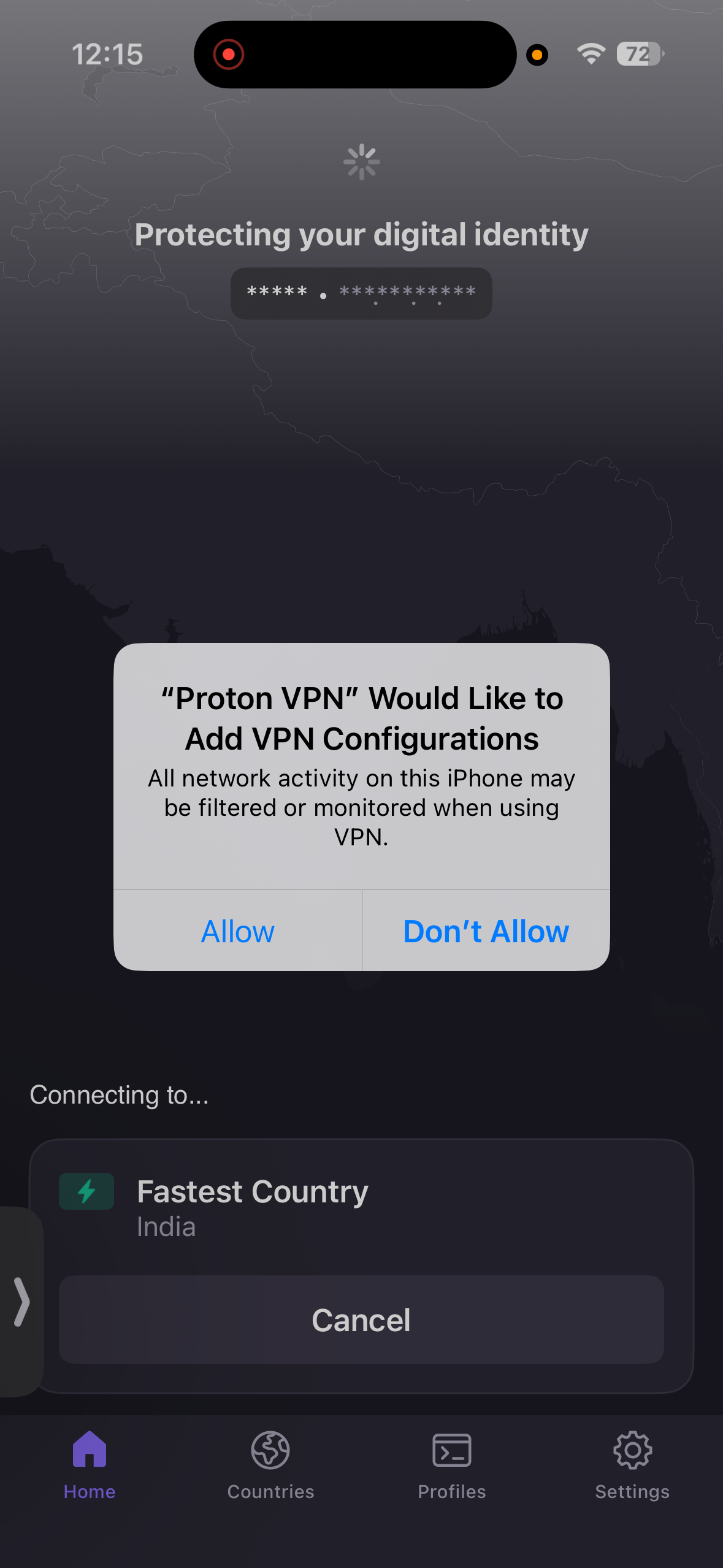
- App Size: 229.5 MB
- Compatibility - Requires iOS/iPadOS 17.0 or later
- Download Source: Official Website → Apple App Store
- Approximate Setup Time: 1-2 minutes
- Permissions Requested: VPN Connection Setup
- Onboarding Flow: Automatic Login via Browser
- Overall Difficulty: Easiest among all
- App Store Ratings - 2.5K
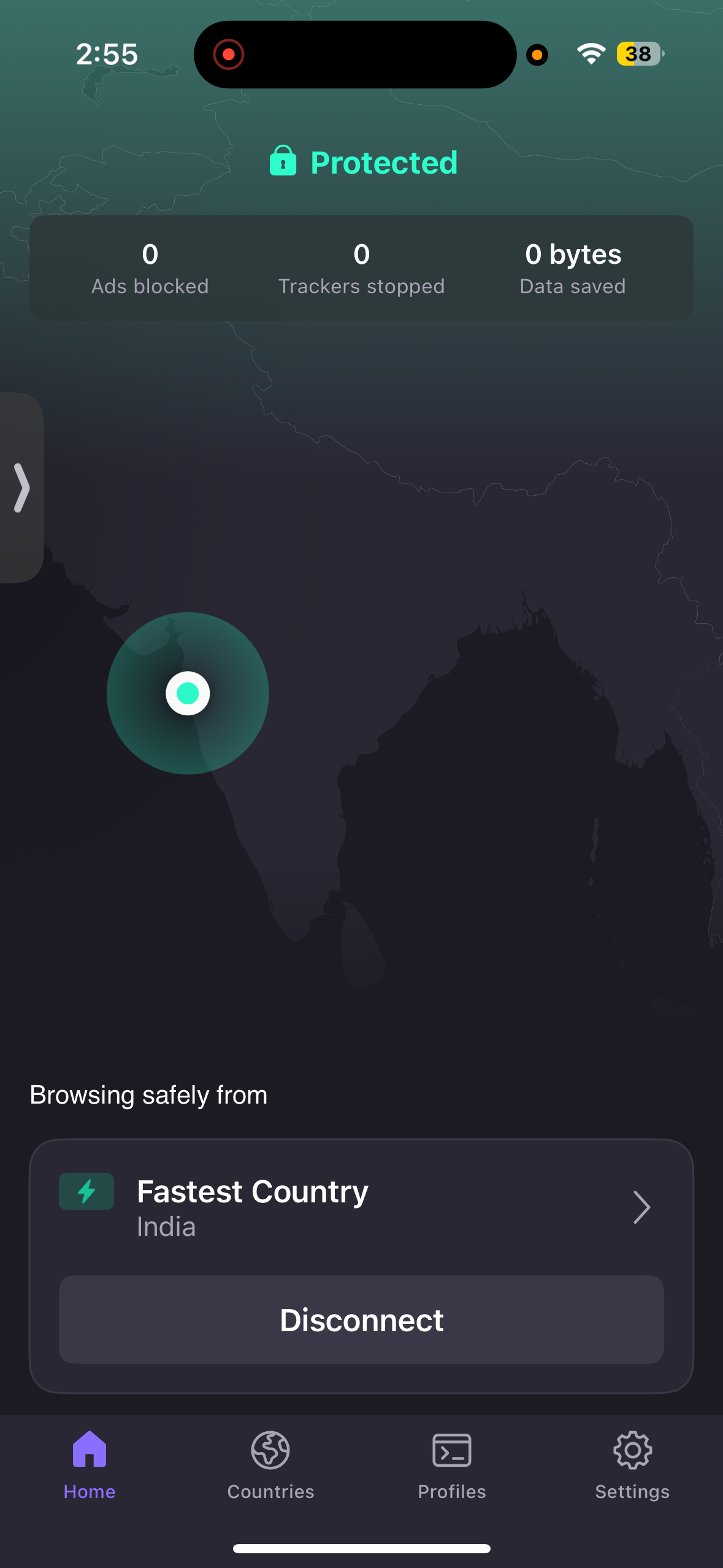
Layout & Navigation: Using Proton VPN felt clean and minimal, with a layout that focuses primarily on core VPN functionality rather than visual extras. The home screen shows a non-interactive map in the background along with a prominent Quick Connect button. The interface also clearly indicates connection status: the screen appears red when disconnected and turns green once connected, which makes it easy to tell when the VPN is active. I also liked that NetShield information is visible directly from the home screen, giving quick insight into its activity. Navigation is fairly simple, but the search function isn’t very strong, which can make finding specific servers less efficient compared to some competitors.
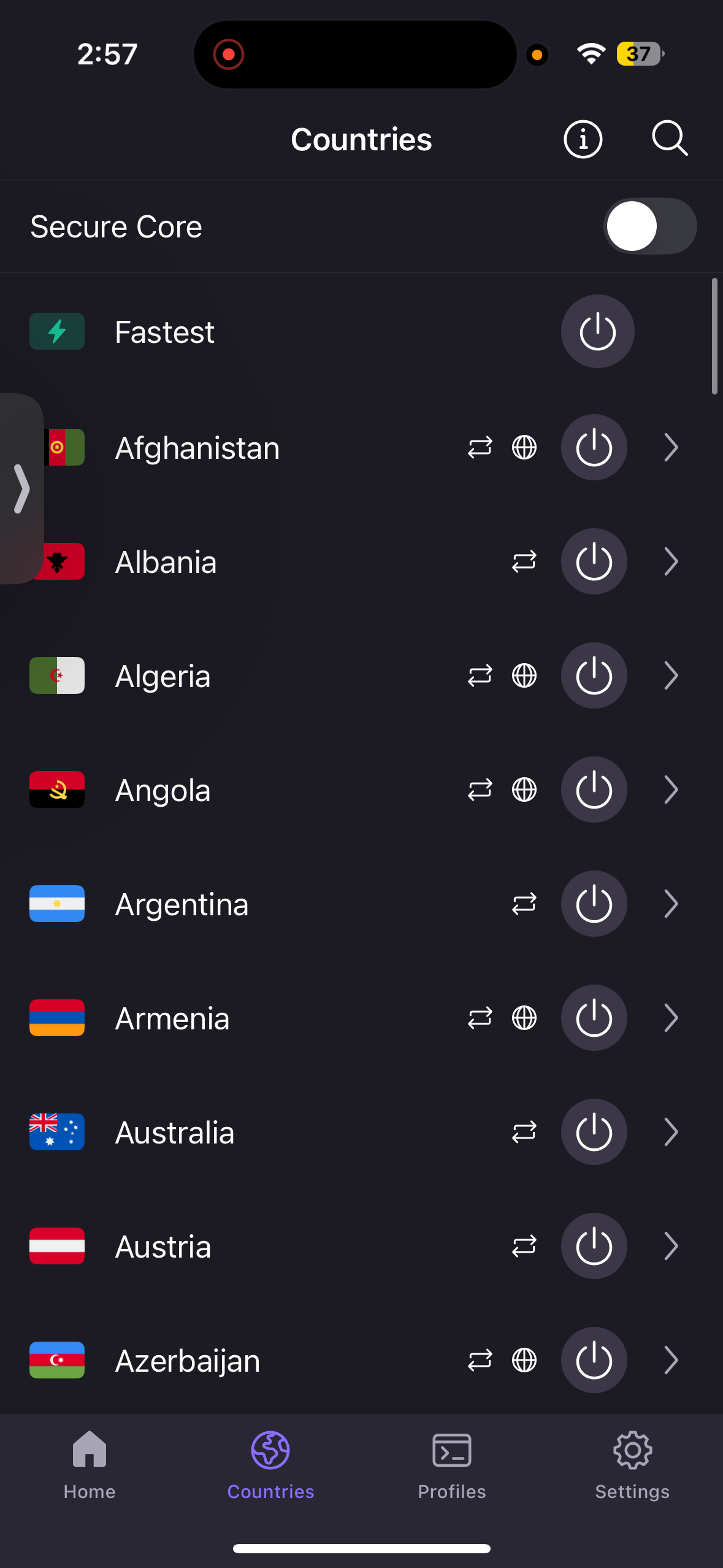
Server Search & Quick Connect: Connecting quickly is easy through the Quick Connect option, which automatically selects the best available server. The server list includes All servers as well as specialty servers such as Secure Core, P2P, and Tor. However, while these options exist, P2P and Tor servers are not very easy to locate within the interface and require checking the information icon near the search option to understand their availability. One useful detail is that each server location shows server load information, which helps when choosing less crowded servers. The map itself isn’t interactive, so server browsing relies mainly on the list view.
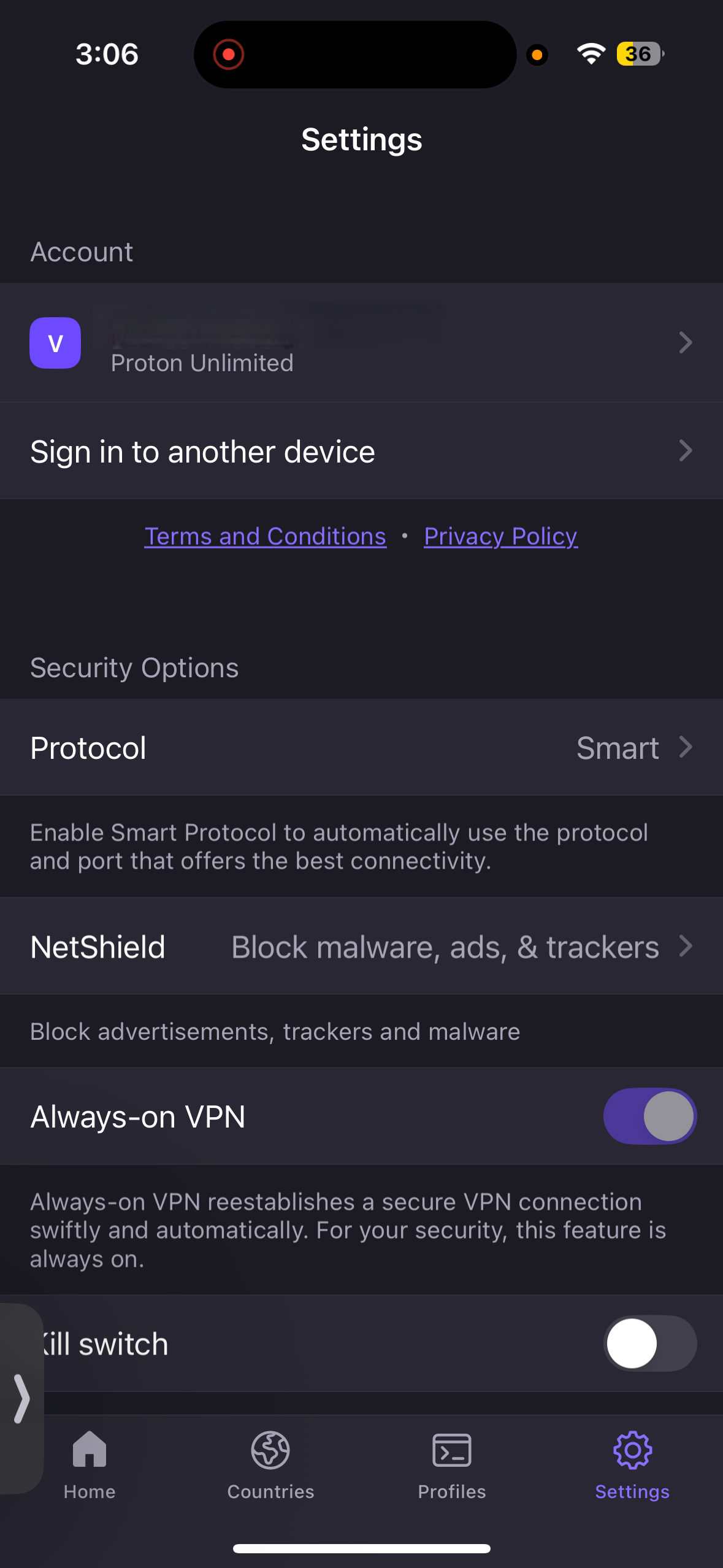
Settings Access: Most configuration options are located in the Settings section, which keeps the interface organized but slightly hidden from the main screen. Here I could configure VPN protocols, enable NetShield, turn on Always-On VPN, activate the Kill Switch, and use obfuscation via the Stealth protocol. Other options include alternate routing (smart routing), custom DNS, Moderate NAT, and LAN connection support. The app also allows VPN Accelerator to improve performance and offers widget style customization. While these settings provide good control, profiles and routing options can feel slightly hidden or complex for beginners.
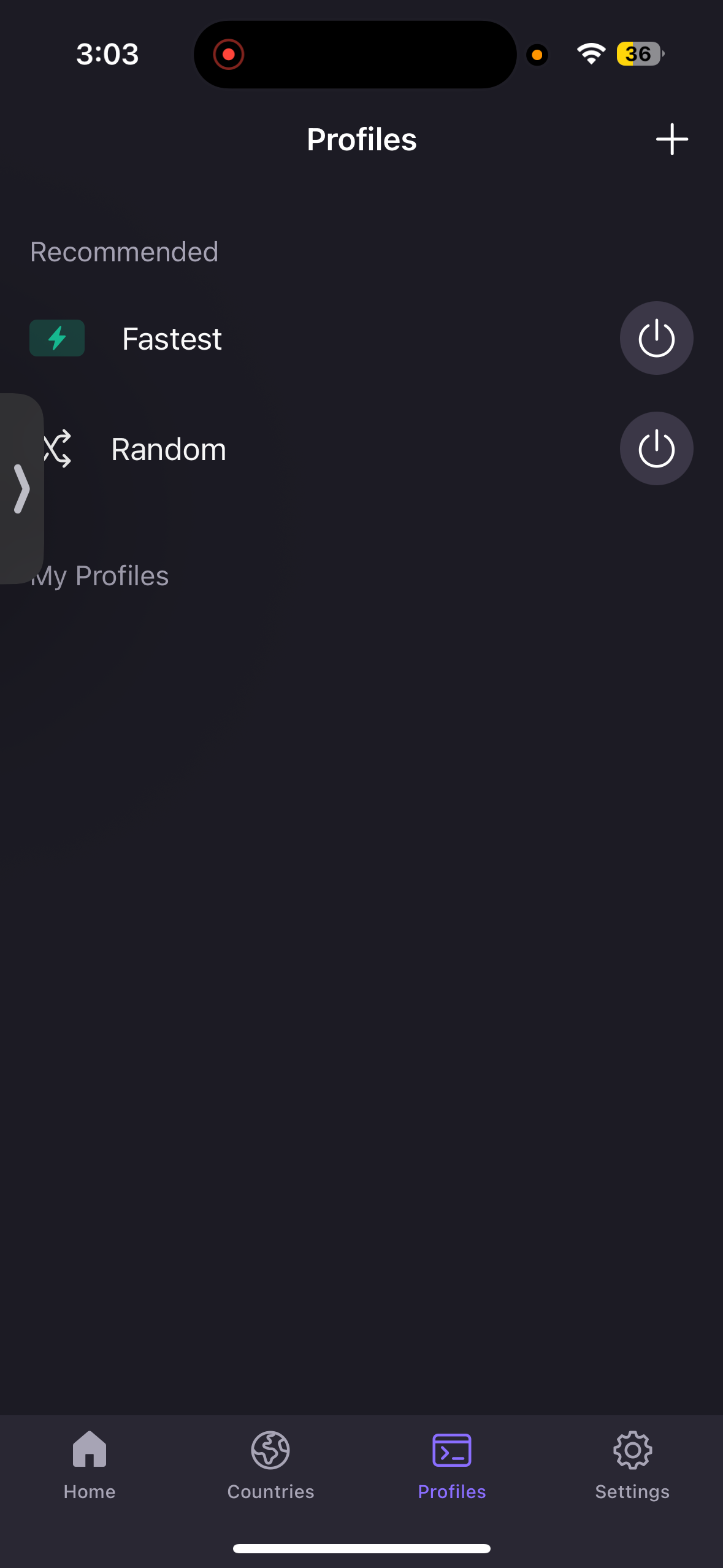
Features: Proton VPN focuses strongly on privacy and transparency. NetShield provides real-time reports on blocked ads, trackers, and malicious domains. The app also allows users to create custom connection profiles using the plus icon, though the setup process may feel restrictive or slightly tricky for new users. While the feature set is solid, the app doesn’t include split tunneling, and in-app help and support options are limited, though users can report issues directly from the app.
iOS Highlights:
- Alternate routing and custom DNS options
Also Available:
- Custom connection profiles for quick server configurations
- Stealth protocol for VPN obfuscation
- Real-time NetShield protection details
- Secure Core, P2P, and Tor specialty servers
- Always-On VPN and Kill Switch
- VPN Accelerator for improved performance
- Set widget style
- LAN connection support and Moderate NAT
Missing on iOS:
- Interactive map
- Split tunneling
- VPN Accelerator
- Theme
- Discreet App icon
UI & Usability Rating: Excellent
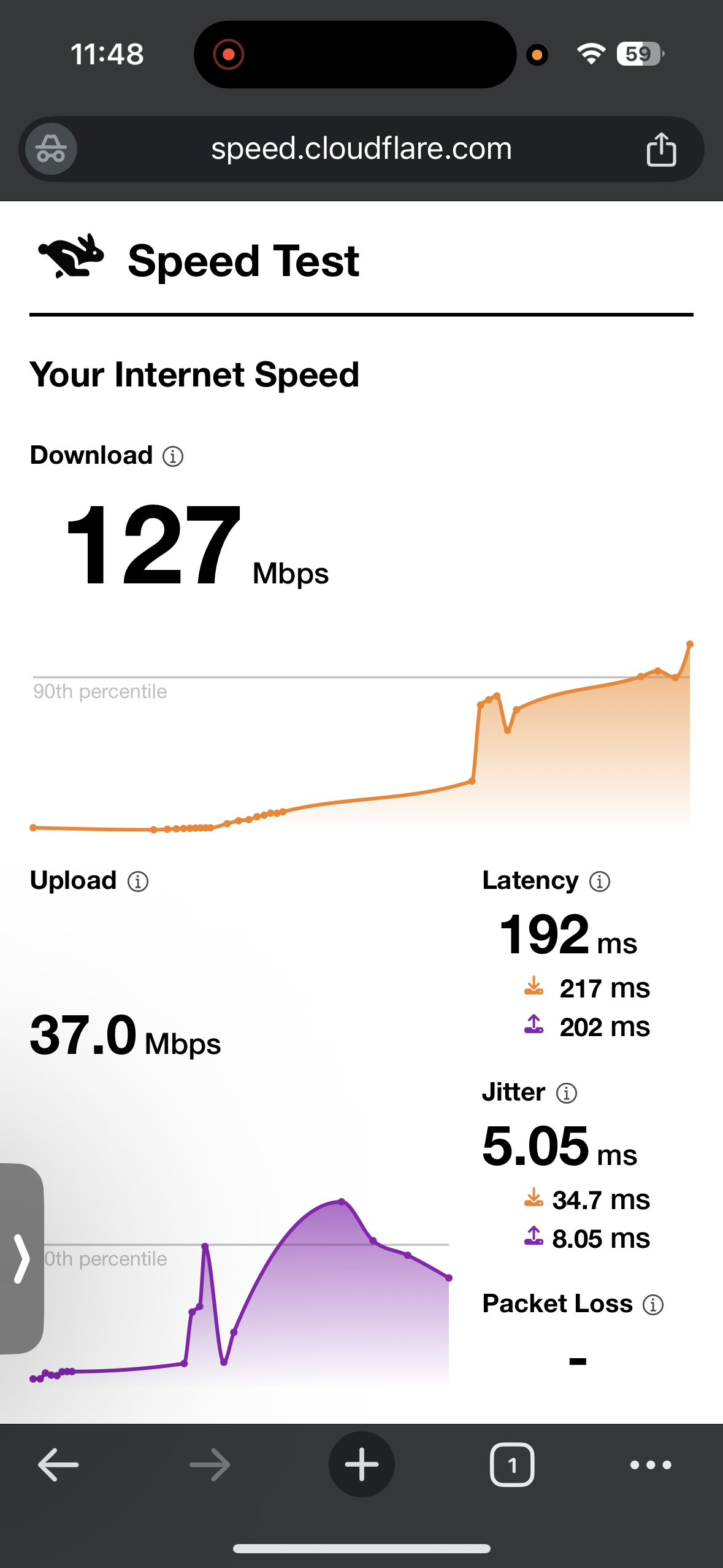
☞ On Wi-Fi (iOS) – Proton VPN delivered mixed but generally stable performance during testing. When connected to the US server, I noticed a significant drop in download speed compared to the baseline, although the connection itself remained stable and usable for regular browsing. Upload speeds stayed fairly strong, and jitter remained low throughout the test. The UK server performed noticeably better in comparison, with a smaller reduction in speed and very strong download and upload results. Latency was still elevated because of the long-distance connection, but jitter stayed very low, which made the connection feel smooth during normal usage.
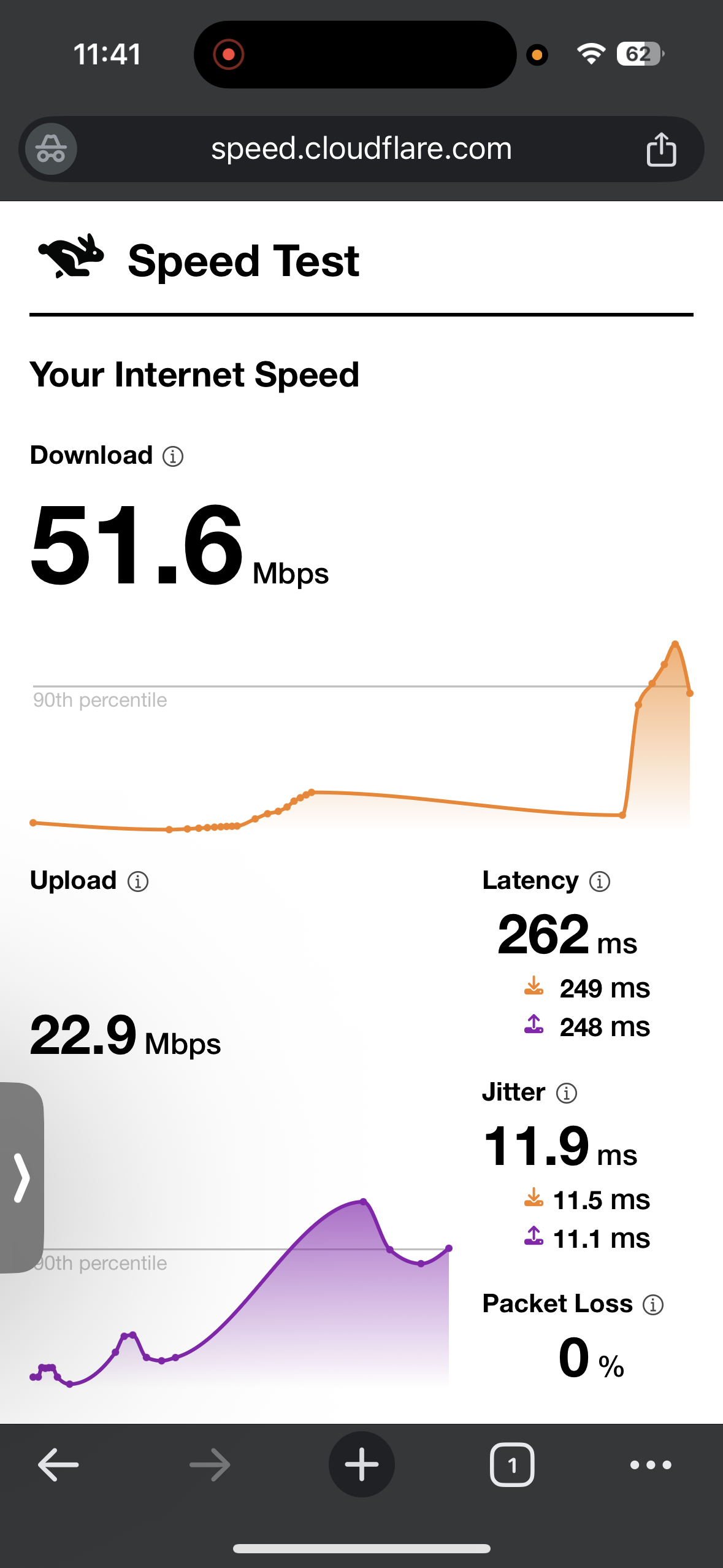
- US server (Los Angeles) - 73.2% drop in speed
- Download Speed - 51.6 Mbps
- Upload Speed - 22.9 Mbps
- Latency - 262 ms
- Jitter - 11.9 ms
- UK Server (London) - 34.2% drop in speed
- Download Speed - 127 Mbps
- Upload Speed - 37 Mbps
- Latency - 192 ms
- Jitter - 5.05 ms
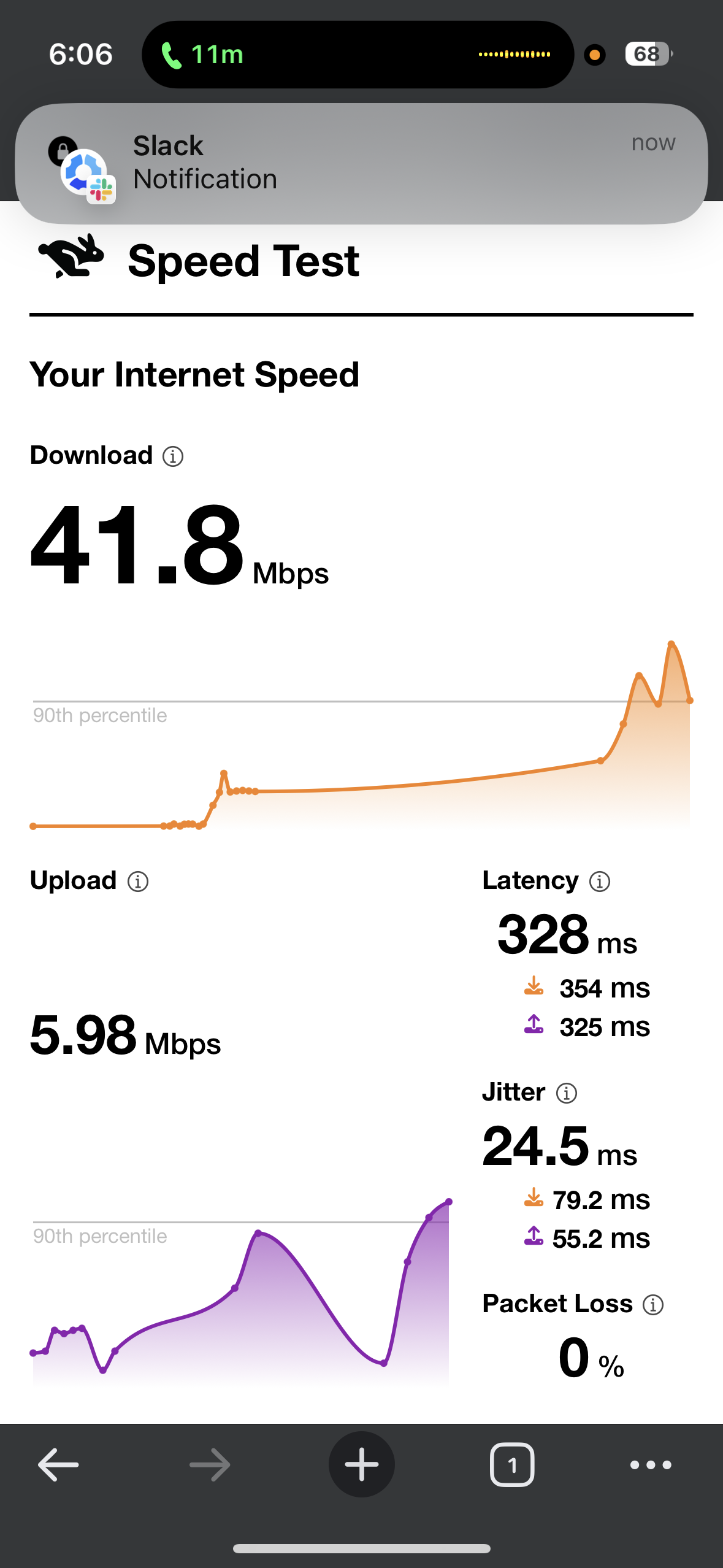
☞ On Mobile Data (iOS) – My experience with Proton VPN was less consistent. While testing the US server, the connection showed a noticeable drop in download speed and higher latency, which is typical when using a VPN on mobile networks. Upload speeds were lower than on Wi-Fi but still usable. During testing, I attempted to connect to Proton VPN while I was on a phone call, but the VPN did not connect even after trying several times. I closed and reopened the app multiple times, but the connection only worked after the call ended. This suggests that the app may struggle to establish a VPN tunnel while an active call is in progress. The UK server showed better overall balance in speed reduction, though latency and jitter were slightly higher compared to the Wi-Fi test.
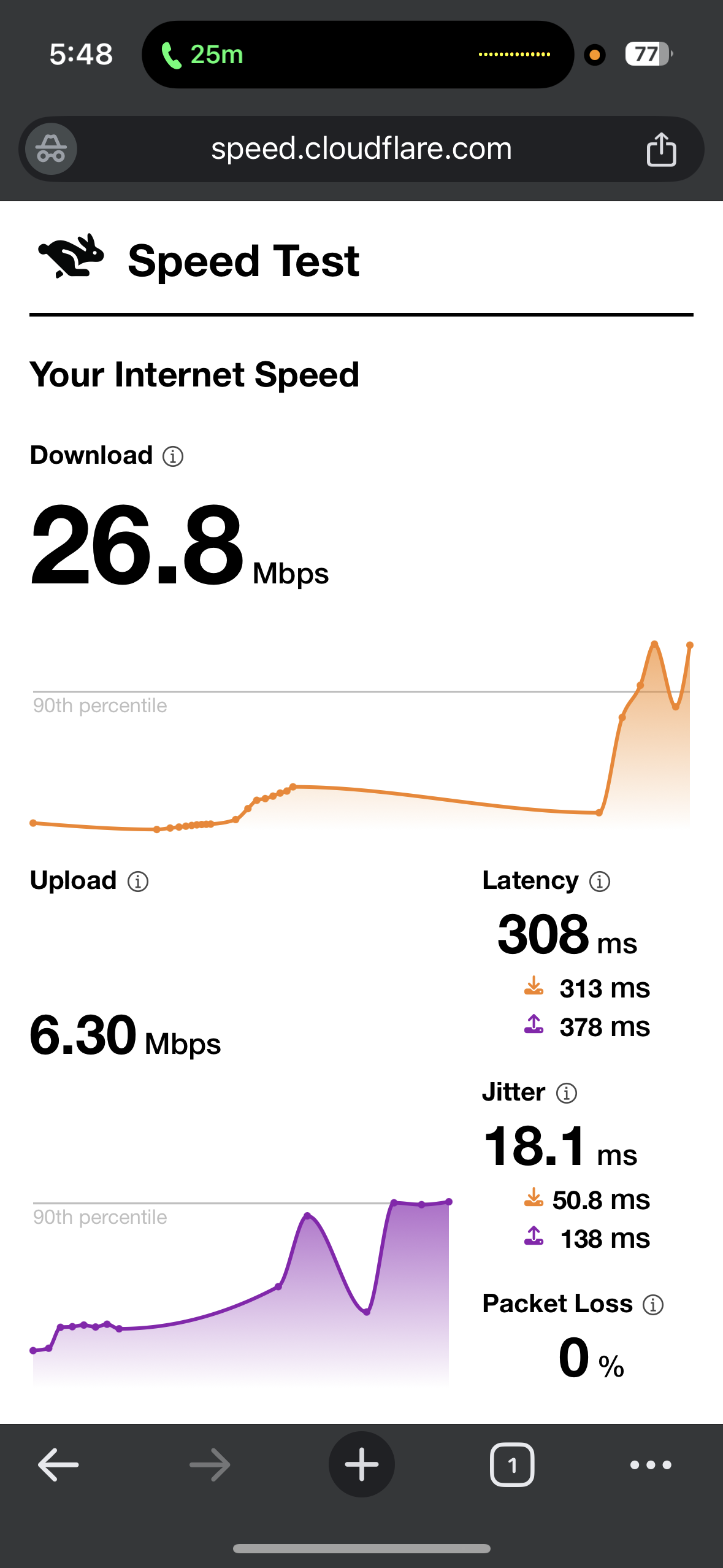
- US server (Los Angeles) - 76.5% drop in speed
- Download Speed - 26.8 Mbps
- Upload Speed - 6.30 Mbps
- Latency - 308 ms
- Jitter - 18.1 ms
- UK Server (London) - 63.3% drop in speed
- Download Speed - 41.8 Mbps
- Upload Speed - 5.98 Mbps
- Latency - 328 ms
- Jitter - 24.5 ms
The streaming experience felt mostly stable, though videos occasionally took a little longer to reach their best quality. Playback sometimes began slightly blurry or paused briefly before improving, but once the stream stabilized it continued smoothly without interruptions. Seeking forward or backward could occasionally trigger short drops in quality, though the stream recovered quickly and playback remained watchable. These observations were made during a 30-minute testing session while streaming on Netflix, Crunchyroll, and YouTube.
Observed Behavior During the Test:
- Page & Content Loading: Chrome home screen and websites typically took 4–5 seconds to load, which felt slightly slow but manageable for normal browsing.
- Video Playback
- Start Time: Videos started with some buffering and the initial quality appeared blurry. After about 2 minutes, the stream improved and reached good quality.
- Forward Seeking: Skipping ahead in videos worked without buffering and maintained good quality. However, jumping 10 minutes forward caused a temporary drop in quality, which recovered after around 2 minutes.
- Backward Seeking: Rewinding triggered 2–3 seconds of loading in poor quality. The video then stabilized and returned to good quality after 3–4 minutes.
- Streaming Stability: Across other platforms, streaming quality remained good once stabilized. On YouTube, playback began with brief buffering, started in good quality, and reached 720p after 2–3 seconds, maintaining that quality during playback.
Proton VPN delivered dependable protection during testing. The kill switch operated as intended and ensured traffic stayed blocked whenever necessary. Across the session, no DNS or IP leaks were detected. The connection remained secure and uninterrupted from start to finish.
PROS
- Real-time Netshield reports
- For each country, you can see the servers with server load information
- Clean, minimal interface with clear connection status indicators (red/green)
- Strong privacy features including NetShield ad/tracker blocking and Secure Core servers
- Supports specialty servers such as Secure Core, P2P, and Tor
- Advanced settings like custom DNS, alternate routing, obfuscation (Stealth protocol)
- Stable streaming once playback stabilizes
- Very strong speeds on the UK server during Wi-Fi testing
- Smart routing is also available
- You can create a profile, but it is a bit tricky for beginners
CONS
- The search bar algorithm is not strong.
- Slower page loading (around 4–5 seconds) in Google Chrome
- Large speed drops on some servers, especially the US server
- P2P and Tor servers are difficult to locate in the interface
- Non-interactive map and weaker server search functionality
- Split tunneling not available on iOS
- VPN connection may fail to establish during active phone calls on mobile data
5. PIA - Below-Average Performance and Poor UI
Moving on to the last one, Private Internet Access delivered a functional but somewhat dated experience on iOS, and overall, the results during testing way below average. I was able to reach the main dashboard within a couple of minutes, which is good. The interface focuses on basic controls like the Quick Connect button and clear connection indicators.
PIA also provides a good range of customization features on iOS, many of which can be particularly useful for experienced users. Speed test results were weaker compared to the other VPNs I tested. While Wi-Fi speeds remained fairly stable with moderate drops on long-distance servers, they still lagged behind the more consistent performance delivered by services like NordVPN and ExpressVPN. Mobile data results were even less reliable, with higher latency and noticeable speed reductions that made the connection feel slower during everyday use.
Streaming performance was average compared to other VPNs in this test. Netflix and Crunchyroll often started with buffering and stayed blurry for longer periods, whereas competing VPNs typically stabilized faster. YouTube playback was more reliable and eventually reached 720p, but overall streaming performance still felt less consistent than the top-performing services. No leaks detected, which is great. Overall, Private Internet Access passed the core security checks and provides solid customization options, but its outdated interface, weaker server organization, and inconsistent streaming performance reduce the overall experience on iOS.
Performance Testing
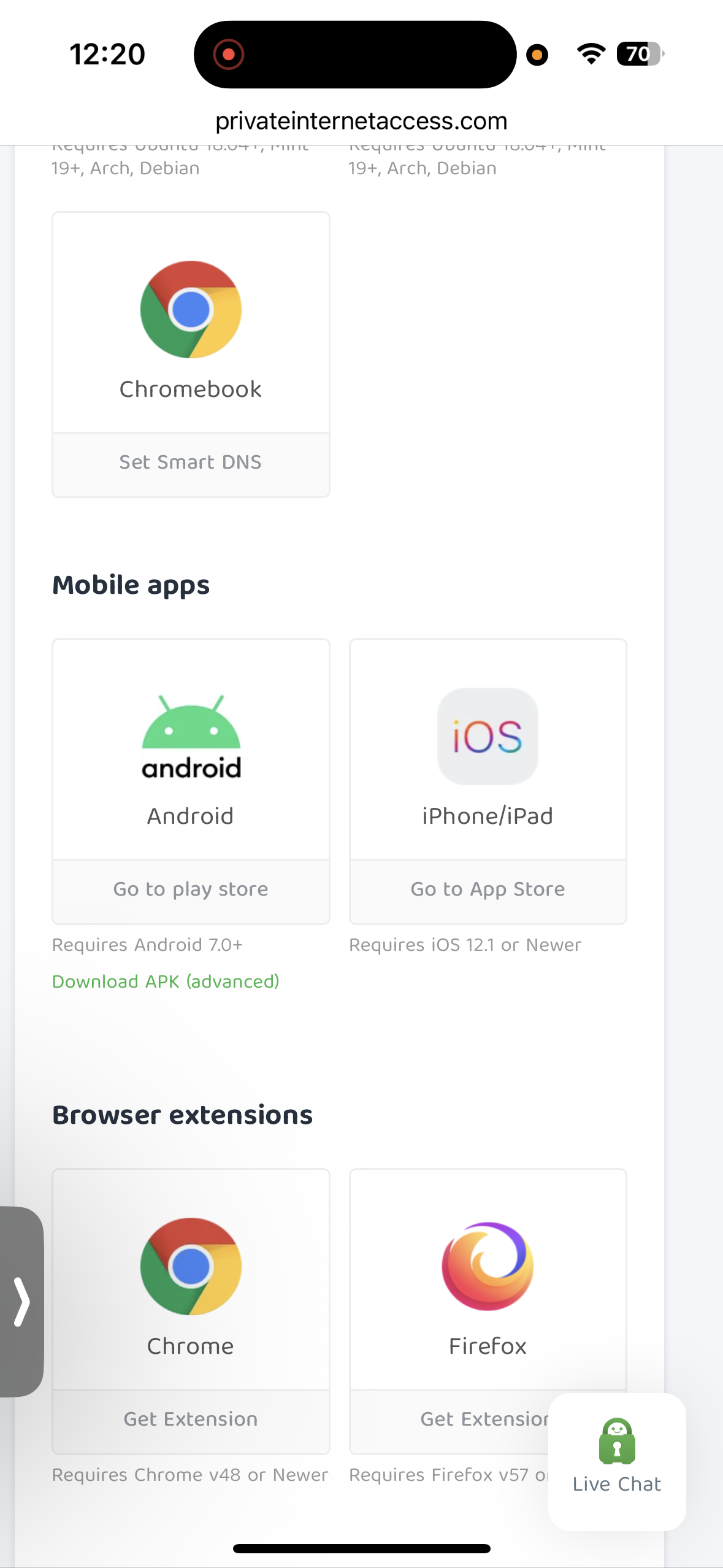
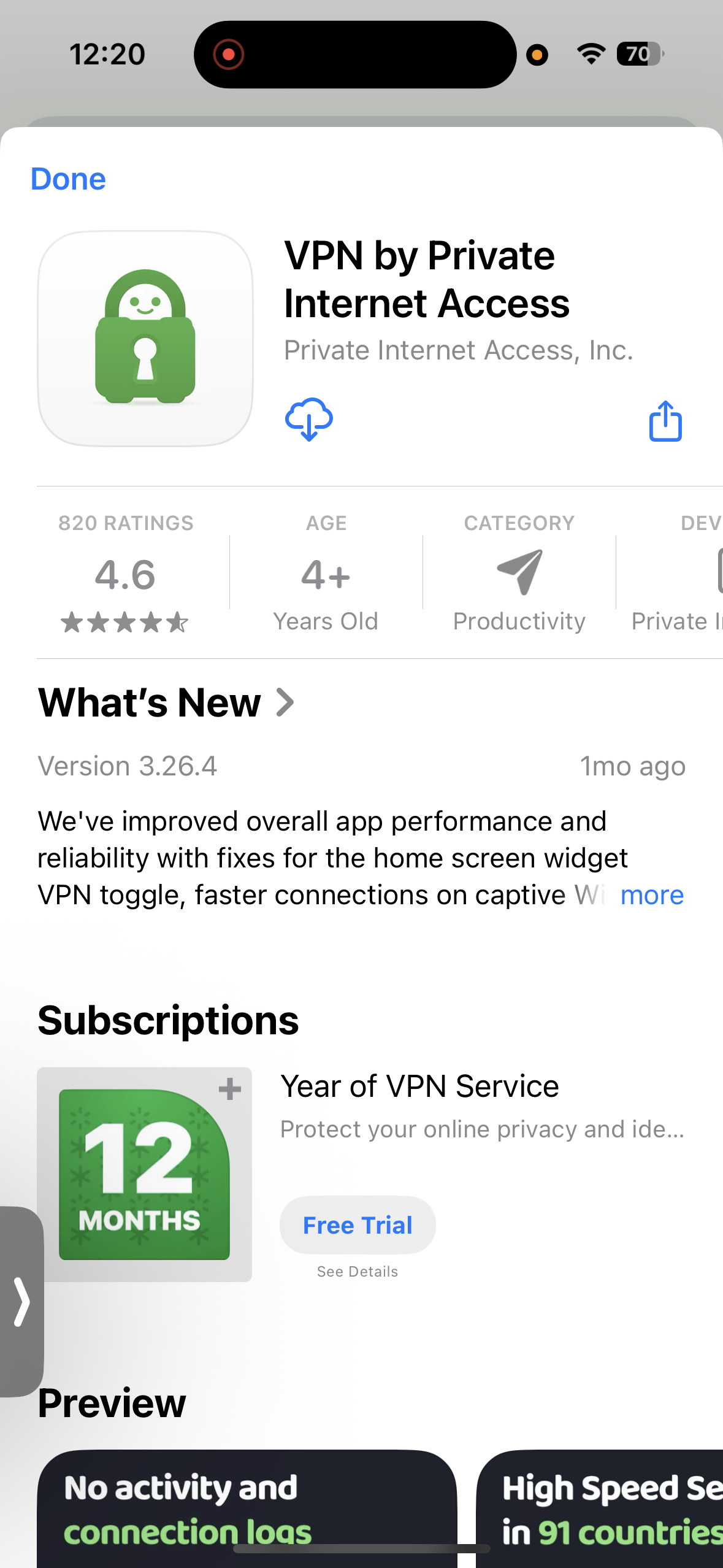
Installing PIA on iOS was fairly simple once I located the download option on the website. After signing in to my account through the browser, I navigated to the downloads section and selected the iOS (iPhone and iPad) option to proceed to the Apple App Store. The app size was about 68.3 MB, making it the smallest among the VPN apps I tested.
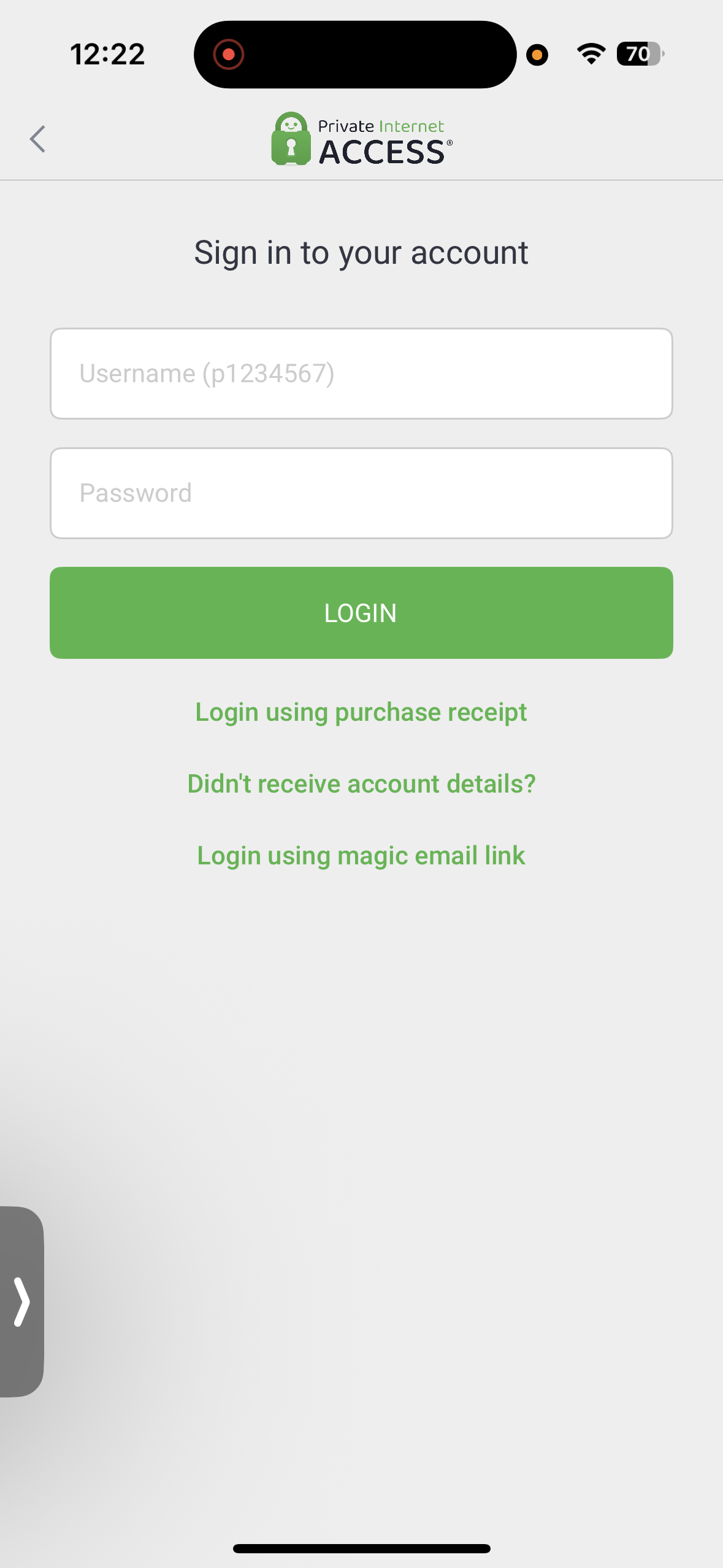
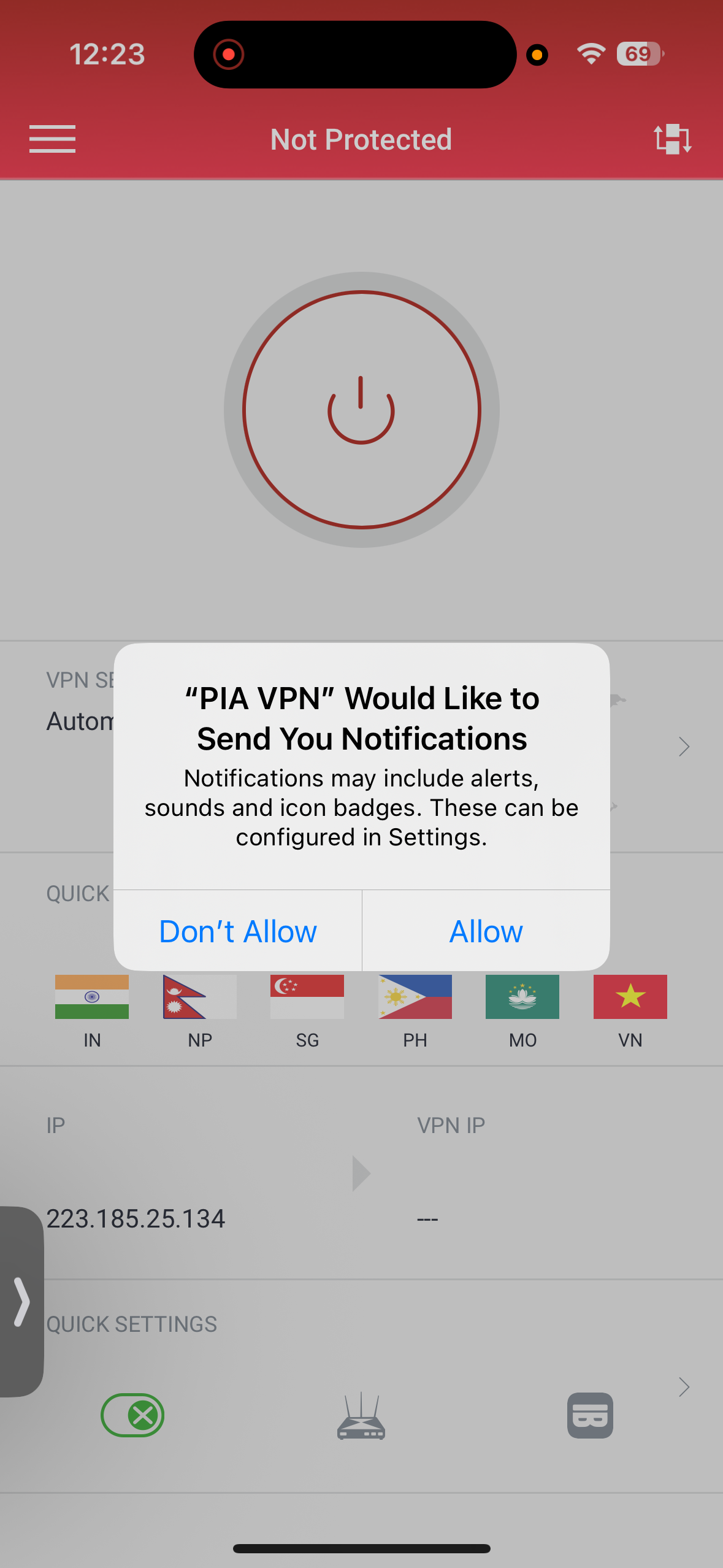
Once the app was installed and opened, it presented a Subscribe/Login screen where I entered my account credentials and continued with the setup. During the process, the app requested permission to establish a VPN connection and later asked for notification access, both of which I allowed to proceed smoothly.
Overall, the setup process was quick and straightforward. Even though the iOS download option required a few extra navigation steps on the website, the onboarding inside the app was clean and easy to follow, allowing me to reach the main dashboard and connect within a couple of minutes.
- App Size: 68.3 MB
- Compatibility - Requires iOS/iPadOS 15.0 or later
- Download Source: Official Website → Apple App Store
- Approximate Setup Time: 1-2 minutes
- Permissions Requested: VPN Connection Setup and Notifications
- Onboarding Flow: Simple Login with Permission Prompts
- Overall Difficulty: Super Easy
- App Store Ratings - 821
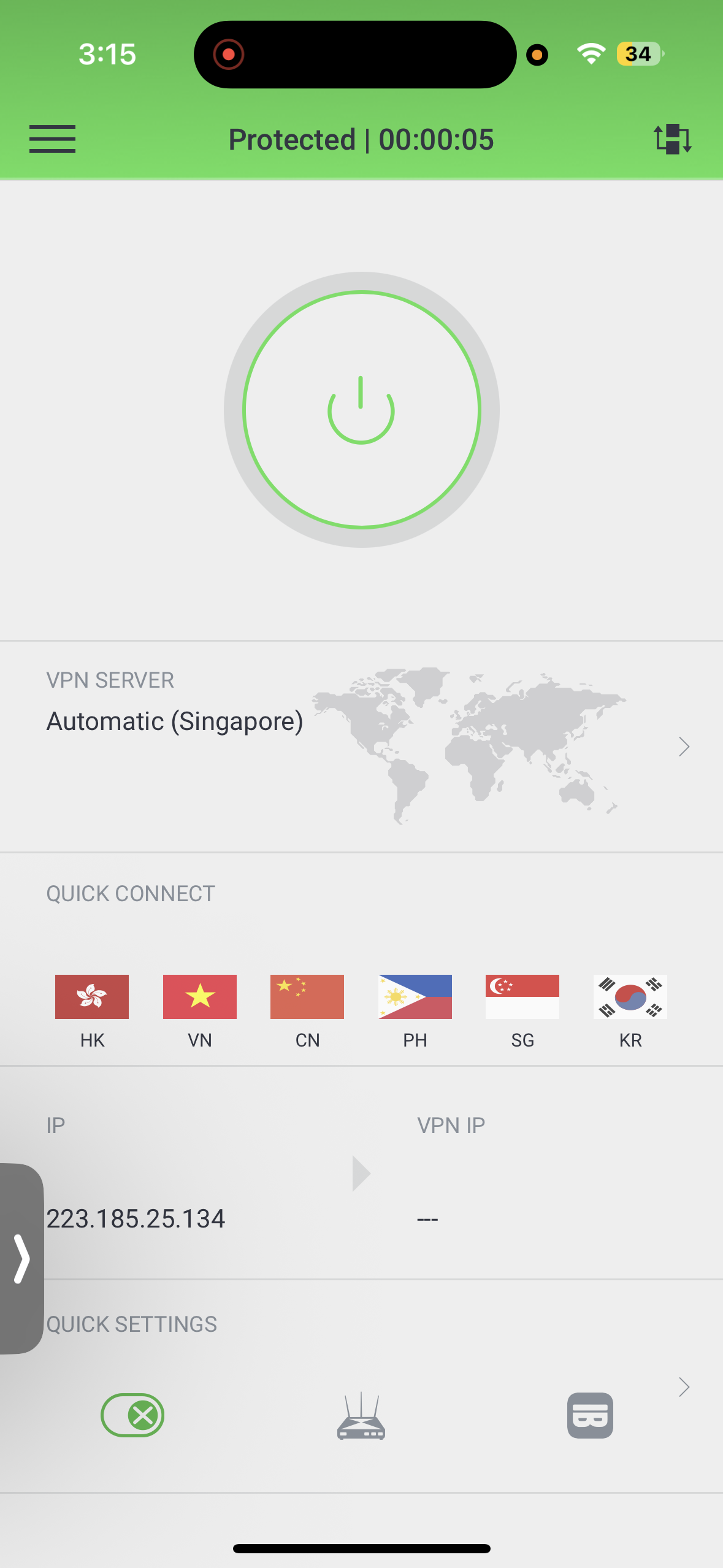
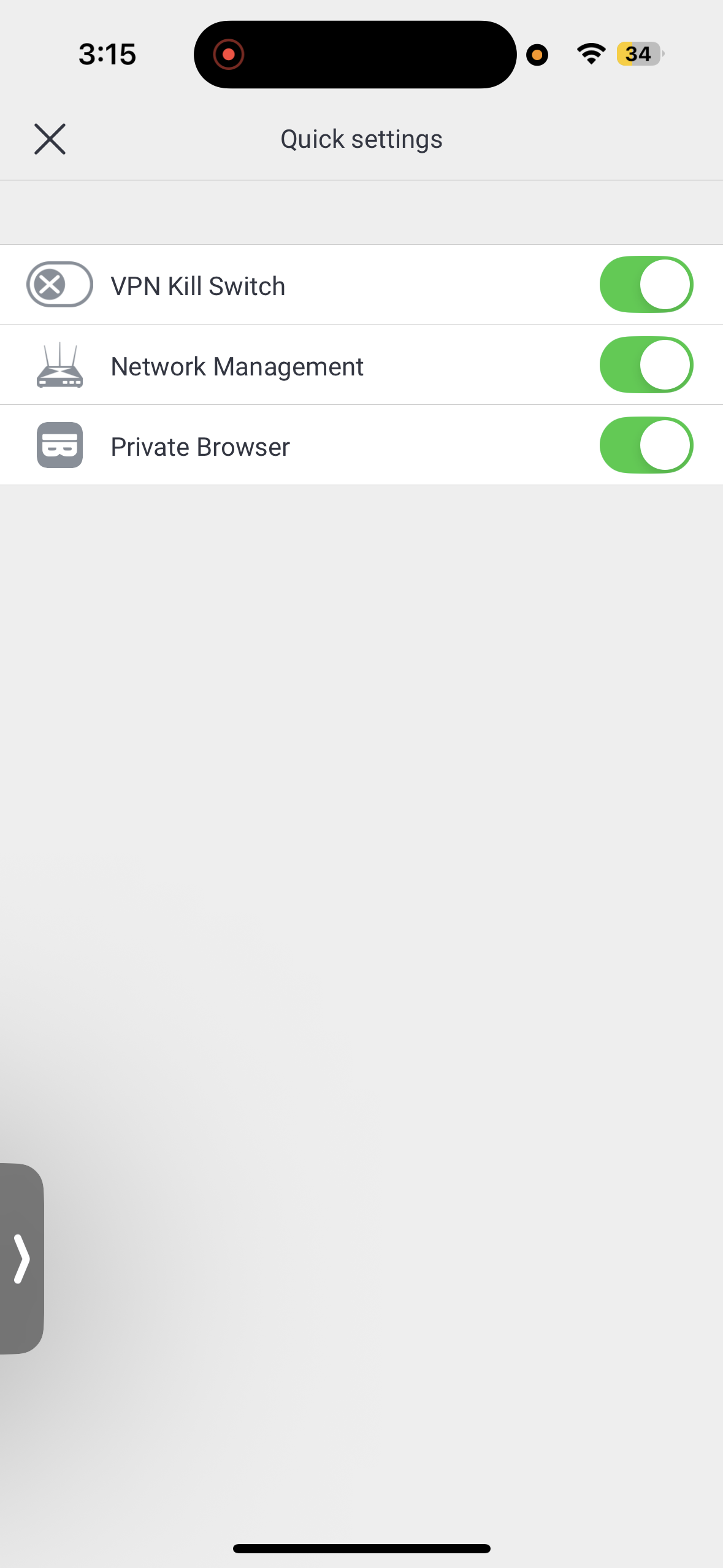
Layout & Navigation: Using Private Internet Access felt straightforward but noticeably dated compared to the other VPN apps I tested. The home screen focuses mainly on essential controls, with a prominent Quick Connect button and a few quick settings such as Kill Switch, Network Management, and Private Browsing (which opens PIA’s separate browser app). The interface uses simple color indicators - red when disconnected and green when connected to clearly show the connection status. While the layout is functional, the design feels outdated and less polished than most modern VPN interfaces.
Server Search & Quick Connect: Connecting quickly is easy using the Quick Connect option, but browsing servers is less intuitive. Server locations are not clearly labeled or well organized, which makes finding specific servers slightly confusing. The search bar is available, but its algorithm is relatively weak and sometimes struggles to locate servers efficiently. The app allows users to set favorite servers, though I noticed that these don’t always appear correctly in the favorites section, which reduces the usefulness of the feature. PIA also includes specialty streaming servers, but they can only be located by manually searching for the word “streaming” in the search bar.
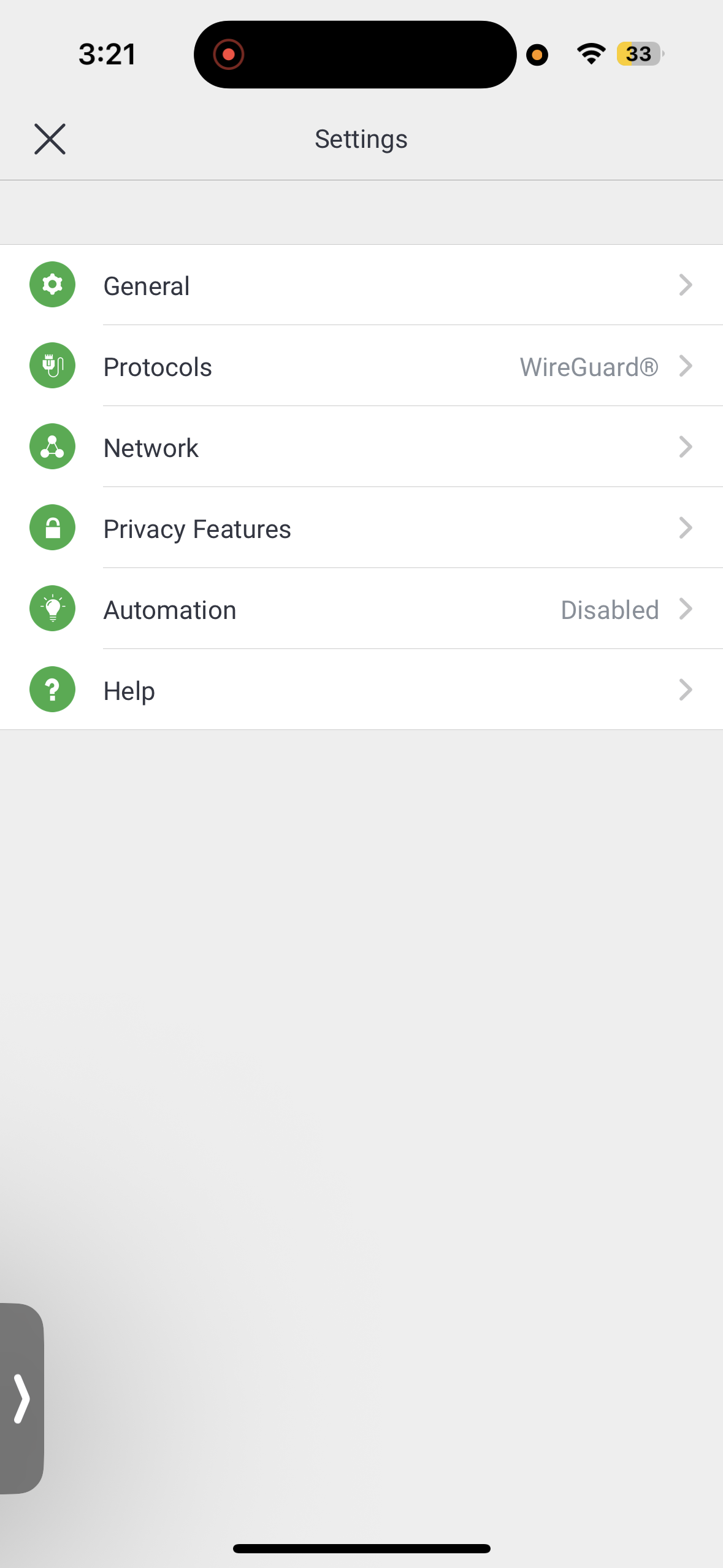
Settings Access: Most of the customization options are located in the Settings section, which is where PIA stands out. Users can configure VPN protocols, adjust data encryption levels, choose handshake methods, and enable options like Use Small Packets for network optimization. The Network section includes DNS configuration, while privacy settings provide controls for the VPN Kill Switch and Safari content blocking. The app also includes automation settings, allowing the VPN to behave differently depending on network conditions.
Features: Private Internet Access offers extensive configuration options aimed at users who prefer detailed control. The ability to modify encryption levels, protocols, and DNS settings provides flexibility that many other VPN apps don’t offer. However, the feature set on iOS is missing some tools found on other platforms, such as PIA MACE for ad and tracker blocking and obfuscation features. Another limitation is the lack of built-in in-app customer support, meaning help resources aren’t directly accessible within the app interface.
Also Available:
- Extensive protocol, encryption, and handshake customization
- Automation options for different network conditions
- Clear red/green connection status indicator
- Quick settings for Kill Switch and Network Management
- Dedicated IP support
- Streaming-optimized servers (searchable manually)
- DNS configuration and advanced privacy settings
Missing on iOS:
- Launch on startup
- Connect on Launch
- Port Forwarding (on Android and Windows)
- Allow LAN traffic
- Obfuscation
- PIA MACE (on Android and Windows)
- Multi-Hop and obsfuscation (on Windows)
- Per App Settings (available on Android)
UI & Usability Rating: Average (for experienced ones, it is amazing)
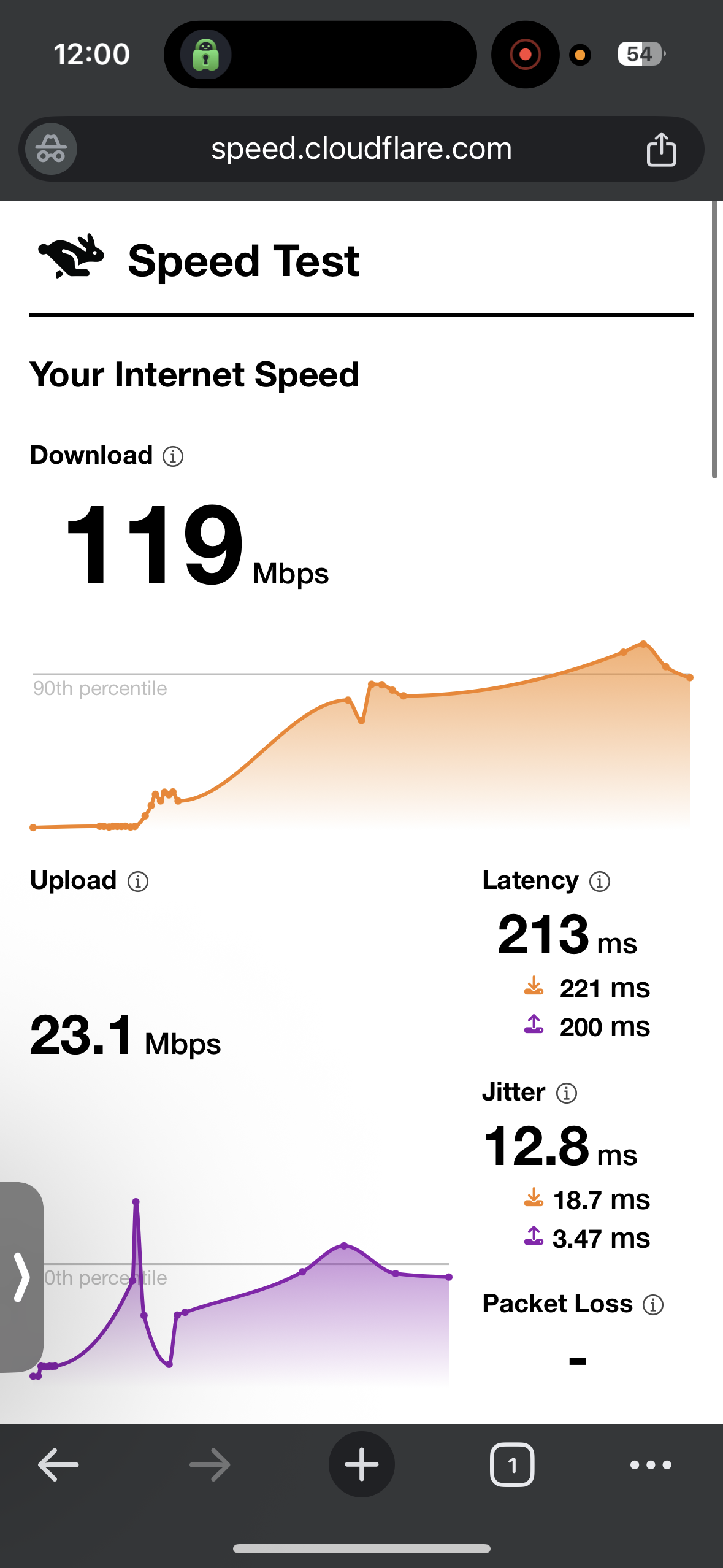
☞ On Wi-Fi (iOS) – PIA VPN delivered fairly stable performance during testing, with moderate reductions in speed when connected to long-distance servers. While connected to the US server in New York, I observed a noticeable drop in download speed compared to the baseline. Upload speeds were somewhat lower but still usable, and jitter stayed low, indicating stable packet delivery. The UK server in London performed slightly better in terms of speed retention. Latency increased in both cases due to the distance from the servers, but the connection remained stable throughout the testing session.
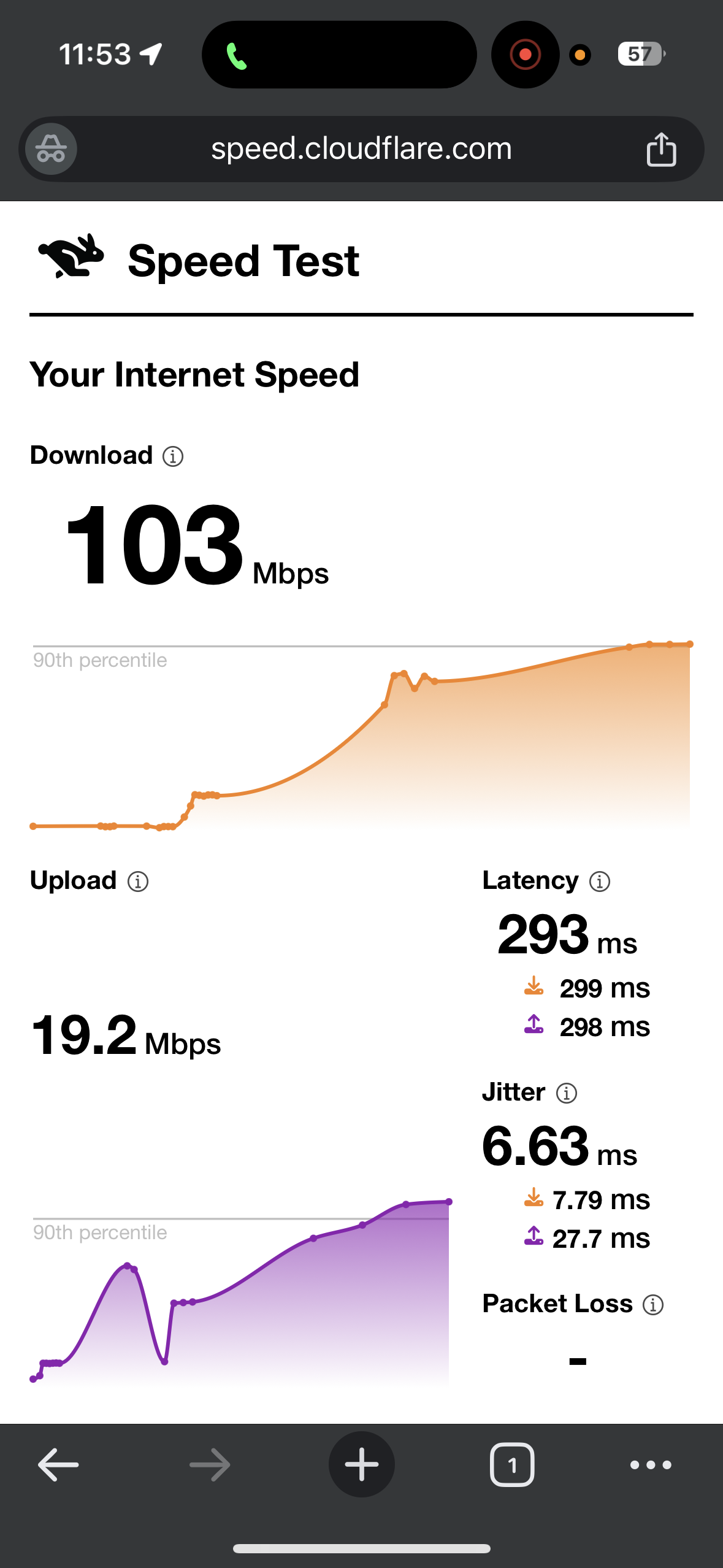
- US server (New York) - 46.6% drop in speed
- Download Speed - 103 Mbps
- Upload Speed - 13.2 Mbps
- Latency - 293 ms
- Jitter - 6.63 ms
- UK Server (London) - 38.3% drop in speed
- Download Speed - 119 Mbps
- Upload Speed - 23.1 Mbps
- Latency - 213 ms
- Jitter - 12.8 ms
☞ On Mobile Data (iOS) – My experience with PIA VPN showed more variation in performance compared to Wi-Fi. When connected to the US, download speeds dropped noticeably and upload speeds were significantly lower than in the Wi-Fi test. Latency was also higher. Jitter was relatively higher as well, suggesting slightly less consistent packet delivery. The UK server produced a smaller reduction in speed but delivered lower download and upload speeds overall. Latency remained elevated and jitter stayed moderate, indicating that performance on mobile data was less consistent.
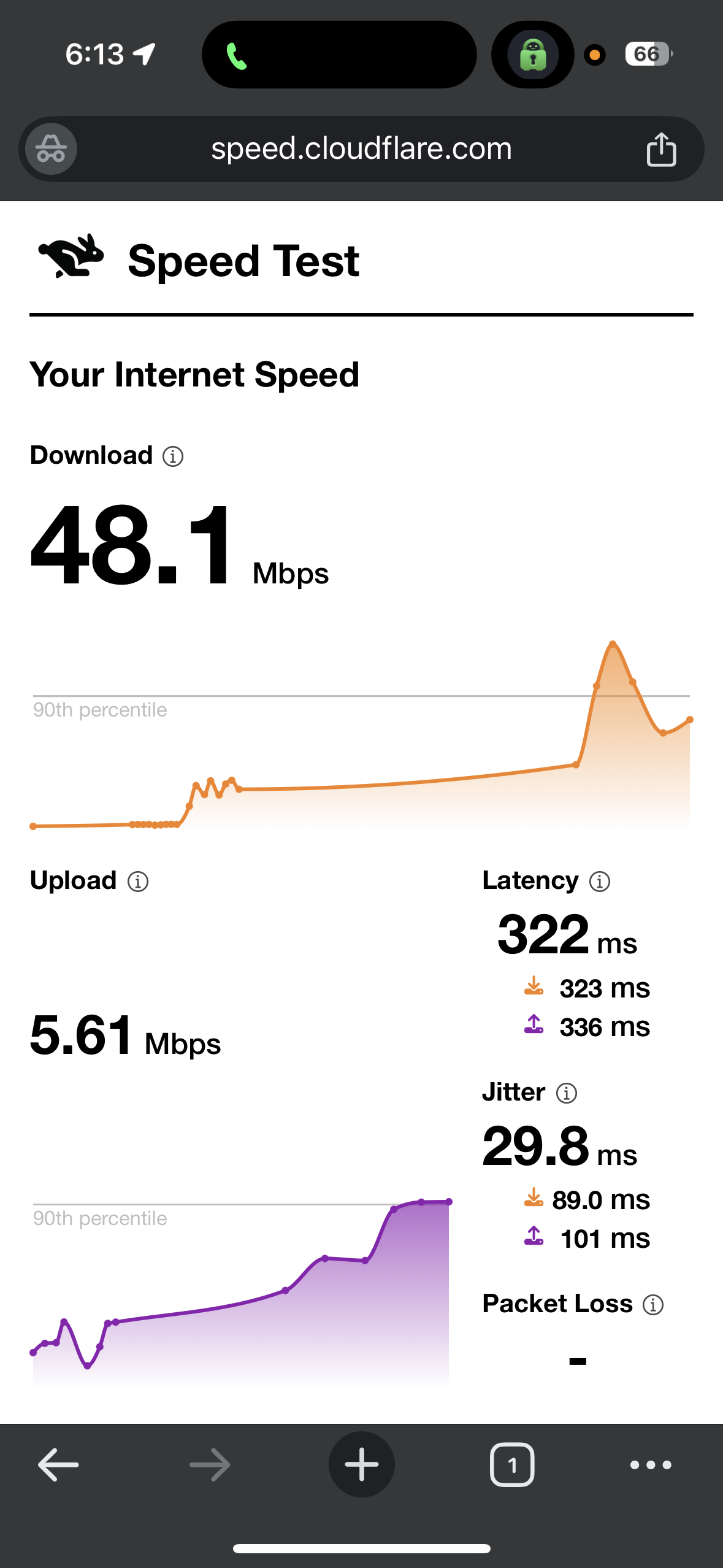
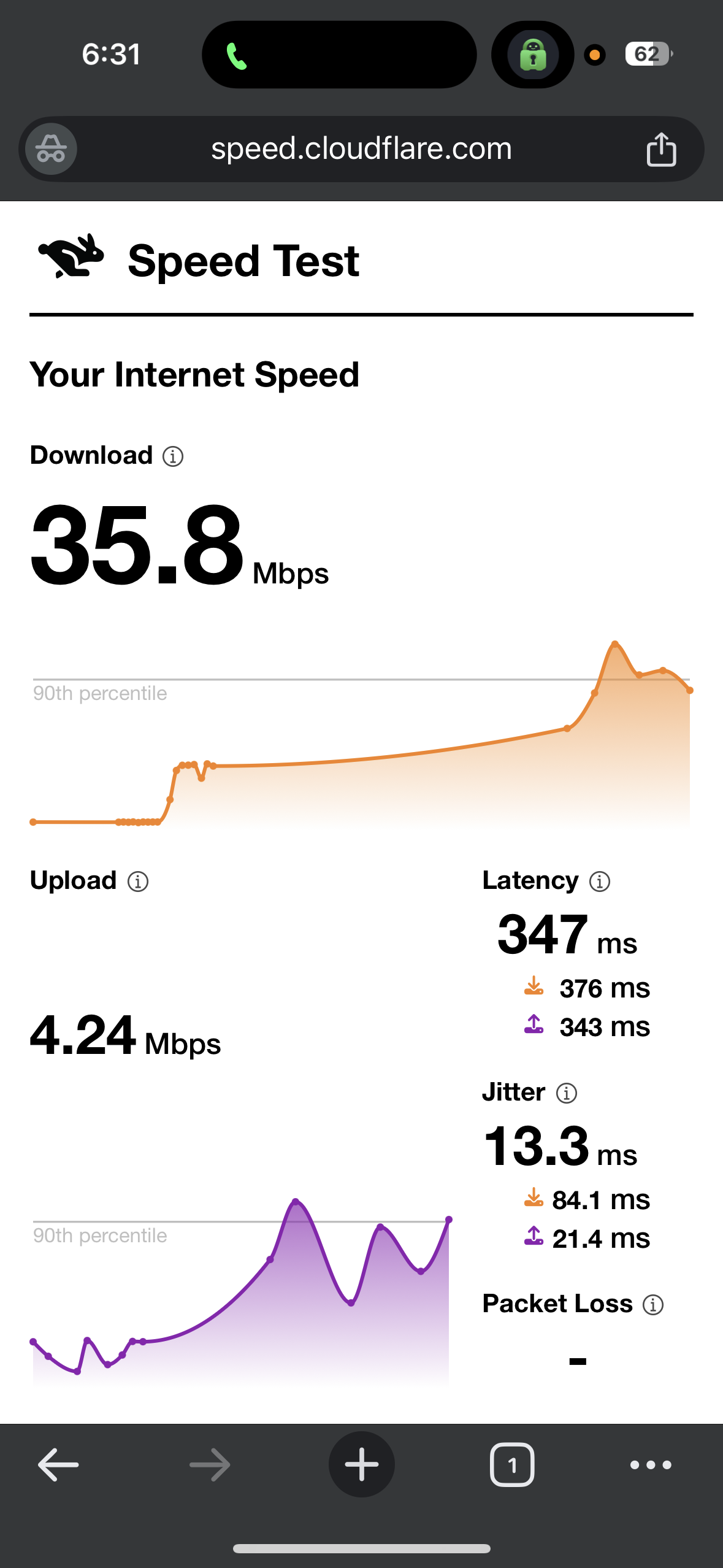
- US server (Los Angeles) - 57.81% drop in speed
- Download Speed - 48.1 Mbps
- Upload Speed - 5.61 Mbps
- Latency - 322 ms
- Jitter - 29.8 ms
- UK Server (London) - 68.6% drop in speed
- Download Speed - 35.8 Mbps
- Upload Speed - 4.24 Mbps
- Latency - 347 ms
- Jitter - 17.3 ms
Overall, the connection felt stable but struggled to maintain consistent video quality on Netflix and Crunchyroll. During the 35-minute session, streams often started with noticeable buffering and remained blurry for much of the playback. Seeking forward or backward also caused short delays before the video resumed. However, streaming on YouTube performed better, maintaining a steady 720p once playback began, while browsing in Google Chrome worked with minor delays and occasional CAPTCHA checks.
Observed Behavior During the Test:
- Page & Content Loading: Chrome search pages typically took 4–5 seconds to load, and we occasionally encountered CAPTCHA verification while browsing.
- Video Playback
- Start Time: Videos started after 7–9 seconds of buffering, and the initial quality appeared blurry, remaining that way for most of the streaming session.
- Forward Seeking: Jumping ahead caused 5–7 seconds of buffering, and the video resumed in blurred quality, sometimes appearing even lower than before.
- Backward Seeking: Rewinding triggered 2–3 seconds of loading in poor quality, and playback continued in the same poor quality. Loading a new video took around 7–8 seconds.
- Streaming Stability: On other platforms, playback was more stable once the video started. On YouTube, the stream reached 720p and maintained that quality consistently during playback.
Private Internet Access handled security testing reliably. Its kill switch worked effectively and maintained protection without interruptions. During the session, no DNS or IP leaks appeared, and the connection stayed secure the entire time. Overall, the VPN showed consistent reliability in basic security tests.
PROS
- Good option for advanced users who want detailed control
- Very small app size (~68.3 MB) with quick 1–2 minute setup via the Apple App Store
- Extensive customization (protocols, encryption levels, DNS, handshake settings)
- Automation rules for different network conditions
- Streaming-optimized servers (searchable by typing “streaming”)
- Option to set favorite servers for quicker access
- Clear connection status indicator (red when off, green when connected)
- Stable connection speeds on long-distance servers
CONS
- Highly outdated interface compared to other VPN apps
- Servers are not clearly labeled or well-organized
- Favorite servers sometimes don’t appear in the favorites section
- Weak server search algorithm
- No PIA MACE ad and tracker blocking on iOS
- No obfuscation support
- Slower streaming with buffering on Netflix and Crunchyroll
- Occasional CAPTCHA and slower page loads in Google Chrome
- Lacks in-app customer support
How to Get a VPN on iPhone or iPad
Follow these simple steps to install and start using a VPN on your iPhone or iPad:
- Subscribe on the VPN’s Official Website: Choose a subscription plan on the VPN provider’s official website, enter your details, and complete the payment. After subscribing, you’ll gain access to your account dashboard (we recommend NordVPN).
- Download the iOS and iPadOS App from Your VPN Account Dashboard: After logging in, go to the Downloads section or your account dashboard. From there, you’ll find the direct download option for iOS, including a link that will take you to the App Store to install the app on your iPhone or iPad.
- Sign In to Your Account: Open the app and log in using the account credentials you created when signing up on the website.
- Allow VPN Configuration: When prompted, allow the app to add VPN configurations to your device.
- Connect to a Server: Tap the Connect button or select a server location from the list to start using the VPN.
- Start Browsing Securely: Once connected, your internet traffic will be encrypted and your IP address will be hidden while browsing, streaming, or using apps.
Note: Money-back guarantees are usually available only when you subscribe directly through the VPN provider’s official website. If you subscribe through the App Store or other third-party platforms, you may not qualify for a refund under the provider’s guarantee policy.
How to Choose the Best iOS VPN Apps
✅ Make sure the app installs quickly and smoothly on your iPhone or iPad without crashes, excessive permission requests, or confusing setup prompts.
✅ Look for a clean, intuitive interface - connecting to servers, enabling the kill switch, or adjusting settings should be simple and easy to find.
✅ Check that the VPN maintains solid speeds so streaming, browsing, and downloads remain smooth on Wi-Fi or cellular data.
✅ Ensure the connection stays stable during longer sessions, even when switching between Wi-Fi, 5G, or LTE networks.
✅ Choose a VPN with a reliable kill switch that automatically blocks internet traffic if the VPN connection drops.
✅ Confirm it protects against DNS, IPv6, and WebRTC leaks, ensuring your real IP address stays hidden at all times.
✅ Test that advanced features like protocol selection (WireGuard, OpenVPN, etc.), or obfuscation are available and easy to use within the iOS app. (Imp - Most VPNs don’t offer split tunneling on iOS).
✅ Look for VPNs that perform consistently across different servers and sessions so the connection doesn’t randomly drop or slow down.
✅ Prefer services with independently verified no-logs policies so your browsing activity isn’t stored or shared.
✅ Choose a provider with responsive customer support (live chat or email) to quickly resolve any iOS-specific issues.
✅ Always review the subscription terms, including renewal pricing and refund policies, to avoid unexpected charges.
Final Thoughts
During our hands-on iOS testing, each VPN delivered solid privacy and leak protection, but their day-to-day usability varied depending on mobile network conditions, server selection, and app design. The differences became clear when using the VPNs on real iPhones and iPads - switching between Wi-Fi and 5G, streaming videos, or browsing apps highlighted how well each provider adapts to iOS quirks. Some apps focused on simplicity and fast onboarding, while others offered deeper customization and advanced tools for power users.
Key iOS VPN Standouts From Our Testing
After evaluating each VPN on installation, interface usability, mobile performance, stability, features, and privacy, certain apps stood out in specific areas:
- Smoothest & Most Intuitive UI: NordVPN and ExpressVPN – easy to navigate, minimal clutter, and one-tap connections.
- Interactive Server Map: NordVPN – while several apps show server locations, NordVPN is the only one on iOS with a fully interactive map.
- Best Feature Access & Controls: NordVPN, Proton VPN, and ExpressVPN – protocol selection, kill switch options, and specialty servers are readily accessible. NordVPN and Proton VPN excel in specialty server availability.
- Most Stable Performance on Mobile Networks: NordVPN and ExpressVPN – reliable auto-reconnect and consistent performance when switching between Wi-Fi and 5G. They outperformed others during extended testing sessions.
- Fastest Browsing, Streaming, and Downloads (Wi-Fi & Mobile): NordVPN – while distant servers show some speed drops, performance remains smooth and usable.
- Most Specialty Servers & Advanced Privacy Tools: NordVPN and Proton VPN – NordVPN offers the largest variety (P2P, Double VPN, Onion over VPN, and Dedicated IP), while Proton VPN highlights server load information and specialty servers like Secure Core, P2P, and Tor.
- Clear Server Load & Location Info: Proton VPN – helps users easily pick low-load servers, reducing buffering and lag during streaming.
- Best for Beginners & Quick Setup: NordVPN, ExpressVPN, and Proton VPN – simple onboarding, fast one-tap connect, and immediate access to key features.
- Best for Power Users & Customization: PIA VPN – extensive settings for protocols, encryption, automation, and server selection, offering advanced control.
- Best Theme Customization and Visual Appearance Options: ExpressVPN – the only iOS VPN in our tests with extensive theme and appearance customization beyond the default options.