

When you purchase through links on our site, we may earn an affiliate commission. Here’s how it works.
MiniTool ShadowMaker Review – Create Custom & Fully Automated Backups With Ease!
Last updated October 10, 2018

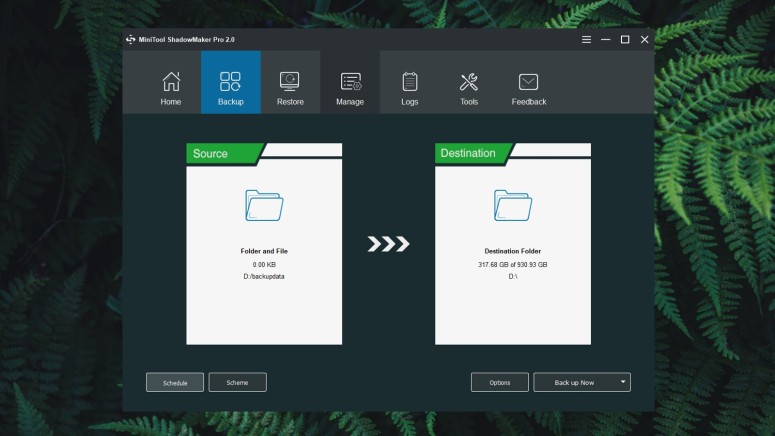
We hope that we don’t have to tell you about the importance of creating regular backups. Many of us have learned the hard way that automatic backup software should be essential for every computer user. However, you should pick one that does its job automatically, in the background. On top of that, backups should be customized, light on your computer’s resources and they shouldn’t take too much space. In this article, we will try one of the most popular backup solutions right now and see if it meets all of those criteria. Welcome to our MiniTool ShadowMaker review.
To get started, here’s the set of basic information about this application. Take a look at the following table before we start inspecting the software in-depth.
After presenting you the application’s ID card, we will show you the results of our testing. Take a look at the biggest benefits of using ShadowMaker as well as possible downsides.
Finally, it’s time to dissect this application and see how well it works. So, keep on reading our review to learn all you need to know.
MiniTool ShadowMaker PRO Review – The Specifics
First and foremost, you need to know that we’ve tested the second major version of ShadowMaker – version 2.0. Also, we have used the PRO license that fully unlocks the software. Our PC is powered by Windows 10 Pro, Intel Core i7-8700K and the application was installed on our primary SSD (256GB) but also tested on our HDD (1TB).
Platform Compatibility
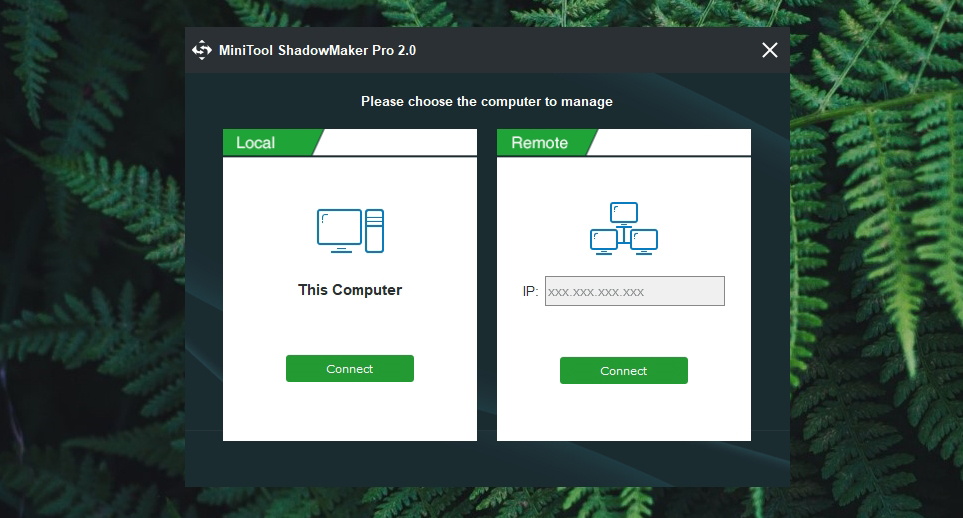
MiniTool ShadowMaker can be used on PCs powered by Windows XP and newer versions. This means that even the oldest of PCs are covered well. Our Score: 10/10.
We are sure that you won’t face a single obstacle to running ShadowMaker on your Windows PC. To get started, your machine needs to be powered by a Pentium processor (1GHz) at least, and you need to have 1GB of RAM for 32-bit systems or 2GB for 64-bit systems. The application’s installation file comes in at around 75MB, and you need to have at least 1.5GB of free space to make sure the software is running smoothly.
Almost every Windows version is covered, starting with Windows 10 and ending with XP. You can also install ShadowMaker on Windows Server, starting with the 2016 version and ending with 2003. And finally, we don’t have to tell you that the application works across all popular file systems (FAT16, FAT32, NTFS, EXT2/3, and exFAT)
Installation Process
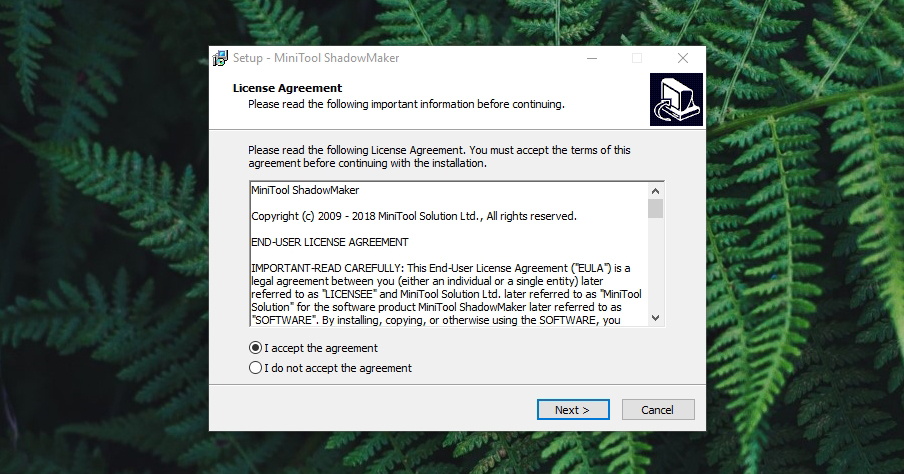
Assuming you have a fast Web connection, the installation process should not take more than a few minutes of your time. Our Score: 10/10.
Your journey begins with visiting and downloading the MiniTool ShadowMaker application to your Windows PC. The process is the same for those willing to try the application for free and for those with a valid license. The installation file comes in at around 75MB – which is not a problem for those with a relatively fast Web connection. Double-clicking the file will trigger the Installation Wizard and its very familiar interface.
What’s good to know is that MiniTool ShadowMaker is a standalone application. You won’t see any ads like in similar solutions, and you won’t be forced to install a bunch of related applications. All in all, a very smooth installation experience.
User Interface
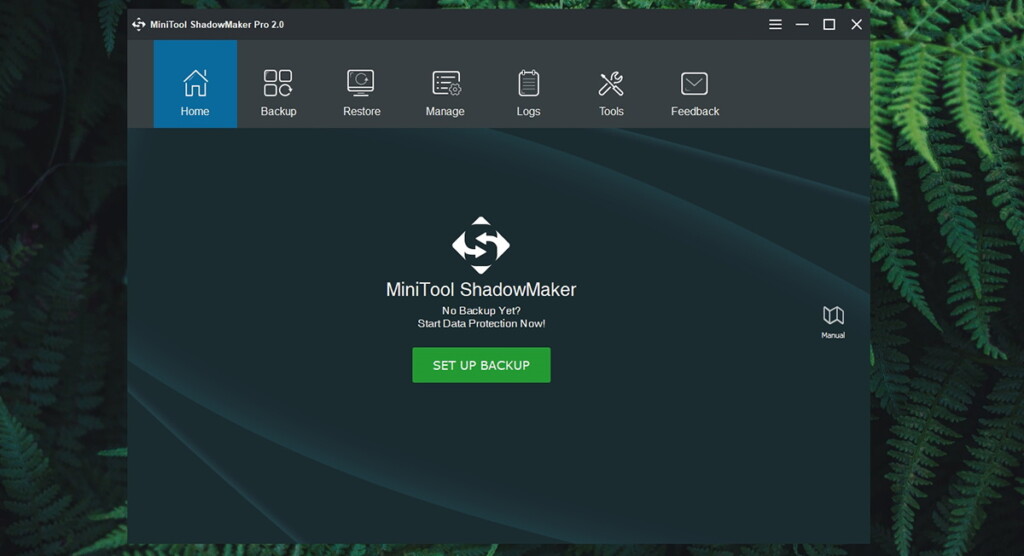
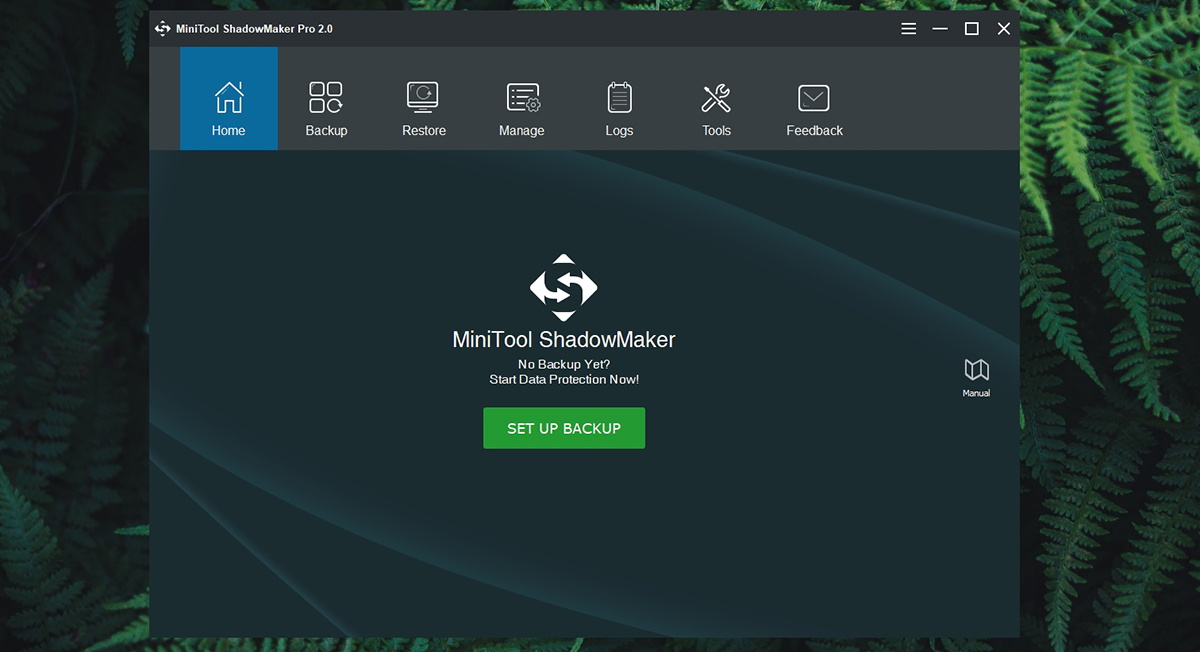
MiniTool ShadowMaker brings a very simple interface – but don’t think this is an overly simple application. A lot of goodness hides under its skin. Our Score: 10/10.
Upon installing this backup solution, you will be greeted by its welcome screen asking you to create a new backup. At the top of the screen, you will see seven prominent categories, so let’s take a closer look at these:
- Home: The first screen is simply a welcome screen. This is where you can start creating your first backup, and this is where you can read the application’s manual.
- Backup: When you’re ready to create your first backup, you will find yourself on the 'Backup' tab. You can pick what you want to backup and where, as well as set up custom schemes and schedules. We’ll explain the process later on in the article.
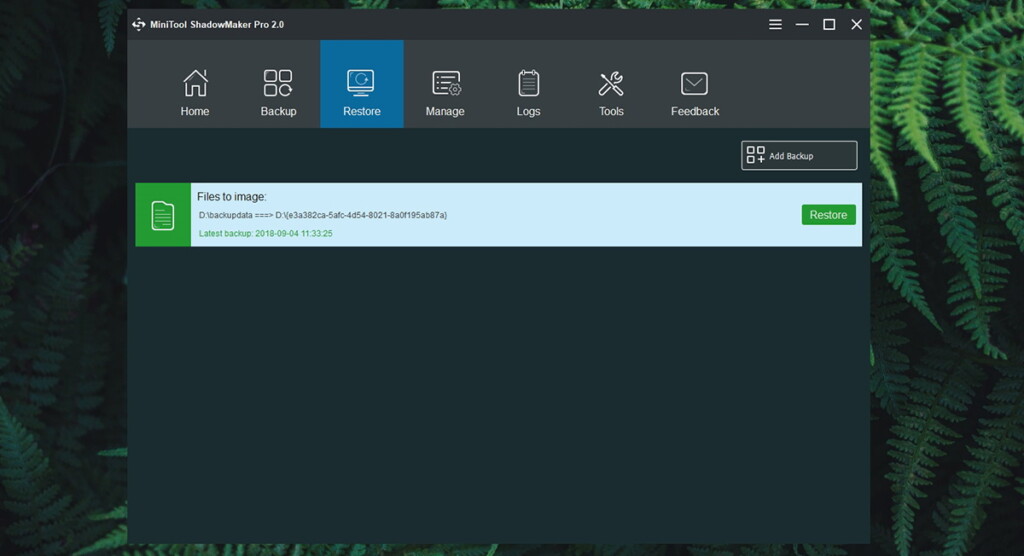
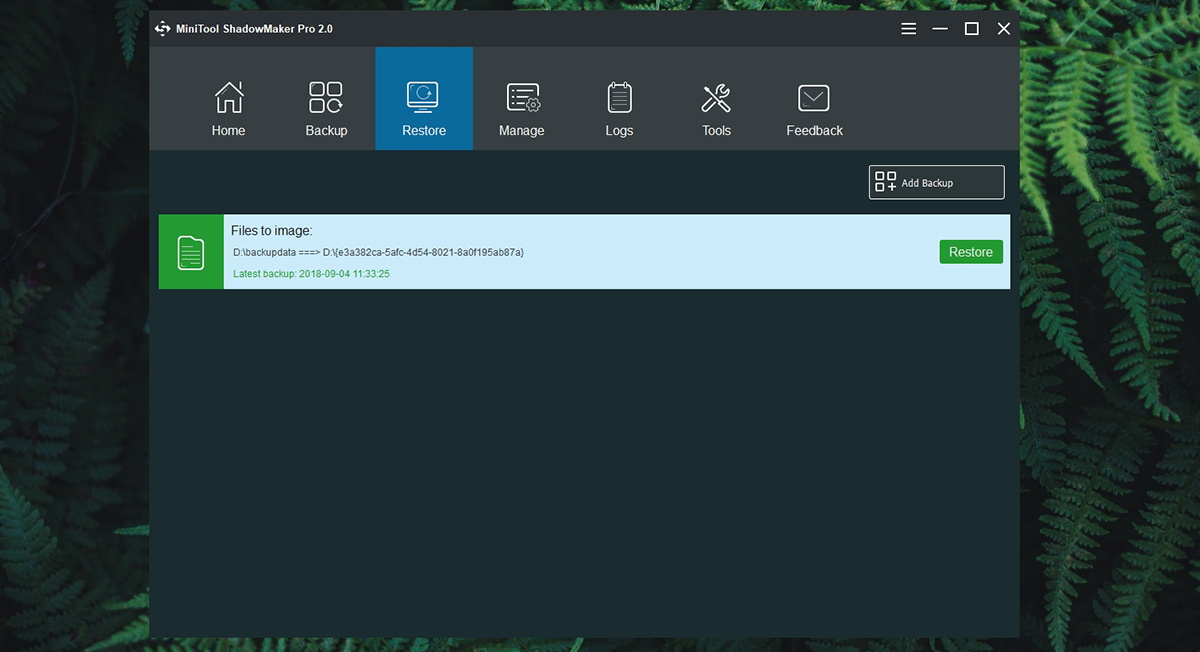
- Restore: Once the application starts archiving your files, the Restore tab is where you can review different restore points and activate them.
- Manage: As you probably know, large backups take some time to complete. Therefore, MiniTool ShadowMaker includes a handy overview of currently active processes that you can pause or cancel.
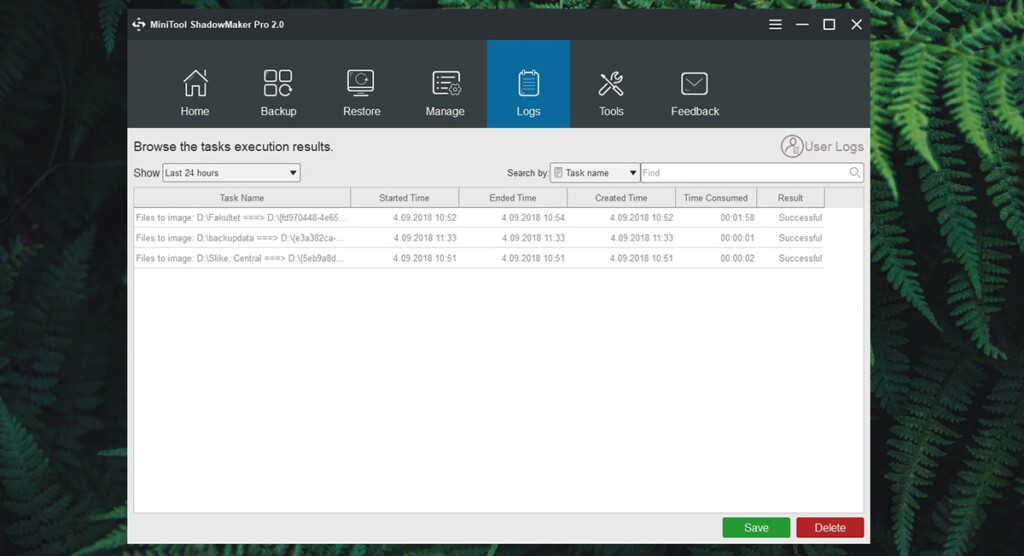
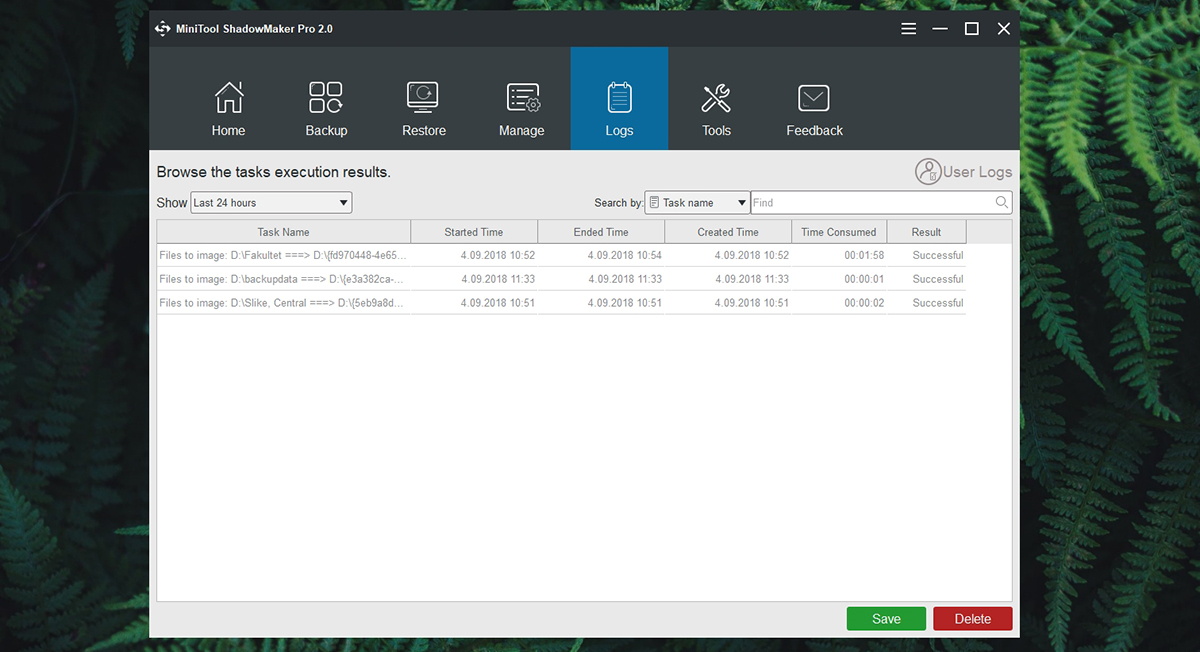
- Logs: Users willing to dive into the technical side of things can inspect logs. This can be helpful if you create a custom backup schedule, which means that every backup will produce a detailed log.
- Tools: Among other features found in this application, you can create a WinPE media builder, mount or dismount drives, clone disks and more.
- Feedback: The final tab lets you contact the company’s support team via e-mail. This is also where you can generate a report that should help technicians identify the problem in a more precise manner.
It’s interesting to note that the application doesn’t have a dedicated settings panel – since there’s nothing to fine-tune. All you need can be found within the main interface. In the top-left corner, you can find the hamburger menu used to update the application, open the built-in manual, and similar.
Ease of Use
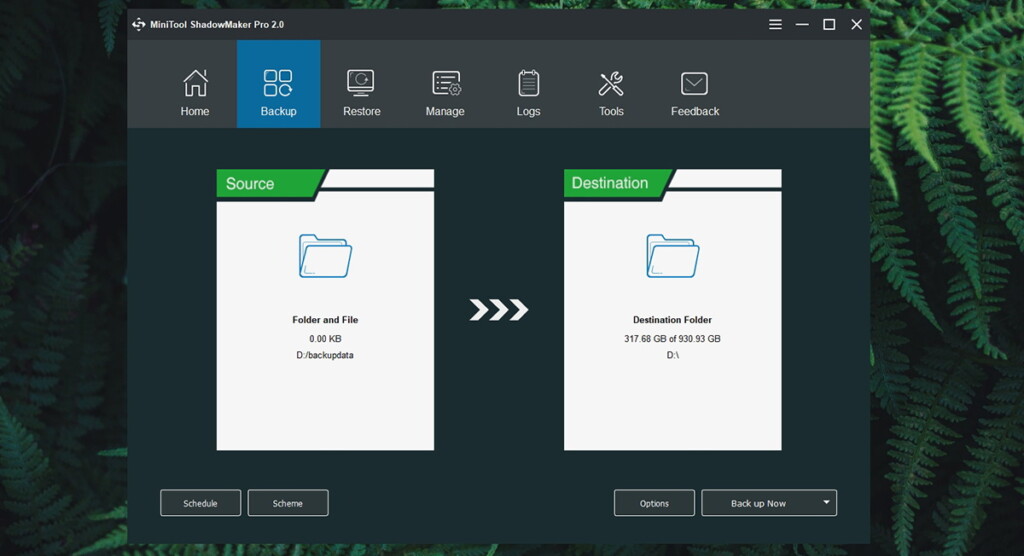
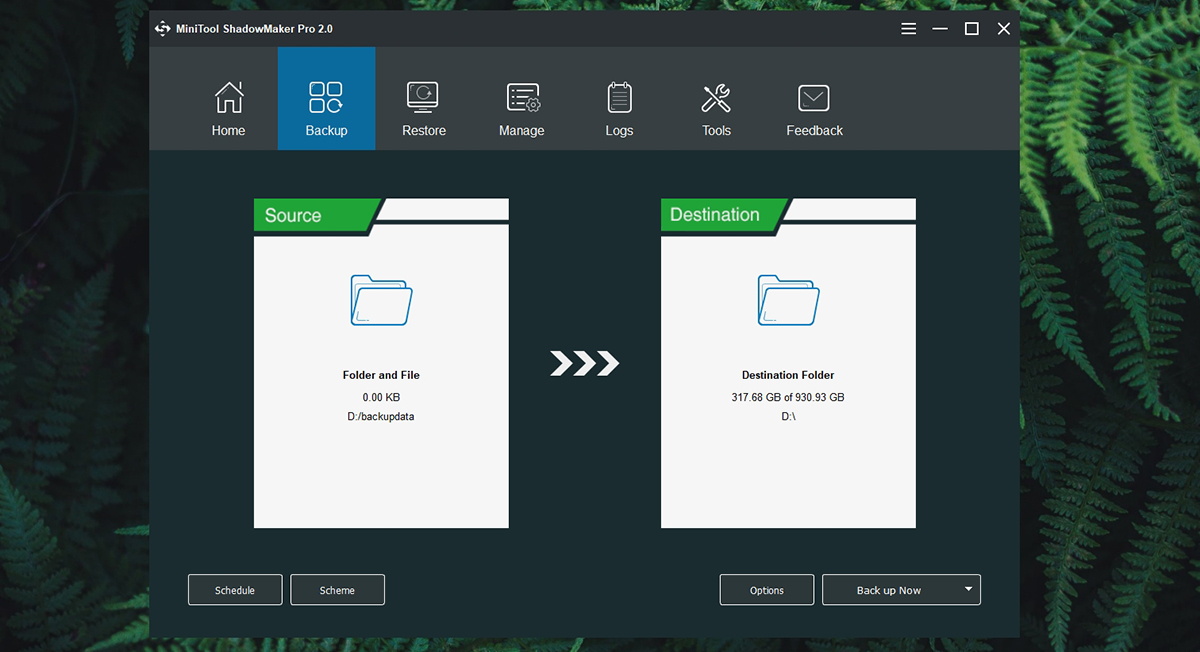
You can get started with basic backups in no time. However, it will take some time and effort to fully understand this backup solution. Our Score: 9/10.
It is clear that guys at MiniTool tried to simplify the entire process of creating and restoring backups. However, even though it’s easy to get started, mastering the application will take some time. We’ll illustrate this process by giving you an example of how to set up a new backup schedule.
- The ‘Backup’ tab is where you’ll find everything you need. On the left side of the screen, you can select a backup source. This can be a whole disk or partition, but you can pick folders and files as well. On the right side of the screen, you can select a destination path. You can save backups on your computer (not recommended), external drives or shared Web locations).
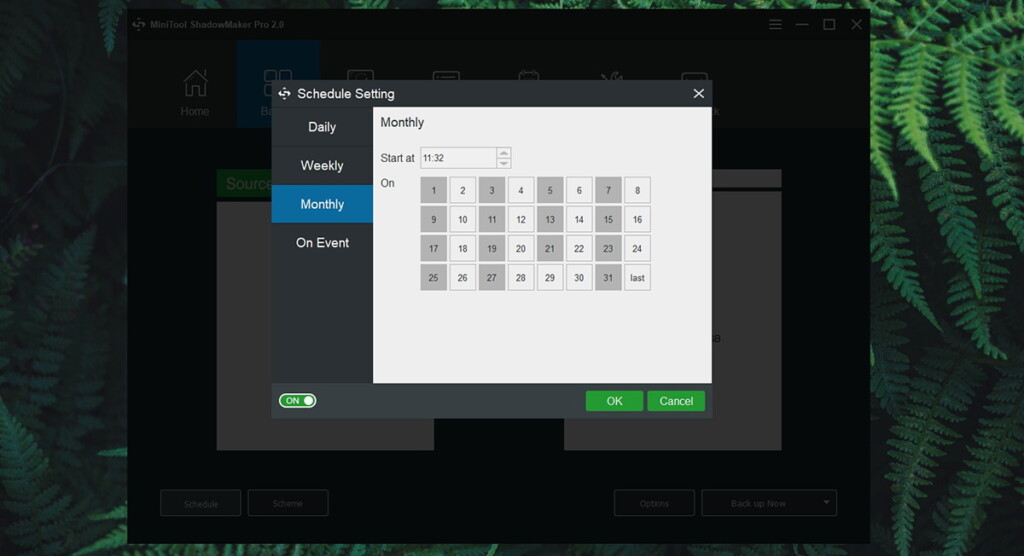
- In case you’d like to set up a schedule, you’ll find that option in the bottom-left corner. These can be daily, weekly, or monthly backups, or every time you log in or log out of your account.
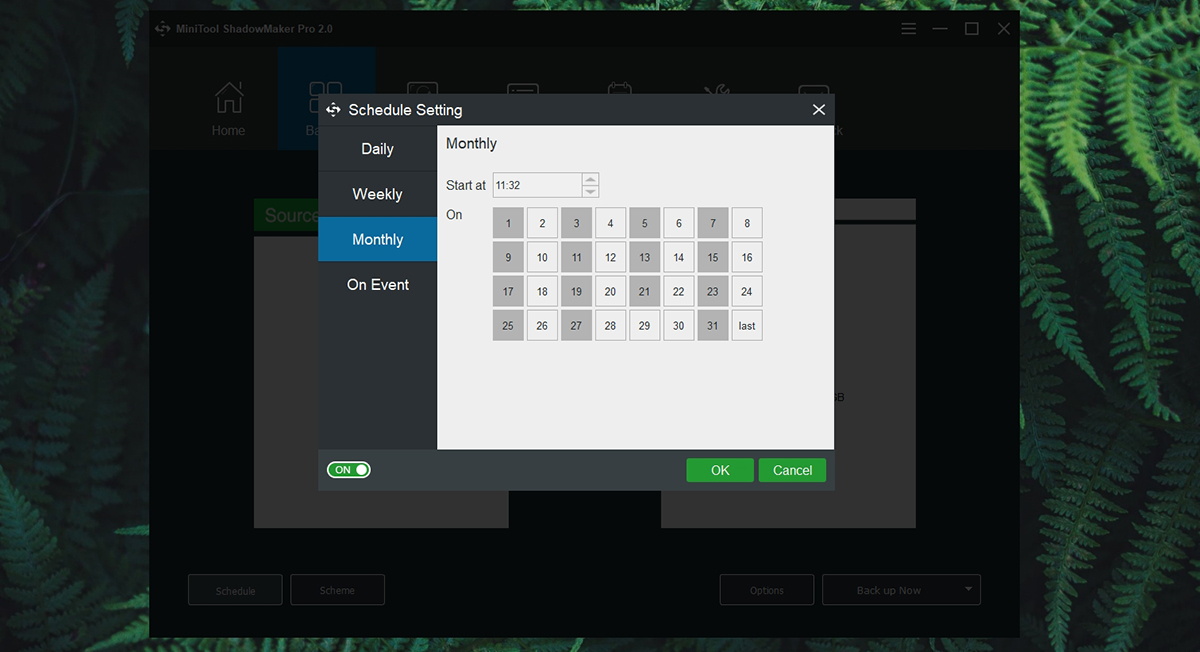
- There’s also a way to choose between different schemes. You can set up a full backup which takes the longest the complete, or you can go for version-based backups (incremental or differential).
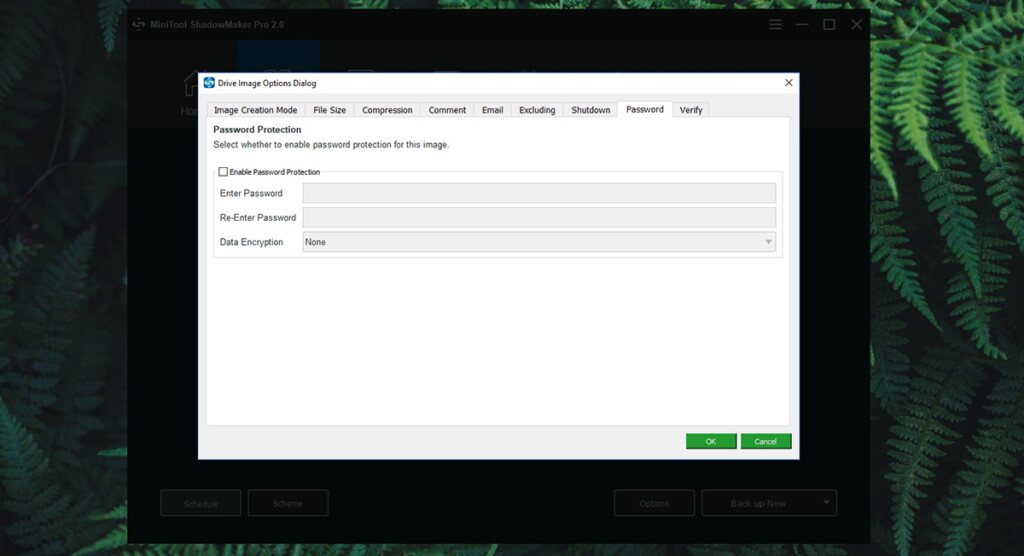
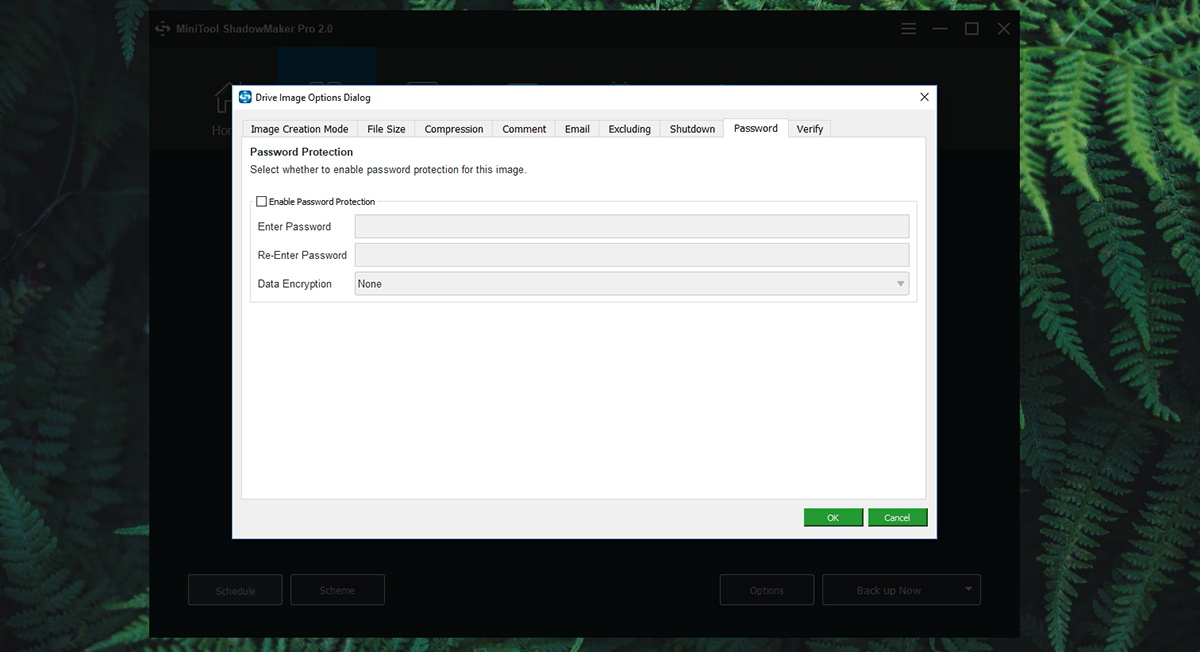
- Next, you can find a wealth of options hiding under the ‘Options’ button on the right side of the window. This is where you can set up a maximum file size for your backup, the kind of compression you want, set up an email notification, decide if you want your computer to shut down upon completion, set up a password, and much more. Even though all of these options are usually pretty easy to understand, these decisions have the power to greatly impact the entire process. For example, you can set up a high compression and you add encryption to the mix. This means that the process will need longer to complete, and the file restore will also need longer to complete. Therefore, we recommend you to take your time and do a research about all of these options.
Speed & Performance
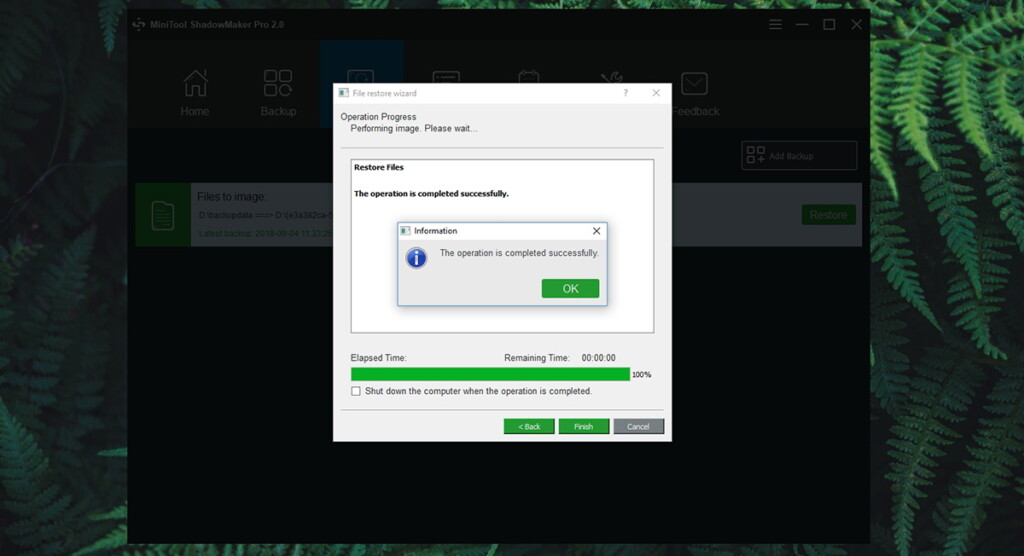
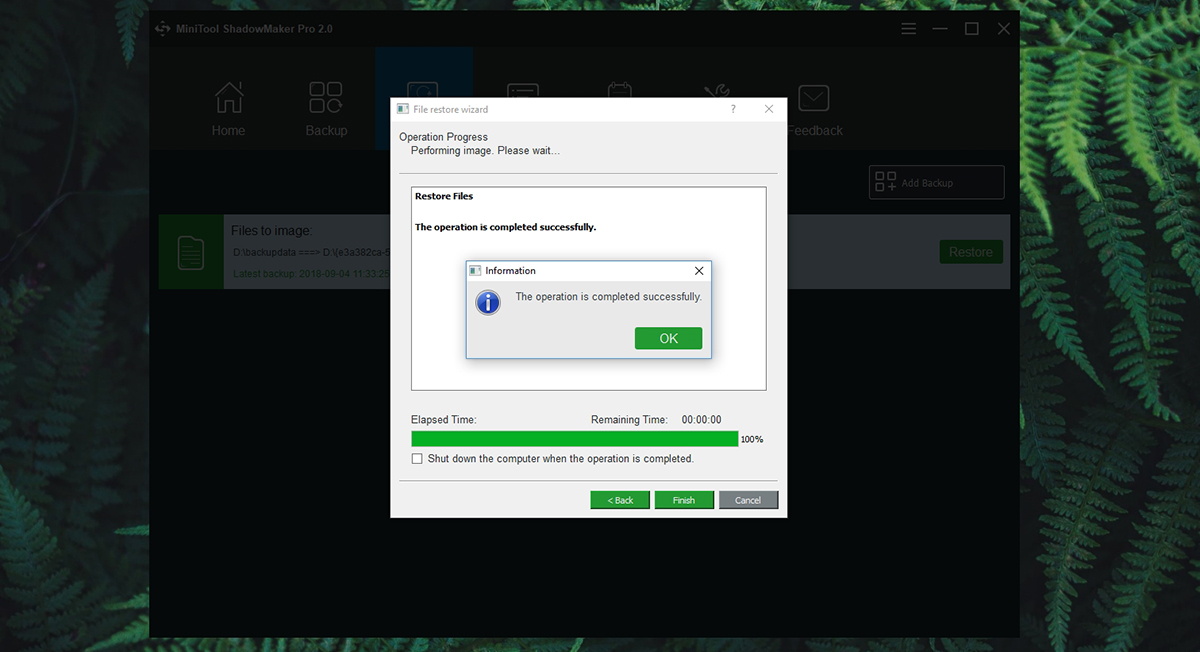
This backup solution brings a speedy performance – but this greatly depends on your preferred set of options (compression, encryption, verification, and more). Our Score: 9/10.
Talking about performance can be somewhat problematic with this application since it depends on a whole range of variables. First of all, there are your computer’s specs. If you have a fast processor, lots of RAM, and an SSD drive – you can expect the best possible performance. Then, there are options related to your backup schemes. This is where we can talk about a full backup with encryption and high compression – which takes the longest. Or maybe we can talk about an incremental backup with low compression – which shouldn’t take much time.
When it comes to our tests, we have decided to back up a folder containing 2,500+ different file types that add up to around 5GB. We did a full backup, with regular compression. The entire process was done in close to 4 minutes. All in all, fairly quick.
Customer Support
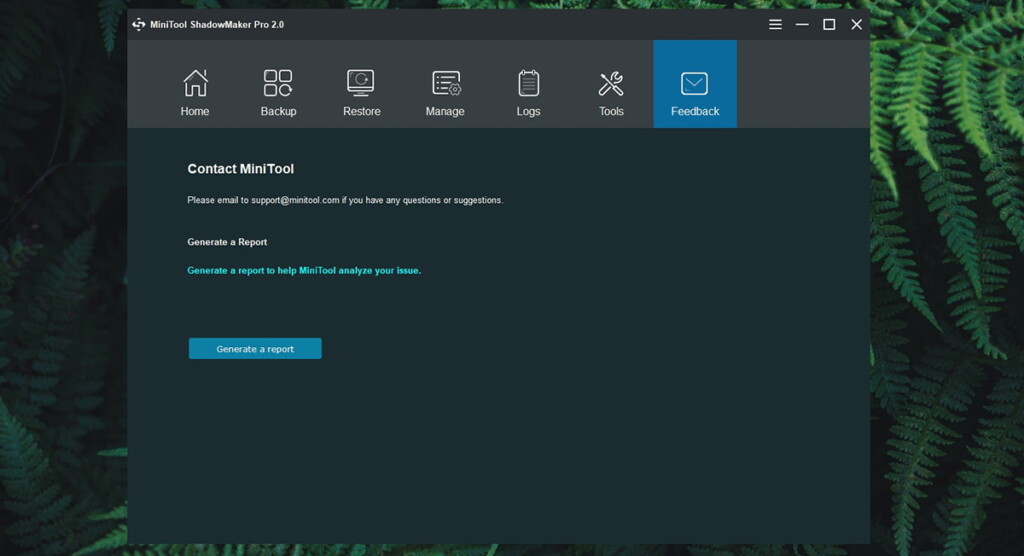
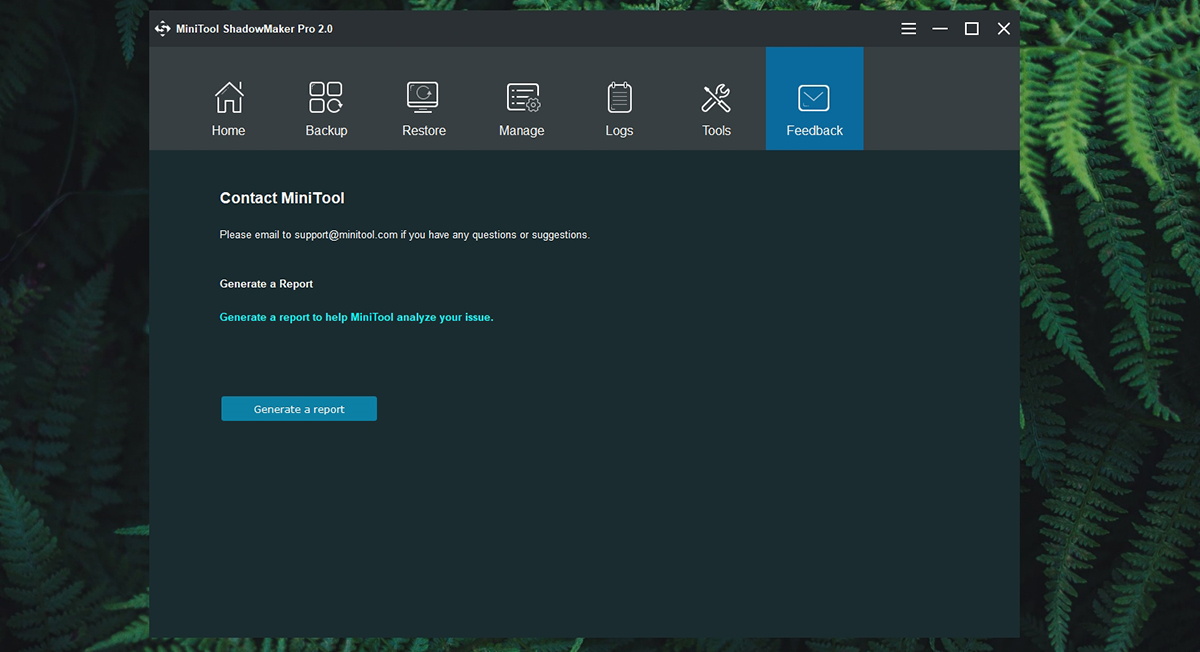
There are different ways to get help, depending on what kind of technical support you need. You can also count on extensive documentation. Our Score: 10/10.
It is imperative for backup solutions to come with extensive documentation. Also, you need to be prepared to read a few documents on how to take full advantage of this software type. The good news is that MiniTool has provided a whole set of helpful resources.
We recommend you to take a look at the application’s manual, found within the application itself. You can also contact the support team via email, and there’s a telephone number for non-technical questions. Aside from this, you can take a look at the FAQ section, and a dedicated Help Center. We believe that all your questions will be answered by this company as well as that you won’t have any problems understanding the software.
Pricing
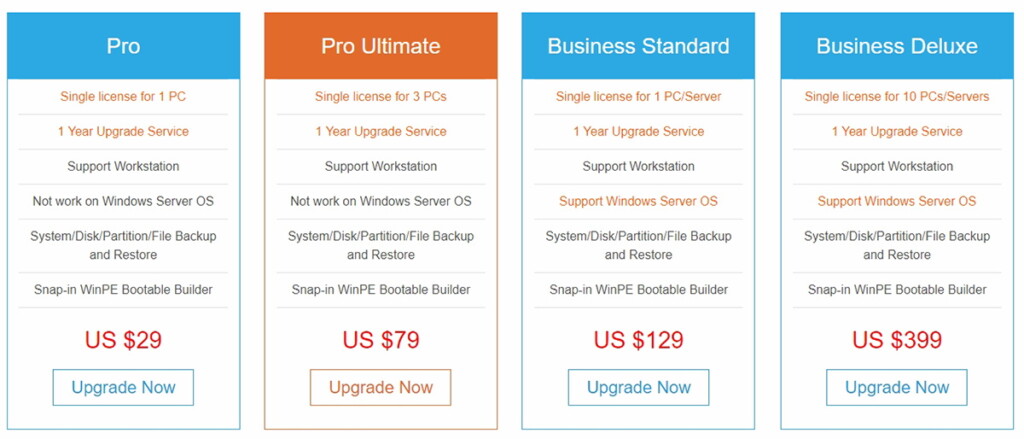
Depending on your needs, you can choose from four pricing plans – and the prices start at $29.00. Our Score: 10/10.
First, let’s take a look at all of the pricing plans offered by the company and then we’ll explain what all of these options mean.
- Pro Edition comes priced at $29.00 for 1 PC, or $79.00 for 3 licenses;
- Business Edition comes priced at $129.00 for 1 PC/server, or $399.00 for 10 PCs/servers.
The prices you can see above grant you unlimited use of the application. They also include a 1-year free upgrade service. This means that if a new major version comes during that year, you are free to upgrade. It’s also worth noting that if you’re a long-term customer and want to upgrade to the latest major version, you are eligible for 50% discount.
The Final Verdict
All in all, MiniTool ShadowMaker is an incredibly helpful backup solution. It brings a highly polished interface and a whole wealth of advanced features. No matter if you want a full system backup or incremental and scheduled backups, you’ll find all you want here. Buy MiniTool ShadowMaker Now.
- PROS: Very easy to get started with; Plenty of fine-tuning available; Highly advanced options available; Supports full and version-control backups; Detailed logs; Easy restore options.
- CONS: Quick to learn but takes time to master.
- OUR SCORE: 9.7/10.
Final Thoughts
Dear readers, that would be all when it comes to our MiniTool ShadowMaker review. If you have any questions or doubts about this software, make sure to let us know in the comments section below.
Finally, we would like to ask you to share this article online. Also, make sure to follow us on Facebook and Twitter. Thanks!
| Review Summary MiniTool ShadowMaker is a highly comprehensive and incredibly useful backup solution – one step above its competition. | 9.7 Overall Score | ||
| Platform Compatibility | 10 | ||
| Installation Process | 10 | ||
| User Interface | 10 | ||
| Ease of Use | 9 | ||
| Speed & Performance | 9 | ||
| Customer Support | 10 | ||
| Pricing | 10 | ||
Related


Get expert insights on threats, breaches, scams, and security trends — delivered every Monday.
Most Popular




Get expert insights on threats, breaches, scams, and security trends — delivered every Monday.
Most Popular