

How to Use Siri on Your iPhone 13, Mini, Pro, and Pro Max
Last updated September 17, 2021

During the last couple of years, we’ve seen significant improvements to Siri, Apple’s digital assistant that also respects your privacy. With that said, know that Siri becomes more capable with each new iPhone generation, and that’s the case with the iPhone 13 lineup as well. So, if you’re wondering how to use Siri on your iPhone 13, know that you’ve come to the right place.
How to Enable 'Hey Siri' Commands on iPhone 13
The most intuitive way to use Siri is by relying on the 'Hey Siri' voice command. So, if you didn’t enable this feature while setting up your iPhone, do the following.
1. Launch the 'Settings' app on your iPhone 13.
2. Now, navigate to 'Siri & Search.' Select to open this group of settings.
3. Flip the switch on the right side of – Listen to "Hey Siri."
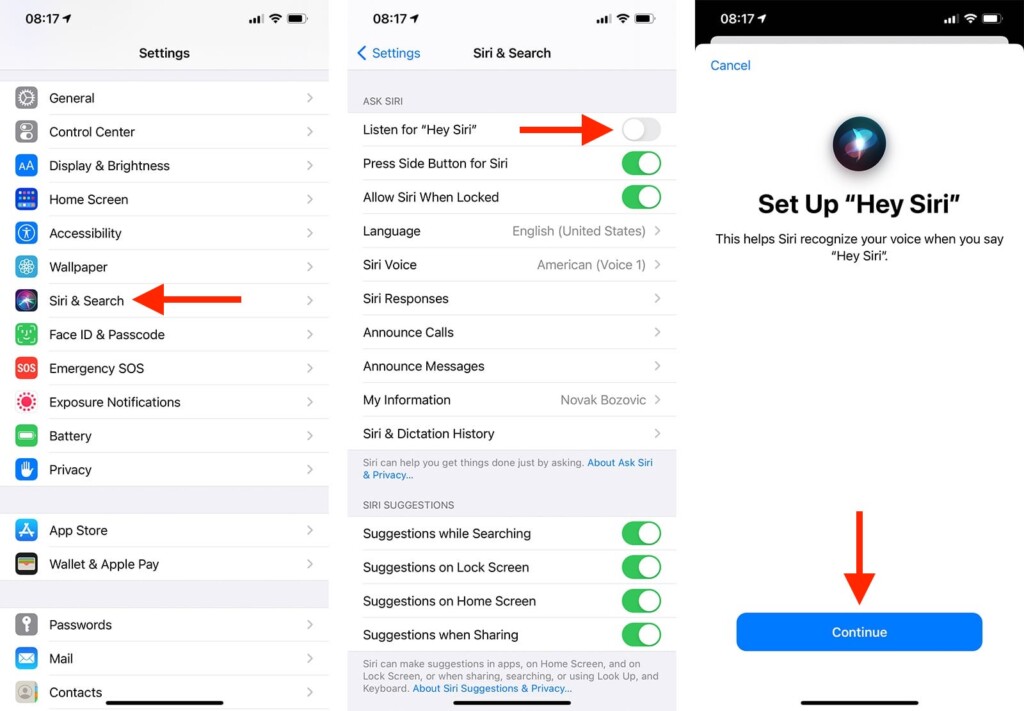
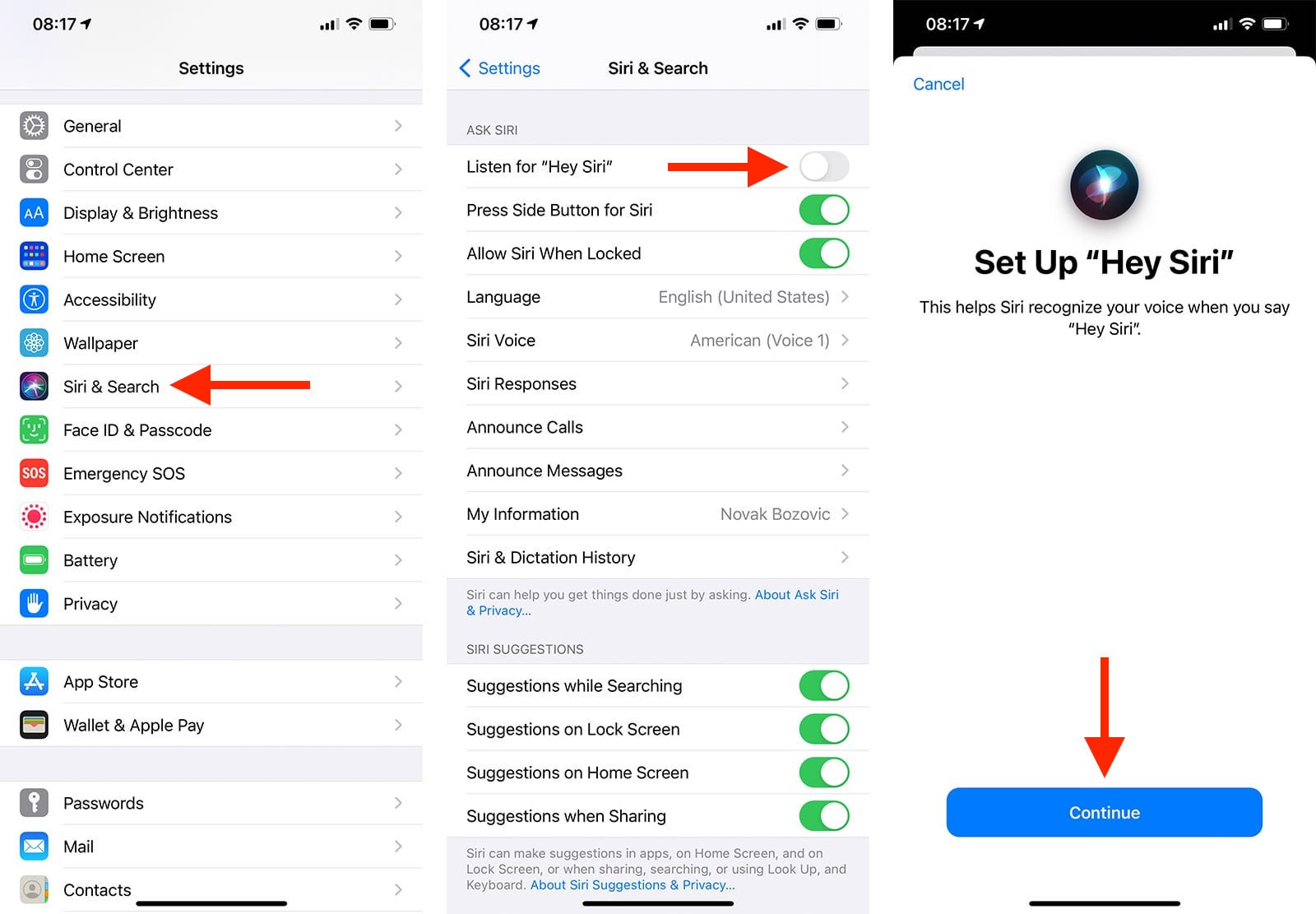
4. Follow the prompts you’ll see on your screen, letting you register your voice.
5. Once done, feel free to close the Settings app and start using Siri.
How to Use Siri on iPhone 13 Without Saying 'Hey Siri'
Yes, it's possible to use Siri without saying 'Hey Siri' whenever you want to issue voice commands. To enable that option, go through the following steps.
1. Open the 'Settings' app on your iPhone 13.
2. Navigate to 'Siri & Search.' Tap to open this group of settings.
3. Flip the switch next to 'Press Side Button for Siri.'
4. Also, it would be helpful if you enable the 'Allow Siri When Locked' option.
Now, there’s no need to say 'Hey Siri' when you want to issue a command. Instead, you need to press and hold the 'Side' button (on the right side of your iPhone 13). Once you do that, Siri’s icon will appear at the bottom of the screen.
While Siri's icon is active, speak your command or request. While doing so, you'll see that Siri's icon changes, trying to listen and then process your input. To issue another command, press the Siri icon again or hold the 'Side' button again.
However, it’s also possible to completely avoid speaking to Siri. In other words, you can use your iPhone’s keyboard to input your request. That option is hidden deep in iOS, so you need to do the following.
1. Navigate to Settings > General > Accessibility on your iPhone.
2. Now, tap on 'Siri' to reveal a set of handy options and tweaks.
3. Flip the switch next to 'Type to Siri.' That’s it!
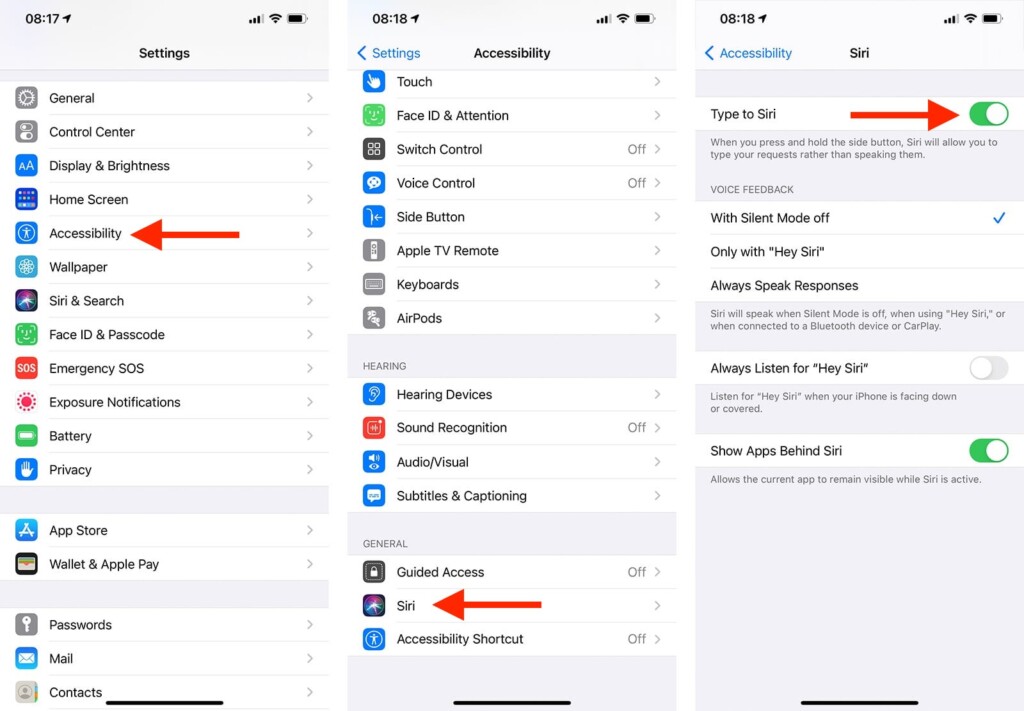
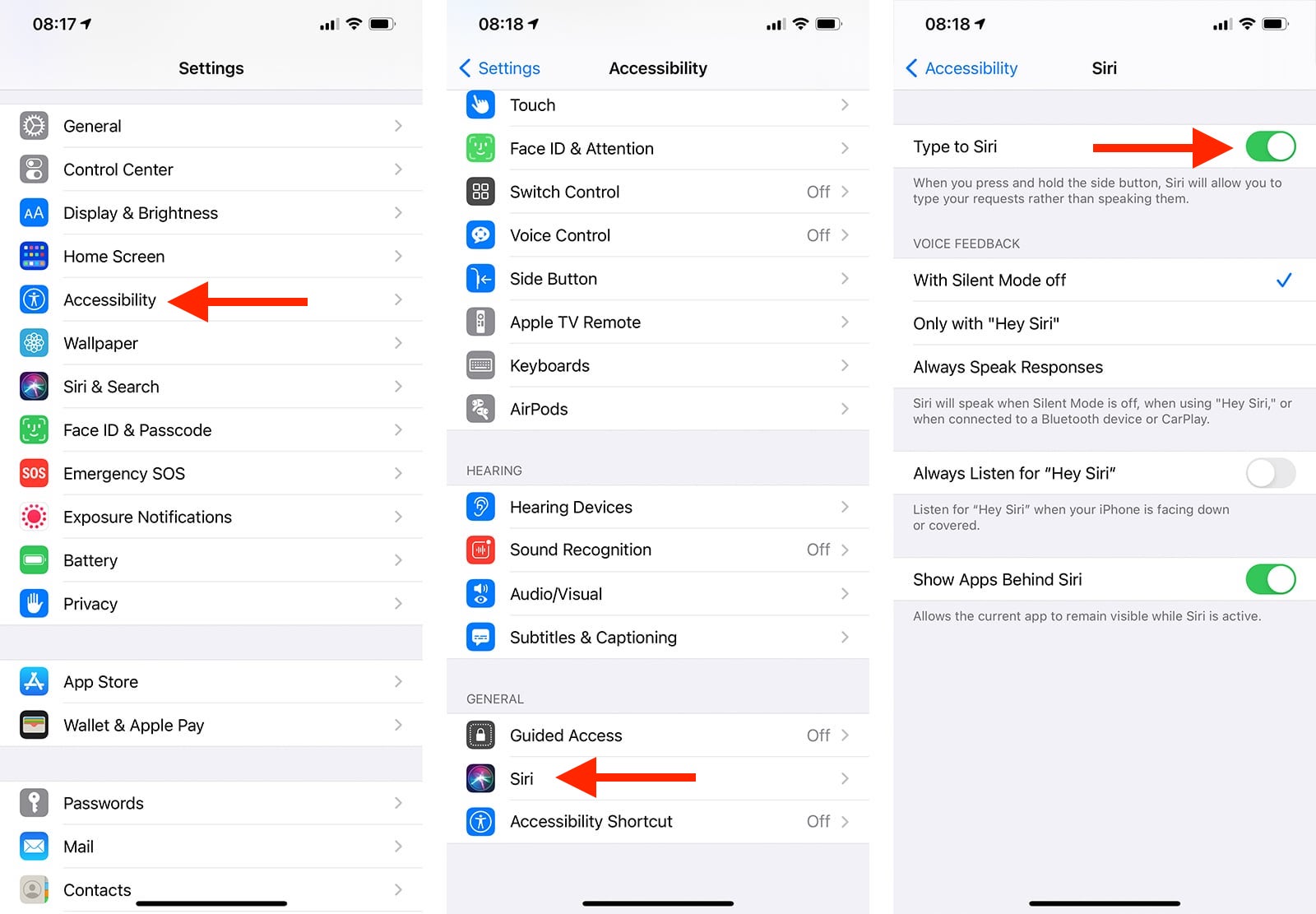
Once again, you'll need to interact with Siri by pressing and holding the 'Side' button. However, this time around, iOS's virtual keyboard will appear on your screen. Type in your request, and Siri will respond to you (in the way you defined in the Accessibility > Siri group of settings).
What Can I Ask Siri on iPhone 13?
Siri works across a vast range of apps on the iPhone 13 lineup, letting you control your phone in more ways than one. With that said, the following table gives you a taste of what to expect.
Siri has become quite powerful lately, and it would be a shame not to use Apple’s digital assistant. With that said, we strongly recommend checking the official Siri presentation on Apple’s website, which is often updated with examples on what to ask Siri.
How to Make a Correction if Siri Misunderstands You?
You’ve probably seen videos online featuring Siri and showing funny responses or different types of comedic situations that come from Siri's inability to understand requests. We get it – those videos are funny, but don't let that change your opinion on this amazing piece of tech.
With that said, it’s normal for Siri to misunderstand you, which might happen on occasion. That’s why you also need to know how to make a correction to your request, as explained below.
- Rephrase your request – At any moment, you can rephrase your request by tapping on the virtual Siri button (on holding the 'Side' button) and then saying your request differently. See if you can help Siri by simplifying your sentence(s).
- Spell out part of your request – When calling or texting someone, Siri might not recognize a person’s name. In that case, remember that you can always spell out any words that Siri didn’t understand. So, you can say "Call," and then spell the person’s name.
- Change a message before sending it – Before sending messages, Siri will ask for your confirmation. At any moment, you can say "Change it" to edit your message.
- Edit your request with text – And lastly, as mentioned earlier, you can talk to Siri via text. Aside from that, if you see your request onscreen, know that you can always edit it by tapping on it.
That would be all on how to use Siri on your iPhone 13. In case of any questions, let us know via the comments section below. And finally, thank you for reading!
Related






Get expert insights on threats, breaches, scams, and security trends — delivered every Monday.
Most Popular
Get expert insights on threats, breaches, scams, and security trends — delivered every Monday.
Most Popular