
How to Activate Your iPhone 13, Mini, Pro, and Pro Max
Published on September 18, 2021

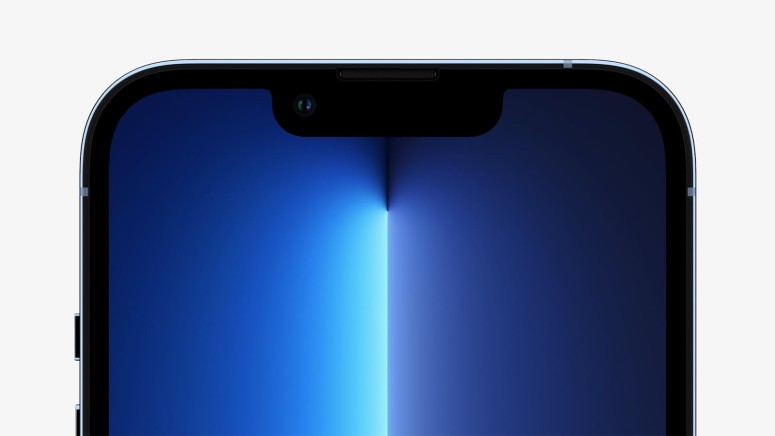
Before you get to use your brand-new iPhone 13, you first need to activate it to set up cellular service. For the most part, that should be an error-free and smooth process done on the device itself. However, it's also worth knowing a few tricks, especially if you encounter an issue. So, let's talk about how to activate your iPhone 13, Mini, Pro, and Pro Max.
How to Activate Your iPhone 13 (Using the Device Itself)
You need to activate your iPhone 13 during the initial setup, which takes place once your power on your phone for the first time. For the most part, the process of activating your iPhone should be automatic. So, here are the steps you need to take.
1. To begin this process, make sure that your iPhone is turned off.
2. Then, insert your SIM card into the phone. Make sure to push the SIM tray correctly.
3. Turn on your iPhone by holding the 'Side' button until the Apple logo appears.
4. At this moment, you should see the 'Welcome' screen on your phone.
5. To activate your SIM card, you’ll need a strong Wi-Fi connection.
6. You'll also need to log in to your Apple ID to bypass SIM-related security measures.
7. At this moment, your iPhone 13 will activate. That can take a couple of minutes.
8. Then, finalize the initial setup by following the on-screen instructions.
9. Once done, you should see your iPhone’s home screen. That’s it!
How to Activate Your iPhone 13 Using a Computer (Windows & macOS)
As a way to bypass issues with activating your iPhone, you can use your computer for that purpose. Here are the steps you need to take.
1. If you’re using Windows, download the latest version of iTunes.
2. If you’re using macOS, update to the latest macOS version.
3. Ensure that your computer has a reliable Internet connection (wired or wireless).
4. Using the cable that came with your iPhone 13, connect it to your computer.
5. On Windows, iTunes should open automatically. If not, open it manually.
6. On macOS, find your device using Finder.
7. Wait until your computer detects and activates your iPhone.
8. To finalize the procedure, follow any instructions you might see on your screen.
In some instances, know that iTunes/macOS won't give you a clear confirmation message regarding your iPhone's activation (even if your iPhone is activated successfully). So, rely on the following alerts to check your iPhone's status.
- If you see an alert saying "Set Up as New" or "Restore from Backup," that means that your iPhone is activated. Your computer will then ask you to set up your phone.
- If you see an error message saying your SIM card is not compatible or invalid, that means that your SIM isn’t active. In that case, contact your network provider.
- If you see an alert saying 'Activation information was invalid' or 'Activation information could not be obtained from the device,' try force-restarting your phone.
That would be all on how to activate your iPhone 13. If you have any questions for us, let us know via the comments section below. And finally, thanks for reading!
Related





Get expert insights on threats, breaches, scams, and security trends — delivered every Monday.
Most Popular


Get expert insights on threats, breaches, scams, and security trends — delivered every Monday.
Most Popular