When you purchase through links on our site, we may earn an affiliate commission. Here’s how it works.
Best VPNs for Android Phones in 2026


Our experts have reviewed 53 VPN providers, which were put through extensive rounds of testing. To learn more about that process, here’s how we review VPNs, where we explain our criteria and our policy of being fully transparent.
- Based on my testing across multiple Android devices and networks, NordVPN turned out to be the best VPN for Android. It consistently delivered fast speeds and stable connections on both Wi-Fi and mobile data. The specialty servers worked reliably, and I didn’t experience any IP or DNS leaks during my tests. A close alternative is ExpressVPN, which impressed me with its simplicity and clean interface.
Using a VPN on Android isn’t just about privacy; it’s about having a connection that actually works on your phone. Some apps drain your battery, slow down streaming, some ask for unnecessary permissions, or break when switching between Wi-Fi and mobile data. To find the VPNs that handle Android quirks the best, we tested them on a real Android 16 device, checking everything from setup speed and interface clarity to connection stability, leak protection, and day-to-day performance on both Wi-Fi and 5G (mobile data). Here’s a look at the VPNs that made mobile browsing smooth, safe, and hassle-free.
Quick Comparison Table
Note: Speed and stability tests were conducted primarily on mobile data (96 Mbps baseline) rather than Wi-Fi (196 Mbps baseline), which may result in greater speed reduction and occasional stability fluctuations. Rating criteria explained below.
How We Test VPNs for Android
We performed hands‑on testing of VPN Android apps on our Samsung F17 5G [(One UI Version 8, Android 16] and network [Airtel Wi-Fi and 5G Airtel network], simulating real-world day-to-day mobile use to see how each VPN performs in everyday scenarios. Our evaluation focused on the following key areas:
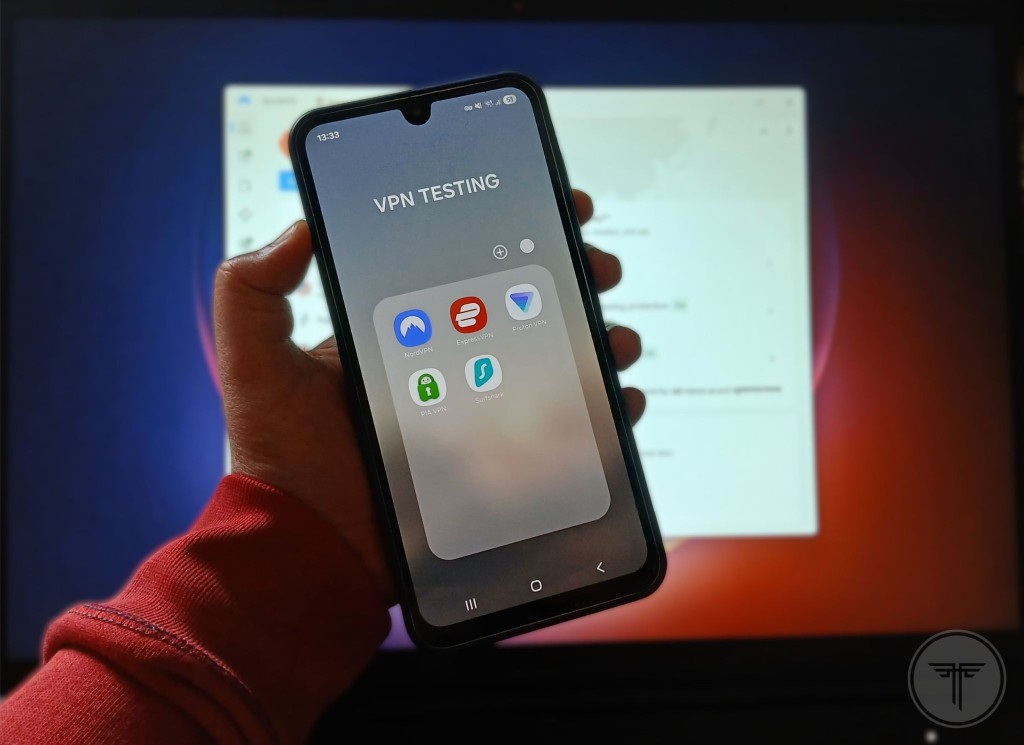
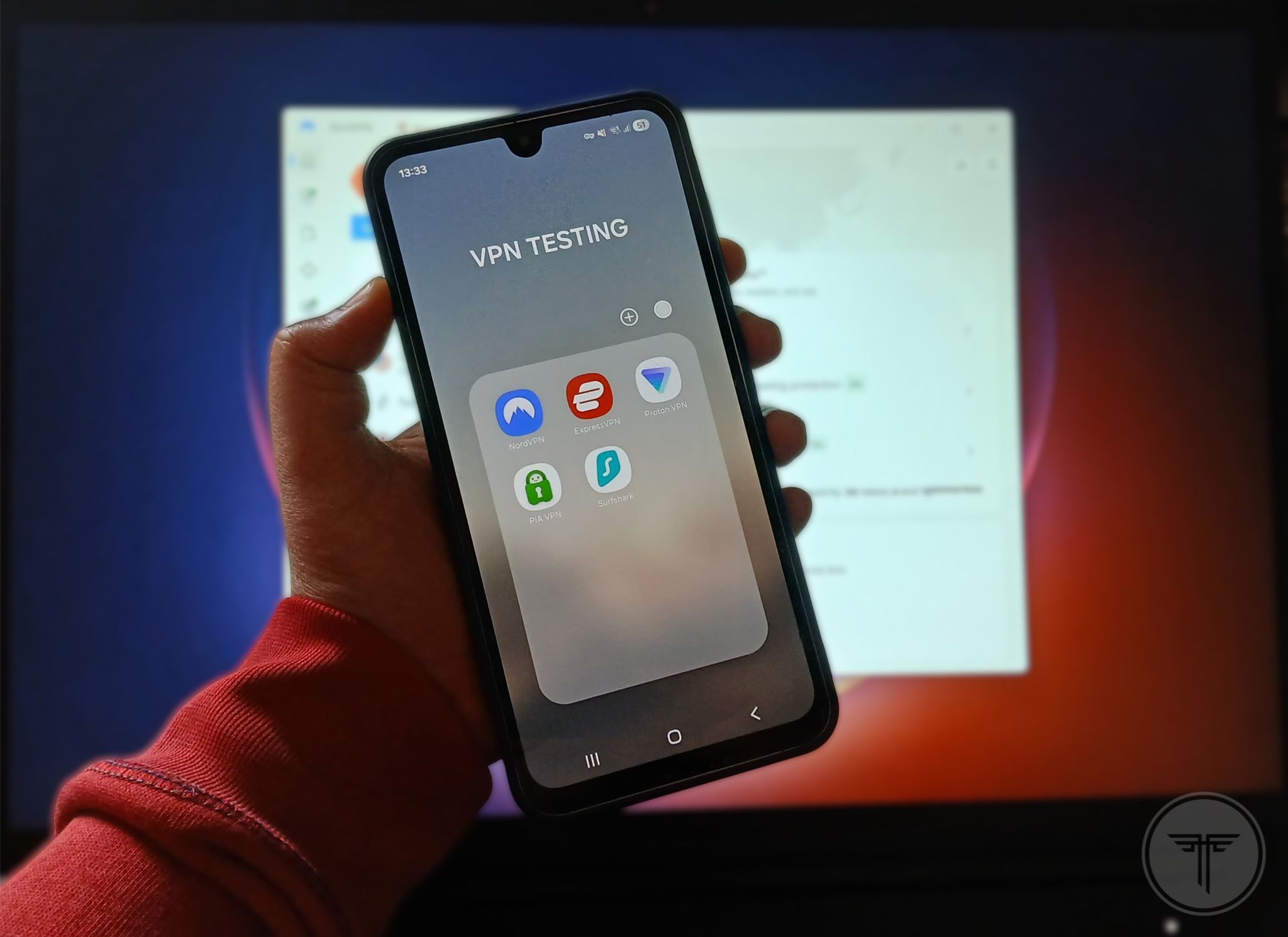
Android App Installation and Configuration – Installed each VPN on a fresh Android 16 Samsung F17 device. Measured install time, steps, permissions, extra downloads, and system changes.
User Interface Usability and Clarity – Evaluated navigation, server switching, kill switch, protocol options, layout clarity, and responsiveness for both beginners and advanced Android users.
Connection Speed on Wi-Fi and 2-Day Mobile Data Test – To evaluate performance, we first recorded baseline speeds without a VPN: 196 Mbps on Airtel Wi-Fi and 96 Mbps on Airtel 5G mobile data. We then connected to US (Los Angeles) and UK (London) servers and ran multiple tests using Cloudflare’s speed test tool to measure download speed, upload speed, and latency. Since Proton VPN and PIA VPN don’t offer Los Angeles servers, we used their New York server for US testing. Because mobile data speeds fluctuate more than Wi-Fi, we ran tests on two different days (Saturday and Tuesday) to capture more realistic performance. As expected, mobile data speeds were generally lower and more variable, and results may vary depending on location, network congestion, and available bandwidth.
Stability During Extended Mobile Sessions – Continuous sessions exceeded 35 minutes. We only tested it on mobile data to get the real results (considering we are not always on Wi-Fi). Tracked unexpected disconnects, reconnections, and overall reliability during streaming, downloads, and browsing.
Auto-Reconnect Reliability – We also tested how well each VPN handled temporary network interruptions. During testing, we intentionally disrupted the connection and checked whether the VPN automatically reconnected without requiring manual intervention.
Kill Switch Behavior During Network Switching – Switched between Wi-Fi and mobile data. Ensured kill switch immediately blocked traffic and prevented IP leaks until VPN reconnect.
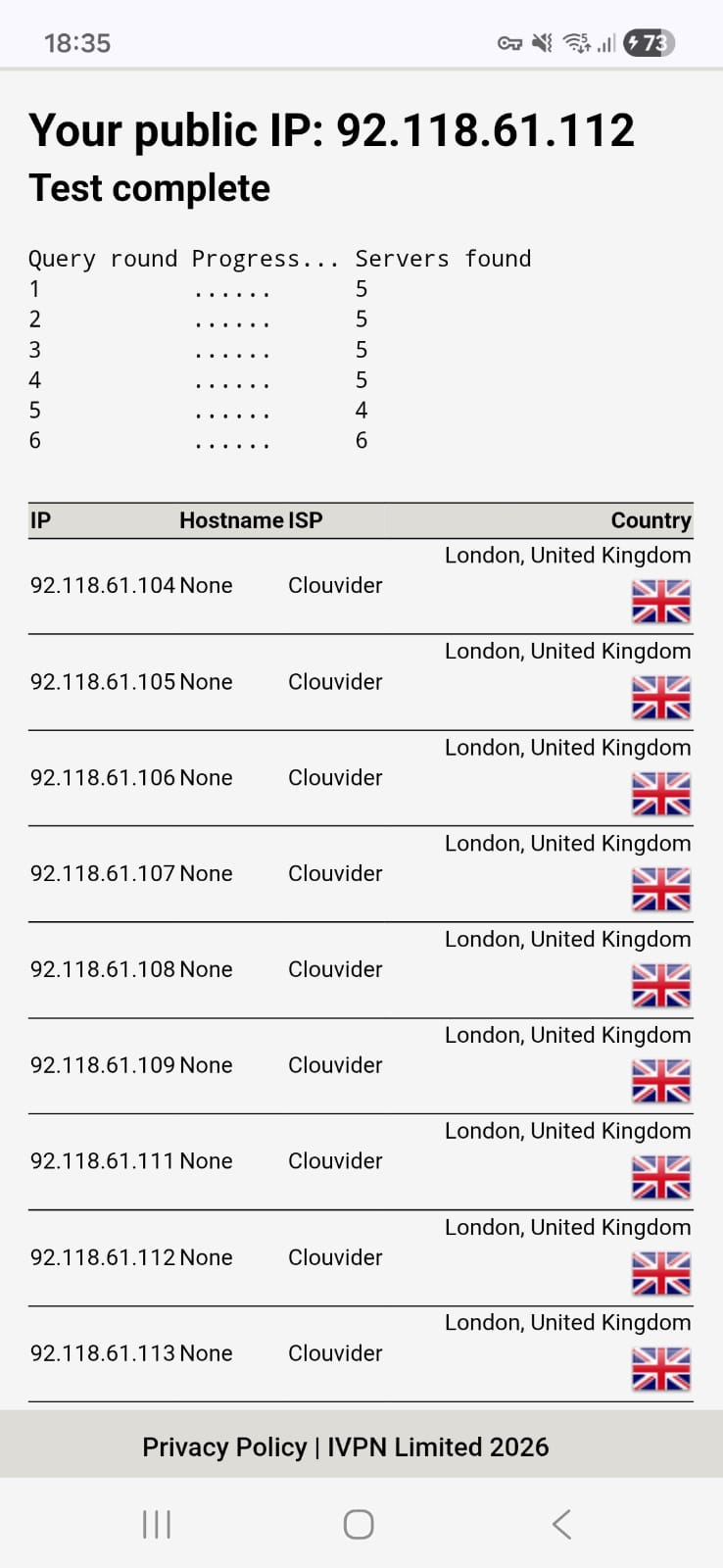
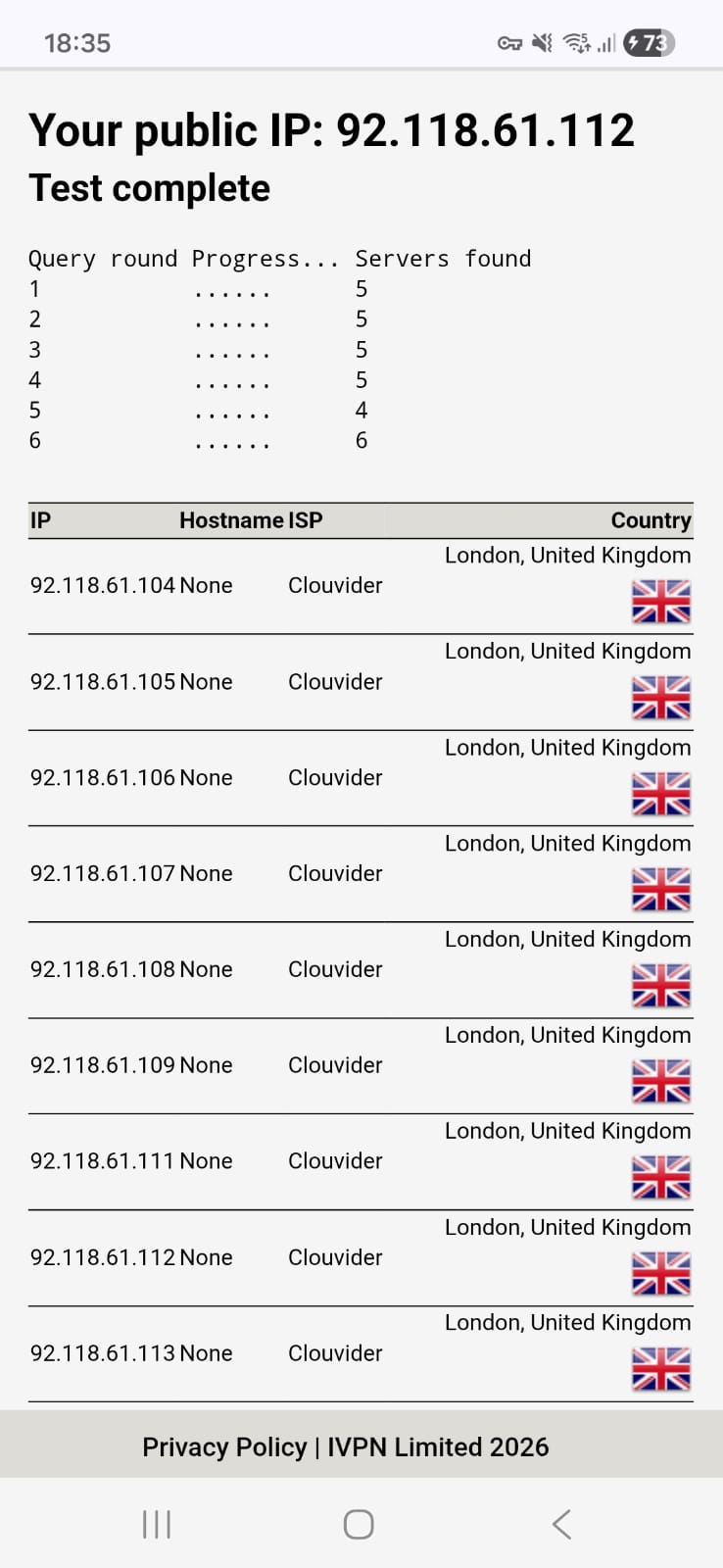
DNS/IP Leak Protection on Android – Conducted leak tests on Android using DNS Leaks Test. Confirmed only VPN-assigned IPs and DNS servers appeared; no real location or data exposed.
Server Network Size – Verified each VPN’s Android-accessible servers, locations, and regional connections for availability, reliability, and consistent performance on Wi-Fi and mobile networks.
RAM-Only vs Physical Servers – Confirmed Android servers run entirely on RAM, not physical storage, enhancing security and minimizing persistent data risks.
Jurisdiction – Assessed provider’s country, privacy laws, and policies to determine legal risks affecting Android users’ data privacy.
Independent No-Logs Audit – Reviewed published audits, auditor credibility, and scope to verify no-logs claims for Android app connections.
Encryption and Protocol Support – Checked supported protocols (WireGuard, OpenVPN, proprietary) and encryption standards. Tested WireGuard consistently for performance on Android.
Customer Support Responsiveness – Evaluated Android support via chat and email for speed, accuracy, and helpfulness on technical and general queries.
Pricing Transparency – Reviewed Android-specific plans, renewal rates, hidden fees, and refund policies to ensure clarity and fairness for mobile users.
Best VPN for Android – Detailed Review
Based on the criteria mentioned above, the 5 best VPNs for Android are:
1. NordVPN - ⭐Best Overall
- App Size: 42.93 MB
- Rating: 4.1 ★ (1M reviews)
- Independently Verified: Yes
- Downloads: 100M+
- Version: 8.31.2
- Updated on: Mar 3, 2026
- Required OS: Android 9 and up
- Released on: May 16, 2016
- Data Collected:
- Personal info - Email address
- App info and performance - crash logs (optional)
- Financial info - Purchase history
- Device or other IDs - Device or other IDs (optional)
- App activity - App interactions, Installed apps (both optional)
- Permissions include:
- Advertising ID permission
- Run foreground service
- This app can appear on top of other apps
- Run at startup
- Google Play license check
- View network connections
- android.permission.HIDE_OVERLAY_WINDOWS
- Prevent phone from sleeping
- Access to Adid API
- View Wi-Fi connections
- Show notifications
- Receive data from internet
- Install shortcuts
- Query all packages
- Google Play billing service
- Have full network access
- Play install Referrer API
- Access AdService attribution APIs
- Read basic telephony status and identity
If I talk about NordVPN, then it delivered a secure and feature-rich Android experience. The 42.93 MB app installed in under a minute, and the interface offered a clean, modern layout with an interactive map and access to specialty servers like P2P, Onion over VPN, Obfuscated, and Double VPN. I was able to use Threat Protection, Meshnet, and post-quantum encryption features, though navigating certain settings, including enabling the kill switch, required extra steps.
Wi-Fi connections were stable with manageable speed drops, while mobile data performance was inconsistent, sometimes showing severe reductions. Streaming remained smooth after an initial blur period. Throughout my session, I did not witness DNS or IP leaks, not even once, which is truly incredible.
One important thing to note is that NordVPN's speed loss is way less compared to other VPNs (for both Wi-Fi and mobile data). Overall, NordVPN balances advanced security and usability well, though the lack of quick server favorites and slightly complex setup for some features were minor drawbacks.
Performance Testing
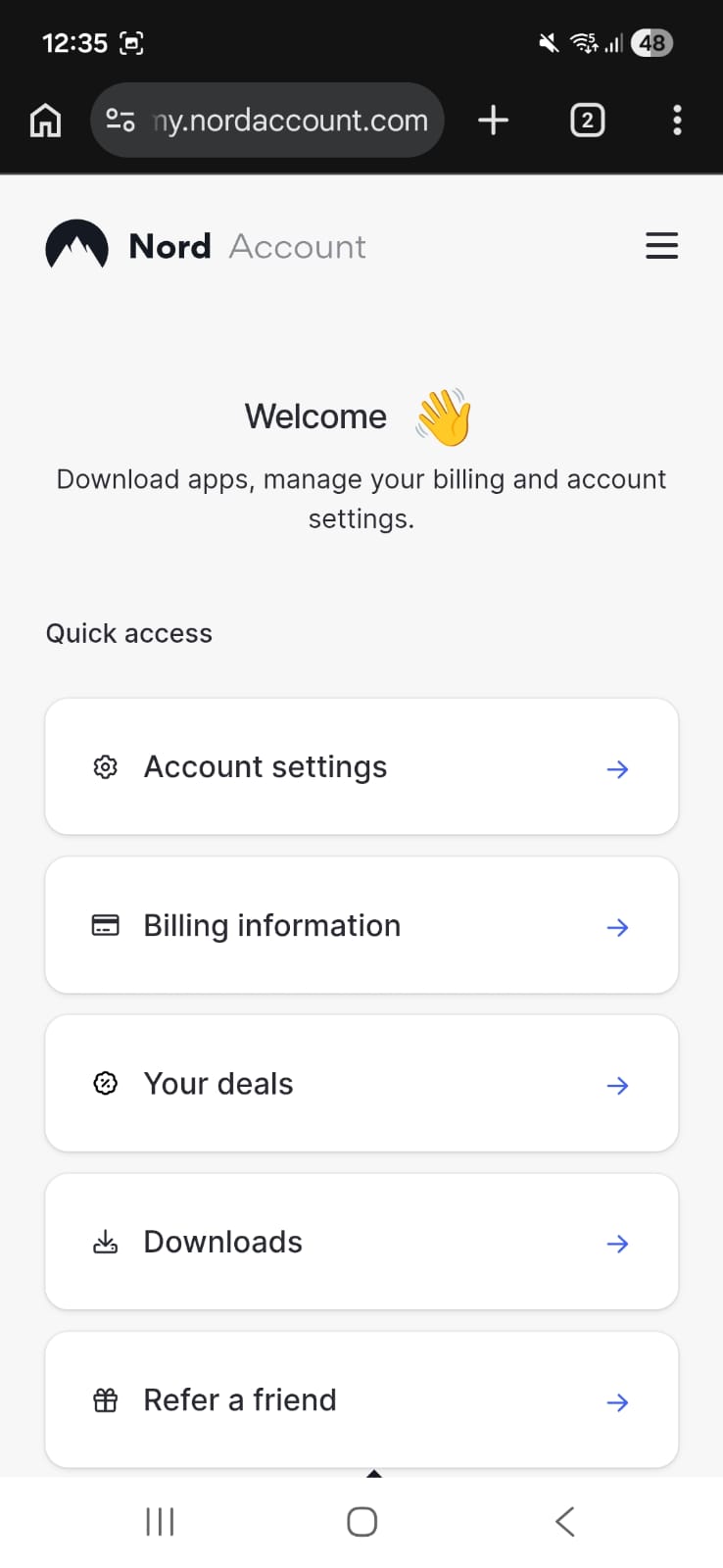
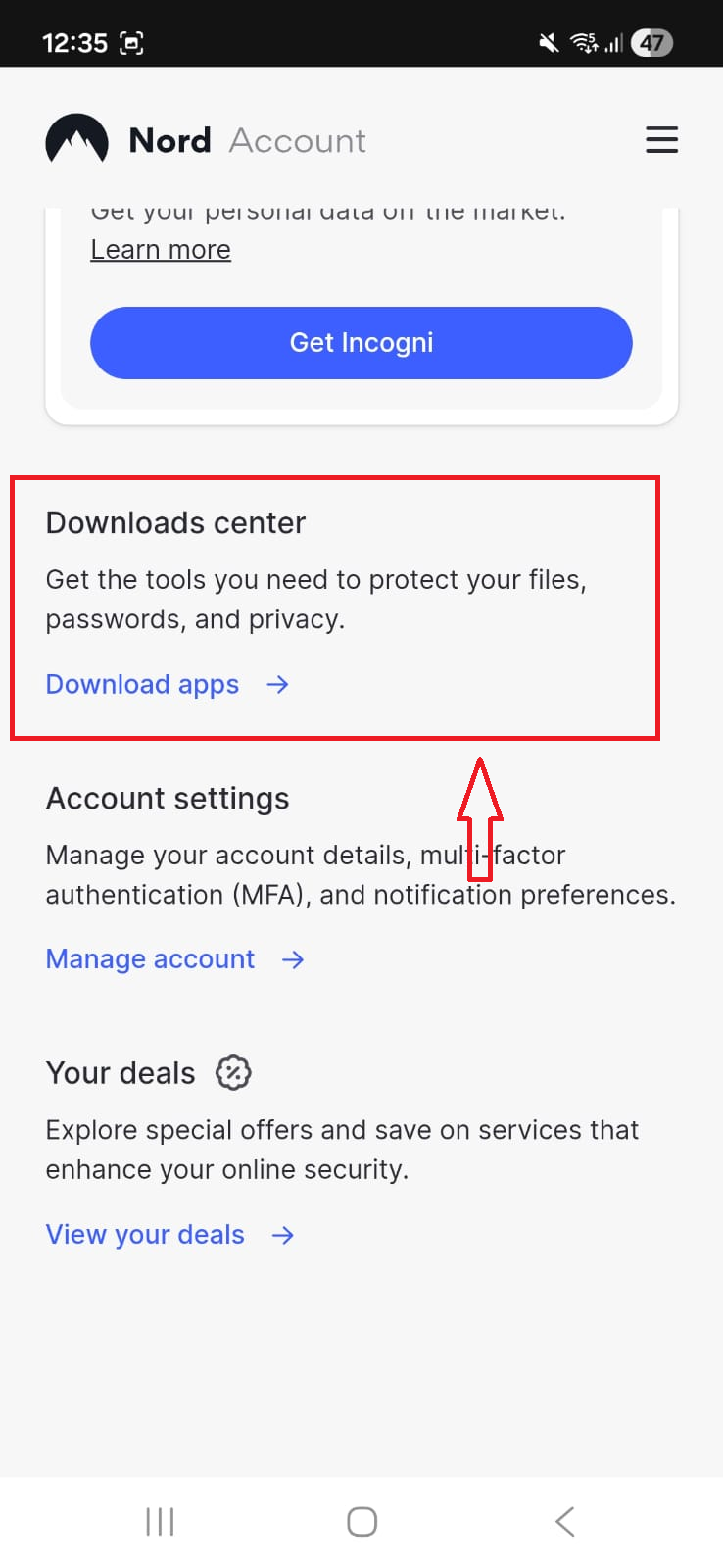
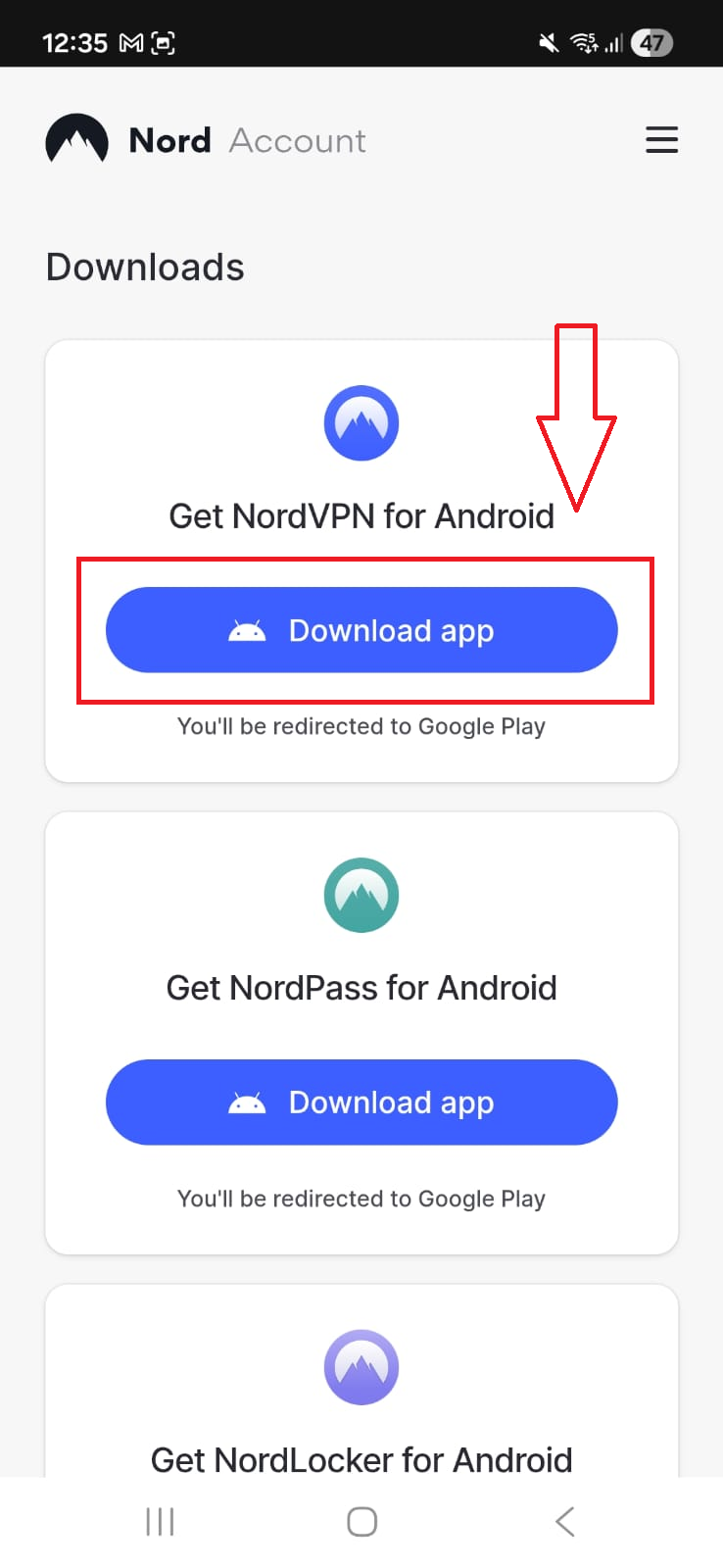
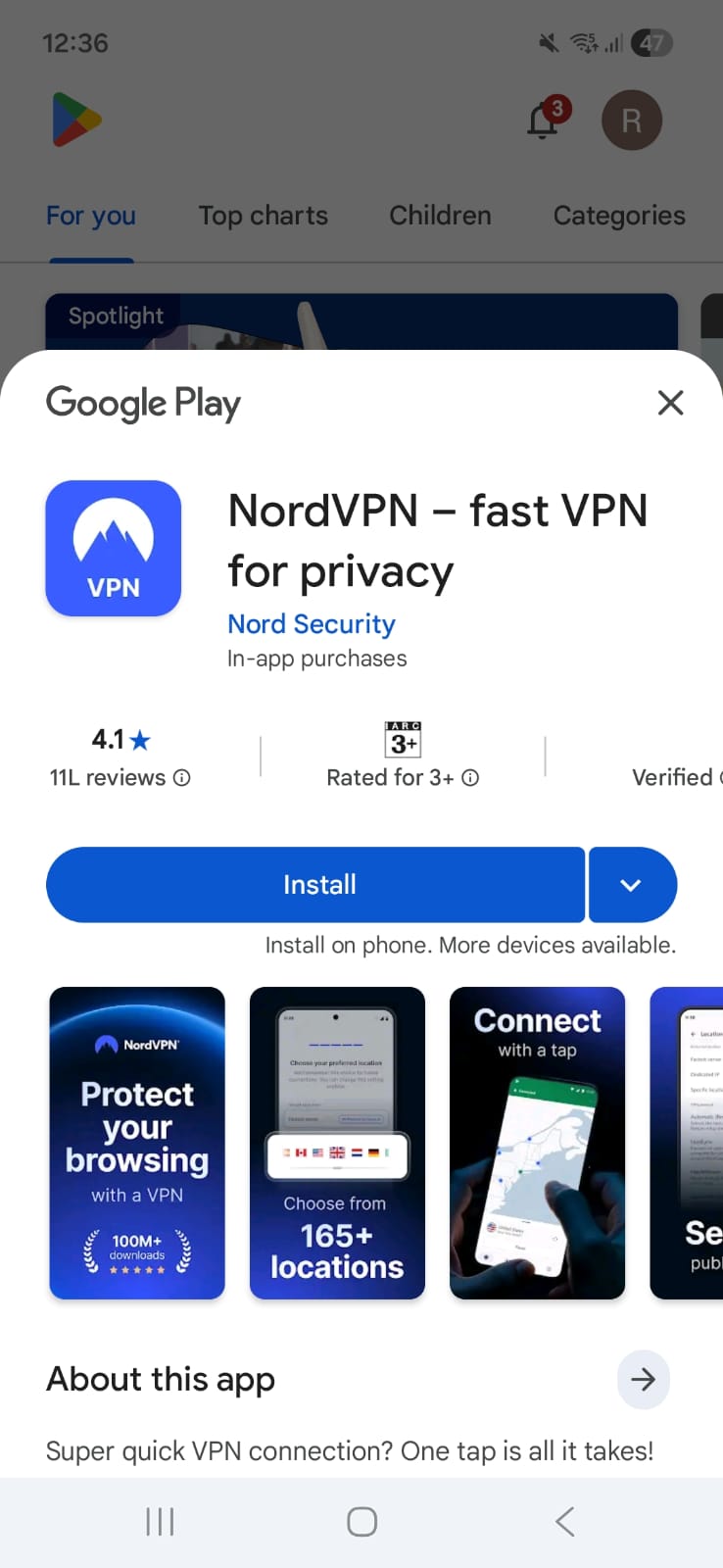
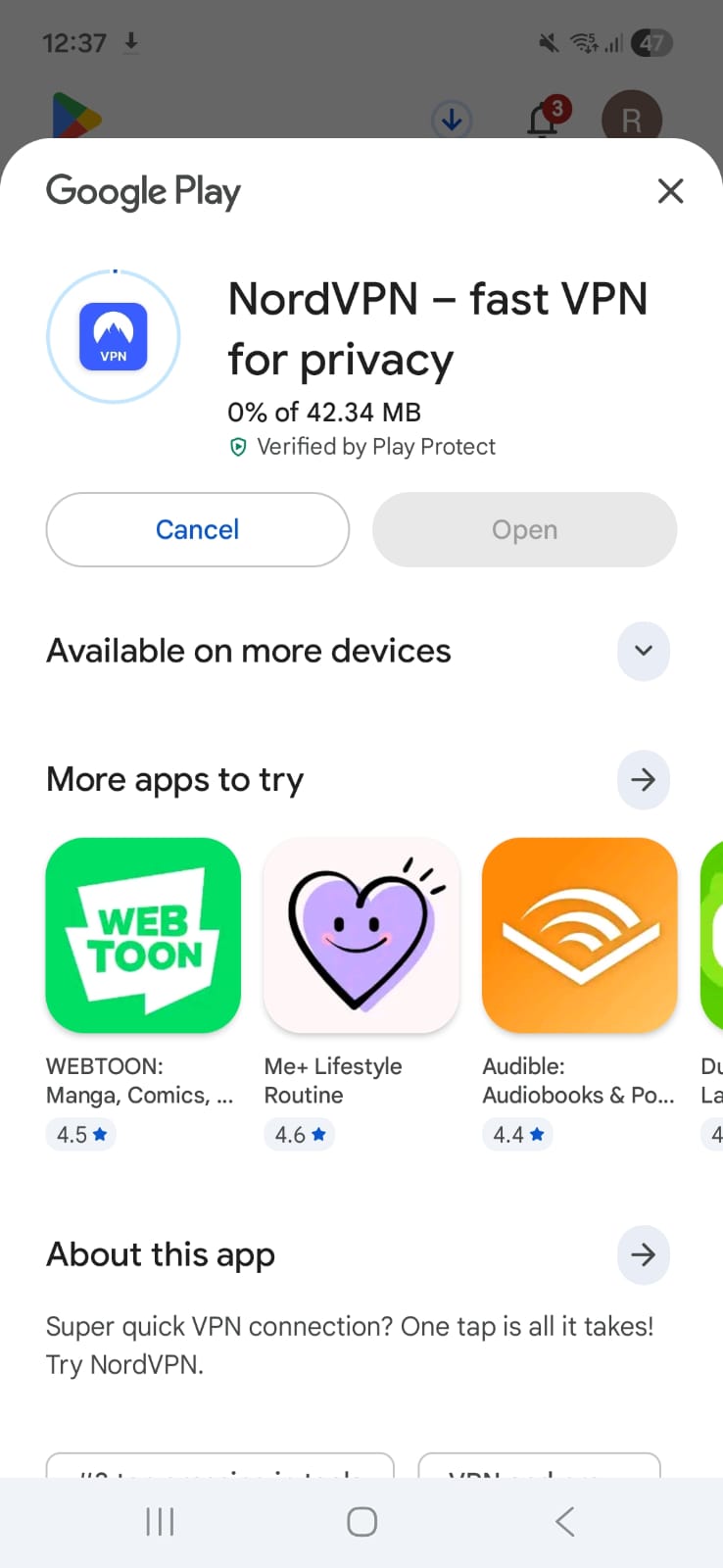
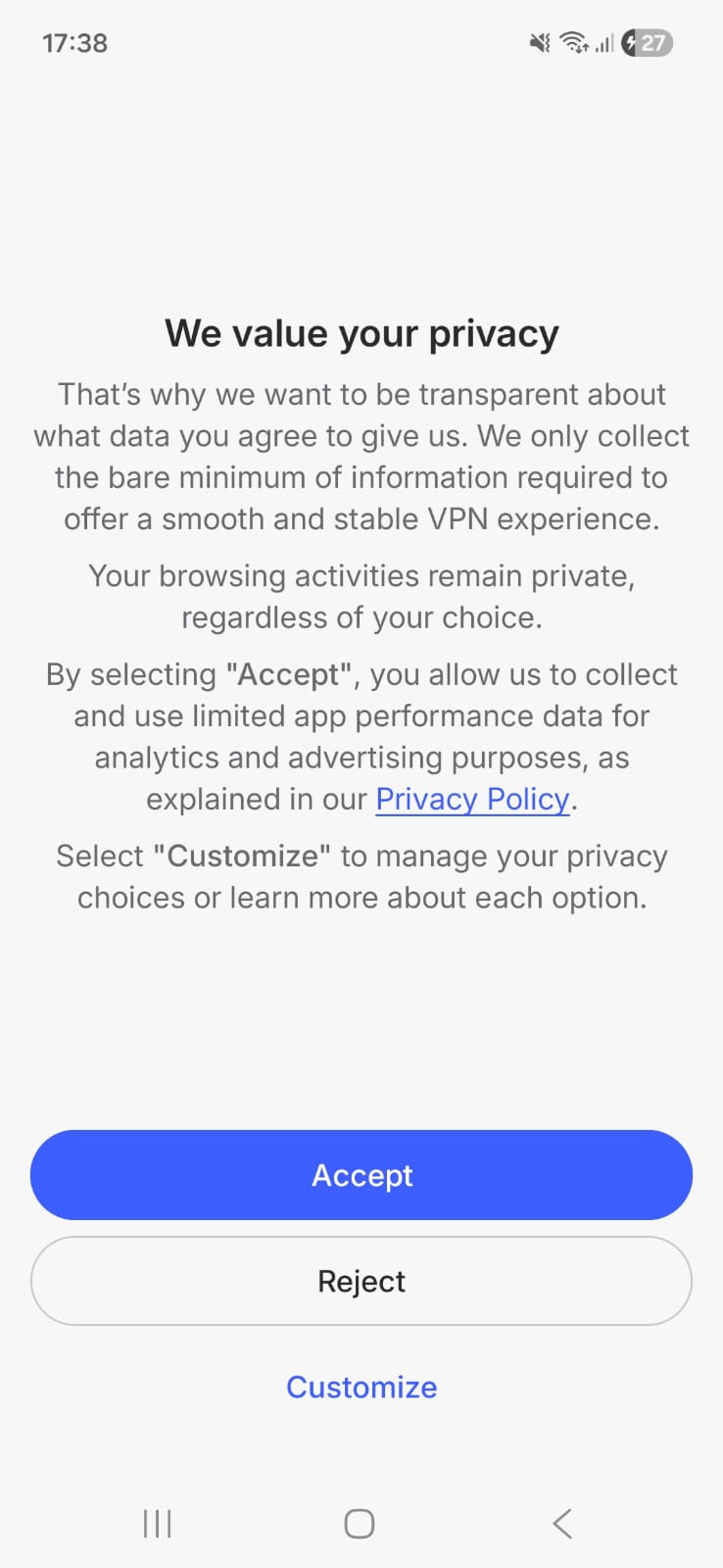
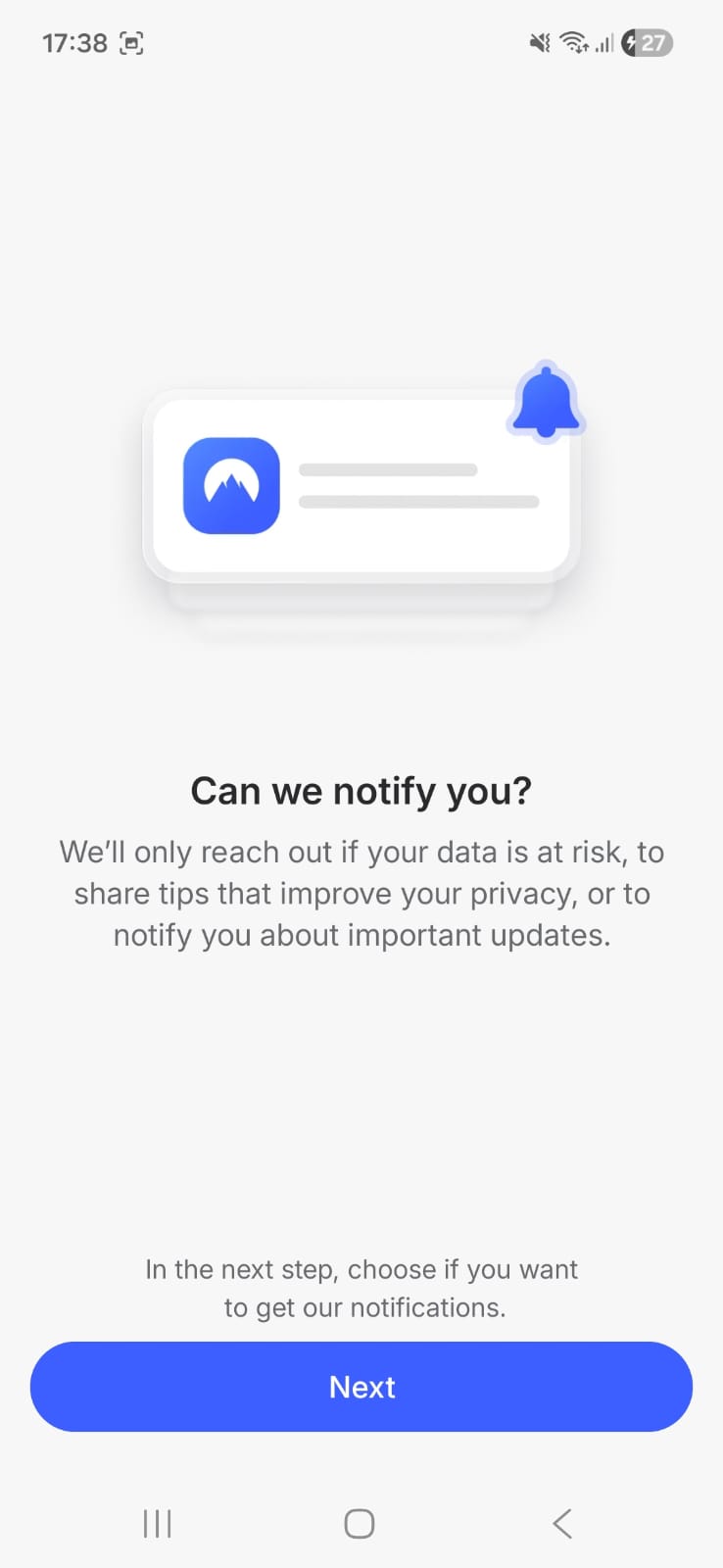
I first logged in to my NordVPN account from its website in incognito mode. Then, as I was on the home page, I scrolled down and went to the download center. When I clicked Download app, it took me to the Google Play Store. Then I downloaded the 42.93 MB NordVPN app from the Google Play Store and tapped Open. After accepting the privacy policy and signing in, the app asked a few onboarding questions, which I skipped. It then suggested enabling malware protection and selecting the fastest server. After confirming the connection request prompt, I landed on the home screen, ready to connect. The setup process was smooth and didn’t take more than a minute.
NordVPN has a clean, modern interface, but it’s not as intuitive as ExpressVPN. Navigating through features takes a little getting used to, especially when trying to access certain settings. The home screen features a large interactive world map that you can zoom in and out of. However, unlike ExpressVPN, there isn’t a clear quick connect button. Instead, there’s a pause button and server selection requires scrolling down the server list.
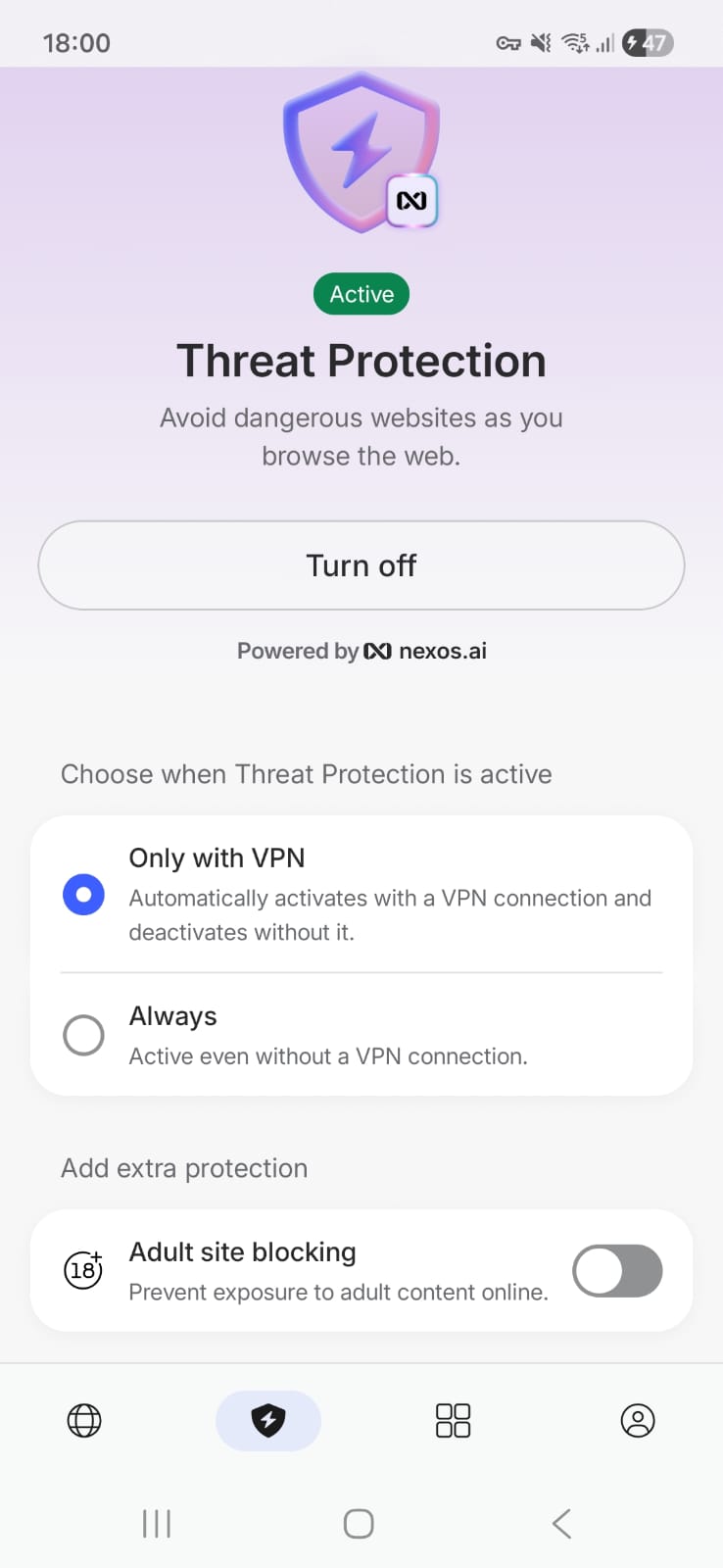
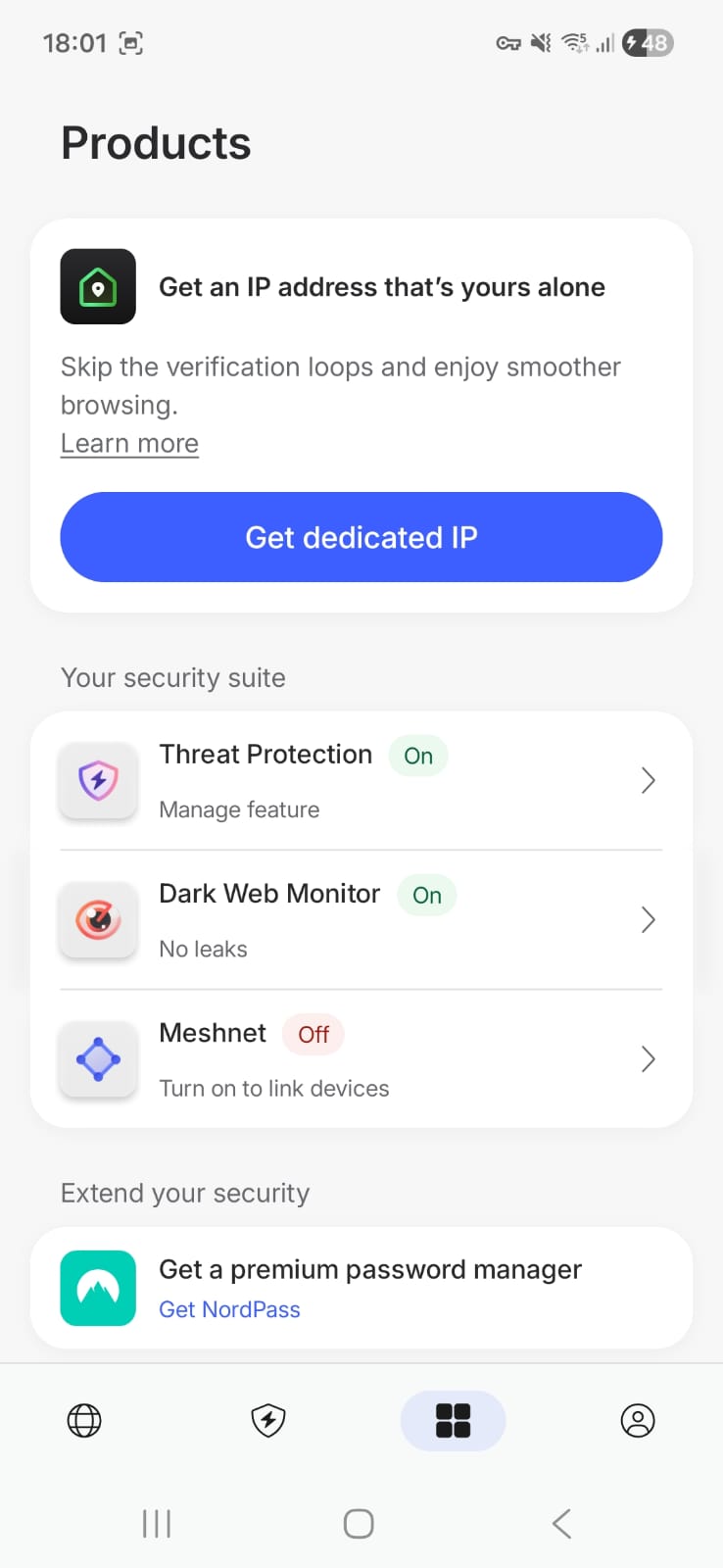
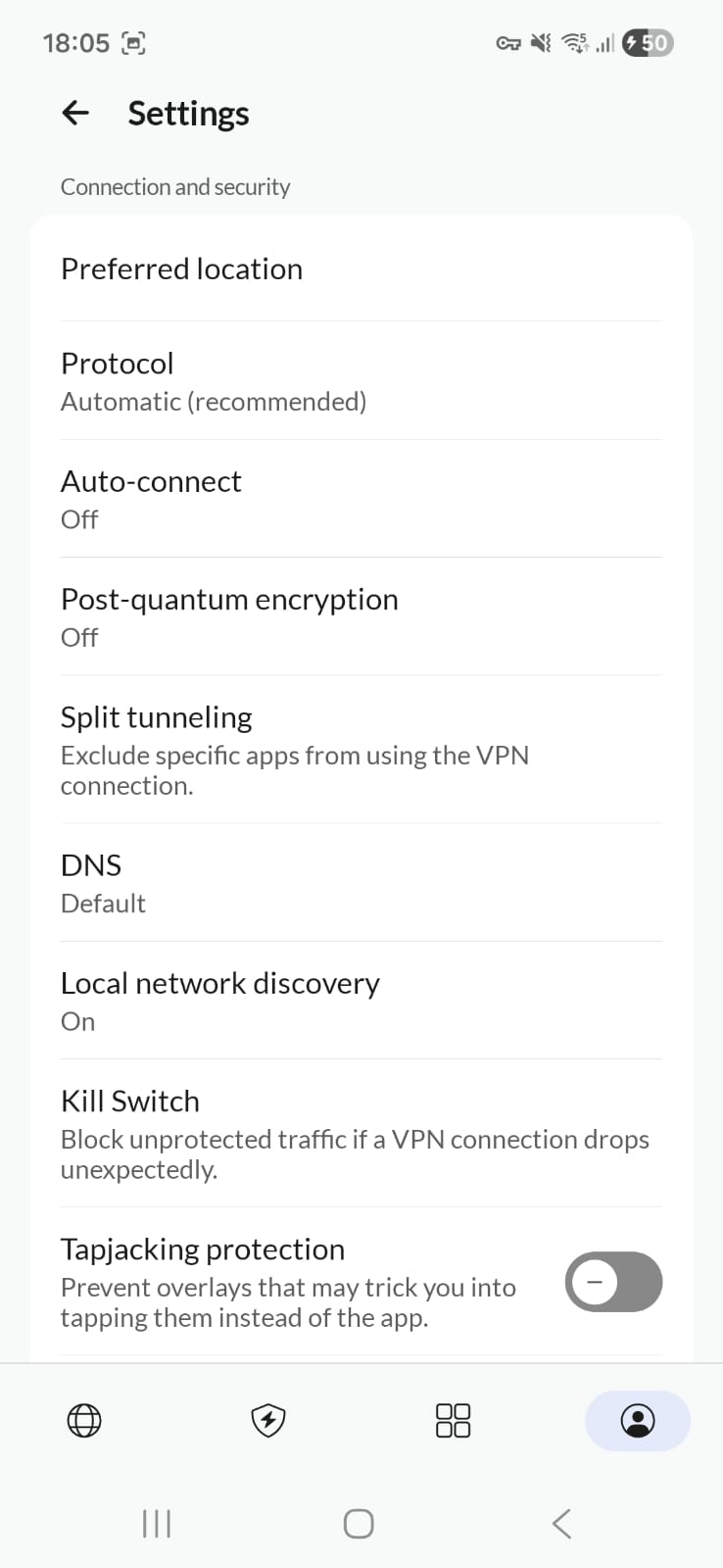
- Home Screen
- Interactive world map with zoom in/out capability
- Server selection available by scrolling down
- Pause button instead of a prominent quick-connect button
- Dedicated IP servers
- Devices tab (Meshnet support)
- Specialty Servers: Multiple specialty servers are available, including:
- P2P servers
- Onion Over VPN servers
- Obfuscated servers
- Double VPN servers
- Threat Protection Pro
- Only with VPN
- Always
- Adult Site Blocking
- Profile → Settings
- Internet Kill Switch → Requires navigating into Android system settings to enable (No, it is not that easy as was for ExpressVPN)
- Split tunnel
- Split tunneling (toggle)
- Exclude apps not compatible with VPN
- Auto Connect, VPN protocol, Post Quantum Encryption, Preferred location, Tapjacking Protection and Unsafe Wi-Fi Detection
- Products -
- Threat protection
- Dark Web Monitor
- Meshnet
Note: NordVPN also offers the "Scam Cal Protection" feature. However, since it is only available in a few countries, we were unable to check it.
☞ On Wi-Fi (Android) - We encountered normal speed drops. They were average (nothing too major). Wi-Fi results were consistent, with manageable speed loss and solid upload performance, making it the more reliable connection type in testing.
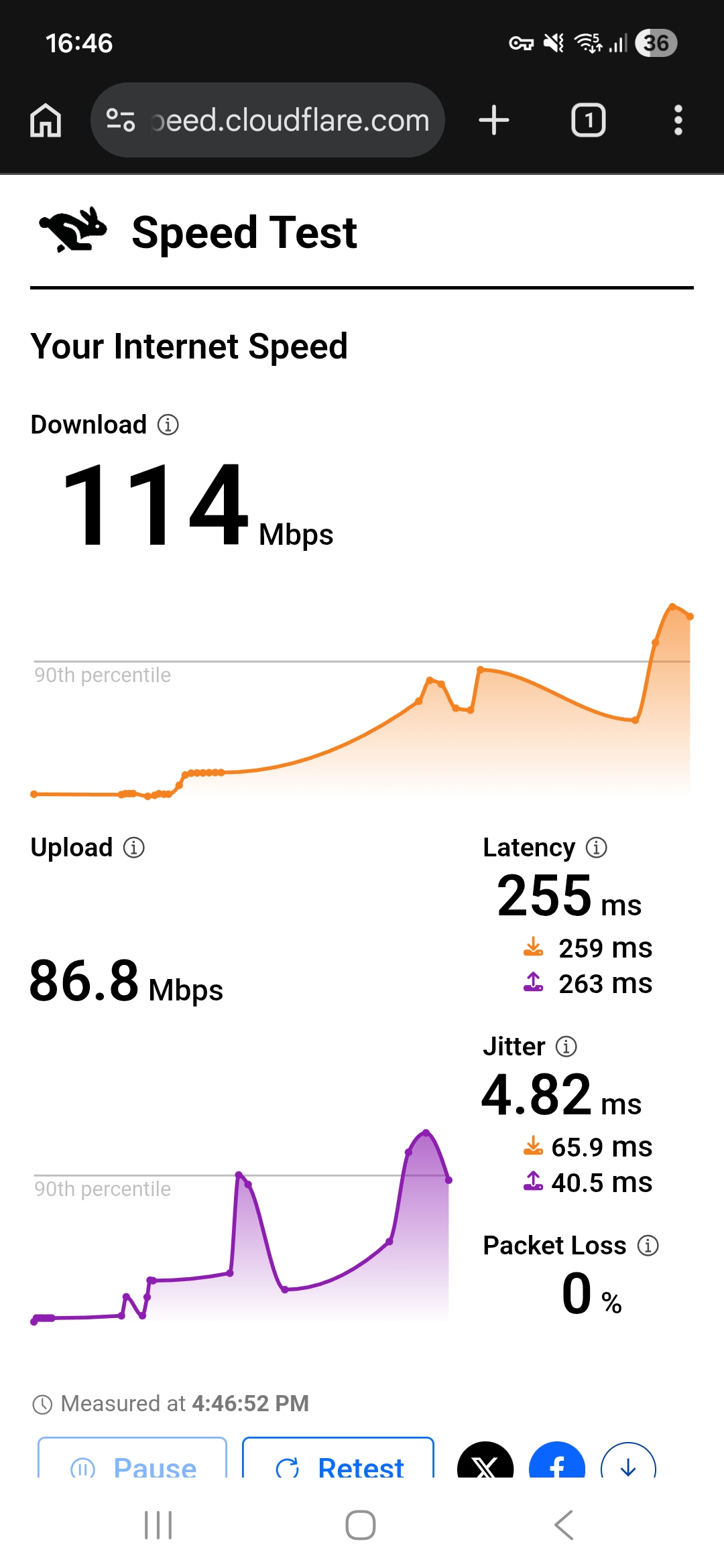
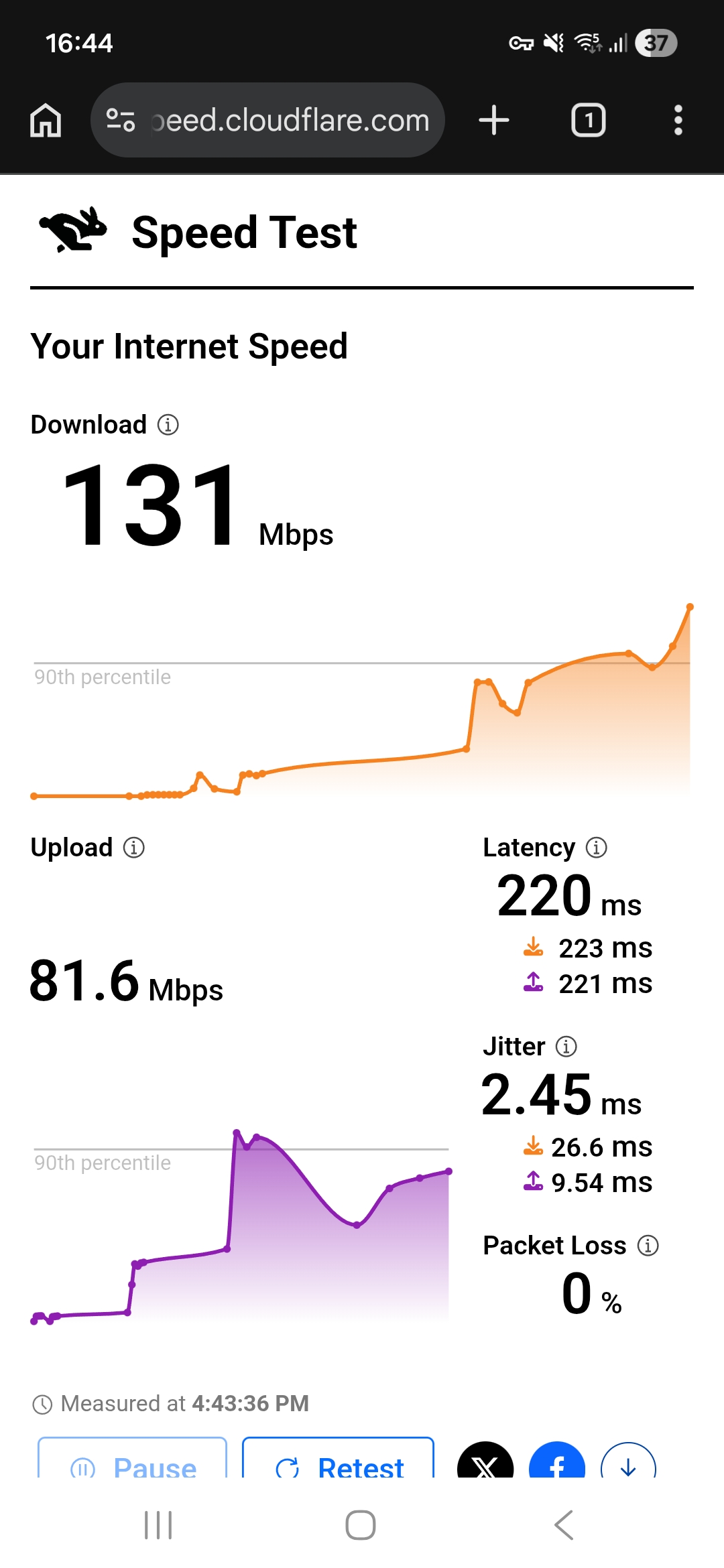
- US server (Los Angeles) - 41.33% drop in speed
- Download Speed - 114 Mbps
- Upload Speed - 86.8 Mbps
- Latency - 255 ms
- UK Server (London) - 33.16% drop in speed
- Download Speed - 131 Mbps
- Upload Speed - 81.6 Mbps
- Latency - 220 ms
☞ On Mobile Data - Performance was far less consistent and declined significantly on Day 2. For the US server, speed loss increased dramatically from 26.3% on Day 1 to 87% on Day 2. The UK server showed a similar pattern, with speed loss rising from 45.92% to 82%.
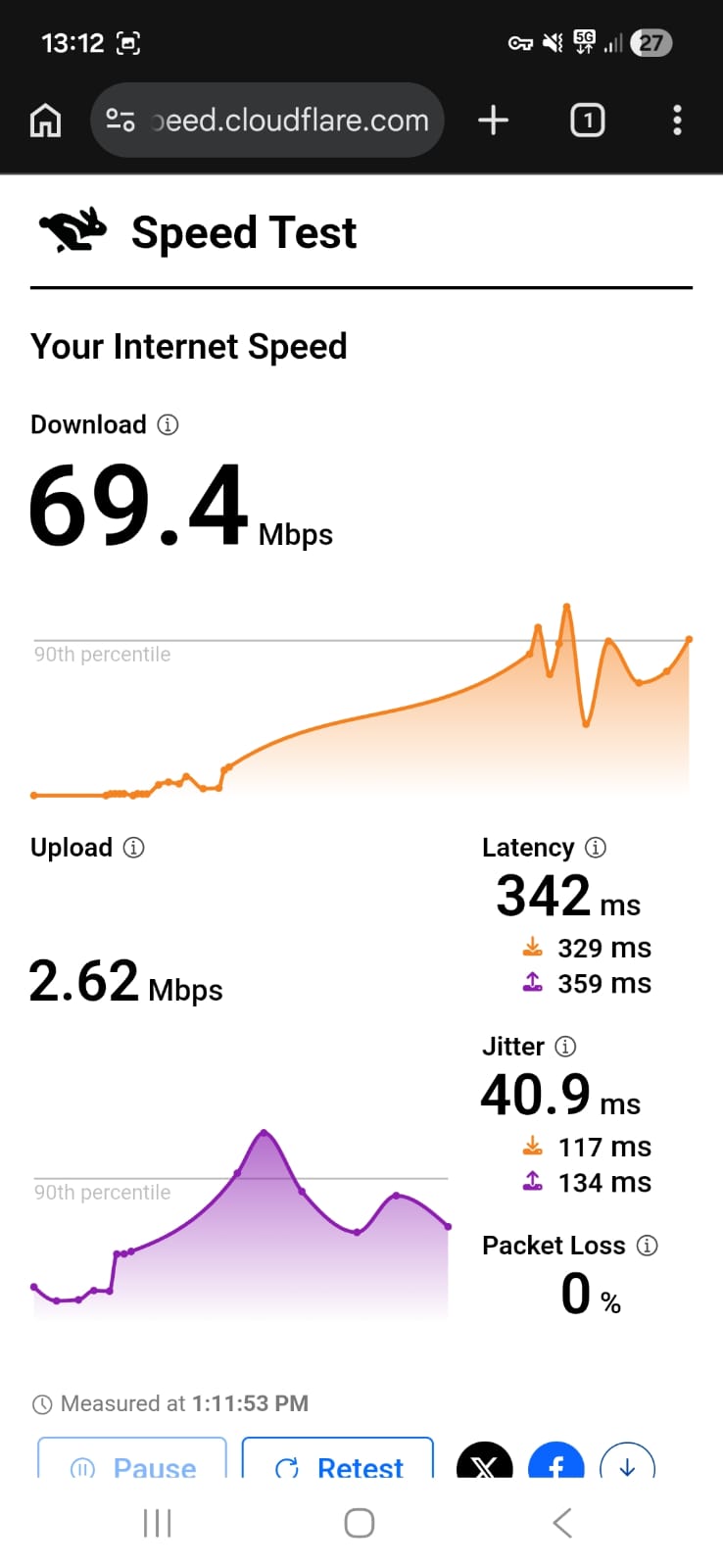
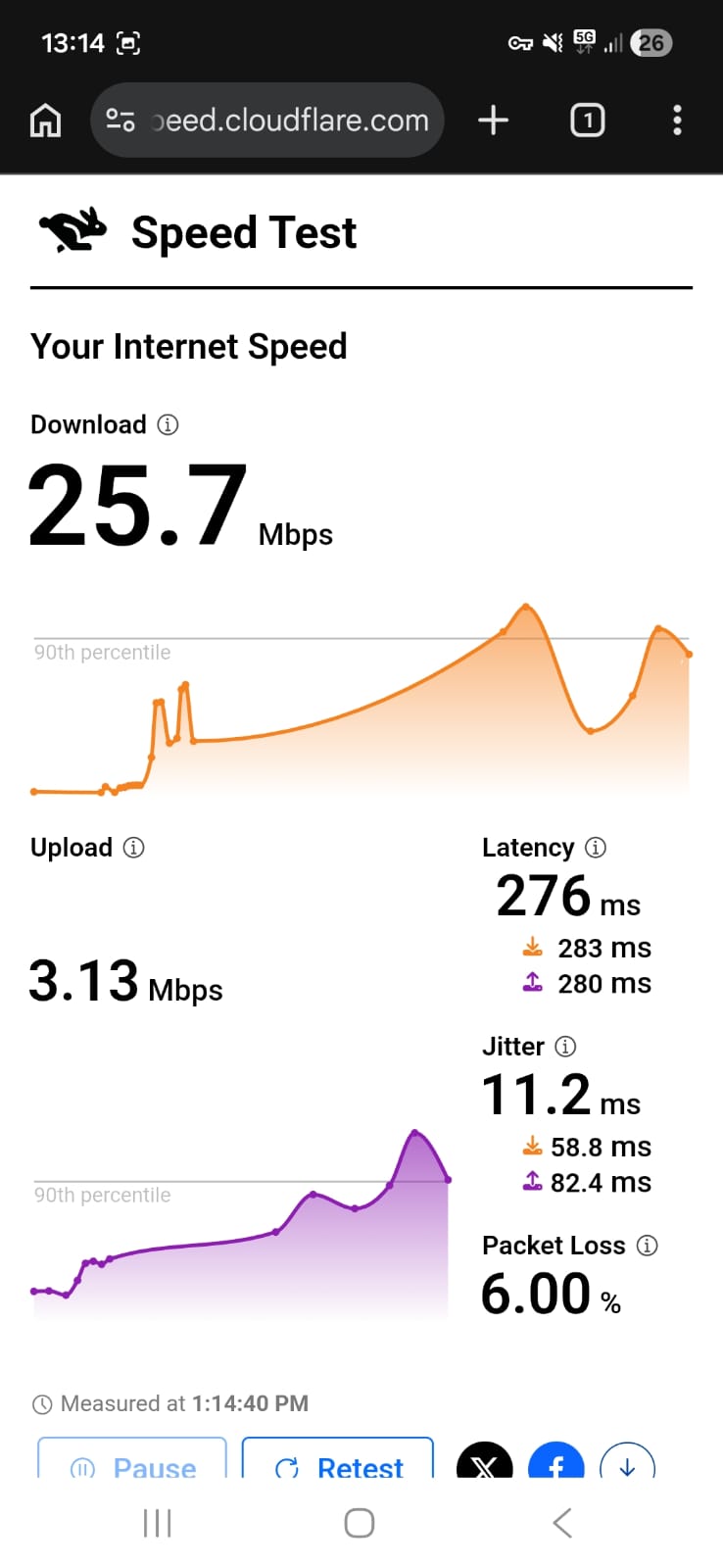
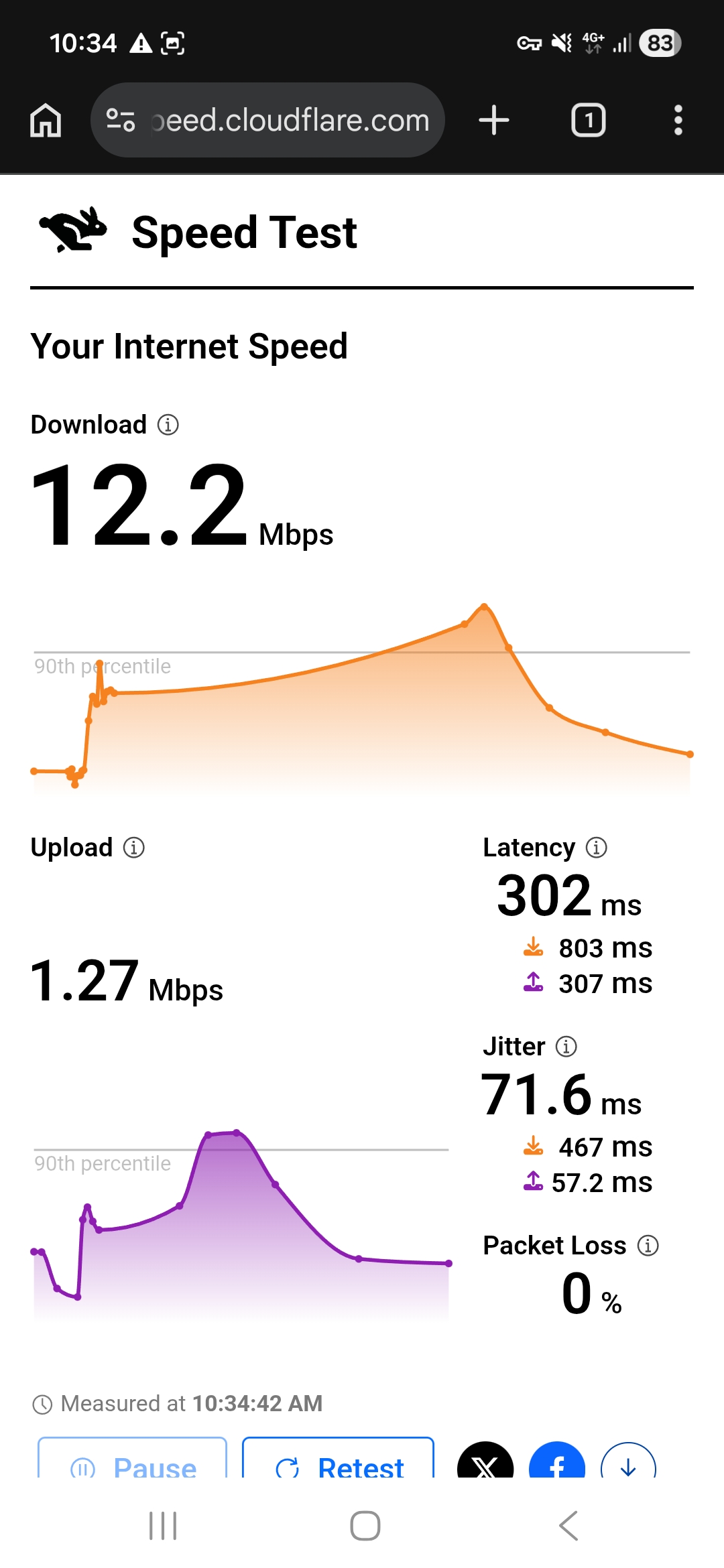
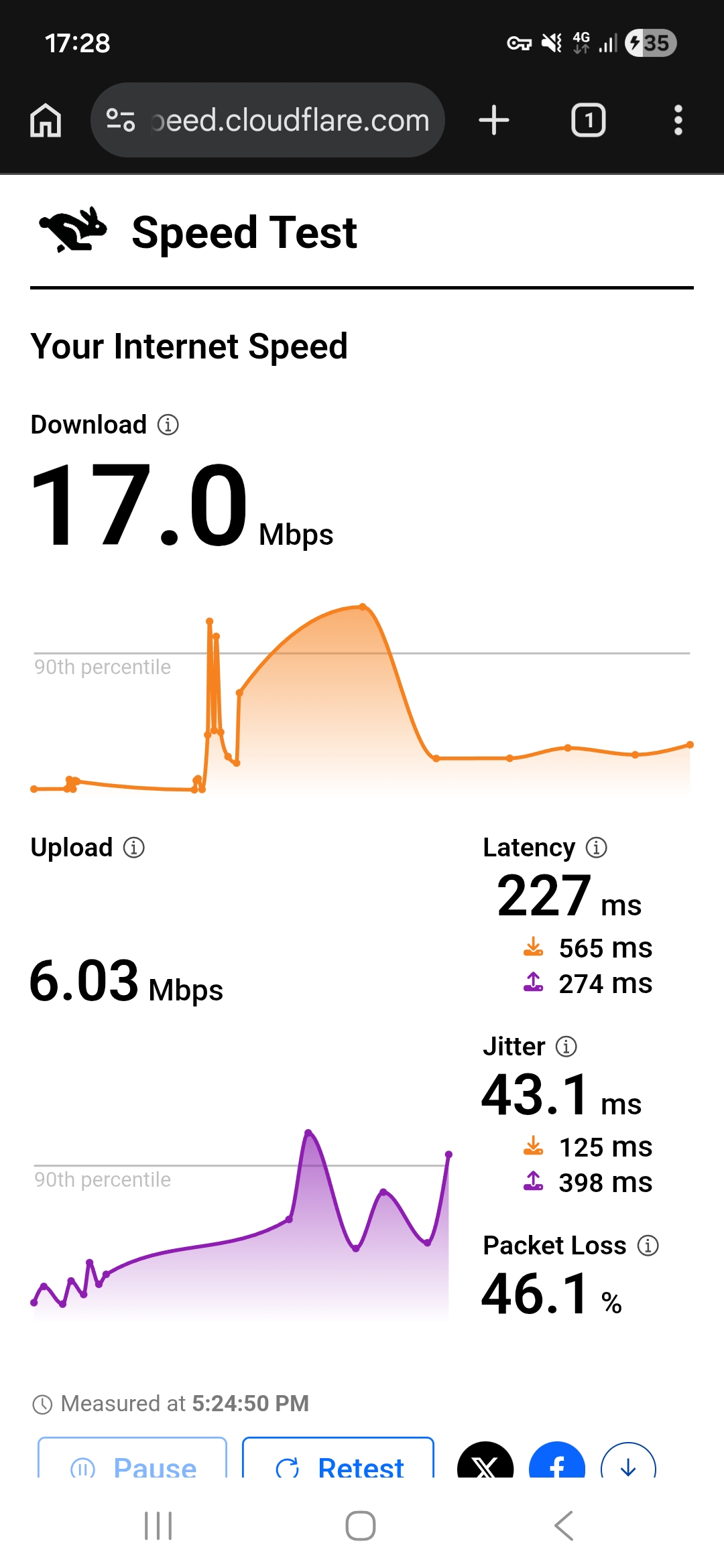
NordVPN connected quickly and streamed without buffering during my test, but the video quality started blurry and took several minutes to properly stabilize, especially after reopening or resuming playback.
- When I opened Netflix, the title tiles appeared and loaded without any errors or failures. There was no startup delay, which was a good first sign. However, the video quality at the beginning wasn’t very impressive. I noticed slight blur right away. It wasn’t extremely bad, but it was clearly not sharp.
- There was no buffering at all (neither at the start nor during streaming), which was positive. Even though the picture looked soft initially, playback remained smooth.
- After about 5–6 minutes, the image quality improved noticeably and then stayed consistent without further drops. The audio quality was clear throughout.
- One thing I observed was that if I exited the app or skipped back and then resumed, the picture quality dropped again at the start and had to readjust, similar to when I first began testing.
NordVPN’s kill switch worked reliably during testing. Although enabling it required navigating into system settings, once activated, it performed perfectly. There were no DNS leaks, no IP leaks, no unexpected disconnections The connection remained secure throughout the session.
PROS
- Clean, modern UI with interactive world map
- Easy access to recent connections and quick reconnect
- Multiple specialty servers: P2P, Onion over VPN, Obfuscated, Double VPN
- Clear labeling of virtual servers
- Quick connect and disconnect or pause for 5 mins - 24 hours
- Threat Protection, adult site blocking, tapjacking protection, and unsafe Wi-Fi alerts
- Post-quantum encryption support
- Fastest speeds among tested VPNs with minimal speed loss
- Reliable connection stability, even on mobile data
CONS
- Cannot set server favorites
- Kill switch activation requires extra steps in system settings
2. ExpressVPN - 🥈Runner-Up
- App Size: 69.56 MB
- Rating: 3.3 ★ (418k reviews)
- Independently Verified: Yes
- Downloads: 50M+
- Version: 12.51.0
- Updated on: Feb 9, 2026
- Required OS: Android 7.0+
- Released on: Jan 6, 2012
- Data collected:
- Personal info - Email address (optional)
- App info and performance - crash logs, Diagnostics (both optional)
- Device or other IDs - Device or other IDs
- App activity - App interactions (optional)
- App Permissions:
- Camera (take pictures/videos)
- Location (precise/approximate in foreground)
- access precise location only in the foreground
- Access approximate location only in the foreground
- Other device permissions
In my testing, ExpressVPN delivered a polished and feature-rich Android experience. The 69.56 MB app installed in under a minute, and the modern interface made navigation simple with a single-tap connect button, interactive map with IP refresh, and quick access to fastest and recent locations.
Security performed excellently in my tests, with the auto-enabled kill switch working flawlessly and no DNS/IP leaks detected. Built-in tools like the speed test, diagnostic checks, and advanced ad, tracker, malicious, and adult site blocking added strong value.
However, I did notice multipe ads popping up, which disrupted my experience. I also recorded significant speed drops, especially on mobile data and distant servers, making performance the main drawback despite the app’s strong usability and privacy features.
Performance Testing
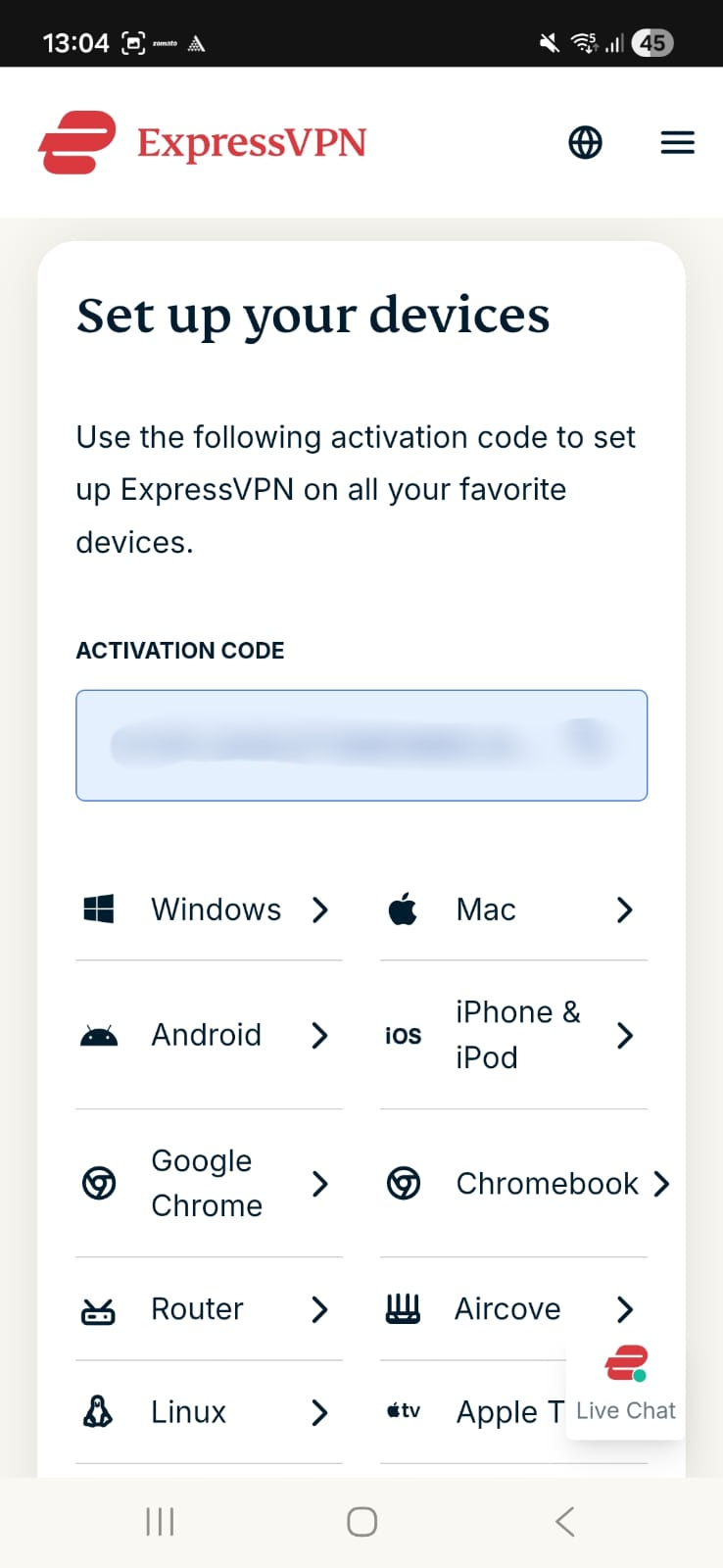
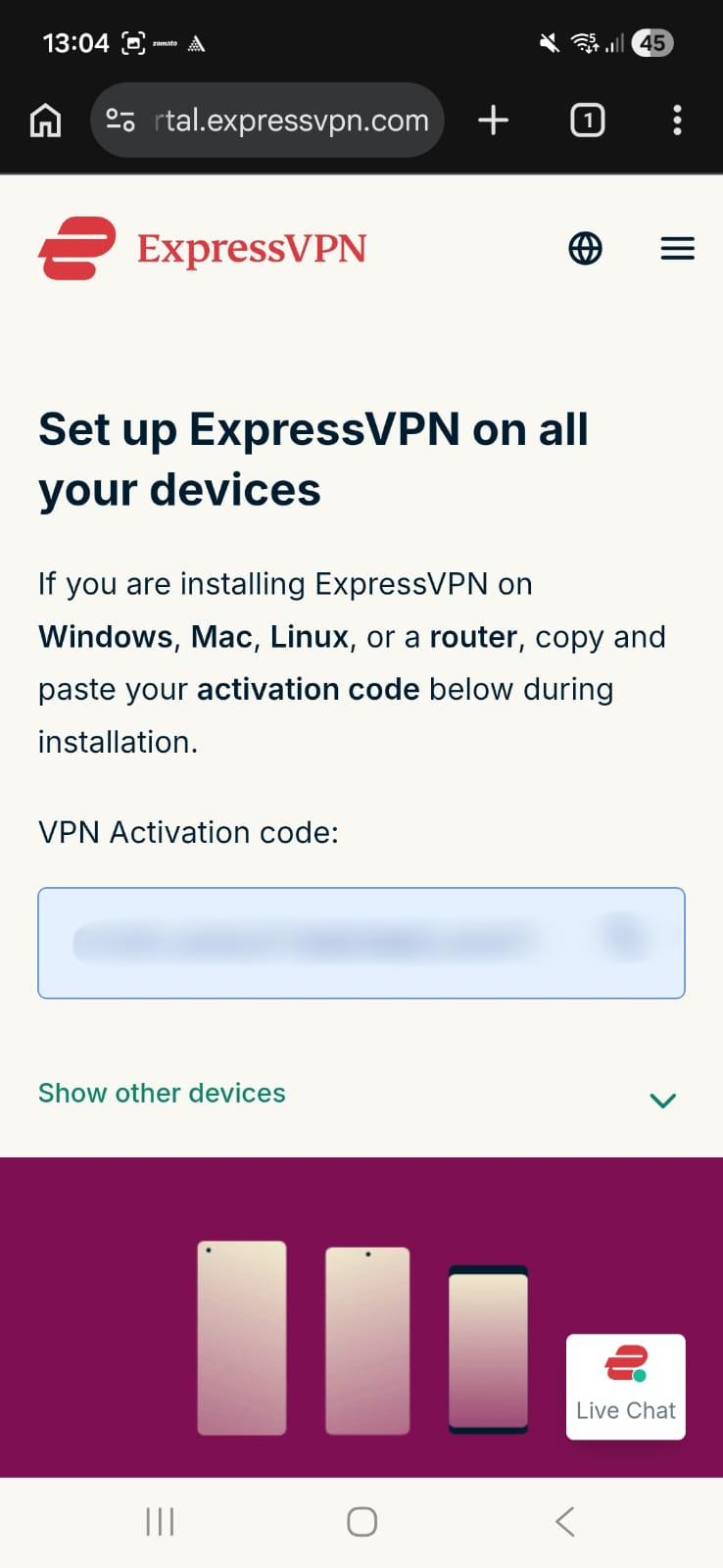
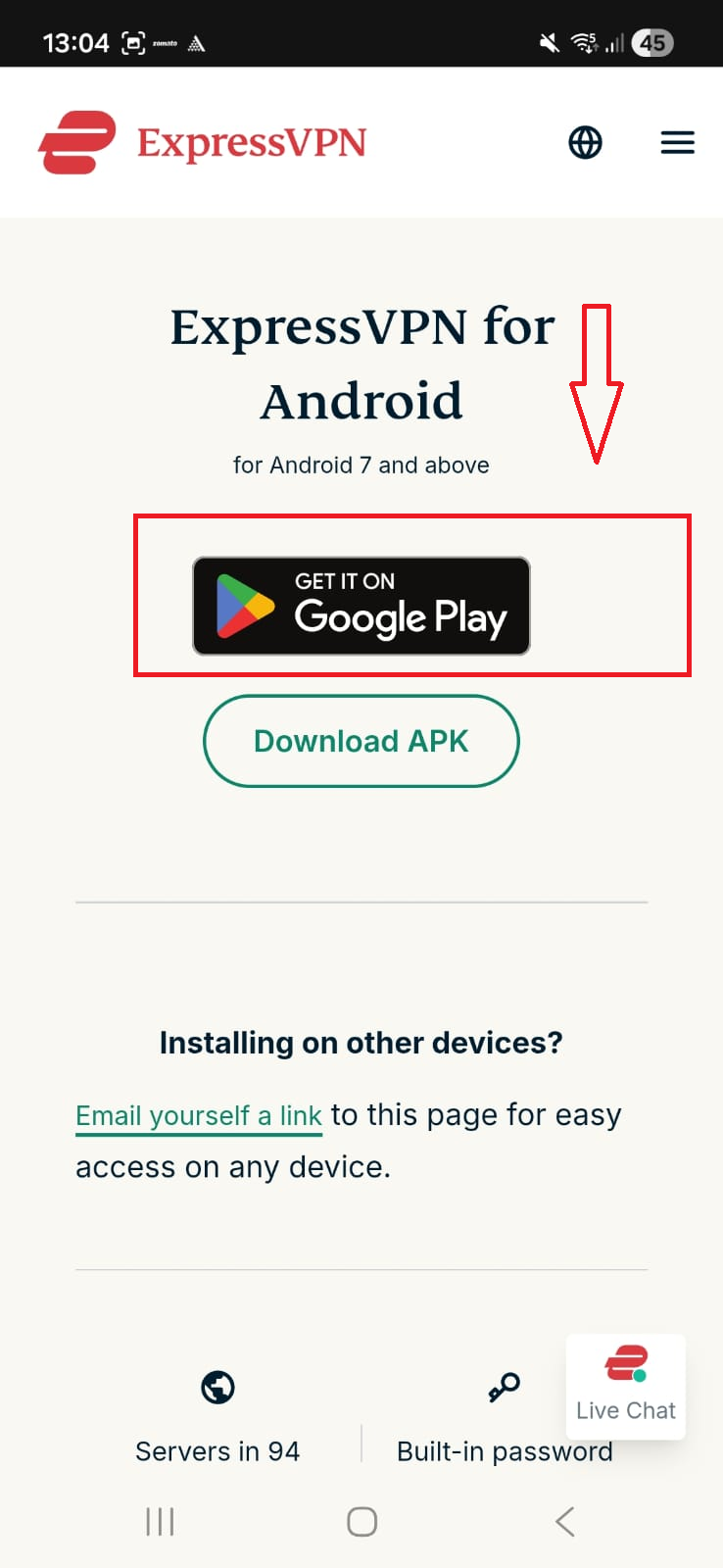
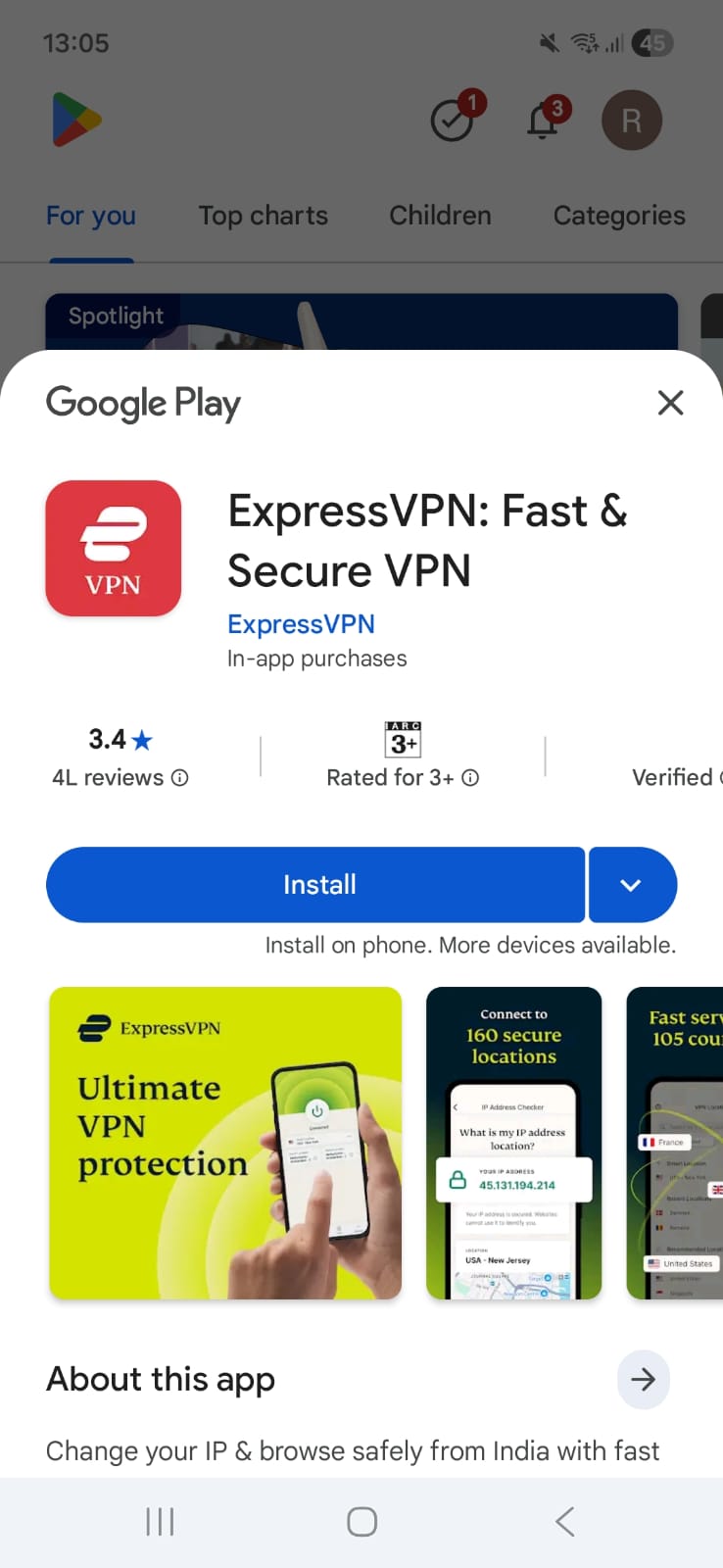
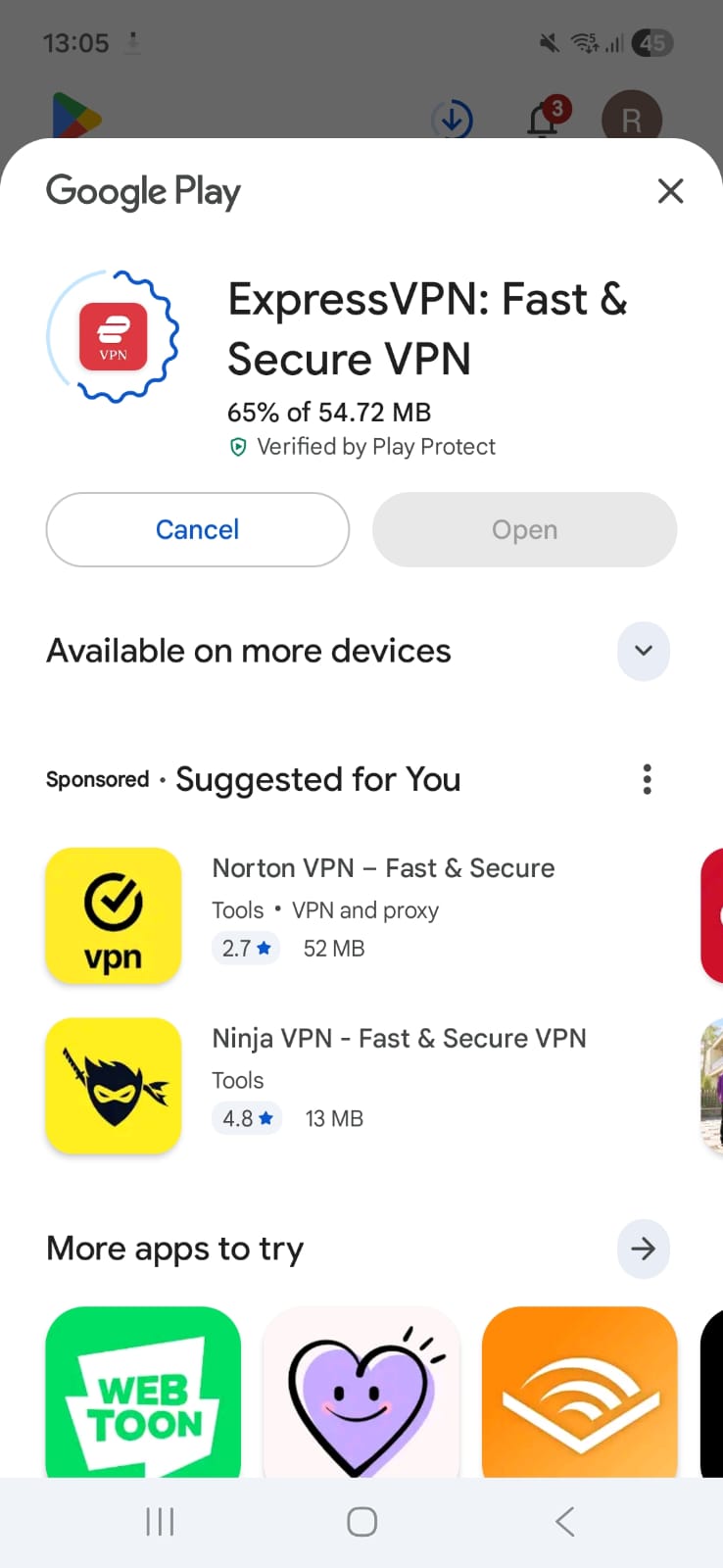
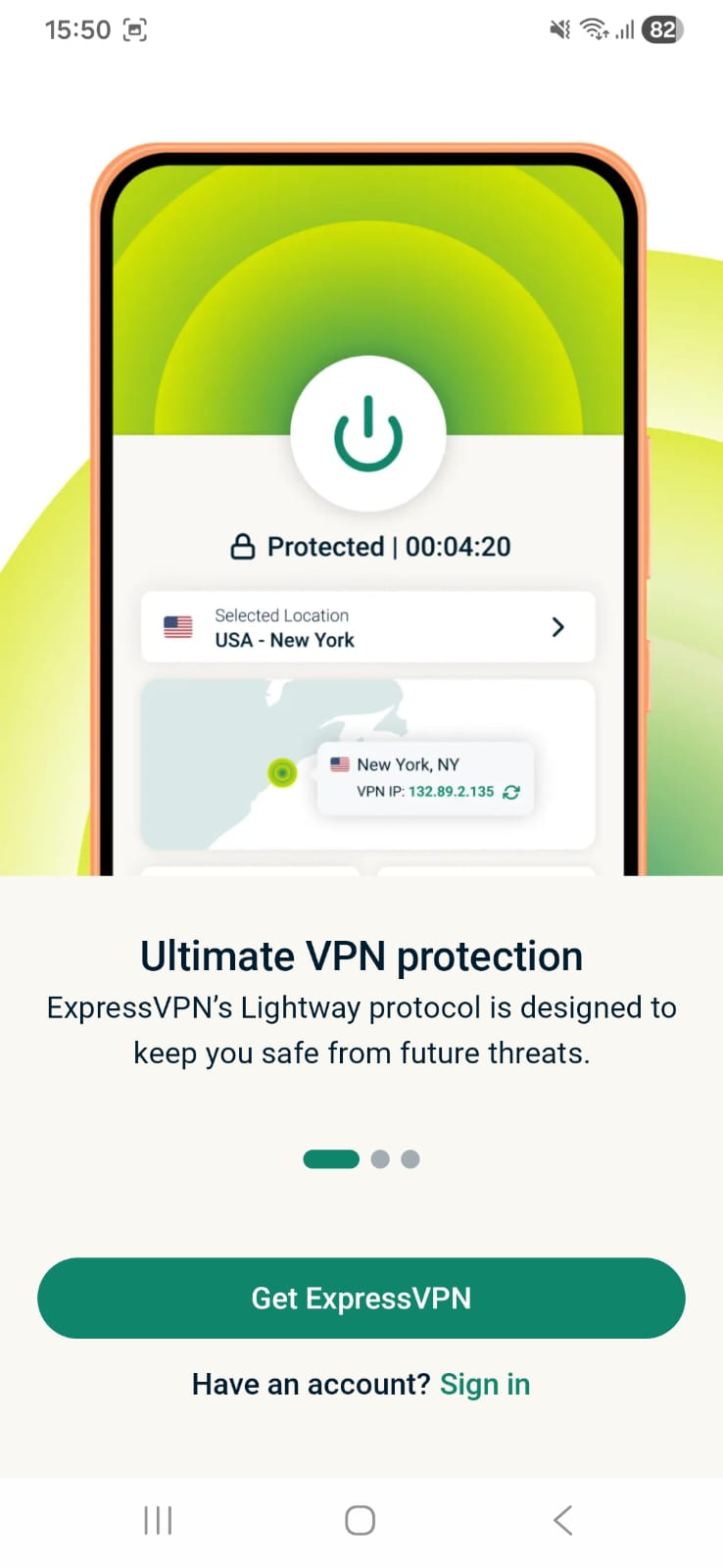
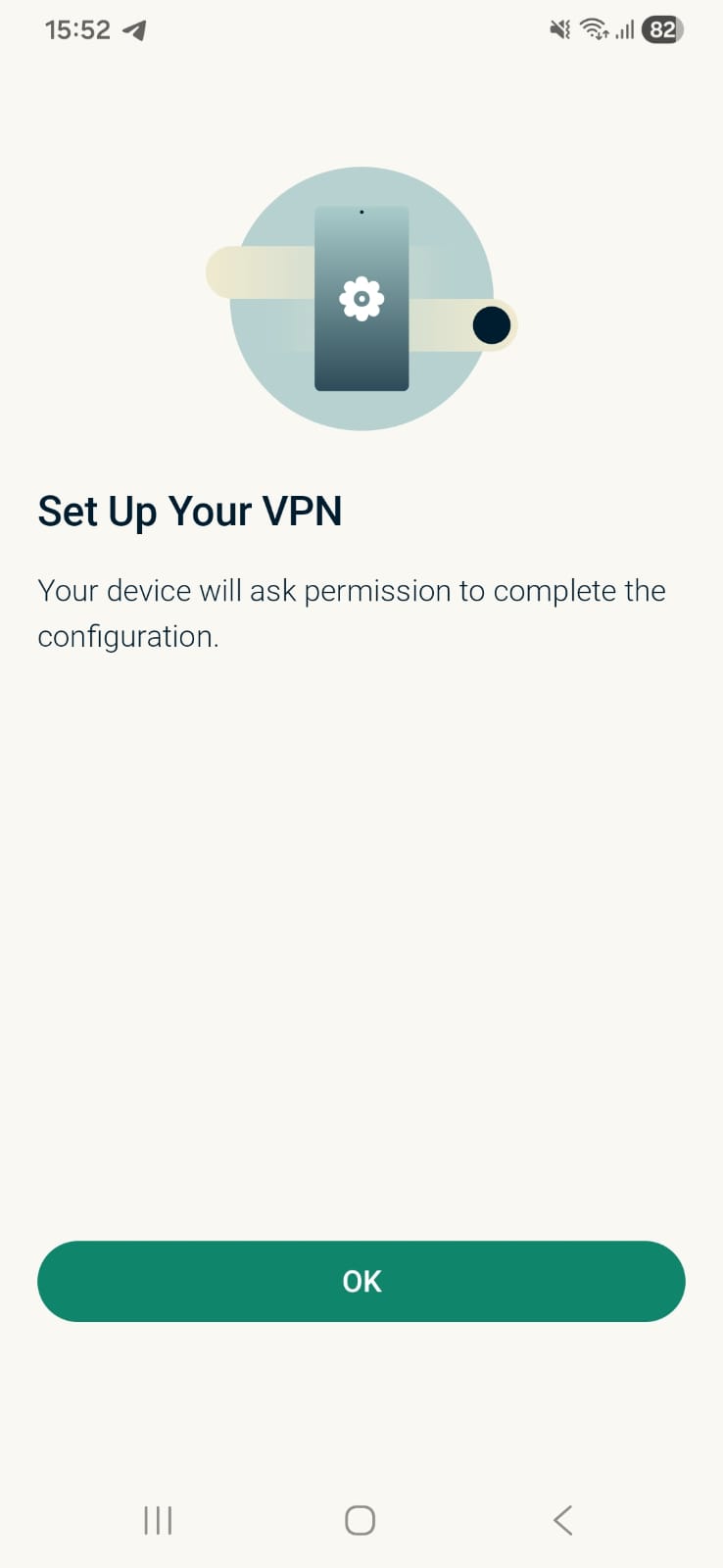
First, I logged in to ExpressVPN through the website in inconito. Post that, I just scrolled once, and there were different options to download different apps. I clicked Android, and then I was taken to the next page, where the Activation code came first. If you scroll down, there will be download options that will redirect to the Google Play Store. Then, I headed to Google Play Store, downloading the 69.56 MB ExpressVPN app, and hitting “Open.” After accepting privacy policies and signing in, a quick setup led to a connection request prompt. Once I tapped OK, I landed on the home page, ready to pick a server and connect. Simple, clean, and no unnecessary clutter - exactly what you want on a mobile app.
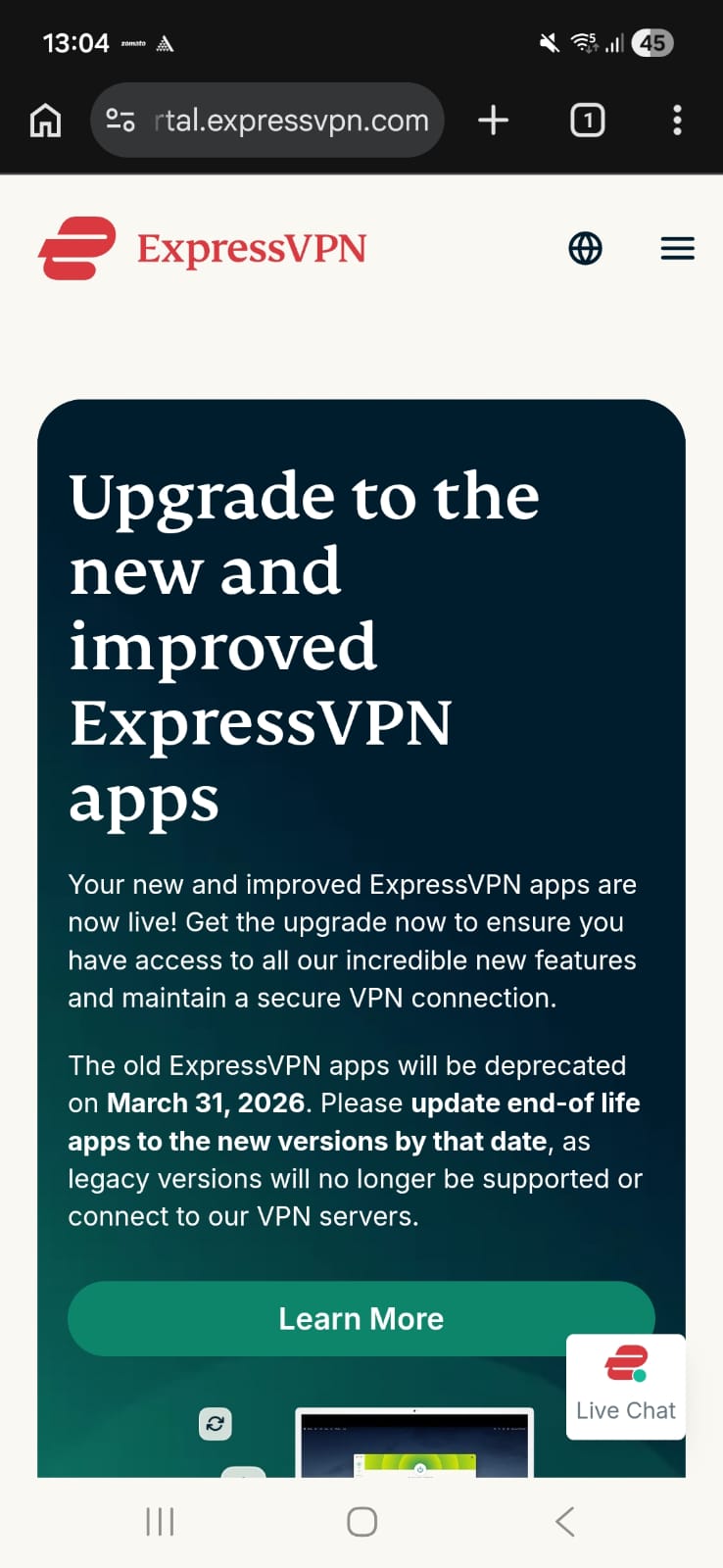
ExpressVPN’s Android interface is really a delight. Before connection, the home screen is red; once connected, it switches to green - a nice visual cue. The home screen gives you:
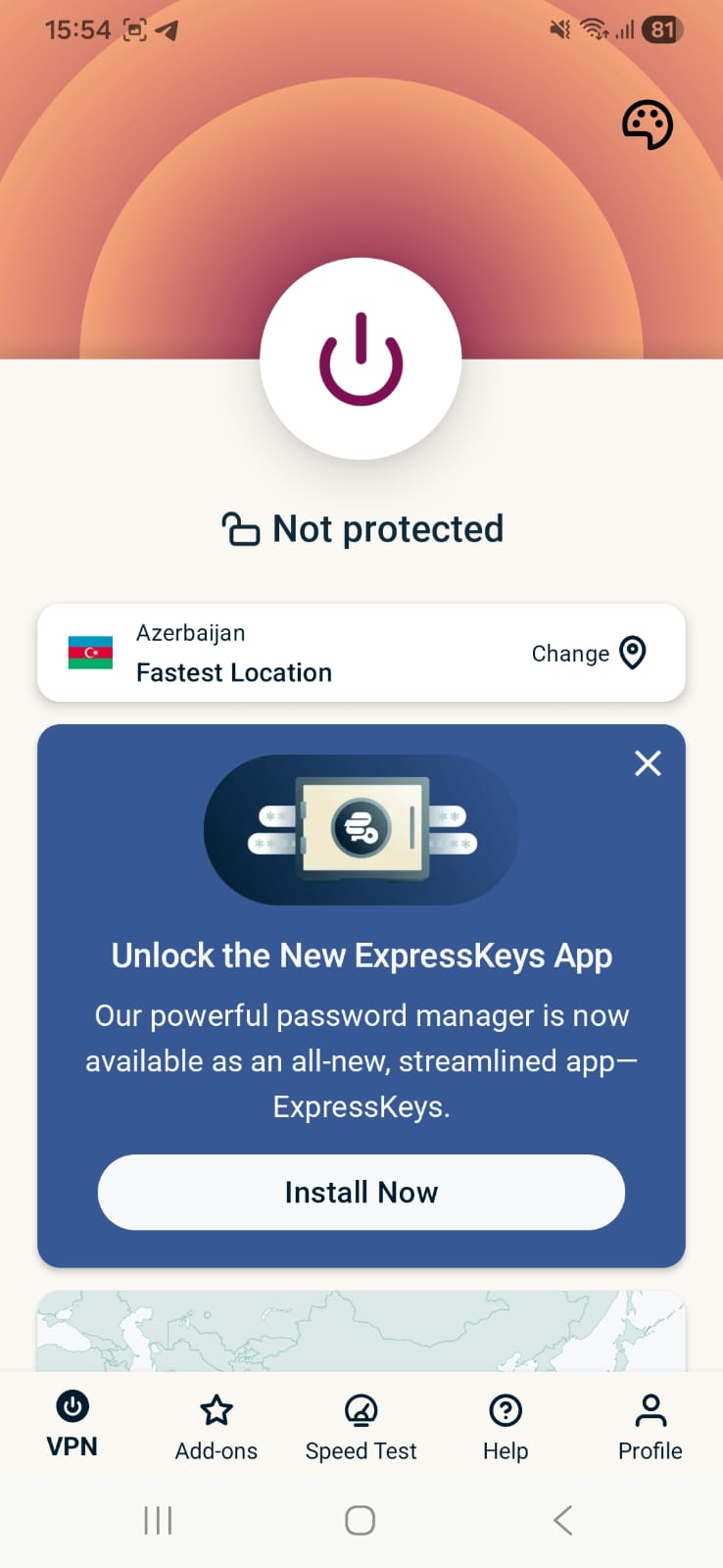
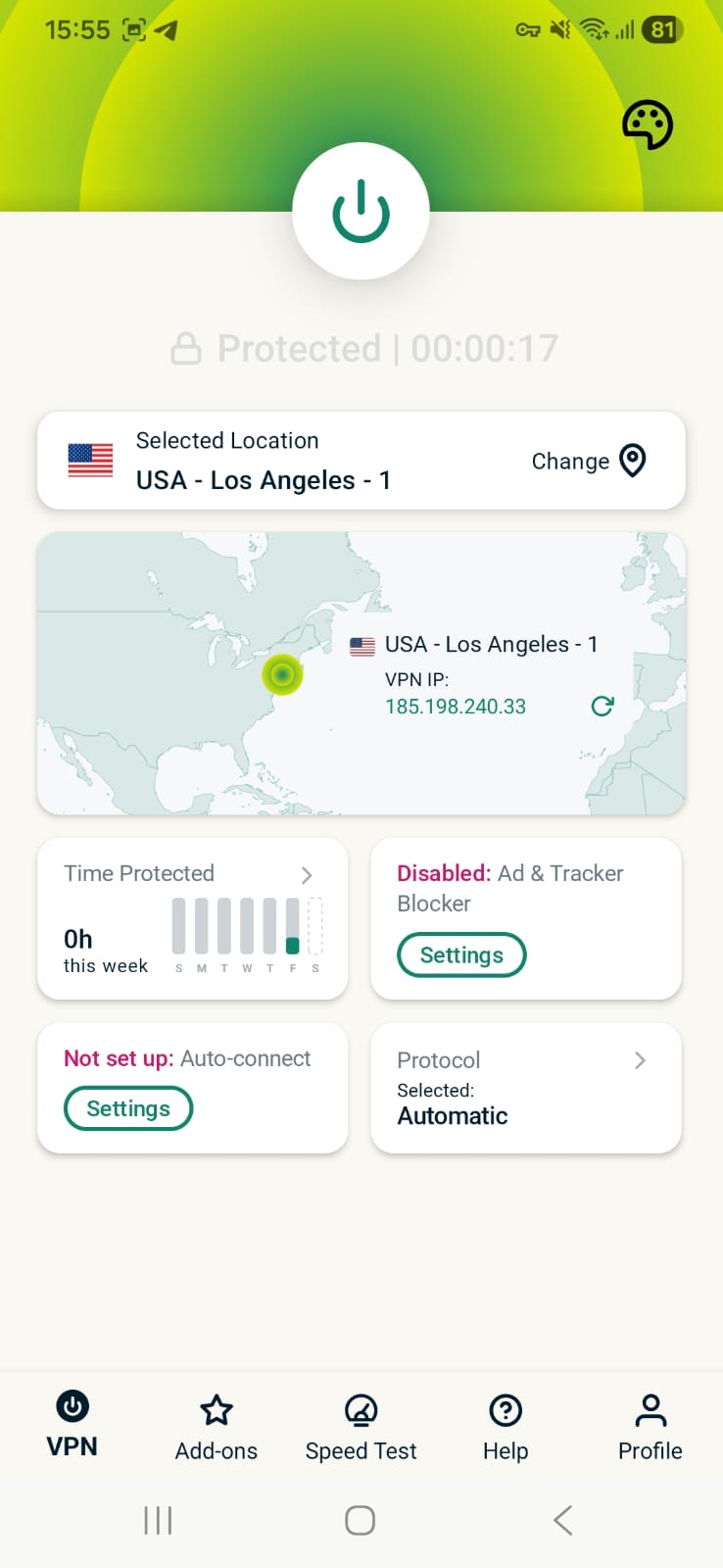
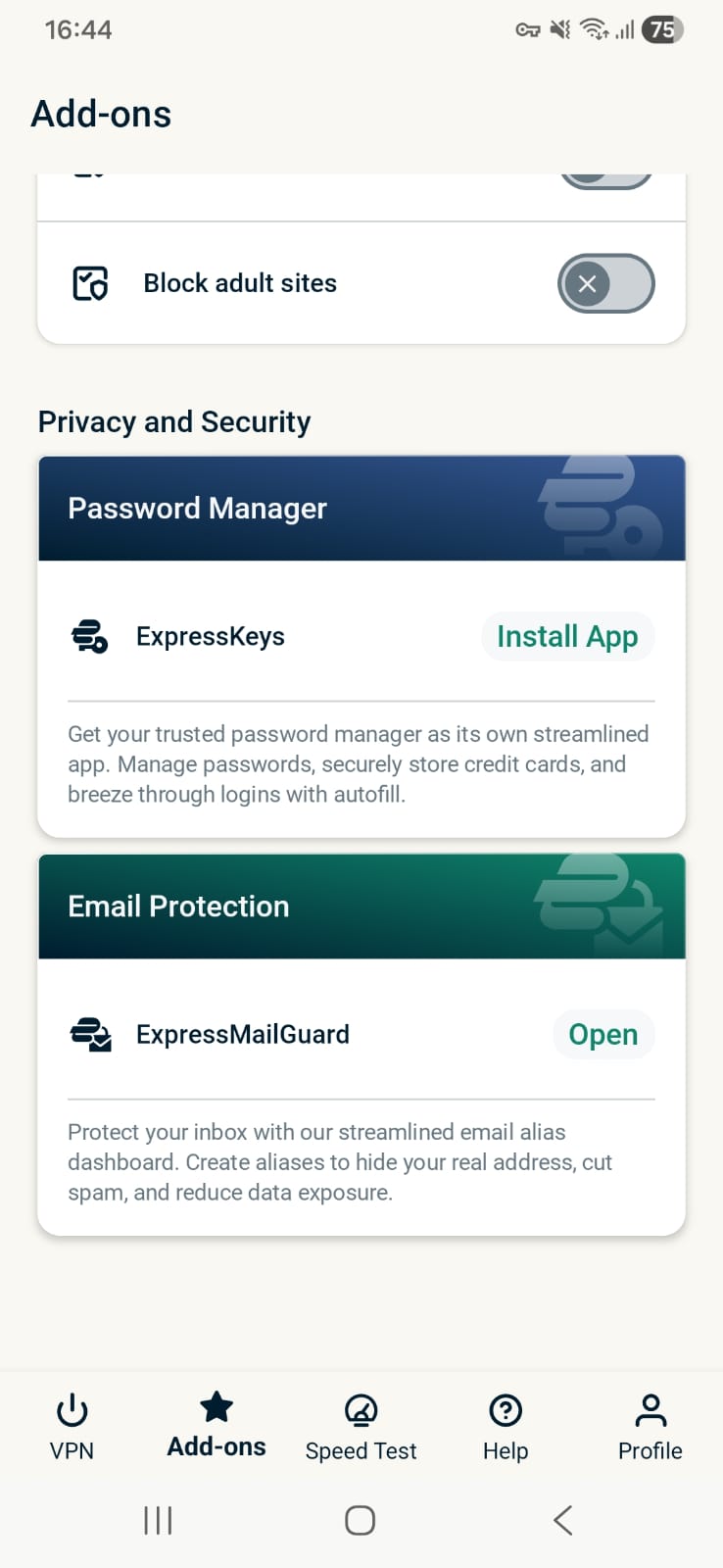
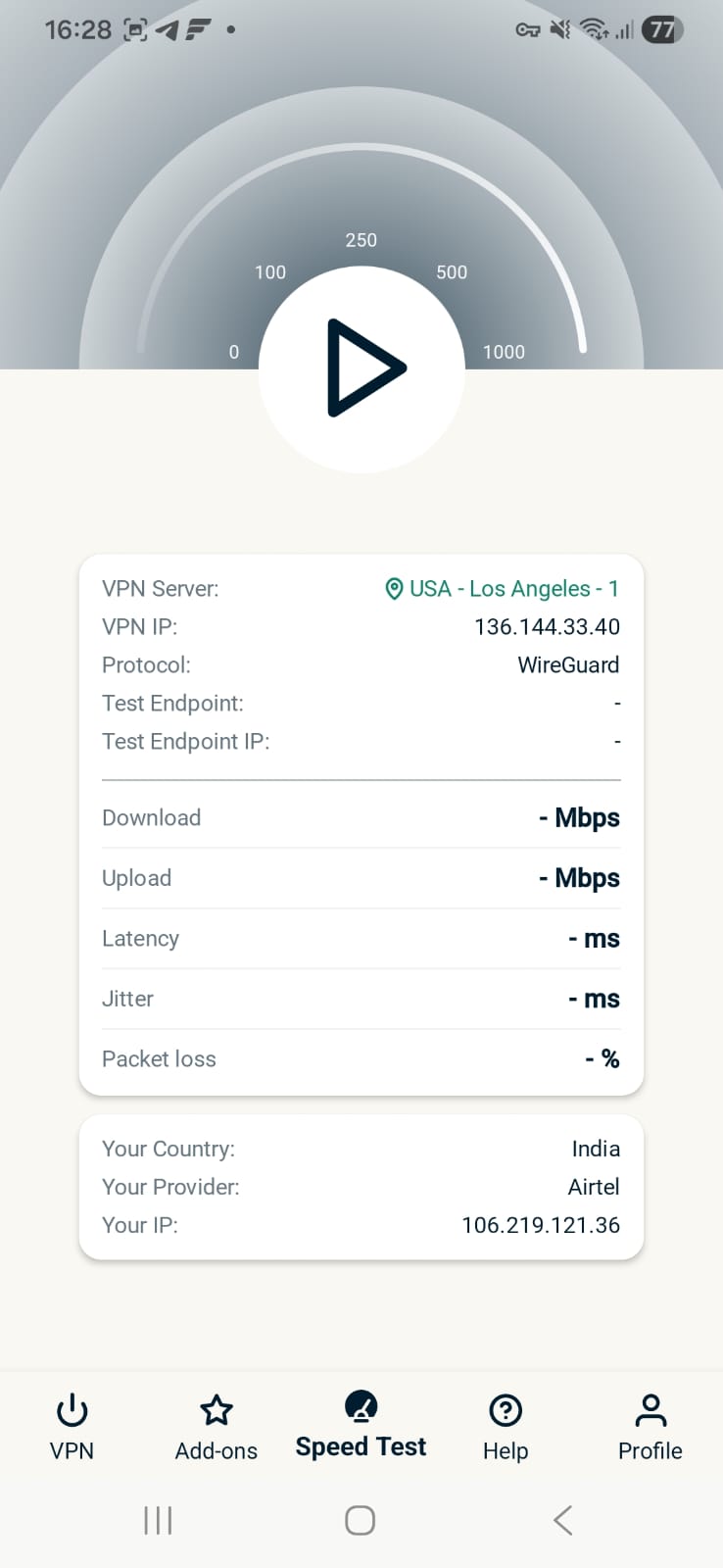
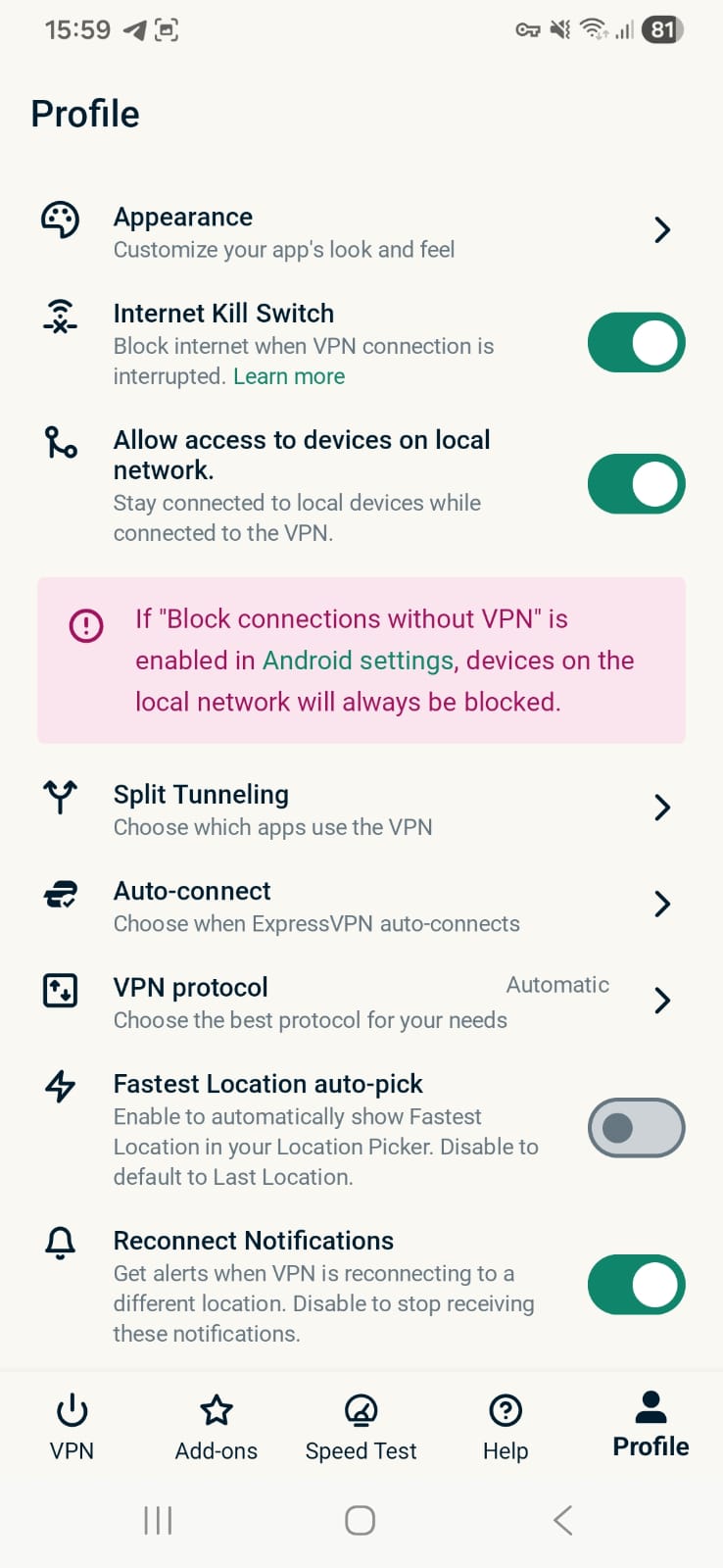
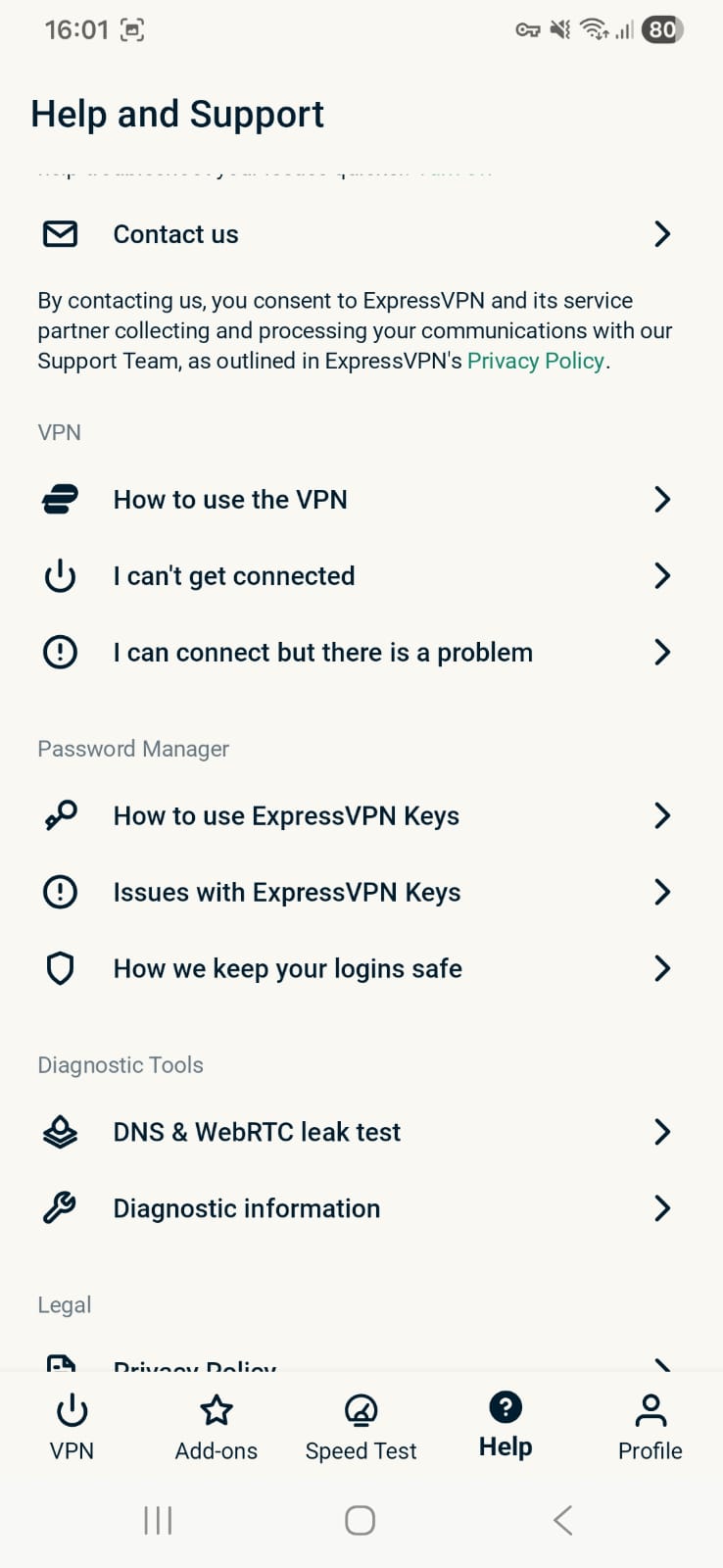
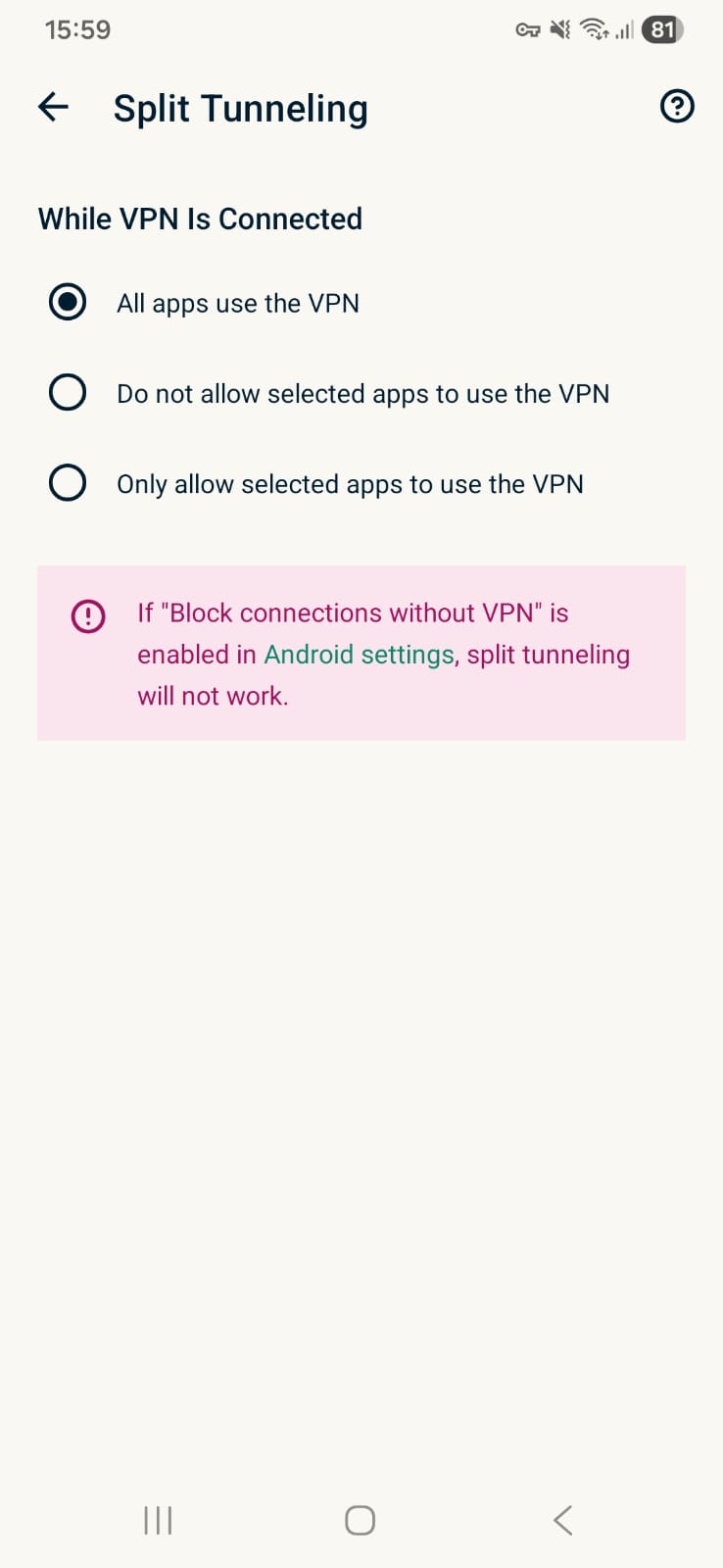
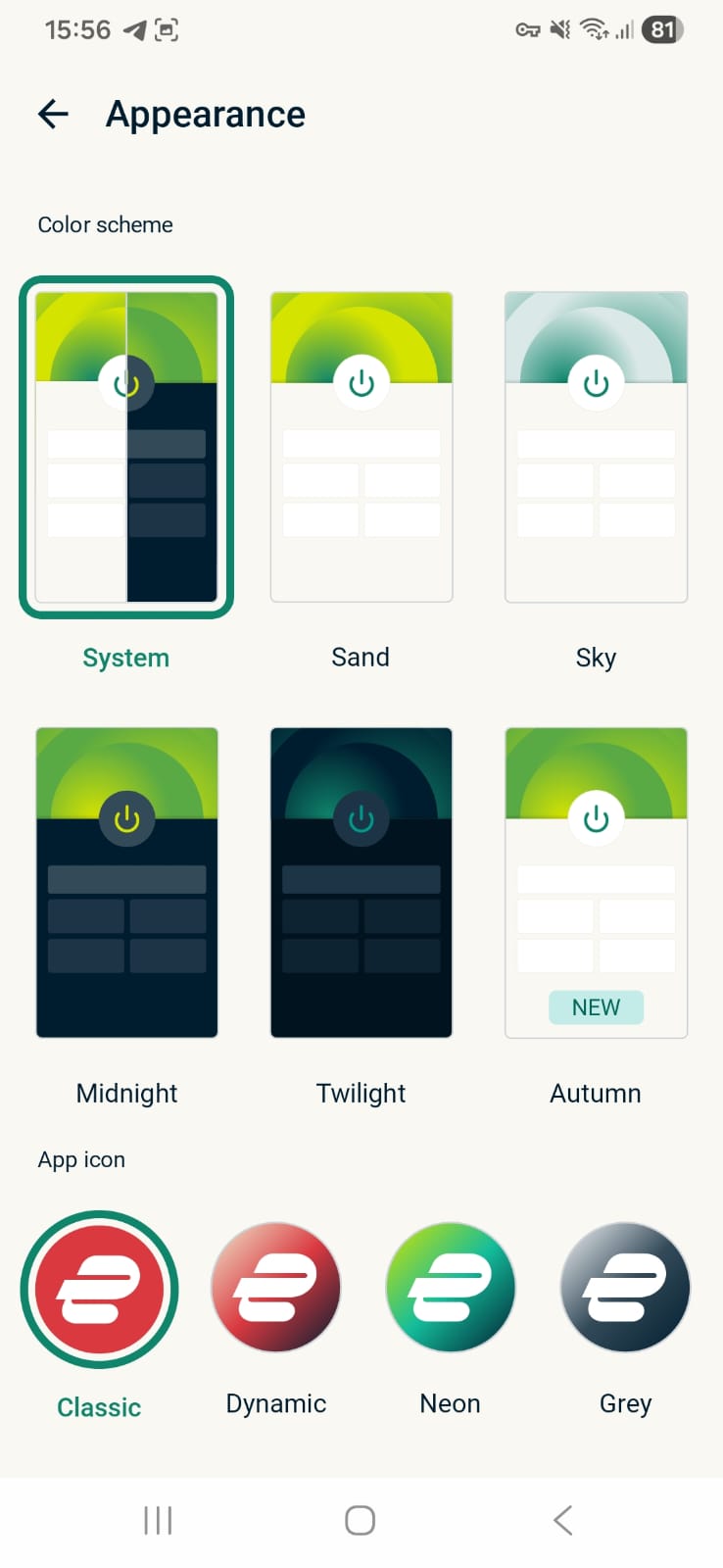
- Home
- Quick Power Button for one-tap connection
- Server Selection Tile & Interactive Map (refresh icon instantly updates IP)
- Time Protected, Ad & Tracker Blocker, Auto Connect, Protocol Selection
- Profile
- Internet Kill Switch (it was switched on automatially and there is only toggle for on/off)
- Split tunnel
- All apps
- Do not allow selected apps to use vpn
- Only allow selected apps to use vpn
- Auto Connect, VPN protocol, fastest location auto-pick
- Help and Support
- VPN Guides
- Password Manager (Guides related to ExpressVPN Keys)
- Diagnostic Tools
- DNS & WebRTC leak test (you can conduct test within the app)
- Diagnostic information
- Speed Test - Built-In
- Add-Ons (Works only on Automatic or Lightway protocol)
- Advanced VPN Protection
- Block ads
- Block malicious sites
- Block trackers
- Block adult sites
- Password manager
- ExpressMailGuard
- Advanced VPN Protection
☞On Wi-Fi (Android) - ExpressVPN showed moderate-to-high speed reductions on both servers. The performance was fairly consistent between regions, though speed loss remained above 50%, and upload speeds varied significantly between the US and UK servers.
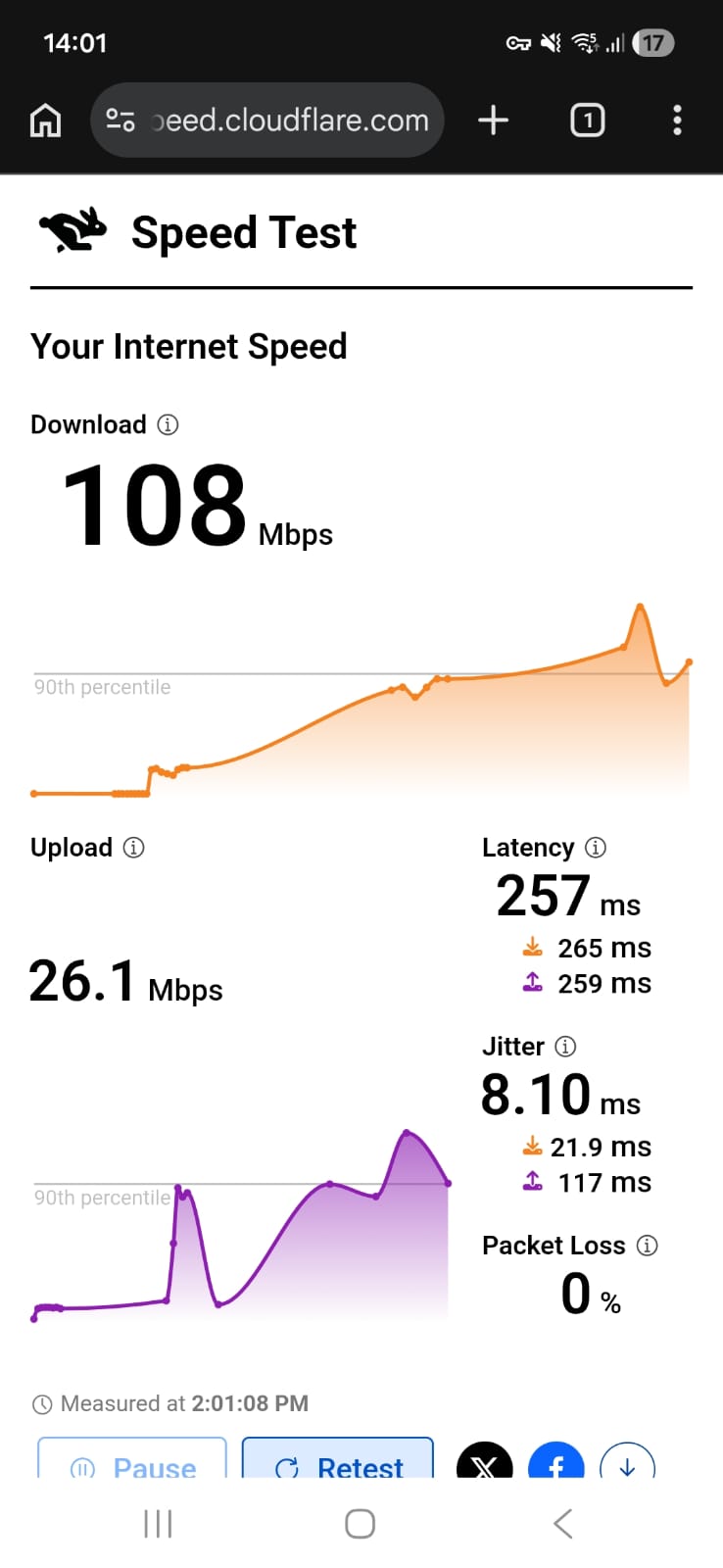
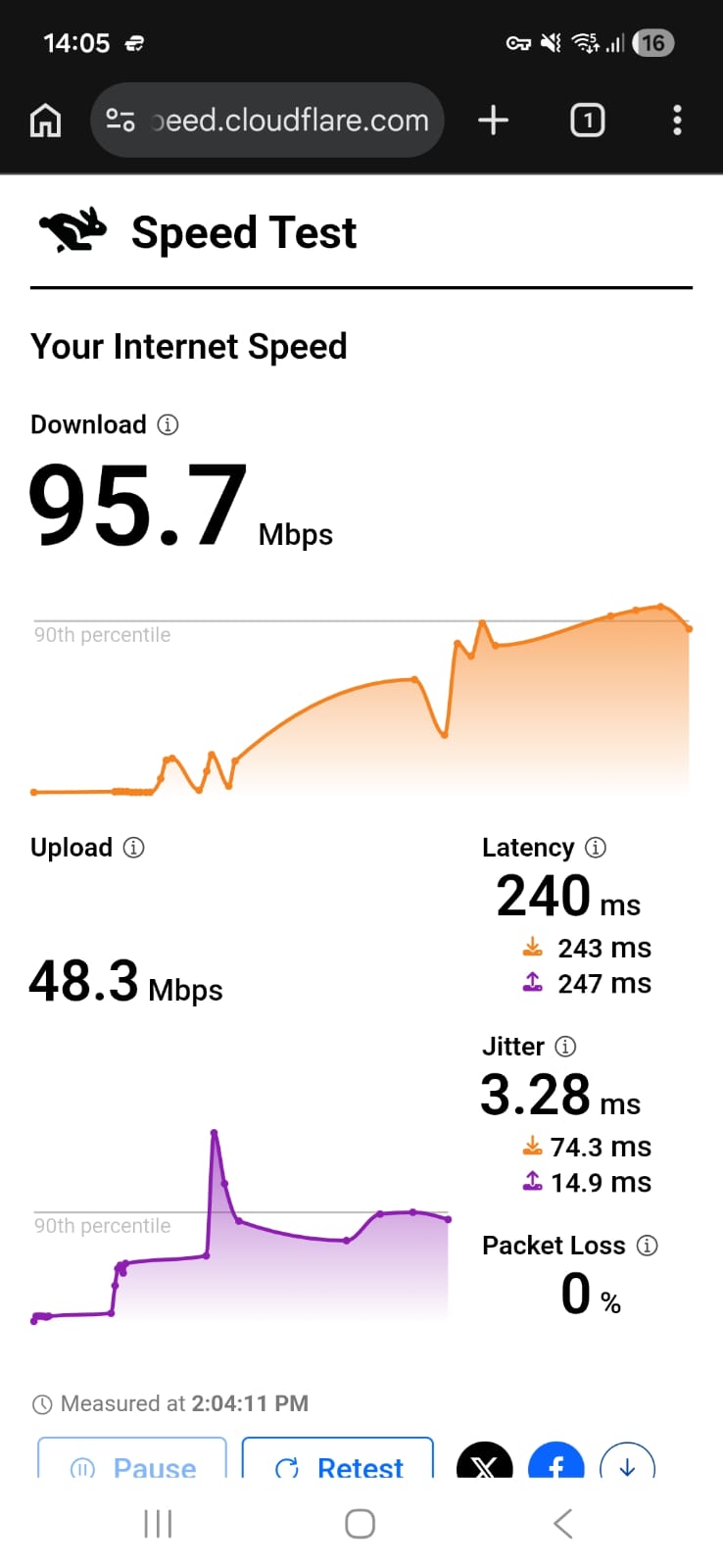
- US server (Los Angeles) - 52.55% drop in speed
- Download Speed - 108.0 Mbps
- Upload Speed - 26.1 Mbps
- Latency - 257 ms
- UK Server (London) - 51.2% drop in speed
- Download Speed - 95.7 Mbps
- Upload Speed - 48.3 Mbps
- Latency - 240 ms
☞ On Mobile Data -Performance was significantly weaker and highly inconsistent. In the US, speed loss was extreme on both days - 88.8% on Day 1 and 83.97% on Day 2, respectively. The UK server performed even worse on Day 1, with a 97.81% drop and just 2.06 Mbps download speed, though it improved on Day 2 with 21.1 Mbps and a reduced (but still high) 77.6% speed loss.
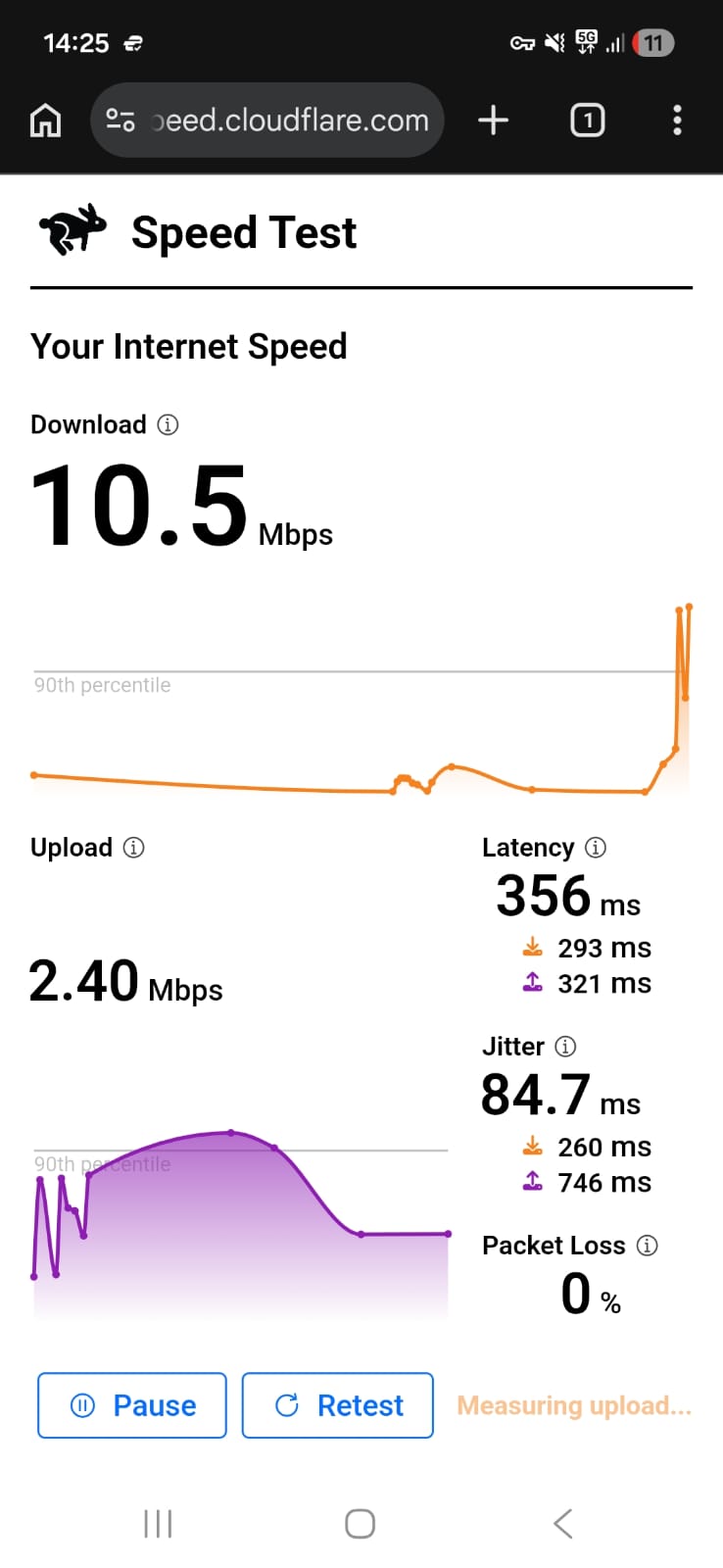
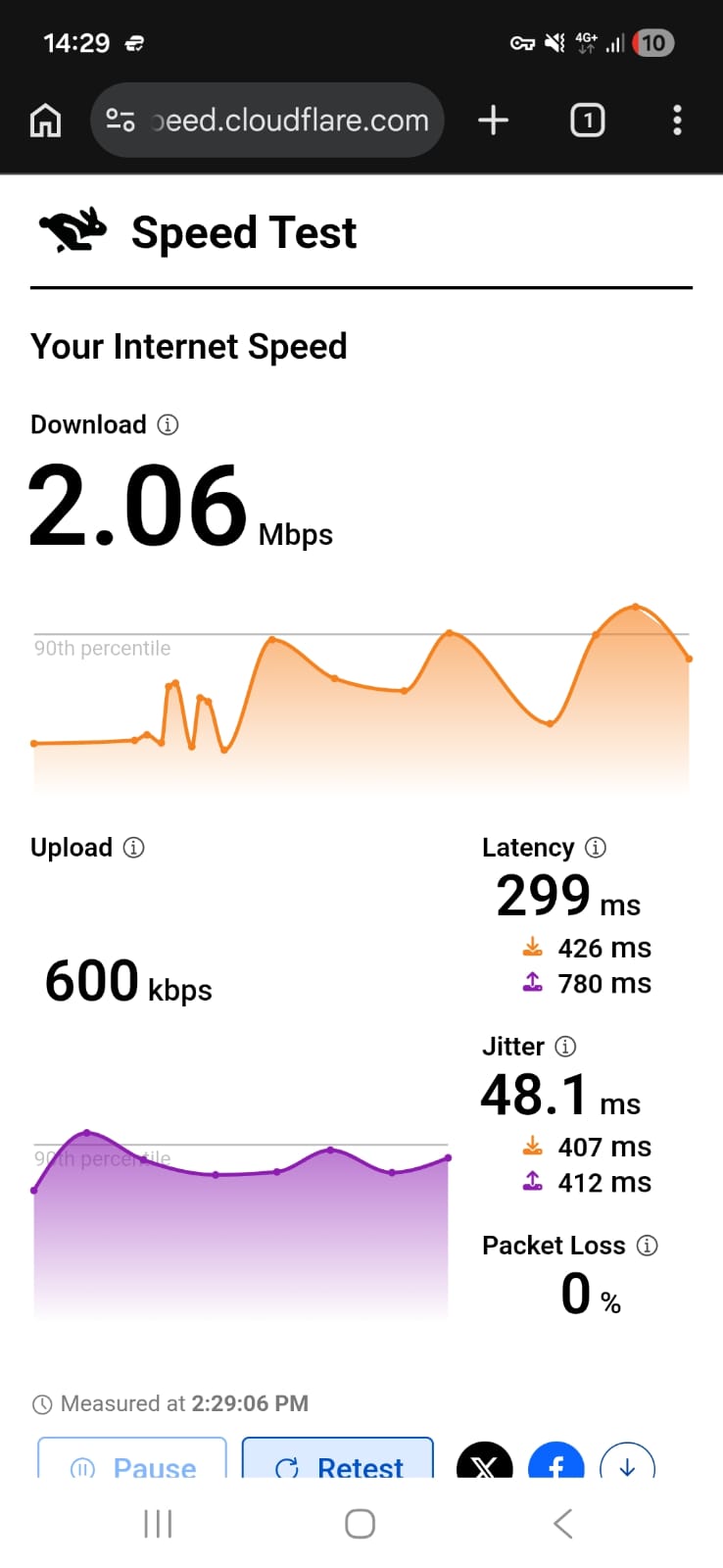
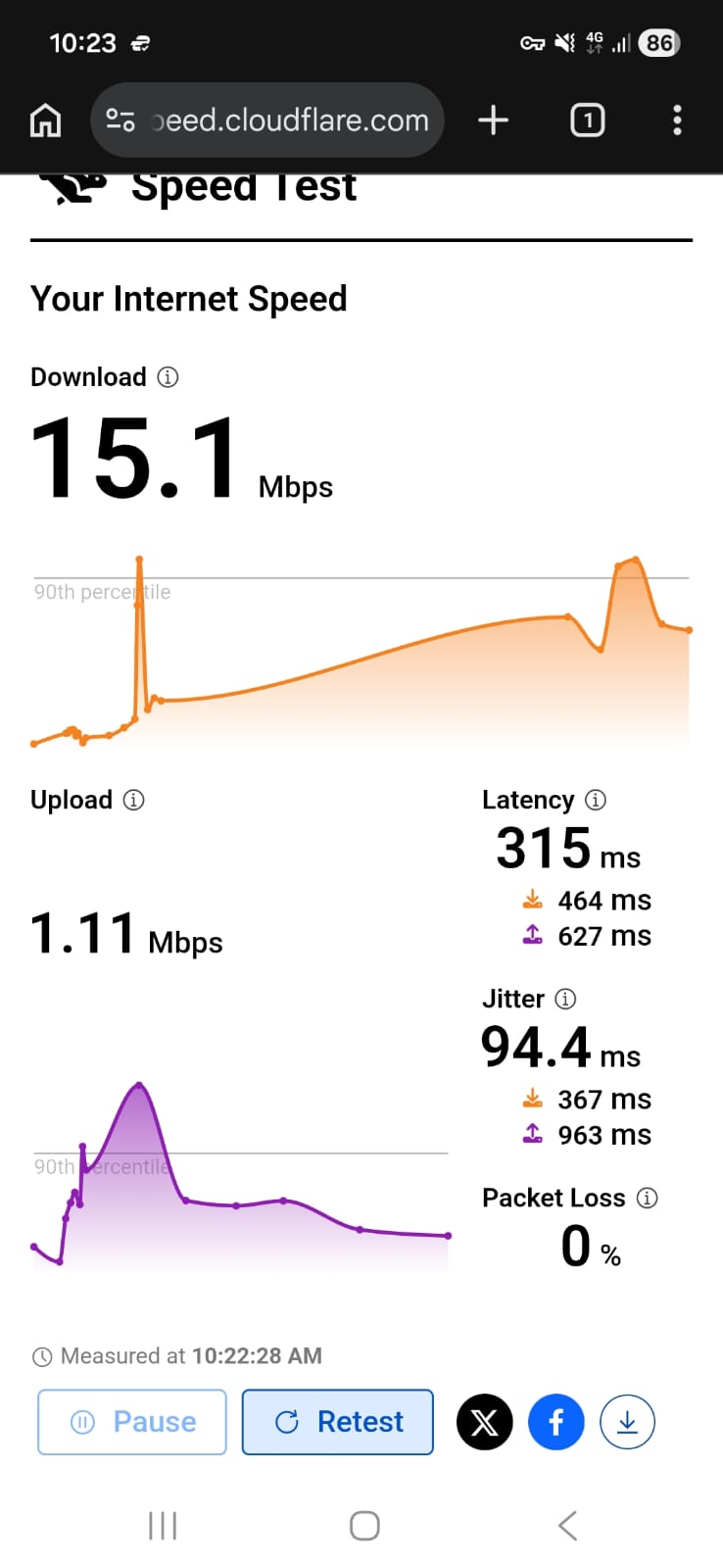
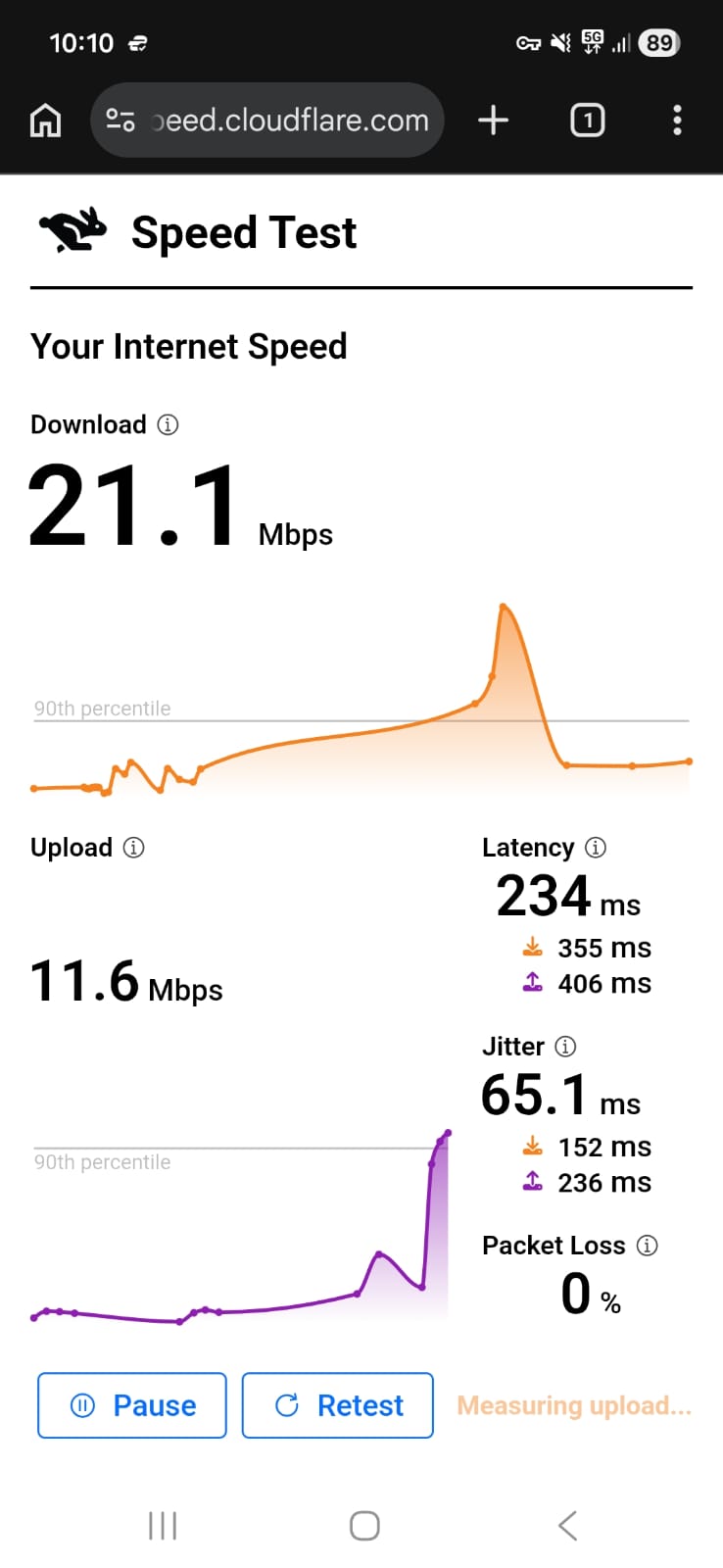
ExpressVPN delivered reliable, buffer-free streaming during my test, but noticeable speed reductions and slight latency, especially on the US server, made browsing and playback feel slower compared to my normal connection.
- On the US (LA) server, I could clearly feel the speed drop once connected. Browsing wasn’t broken, but pages took longer to load. It wasn’t extremely slow, just noticeably slower than my baseline. The UK server felt slightly better, though still not equal to normal speed.
- When I opened Netflix, it loaded without errors and playback started smoothly. However, the video began in low quality with visible blur. On the US server, it took longer to sharpen, while the UK server adjusted a bit faster.
- There was no buffering during playback, which was a positive. After a few minutes, the quality improved and stayed stable. Audio remained clear throughout.
- I also noticed a small delay (almost negligible) when skipping forward or backward. Reconnecting the VPN caused the video quality to drop again at the start before readjusting. Overall, it’s usable, but the slowdown is noticeable at times.
The Internet Kill Switch is auto-enabled and works flawlessly. Every test showed zero DNS/IP leaks, giving full confidence in privacy wherever you are.
PROS
- Auto-enabled kill switch with flawless DNS/IP leak protection
- Unique theme customization options
- ExpressVPN auto-switches the home screen color (red/green) based on connection status
- Split tunneling with app-level controls
- Modern, intuitive UI with single-tap connect and interactive map with IP refresh
- Quick access to fastest, recent, and popular server locations
- Blocks trackers, ads, adult & malicious sites
- Built-in speed test and diagnostic tools
- In-app customer support and easy feature access
- Reliable extended session stability on mobile data
CONS
- Mobile speeds drop heavily on distant servers
- Multiple pop-up ads after installation
- Cannot set server favorites
- Virtual servers are not clearly mentioned
👉 See full ExpressVPN review →
3. Proton VPN - Excellent Interface but Weak Performance
- App Size: 31.65 MB file
- Rating: 5.3 ★ (706k reviews)
- Independently Verified: Yes
- Downloads: 50M+
- Version: 5.16.31.0
- Updated on: Feb 16, 2026
- Required OS: Android 8.0 and up
- Released on: Dec 30, 2019
- Data collected:
- Personal info - Email address, User IDs, Phone number (optional)
- App info and performance - crash logs (optional)
- Financial info - Purchase history
- Permissions include:
- Camera - take pictures and videos
- Other
- Run foreground service
- Query all packages
- Google Play billing service
- Run at startup
- Have full network access
- Use biometric hardware
- View network connections
- Prevent phone from sleeping
- Use fingerprint hardware
- Show notifications
In my testing, Proton VPN offered a smooth and beginner-friendly Android experience, especially in terms of UI. The 32.07 MB app installed quickly, guiding me to a clean, visually appealing home screen with a map background, Quick Connect, and NetShield for ad and tracker blocking. Features like Secure Core, P2P, Tor servers, split tunneling, customizable profiles, and a VPN Accelerator gave strong privacy and control.
However, I observed heavy speed drops on both Wi-Fi and mobile networks, with significant latency and slowdowns that affected browsing and streaming quality. Netflix playback was initially blurry and never fully sharp, though audio remained clear. The system-level kill switch worked reliably, and no DNS/IP leaks occurred, making it secure but less practical for consistently fast connections.
Performance Testing
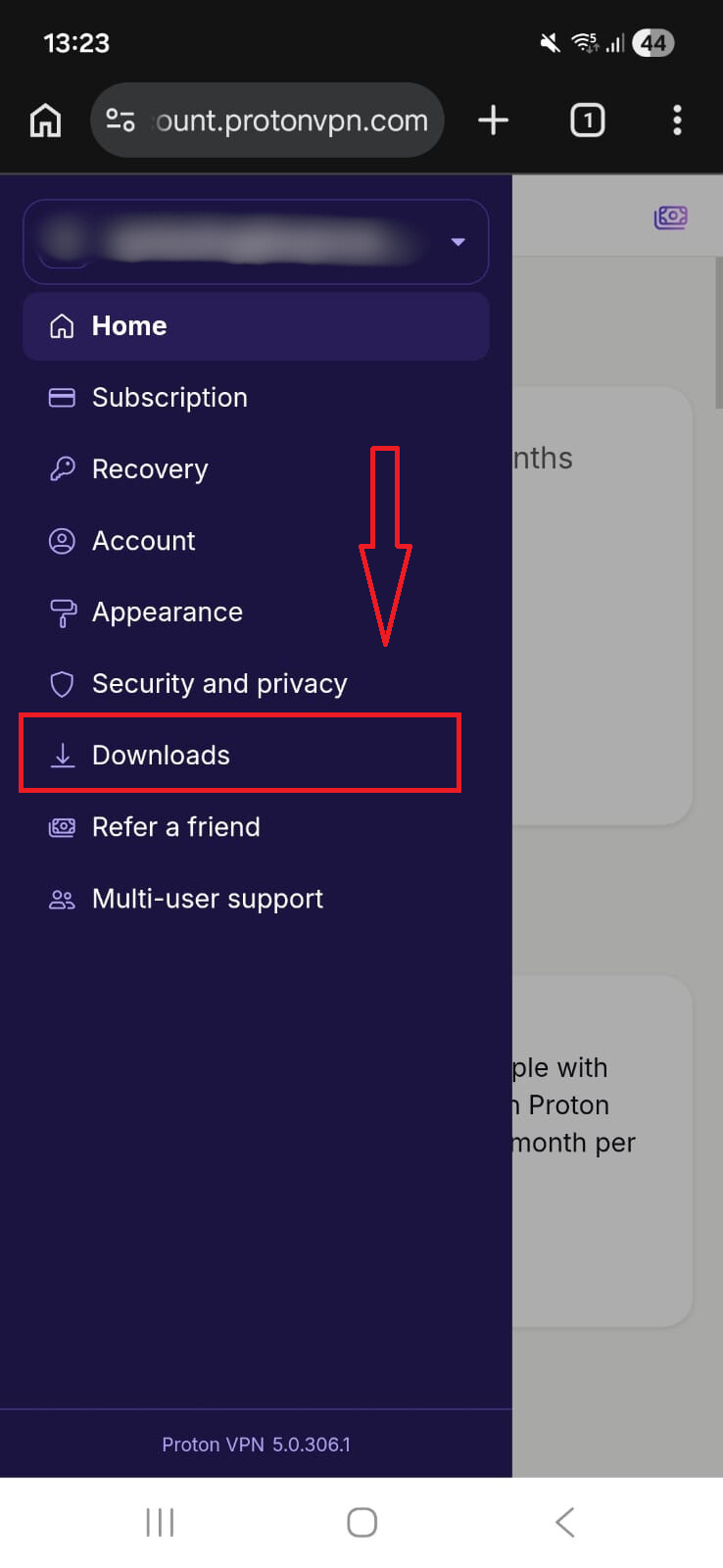
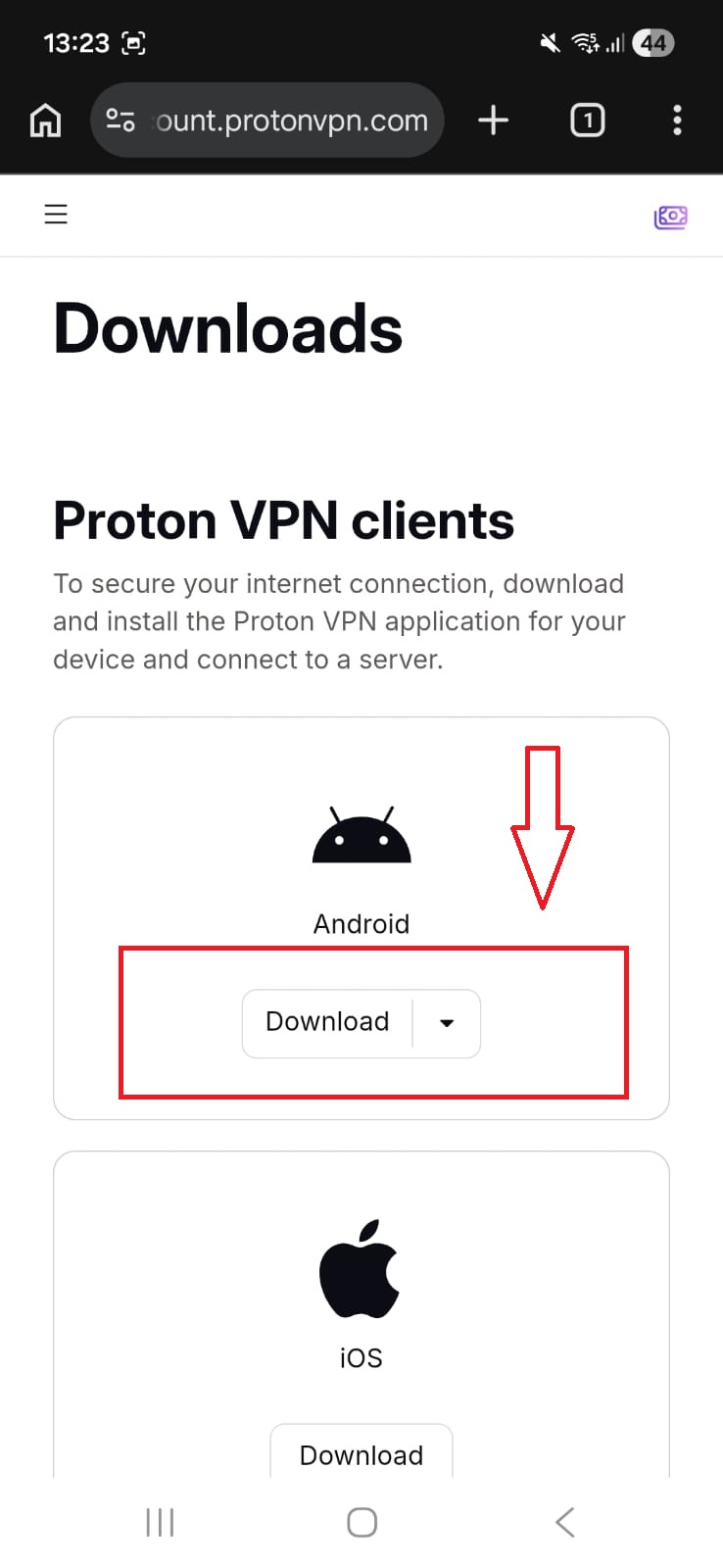
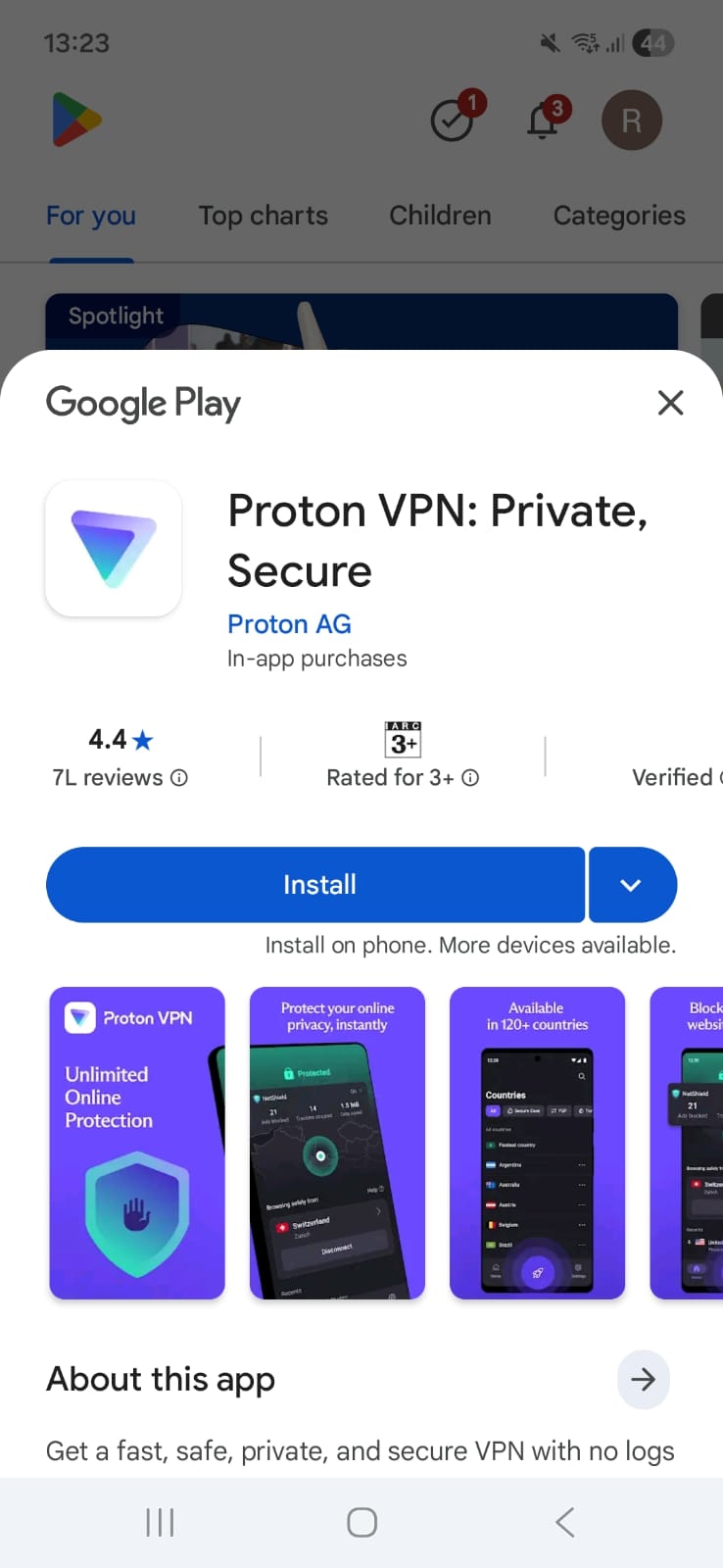
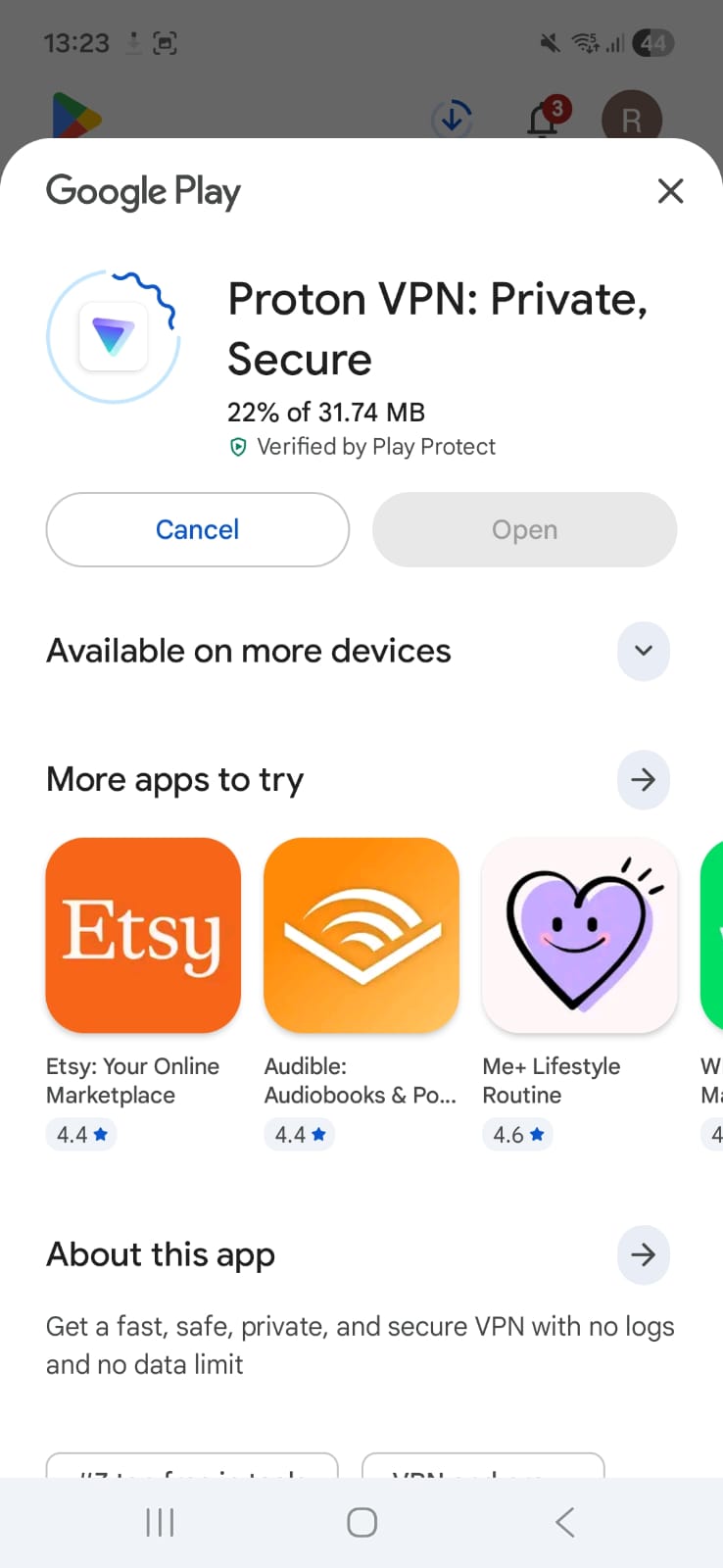
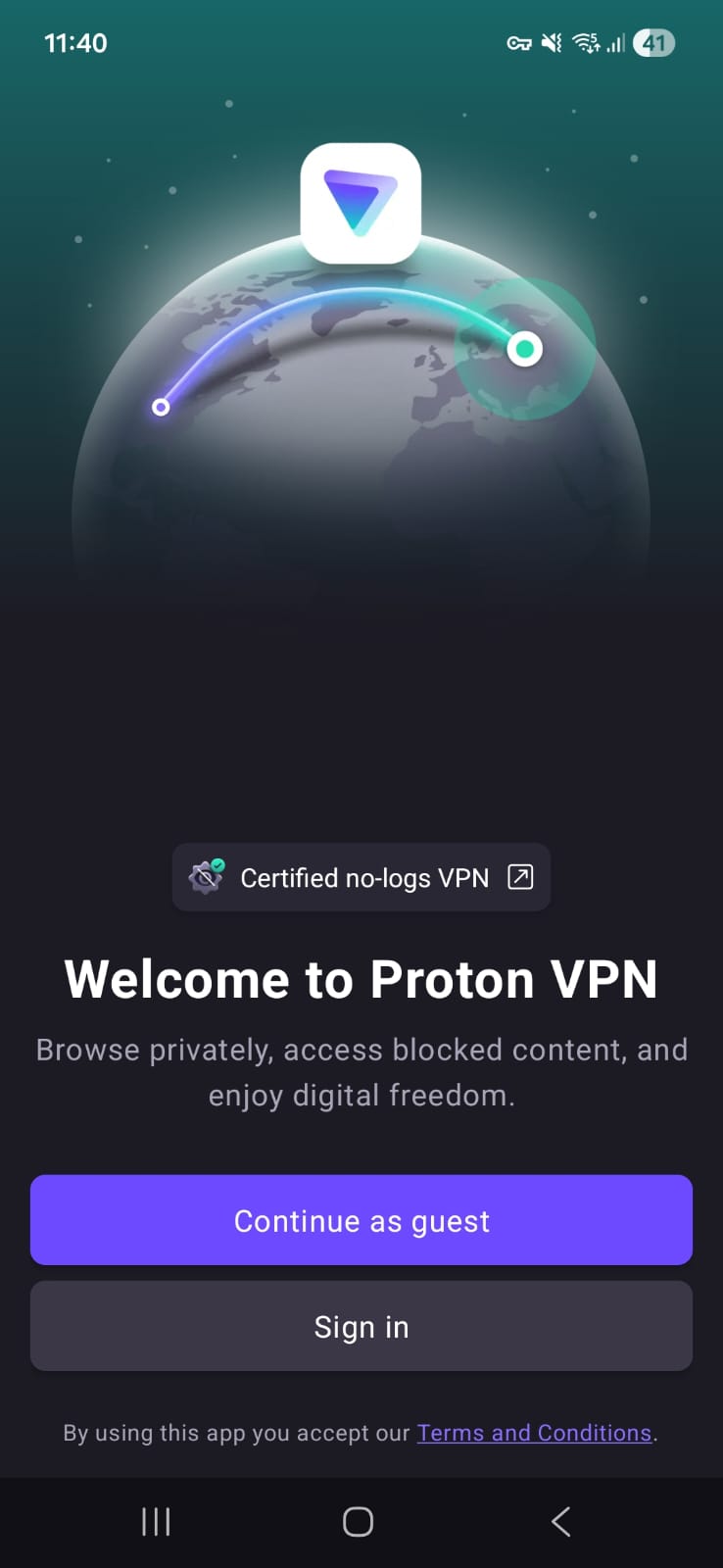
Installing Proton VPN was quick and beginner-friendly. To start with, I logged in to Proton VPN through the website in incognito. Post that, I clicked downloads, and there were different options to download different apps. I clicked Android download, and then I was taken to the next page, where I installed it. After installing, I was taken to Google Play Store. You can download from there. Then I was headed to the login page, where you can sign in or continue as a guest. The app then displays its pricing plans, but you have the option to skip this step and proceed directly to the homepage (because Proton VPN also offers a free version). Since I had a paid plan, I logged. After that, I saw a welcome page that greets you before the home screen - a nice touch. The first server connection is automatic (fastest server), and the connection request prompt pops up for permission, which you accept. No complex steps or confusing settings.
Proton VPN’s interface is clean, modern, and easy. Before connecting, the app shows a red screen; after connecting, it turns green. The home screen displays a map in the background, Netshield details (which appears only after connecting to the server), and a Quick Connect button. Server loads are displayed in ascending order, which makes picking servers easier.
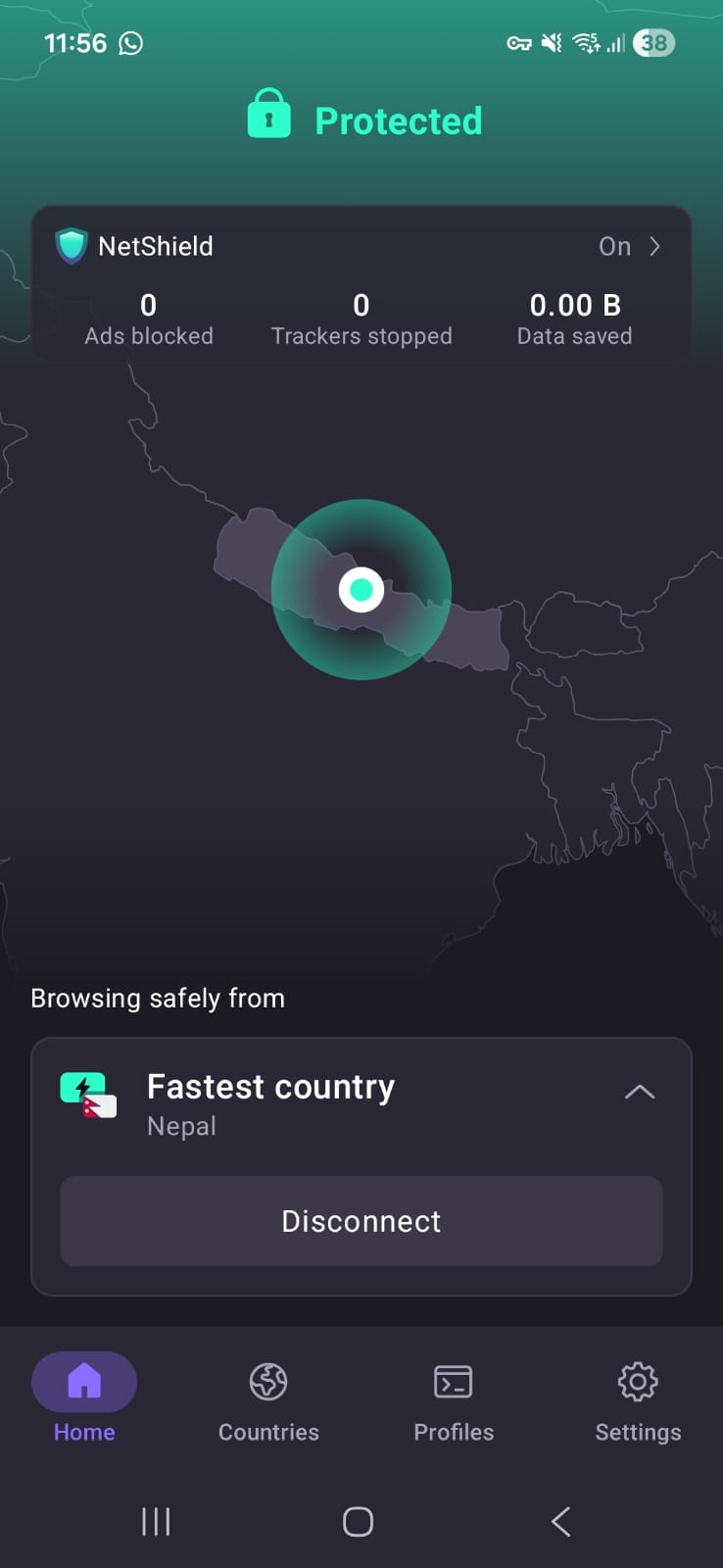
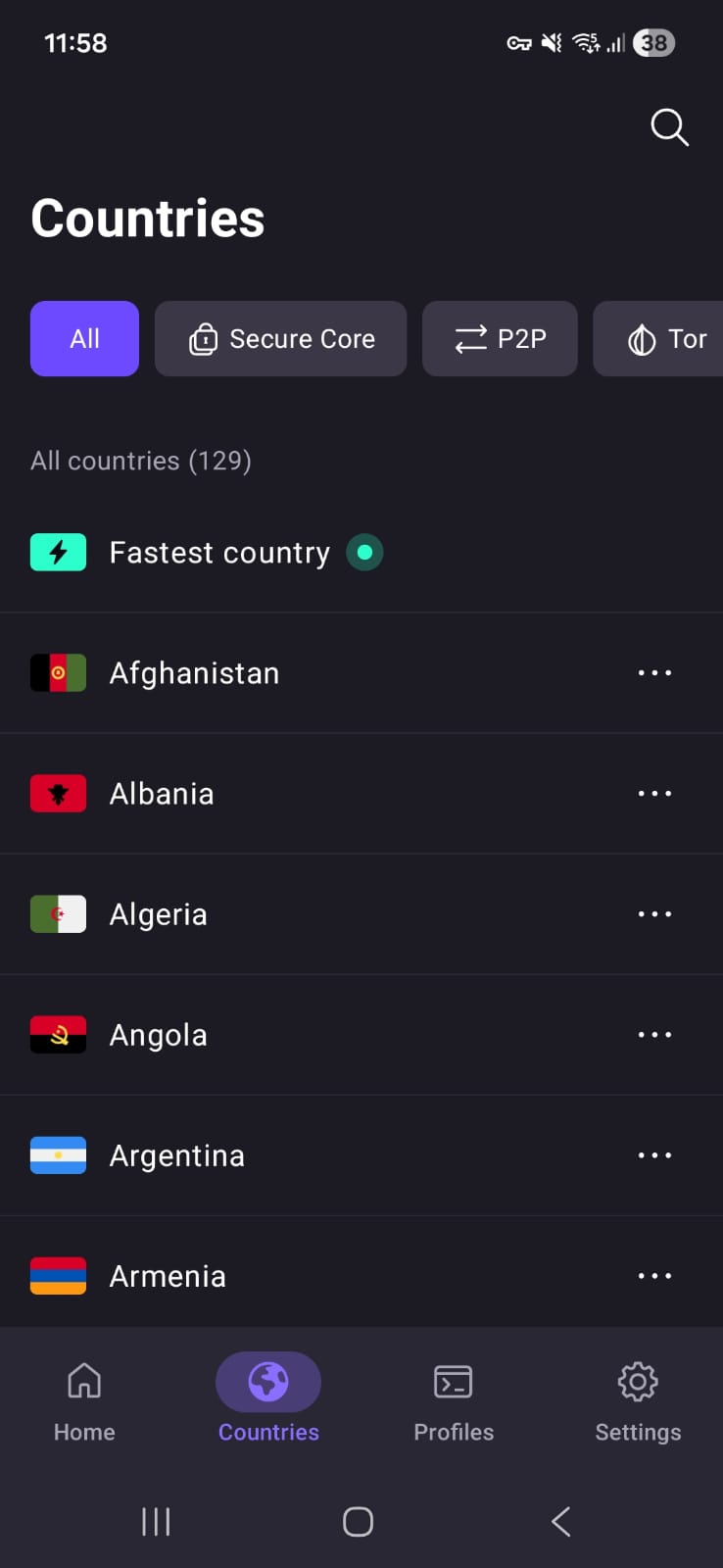
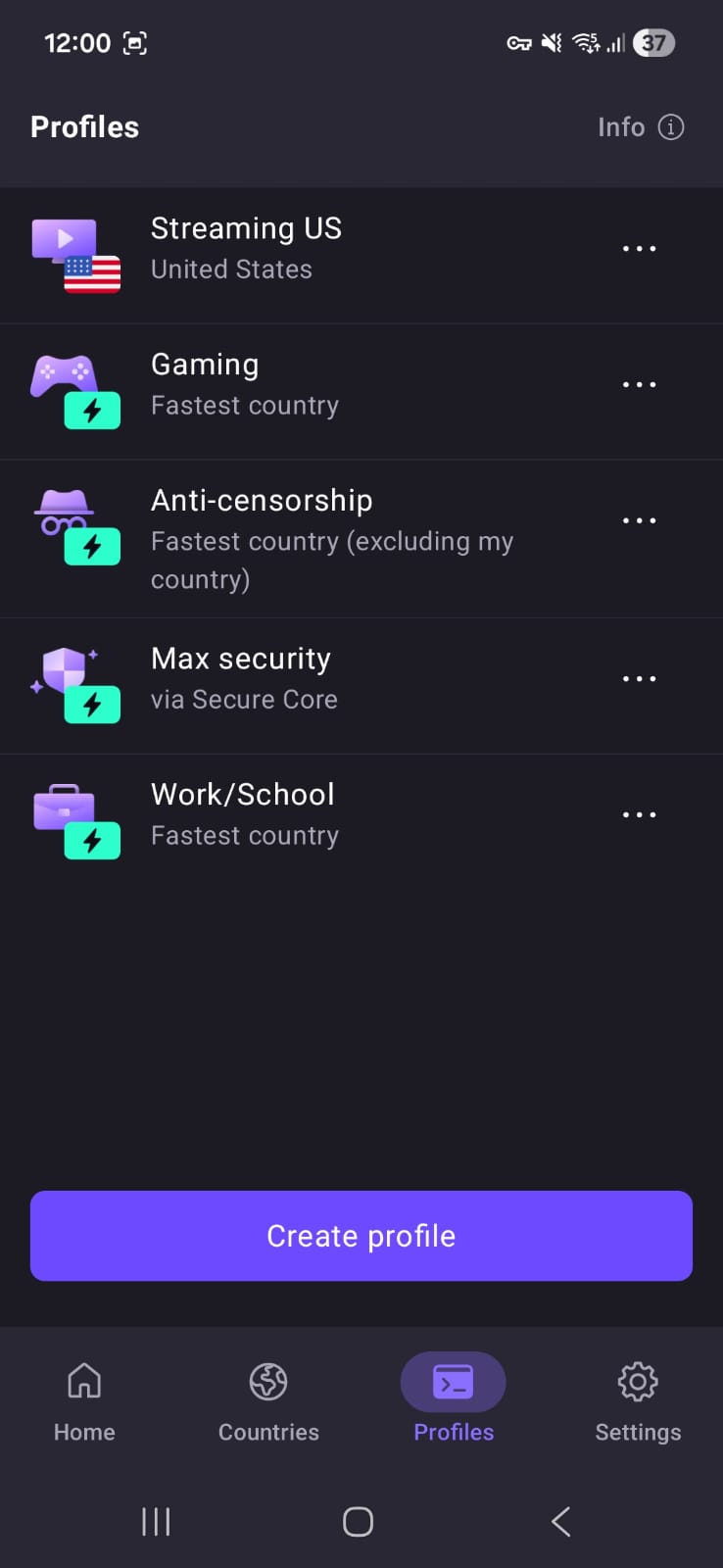
- Home Screen - On the back is a map interface. You will see Netshield details and a quick connect button.
- Speciality Servers -
- Secure Core
- P2P
- Tor
- All
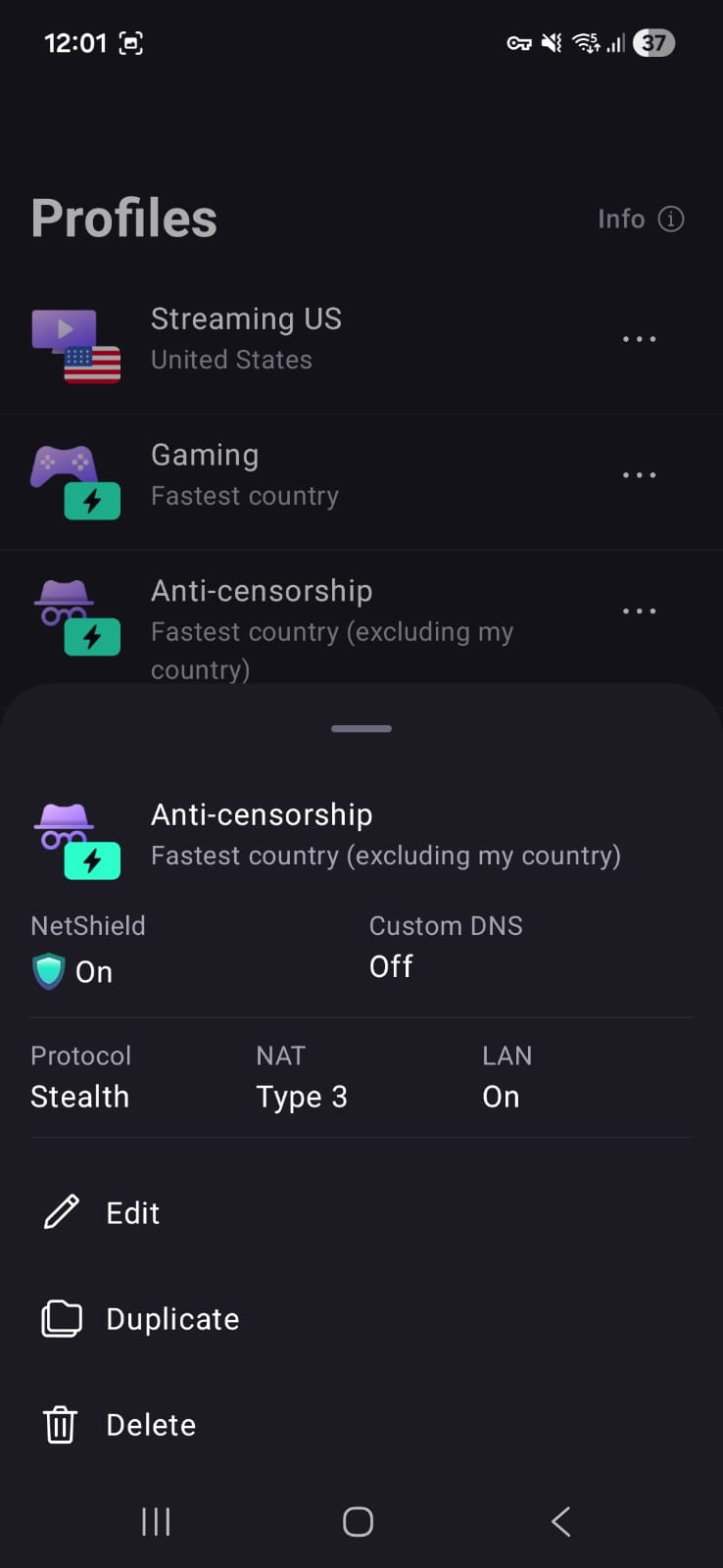
- Profiles - Apart from the default profiles, you can create more profiles as per your needs and voice. Each profile features different settings which you can edit. And you can also duplicate a profile
- Streaming US
- Gaming
- Anti-Censorship
- Max Security
- Work/School
- Settings
- Netshield (toggle on/off0
- Split tunneling
- Include Apps
- Include IP Addresses
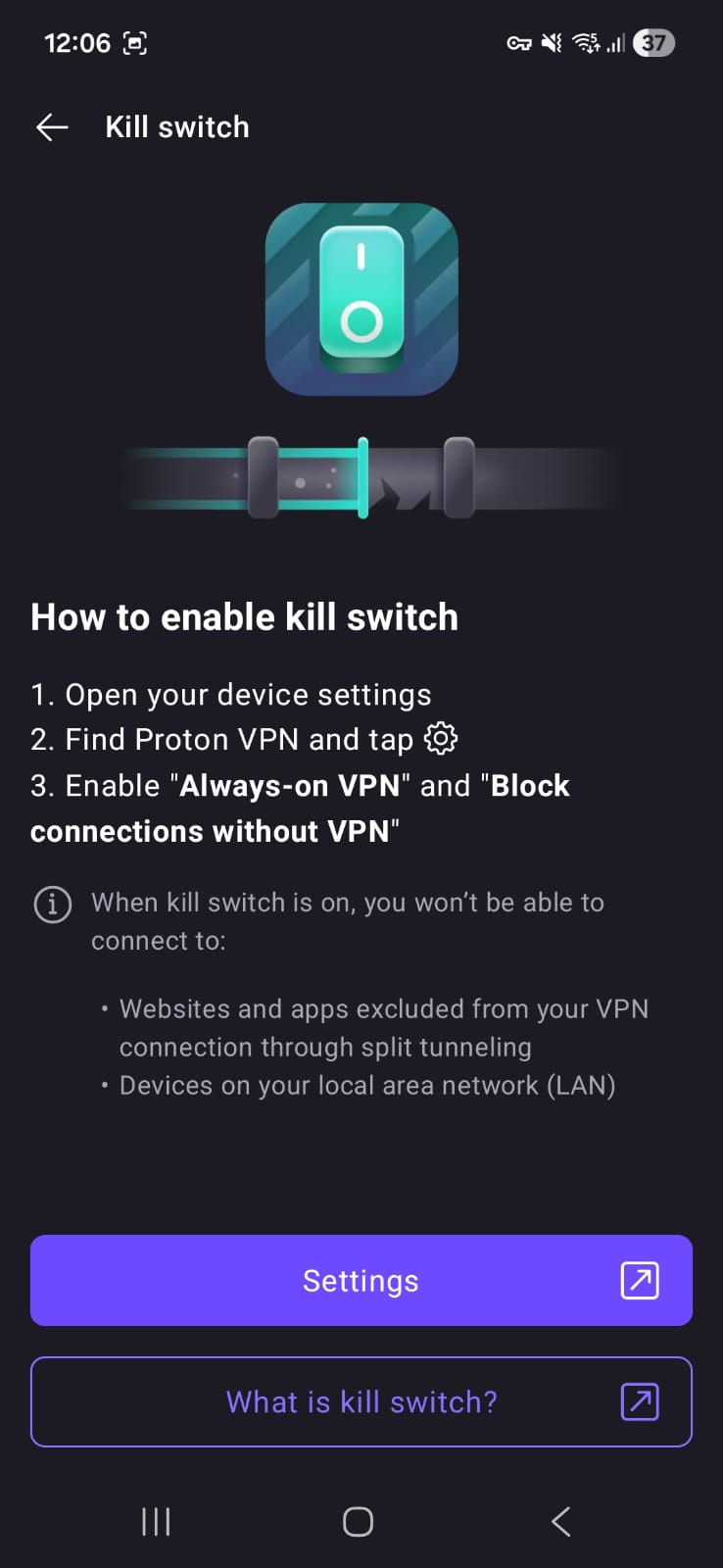
- Kill Switch - Just like NordVPN, it will take you to the phone settings where you can either turn it on/off.
- Protocols
- VPN Accelator (toggle on/off)
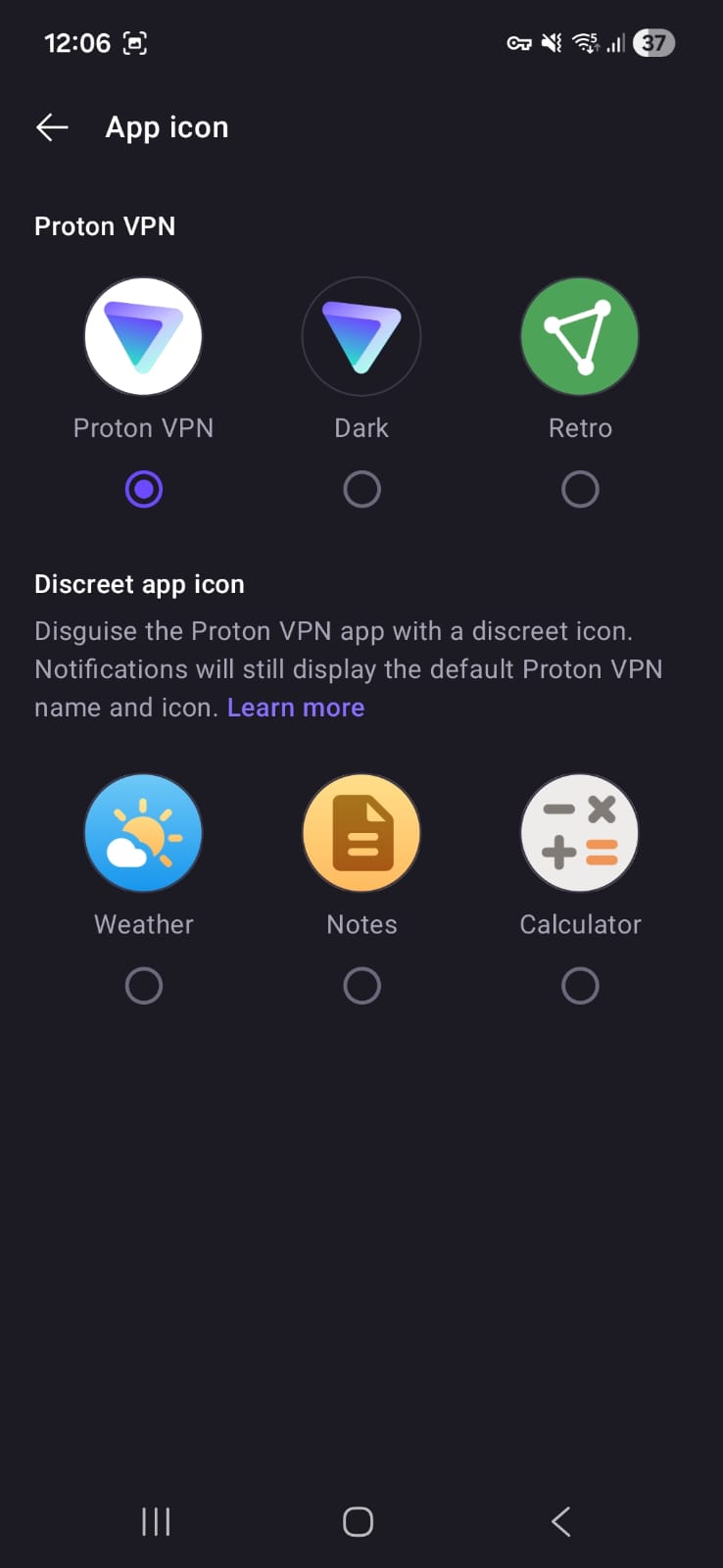
- App Icons
- Proton VPN - Proton VPN Proton VPN, Dark, Retro
- Discreet App Icon - Weather, Notes, Calculator
- Widget Style
☞ On Wi-Fi (Android) - Proton VPN showed very high speed reductions on both servers, with performance dropping by nearly 88%. While upload speeds remained relatively balanced, overall download performance was significantly reduced, and latency stayed above 340 ms on both servers, indicating heavy performance degradation on Wi-Fi.
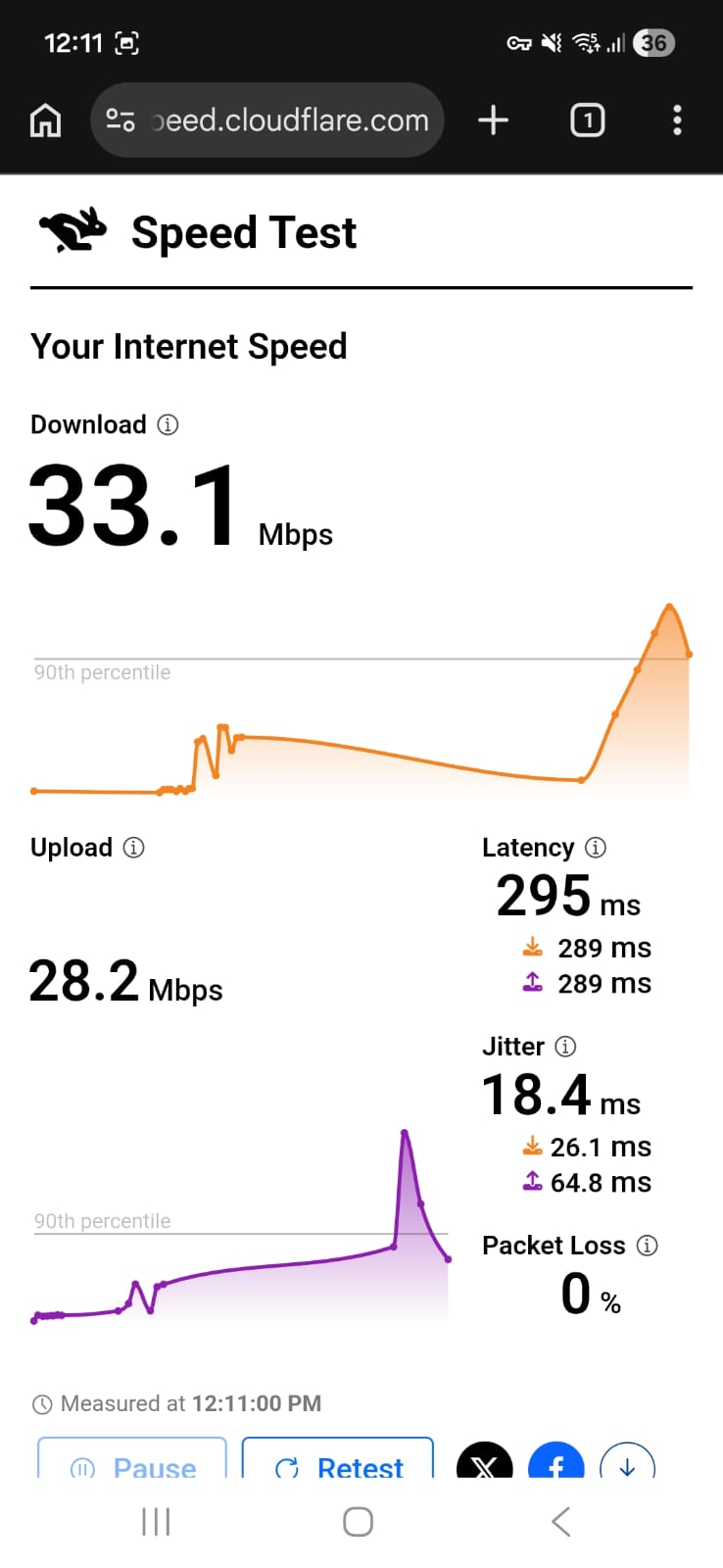
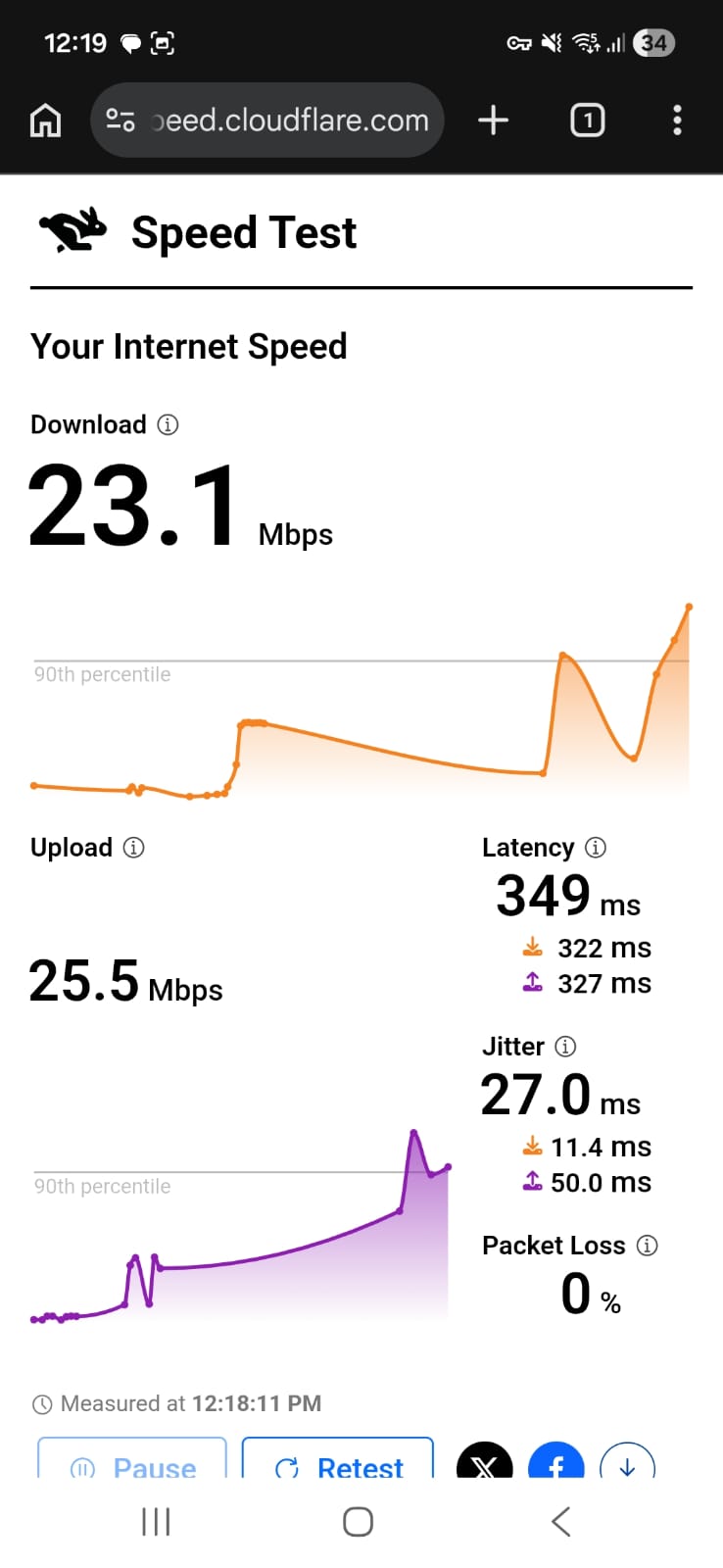
- US Server (New York) - 65.5% drop in speed
- Download Speed - 33.1 Mbps
- Upload Speed - 28.2 Mbps
- Latency - 295 ms
- UK Server (London) - 88.21% drop in speed
- Download Speed - 23.1 Mbps
- Upload Speed - 25.5 Mbps
- Latency - 349 ms
☞ On Mobile Data - Mobile data performance was highly inconsistent. On Day 1, results were relatively strong, with the US server showing just 26.3% speed loss (69.4 Mbps download) and the UK server 45.92% loss (25.7 Mbps download). However, performance declined sharply on Day 2. The US server dropped to 4.48 Mbps with 83.97% speed loss, while the UK server experienced extreme degradation, falling to just 228 Kbps download speed and 99.78% speed loss.
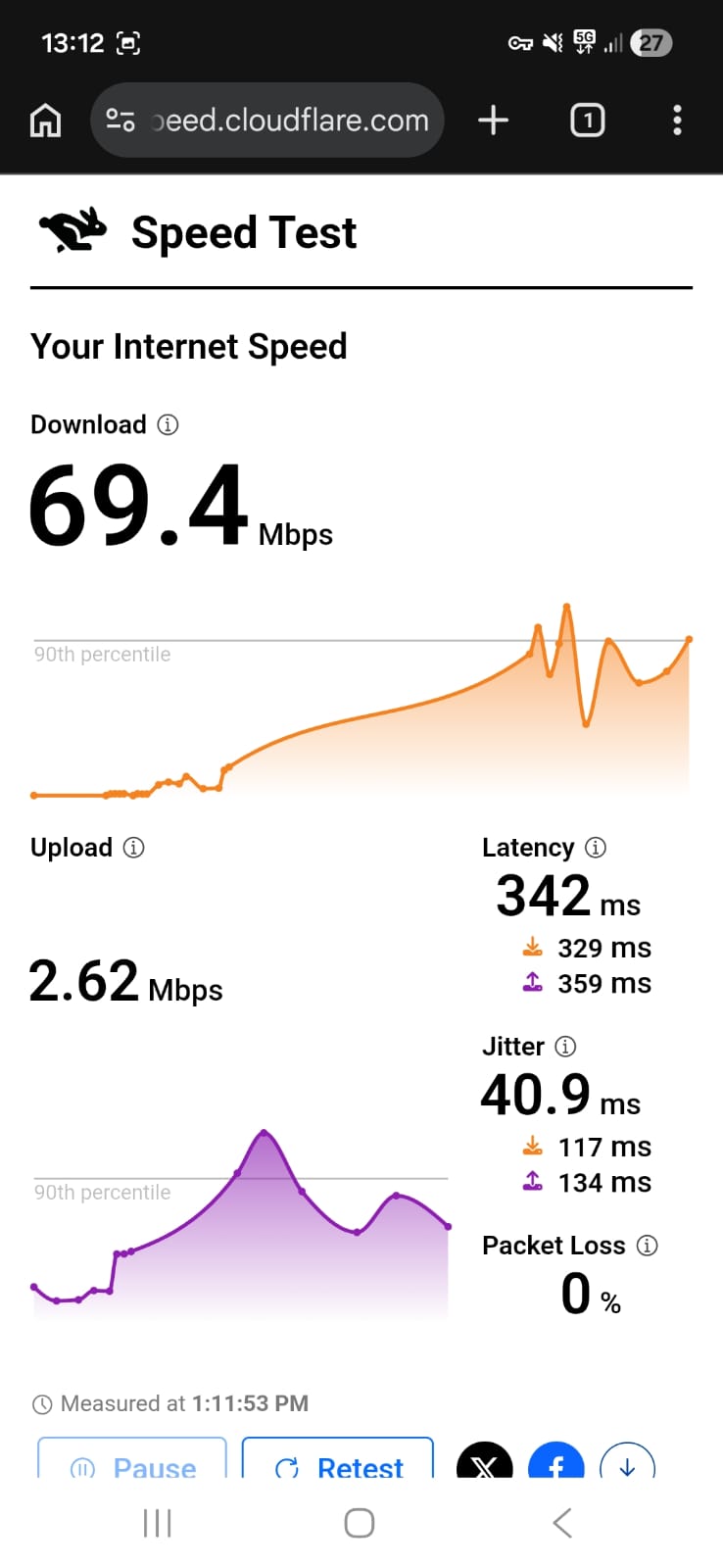
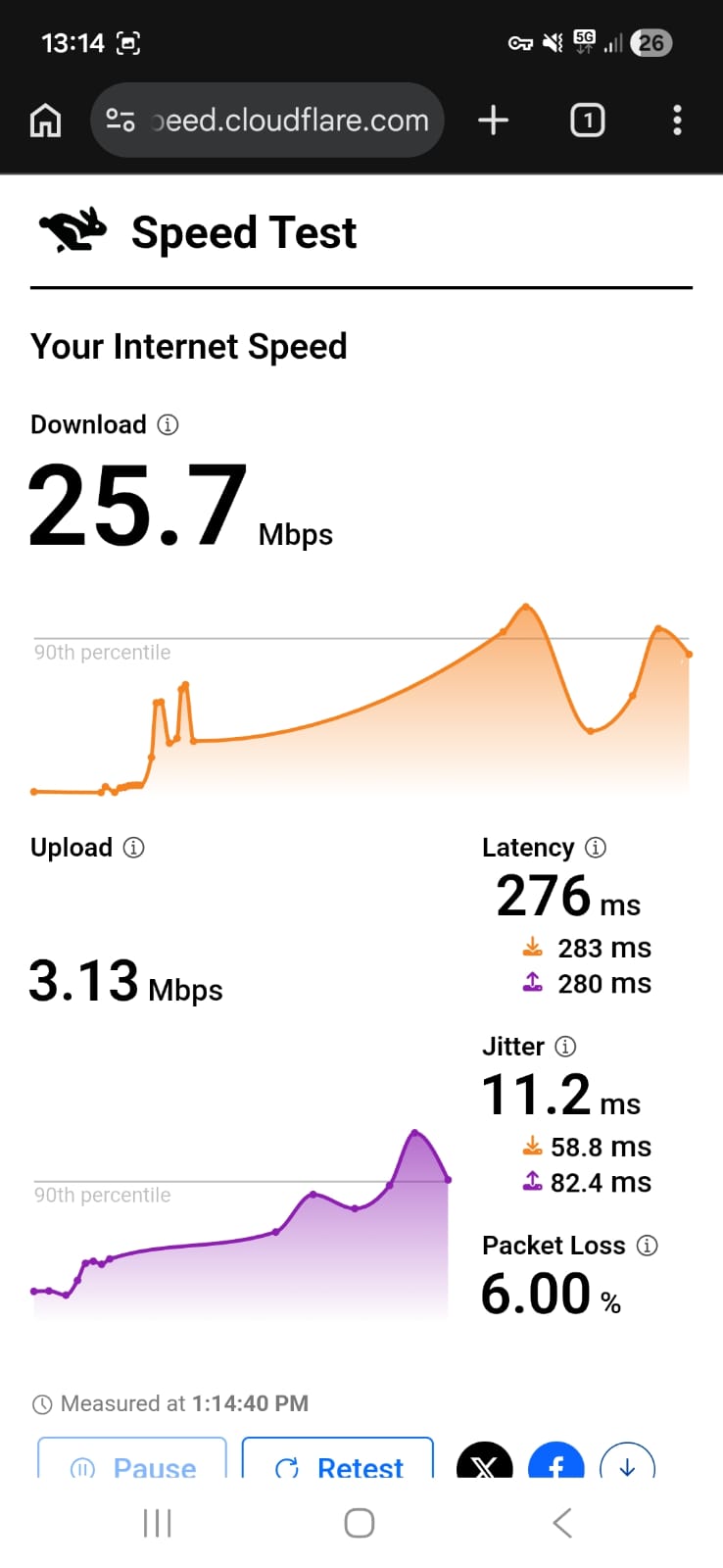
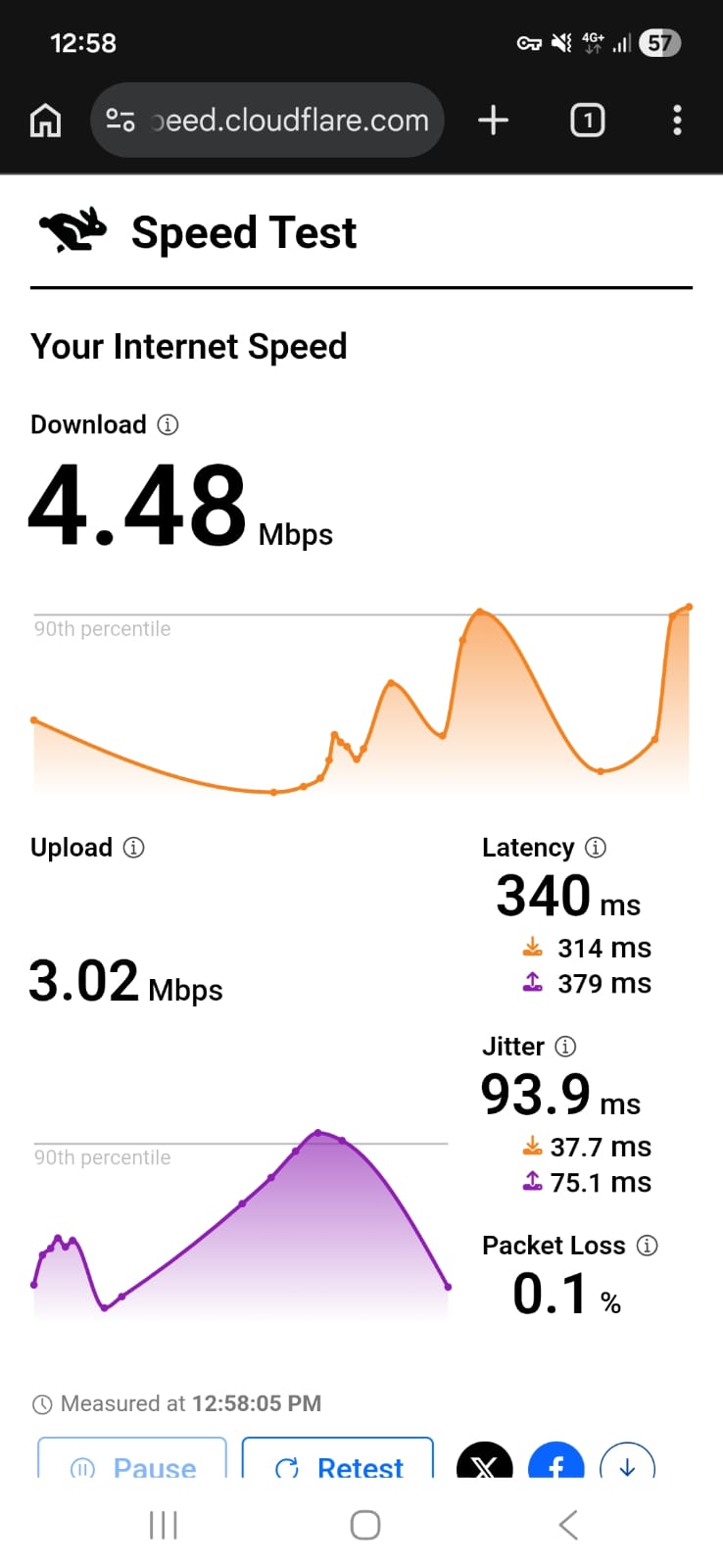
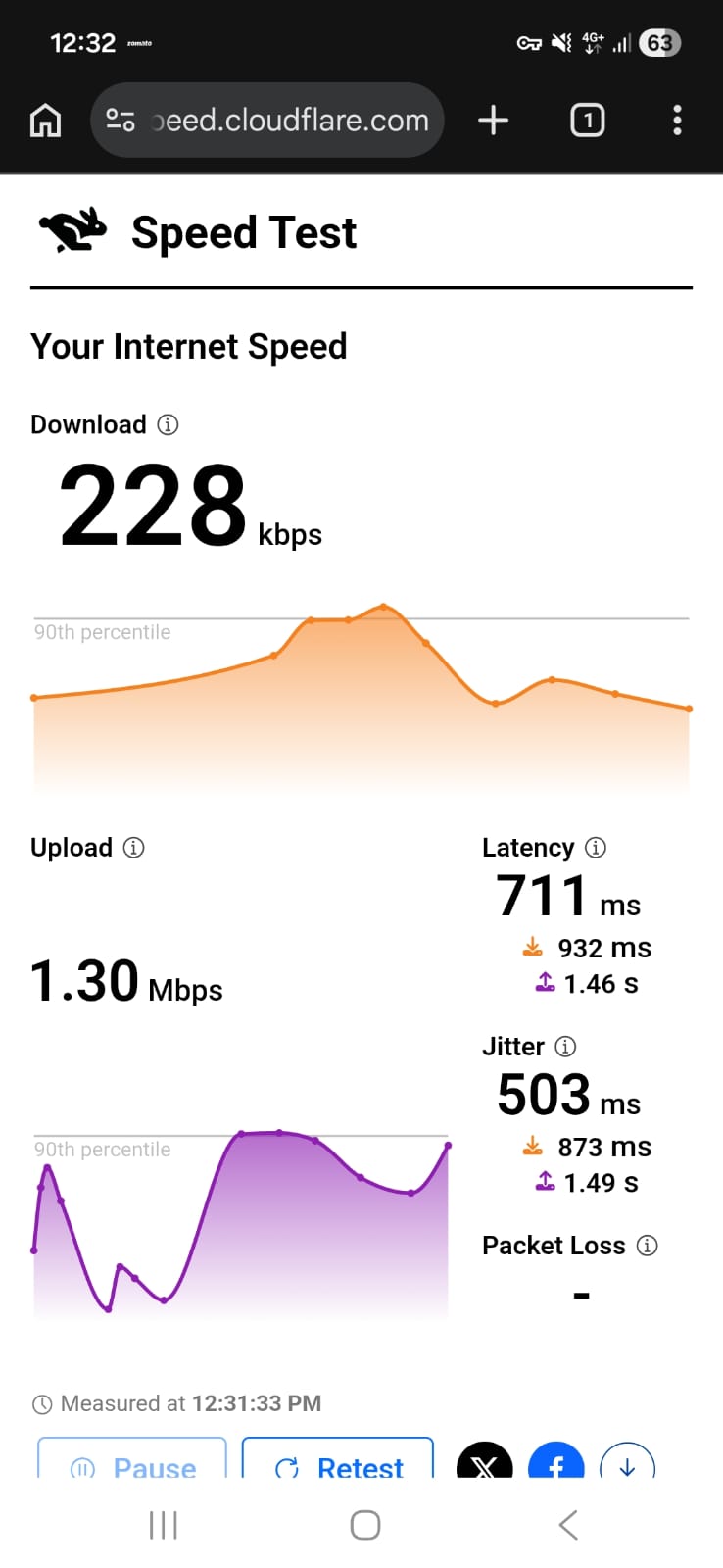
I tested Proton VPN’s US and UK servers, and while it connected smoothly, the overall performance felt slow and inconsistent.
- I also tried Netflix. The title opened without errors, and playback started, but the video was very blurry at first. There was no immediate buffering, though the quality improved slowly and never became very sharp. The audio remained clear throughout.
- On the London (UK) server, the experience was extremely poor during my testing. Everything felt painfully slow. Streaming struggled badly, buffering was likely, and even simple browsing felt frustrating.
- Since there’s no LA server, I tested the New York server instead. The VPN connected without errors and no major startup delay, but the speed drop was very noticeable. Browsing worked but felt laggy, with clear loading delays.
- The performance was so disappointing that I eventually closed the app.
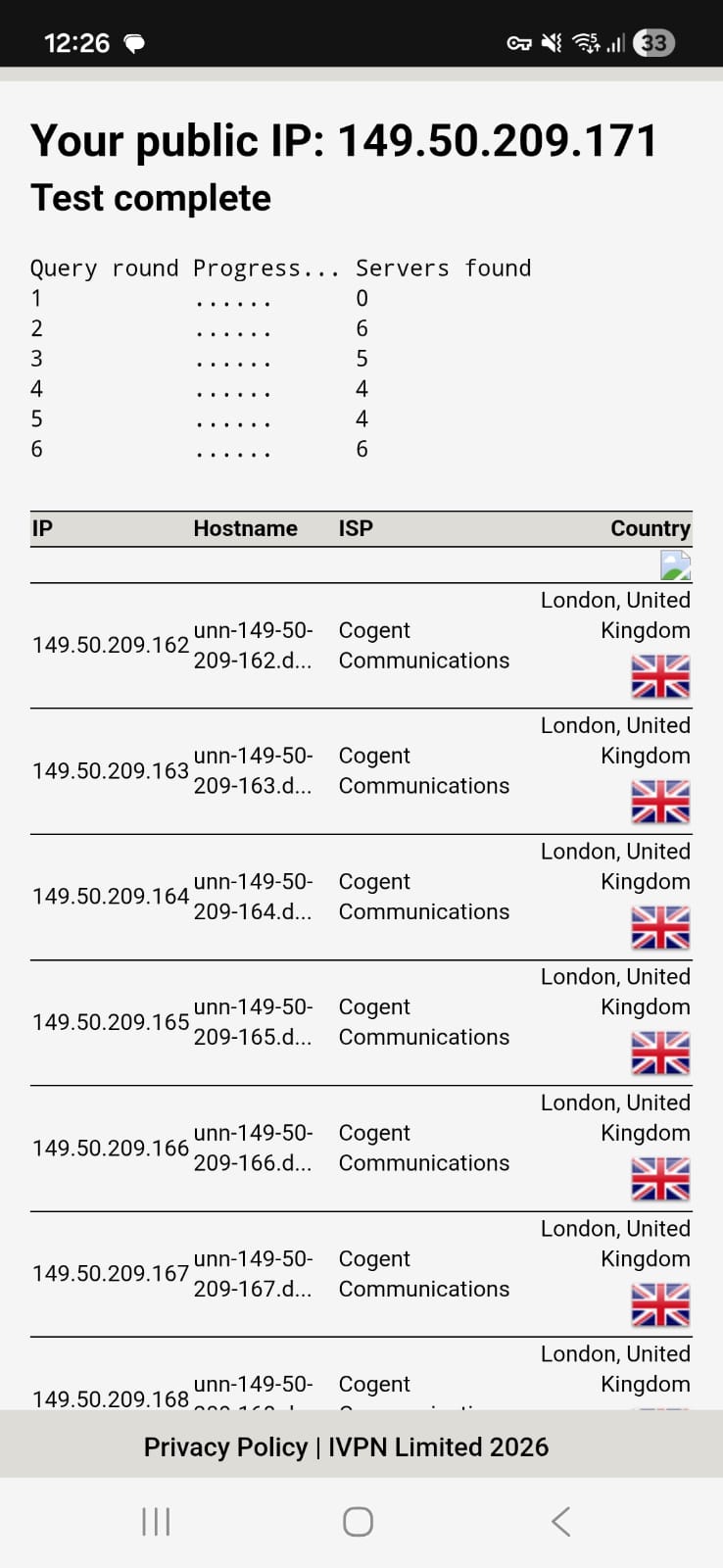
The Kill Switch worked reliably and successfully blocked internet access whenever the connection dropped. All DNS and IP leak tests came back clean, confirming that privacy is maintained even during unstable connections. The connection remained secure throughout testing.
PROS
- Discreet app icon option for privacy
- Custom profiles (Streaming, Gaming, Anti-Censorship, Max Security, Work/School)
- Customizable profiles with duplicable/edit/new settings
- Modern, simple UI with map background
- One-tap connection to fastest server or country
- Specialty servers: Secure Core, P2P, Tor
- Clear labeling of virtual and specialty servers
- Easy to find and connect to low-load servers
CONS
- Cannot set server favorites
- No interactive map like NordVPN
- Lowest Wi-Fi speeds among tested VPNs
- Highly inconsistent speed, especially on mobile data
- The streaming quality on extended sessionsis also not good.
- Despite the VPN Accelerator being on, we did not encounter any improvements in speeds.
👉 See full Proton VPN review →
4. PIA VPN - Advanced Controls but Poor Performance & UI
- App Size: 24 MB file
- Rating: 3.6 ★ (98k reviews)
- Independently Verified: Yes
- Downloads: 10M+
- Version: 4.0.26
- Updated on: Feb 9, 2026
- Required OS: Android 7.0 and up
- Released on: April 5, 2013
- Data collected:
- Personal info - Email address and User IDs
- App info and performance - crash logs (optional)
- App permissions:
- Location - access precise location only in the foreground
- Other
- Access location in the background
- Run foreground service
- Google Play billing service
- Run at startup
- android.permission.SCHEDULE_EXACT_ALARM
- Connect and disconnect from Wi-Fi
- Have full network access
- View network connections
- Change network connectivity
- Prevent phone from sleeping
- View Wi-Fi connections
- Show notifications
Coming to the last one, Private Internet Access provided a fast Android experience. The 23.85 MB app installed in under a minute, taking me directly to home screen with Quick Connect, automation options, protocol selection, and the PIA MACE ad/malware blocker. The kill switch worked reliably, and DNS/IP leak tests all passed, ensuring privacy protection.
Wi-Fi connections were average, but mobile performance was extremely poor, with significant speed drops and high latency, affecting browsing and streaming quality. Netflix streamed with frequent buffering, and video clarity stayed low.
Overall, PIA VPN is easy to use with advanced customization options, server favorites, and streaming features, though the outdated UI and inconsistent mobile performance are notable drawbacks.
Performance Testing
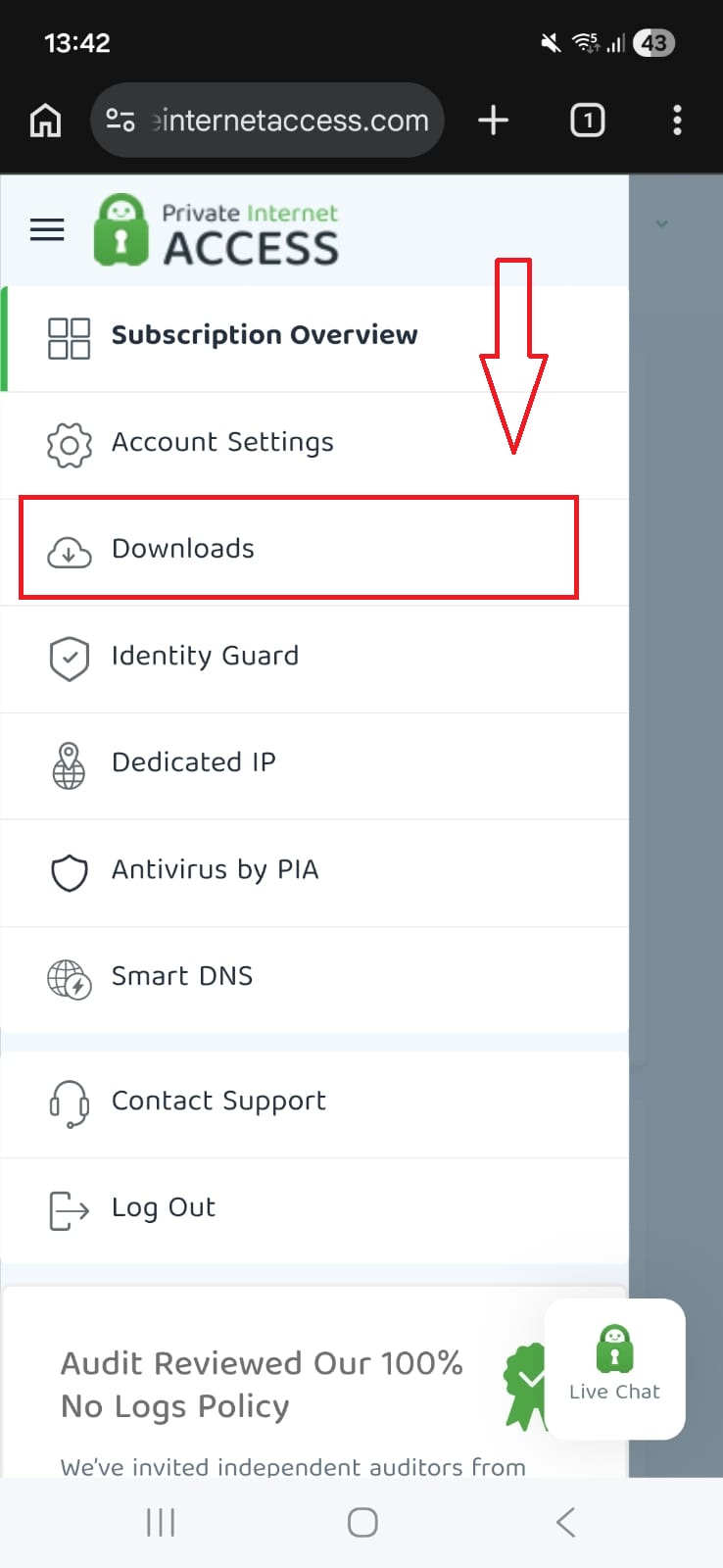
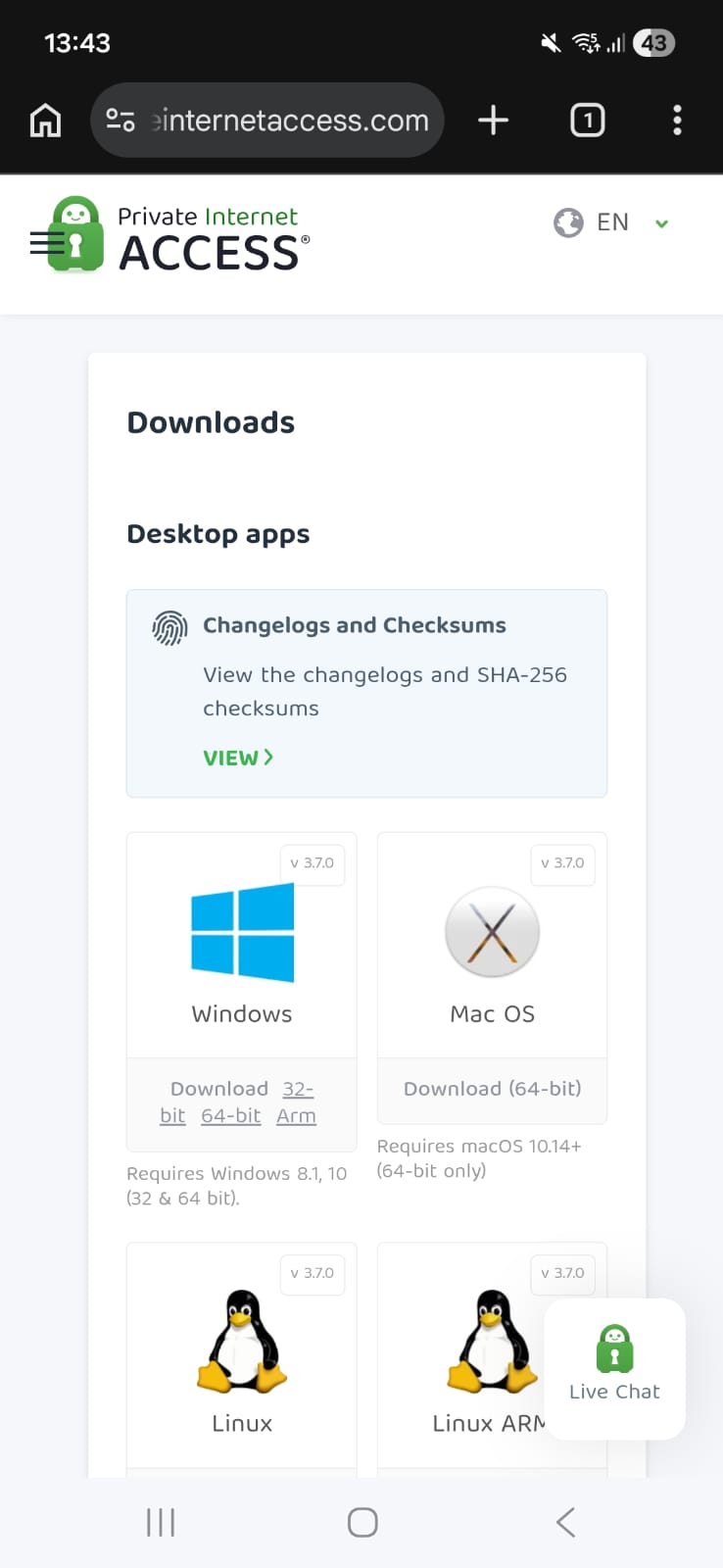
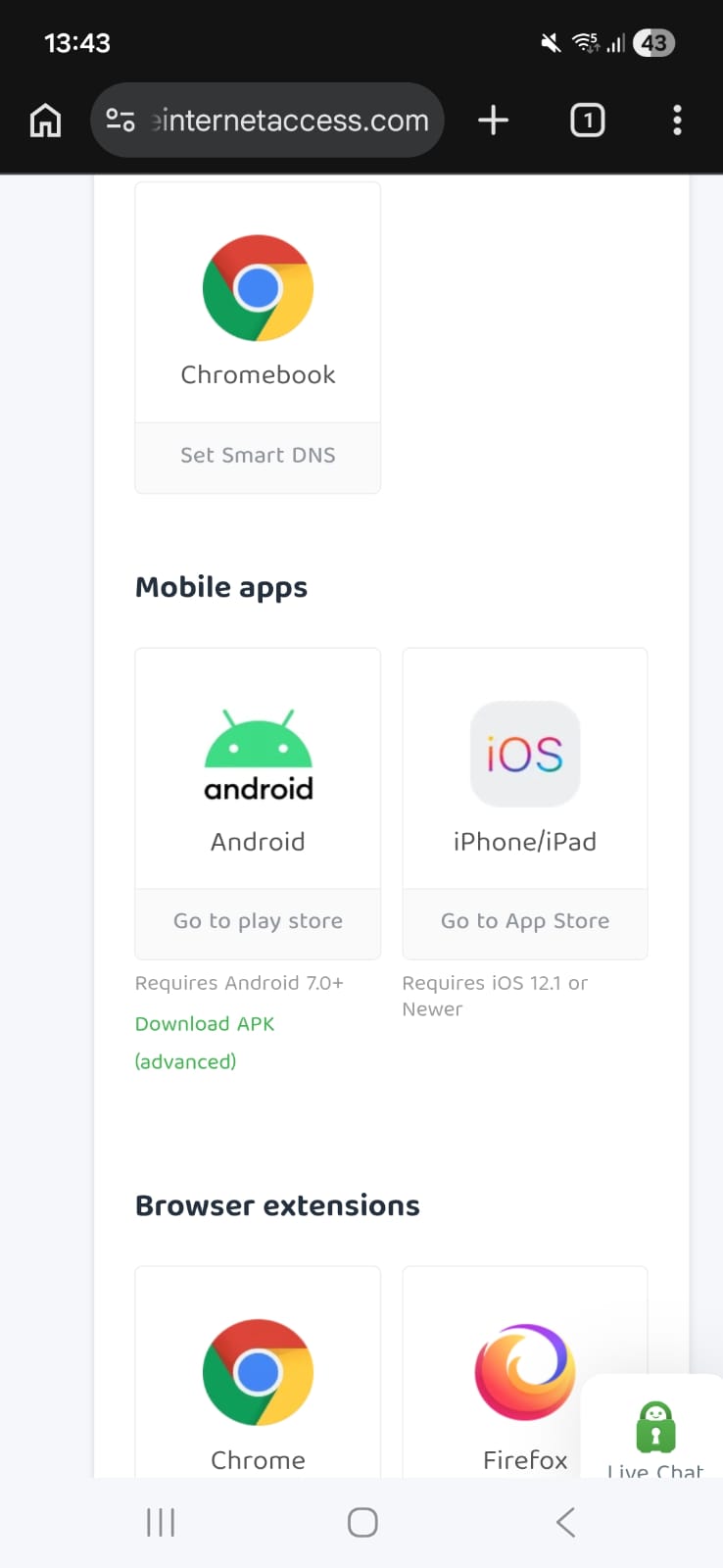
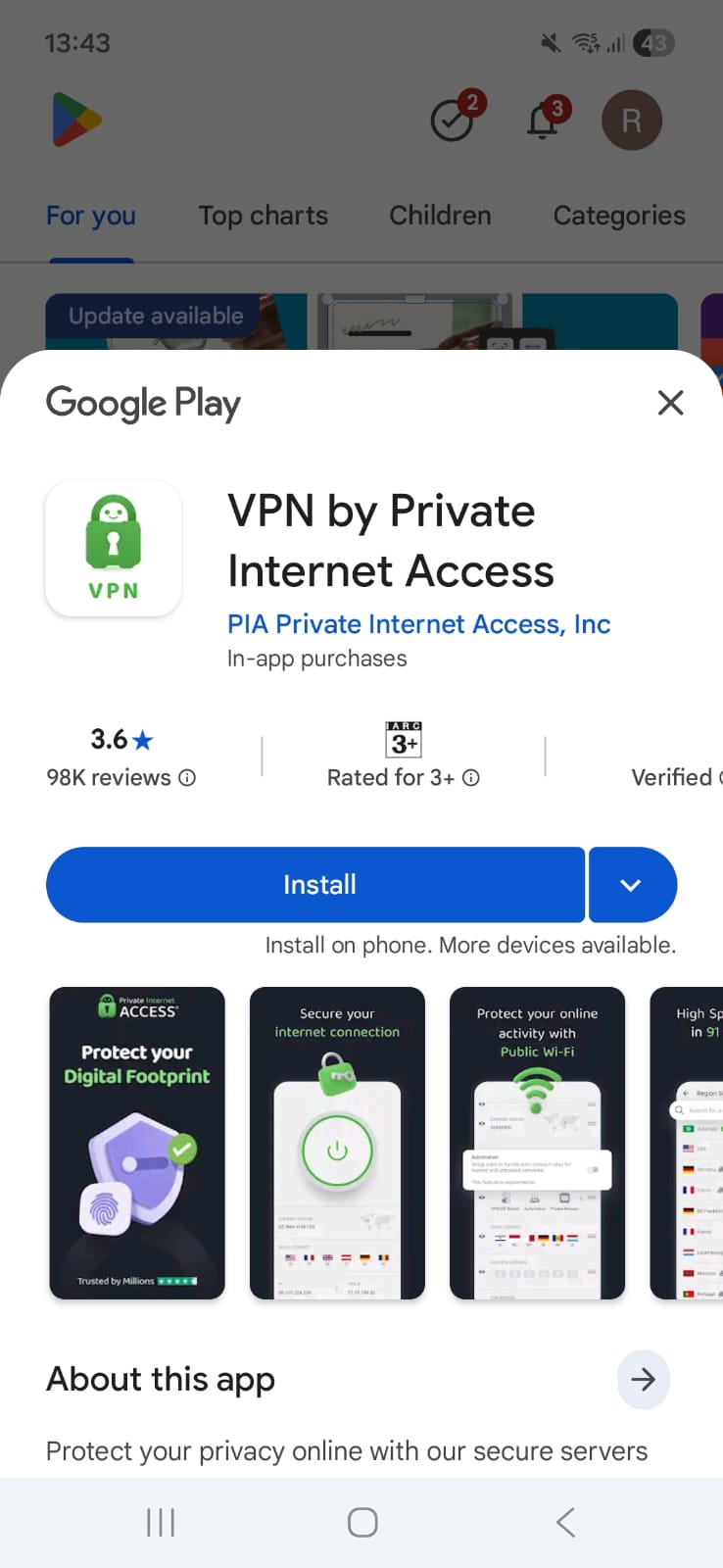
Just like all VPN, I first logged in on incognito mode. Then, I downloaded the app from its main website, after which I was redirected to Google Play Store. Installing PIA VPN on Android was simple. After downloading and logging in, the app asked for VPN connection permission and notification access. Once accepted, the home screen appeared with the Quick Connect button ready. I tapped it, selected a server, and was instantly connected. The entire process was fast and clean with no unnecessary steps.
PIA VPN’s Android interface feels outdated and somewhat clunky. The home screen displays basic information, but navigating the app isn’t intuitive, and some features are hidden behind menus, making it more complex than it needs to be. The hamburger menu provides access to account info, dedicated IP, and settings, but the overall layout can be confusing, especially for beginners. While advanced users may eventually get used to it, the interface is definitely not beginner-friendly and lacks the polish of more modern VPN apps.
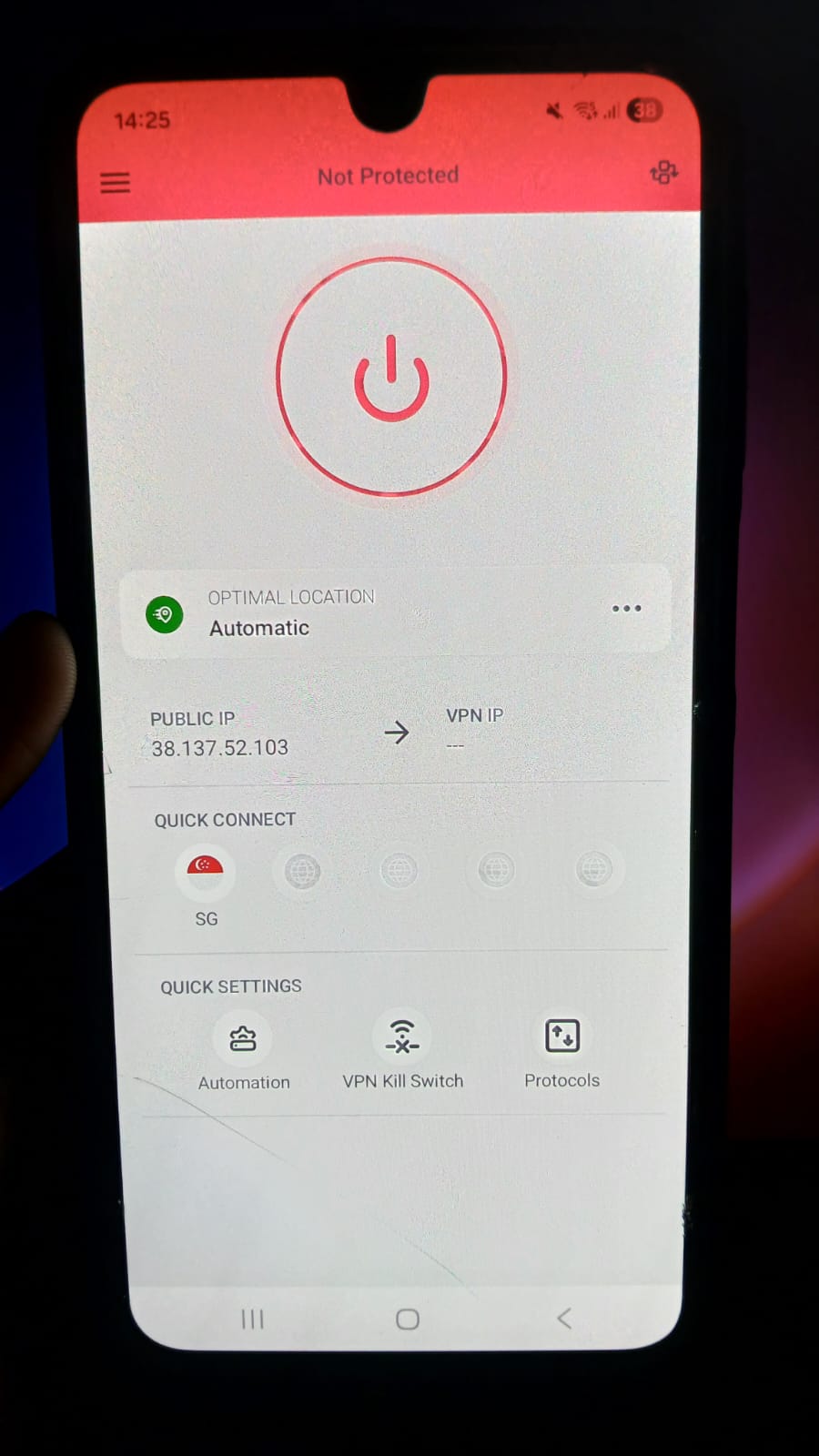
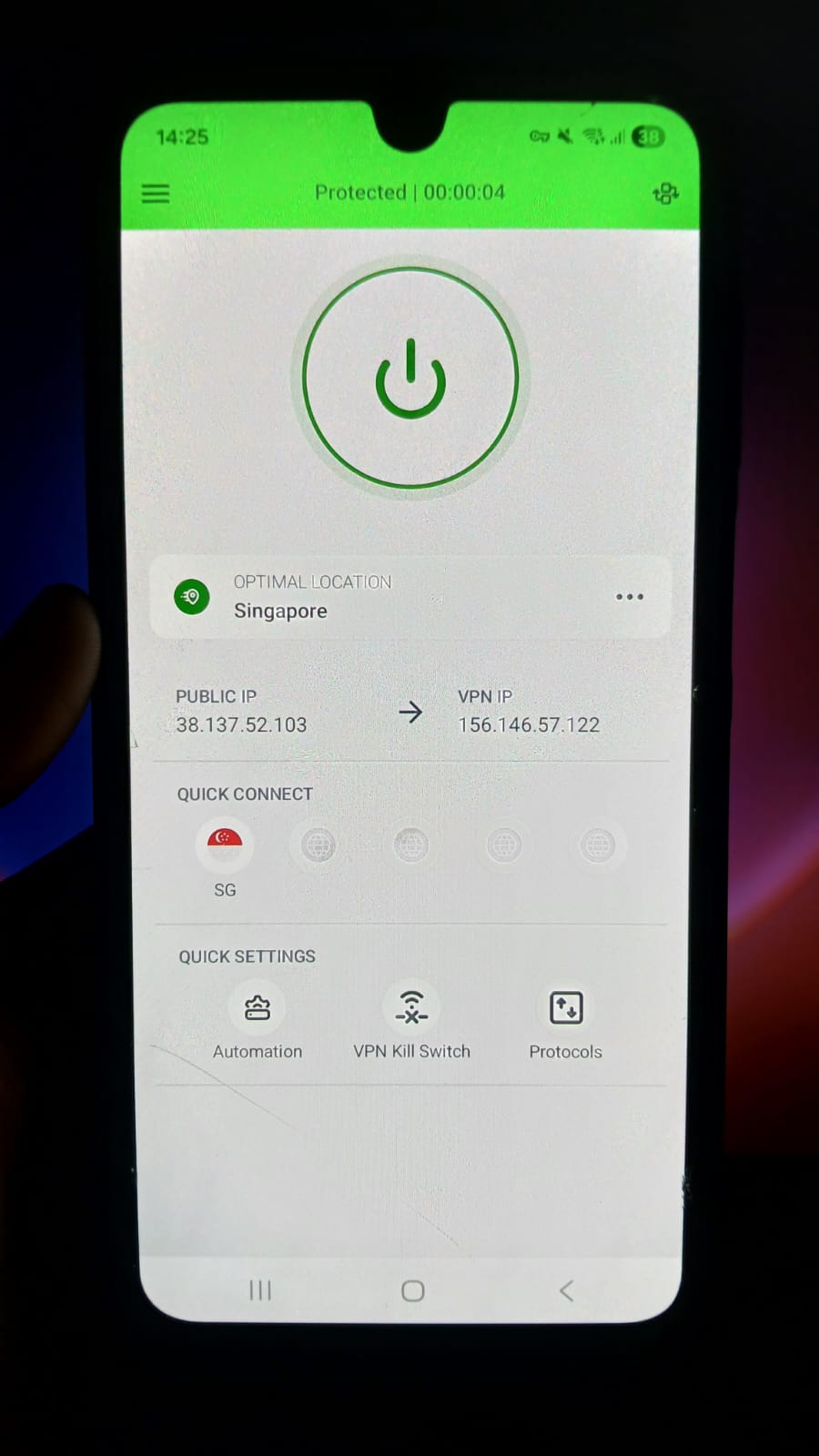
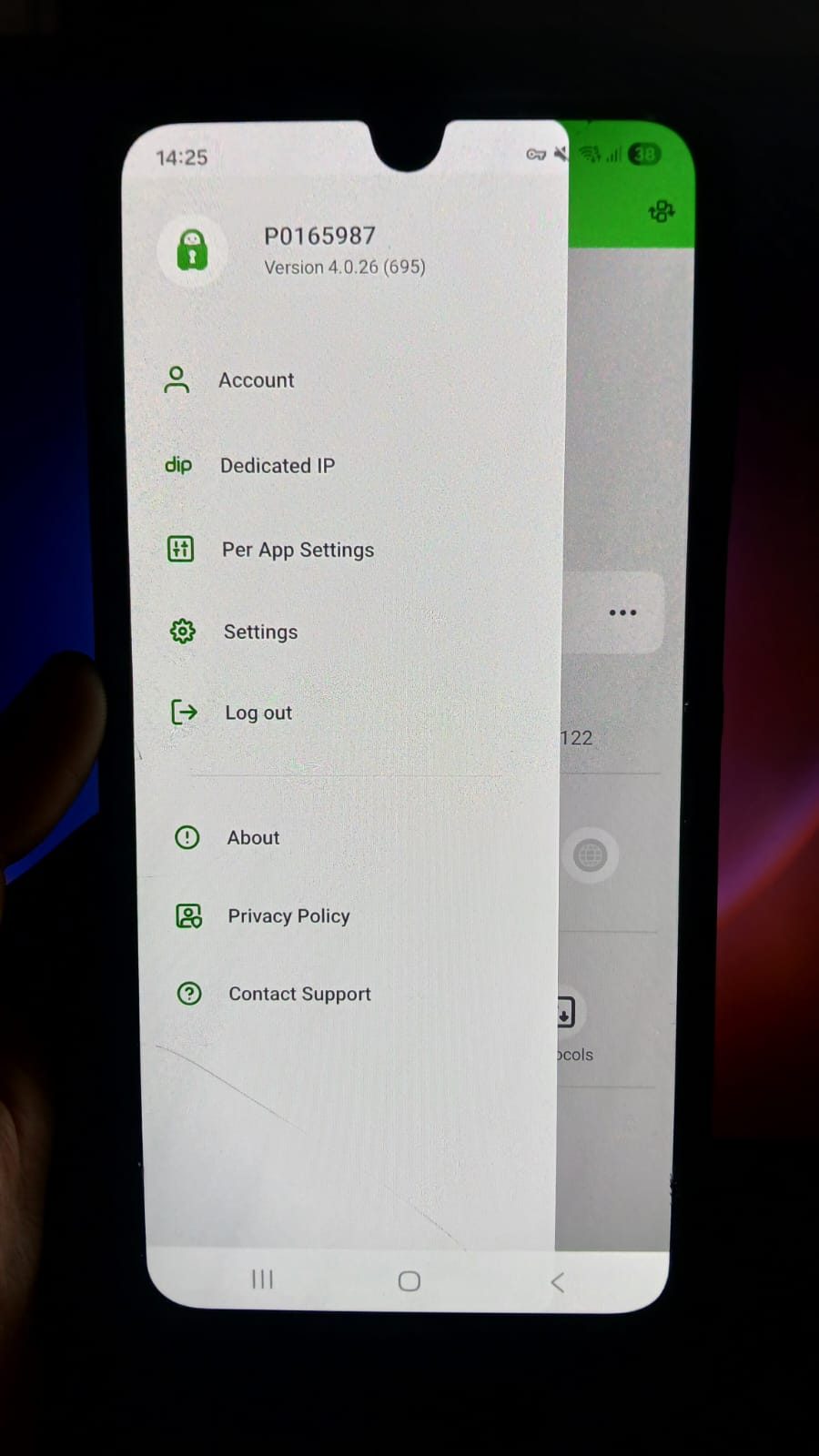
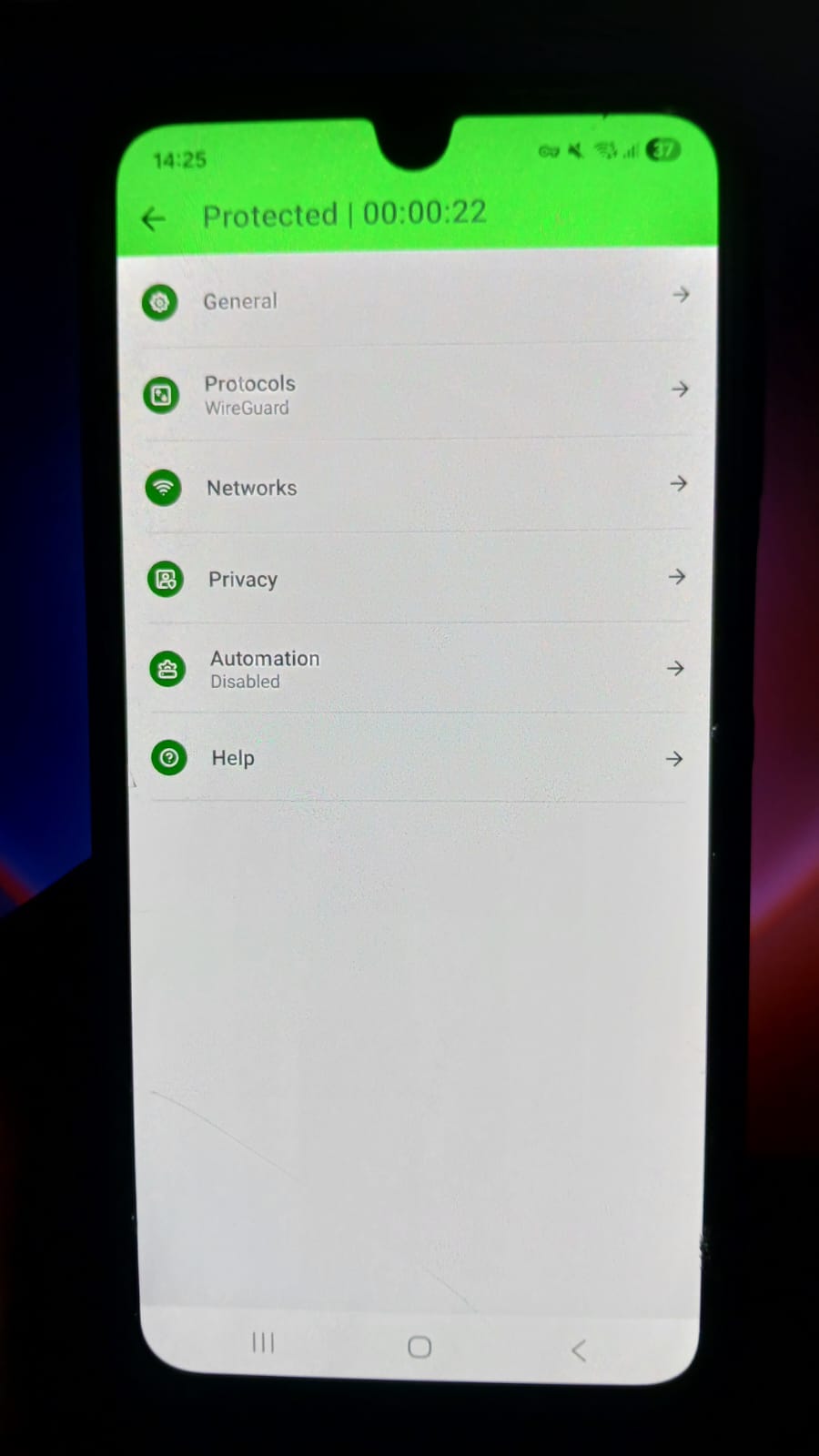
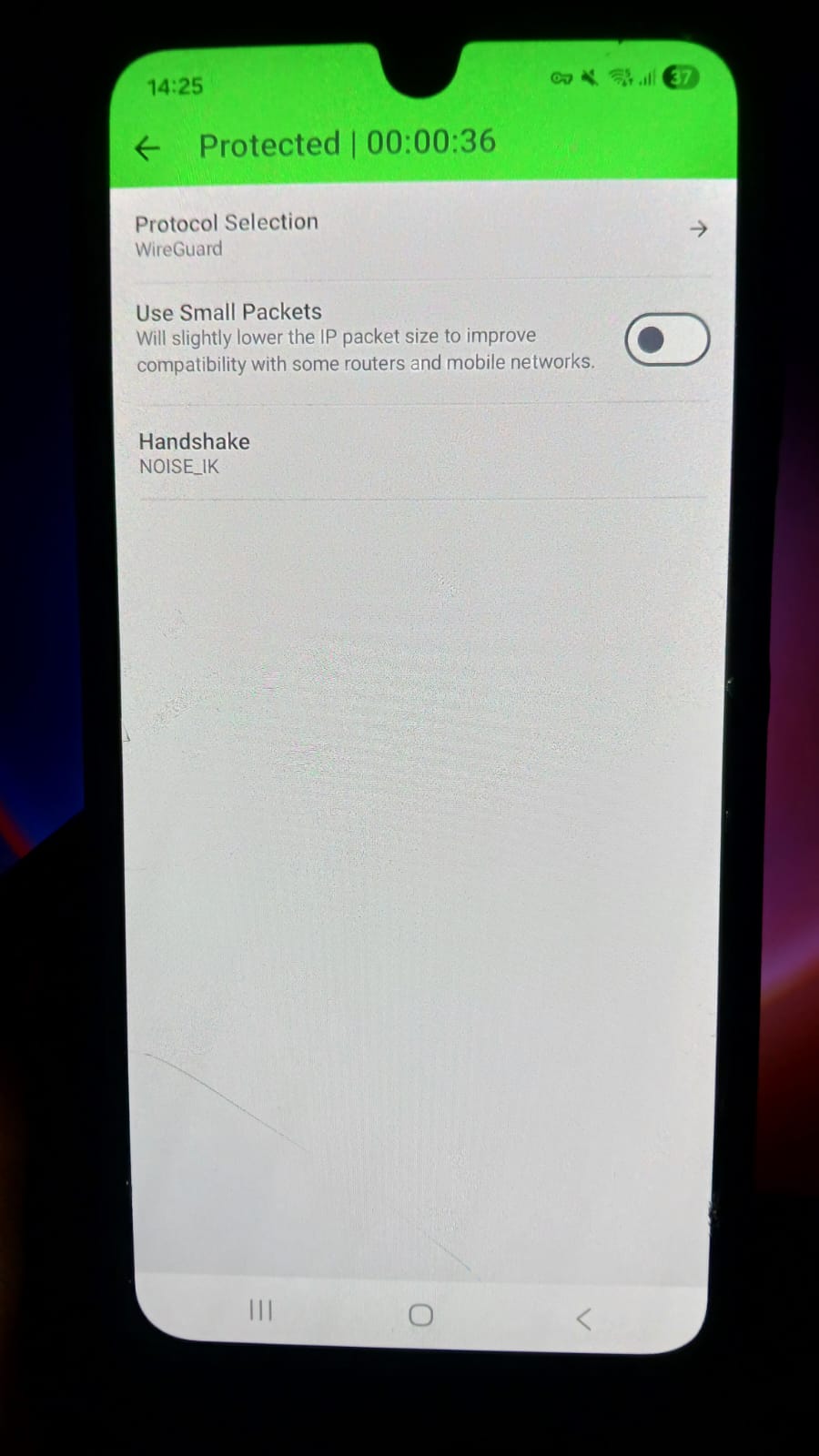
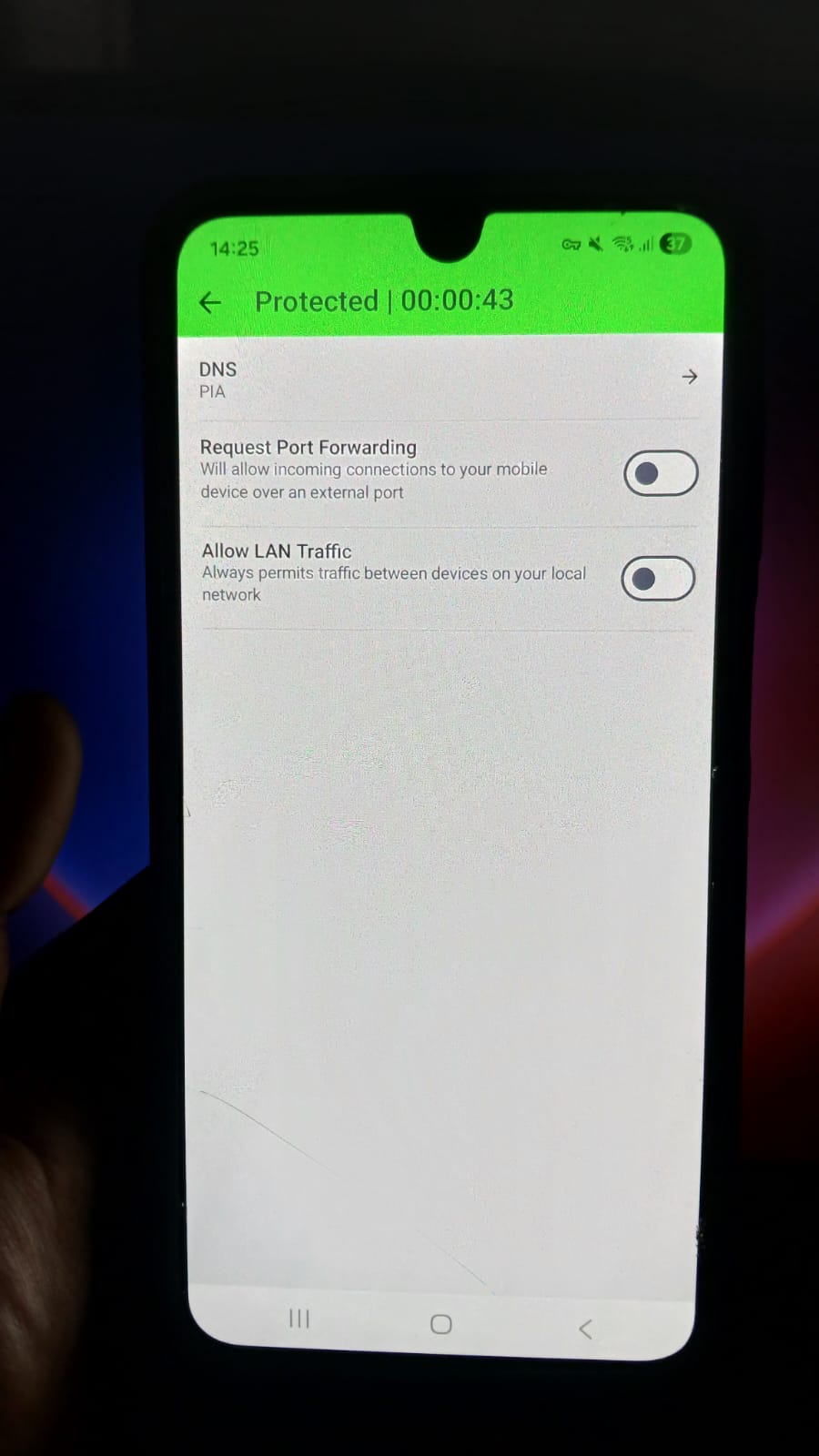
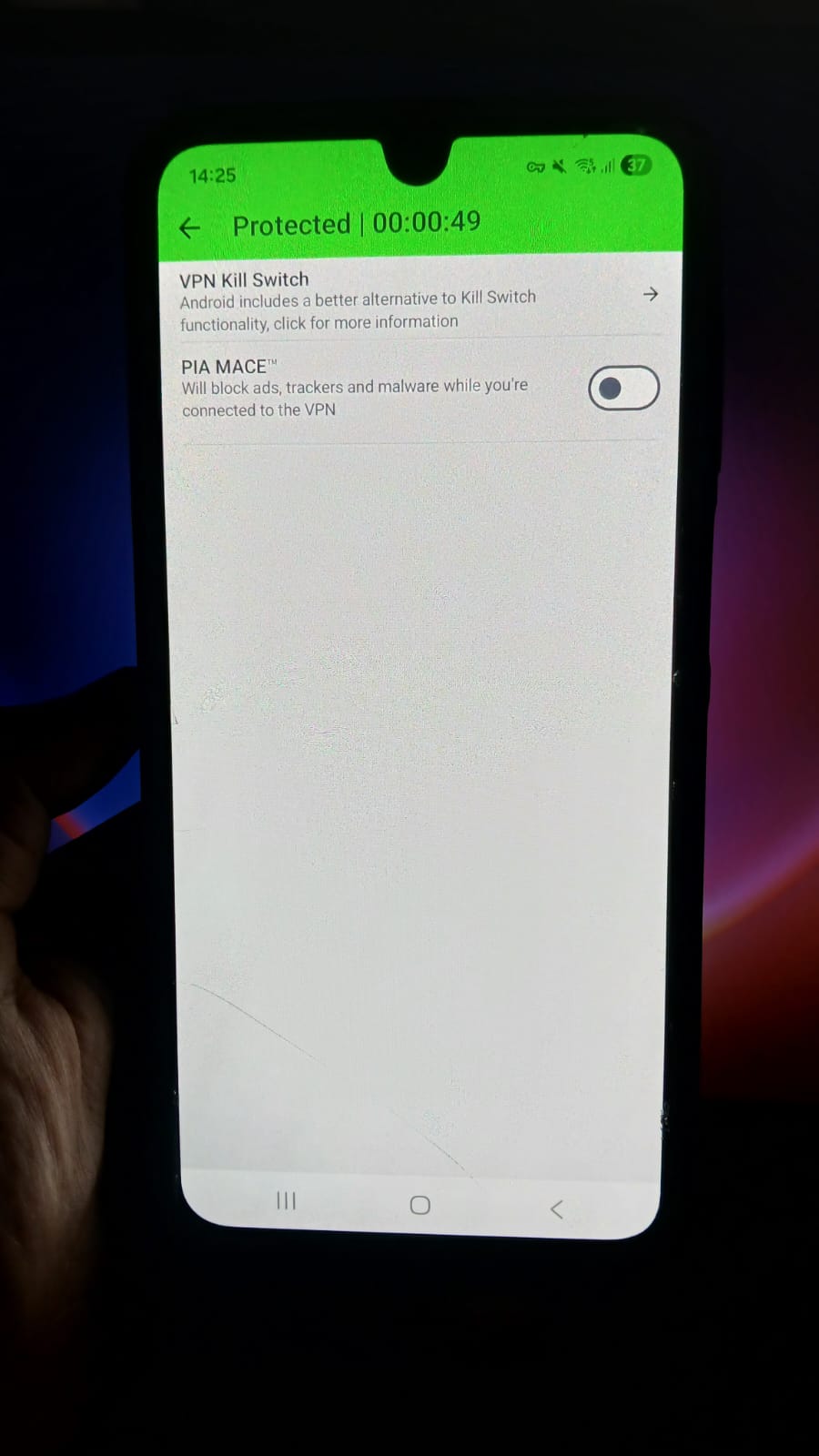
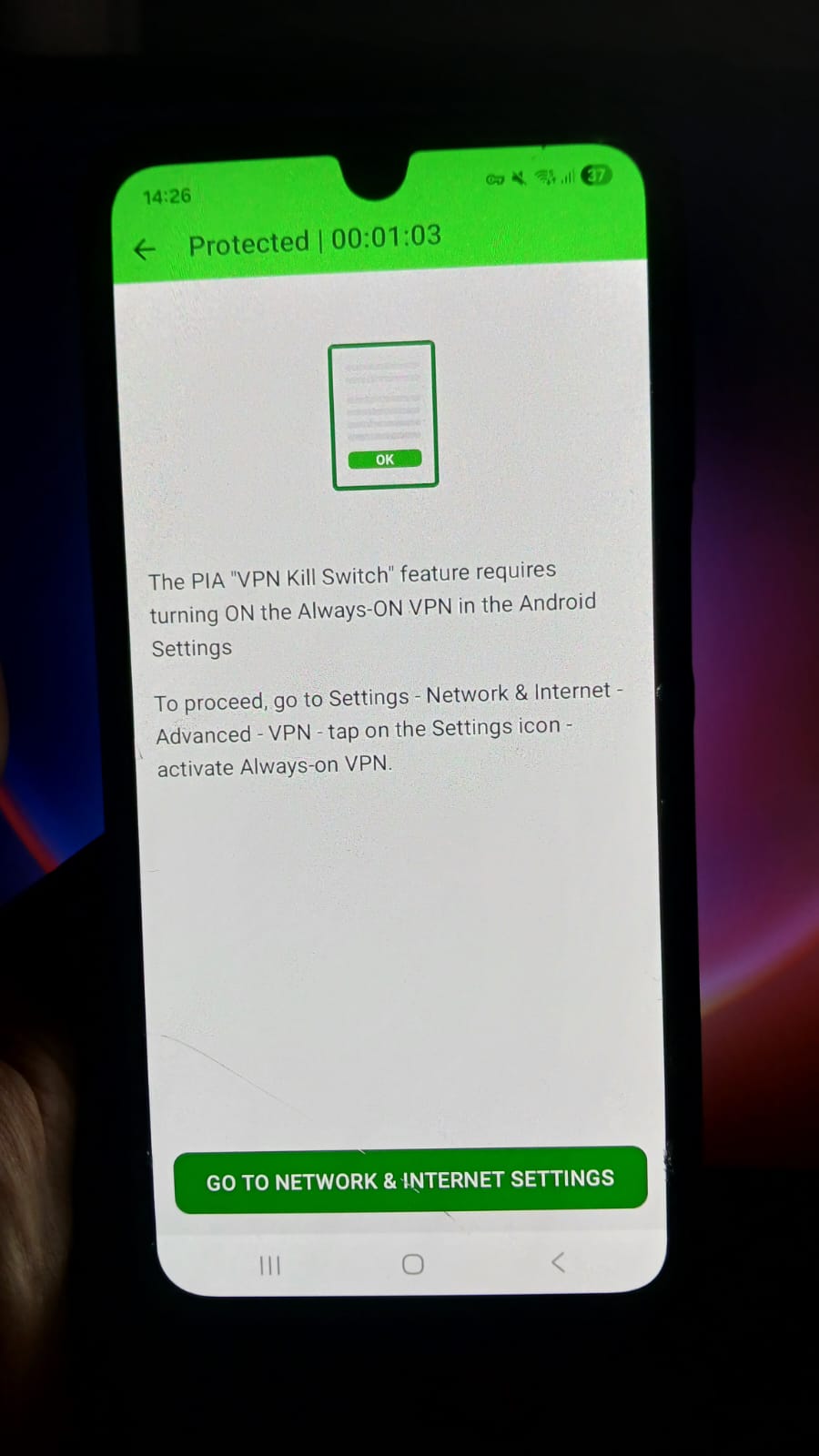
- Home Screen -
- Quick Connect Button
- Kill Switch
- Automation, protocols
- Hamburger
- Account
- Dedicated IP
- Settings
- General - Launch on startup, connect on launch, connect on app-update, show ge-located regions
- Protocols
- Network
- Request port forwarding
- Allow LAN traffic
- Privacy
- VPN Kill Switch (Kill Switch - Just like NordVPN, it will take you to the phone settings where you can either turn it on/off.)
- PIA MACE
- Automation
☞ On Wi-Fi (Android) - PIA showed substantial speed reductions across both servers. The performance was consistent but heavily reduced, with both servers showing high speed loss and latency exceeding 300 ms.
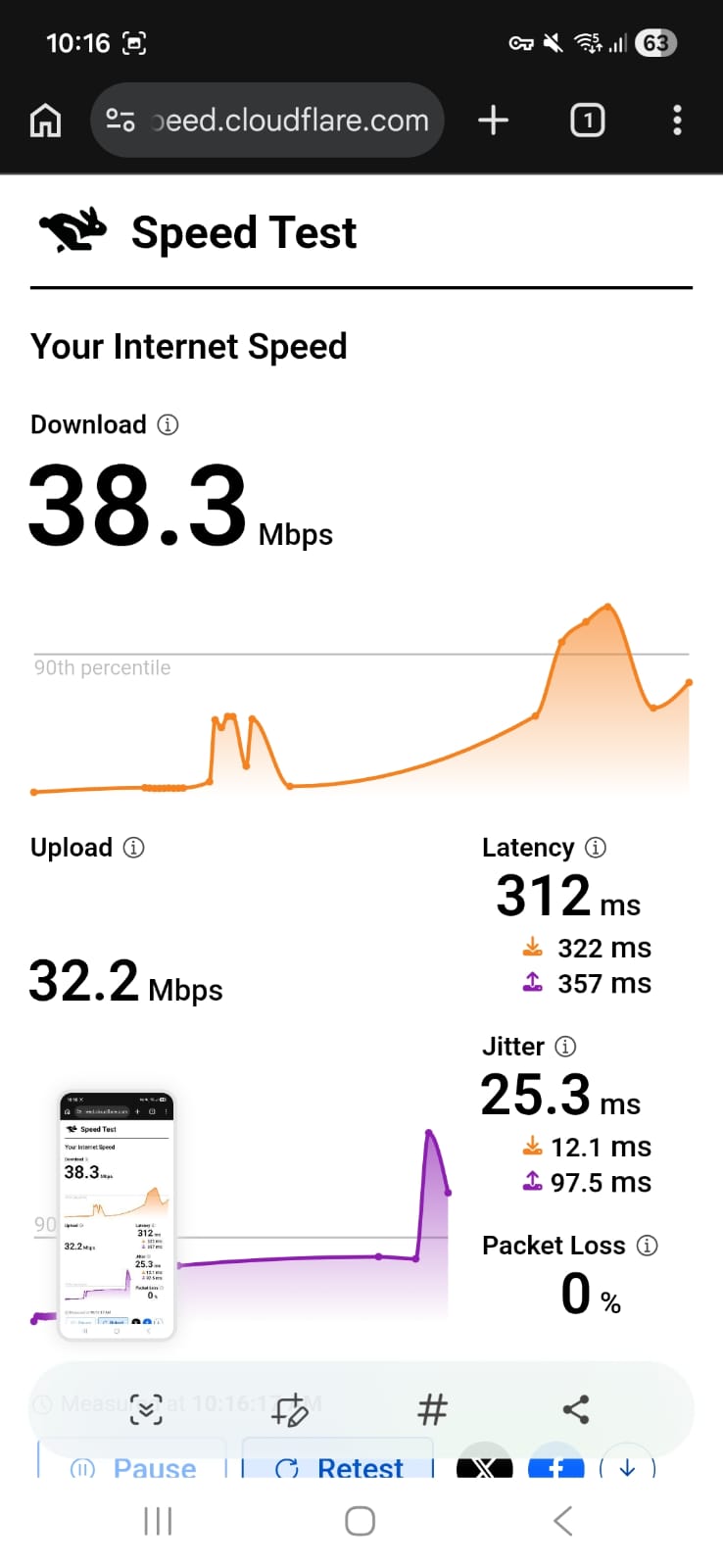
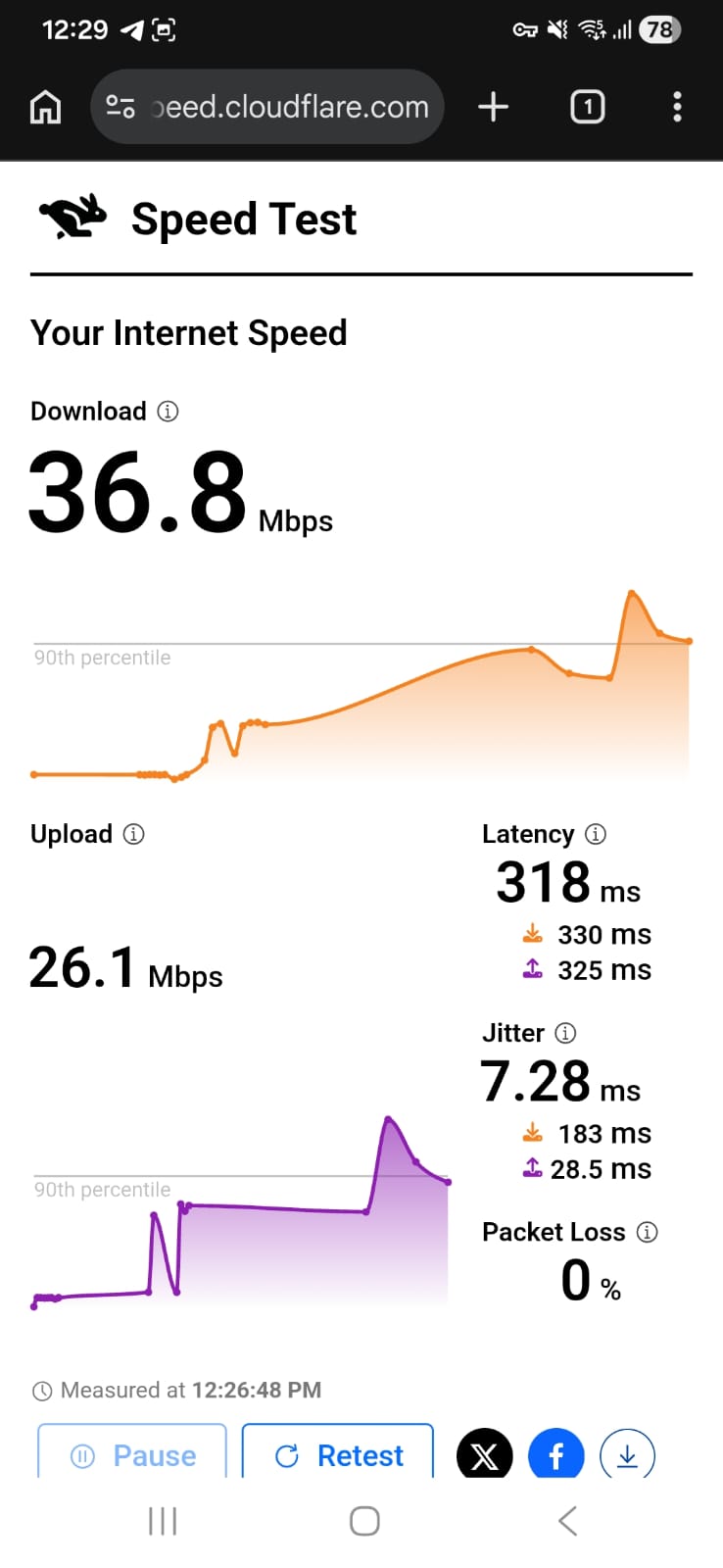
- US Server (New York) - 70% drop in speed
- Download Speed - 38.3 Mbps
- Upload Speed - 32.2 Mbps
- Latency - 312 ms
- UK Server (London) - 81.22% drop in speed
- Download Speed - 36.8 Mbps
- Upload Speed - 26.1 Mbps
- Latency - 318 ms
☞ On Mobile Data - Performance was extremely poor and inconsistent. In the US, speed loss reached 97.68% on Day 1, with download speeds dropping to just 2.19 Mbps, and remained very high at 91.82% on Day 2 despite some improvement to 7.71 Mbps. The UK server showed even more severe degradation on Day 1, with a 99.92% speed loss and only 740 Kbps download speed. Although Day 2 showed some recovery in download speed (5.03 Mbps), average speed loss remained extremely high at 94.75% for the US and 94.5% for the UK.
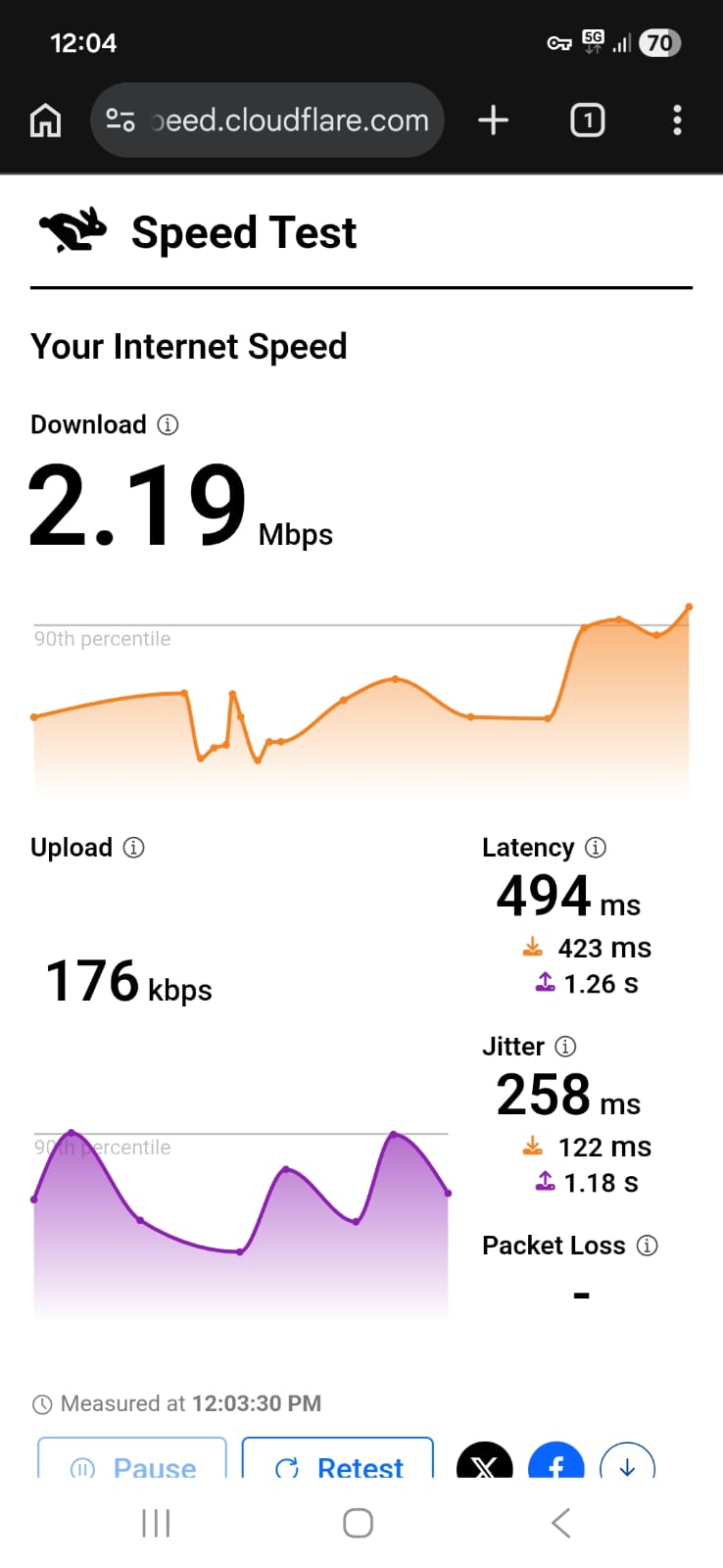
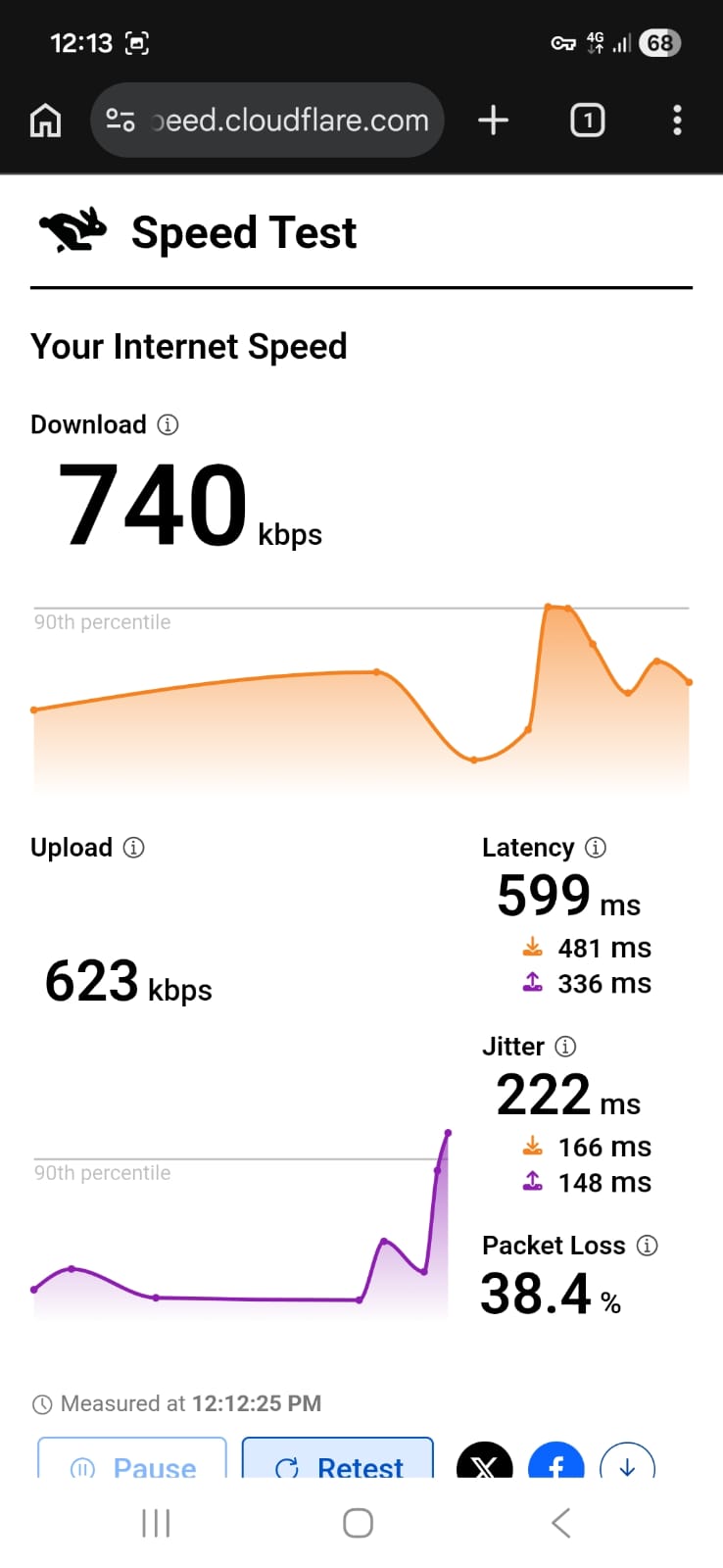
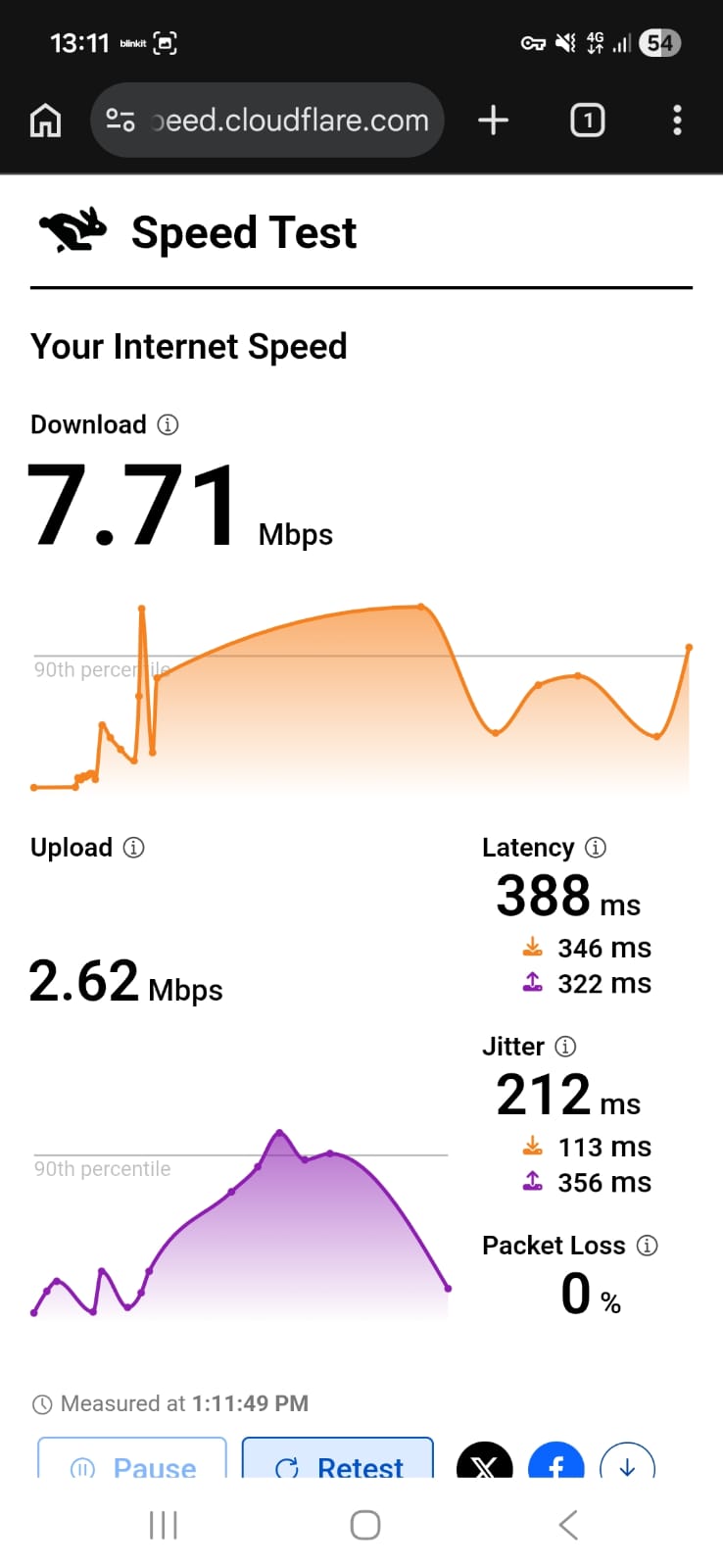
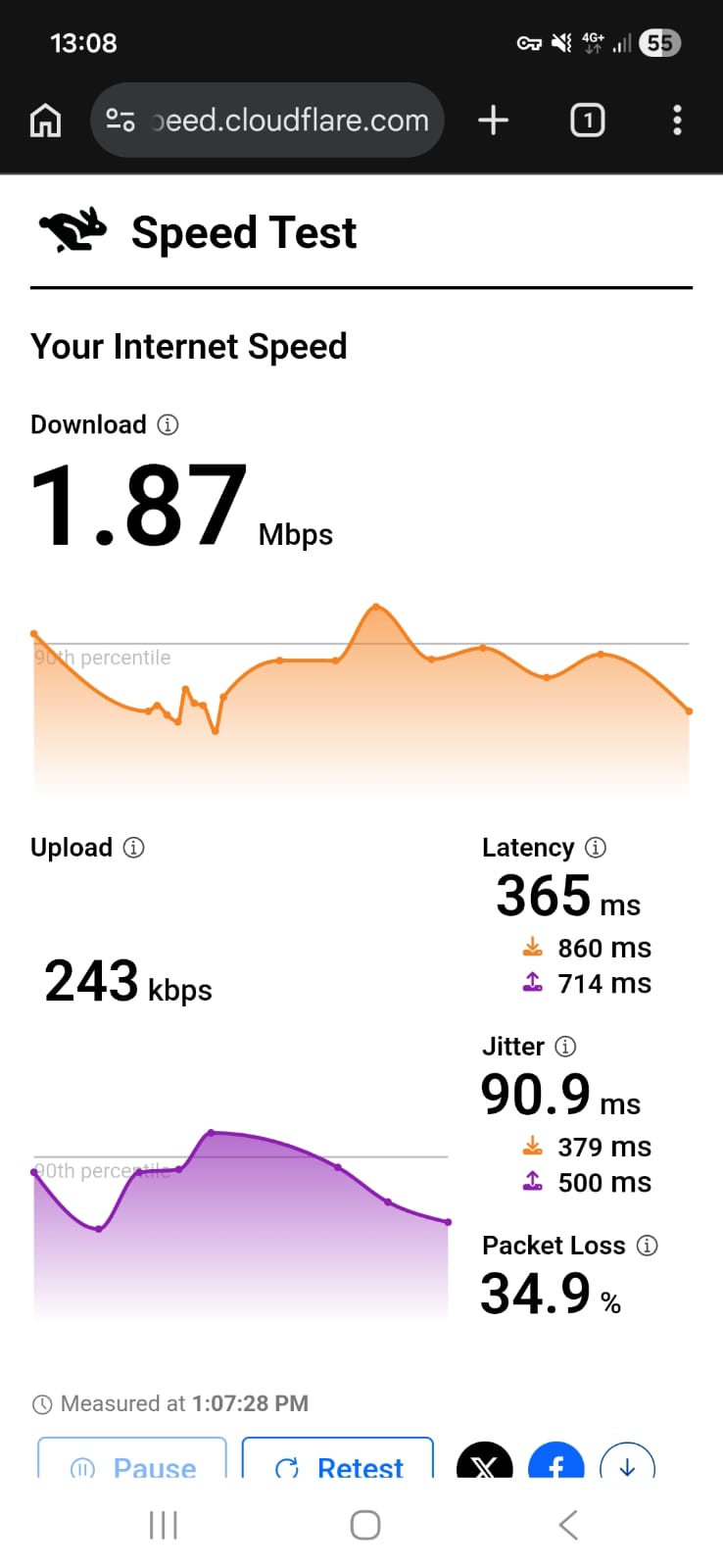
I tested PIA’s New York and London servers; both worked, but speeds, latency, and streaming quality felt inconsistent overall.
- On the London (UK) server, performance felt more unstable. Netflix streamed, but quality stayed low longer and sharpness didn’t fully improve.
- Since there’s no LA server, I tested the New York server myself. Browsing worked, but I clearly noticed delays. Pages opened after a short pause, so it wasn’t very smooth.
- I tried Netflix on the New York server too. The title loaded and playback started without errors. However, the video began blurry in low resolution.
- I experienced some buffering, and although the quality improved, it never became very sharp. Audio stayed clear.
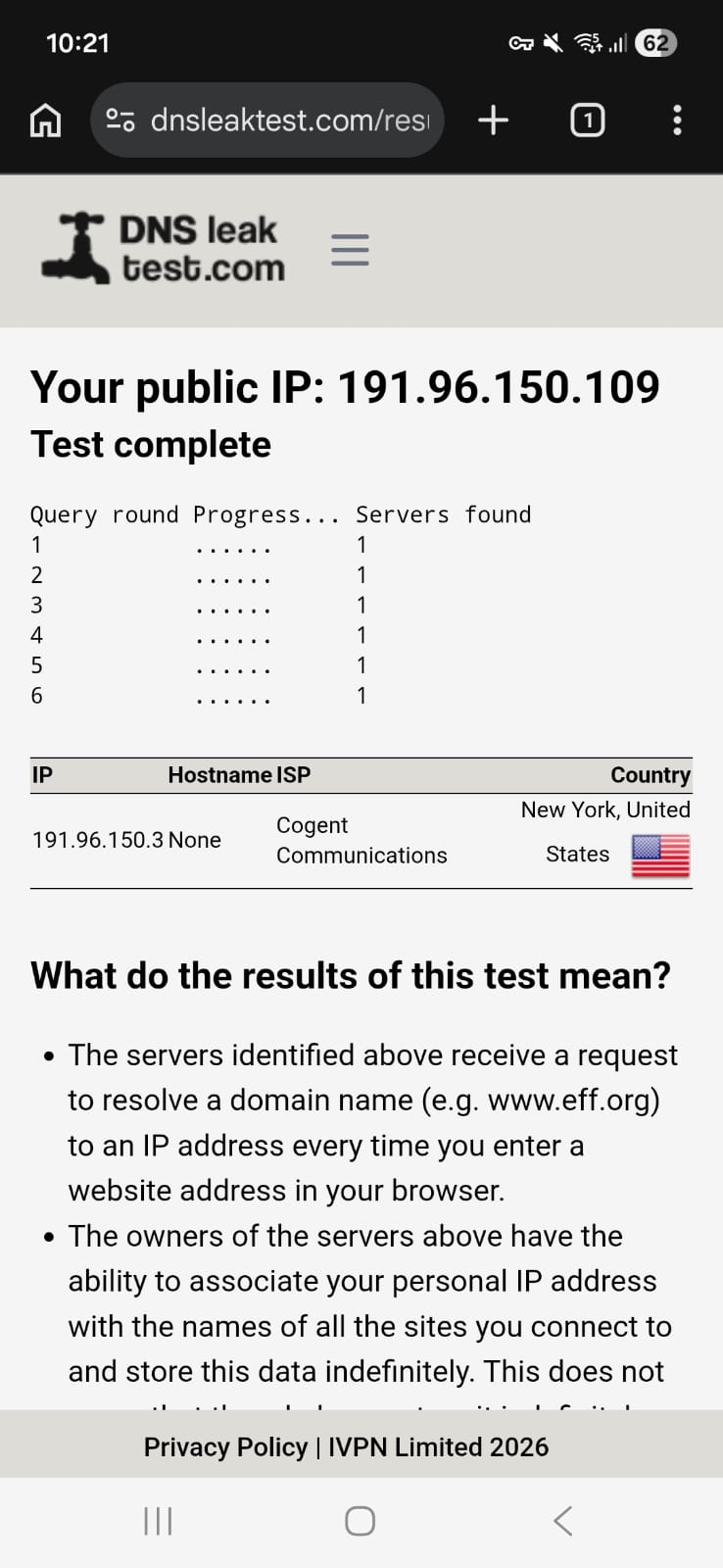
The Kill Switch worked reliably, blocking internet traffic whenever the VPN disconnected. DNS and IP leak tests all passed, ensuring privacy remained intact throughout sessions. Connections were generally stable across servers.
PROS
- Easy to set and connect to server favorites
- Specialty servers for streaming
- Highly customizable automation options
- Protocol selection with multiple encryption options (AES and ChaCha20 variants)
- Supports port forwarding
- Deep customization for advanced users
- Single-tap connect/disconnect
- Kill switch, split tunneling, and PIA MACE ad/malware blocker
CONS
- Old, outdated UI design
- No labeling for virtual servers
- Streaming servers are there, true, but hard to find. It is better you type "streaming" in the search bar to locate them.
- Slowest VPN among all tested
- Poor overall performance, especially on mobile networks
VPNs That Failed Our Android Tests
Not every VPN we tested delivered a secure and reliable experience on Android. Some suffered from DNS leaks, unstable connections, or inconsistent mobile performance. Below, we list the VPNs that failed our testing and highlight the key issues we discovered.
1. Surfshark - DNS Leak Detected (Not Recommended)
- App Size: 54.30 MB file
- Rating: 4.5 rating (207k reviews)
- Independently Verified: Yes
- Downloads: 10M+
- Version: 3.25.0
- Updated on: Feb 11, 2026
- Required OS: Android 6.0 and up
- Released on: July 2, 2018
- Data collected:
- Personal info - Email address
- App info and performance - crash logs and Diagnostics (both optional)
- Device or other IDs - Device or other IDs
- App activity - App interactions, Installed apps (both optional)
- App permission:
- Contacts - read your contacts
- Location
- access precise location only in the foreground
- Access approximate location only in the foreground
- Microphone
- Phone
- Storage
- Modify or delete the contents of your shared storage
- Read the contents in your SD card
- Other
- Advertising ID permission
- Request delete packages
- Run foreground service
- Read phone numbers
- Run at startup
- Google Play license check
- Route calls through the system
- View network connections
- Ask to ignore battery optimizations
- Prevent phone from sleeping
- Access to Adid API
- View Wi-Fi connects
- Show notifications
- Receive data from Internet
- Read Google service configuration
- Access location in the background
- Query all packages
- Google Play billing service
- Answer phone calls
- android.permission.SCHEDULE_EXACT_ALARM
- Have full network access
- Play installer Referrer API
- Access AdServices Attribution APIs
- Change your Audio settings
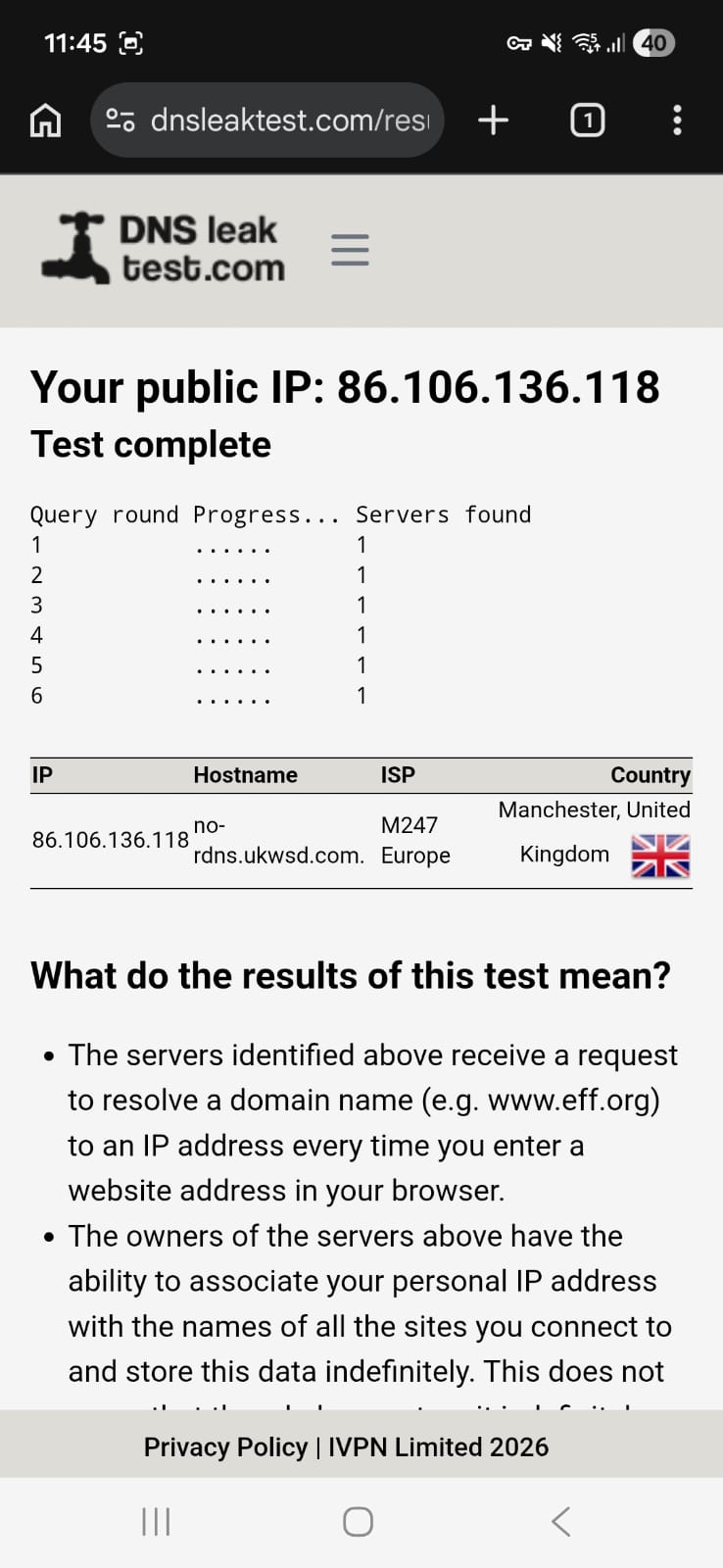
Surfshark failed our Android privacy evaluation after a DNS leak appeared on its London server. This exposed DNS requests, potentially allowing ISPs or third parties to see the websites visited.
Aside from this issue, we did not face any other issues. We easily downloaded the 58 MB Android app, and it installed quickly and opened to a clean, intuitive home screen. Key features like Quick Connect, MultiHop, and GPS override all worked as expected.
Connection stability varied by network. Wi-Fi remained mostly stable, while mobile data showed major speed drops and high latency. Streaming was generally smooth, though videos initially loaded in lower resolution.
Although the DNS leak stopped after reconnecting to the London server, it still occurred during testing. Because of this privacy risk, Surfshark did not pass our evaluation.
Performance Testing
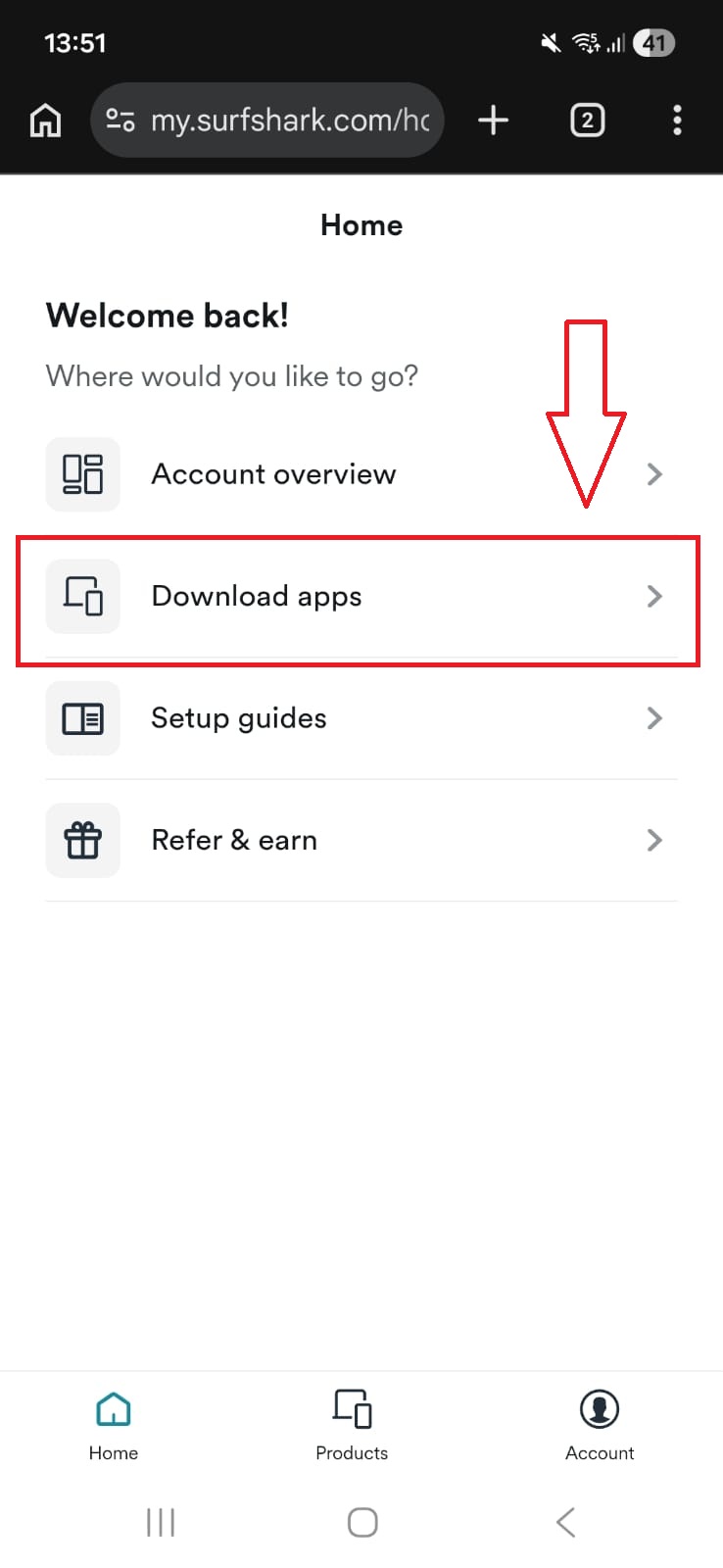
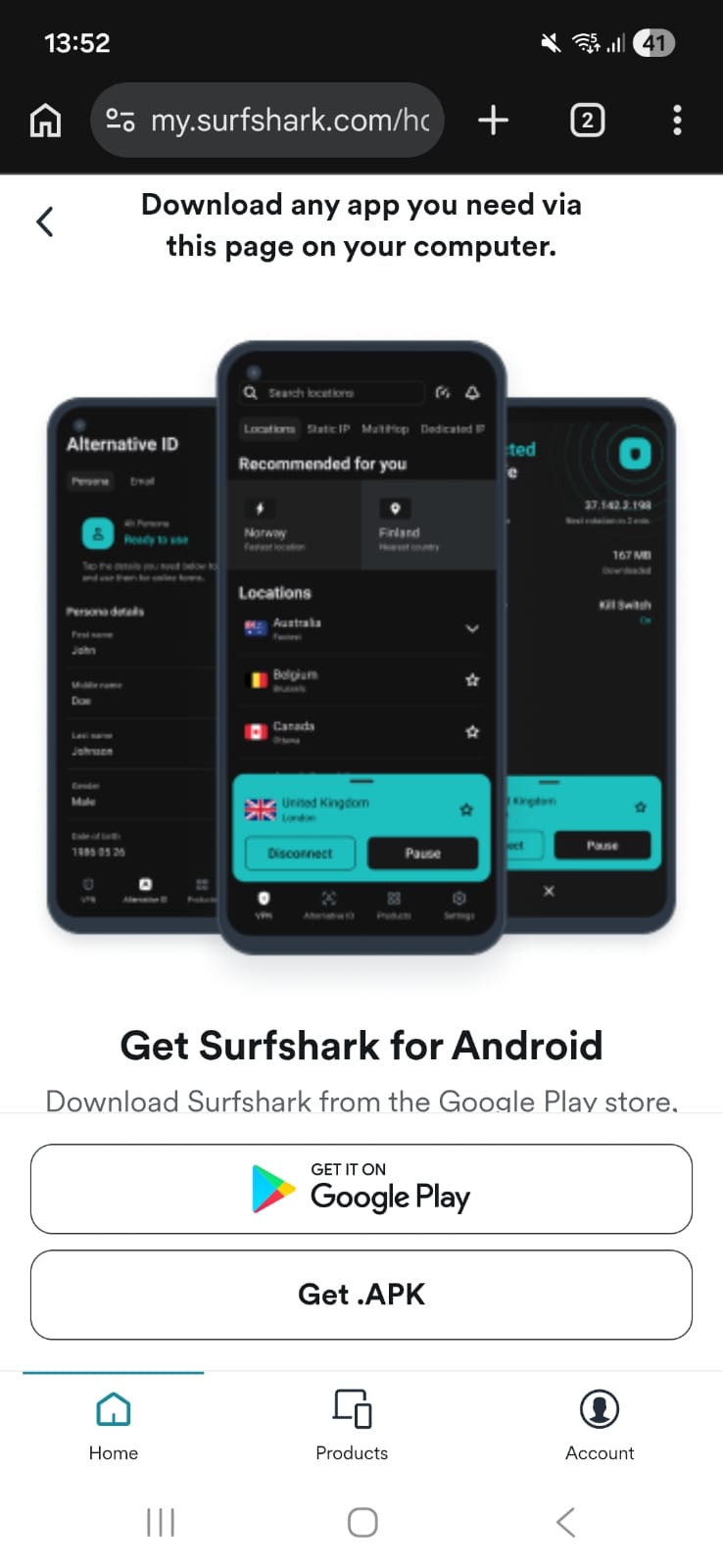
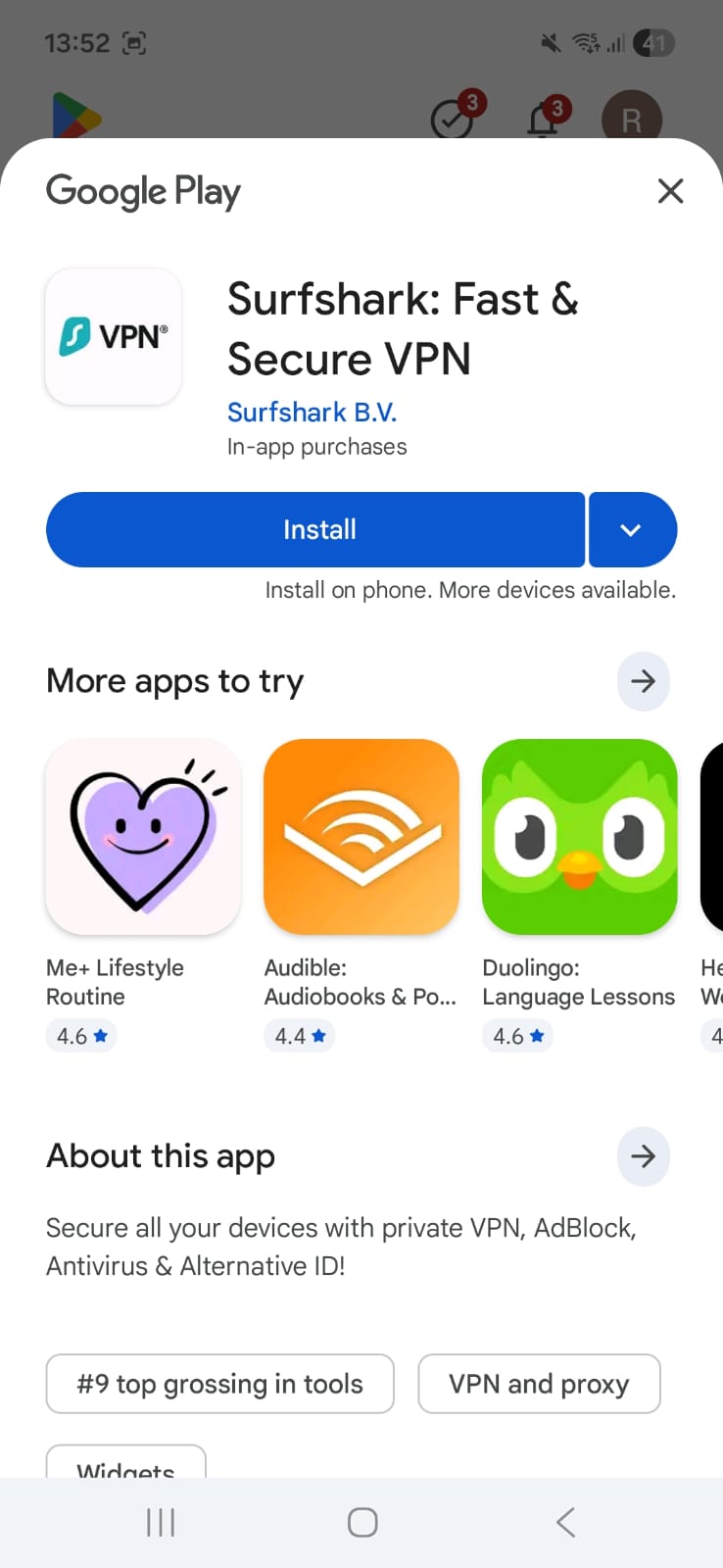
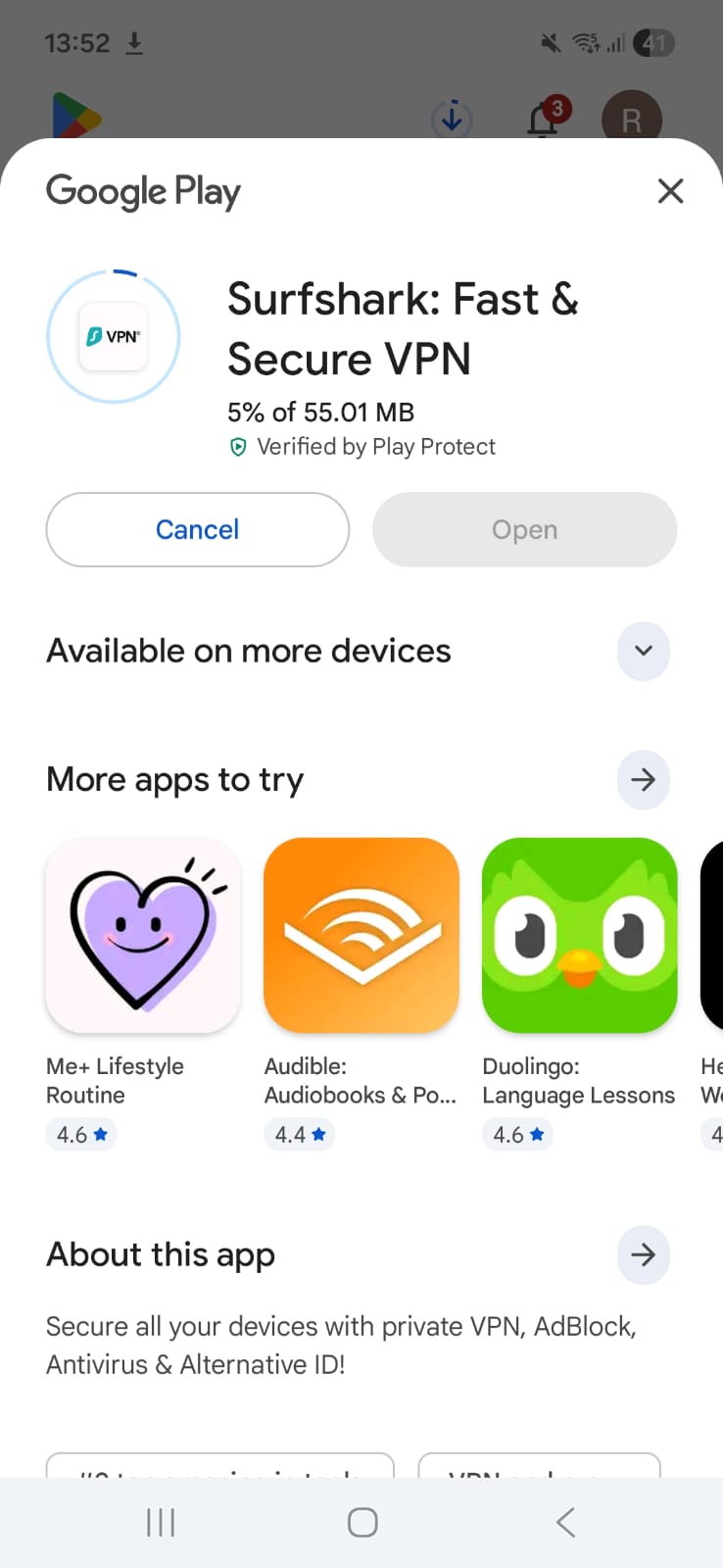
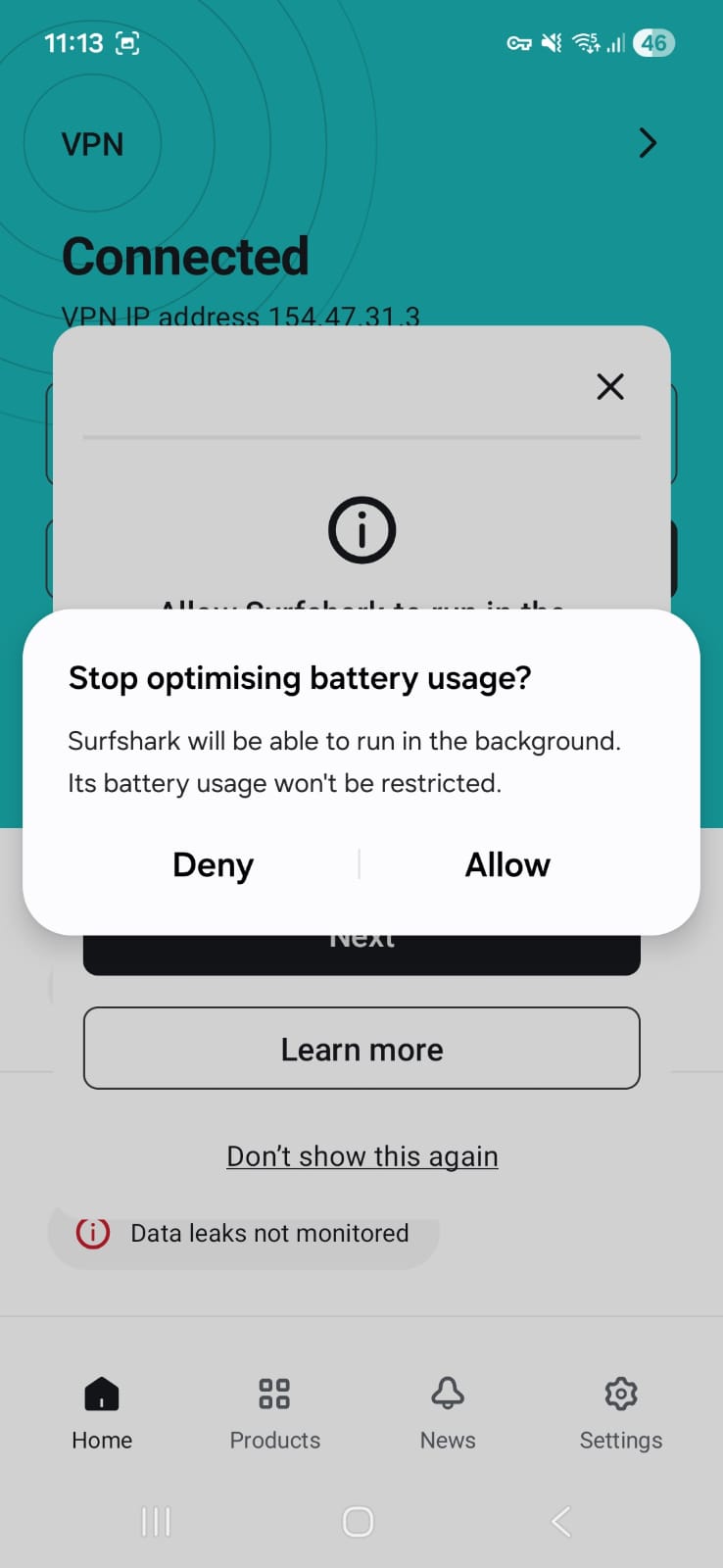
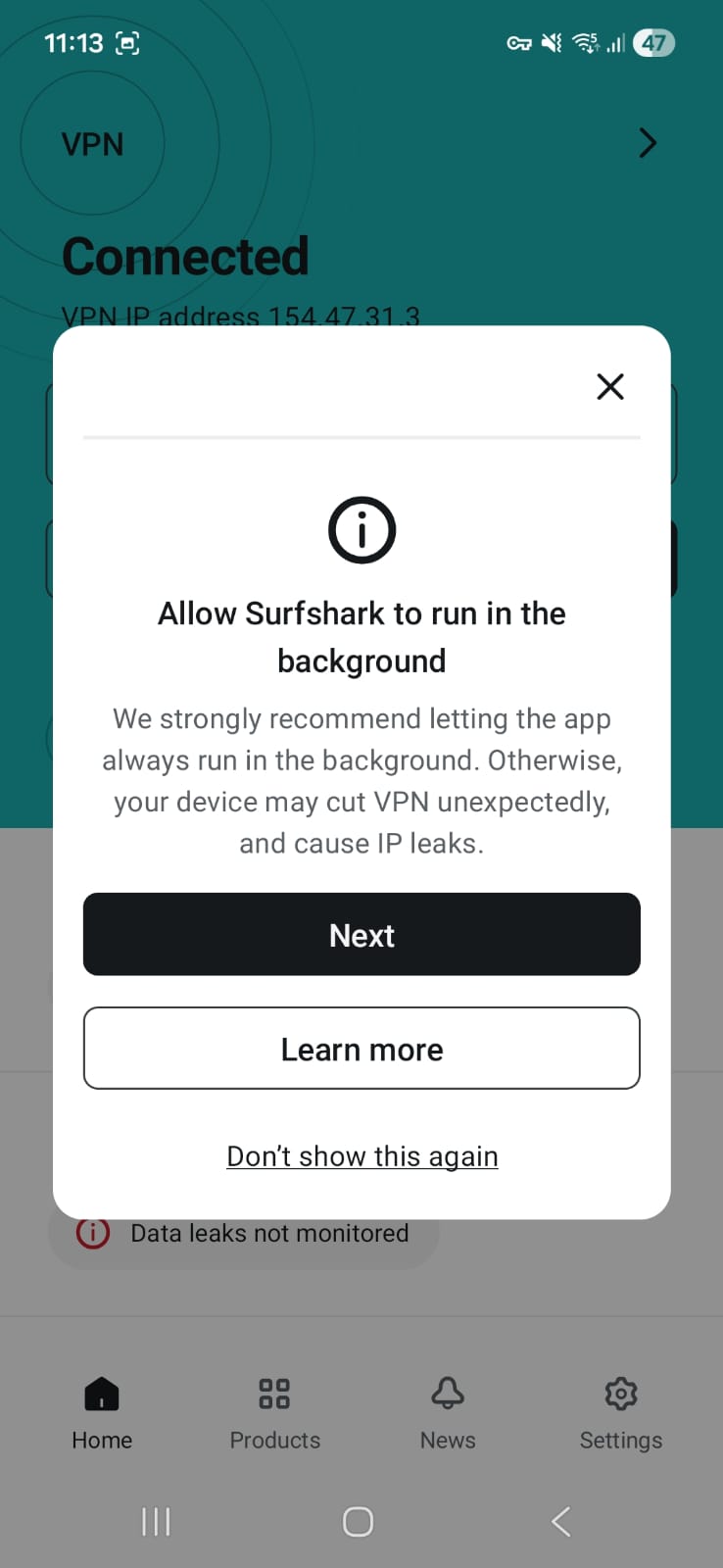
As we did for others, we first logged in to the Surfshark official website in incognito mode. Then we clicked download in Andoid section, and we were redirected to the Google Play Store. We then downloaded the Surfshark app (58 Mb) from there. Then we clicked open. Post that we accepted its privacy policies and clicked Log in. After that, it took us directly to the home page. That’s it. It was that easy. When we connected to the server, we were prompted for a connection request, which we agreed to. Then Surfshark asked for permission to run in the background and said “Surfshark will be able to run in the background. Its battery usage won’t be restricted”. We allowed it. The connection was then established. Surfshark was incredibly easy to set up on my Android phone. No complicated setup, no unnecessary steps - it was ready almost instantly.
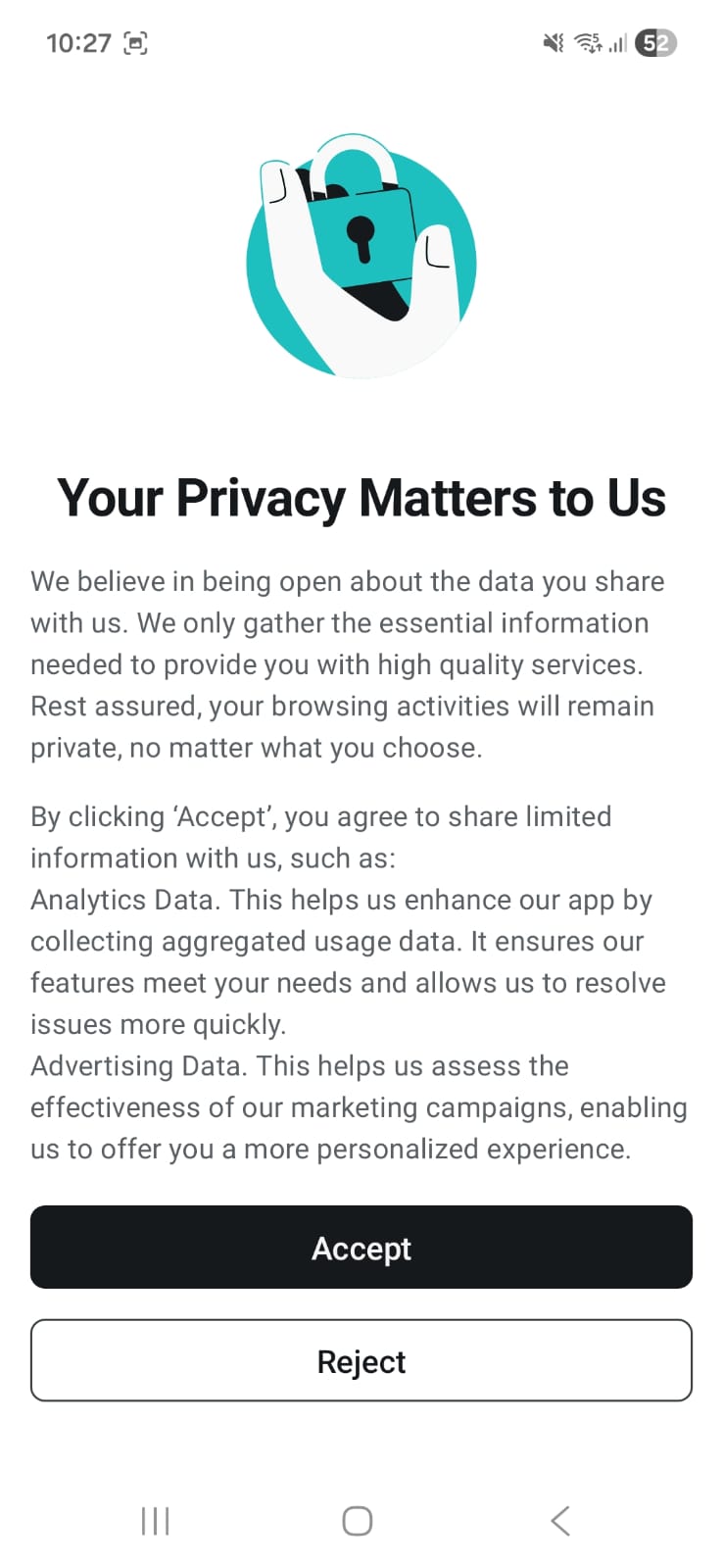
Surfshark’s interface on Android felt okayish, but yes, it is easy to navigate. Everything was clearly labeled, and I didn’t have to search around to find important features. Though it is important to note that its VPN-related features are not explicitly shown. Nevertheless, the app also runs smoothly in the background without interruptions. Overall, the experience felt fine.
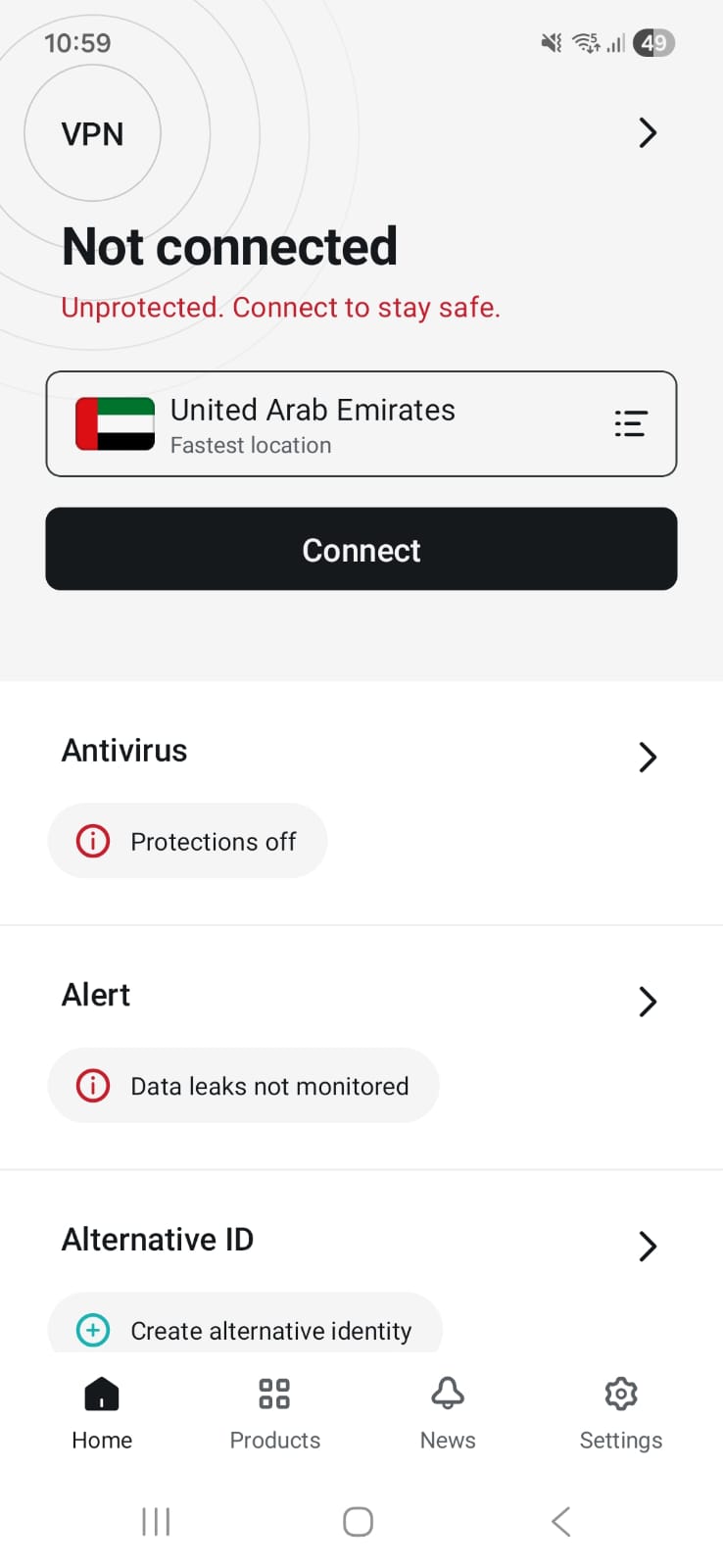
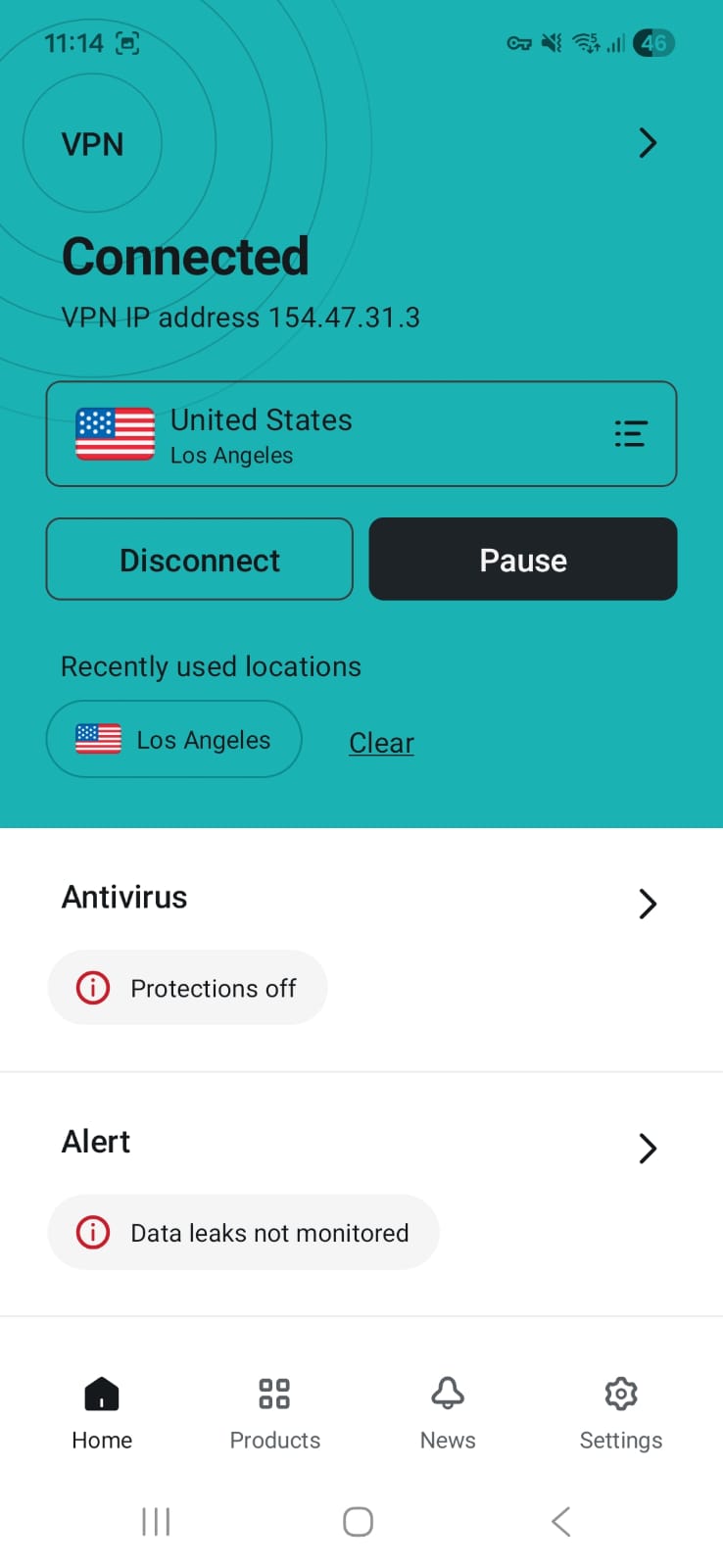
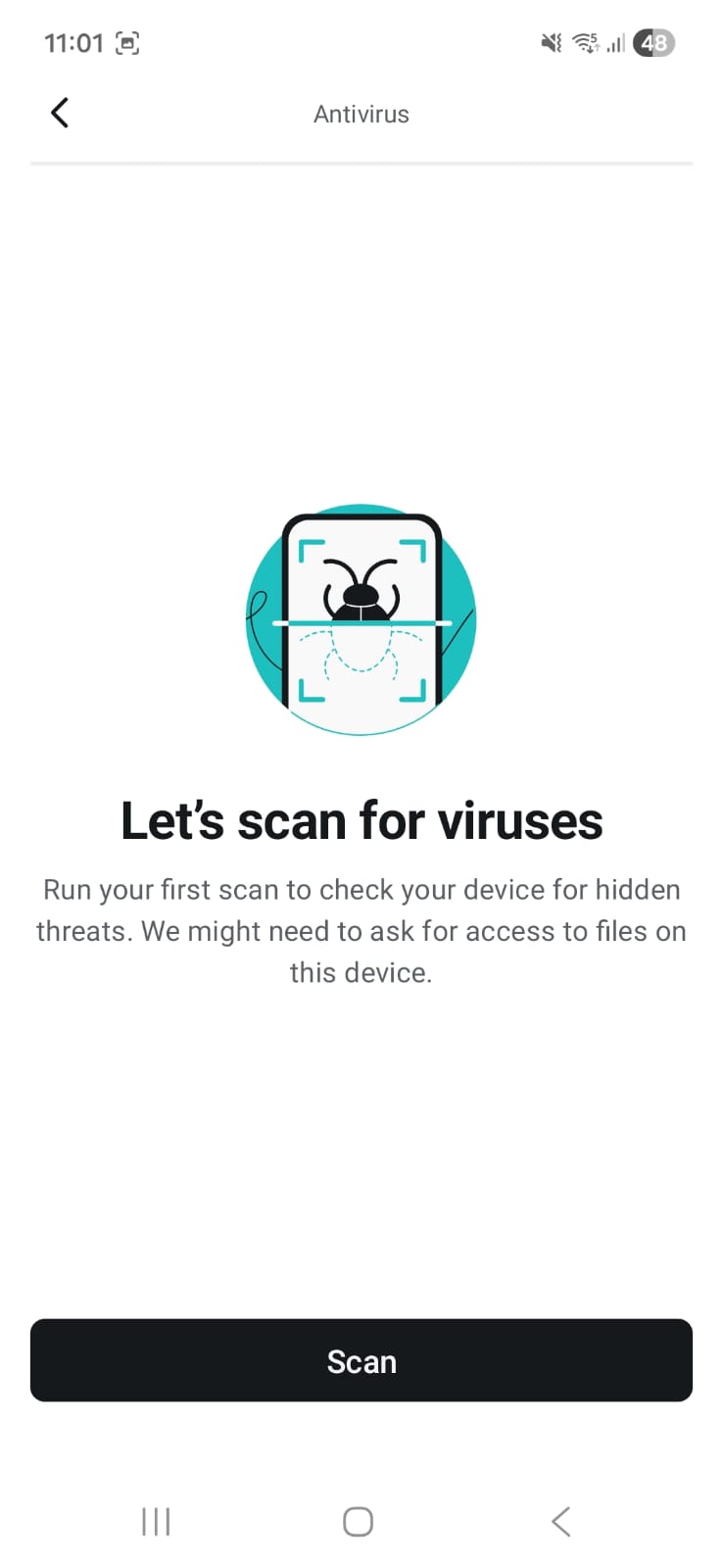
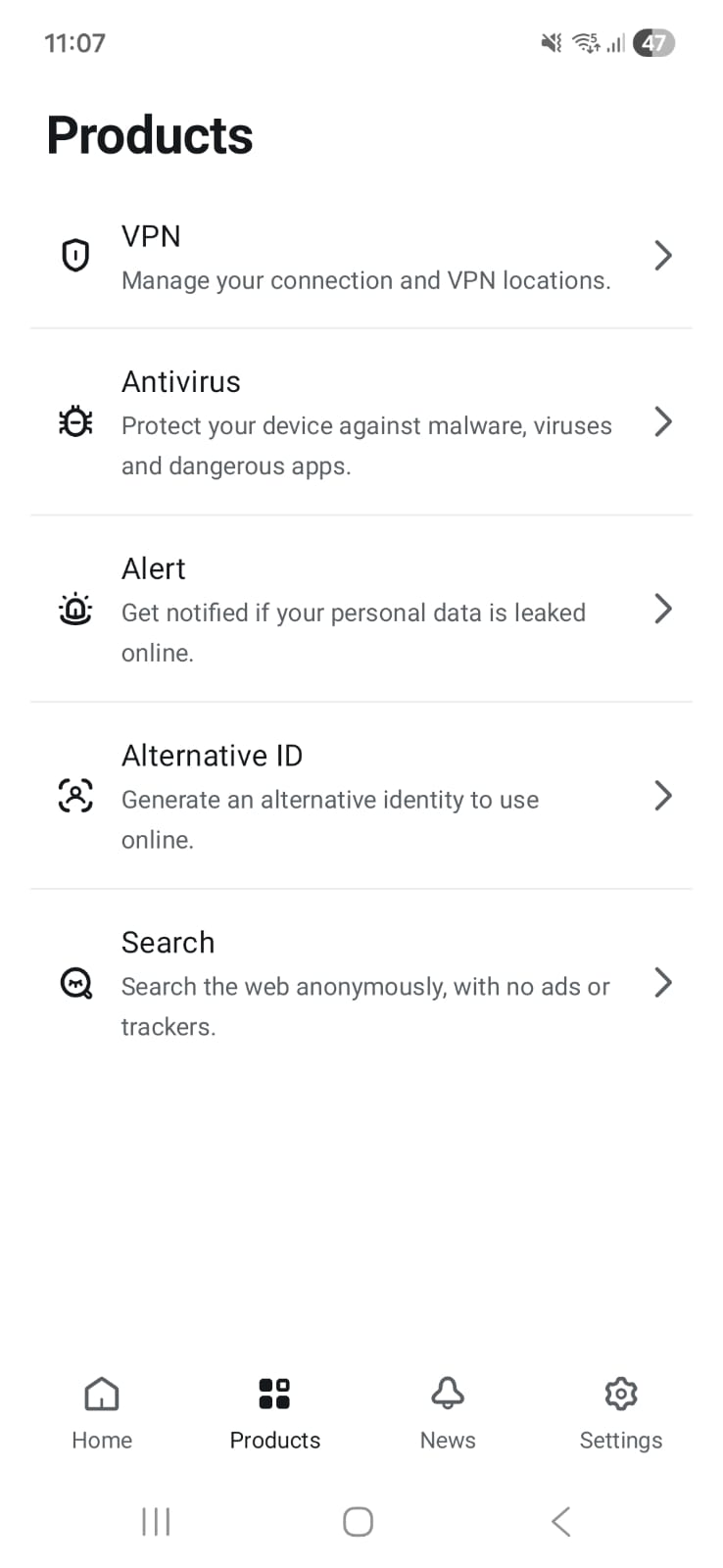

- Home Screen - Click on the VPN arrow on top, and you will land on the VPN page.
- Kill Switch (simple toggle on/off)
- Quick Connect Button,
- Server (Locations, Static IP, Multi-Hop), Favourite Servers (click on star option near Country name)
- Antivirus
- Alert
- Email Monitoring
- Credit Card Monitoring
- ID Monitoring
- Alternative ID
- Settings
- VPN settings
- Quick Connect, Auto Connect, Clean Web, Kill Switch, Android Native Kill Switch, Protocols
- Bypasser (toggle on/off)
- Bypass Websites
- Bypass Apps
- Advanced Settings
- Discover on LAN
- Override GPS Location
- Use rotating IP
- Use Small Packets
- VPN settings
- Web Content Blocker
- App Settings, My Account, Help and Support
☞ On Wi-Fi (Android) - Surfshark showed significant speed reductions on both servers, with performance dropping by around 70%. The performance was consistent between regions in terms of speed loss, though high latency (especially on the UK server) is not good.
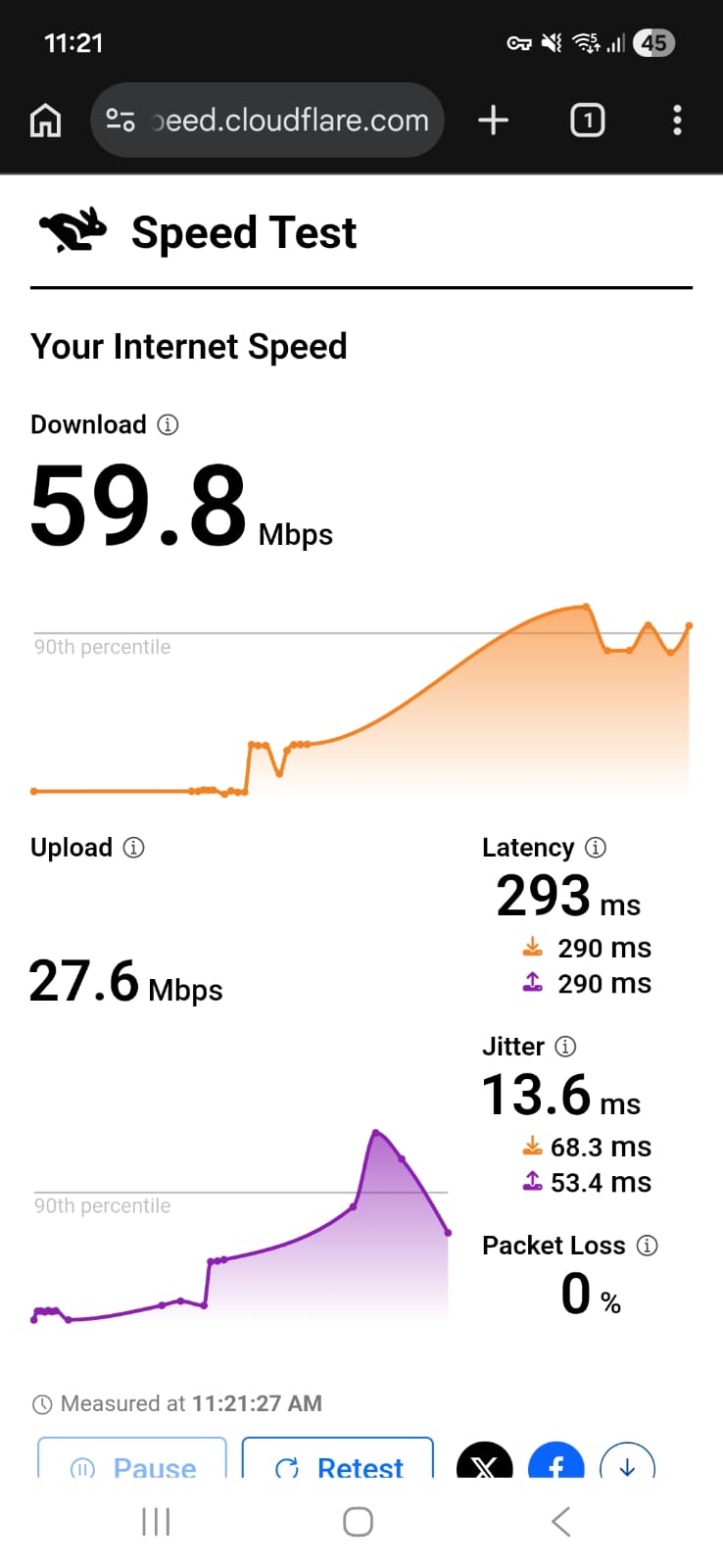
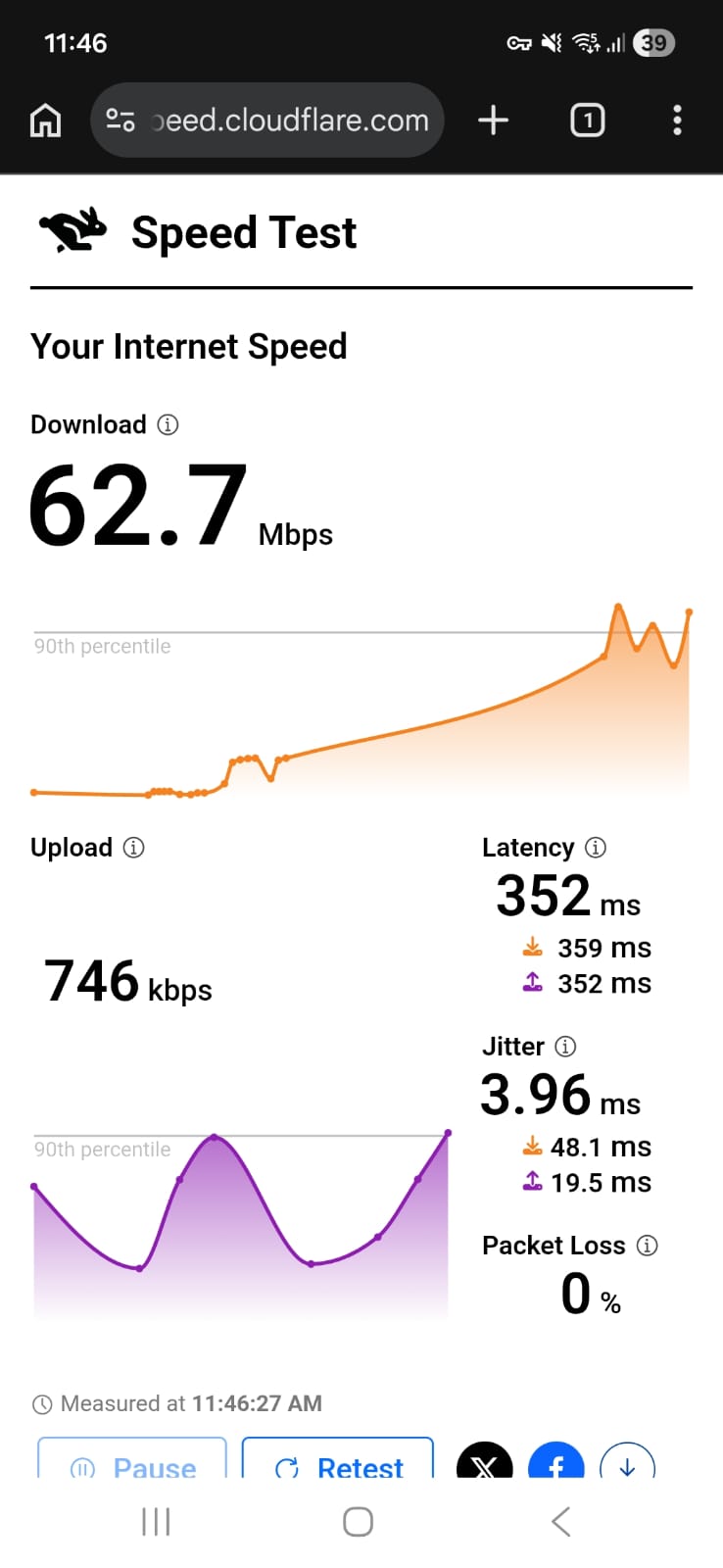
- US Server (Los Angeles) - 70% drop in speed
- Download Speed - 59.8 Mbps
- Upload Speed - 27.6 Mbps
- Latency - 293 ms
- UK Server (London) - 68.65% drop in speed
- Download Speed - 62.7 Mbps
- Upload Speed - 27.3 Mbps
- Latency - 462 ms
☞ On Mobile Data - performance was considerably weaker and highly unstable. In the US, speed loss remained extremely high on both days, 91% on Day 1 and 89.95% on Day 2, with download speeds staying below 10 Mbps and very low upload rates. The UK server showed similar results, with 94.09% speed loss on Day 1 and 89.17% on Day 2. Although there was slight improvement on Day 2, average speed loss remained severe at 90.47% for the US and 91.63% for the UK.
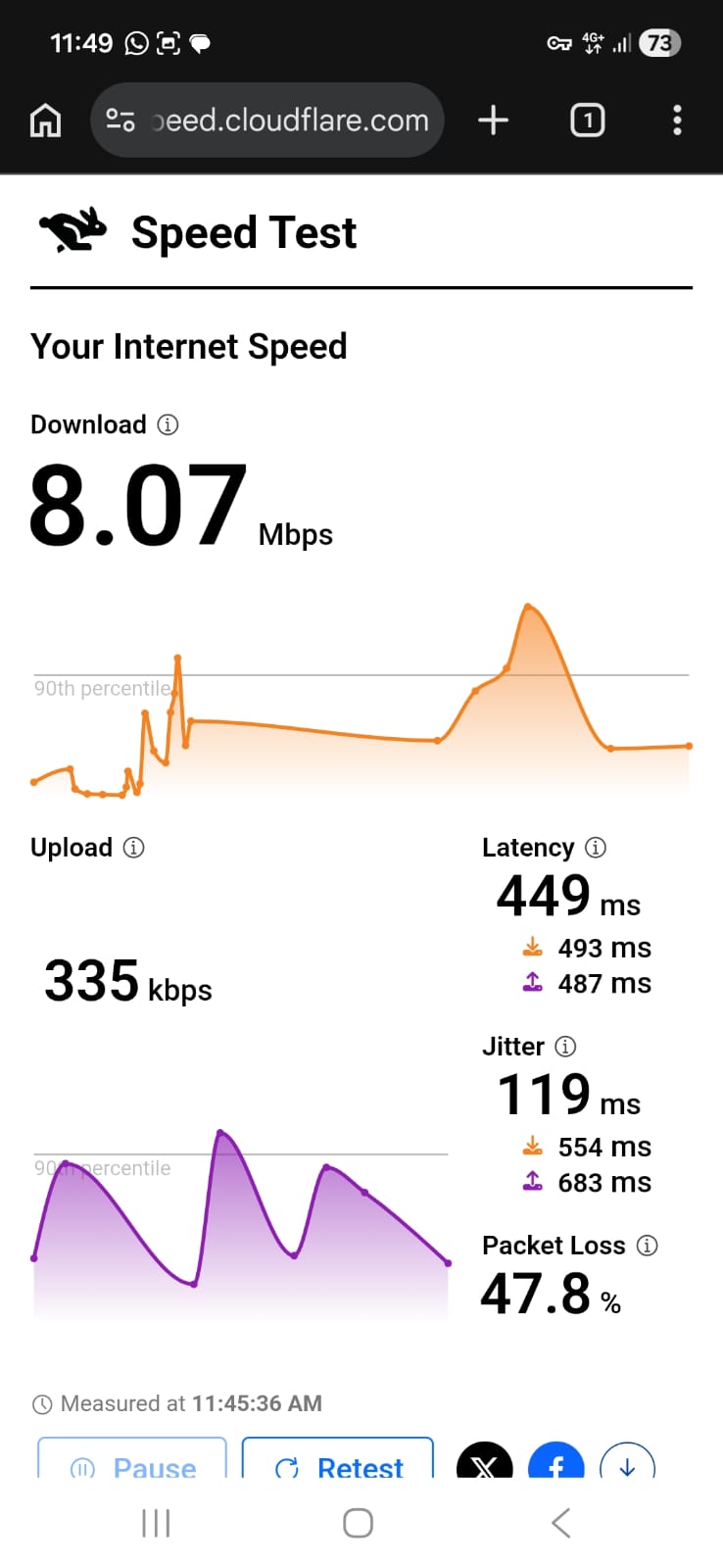
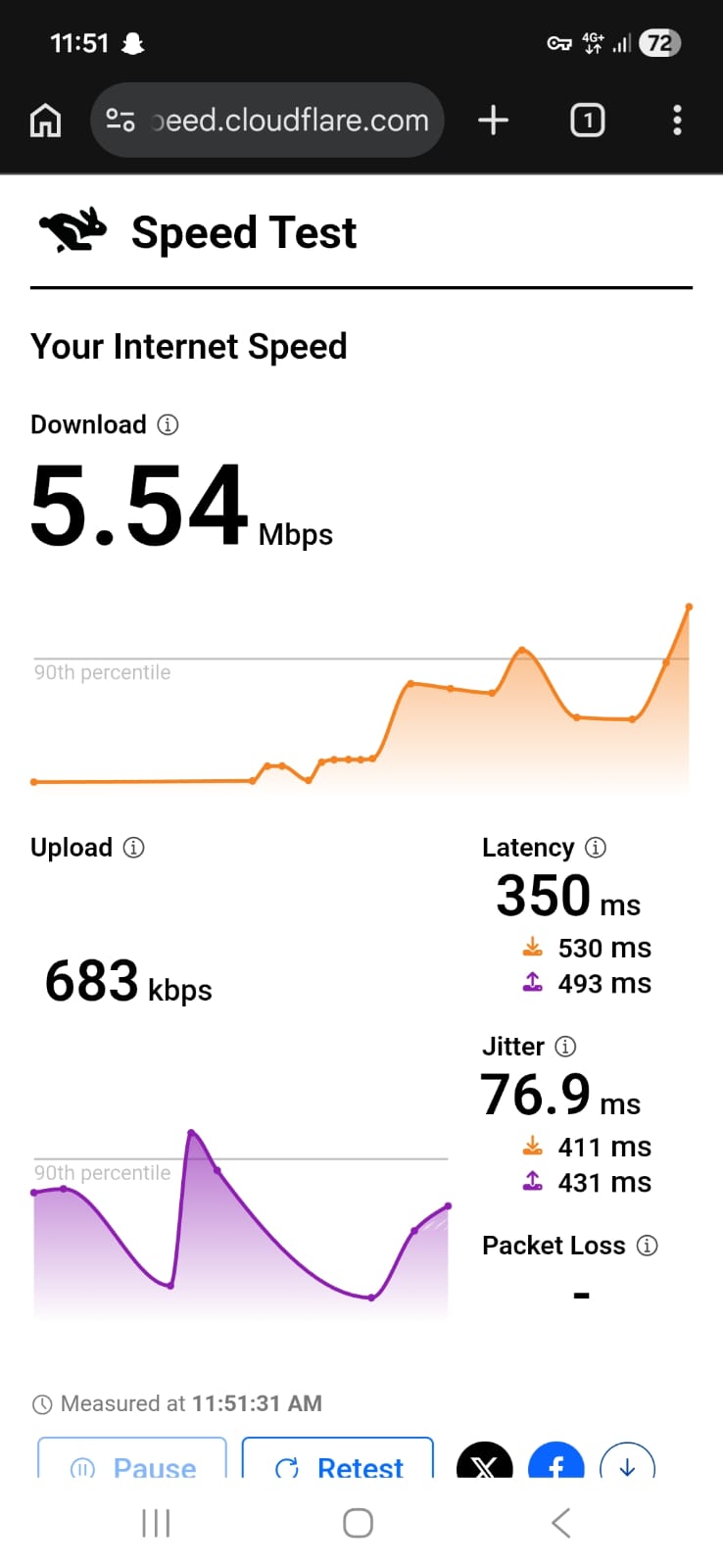
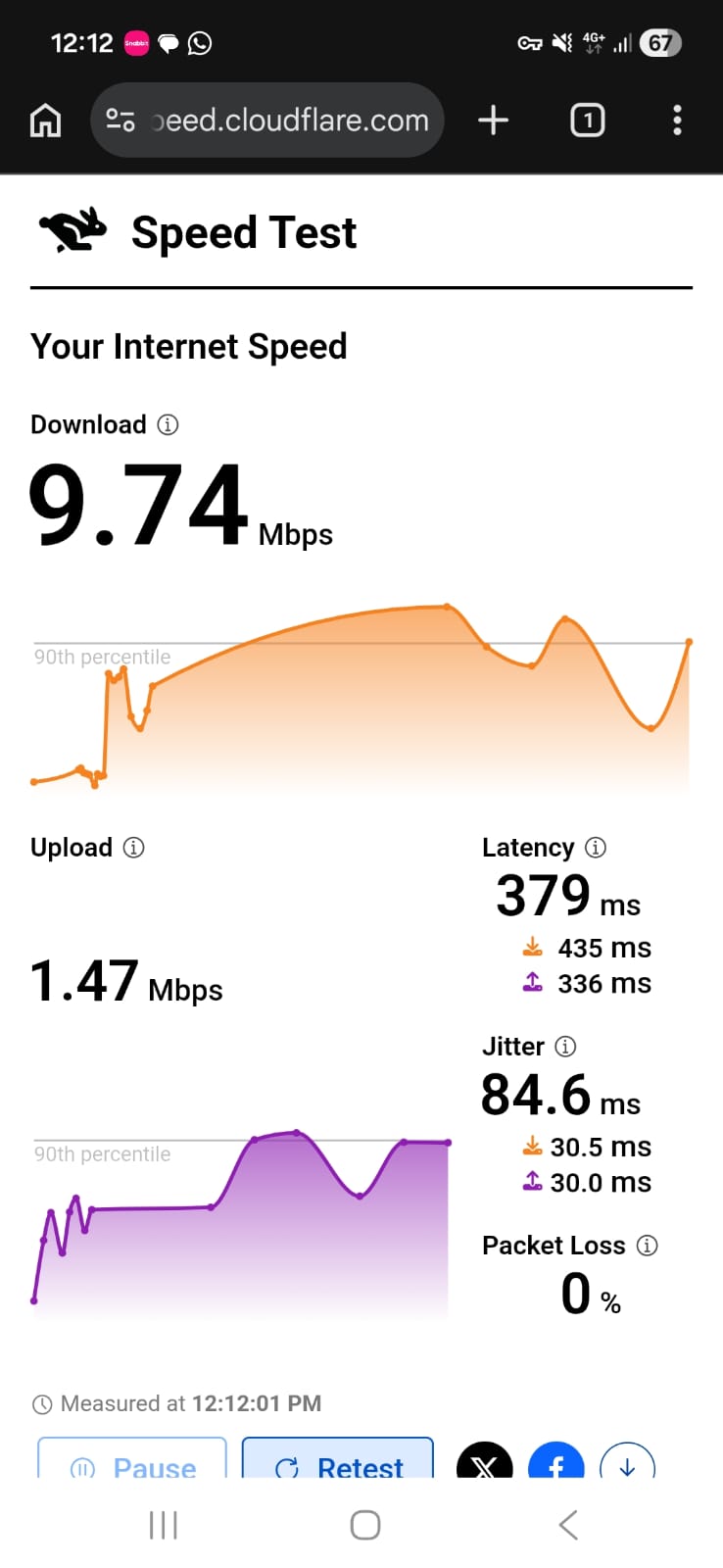
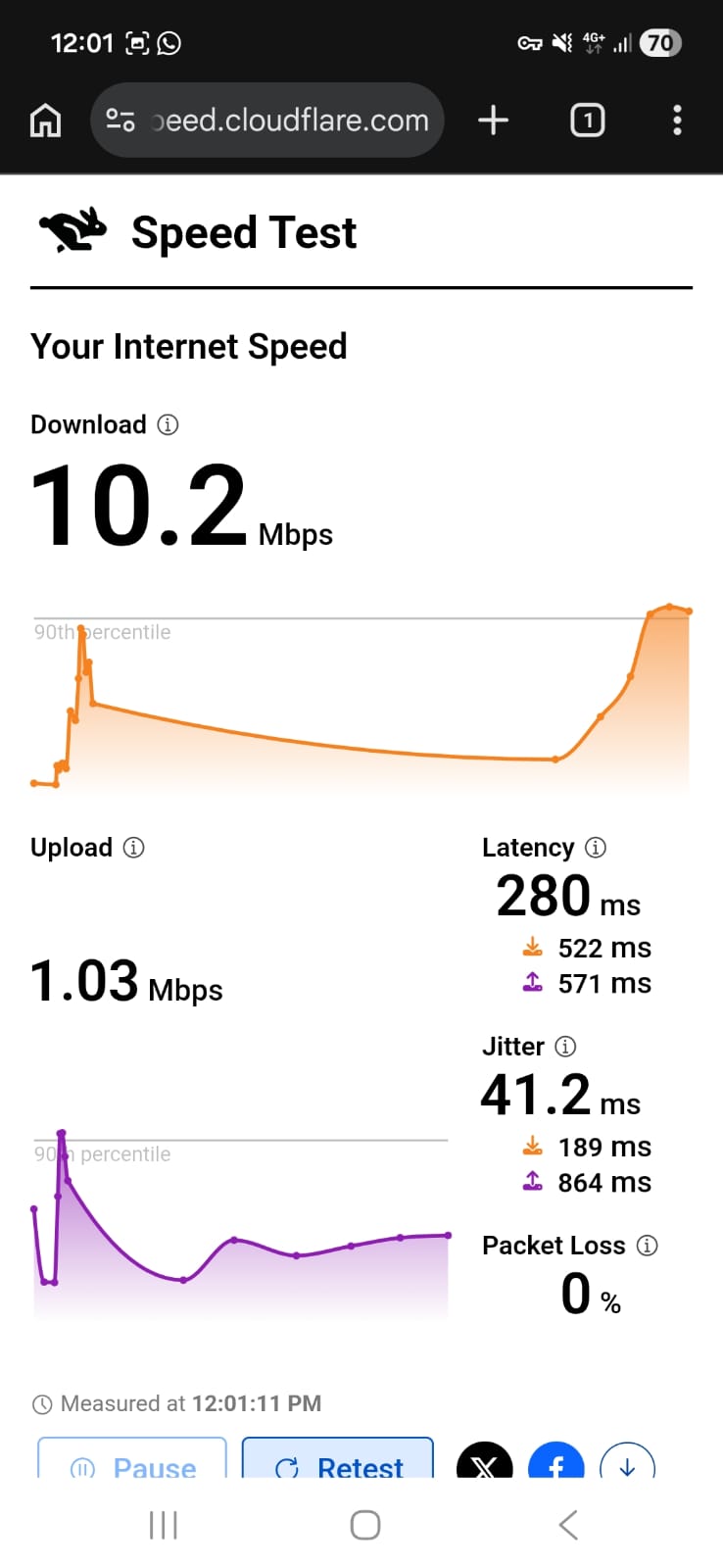
Surfshark delivered stable streaming without buffering, but noticeable slowdowns and higher latency made browsing and playback responsiveness feel less smooth overall.
- On the US (LA) server, the speed drop was immediately noticeable. Browsing felt slower than my ExpressVPN test. Pages opened, but there was a clear delay before everything fully loaded, and images sometimes took an extra second to appear. It’s usable, but the reduced speed and latency are easy to feel.
- When I opened Netflix, the title loaded without errors and playback started without buffering. However, the video began in very low resolution - more blur than I saw with NordVPN or ExpressVPN. Skipping or pressing play had a slight delay.
- The UK server felt slightly more stable, though quality still started low and adjusted gradually. At around 9–10 Mbps, playback stayed smooth without buffering. After a few minutes, the picture improved and remained consistent. Audio stayed clear.
- I also noticed that skipping forward, going back, or reconnecting the VPN caused the video to drop to low quality again before readjusting. Overall, it works, but the slowdown is more noticeable, especially on the US server.
Surfshark performed average in most leak protection tests. The Kill Switch worked properly and blocked internet access whenever the VPN connection dropped. This ensured my real IP was never exposed.
However, during testing, I encountered a DNS leak on the UK London server. After switching to the Manchester server, there were no leaks, and the connection remained secure. Aside from that one server issue, leak protection was reliable.
PROS
- Easy to set and access server favorites
- Quick access to fastest, recent, and nearest locations
- Advanced privacy tools directly on home screen (Antivirus, alerts, Alternative ID)
- Ability to rotate IP and override GPS location for added anonymity
- Specialty servers: Static IP & MultiHop
- Clear virtual server labeling
- Android native kill switch (blocks internet for all apps)
- Rotating IP and GPS override
- Antivirus, alerts, Alternative ID, and home-screen search
- Kill switch, split tunneling, and CleanWeb ad/malware blocker
CONS
- DNS leak detected on London server during testing
- UI design not as polished as other VPNs
- No interactive server map
- Poor performance and slow speeds, especially on mobile networks
How to Get a VPN on Android
Follow these simple steps to install and start using a VPN on your Android device:
- Subscribe on the VPN’s Official Website: Choose a plan, enter your details, and complete the payment on the VPN provider’s official website. After subscribing, you’ll be able to access your account dashboard (we highly recommend NordVPN as it is more user-friendly and safe).
- Download the Android App from Your Account Dashboard: After logging in, go to the Downloads section or your home dashboard. From there, you’ll find the direct download options for Android, including a Google Play link and an APK file if you prefer manual installation.
- Sign In to Your Account: Launch the app and log in using the account credentials you created during signup on the website.
- Connect to a Server: Tap the Connect button or choose a server location from the list to start using the VPN.
- Start Browsing Securely: Once connected, your internet traffic will be encrypted and your IP address will be hidden while browsing, streaming, or using apps.
Note: Money-back guarantees are usually available only when you subscribe directly through the VPN provider’s website. If you subscribe through third-party app stores or other platforms (meaning after directly downloading from the Play Store), you may not be eligible to request a refund under the provider’s guarantee policy.
How to Choose the Best Android VPN Apps
✅ Make sure the app installs quickly and smoothly without crashes, endless permission requests, or confusing setup prompts.
✅ Look for a clean, easy-to-navigate interface - switching servers, enabling the kill switch, or adjusting settings shouldn’t feel like a treasure hunt.
✅ Check that speeds stay reasonable, so streaming, browsing, and downloads don’t grind to a halt.
✅ Ensure the VPN stays stable during longer sessions, even when you switch between 5G, LTE, or public Wi-Fi networks.
✅ Pick one with a reliable kill switch that instantly blocks traffic if the VPN disconnects, especially important on mobile networks.
✅ Confirm it protects against DNS, IPv6, and WebRTC leaks, keeping your real IP hidden no matter where you’re connected.
✅ Test that all advanced features like split tunneling, protocol selection (WireGuard, OpenVPN, etc.), and obfuscation work as expected and are easy to access.
✅ Look for VPNs that perform consistently across multiple sessions, different servers, and network changes, so you know it won’t randomly disconnect or degrade in performance.
✅ Prefer VPNs with independently verified no-logs policies so your browsing history isn’t secretly stored or shared.
✅ Look for responsive support, ideally chat or email, so any Android-specific quirks or errors can be fixed quickly.
✅ Review subscription details carefully, including renewal rates and refund options, so you’re not surprised by hidden fees on your mobile plan.
Final Thoughts
From our hands-on Android testing, all four VPNs deliver solid privacy, reliable leak protection, and functional connections. But the differences become obvious when you look at mobile-specific performance, such as how apps handle 5G vs. Wi-Fi, network switching, and feature accessibility. Some VPNs focus on simplicity and quick setup, while others pack in advanced tools for power users. It is important to note that due to one-time DNS leak, Surfshark could not clasify for the best Android VPN list. Rest assured, here’s a breakdown of how each one stands out for Android users:
Key Android VPN Standouts From Our Testing
After testing each Android VPN across UI, performance, background, jurisdiction, stability, and features, these providers stood out in specific areas. Our evaluations highlight where each service shines, helping you quickly identify the right fit for your needs.
- Smoothest & Most Intuitive UI: ExpressVPN, Proton VPN and NordVPN – easy to navigate, quick connections, and minimal clutter. ExpressVPN has the most comprehensive and easy-to-navigate UI.
- Interactive Server Location Map: NordVPN, ExpressVPN and Proton VPN - All of them have a map but it is only NordVPN that offer interactive maps.
- Best Feature Access & Controls: NordVPN, Proton VPN and ExpressVPN – split tunneling, protocol selection, GPS override, and specialty servers all within reach. NordVPN and ProtonVPN stand out with their specialty servers.
- Most Stable Performance on Mobile Networks: NordVPN and ExpressVPN – reliable auto-reconnect and consistent behavior when switching between Wi-Fi and 5G. Also, during the extended stability test, they outperformed others.
- Fastest Browsing, Streaming, and Downloads (Wi-Fi & Mobile): NordVPN – though speeds can drop on distant servers, performance is generally usable.
- Most Specialty Servers & Advanced Privacy Tools: NordVPN and Proton VPN – NordVPN offers more specialty servers (For P2P, Onion over VPN, Obfuscated, and Double VPN) than Proton VPN (Secure Core, P2P, and Tor). One good thing about Proton is that even on its normal servers, it shows server load, thereby helping you choose one with the best result.
- Clear Server Load & Location Info: Proton VPN – makes picking low-load servers easy, reducing lag and buffering.
- VPN with Disguise App Icons: Proton VPN - Proton VPN on Android offers disguise app icons as "Weather, Notes, and Calculator".
- Best for Beginners & Quick Setup: NordVPN, ExpressVPN and Proton VPN – simple onboarding, one-tap connect, and easy access to core features.
- Best for Power Users & Customization: PIA VPN – deep settings for automation, protocols, and server selection for advanced control.
- Best Theme Customization and Visual Appearance Options: ExpressVPN - It is the only VPN with more than basic theme customization