
How to Add Media Sources to Kodi
Last updated July 8, 2021

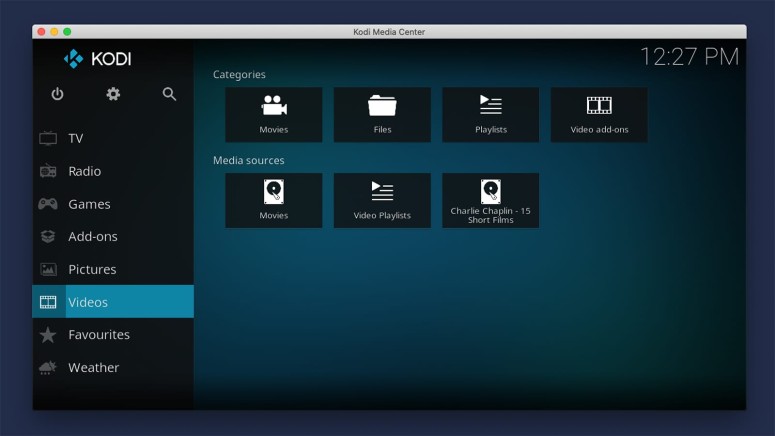
Importing your locally stored files to Kodi is done via media sources. These are files on your device (or an external device) containing videos, music, and photos. Therefore, if you’re wondering how to add media sources to Kodi, this means you want to know how to create your very own (locally stored) library. And that’s precisely what we’ll teach you.
The only requirement you need to meet is to have media files on your device. We’ll soon tell you how to organize those files to make adding new media sources to Kodi as easily as possible.
Related Content: What is Kodi – Everything You Need to Know / Beginner’s Guide to Kodi
Let’s dive into this process. Here’s how to add media sources to Kodi.
Step #1: Organize Your Locally Stored Files!
Before we go any deeper, it’s essential to understand the basics of this process. In other words, it’s crucial to know how Kodi sees your videos, music, and photos.
- We’ll be talking about adding media sources to Kodi. We’ll connect various folders that contain your media files. Therefore, it’s crucial to organize your folders to have only a single type of media (either videos, photos, or music) in one folder.
- For example, create a folder with your movies, a folder with your photos, and also a folder containing any music you’d like to add to Kodi.
- You’re also free to create sub-folders to further help Kodi. For example, you can create sub-folders of specific genres, categorizing your movies before they get imported to Kodi.
Step #2: Add Media Sources to Kodi
We need to instruct Kodi where to look for media files. Here’s how to ‘connect’ your media sources to Kodi.
1. Launch Kodi and select ‘Videos’ from the main menu.
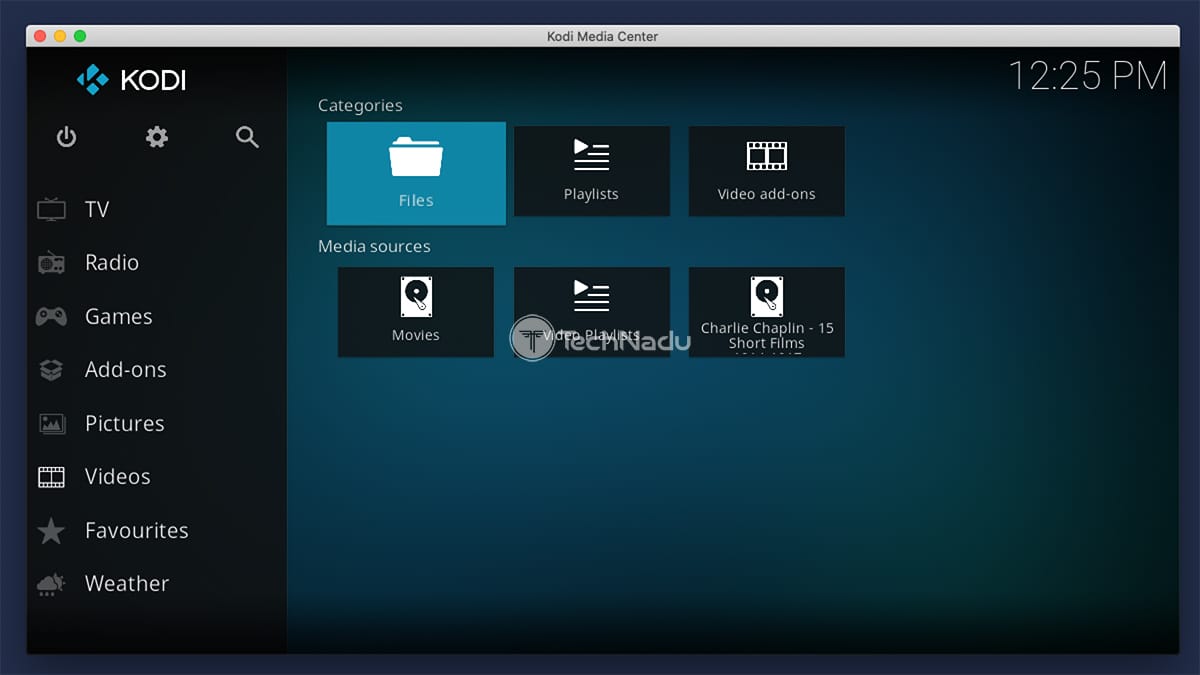
2. Take a look at the top of the screen and click on ‘Files.’
3. Next, you need to click on ‘Add Videos,’ and a pop-up window should appear.
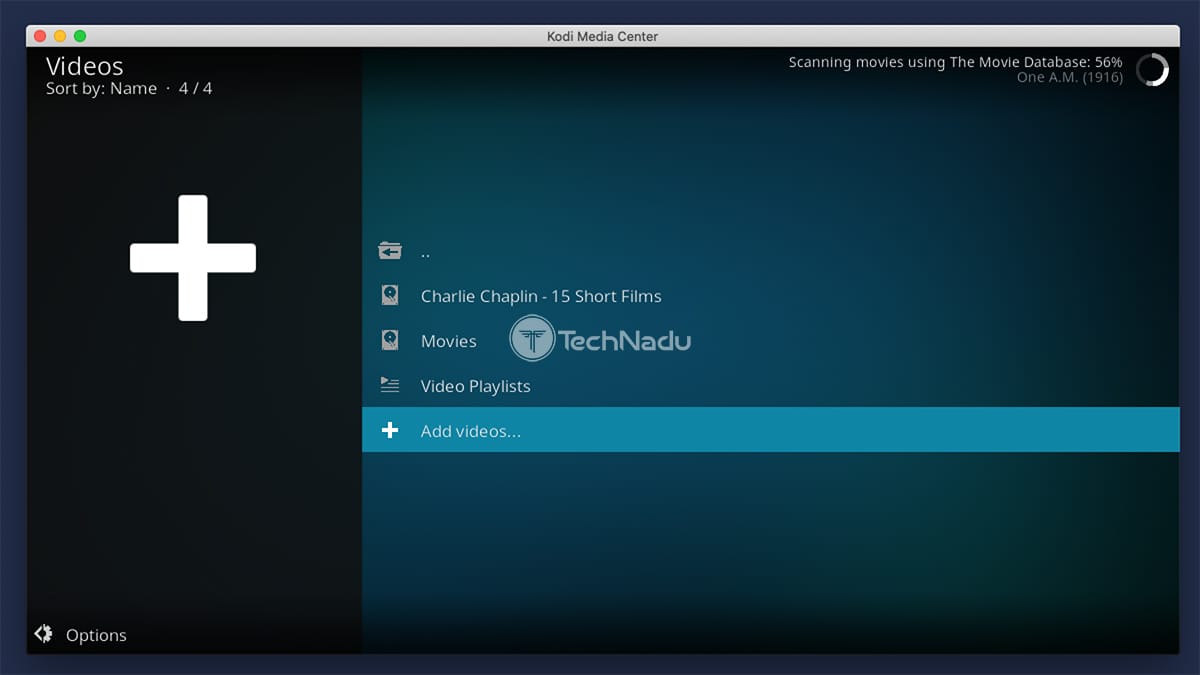
4. Click on ‘Browse’ (on the right side) and navigate to your locally stored media source. Once done, click on ‘OK’ to confirm the file path.
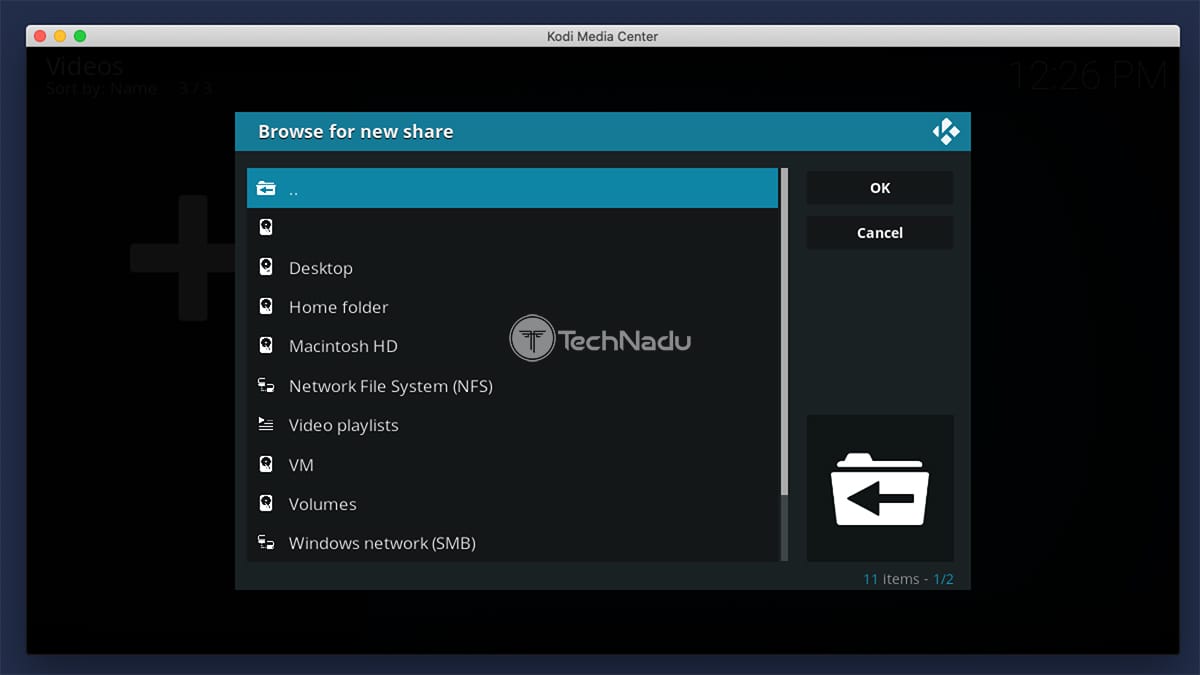
5. You also need to name your new source. Go with any name (something you’ll quickly recognize later on), and click ‘OK’ to dismiss the pop-up.
Step #3: Set a Suitable ‘Content Type’
So far, you’ve connected your media source with Kodi. However, we now need to tell Kodi what kinds of files you’re adding - so that Kodi can categorize those files correctly.
1. At this moment, you should see the ‘Set Content’ pop-up on your screen. In case you don’t see it, right-click on the newly added source and pick ‘Set Content.’
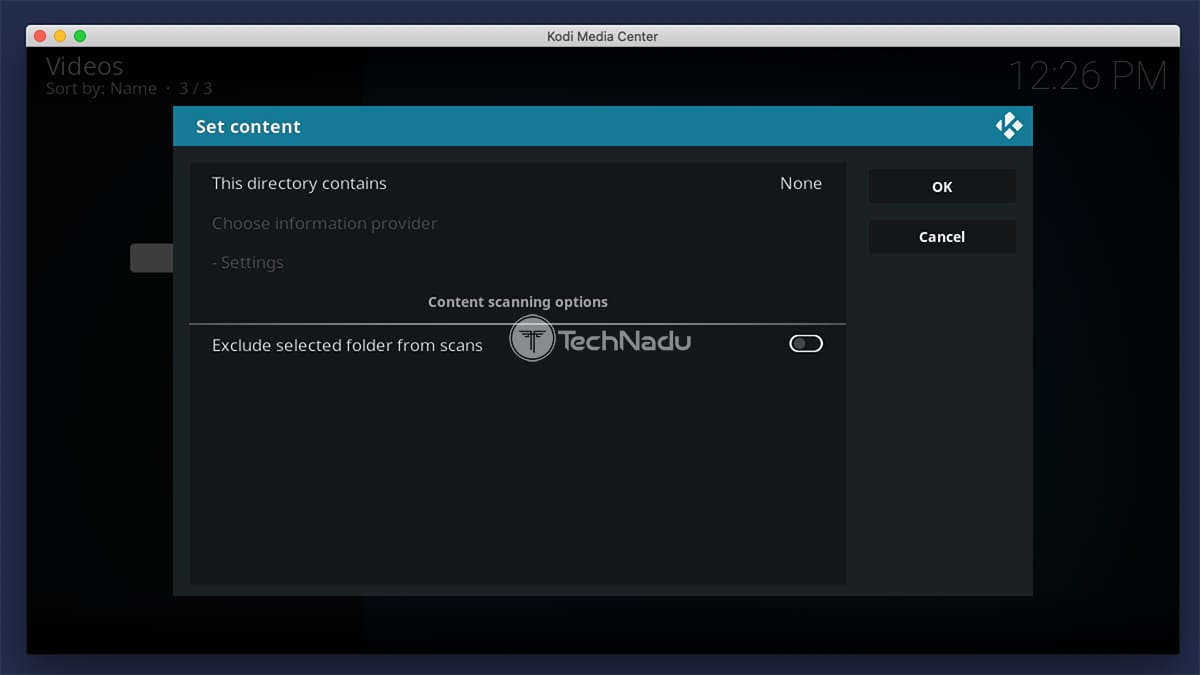
2. Select the ‘This Directory Contains’ field, and you’ll get to pick from several categories. Based on what you’re trying to add, pick either ‘movies,’ ‘music videos,’ or ‘TV shows.’
3. Based on your selection (movies, music videos, or TV shows), this is where Kodi will display one of three possible branches of settings. As we want to make this guide as helpful as possible, keep on reading based on what you’ve selected at this point.
If You’ve Selected ‘Movies’…
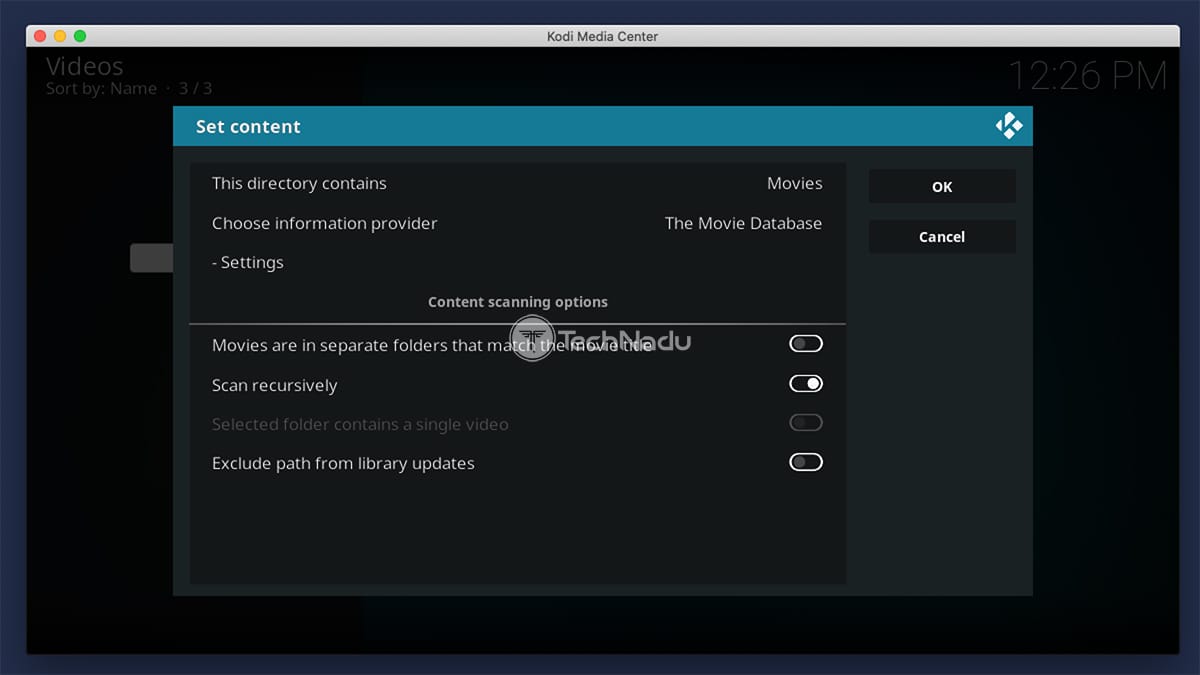
Here, we have two main groups of settings. You need to select an information provider (and adjust additional settings), and then you can pick content scanning options.
- By default, ‘The Movie Database’ will be selected as the information provider. We’ve using TMDb for a long time, and it never managed to disappoint it. However, other options are available, and you can preview those by clicking on this field.
- When it comes to the ‘Content Scanning Options’ group, you can adjust a few things. If you enable the first option (that says that movies are in separate folders), Kodi will use the folder name to scrape the movie.
- You can also enable the ‘Scan Recursively’ option if you have plenty of files with many sub-folders. This is handy when you have sub-folders for individual genres or movie sets.
- The final option (‘Exclude path from library updates’) is helpful if you have large libraries – but you don’t plan on adding content to them in the future.
If You’ve Selected ‘TV Shows’…
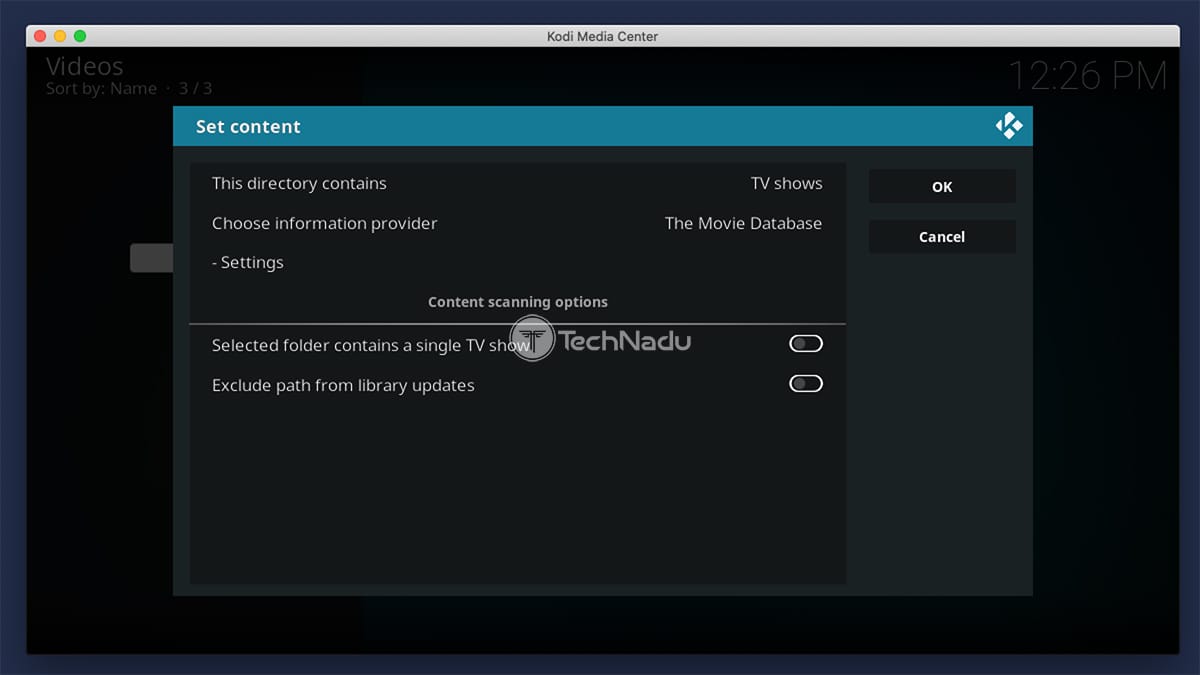
Very similar to the previously described content category, you’ll see two groups of settings. So, here’s what you need to know about those.
- First, pick an information provider. By default, ‘The Movie Database’ will be enabled, and we recommend you stick to this option, as it’s a highly reliable one.
- Then, if you have only one TV show in a single folder, you can enable the ‘Selected folder contains a single TV show’ option. This is helpful if you want to change the content settings without affecting the entire source.
- Lastly, the ‘Exclude Path from Library Updates’ option should be selected only if you have an extensive library to scan. However, no new content should be added to it.
If You’ve Selected ‘Music Videos’…
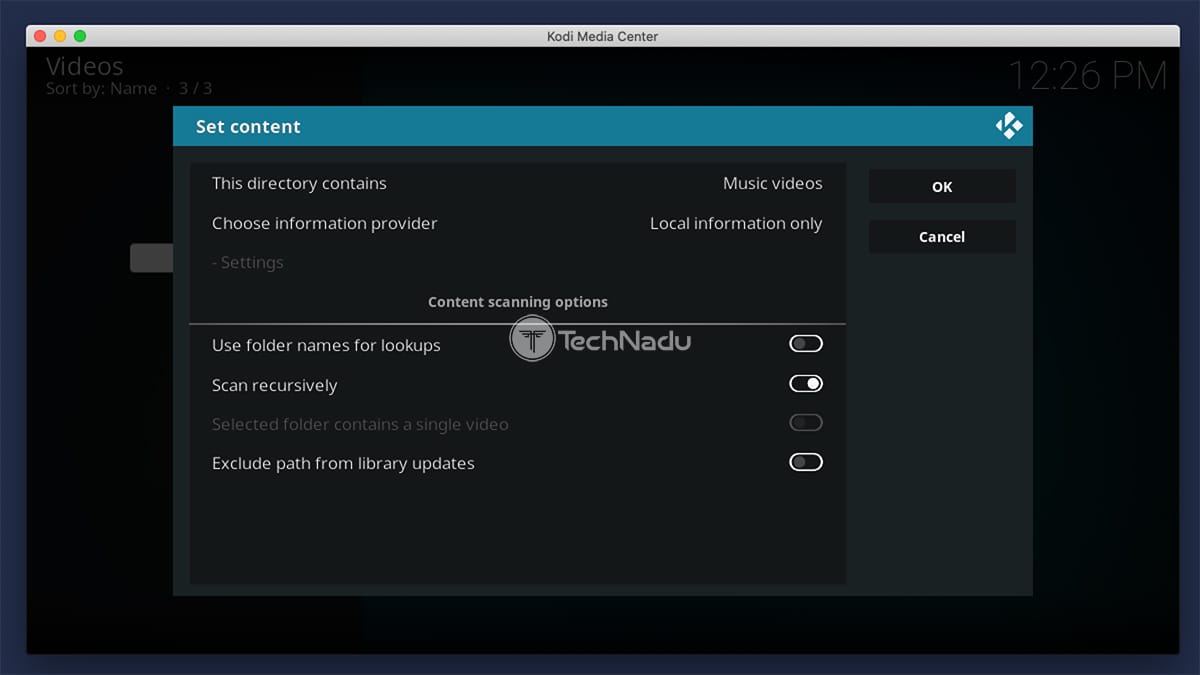
Once you pick an information provider, you’ll get to fine-tune your music-related collected by tweaking the following settings.
- By default, Kodi will try to use locally stored files’ metadata. If you’d like to expand on that information, you can pick a different information provider. To do this, click on ‘Local Information Only,’ then click on ‘Get More’ and select ‘TheAudioDB.com.’
- When it comes to other options, you can use folder names for lookups. This is handy if you have a library with nicely organized sub-folders based on different artists or genres.
- If you enable the ‘Scan Recursively’ option, Kodi will dive deep into the media source structure. Best used for an extra-large library with thousands of music files.
- And finally, the ‘Exclude Path from Library Updates’ option allows you to import a vast library quickly. However, no further updates will be applied to the future.
Step #4: Add Files to Your Kodi Library
Finally, we need to confirm all the settings we’ve tweaked. This step will force Kodi to start indexing the newly added media source.
1. Once you fine-tune everything in the ‘Set Content’ pop-up, click on ‘OK.’
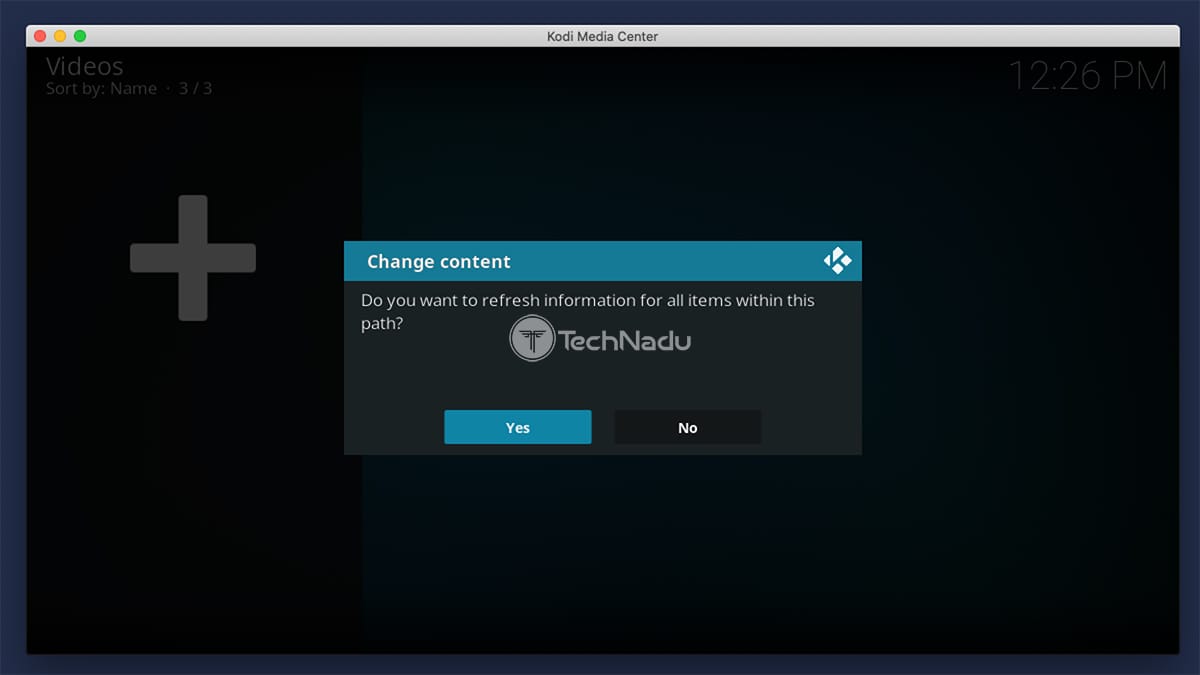
2. The pop-up will now close, and a new one will open – asking to refresh your source.
3. You can click on ‘OK,’ and Kodi will begin to import your media files. Depending on the size of your library, this might take some time.
So, that would be all on how to add media sources to Kodi. If you have any questions, make sure to post your comment below. And of course, do not forget to share this article online. Thanks – and enjoy using your new Kodi library!
Related






Get expert insights on threats, breaches, scams, and security trends — delivered every Monday.
Most Popular




Get expert insights on threats, breaches, scams, and security trends — delivered every Monday.
Most Popular