

When you purchase through links on our site, we may earn an affiliate commission. Here’s how it works.
VIKI Kodi Addon: How to Install It on Kodi
Last updated November 14, 2024

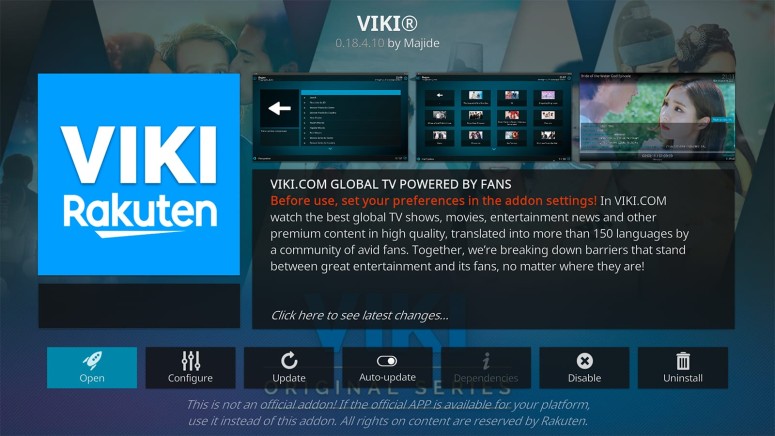
When it comes to the best Korean Kodi addons, we have to say that your options aren’t as wide as they used to be. However, VIKI is the best option among what's available, as this is a dedicated streaming service available on Kodi as well. So, we’d like to introduce you to the VIKI Kodi addon.
If you're unfamiliar with VIKI, it’s a media streaming site offering Korean, Chinese, and Japanese movies and TV shows. While plenty of its content is available for free, the most attractive titles are behind a paywall. The good news is that the VIKI Kodi addon allows you to use your credentials to access the entire streaming platform's library.
In this article, we'll show you how to download and install the VIKI addon on your Kodi. As you're about to see, you'll encounter a series of detailed steps and helpful screenshots throughout.
How to Install VIKI Kodi Addon
You'll need to download the VIKI Kodi addon installation file from GitHub. Then, you'll use Kodi to extract that ZIP file and install the addon. This is what you need to do:
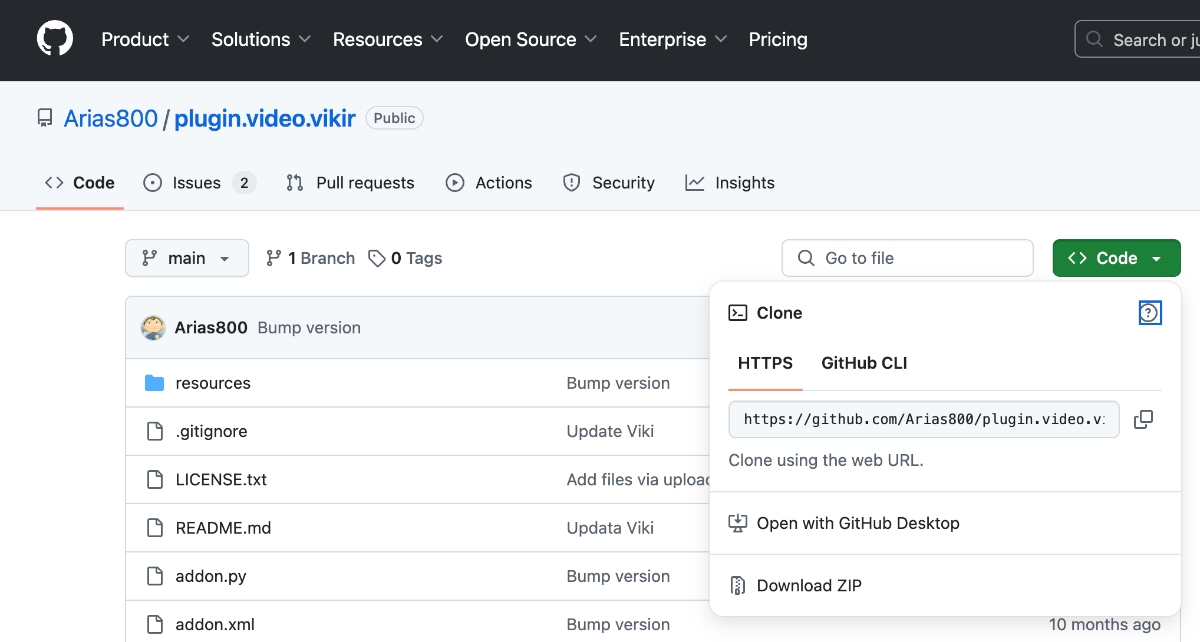
- First, go ahead and visit this GitHub page.
- Click the green 'Code' button and choose 'Download ZIP.'

- Launch Kodi and pick 'Add-ons' using the application’s main menu.
- Click the open box icon (top-left corner).
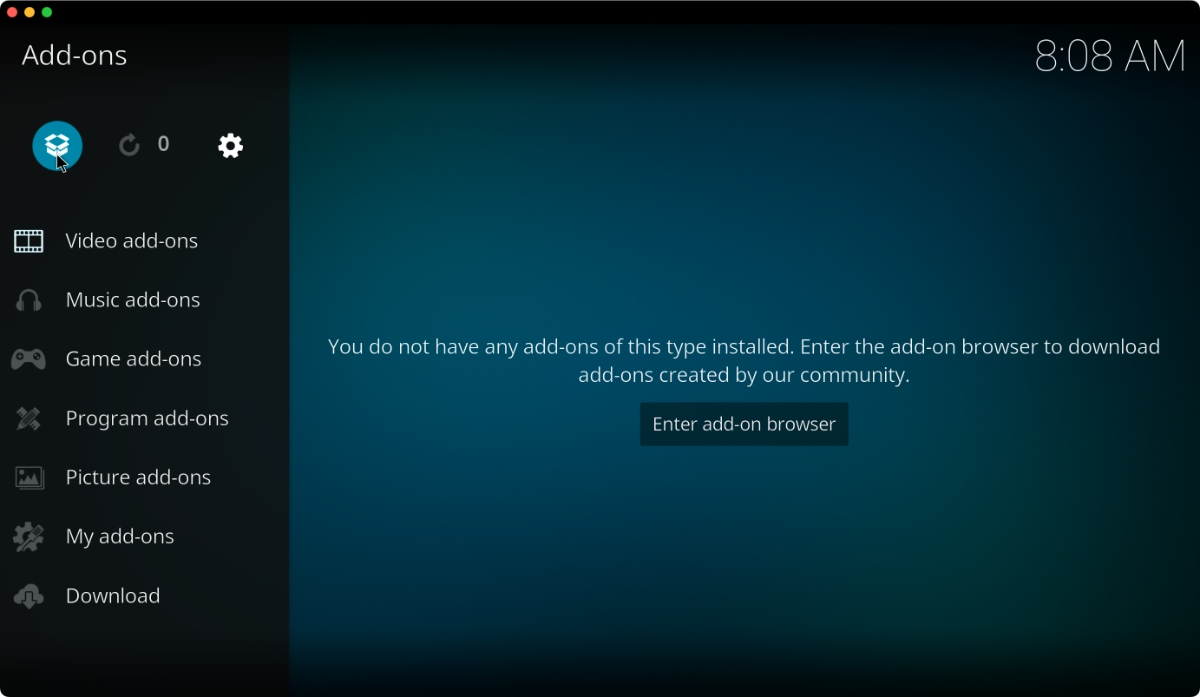

- Select 'Install from ZIP file' and a pop-up window will appear on your screen.
- Navigate to the newly downloaded ZIP file. To install the addon, select the file.

- After a few moments, a notification will say that you’ve installed the VIKI Kodi addon.

- Return to Kodi’s home screen and pick 'Add-ons' once again.
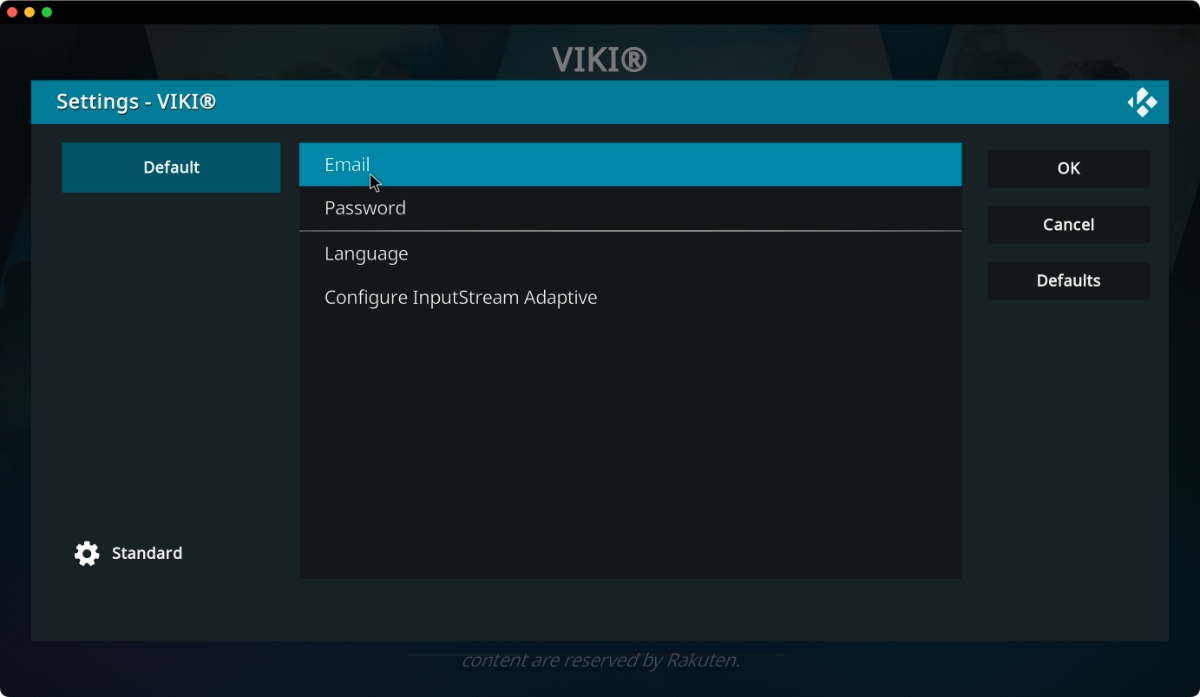
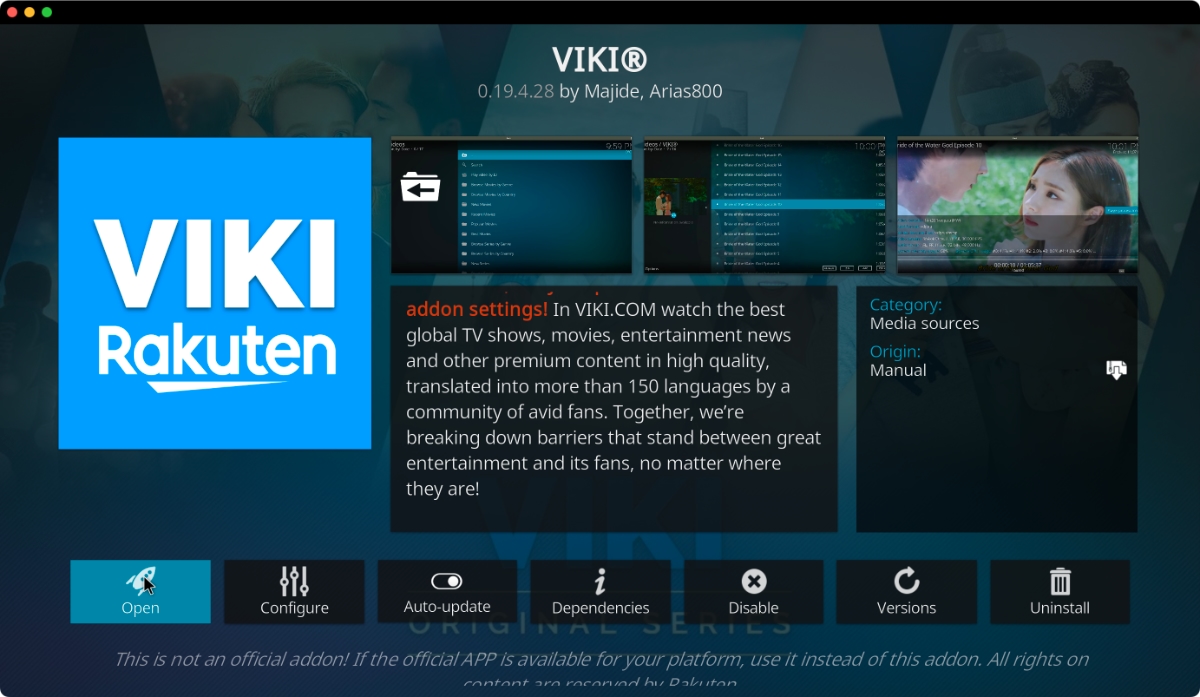
- Right-click on the VIKI addon and pick 'Information,' followed by 'Configure.'
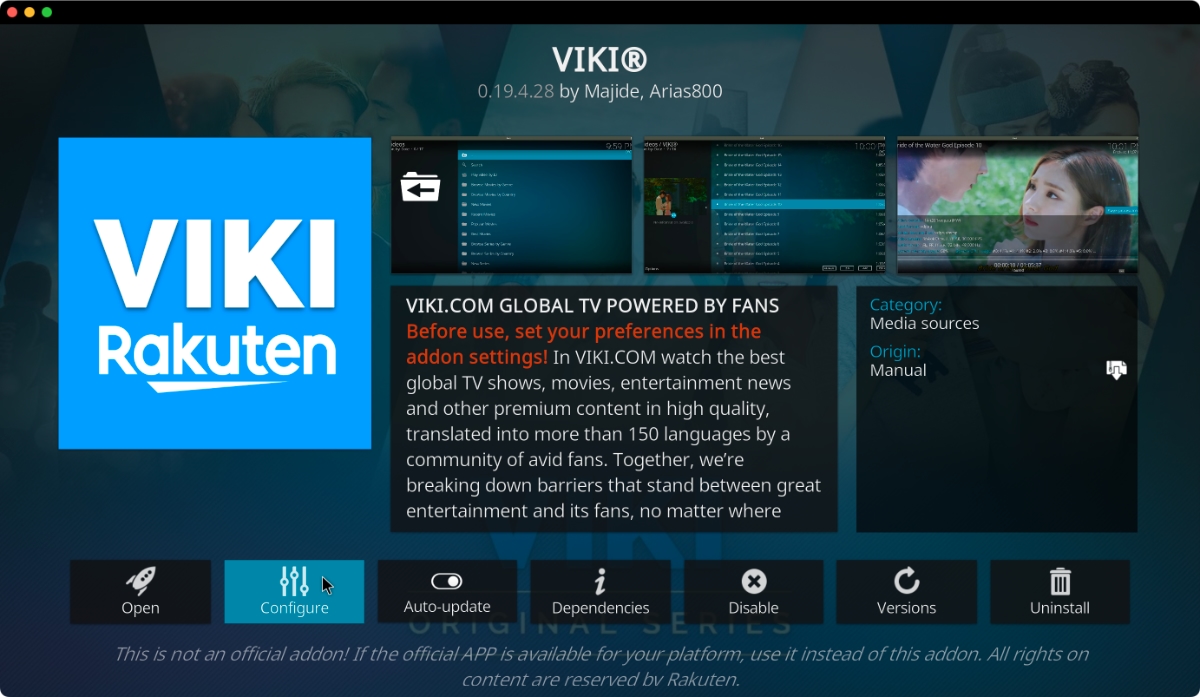
- You now need to enter your VIKI credentials (your e-mail and password).
- Lastly, launch the VIKI Kodi addon. That’s it!
Final Thoughts
As you can see, installing the VIKI Kodi addon is quite simple and takes only a few moments of your time. Just remember to input your credentials before launching it, as you might encounter an error otherwise. Other than that, the addon seems to work fine and rarely features any broken links.
In the end, we'll also note that some of VIKI's content is available for free, but you'll be limited to a very low resolution. So, if you're keen on watching the latest Korean movies and TV shows, it's worth getting a paid VIKI subscription to unlock the platform's full potential.
That would be all on how to install the VIKI Kodi addon. If you have any questions, make sure to post them via the comments section below. And lastly, thanks for reading!
Related




Get expert insights on threats, breaches, scams, and security trends — delivered every Monday.
Most Popular


Get expert insights on threats, breaches, scams, and security trends — delivered every Monday.
Most Popular