

How To Use Invisible Ink on iPhone X?
Last updated June 16, 2021


For a while now, you can use your iPhone to send a 'hidden' message to someone. As you can imagine, this is done by using the Messages app. In addition, this feature is known as the 'Invisible Ink'. We are sure that many of you want to know how to use Invisible Ink on iPhone X? Without further ado, let's jump right in.
Official Requirements
In case you have the brand-new iPhone X, you are already using iOS 11. This version is fully compatible with Invisible Ink. However, you need to make sure that the recipient is using iOS 10 or a newer version.
If you're seeing a green arrow instead of a blue arrow, this means that the person you're messaging doesn't support Invisible Ink. Alternatively, that person needs to enable iMessage on iOS. This is how it's done:
- Open the Settings app;
- Navigate to Messages;
- Finally, tap the iMessage slider so that this feature is enabled.
How to Use Invisible Ink on iPhone X?
This feature was released to the public a while ago, along with a series of other interesting features. Let's take a look at how to send secret messages to other iOS users:
- First, open the Messages app;
- Now type in your message as you normally would;
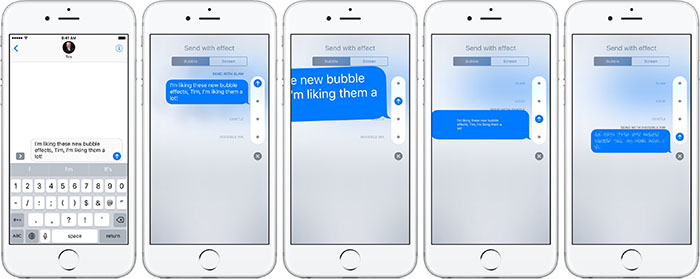
- Next, tap and hold the Blue arrow next to the text field. You should see an option that says 'Send with effect';
- From the list of available effects, make sure to pick 'Invisible Ink';
- Finally, tap the blue arrow one more time and your message will be sent.
Invisible Ink = Snapchat?
Maybe you're wondering if Apple's Invisible Ink is fighting against Snapchat. What you need to know is that messages sent via Invisible Ink don't destruct after reading. However, they also don't remain visible for long. This is because you'll need to keep swiping to keep it visible.
It can be said that Invisible Ink tries to find the right kind of balance between being fun and serious.
Conclusion
If you found this article useful, we'd appreciate if you could share it on social networks. Let's help out other iOS users as well.
Related






Get expert insights on threats, breaches, scams, and security trends — delivered every Monday.
Most Popular





Get expert insights on threats, breaches, scams, and security trends — delivered every Monday.
Most Popular