

When you purchase through links on our site, we may earn an affiliate commission. Here’s how it works.
Films for Action Kodi Addon: How To Install It on Kodi
Last updated January 17, 2022

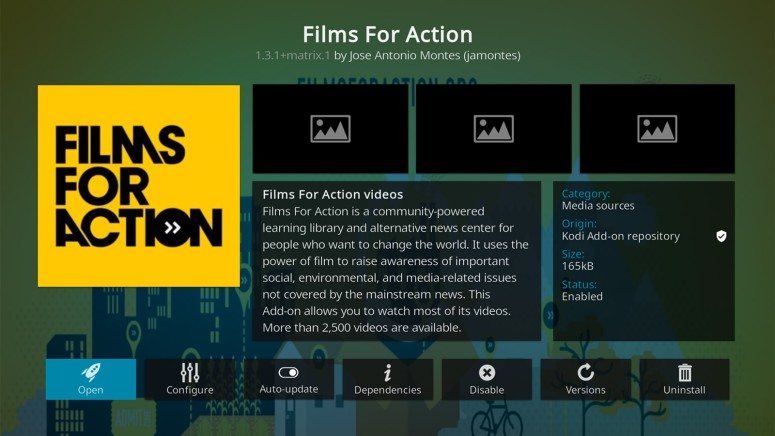
If you’re after documentaries and independently produced films, you’ll find 'Films for Action' to be a valuable source of content. Founded in 2006, this website is all about educational content, offering 1,000+ documentaries and 4,000+ short films. Aside from accessing the service on the Internet, there’s also the Films for Action Kodi addon, which we’ll show you how to install.
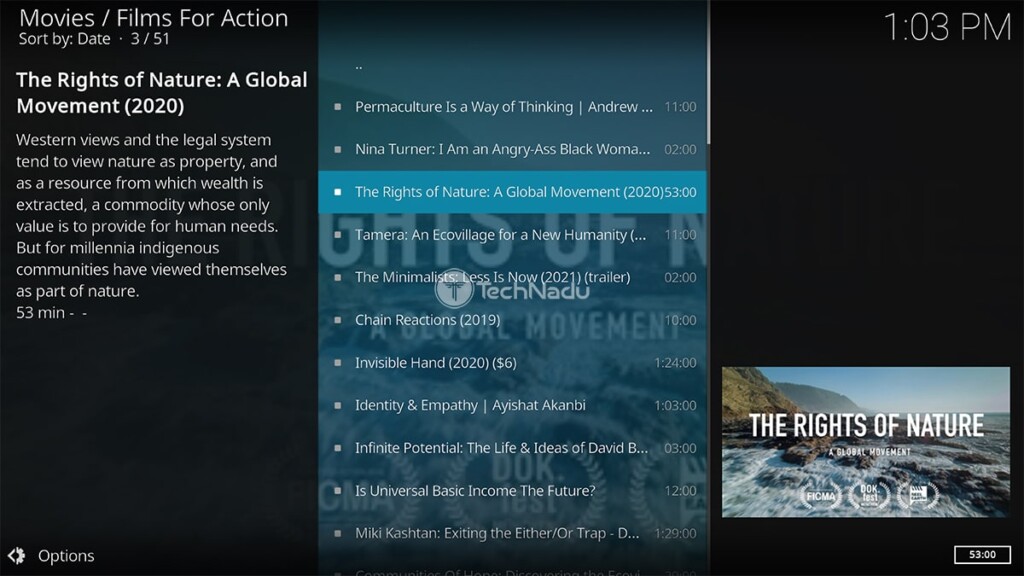
As you can already see, Films for Action offers tons of content. More precisely, over 30 content categories can be found here, all of which are displayed on the home screen of the Films for Action Kodi addon. Once you pick a category, the addon will show you a vast list of individual titles, so you're only a couple of clicks away from streaming its free content.
Aside from that, the addon lets you play videos in their highest possible resolution. When it comes to Kodi, that would be 1080p, even through older titles typically come in 720p.
How To Install Films for Action Addon on Kodi
Ready to get started? Use these steps to install Films for Action on your Kodi:
1. Launch Kodi. After a couple of moments, its home screen will appear.
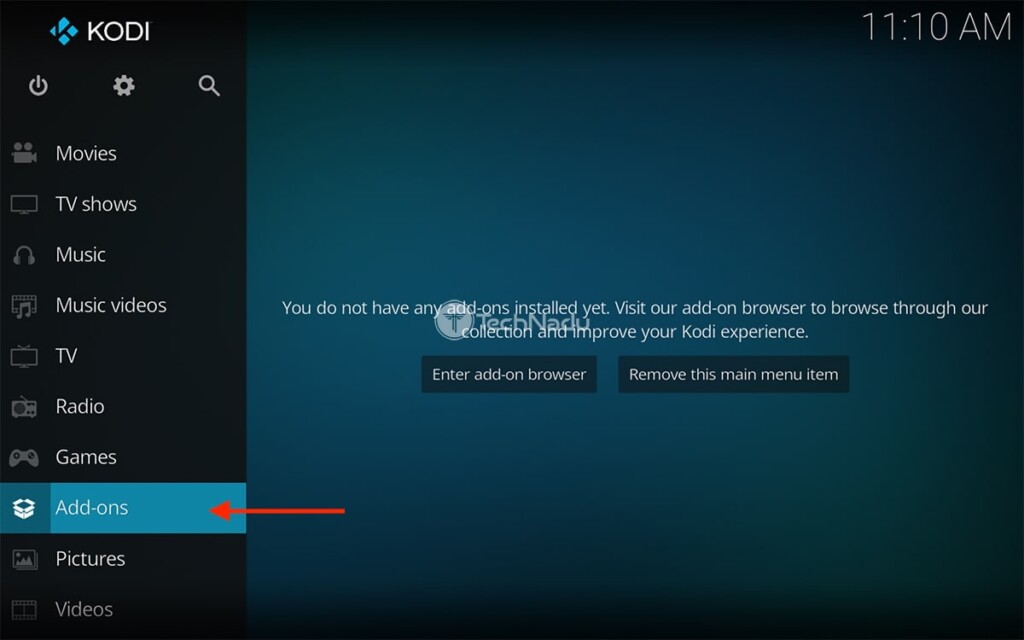
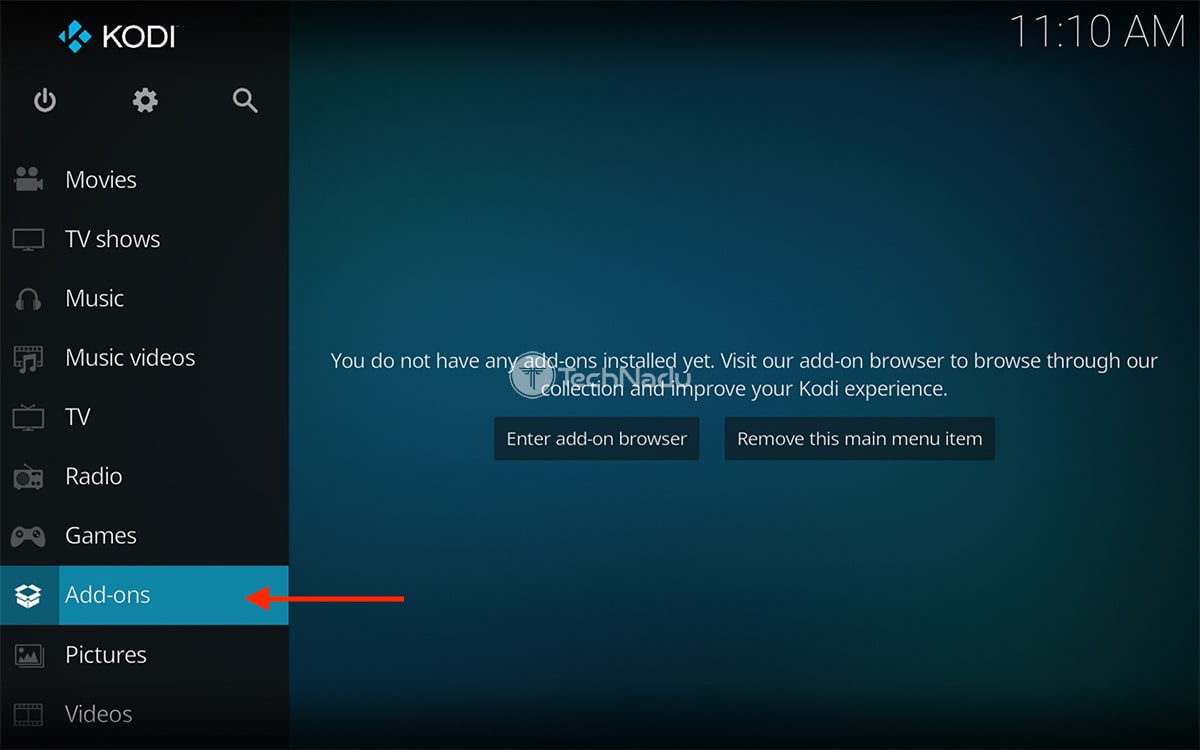
2. Click on 'Add-ons' using Kodi’s main menu (on the left side of the screen).
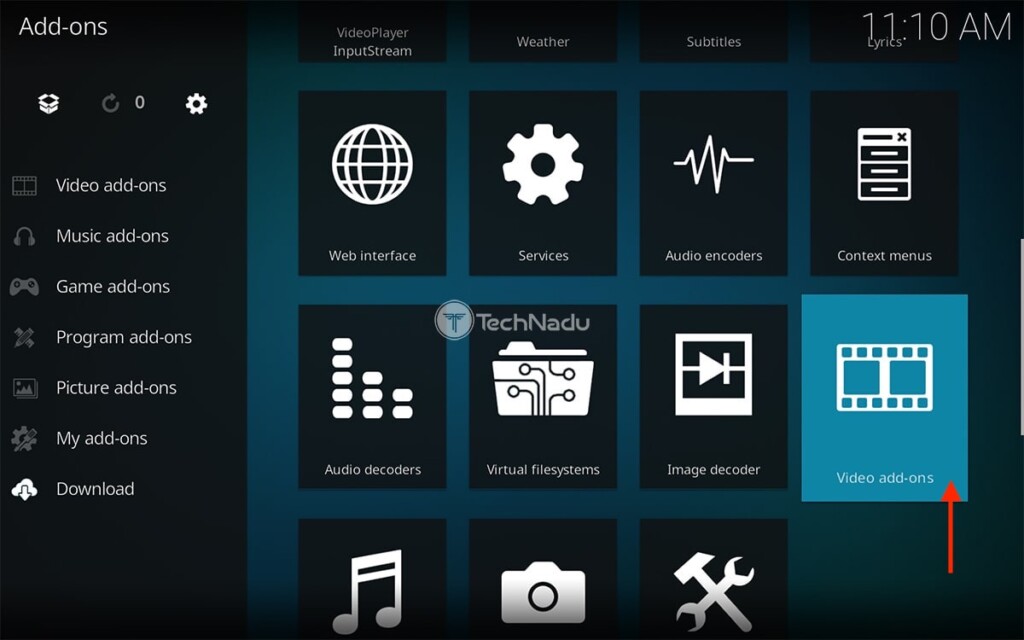
3. Now, hover over 'Download,' and then pick 'Video Add-ons' on the right.
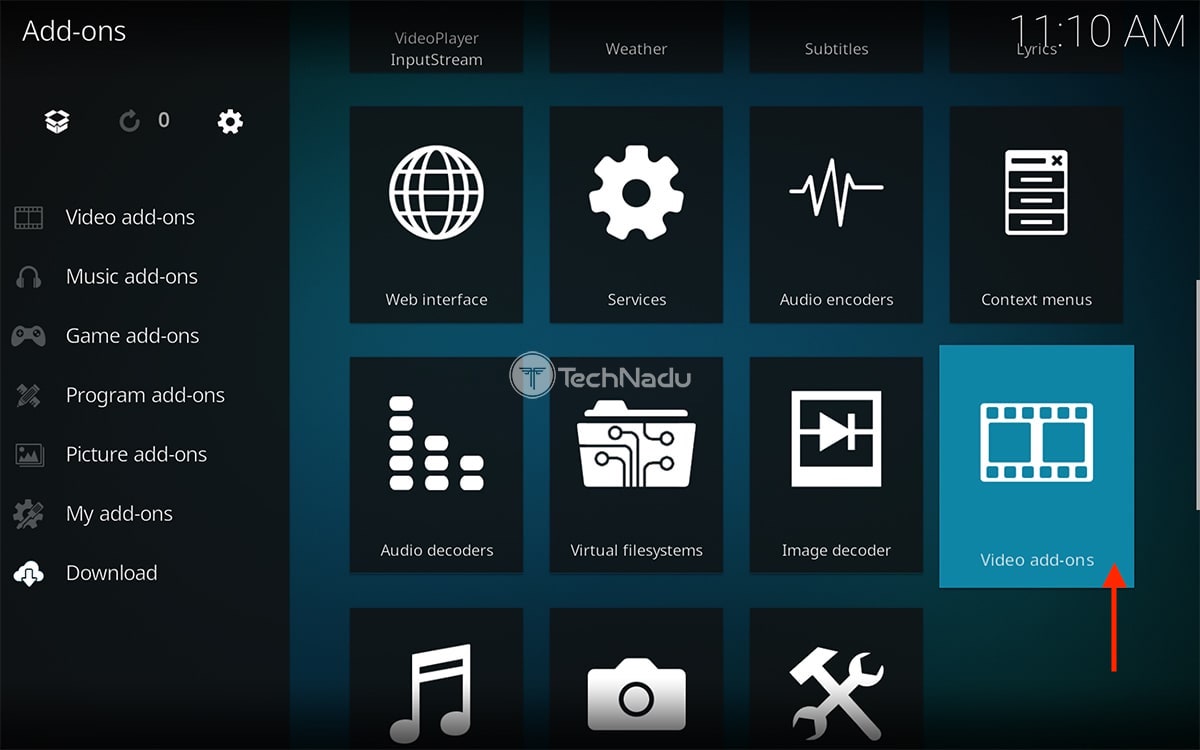
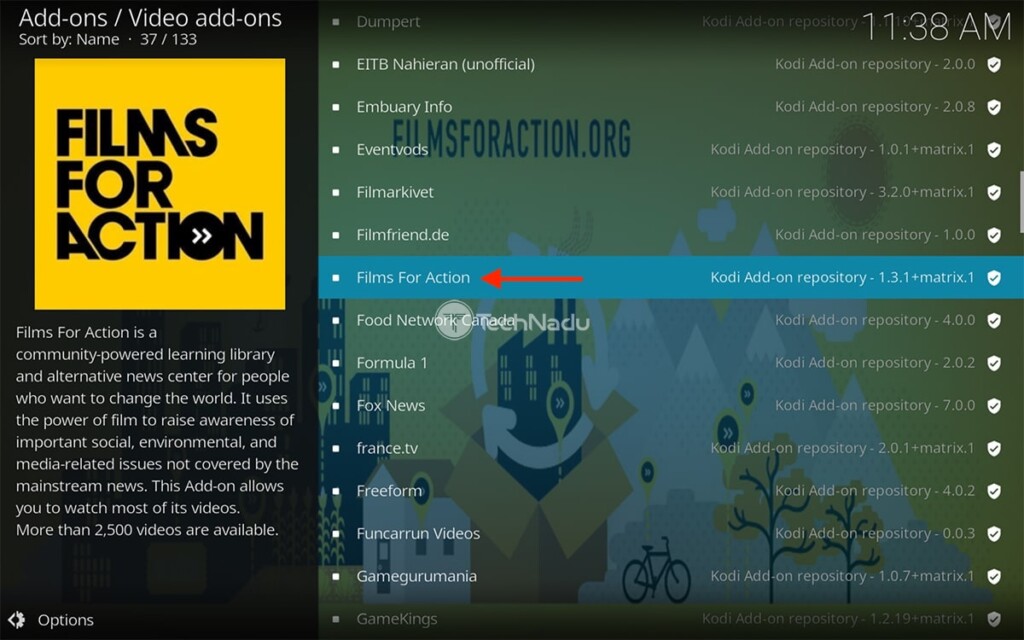
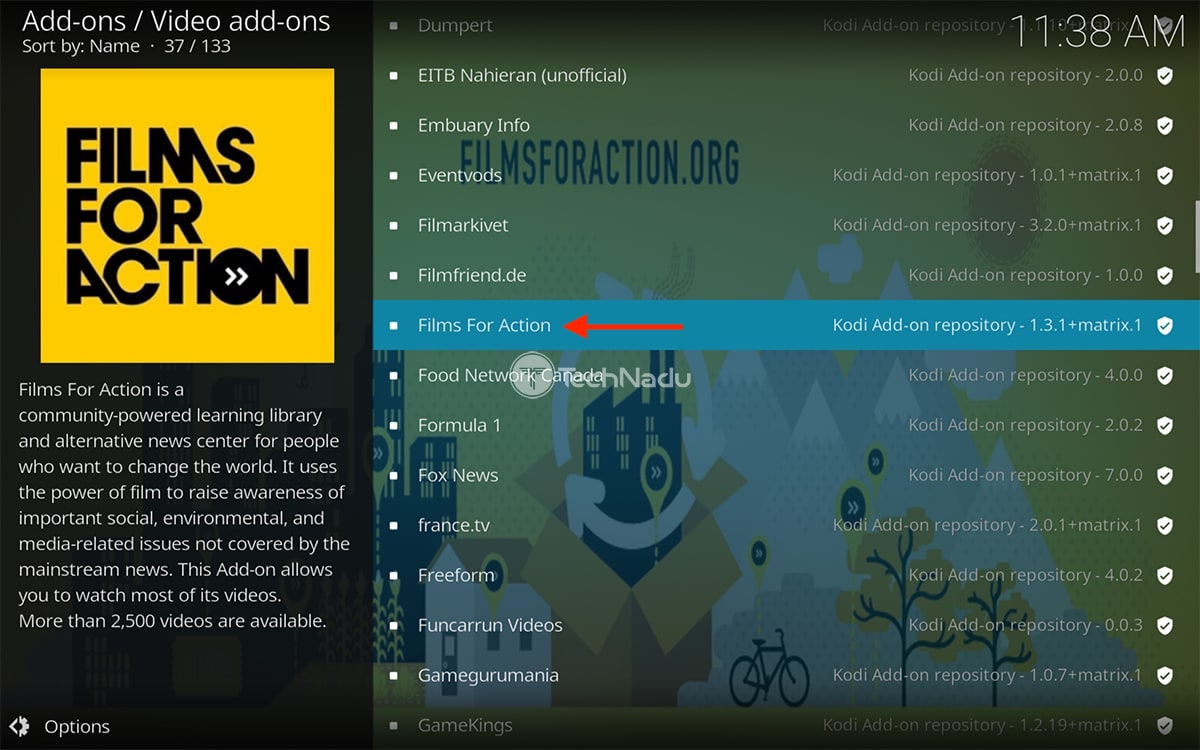
4. Scroll down until you see 'Films for Action.' Select the addon’s name.
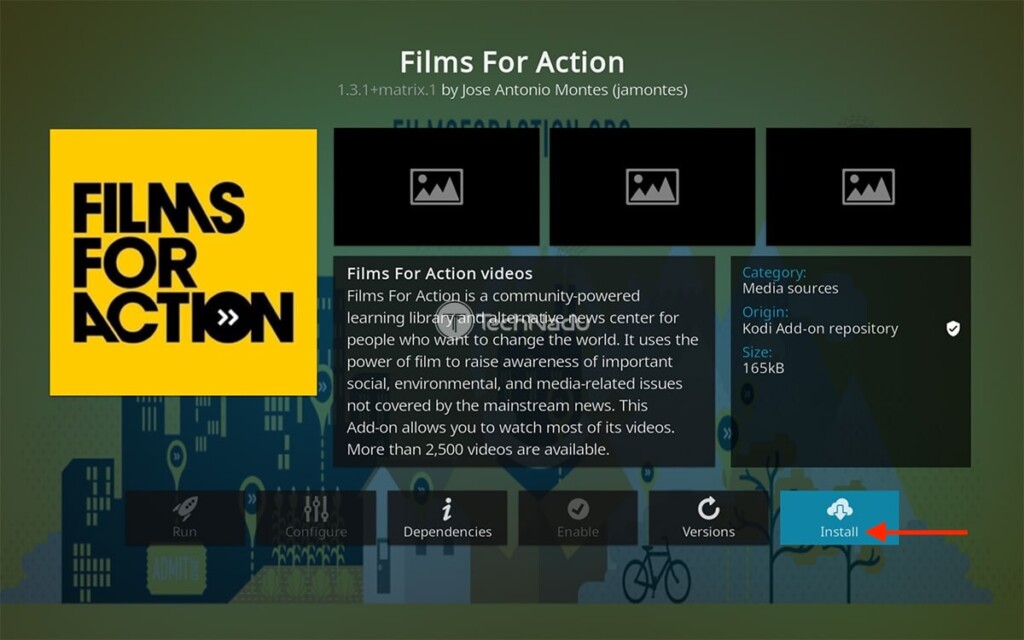
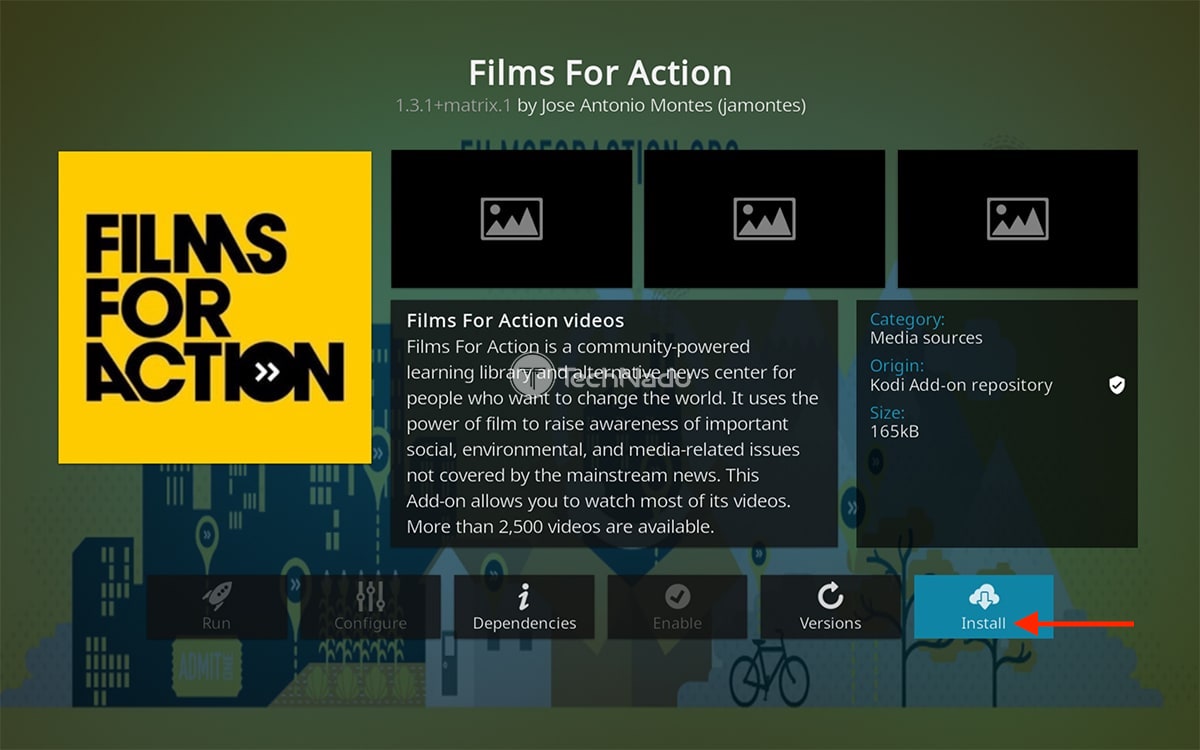
5. You should now see the addon’s overview. Proceed to use the 'Install' button.
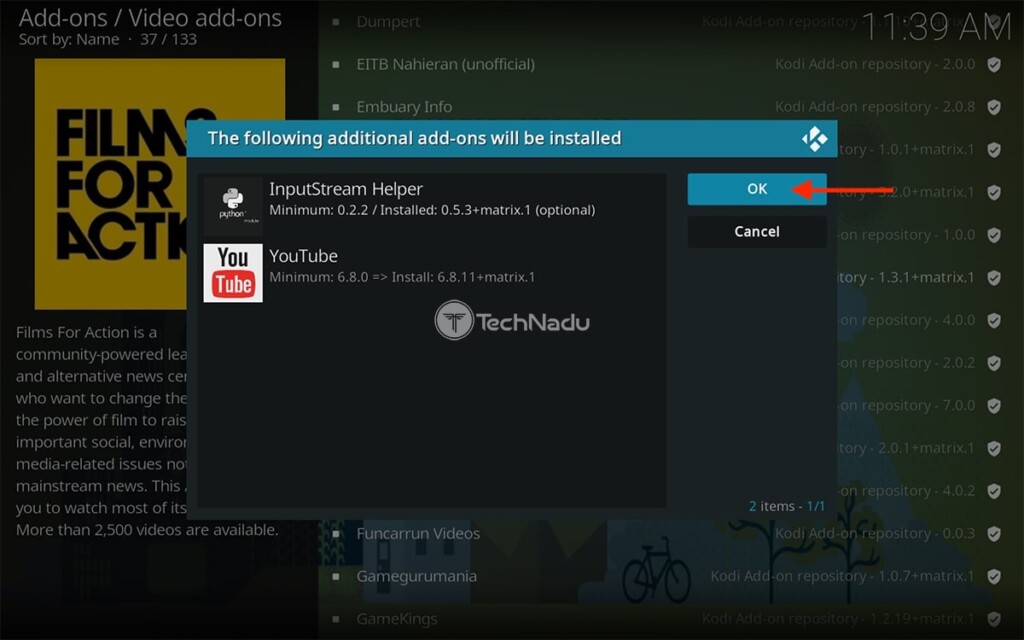
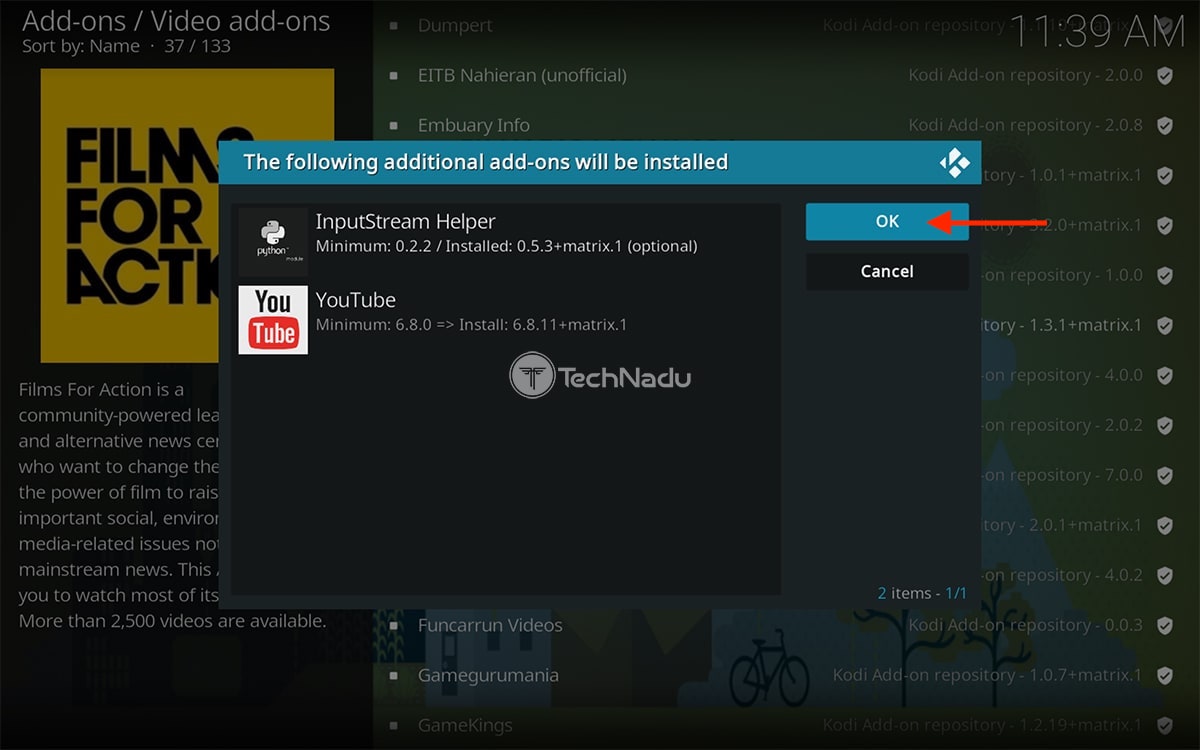
6. Kodi will now present a list of dependencies. Feel free to click on 'OK.'
7. The application will now download and install the Films for Action Kodi addon.
8. Once done, go back to the 'Add-ons' category and select 'Video Add-ons.'
9. On the right side, find the newly installed Kodi addon. Click on its icon.
10. Films for Action will now open, giving you full access to its library. That’s it!
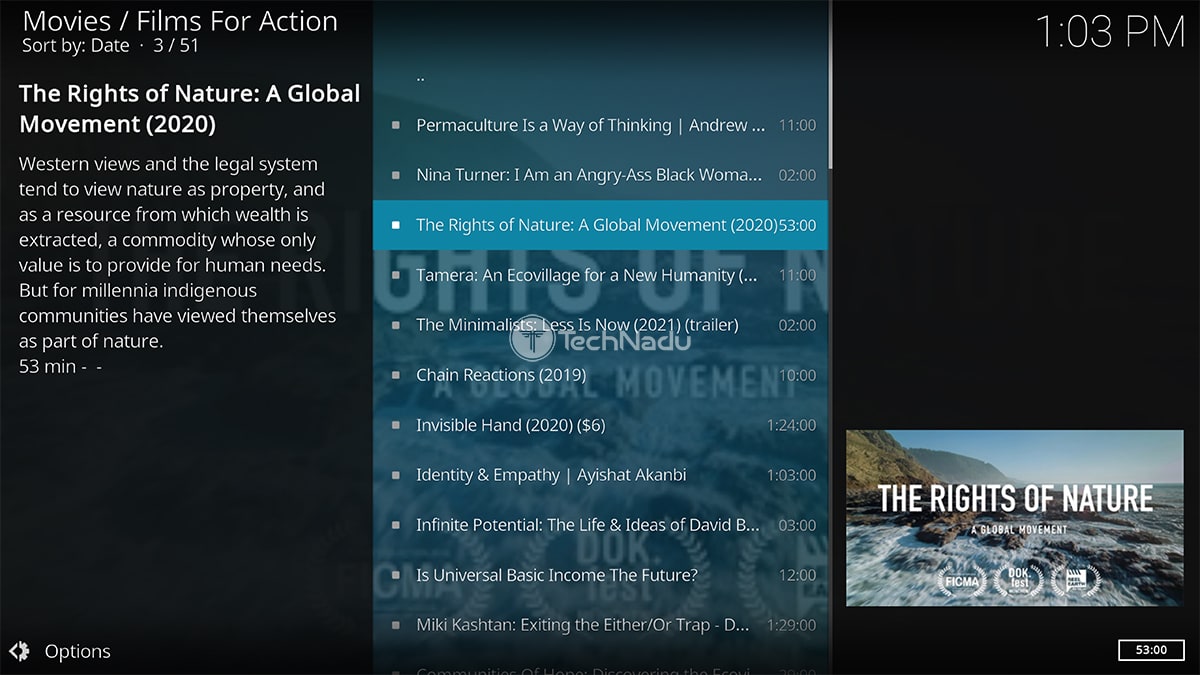
That would be all on how to install the Films for Action Kodi addon. If you have any questions, make sure to post them via the comments section below. And finally, thanks for reading!
Read Next: 60+ Best Kodi Addons You Should Try Right Now
Related





Get expert insights on threats, breaches, scams, and security trends — delivered every Monday.
Most Popular

Get expert insights on threats, breaches, scams, and security trends — delivered every Monday.
Most Popular