
How to Enable ‘Offload Unused Apps’ on iPhone X?
Last updated June 16, 2021

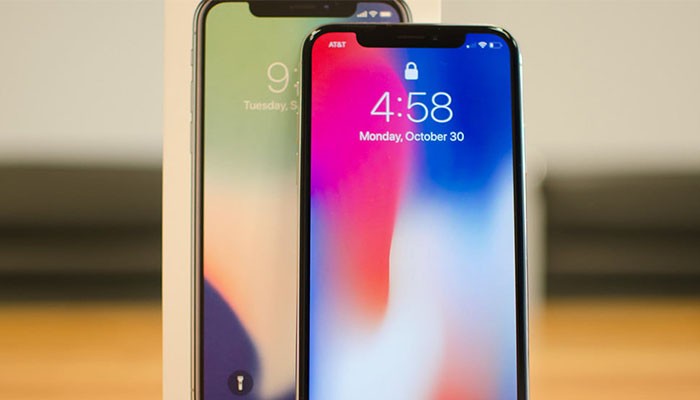
You'll agree with us when we say that many of us are having a hard time freeing up storage on iPhones. There are numerous great apps out there and the new iPhone X records high-def 4K videos. This can easily take gigabytes of space. However, there is a way to fight against this. We'll tell you how to enable 'Offload Unused Apps' on iPhone X. Keep on reading to learn more.
iOS 11: Offload Unused Apps
On your home button-free iPhone X, there is an option that frees up available storage once you run low. To be more specific, this feature removed old and unused apps - but preserves user data. This means that you can re-install that app at some point, and continue where you left off.
What's also important to note is that you'll still see those apps on your Home screen. This is because their icons will remain visible even after apps are deleted. If you click on that icon, the app will download on its own.
How to Enable 'Offload Unused Apps' on iPhone X?
Let's take a look at how to enable this feature, and then we'll tell you a bit more about it.
- Open the Settings app on your iPhone X;
- Now navigate to iTunes & App Stores;
- Scroll all the way down and you'll see the 'Offload Unused Apps' option. Enable it by toggling it to ON.
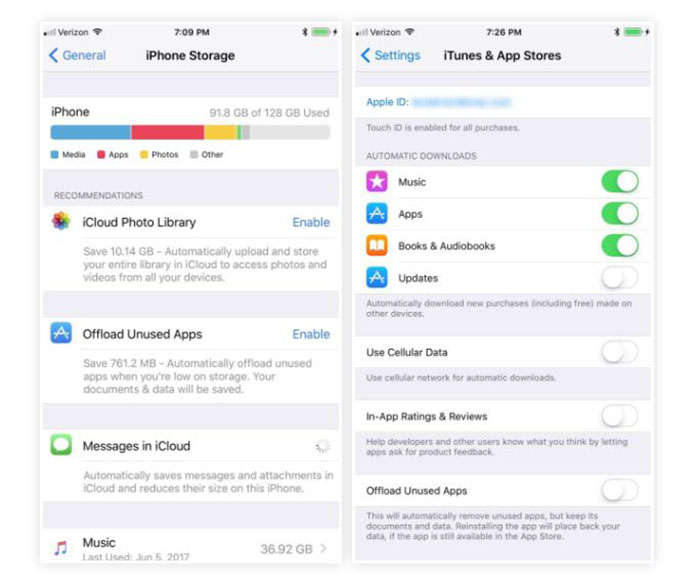
Image Credit: iOS.GadgetHacks.com.
You can also manually offload apps if your iPhone fails to do so on its own.
- Open the Settings app;
- Go to General > iPhone Store;
- This is where you'll see a list of app. Tap on any of those and then you'll see the 'Offload App' icon.

Image Credit: iOS.GadgetHacks.com.
No matter which option you pick, you'll end up with the same result. Occasionally used apps will be deleted, but you'll save your user data.
Conclusion
There you have it. We told you how to enable 'offload unused apps' on your iPhone X. Make sure to use this feature if you care about having as much free space as available.
If you think other iOS users could benefit from this article, feel free to share it across social networks.
Related





Get expert insights on threats, breaches, scams, and security trends — delivered every Monday.
Most Popular



Get expert insights on threats, breaches, scams, and security trends — delivered every Monday.
Most Popular