

How to Change the Wallpaper on iPhone X?
Last updated June 16, 2021

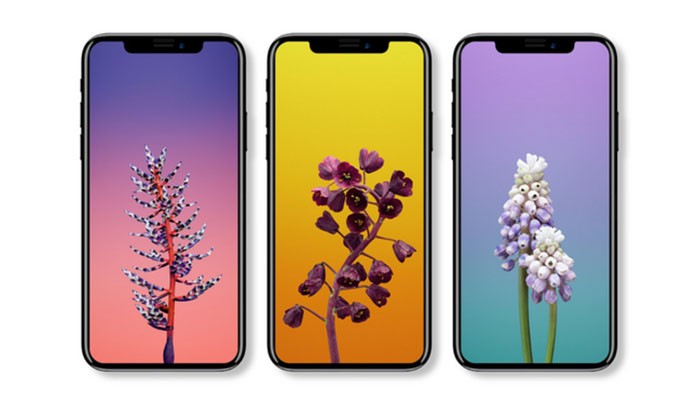
What is the first thing you do when you buy a new phone? We are sure that many of you start customizing the device and adapting it to your needs. Furthermore, one of the first thing many of us do is changing the default wallpaper. This is even more exciting on the new iPhone X since its large screen and bezel-less design allow any wallpaper to try shine through. So, let's see how to change the wallpaper on iPhone X?
iPhone Wallpapers: The Basics
Before we proceed, we'd like to let you know about different kinds of wallpapers. This is helpful to know if this is the first time you're encountering an iOS device. If you're a long-term user, feel free to skip ahead.
'Wallpaper' is the generic term that applies to two kinds of background images. In a traditional sense, wallpaper is the image you see on your phone's Home Screen - behind apps and icons.
On the other hand, we have another type of wallpaper. This one is more accurately called the Lock Screen image. It is displayed when your phone is locked and this is what you see when you wake your phone.
What you need to know is that you can set the same both to appear on the Home Screen as well as one the Lock Screen. You are about to see how to change the wallpaper on iPhone X, so keep on reading.
How to Change the Wallpaper on iPhone X?
Let's take a look at how this is done. Follow our step-by-step guide:
- First, you need to open the Settings app on your iPhone X;
- Now tap on 'Wallpaper';
- In Wallpaper, you will be able to see the preview of your currently used wallpaper. To make changes, tap on 'Choose a New Wallpaper';
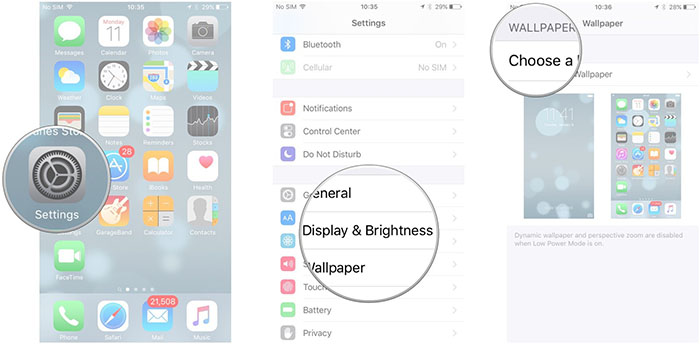
Image Courtesy of iMore.com
- Now you should see different kinds of wallpapers that come preloaded on iOS devices. However, you can also use your photo or an image downloaded from the Web. Tap on any of these categories to see what's available.
- You also need to be aware of different kinds of built-in wallpapers. There are Dynamic images that come with a bit of motion. In addition, you can also browse still images. Finally, there are Live images as well. These are dynamic images that you need to hard-press to play;
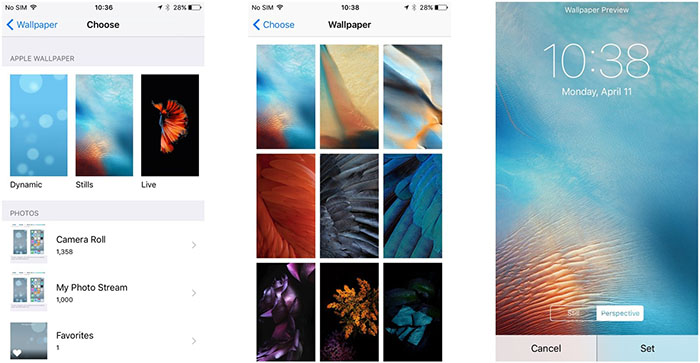
Image Courtesy of iMore.com
- Tap the collection you'd like to use and tap on the image you like to open a new screen;
- As you'll see, you can move the photo around and zoom on it as well. Once you're happy with it, tap 'Set';
- Finally, you can choose if you'd like to set the image to be the Home Screen wallpaper or to appear on the Lock screen. You can also use the same wallpaper to appear on both of these places. Tap the option you'd like to use.
Summary
Make sure to get the most out of your phone by knowing how to change the wallpaper on iPhone X. As you'll see, Apple has done a marvelous job of providing nicely designed pics. This is making us sure that you'll find something interesting.
If you like this article, feel free to share it via social networks. Also, use the comments section below if there's something you'd like to ask our editorial team.
Related






Get expert insights on threats, breaches, scams, and security trends — delivered every Monday.
Most Popular



Get expert insights on threats, breaches, scams, and security trends — delivered every Monday.
Most Popular