

How to Add a Virtual Home Button on iPhone X
Last updated June 16, 2021

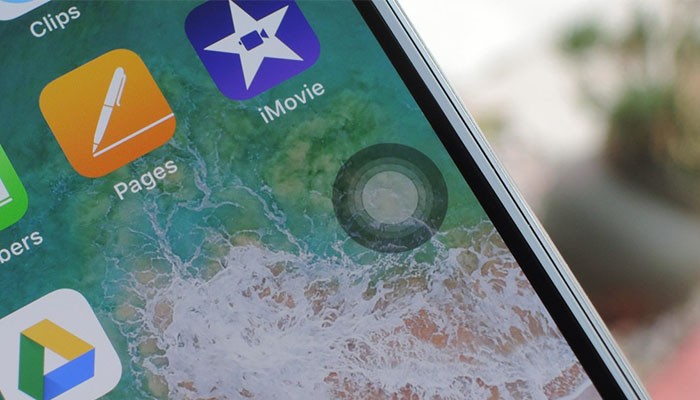
If you're reading this article, the chances are that you're getting acquainted with your iPhone X. Since this device doesn't have the Home button, you have to adapt to new ways of inputs. However, not everyone can do this in an instant. To help you during this transition period, we'd like to tell you how to add a virtual home button on iPhone X.
Add a Virtual Home Button on iPhone X
Assistive Touch isn't a new thing when it comes to the iPhone lineup. It has been around for some time, helping those with disabilities to use iOS in an easier way. However, this technology has become even more useful on the recently-released iPhone X.
You can set up Assistive Touch to show a virtual home button. Instead of using gestures, you can use this button to return to Home screen from within any application. Here's how to enable it:
- Open the Settings app on your phone;
- Next, tap on General and then go to Accessibility;
- Under the Interaction subheading, you can tap on 'Assistive Touch'. This is where you can enable this option, at the top of your screen;
- You should immediately see a small rounded rectangle on your screen;
- Tap to activate it and you'll see a range of different options. One of those will be named 'Home'. This is your new virtual Home button.
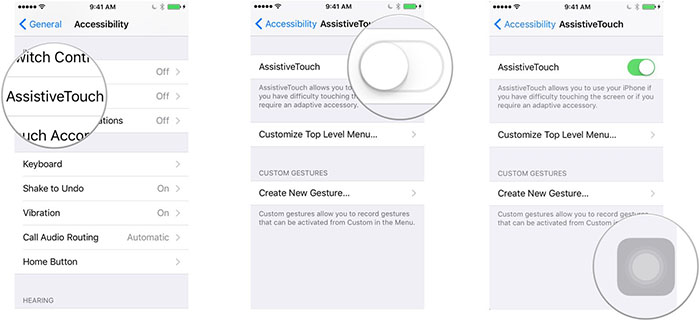
Image Courtesy of iMore.com
You should also know that the Assistive Touch icon will be enabled until you decide to disable it. You can access it all times by using the virtual button your phone's screen.
Finally, don't forget that you can return to the Home screen by swiping up from the bottom of the iPhone X's screen. However, you can add a virtual home button on iPhone X until you get used to this new option.
Related






Get expert insights on threats, breaches, scams, and security trends — delivered every Monday.
Most Popular



Get expert insights on threats, breaches, scams, and security trends — delivered every Monday.
Most Popular