
10.0.0.1 – How to Access This IP to Optimize Your Internet Connection
Last updated June 21, 2021

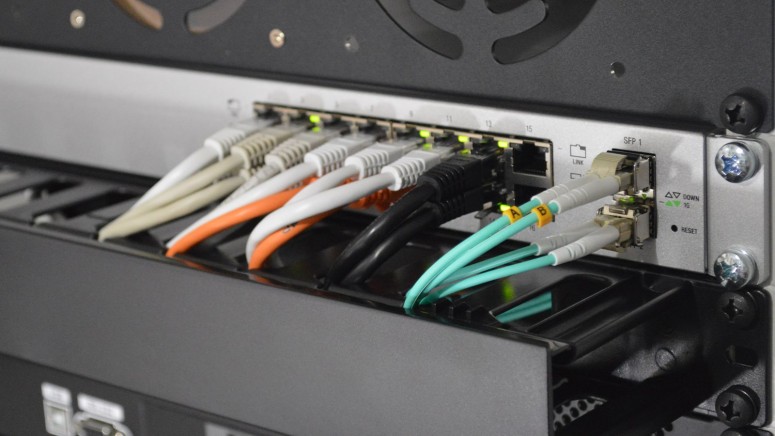
Connecting to your router’s IP address should be an easy task. However, this doesn’t mean certain problems don’t appear along the way. So, keep reading this article to learn more about the '10.0.0.1' IP address, what it actually means, how to use it, and how to optimize your Internet connection.
Why Is '10.0.0.1' a Private IP Address?
Before we dive any deeper, it’s important to know the difference between private and public IP addresses. This will give you a clear sense of what it means to access your router’s IP.
Your router needs to have a private IP to communicate with other devices on the same network. So, let’s say that you use your computer and smartphone to connect to the Web at home. And yes, we're talking about a "closed" Wi-Fi network here.
Your router, computer, and smartphone are the three participants of your closed network - and each of those has its own private IP address. For another computer to access your router, it first needs to connect to your home Wi-Fi network.
This is also why IP addresses like '10.0.0.1' are used by millions of individuals worldwide to access their routers. Since the only way to access your router is by being connected to it, there’s no security risk of unauthorized access.
What About Public IP Addresses?
Another important group of IP addresses is public addresses. Even though they have numerous similarities to private IPs, there are many differences as well.
The most important difference is that public IPs are, as their name says, public. Being visible to any website or any Web service you’re using, public IPs can hold a lot of information. For example, your public IP reveals the country you come from, the files you’ve downloaded, as well as if you’ve exceeded limitations imposed by your Internet service provider.
Which Router Manufacturers Use '10.0.0.1' as Their Default (Private) IP?
Since there’s a limited number of private IPs, router manufacturers use certain spectrums. That's why IT experts usually know the brand of your router by checking its default IP address. With this said, here are the most common IP ranges used by popular router brands.
- Linksys usually relies on 192.168.1.1.
- D-Link and NETGEAR have chosen to use 192.168.0.1.
- Cisco and Motorola typically use 192.168.1.254.
- Siemens, Belkin, Edimax, and SMC are using 192.168.2.1.
As you can see from the list found above, '10.0.0.1' isn’t mentioned anywhere. That is because this IP address is usually associated with business computer networks.
Still, this doesn’t mean home routers don't use this IP address. For a while, this has been a situation with Cisco and Xfinity routers which means you probably have a router made by one of those brands.
What Can You Do Using the '10.0.0.1' IP?
Every computer user should be aware of how to connect to their home router. There are many benefits to knowing this, from changing your Wi-Fi password to optimizing your Web connection and making it faster. Here are some of the possible uses of accessing your router’s IP.
- You can change Web network’s name and password. This is perhaps why the majority of users need to access their routers. You can easily change your Web connection’s name in case you’re stuck with a default one. Furthermore, you should be careful about your password and change it every now and then.
- You can check what’s making your Web connection slow. In many cases, there are two reasons why your connection might be throttled. There might be someone else using it, or you’re not using the right wireless channel. Changing your password will block anyone from accessing your device. However, some routers go one step further and show a list of devices with access to your Web connection. So, you can easily block those.
- You can install a VPN. More advanced users know that using a VPN is the only way to keep your connection safe and your private data unavailable to anyone on the Web. However, installing a VPN usually requires you to access your router if you want to protect the source.
How to Access Your Router Using the '10.0.0.1' IP?
Connecting to your router’s admin panel is as easy as opening a webpage in your browser. The best thing is you can do this regardless of the device you’re using. All you need is a Web browser. Check out how this is done.
- First, make sure that your computer and your router are using the same network.
- Open any Web browser and enter the following IP - 10.0.0.1 in the address bar.
- Hit the Enter key to connect.
- At this moment, you should be asked for a username and password. Don’t worry - your router’s default credentials will do the job. In case the following suggestions don’t work, make sure to factory reset your router and try again.
- Once you hit the right combination, you will be greeted by your router’s admin panel.
- You can now change your password, pick a new name for your Internet connection, and more.
Can’t Connect to '10.0.0.1?' Here’s What You Can Do!
If you can’t connect to your router’s admin panel, this might be caused by many issues. Don’t worry, as these can be easily solved. Here are a few possible fixes.
- You can’t connect to your router unless you’re connected to its Web connection. So, double-check if your device is connected to your Wi-Fi network. If you have connectivity problems, you can always connect to your router using an Ethernet cable.
- Make sure to use the following format - 10.0.0.1 when typing the IP. That means any prefixes or suffixes are not needed, such as 'www' or '.com.'
- Even though this only affects a small portion of routers, you should try connecting with your Ethernet cable. Since you’re making deeper-level changes, some routers are programmed not to allow Wi-Fi connectivity for this purpose.
How to Find the IP Address of Your Router?
In case you’ve tried several solutions and none of them worked, it’s time to check the IP of your router. So, learn how to find your router IP and Windows and macOS computers. We have also covered iOS/iPadOS devices and Android smartphones, so you can use your mobile device to access your router via any Web browser.
This is where we conclude our article on the '10.0.0.1' IP. If you have any questions or doubts, make sure to post your comment below. And finally, thanks for reading!
Related






Get expert insights on threats, breaches, scams, and security trends — delivered every Monday.
Most Popular


Get expert insights on threats, breaches, scams, and security trends — delivered every Monday.
Most Popular